> ## Documentation Index
> Fetch the complete documentation index at: https://docs.inflection.io/llms.txt
> Use this file to discover all available pages before exploring further.
# Integrate with ChatGPT
> Ideate and create segments and content with ChatGPT.
## Overview
Inflection integrates with ChatGPT through **MCP (Model Context Protocol)** using **Dynamic Client Registration (DCR)** for secure, streamlined authentication. Once connected, use Inflection's specialist agents directly from ChatGPT to build audiences, emails, tokens, segments, and journeys, and pull performance data — all through natural language.
## Prerequisites
* An active Inflection account
* A ChatGPT Plus, Team, or Enterprise subscription
* Workspace admin permissions in ChatGPT (for initial setup)
## For Workspace Admins: Add the Inflection MCP Server
Before users can connect, a workspace admin must enable Developer mode, create the app, and publish it to the workspace.
### Step 1: Enable Developer mode and create the app
1. Log in to [ChatGPT](https://chatgpt.com).
2. Click your profile icon, then click **Settings**.
3. Select **Apps** in the left sidebar.
4. Scroll to the bottom and click **Advanced settings**.
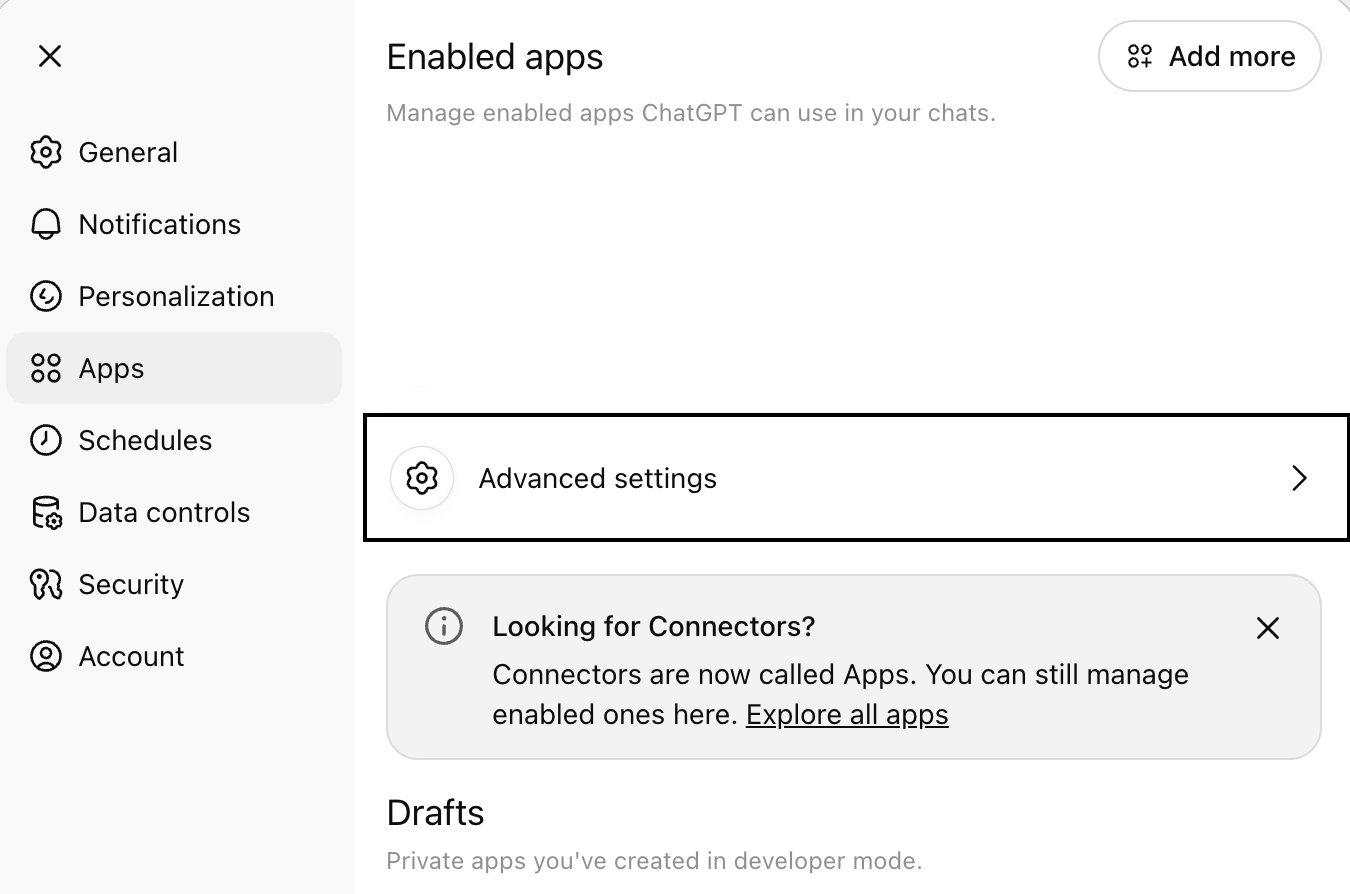 5. Toggle **Developer mode** on.
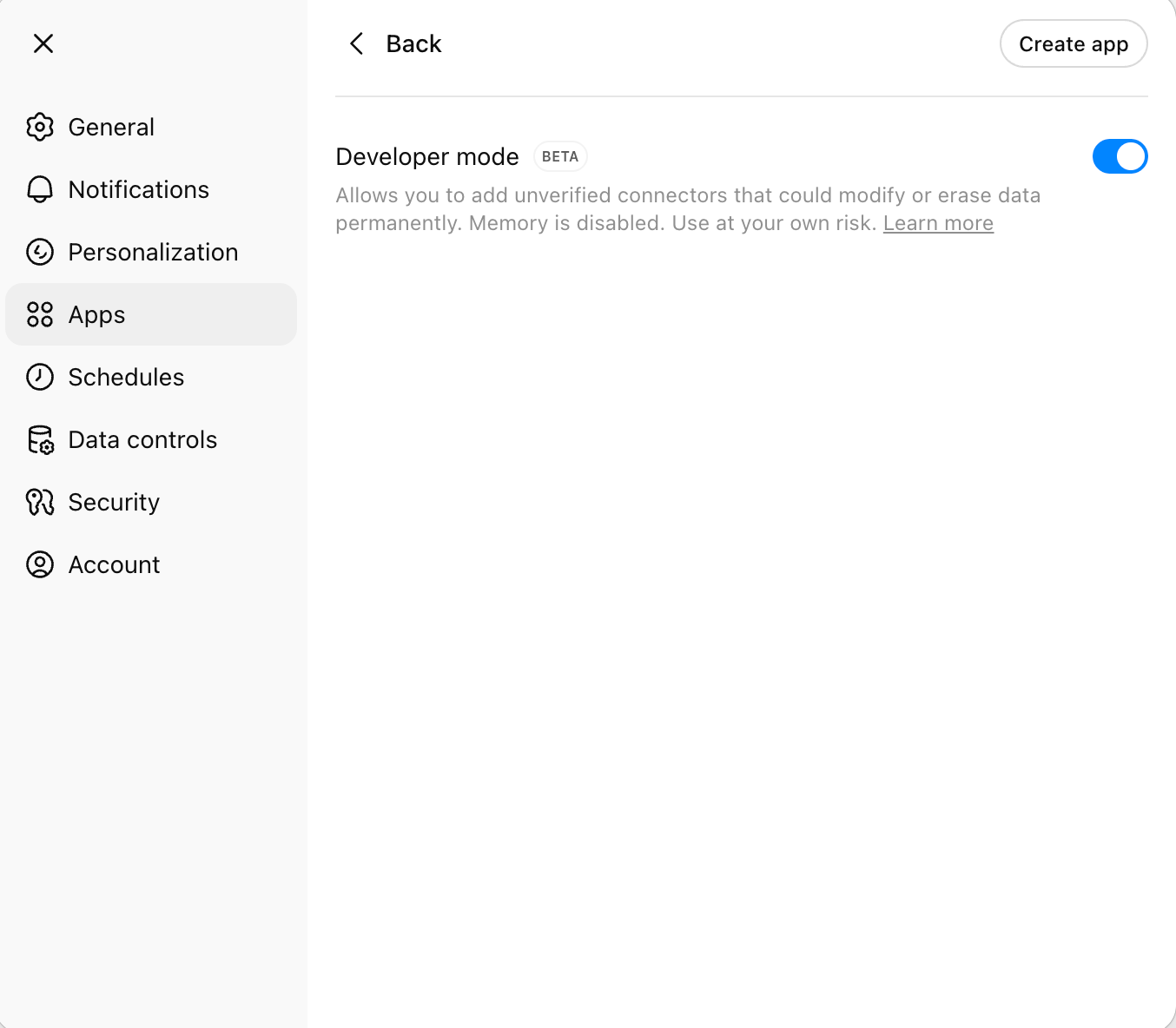 6. Click **Create app** and fill in the details:
* **Name:** `Inflection MCP`
* **Description:** (optional) `Connect to Inflection MAP`
* **MCP Server URL:** `https://mcp.inflection.io/`
* **Authentication:** Select `OAuth`
* Leave **OAuth Client ID** and **OAuth Client Secret** blank — DCR handles this automatically.
6. Click **Create app** and fill in the details:
* **Name:** `Inflection MCP`
* **Description:** (optional) `Connect to Inflection MAP`
* **MCP Server URL:** `https://mcp.inflection.io/`
* **Authentication:** Select `OAuth`
* Leave **OAuth Client ID** and **OAuth Client Secret** blank — DCR handles this automatically.
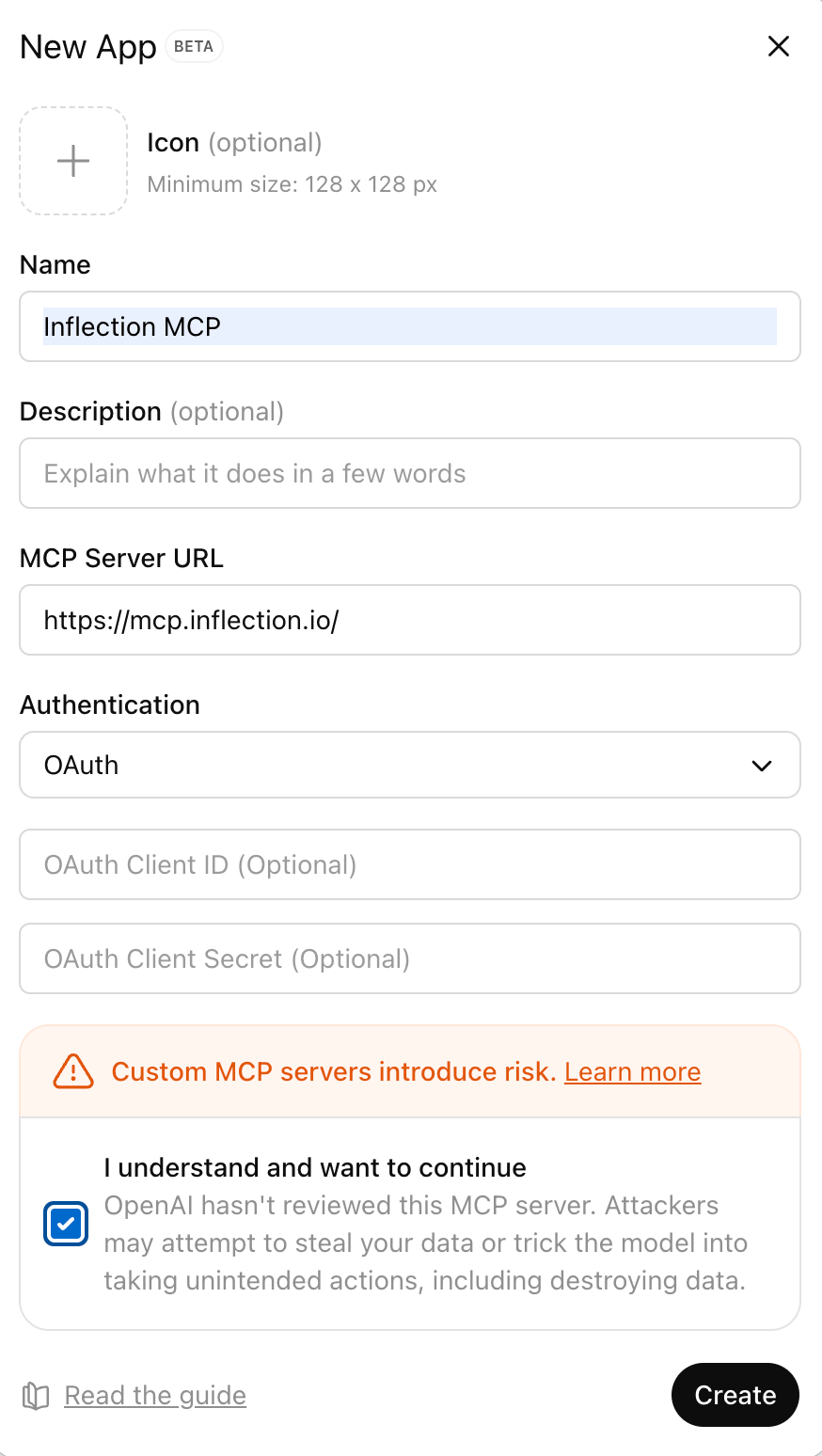 7. Select the acknowledgment checkbox: **"I understand and want to continue"**.
8. Click **Create**.
If successful, ChatGPT displays the list of tools the MCP server advertises.
### Step 2: Test the app
1. Open a new chat in ChatGPT.
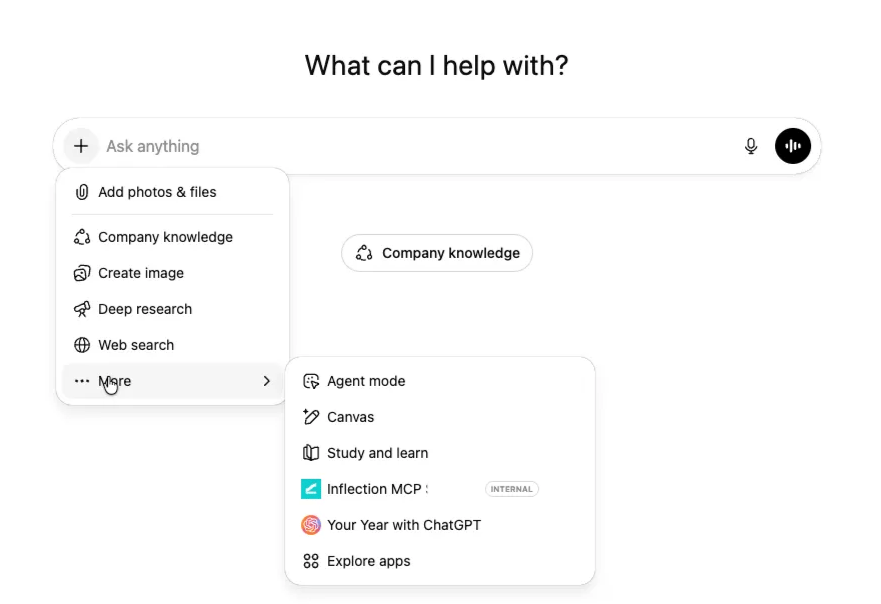
2. Click the **+** button near the message composer, then click **More**.
3. Select **Inflection MCP** from the list of available tools.
4. Enter: `Show me my campaigns in Inflection`
5. Complete the OAuth authorization flow when prompted.
6. Verify the tools work — ChatGPT displays tool-call payloads for confirmation.
7. Select the acknowledgment checkbox: **"I understand and want to continue"**.
8. Click **Create**.
If successful, ChatGPT displays the list of tools the MCP server advertises.
### Step 2: Test the app
1. Open a new chat in ChatGPT.
2. Click the **+** button near the message composer, then click **More**.
3. Select **Inflection MCP** from the list of available tools.
4. Enter: `Show me my campaigns in Inflection`
5. Complete the OAuth authorization flow when prompted.
6. Verify the tools work — ChatGPT displays tool-call payloads for confirmation.
 ### Step 3: Publish for your workspace
1. Go to **Settings** → **Apps**.
2. Find your app under **Drafts**.
3. Click **Publish**.
4. Review the safety warnings (especially for write actions).
5. Confirm publishing.
Once published, the app appears in your workspace's approved apps list with a **custom** label.
### OpenAI documentation
[Connect ChatGPT to external apps — OpenAI developer docs](https://developers.openai.com/apps-sdk/deploy/connect-chatgpt)
## For Users: Connect Inflection to ChatGPT
### Step 1: Access settings
1. Log in to ChatGPT.
2. Click your profile icon.
3. Go to **Settings** → **Connectors**.
### Step 2: Find Inflection and connect
1. Find **Inflection MCP server** in the list of available connectors.
### Step 3: Publish for your workspace
1. Go to **Settings** → **Apps**.
2. Find your app under **Drafts**.
3. Click **Publish**.
4. Review the safety warnings (especially for write actions).
5. Confirm publishing.
Once published, the app appears in your workspace's approved apps list with a **custom** label.
### OpenAI documentation
[Connect ChatGPT to external apps — OpenAI developer docs](https://developers.openai.com/apps-sdk/deploy/connect-chatgpt)
## For Users: Connect Inflection to ChatGPT
### Step 1: Access settings
1. Log in to ChatGPT.
2. Click your profile icon.
3. Go to **Settings** → **Connectors**.
### Step 2: Find Inflection and connect
1. Find **Inflection MCP server** in the list of available connectors.
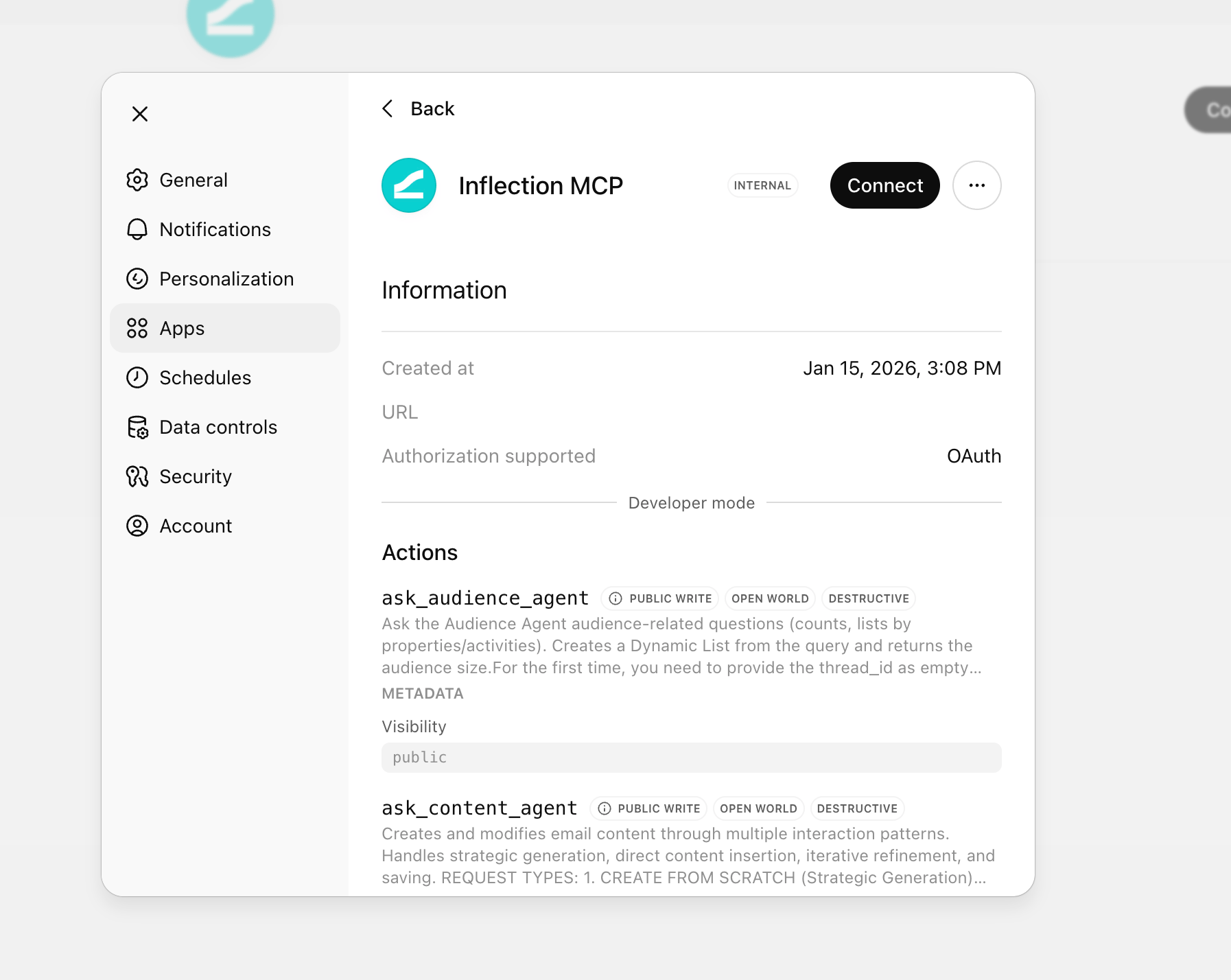 2. Click **Connect**.
### Step 3: Authenticate
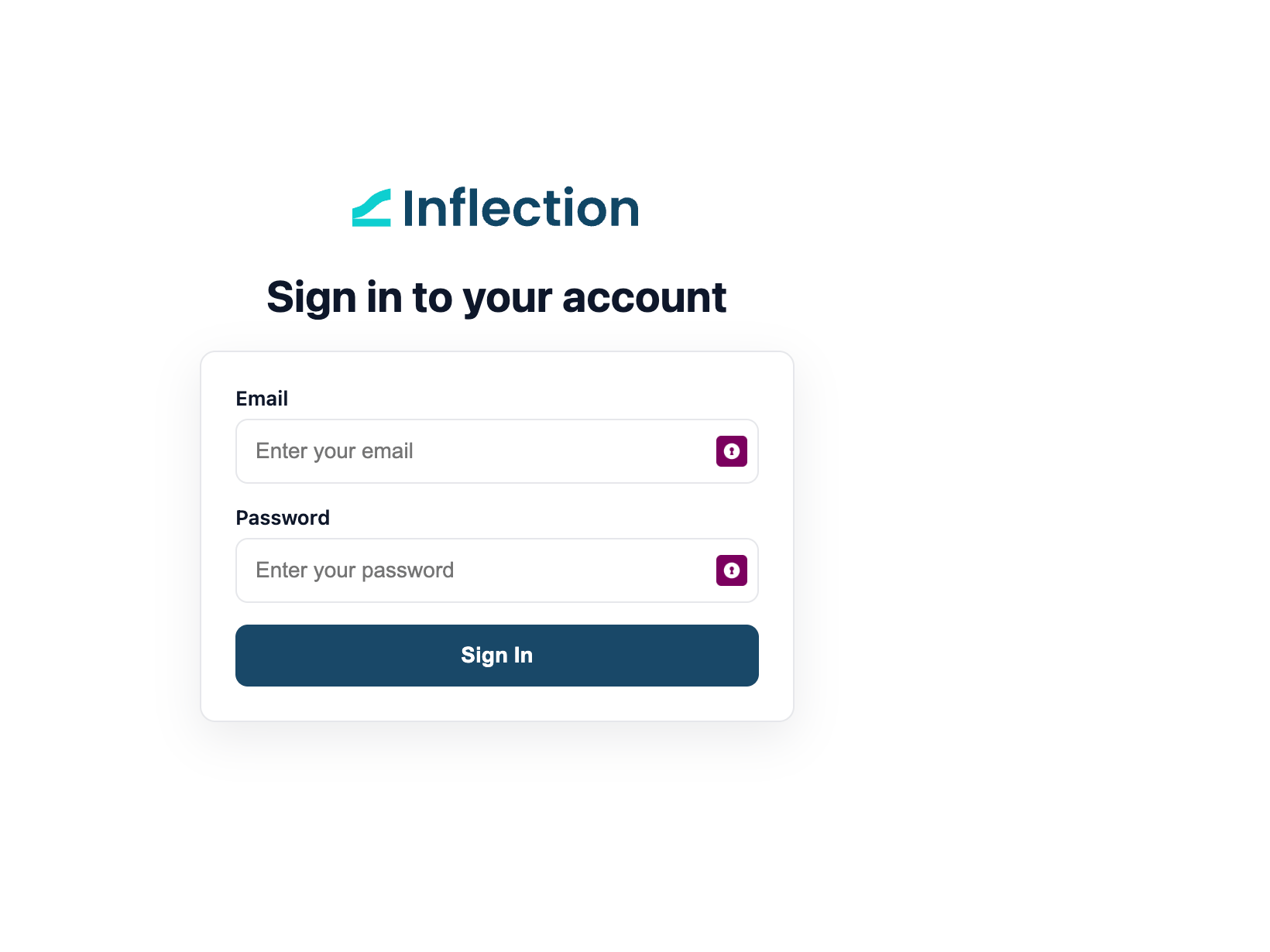
1. A browser window opens automatically.
2. Log in with your Inflection credentials if prompted.
3. Review the consent screen, which shows:
* The app name (ChatGPT)
* The redirect URL
* The permissions being requested
4. Click **Authorize** to grant access.
2. Click **Connect**.
### Step 3: Authenticate
1. A browser window opens automatically.
2. Log in with your Inflection credentials if prompted.
3. Review the consent screen, which shows:
* The app name (ChatGPT)
* The redirect URL
* The permissions being requested
4. Click **Authorize** to grant access.
 ### Step 4: Confirmation
Once authenticated:
* The browser displays "Authentication complete".
* Close the browser tab.
* Return to ChatGPT — your connection status changes to **Connected**.
## Using Inflection in ChatGPT
Once connected, use natural language to interact with Inflection.
### What you can do
| Function | Description |
| --------------------- | --------------------------------------------------- |
| **Audiences** | Build and save dynamic lists from a description |
| **Email** | Draft, restyle, edit by name, and save emails |
| **Segments / Tokens** | Create segment categories; create and verify tokens |
| **Journeys** | Draft multi-step journeys for review |
| **Analytics** | Pull dashboard-accurate performance data |
### Example commands
**Campaigns:**
* `Show me my recent campaigns in Inflection`
* `What's the performance of my last email campaign?`
* `List all active campaigns`
**Segments:**
* `Create a new segment for users who signed up last month`
* `Show me the segment for enterprise customers`
**Templates:**
* `List my email templates`
* `Show me the details of the welcome email template`
**Analytics:**
* `What's the open rate for my newsletter campaign?`
* `Show me campaign analytics for the last 30 days`
## Troubleshooting
| Issue | Cause | Solution |
| -------------------- | --------------------- | ----------------------------------------------------- |
| Connection fails | Browser blocked popup | Allow popups for `chat.openai.com` |
| 400 error | Session/cookie issue | Don't copy-paste the auth URL — let it open naturally |
| Can't find connector | Admin hasn't added it | Ask your workspace admin to add the MCP server |
| Tools not working | Connection expired | Disconnect and reconnect |
**Do not copy the authentication URL.** The auth flow sets cookies in your browser. Copying the URL breaks the session.
**Use the same browser.** Complete the entire auth flow in the browser that ChatGPT opens automatically.
**Tool calls may not all display.** ChatGPT sometimes doesn't show all tool calls in the UI, but they are still executing.
## Additional resources
1. [Inflection Agents](/agents/inflection-agents) — what each specialist agent does
2. [Inflection MCP](/agents/inflection-mcp) — the complete tool reference
3. [Integrate with Claude](/agents/integrate-with-claude)
### Step 4: Confirmation
Once authenticated:
* The browser displays "Authentication complete".
* Close the browser tab.
* Return to ChatGPT — your connection status changes to **Connected**.
## Using Inflection in ChatGPT
Once connected, use natural language to interact with Inflection.
### What you can do
| Function | Description |
| --------------------- | --------------------------------------------------- |
| **Audiences** | Build and save dynamic lists from a description |
| **Email** | Draft, restyle, edit by name, and save emails |
| **Segments / Tokens** | Create segment categories; create and verify tokens |
| **Journeys** | Draft multi-step journeys for review |
| **Analytics** | Pull dashboard-accurate performance data |
### Example commands
**Campaigns:**
* `Show me my recent campaigns in Inflection`
* `What's the performance of my last email campaign?`
* `List all active campaigns`
**Segments:**
* `Create a new segment for users who signed up last month`
* `Show me the segment for enterprise customers`
**Templates:**
* `List my email templates`
* `Show me the details of the welcome email template`
**Analytics:**
* `What's the open rate for my newsletter campaign?`
* `Show me campaign analytics for the last 30 days`
## Troubleshooting
| Issue | Cause | Solution |
| -------------------- | --------------------- | ----------------------------------------------------- |
| Connection fails | Browser blocked popup | Allow popups for `chat.openai.com` |
| 400 error | Session/cookie issue | Don't copy-paste the auth URL — let it open naturally |
| Can't find connector | Admin hasn't added it | Ask your workspace admin to add the MCP server |
| Tools not working | Connection expired | Disconnect and reconnect |
**Do not copy the authentication URL.** The auth flow sets cookies in your browser. Copying the URL breaks the session.
**Use the same browser.** Complete the entire auth flow in the browser that ChatGPT opens automatically.
**Tool calls may not all display.** ChatGPT sometimes doesn't show all tool calls in the UI, but they are still executing.
## Additional resources
1. [Inflection Agents](/agents/inflection-agents) — what each specialist agent does
2. [Inflection MCP](/agents/inflection-mcp) — the complete tool reference
3. [Integrate with Claude](/agents/integrate-with-claude)