> ## Documentation Index
> Fetch the complete documentation index at: https://docs.inflection.io/llms.txt
> Use this file to discover all available pages before exploring further.
# Inbound Webhooks
> Connect to other third-party tools using inbound webhooks.
Inflection allows you to seamlessly ingest data from any third-party provider that supports outbound webhooks. By using **Inbound Webhooks**, users can receive data in **JSON format** and use it to **update contact properties** and **filter audiences inside journeys**. You can securely configure these webhooks with different authentication methods to control data access.
We recommend limiting webhook submissions to 1,000 requests/minute. If you need to utilize a higher throughput, please reach out to your customer success team.
**Key Concepts**
Before getting started, here’s a quick overview of key terms used throughout this guide:
* **Webhook Provider**: The external system sending data to Inflection (e.g., Zoom or a custom integration).
* **Inbound Webhook Connection**: The authenticated connection between Inflection and your provider.
* **Webhook Asset**: The data object inside Inflection created after receiving the first webhook submission.
## Step 1: Set up an Inbound webhook connection
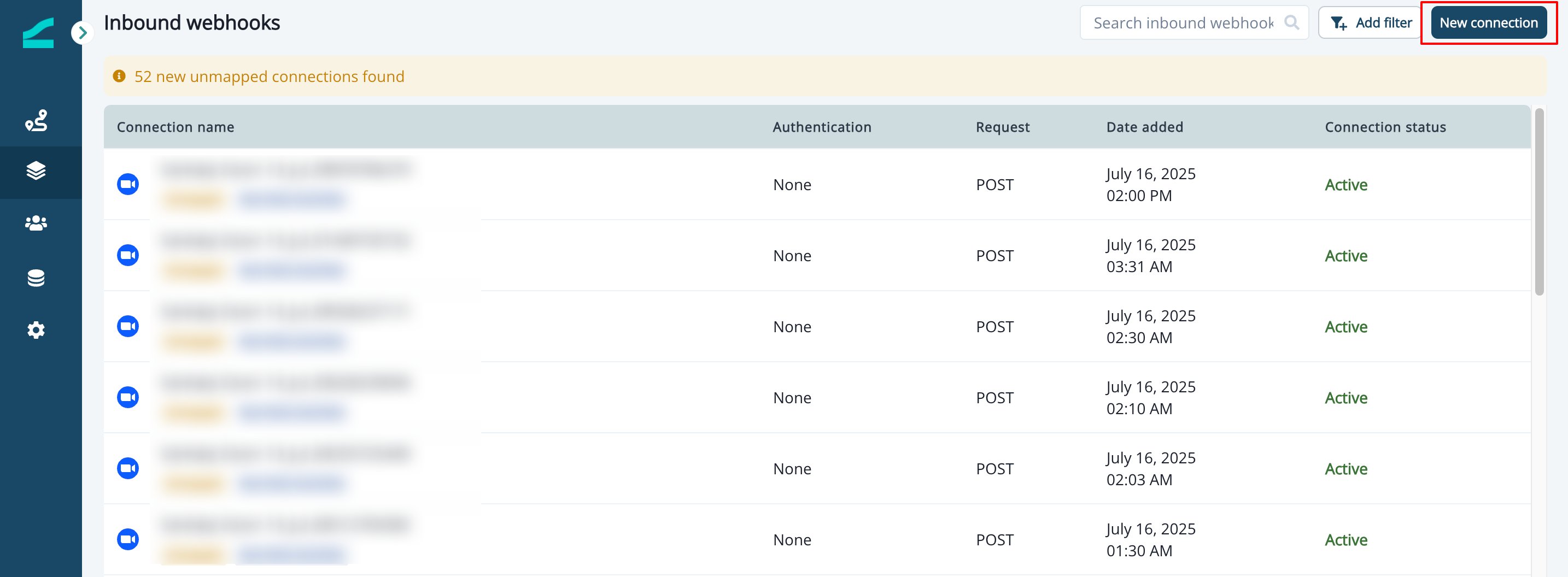
Navigate to **Assets → Inbound Webhook**, then click **New connection**
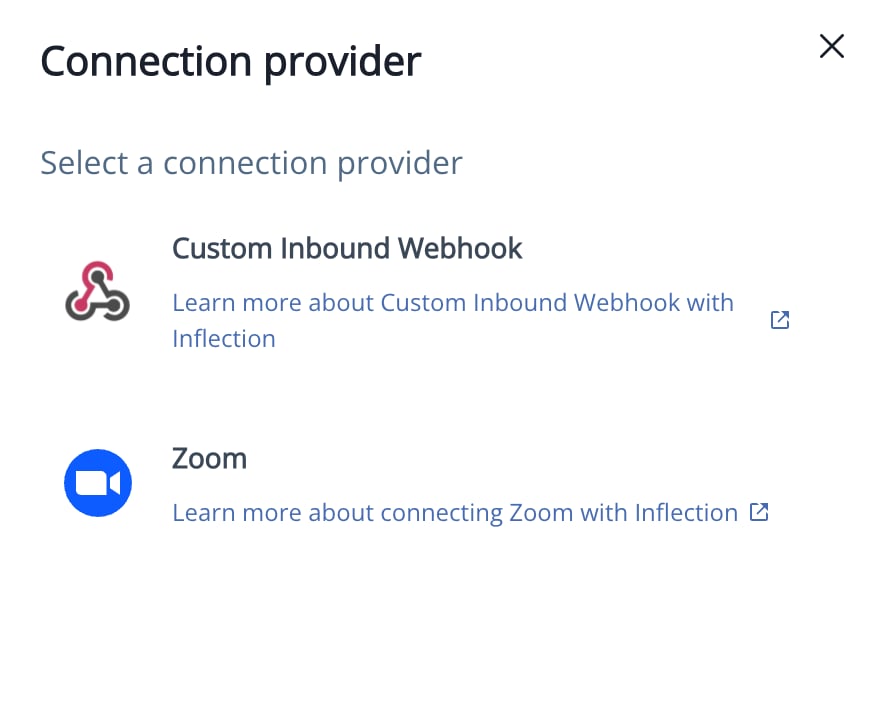
 Choose **Custom Inbound Webhook** or **Zoom**, depending on your requirement
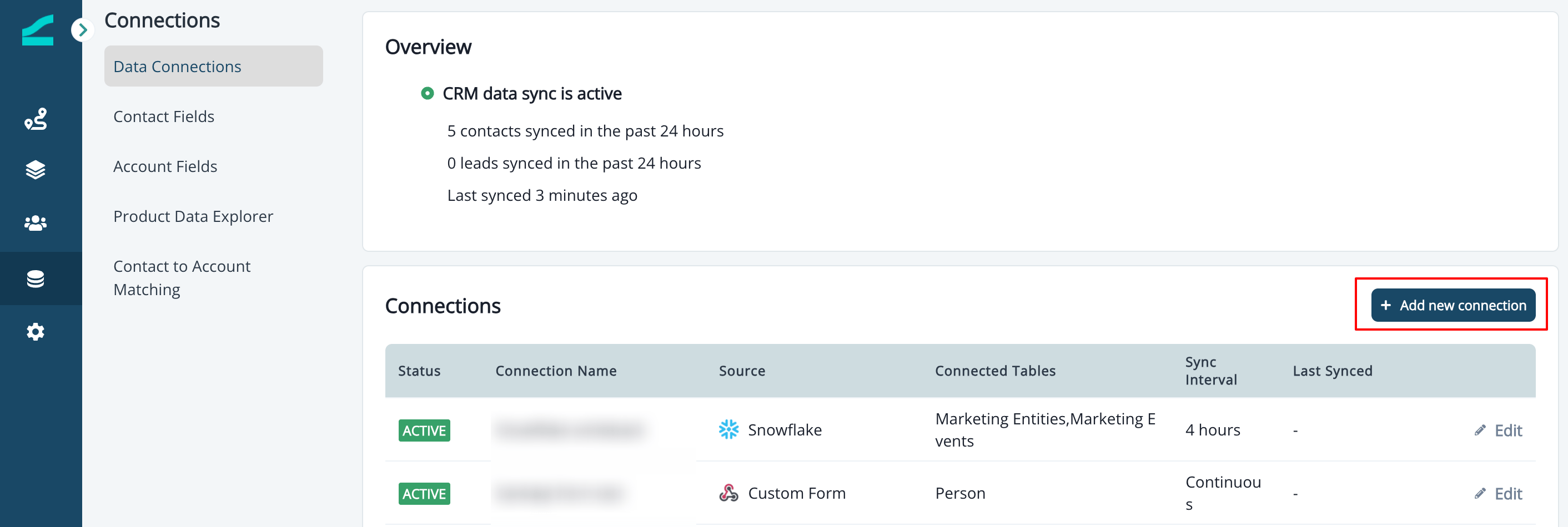
 Alternatively, you can go to **Connections > Add new connection** and choose **Custom Inbound Webhook** or **Zoom** (for integrating Zoom).
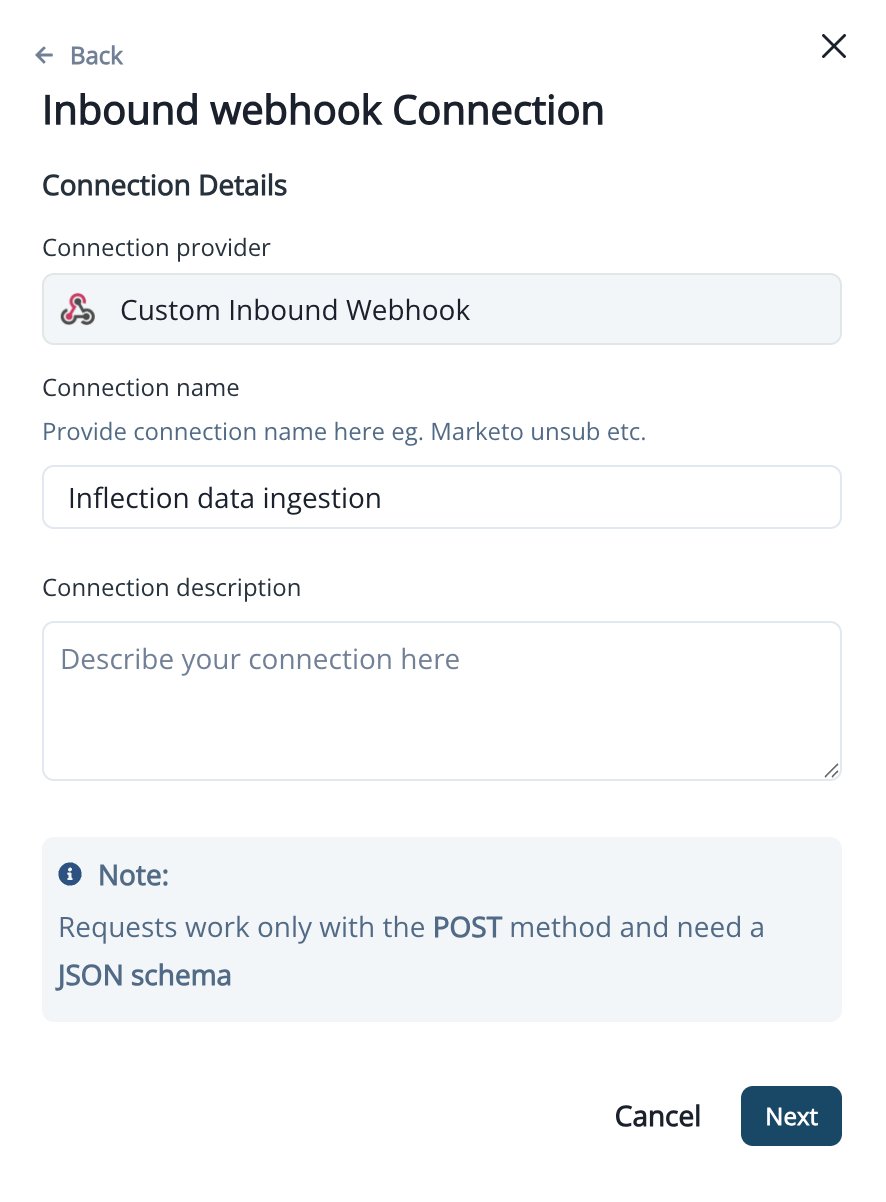
 Provide a name and optional description for your connection
 Choose an **authentication method**—explained further below.
While “No Auth” is available, we **highly recommend using Basic Auth or API Key** to prevent spam or unauthorized access.
Choose an **authentication method**—explained further below.
While “No Auth” is available, we **highly recommend using Basic Auth or API Key** to prevent spam or unauthorized access.
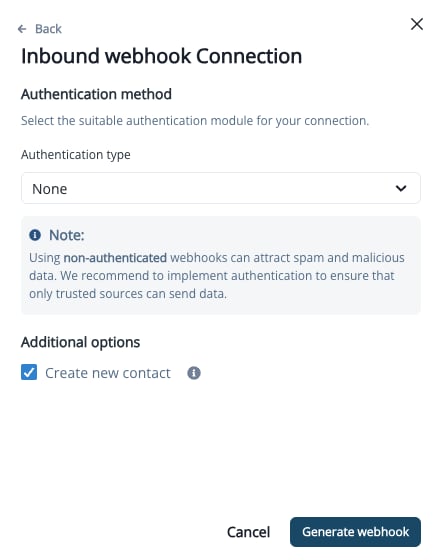 **Additional option** - Enable or disable **"Create New Contact"**:
* ✅ If enabled, Inflection will create a **new contact** whenever a new email ID is received. Existing contacts will be updated according to the mapping rules specified on the connection mapping page.
* ❌ If disabled, no new contacts will be created. However, existing contacts will still be updated based on the mapping rules specified on the connection mapping page.
This setting can be overridden later at the asset level but acts as the default for all new assets under this connection.
Click **Generate webhook**. Copy the generated webhook URL and authentication credentials (if applicable), then configure these in your third-party tool.
## Step 2: Enable submission fields for mapping
After receiving the first submission:
1. Go to **Assets → Inbound Webhook**, and select the newly created asset.
2. Navigate to the **Fields** section and click **Edit**.
3. Enable fields that you want to use in audience filters or for contact property updates.
**Additional option** - Enable or disable **"Create New Contact"**:
* ✅ If enabled, Inflection will create a **new contact** whenever a new email ID is received. Existing contacts will be updated according to the mapping rules specified on the connection mapping page.
* ❌ If disabled, no new contacts will be created. However, existing contacts will still be updated based on the mapping rules specified on the connection mapping page.
This setting can be overridden later at the asset level but acts as the default for all new assets under this connection.
Click **Generate webhook**. Copy the generated webhook URL and authentication credentials (if applicable), then configure these in your third-party tool.
## Step 2: Enable submission fields for mapping
After receiving the first submission:
1. Go to **Assets → Inbound Webhook**, and select the newly created asset.
2. Navigate to the **Fields** section and click **Edit**.
3. Enable fields that you want to use in audience filters or for contact property updates.
 Only enabled fields will appear in journey filters or mapping options. Once enabled, fields cannot be disabled later.
### Inbound webhook asset details
Only enabled fields will appear in journey filters or mapping options. Once enabled, fields cannot be disabled later.
### Inbound webhook asset details
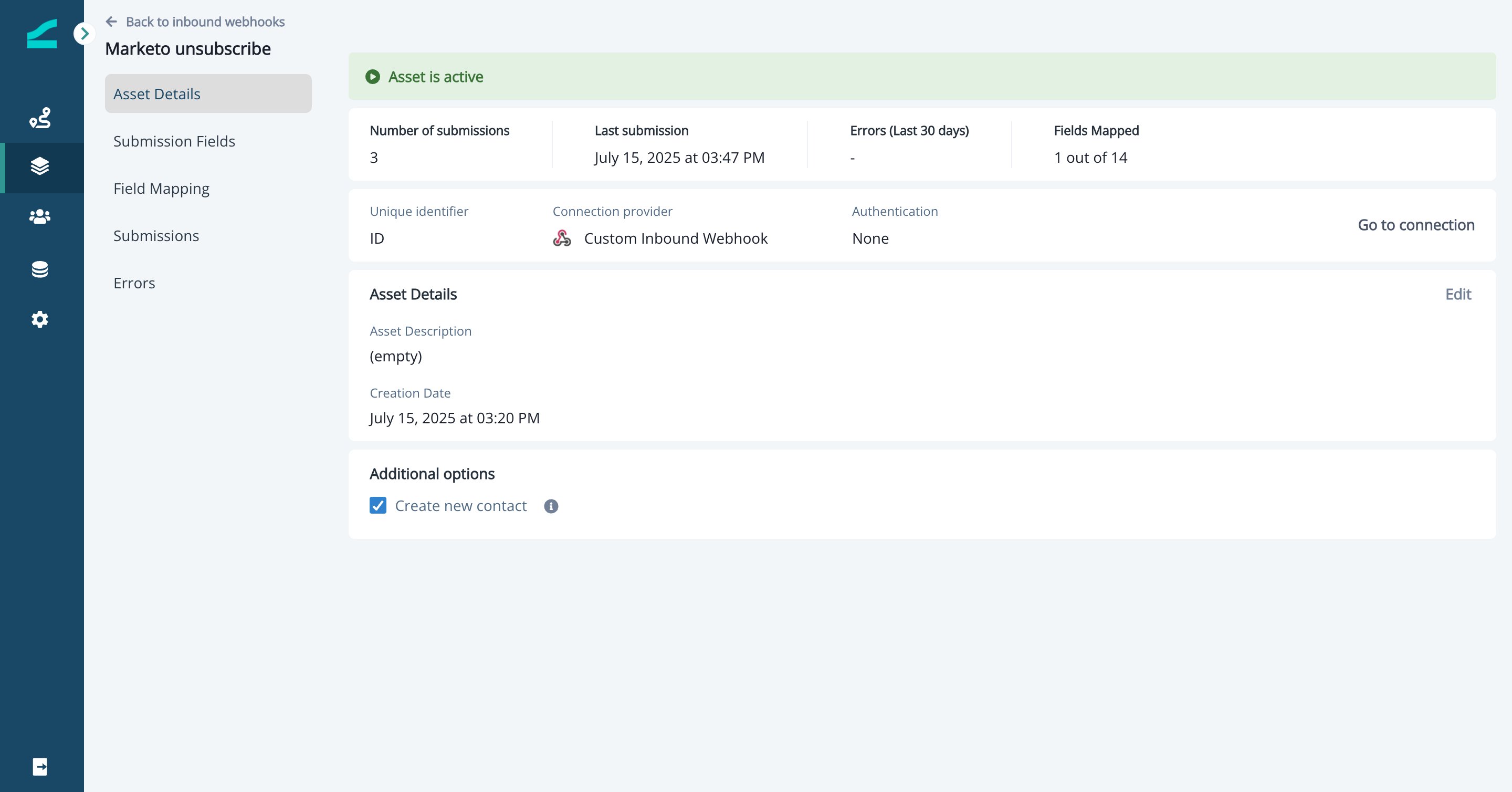 This page provides information about submission counts, errors, and other basic asset details. You can edit name, description & authentication credentials (if applicable) from here.
### Enable submission fields
This page provides information about submission counts, errors, and other basic asset details. You can edit name, description & authentication credentials (if applicable) from here.
### Enable submission fields
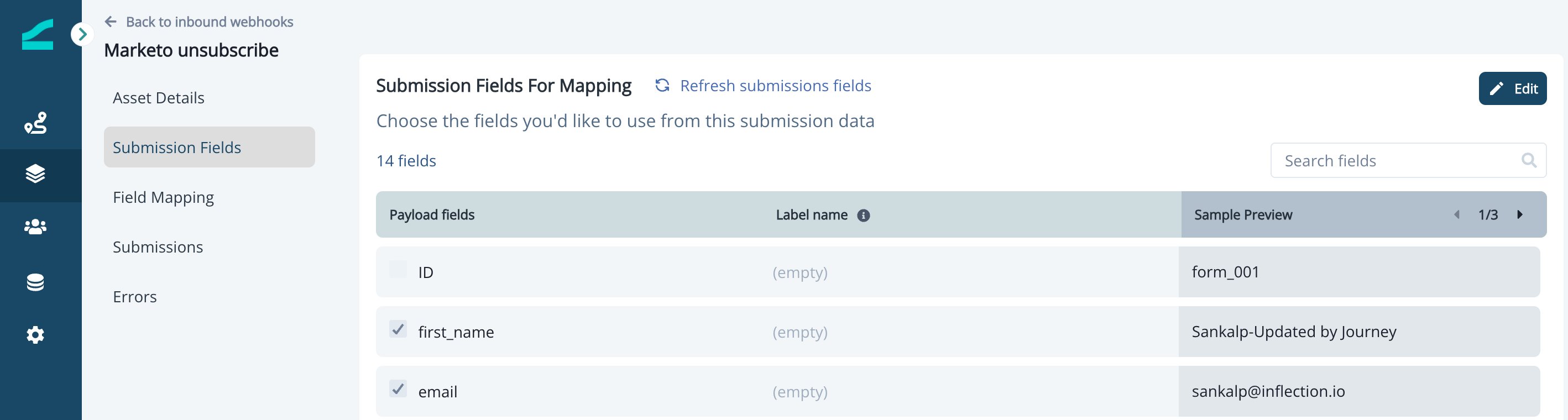 As soon as you receive your first submission, you will start seeing all fields in the under the asset. Enable fields you want to map; this is a mandatory step before you can map these fields to contact.
Click on **Edit** and enable required field.
Only enabled fields will be visible in the dynamic list in audience criteria. You can enable more fields later if required. Once enabled, you will not be able able to disable those fields again. We recommend choosing only required fields.
## Step 3: Map enabled fields to contact properties
* In the asset sidebar, go to **Form Mapping** and click **Edit**.
* Map each enabled field to a corresponding contact property.
As soon as you receive your first submission, you will start seeing all fields in the under the asset. Enable fields you want to map; this is a mandatory step before you can map these fields to contact.
Click on **Edit** and enable required field.
Only enabled fields will be visible in the dynamic list in audience criteria. You can enable more fields later if required. Once enabled, you will not be able able to disable those fields again. We recommend choosing only required fields.
## Step 3: Map enabled fields to contact properties
* In the asset sidebar, go to **Form Mapping** and click **Edit**.
* Map each enabled field to a corresponding contact property.
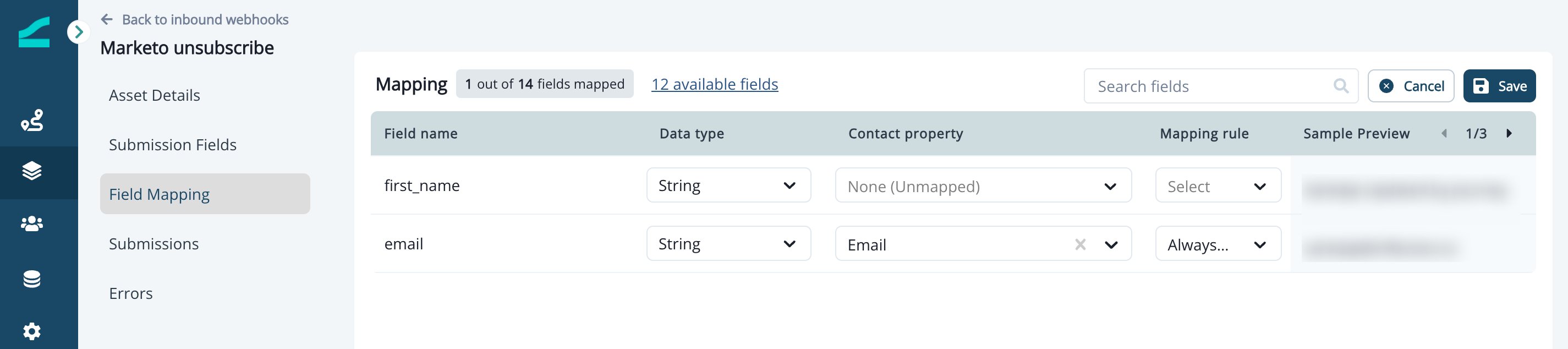 Mapping the **Email** field is required to activate the schema.
* Choose the update rule:
* **Update if empty**
* **Always Overwrite**
## Using Inbound webhook in Journeys
You can use webhook submissions as audience filters or branching criteria:
1. Navigate to **Journeys → Create New Journey**
2. Add condition:
**Performed a Marketing Activity → Inbound webhook sync**
Example:
Mapping the **Email** field is required to activate the schema.
* Choose the update rule:
* **Update if empty**
* **Always Overwrite**
## Using Inbound webhook in Journeys
You can use webhook submissions as audience filters or branching criteria:
1. Navigate to **Journeys → Create New Journey**
2. Add condition:
**Performed a Marketing Activity → Inbound webhook sync**
Example:
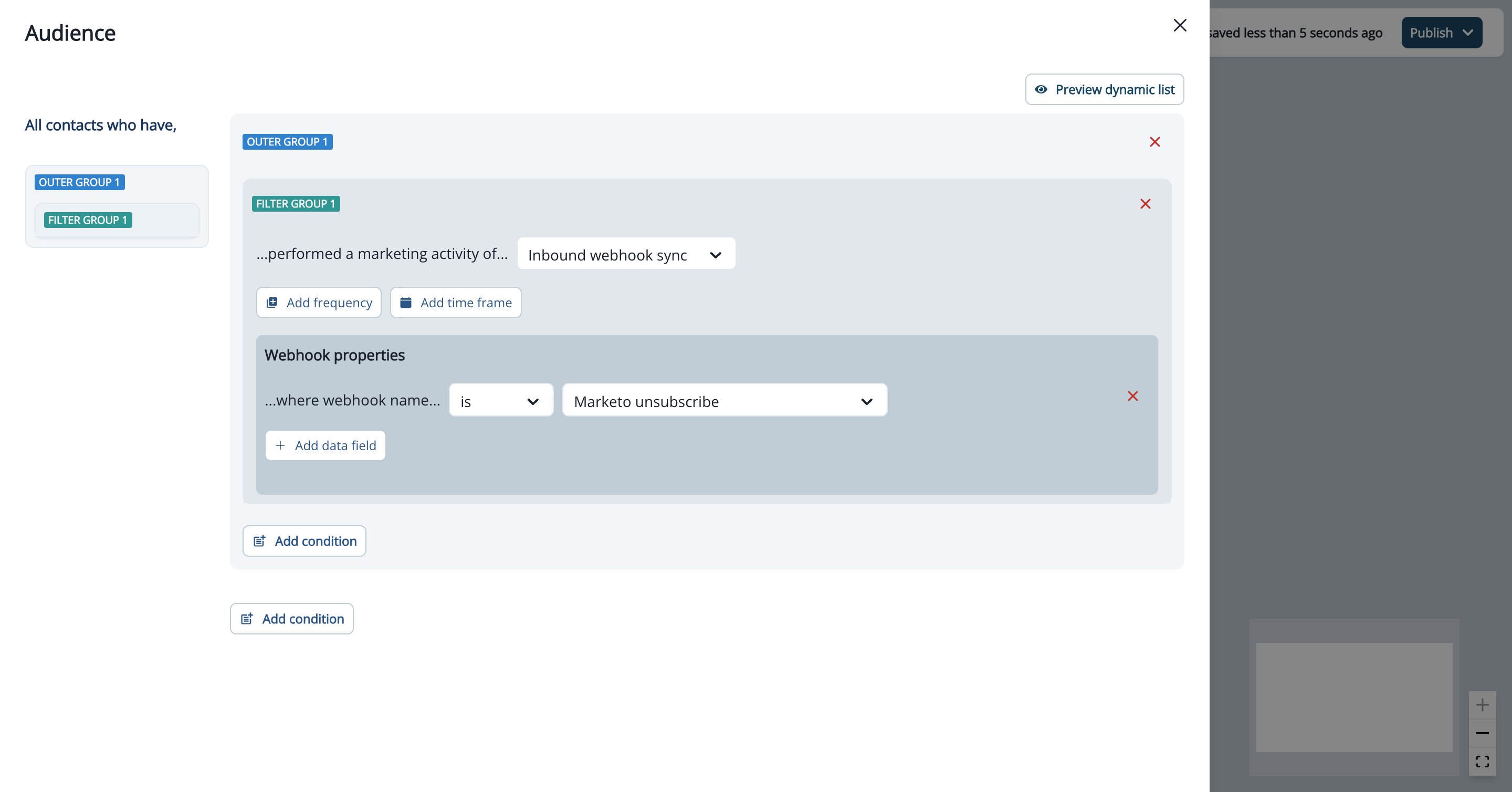 You can also use **Branch by Filter** to personalize flows based on any enabled field.
## Delete an Inbound Webhook
Delete inbound webhooks you no longer need — for example, after migrating to a new provider or cleaning up webhooks created during testing. Deleting a webhook stops its endpoint URL from accepting new events.
**Before you start**
* Only **Admin** users can delete inbound webhooks.
* Inflection checks dependencies before deleting. A webhook that is still referenced by a journey or dynamic list cannot be deleted until you remove those references.
### Delete a Single Webhook
1. Go to **Assets → Inbound Webhook**.
2. On the webhook's row, click the actions menu and click **Delete**.
3. If the webhook is not referenced anywhere, the confirmation reads **This webhook will be deleted. The endpoint URL will stop accepting events.**
4. Click **Delete**. The webhook is removed from the list.
**Resolve Dependencies Before Deleting**
You can also use **Branch by Filter** to personalize flows based on any enabled field.
## Delete an Inbound Webhook
Delete inbound webhooks you no longer need — for example, after migrating to a new provider or cleaning up webhooks created during testing. Deleting a webhook stops its endpoint URL from accepting new events.
**Before you start**
* Only **Admin** users can delete inbound webhooks.
* Inflection checks dependencies before deleting. A webhook that is still referenced by a journey or dynamic list cannot be deleted until you remove those references.
### Delete a Single Webhook
1. Go to **Assets → Inbound Webhook**.
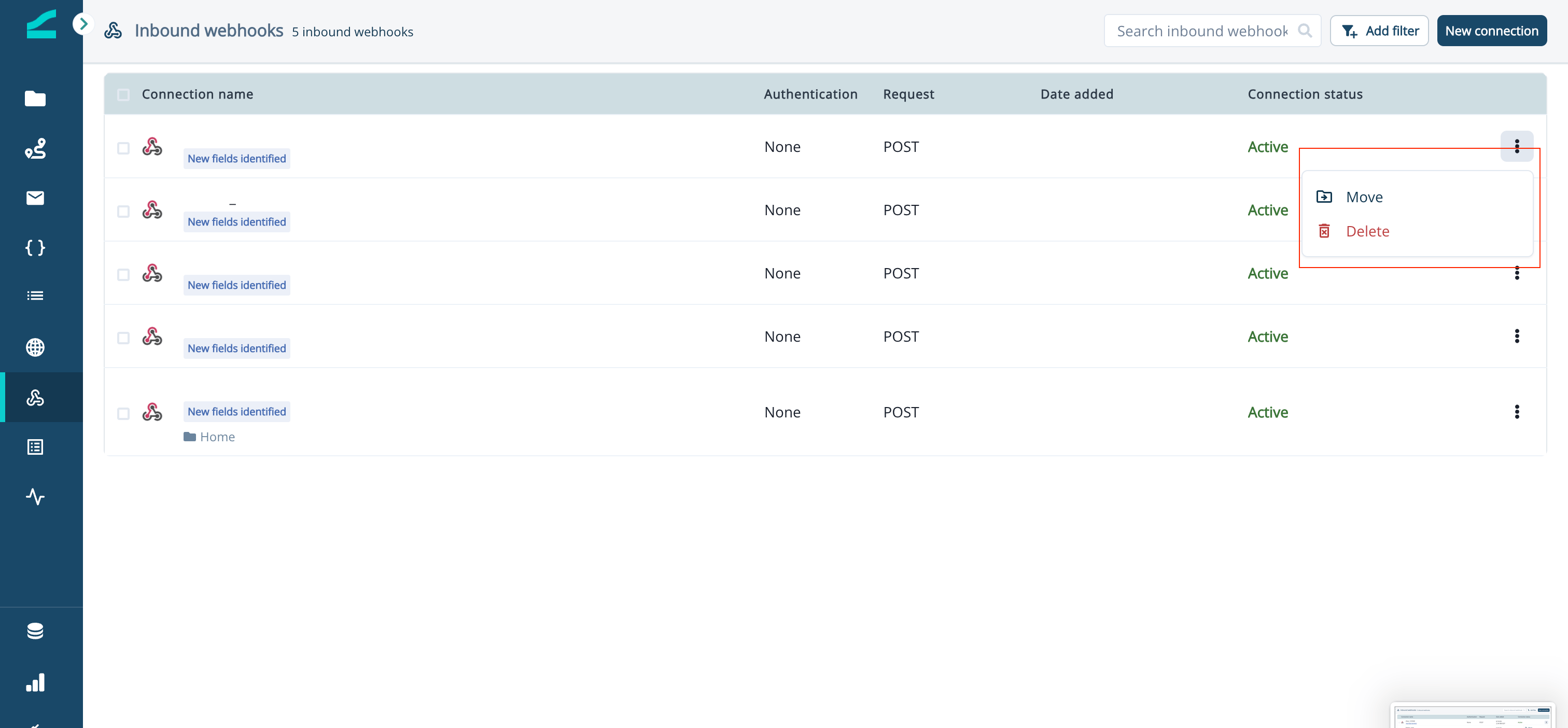
2. On the webhook's row, click the actions menu and click **Delete**.
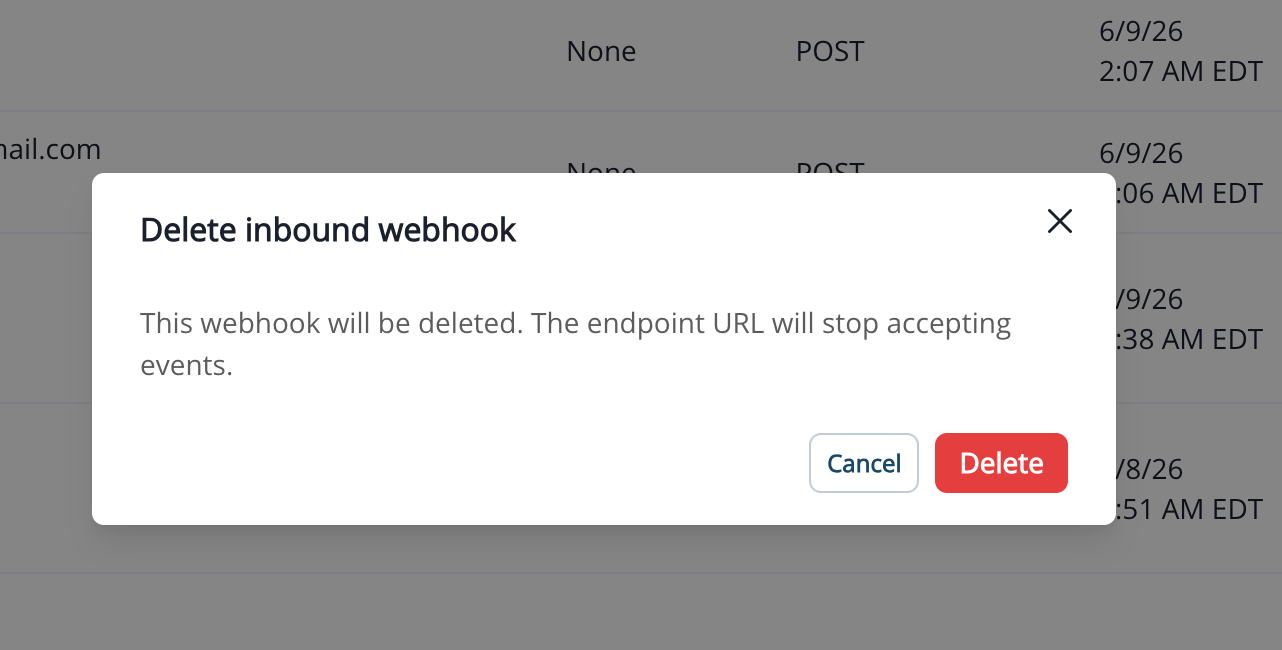
3. If the webhook is not referenced anywhere, the confirmation reads **This webhook will be deleted. The endpoint URL will stop accepting events.**
4. Click **Delete**. The webhook is removed from the list.
**Resolve Dependencies Before Deleting**
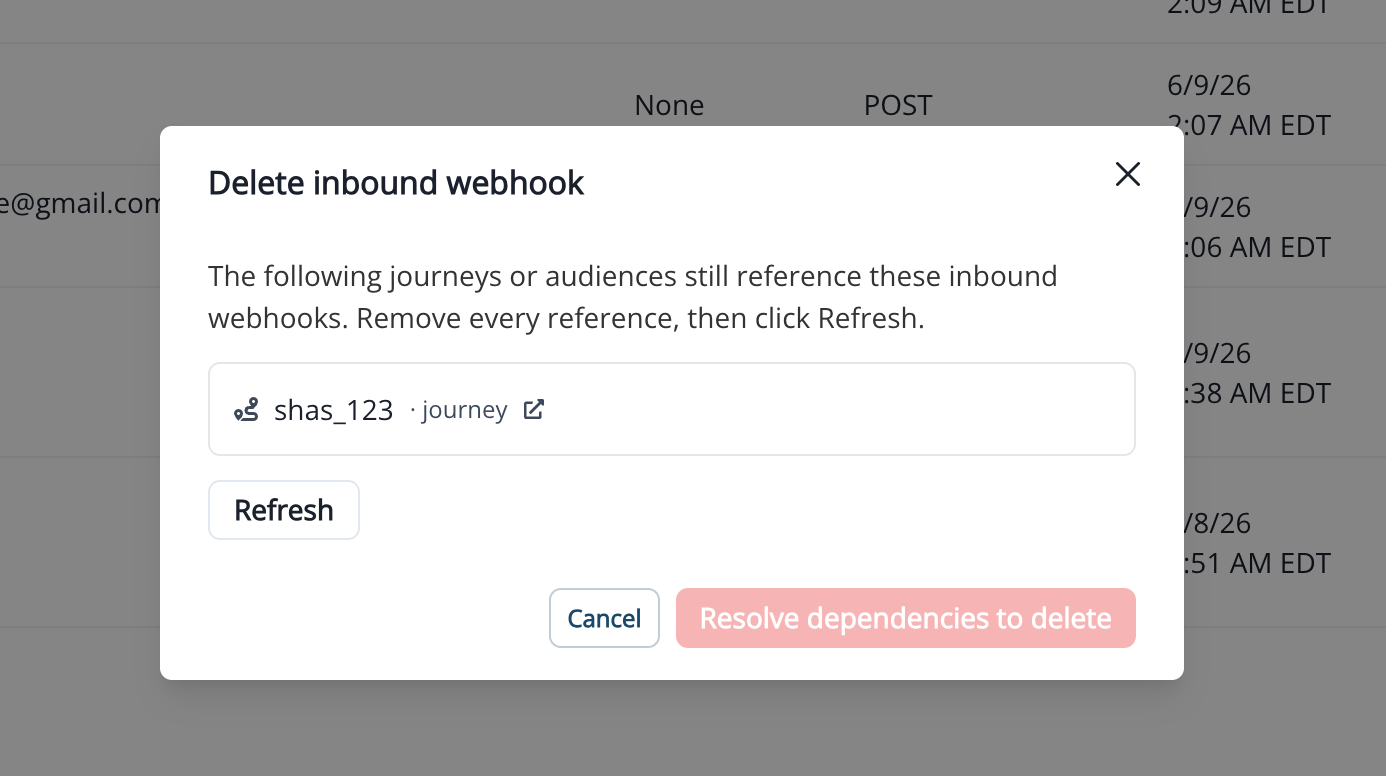
 If a webhook is still in use, the modal lists the journeys and dynamic lists that reference it instead of showing the delete confirmation.
Each blocker shows its name, its type, and a link that opens it in a new tab. The delete button is disabled and labelled **Resolve dependencies to delete**.
If a webhook is still in use, the modal lists the journeys and dynamic lists that reference it instead of showing the delete confirmation.
Each blocker shows its name, its type, and a link that opens it in a new tab. The delete button is disabled and labelled **Resolve dependencies to delete**.
 To free the webhook for deletion:
1. Click a blocker's link to open the referencing journey or dynamic list in a new tab.
2. Remove the inbound webhook reference, then save.
3. Return to the delete modal and click **Refresh**.
4. When every reference has been removed, the dependency list clears and the **Delete** button becomes active.
5. Click **Delete** to remove the webhook.
Removing a webhook reference changes how that journey or dynamic list behaves. Confirm the reference is no longer needed before you remove it.
### Delete Multiple Webhooks
1. Select two or more webhooks using the checkboxes on the list.
2. Click **Delete** in the bulk action bar.
3. The modal header shows **Delete N inbound webhooks**. Any selected webhook that is still referenced by a journey or dynamic list is listed as a blocker, the same way as a single delete.
4. Resolve any dependencies as described above and click **Refresh**, or click **Cancel** to close without deleting.
5. When no blockers remain, click **Delete**. Webhooks that are deleted are removed from the list; any that are still blocked remain.
### Frequently Asked Questions
No. An inbound webhook and its underlying **Inbound Webhook Connection** (in the **Connections** tab) are separate objects. Deleting the webhook stops its endpoint URL from accepting events, but the connection is not removed. Deleting a webhook connection is not yet available as a self-service action — contact Inflection support if you need a connection removed.
No. Only **Admin** users can delete inbound webhooks.
No. Delete webhooks by selecting them in the list. CSV-based deletion is not supported.
## Examples for Inbound Webhook with setup process
**General purpose enterprise automation platform**
[Zapier](/connections/webhooks/zapier)
**Social lead generation**
[Linkedin](/connections/webhooks/linkedin)
**Webinars**
[Zoom](/connections/webhooks/zoom)
[Goldcast](/connections/webhooks/goldcast)
**Enrichment**
[Clearbit](/connections/webhooks/clearbit)
[Clay](/connections/webhooks/clay)
**Data sync with CRMs/MAPs**
[Marketo](/connections/webhooks/marketo)
[Hubspot](/connections/webhooks/hubspot)
**Forms**
[Formsite](https://support.formsite.com/hc/en-us/articles/360000546194-Webhooks)
[Typeform](https://www.typeform.com/developers/webhooks/)
To free the webhook for deletion:
1. Click a blocker's link to open the referencing journey or dynamic list in a new tab.
2. Remove the inbound webhook reference, then save.
3. Return to the delete modal and click **Refresh**.
4. When every reference has been removed, the dependency list clears and the **Delete** button becomes active.
5. Click **Delete** to remove the webhook.
Removing a webhook reference changes how that journey or dynamic list behaves. Confirm the reference is no longer needed before you remove it.
### Delete Multiple Webhooks
1. Select two or more webhooks using the checkboxes on the list.
2. Click **Delete** in the bulk action bar.
3. The modal header shows **Delete N inbound webhooks**. Any selected webhook that is still referenced by a journey or dynamic list is listed as a blocker, the same way as a single delete.
4. Resolve any dependencies as described above and click **Refresh**, or click **Cancel** to close without deleting.
5. When no blockers remain, click **Delete**. Webhooks that are deleted are removed from the list; any that are still blocked remain.
### Frequently Asked Questions
No. An inbound webhook and its underlying **Inbound Webhook Connection** (in the **Connections** tab) are separate objects. Deleting the webhook stops its endpoint URL from accepting events, but the connection is not removed. Deleting a webhook connection is not yet available as a self-service action — contact Inflection support if you need a connection removed.
No. Only **Admin** users can delete inbound webhooks.
No. Delete webhooks by selecting them in the list. CSV-based deletion is not supported.
## Examples for Inbound Webhook with setup process
**General purpose enterprise automation platform**
[Zapier](/connections/webhooks/zapier)
**Social lead generation**
[Linkedin](/connections/webhooks/linkedin)
**Webinars**
[Zoom](/connections/webhooks/zoom)
[Goldcast](/connections/webhooks/goldcast)
**Enrichment**
[Clearbit](/connections/webhooks/clearbit)
[Clay](/connections/webhooks/clay)
**Data sync with CRMs/MAPs**
[Marketo](/connections/webhooks/marketo)
[Hubspot](/connections/webhooks/hubspot)
**Forms**
[Formsite](https://support.formsite.com/hc/en-us/articles/360000546194-Webhooks)
[Typeform](https://www.typeform.com/developers/webhooks/)