> ## Documentation Index
> Fetch the complete documentation index at: https://docs.inflection.io/llms.txt
> Use this file to discover all available pages before exploring further.
# Salesforce
> Connect your Sales database to Inflection via our bidirectional, native integration.
The salesforce sync ensures that the contacts in your Inflection account reflects the latest data from your Salesforce account.
Inflection integrates with Salesforce Leads, Contacts, Campaign Members, Campaigns, and Accounts. We support bi-directional sync with Salesforce for both Lead and Contact objects, and read-only sync for Account objects.
| Summary | Read | Write |
| -------------------- | ---- | ----- |
| **Leads** | ✅ | ✅ |
| **Contacts** | ✅ | ✅ |
| **Campaign Members** | ✅ | ✅ |
| **Campaigns** | ✅ | |
| **Accounts** | ✅ | |
| **Opportunities** | ✅ | |
Inflection does not interact with Activities or Custom Objects at this time.
## Install the App
As required by Salesforce, new connected apps must be installed by a System Administrator, or by a user with the `Approve Uninstalled Connected Apps` permission.
You must be a System Administrator or have the Approve Uninstalled Connected Apps permission.
### Authorize the Inflection connected app in Salesforce
* Open the correct link for your instance type
* Regular: [https://login.salesforce.com/services/oauth2/authorize?client\_id=3MVG9OGq41FnYVsE24zTULLGqhaM8wOKF3Rd5EhSxqkbQlwEG.hkGRLg1DqUTaw\_Zm38froHzEgduB\_7iNMAu\&redirect\_uri=https://app.inflection.io/salesforce/install-app\&response\_type=code](https://login.salesforce.com/services/oauth2/authorize?client_id=3MVG9OGq41FnYVsE24zTULLGqhaM8wOKF3Rd5EhSxqkbQlwEG.hkGRLg1DqUTaw_Zm38froHzEgduB_7iNMAu\&redirect_uri=https://app.inflection.io/salesforce/install-app\&response_type=code)
* Sandbox: [https://test.salesforce.com/services/oauth2/authorize?client\_id=3MVG9OGq41FnYVsE24zTULLGqhaM8wOKF3Rd5EhSxqkbQlwEG.hkGRLg1DqUTaw\_Zm38froHzEgduB\_7iNMAu\&redirect\_uri=https://app.inflection.io/salesforce/install-app\&response\_type=code](https://test.salesforce.com/services/oauth2/authorize?client_id=3MVG9OGq41FnYVsE24zTULLGqhaM8wOKF3Rd5EhSxqkbQlwEG.hkGRLg1DqUTaw_Zm38froHzEgduB_7iNMAu\&redirect_uri=https://app.inflection.io/salesforce/install-app\&response_type=code)
* Sign in to Salesforce if prompted. If already signed in, you will be redirected automatically.
* Click **Allow** to authorize the Inflection connected app for your Salesforce org.
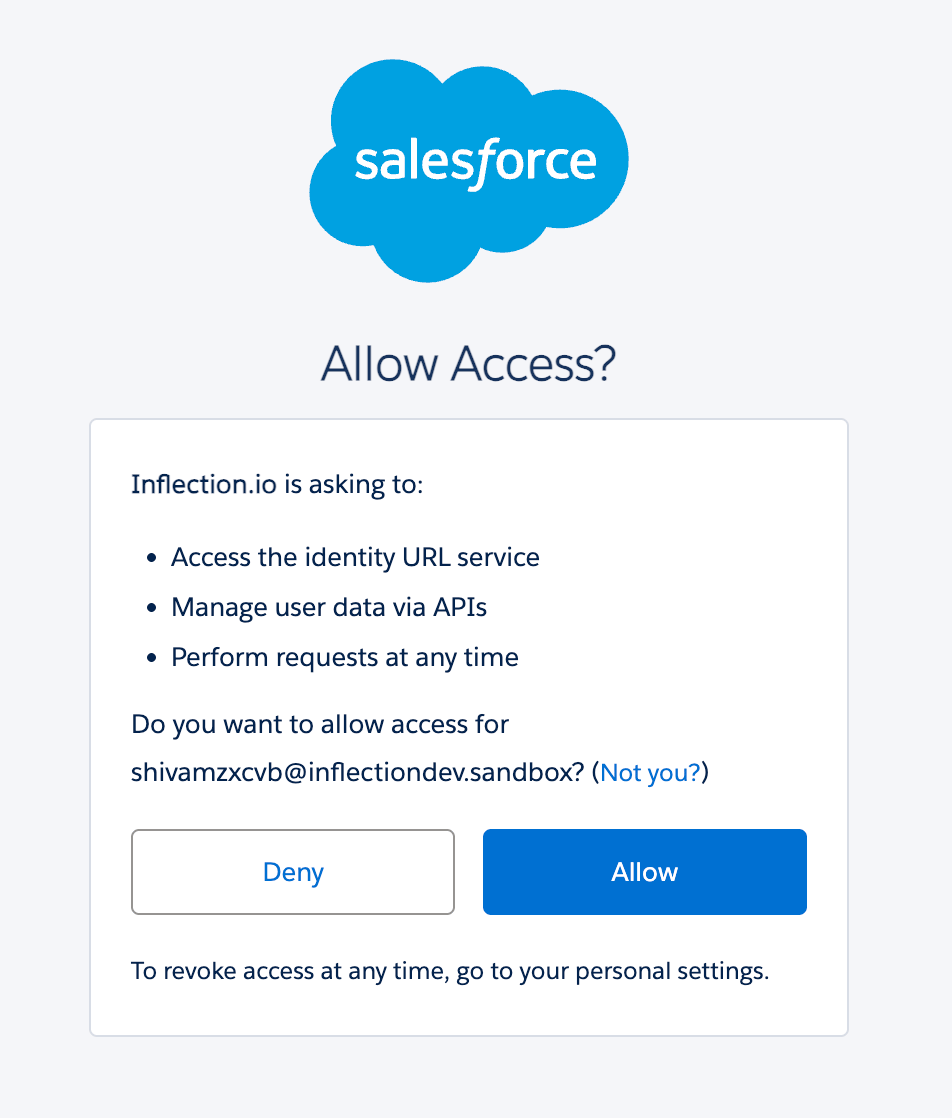 * After authorization, proceed to install the app.
### Install the Inflection connected app in Salesforce
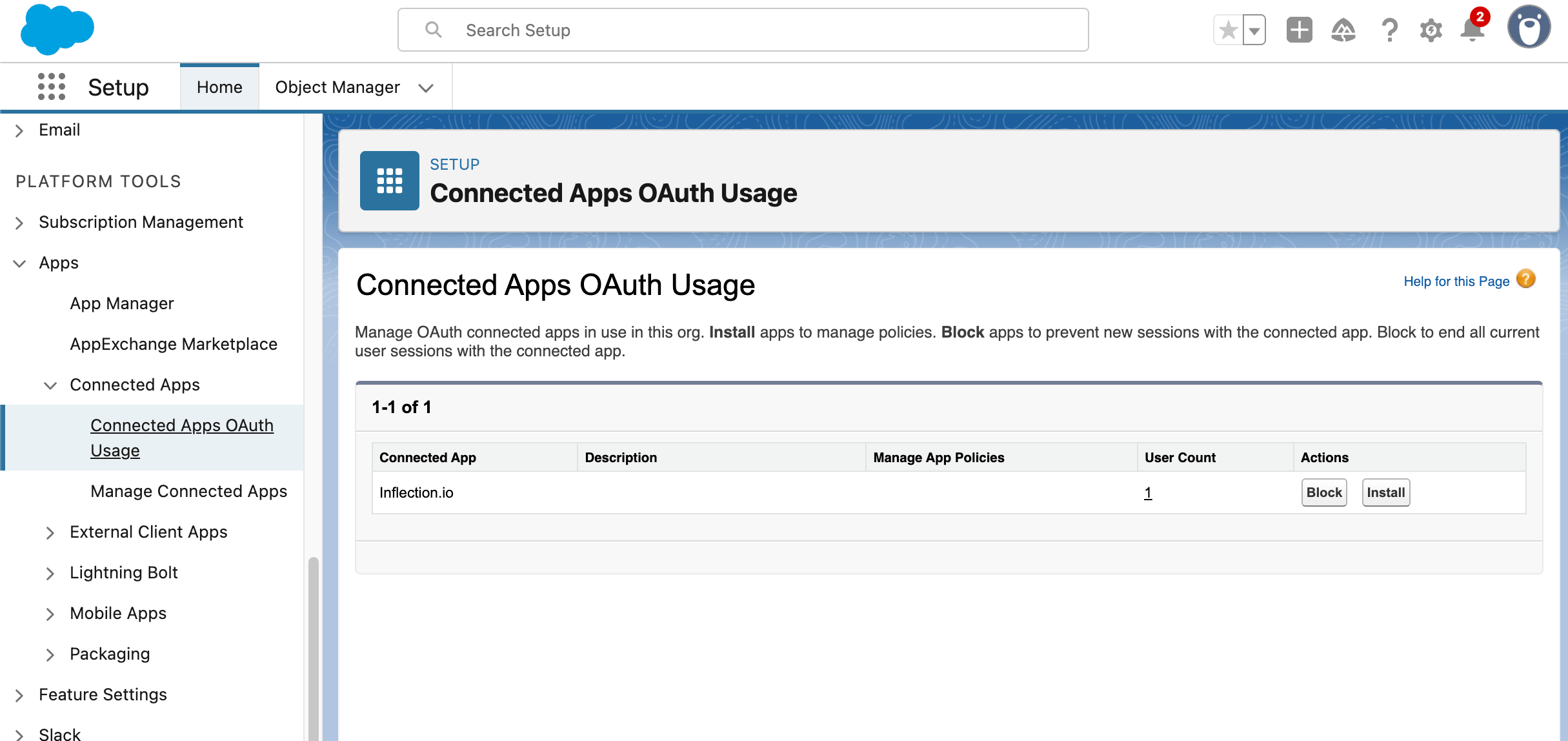
* In Salesforce, go to Setup.
* Under **Platform Tools**, navigate to **Apps** → **Connected Apps** → **Connected Apps OAuth Usage**.
* Click **Install** next to the `Inflection.io` connected app.
* After authorization, proceed to install the app.
### Install the Inflection connected app in Salesforce
* In Salesforce, go to Setup.
* Under **Platform Tools**, navigate to **Apps** → **Connected Apps** → **Connected Apps OAuth Usage**.
* Click **Install** next to the `Inflection.io` connected app.
 * In the modal, click **Install** to complete the installation.
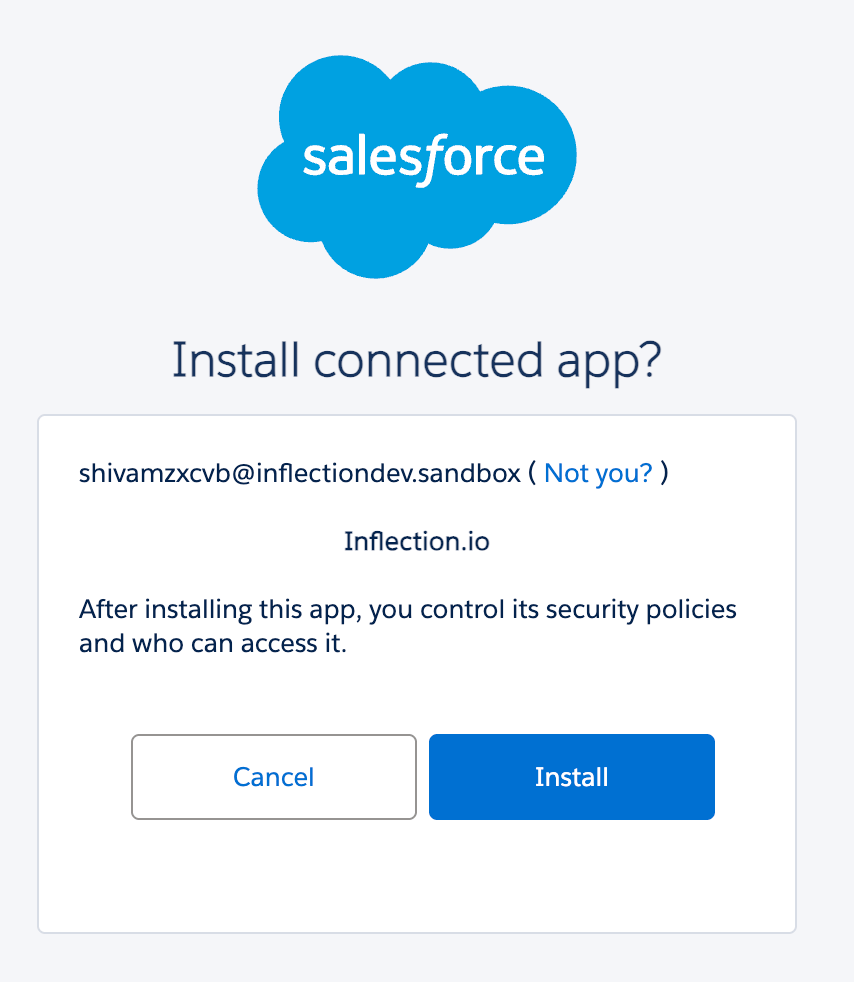 After these steps are complete, the Inflection connected app is installed in your Salesforce Instance.
## Set up & Sync
**Pre-requisites**: Before setting up a Salesforce connection in Inflection, decide which objects to sync and ensure the following:
* You have administrator access to your Salesforce account
* Your Salesforce edition has API access
* Your user profile meets the minimum requirements
Note than only one Salesforce connection is allowed per account.
1. In **Connections**, navigate to **Data Connections** and click **Add new connection.** Select **Salesforce.**
2. Make sure that you have provided admin credentials to the Inflection sync user and it has API access. Name your connection and click **Save**.
3. You will be re-directed to log in to Salesforce. Log in.
4. The Inflection screen displays the available permissions for each object. If you don't have the necessary permissions for the object you wish to sync, provide the correct access to the Inflection sync user in Salesforce. You can click **Re-check permissions** to validate the permissions. Once the appropriate permissions are provided, click **Proceed**.
5. You will be directed to a modal where you can define the object sync and API settings. Here, you can specify which objects to sync with/from Salesforce and the APIs that you want to allocate to Inflection.
6. After clicking **Proceed**, you will be directed to the final summary page. This page displays the connection name, the number of APIs allocated to Inflection, the approximate sync interval, and the synced objects.
If you click **Cancel**, the wizard will close. You can always start the sync process again. You can always update these settings later in the Salesforce settings tab
* **Option 1 | Recommended Settings**: selecting this option will automatically map Salesforce default fields to Inflection fields. Custom fields will not be mapped at this point, but you can map them later in the unified mapping.
If you have Segment or any other system configured in the unified mapping, checking this box will override any previously mapped Segment fields with Salesforce fields and immediately start the sync.
For example, if the last name field is currently mapped with Segment, selecting the **recommended settings** option will override and map the Inflection last name field with Salesforce. If you want to manually map standard or custom fields and start the sync later, choose the option below.
* **Option 2 | Custom Settings (Start Sync Later)**: If you select this option, the sync will not start immediately. You can use the unified mapping to map your default and custom fields, and then start the sync with Salesforce when you are ready.
If you select Custom Settings and decide to sync later, by default your Start Sync is disabled. At least one field will need to be mapped for sync to be enabled.
We recommend mapping all default fields (and any fields that are mandatory in Salesforce for lead/contact creation). You can auto-map the default fields by clicking on the **Auto-map** function in the unified mapping (explanation detailed **in the video**). To know which all are the mandatory fields for respective objects in your Salesforce instance, contact your Salesforce system administrator.
**Tip:** By default, the Salesforce objects you defined will start syncing to Inflection. However, Inflection will not start **creating** leads or contacts in Salesforce by default. If you want Salesforce leads or contact to be created right after you have started the sync, then select **Custom Settings - Start sync later**, come back to the **Inflection to Salesforce settings** and manage your preferences here. Once you have updated these, then you can start the sync.
Choose what person objects are synced from Salesforce to Inflection.
After these steps are complete, the Inflection connected app is installed in your Salesforce Instance.
## Set up & Sync
**Pre-requisites**: Before setting up a Salesforce connection in Inflection, decide which objects to sync and ensure the following:
* You have administrator access to your Salesforce account
* Your Salesforce edition has API access
* Your user profile meets the minimum requirements
Note than only one Salesforce connection is allowed per account.
1. In **Connections**, navigate to **Data Connections** and click **Add new connection.** Select **Salesforce.**
2. Make sure that you have provided admin credentials to the Inflection sync user and it has API access. Name your connection and click **Save**.
3. You will be re-directed to log in to Salesforce. Log in.
4. The Inflection screen displays the available permissions for each object. If you don't have the necessary permissions for the object you wish to sync, provide the correct access to the Inflection sync user in Salesforce. You can click **Re-check permissions** to validate the permissions. Once the appropriate permissions are provided, click **Proceed**.
5. You will be directed to a modal where you can define the object sync and API settings. Here, you can specify which objects to sync with/from Salesforce and the APIs that you want to allocate to Inflection.
6. After clicking **Proceed**, you will be directed to the final summary page. This page displays the connection name, the number of APIs allocated to Inflection, the approximate sync interval, and the synced objects.
If you click **Cancel**, the wizard will close. You can always start the sync process again. You can always update these settings later in the Salesforce settings tab
* **Option 1 | Recommended Settings**: selecting this option will automatically map Salesforce default fields to Inflection fields. Custom fields will not be mapped at this point, but you can map them later in the unified mapping.
If you have Segment or any other system configured in the unified mapping, checking this box will override any previously mapped Segment fields with Salesforce fields and immediately start the sync.
For example, if the last name field is currently mapped with Segment, selecting the **recommended settings** option will override and map the Inflection last name field with Salesforce. If you want to manually map standard or custom fields and start the sync later, choose the option below.
* **Option 2 | Custom Settings (Start Sync Later)**: If you select this option, the sync will not start immediately. You can use the unified mapping to map your default and custom fields, and then start the sync with Salesforce when you are ready.
If you select Custom Settings and decide to sync later, by default your Start Sync is disabled. At least one field will need to be mapped for sync to be enabled.
We recommend mapping all default fields (and any fields that are mandatory in Salesforce for lead/contact creation). You can auto-map the default fields by clicking on the **Auto-map** function in the unified mapping (explanation detailed **in the video**). To know which all are the mandatory fields for respective objects in your Salesforce instance, contact your Salesforce system administrator.
**Tip:** By default, the Salesforce objects you defined will start syncing to Inflection. However, Inflection will not start **creating** leads or contacts in Salesforce by default. If you want Salesforce leads or contact to be created right after you have started the sync, then select **Custom Settings - Start sync later**, come back to the **Inflection to Salesforce settings** and manage your preferences here. Once you have updated these, then you can start the sync.
Choose what person objects are synced from Salesforce to Inflection.
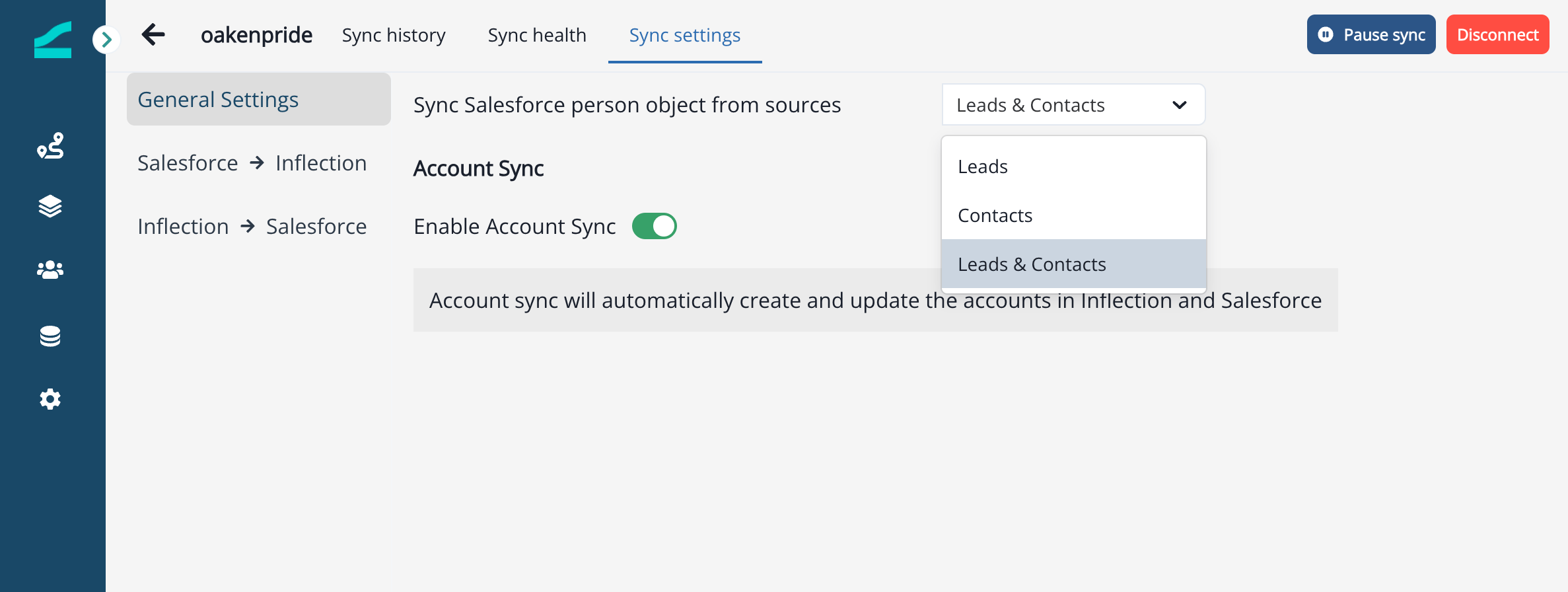 Inflection supports syncing of Account objects. To enable Account sync, toggle the switch if it is not already enabled. Read more on account sync here
By default, all Salesforce records with a valid email address sync from Salesforce.
* Where an Inflection contact already exists, the Inflection contact will link to the Salesforce lead or contact record.
* Where an Inflection contact does not already exist, the Inflection contact will be created and linked to the Salesforce lead or contact record.
Inflection supports syncing of Account objects. To enable Account sync, toggle the switch if it is not already enabled. Read more on account sync here
By default, all Salesforce records with a valid email address sync from Salesforce.
* Where an Inflection contact already exists, the Inflection contact will link to the Salesforce lead or contact record.
* Where an Inflection contact does not already exist, the Inflection contact will be created and linked to the Salesforce lead or contact record.
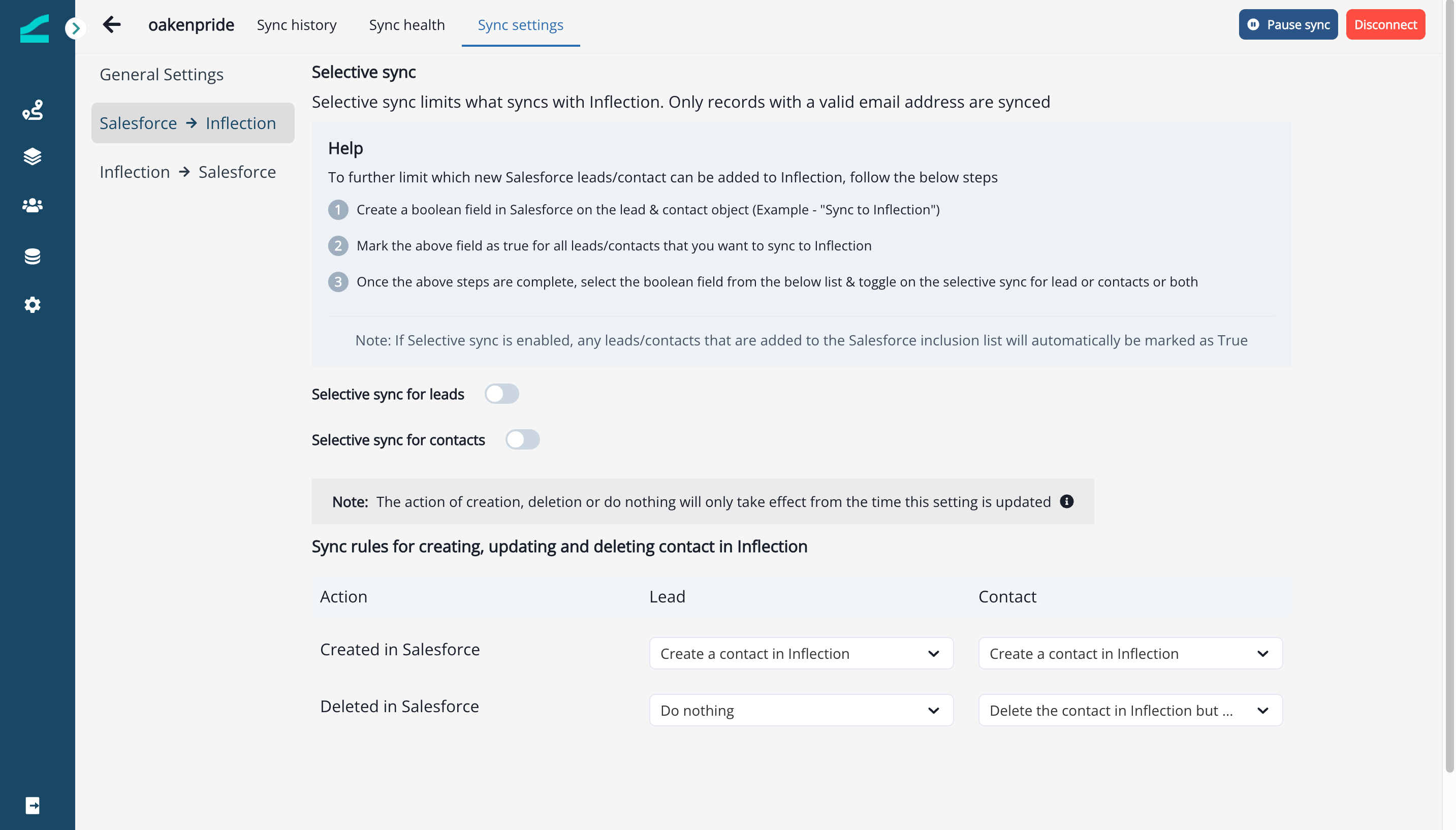 Limit which new Salesforce leads/contacts are created in Inflection by configuring **Selective Sync**.
1. Create a Boolean field in Salesforce on the lead and contact objects called **Sync to Inflection**.
2. Mark the above field as `true` for all leads/contacts that you want to create in Inflection.
Note that even where **Sync to Inflection** is `false`, if the record already exists in Inflection, the Salesforce record will be linked to the already-existing Inflection record. Field updates for both records will follow the mapping rules configured in Inflection.
Once the above steps are complete, in Inflection: toggle **Selective sync for leads** and/or **Selective sync for contacts**. Select the Boolean field from the below list.
* To selectively sync Salesforce leads, toggle **Selective sync for leads** and pick the Boolean field in Salesforce. Now the lead object in Salesforce will create in Inflection only if `true`.
* To selectively sync Salesforce contacts, toggle **Selective sync for contacts** and pick the Boolean field in Salesforce. Now the contact object in Salesforce will create in Inflection only if `true`.
#### Setting Up Sync Rules
Configure what happens when an object is created, updated or deleted in Inflection.
Limit which new Salesforce leads/contacts are created in Inflection by configuring **Selective Sync**.
1. Create a Boolean field in Salesforce on the lead and contact objects called **Sync to Inflection**.
2. Mark the above field as `true` for all leads/contacts that you want to create in Inflection.
Note that even where **Sync to Inflection** is `false`, if the record already exists in Inflection, the Salesforce record will be linked to the already-existing Inflection record. Field updates for both records will follow the mapping rules configured in Inflection.
Once the above steps are complete, in Inflection: toggle **Selective sync for leads** and/or **Selective sync for contacts**. Select the Boolean field from the below list.
* To selectively sync Salesforce leads, toggle **Selective sync for leads** and pick the Boolean field in Salesforce. Now the lead object in Salesforce will create in Inflection only if `true`.
* To selectively sync Salesforce contacts, toggle **Selective sync for contacts** and pick the Boolean field in Salesforce. Now the contact object in Salesforce will create in Inflection only if `true`.
#### Setting Up Sync Rules
Configure what happens when an object is created, updated or deleted in Inflection.
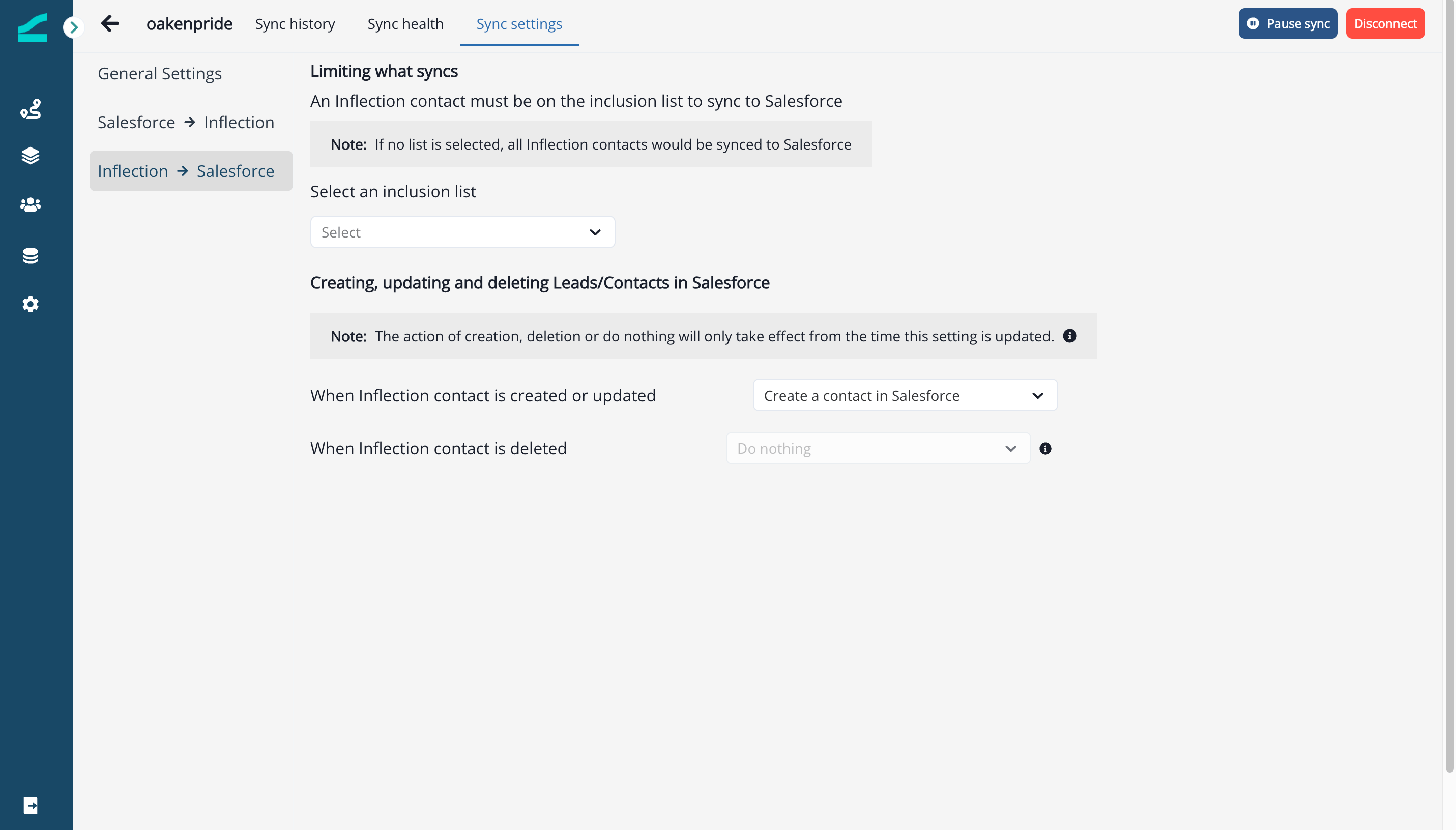
 Inflection supports bi-directional sync with Salesforce
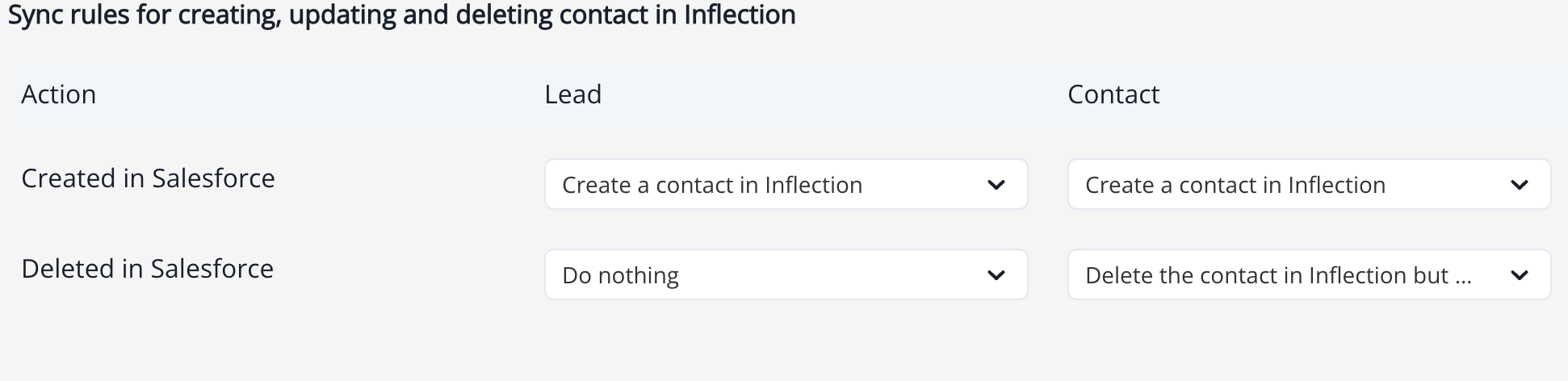
 * **Define what happens when Leads and/or Contacts are created or updated in Salesforce** - In this setting, you can define what happens when a Salesforce lead or contact is created or updated. Below are the options that you can select from:
* **Leads**
* Create a contact in Inflection
* Do Nothing (default)
* **Contacts**
* Create a contact in Inflection
* Do Nothing (default)
* **Define what happens when Leads and/or Contacts are deleted in Salesforce** - In this setting you can define what happens when a Salesforce lead or contact is deleted. Below are the options that you can select from:
* **Leads**
* Delete the contact in Inflection but keep product data
* Do Nothing (Default)
* **Contacts**
* Delete the contact in Inflection but keep product data
* Do Nothing (Default)
**Note:** The action of creation, deletion or do nothing will only take effect from the time this setting is updated. For example:- If the setting for deletion was set to do nothing on day 1 and the setting is updated to delete on day 2, the action of deleting associated Inflection people will only take place for leads/contacts who are deleted in Salesforce since the time this setting was updated on day 2.
#### Inclusion List
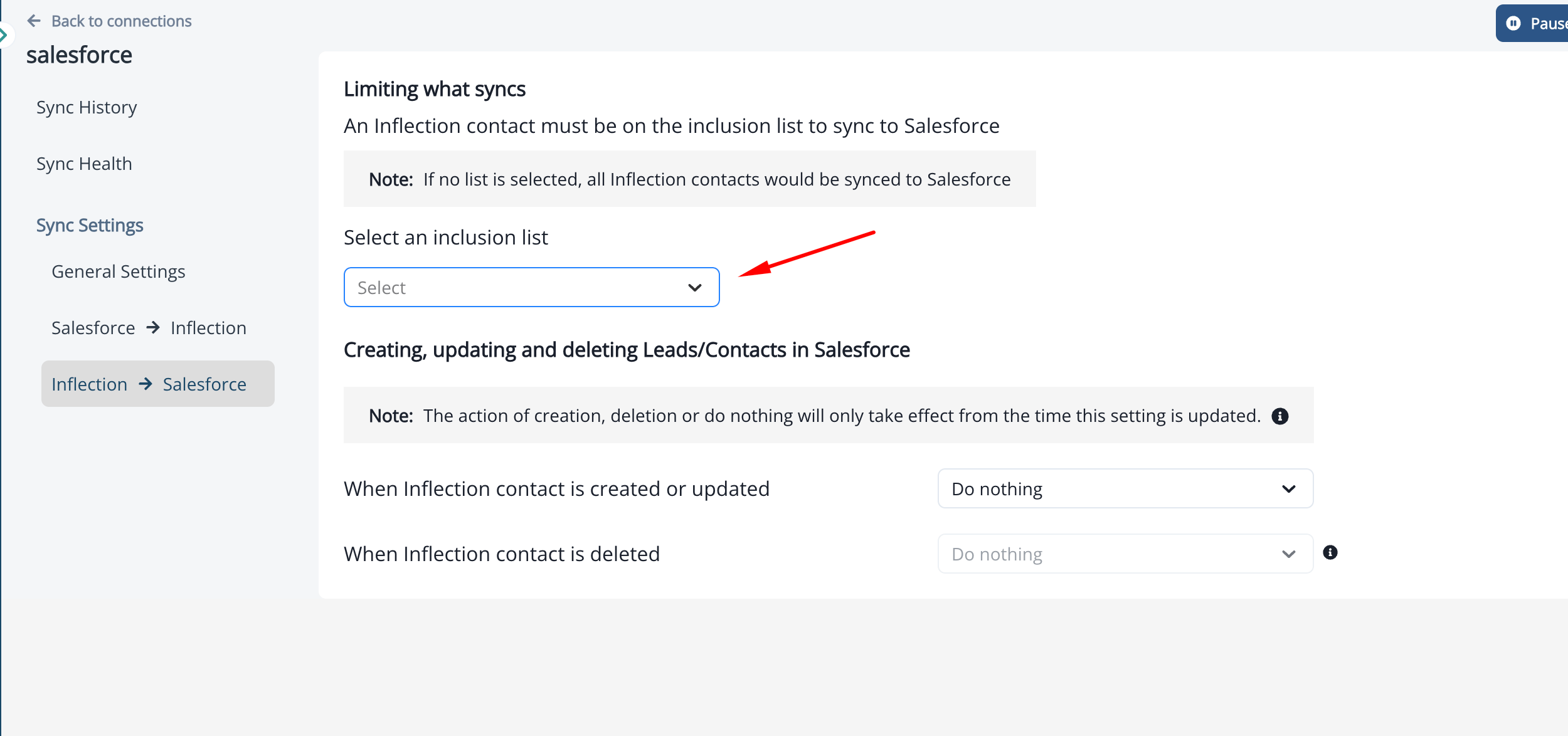
If you want to control which contacts in Inflection are initially created on Salesforce, you can do so by setting up a Salesforce inclusion list. You can select one of three list types:
* Dynamic list asset
* Static list
* Journey Audience
Once you define the inclusion list, only contacts who are members of this list will be created on Salesforce. Contacts not in the inclusion list will not be created on Salesforce until they are added to the list.
* **Define what happens when Leads and/or Contacts are created or updated in Salesforce** - In this setting, you can define what happens when a Salesforce lead or contact is created or updated. Below are the options that you can select from:
* **Leads**
* Create a contact in Inflection
* Do Nothing (default)
* **Contacts**
* Create a contact in Inflection
* Do Nothing (default)
* **Define what happens when Leads and/or Contacts are deleted in Salesforce** - In this setting you can define what happens when a Salesforce lead or contact is deleted. Below are the options that you can select from:
* **Leads**
* Delete the contact in Inflection but keep product data
* Do Nothing (Default)
* **Contacts**
* Delete the contact in Inflection but keep product data
* Do Nothing (Default)
**Note:** The action of creation, deletion or do nothing will only take effect from the time this setting is updated. For example:- If the setting for deletion was set to do nothing on day 1 and the setting is updated to delete on day 2, the action of deleting associated Inflection people will only take place for leads/contacts who are deleted in Salesforce since the time this setting was updated on day 2.
#### Inclusion List
If you want to control which contacts in Inflection are initially created on Salesforce, you can do so by setting up a Salesforce inclusion list. You can select one of three list types:
* Dynamic list asset
* Static list
* Journey Audience
Once you define the inclusion list, only contacts who are members of this list will be created on Salesforce. Contacts not in the inclusion list will not be created on Salesforce until they are added to the list.
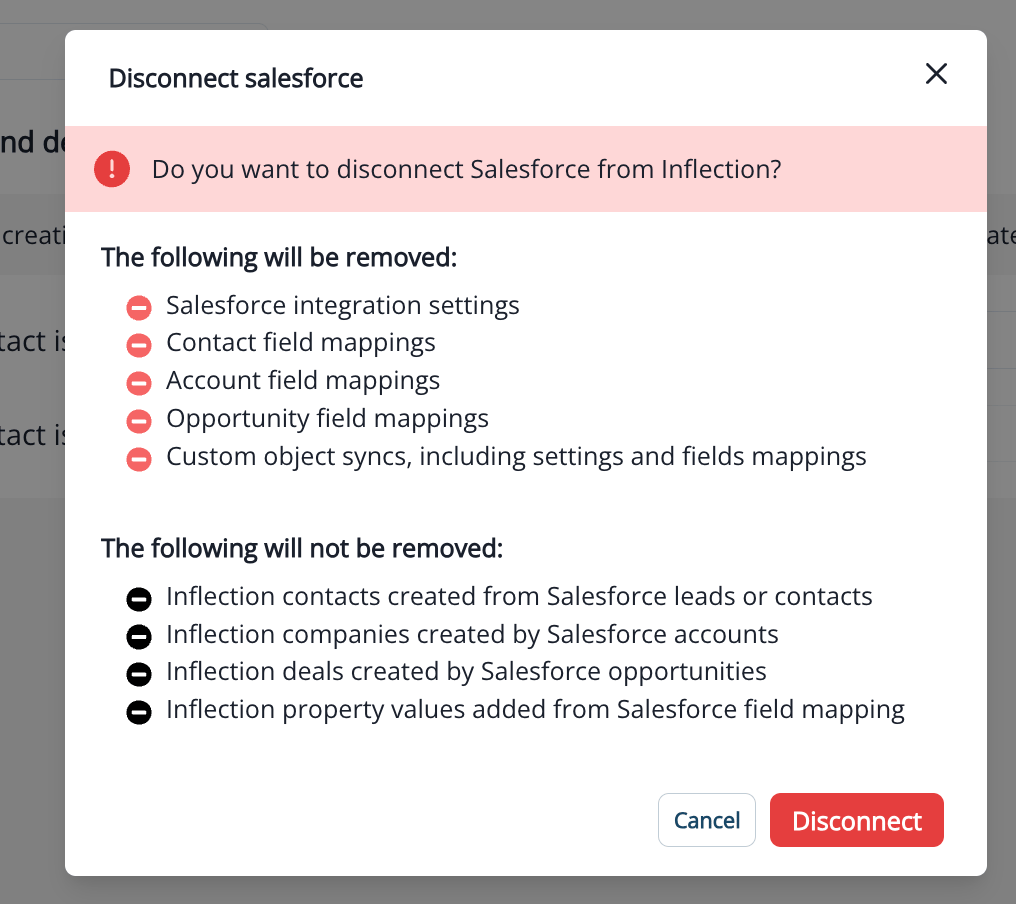
 Disconnecting your salesforce connection in Inflection would remove contact and account field mappings along with custom integration settings, custom object sync settings and field mappings.
Inflection will still have the data of all the contacts created from Salesforce Lead/Contacts objects along with Account object data.
Disconnecting your salesforce connection in Inflection would remove contact and account field mappings along with custom integration settings, custom object sync settings and field mappings.
Inflection will still have the data of all the contacts created from Salesforce Lead/Contacts objects along with Account object data.
 ### Opportunity Sync
Inflection supports read-only sync of Salesforce Opportunities and the Contact Roles attached to them. Use Opportunity data to suppress contacts during active deals, segment by deal stage, and target accounts with significant pipeline.
**Pre-requisites:**
* An active Salesforce connection in Inflection
* Read access to the Opportunity object on your Salesforce sync user's profile
* Read access to the Opportunity Contact Role object
#### Enable Opportunity Sync
To enable Opportunity sync:
1. Navigate to **Connections** and open your Salesforce connection
2. Go to **Sync Settings** → **General Settings**
3. In the **Opportunity Sync** section, toggle **Enable Opportunity read sync** to ON
### Opportunity Sync
Inflection supports read-only sync of Salesforce Opportunities and the Contact Roles attached to them. Use Opportunity data to suppress contacts during active deals, segment by deal stage, and target accounts with significant pipeline.
**Pre-requisites:**
* An active Salesforce connection in Inflection
* Read access to the Opportunity object on your Salesforce sync user's profile
* Read access to the Opportunity Contact Role object
#### Enable Opportunity Sync
To enable Opportunity sync:
1. Navigate to **Connections** and open your Salesforce connection
2. Go to **Sync Settings** → **General Settings**
3. In the **Opportunity Sync** section, toggle **Enable Opportunity read sync** to ON
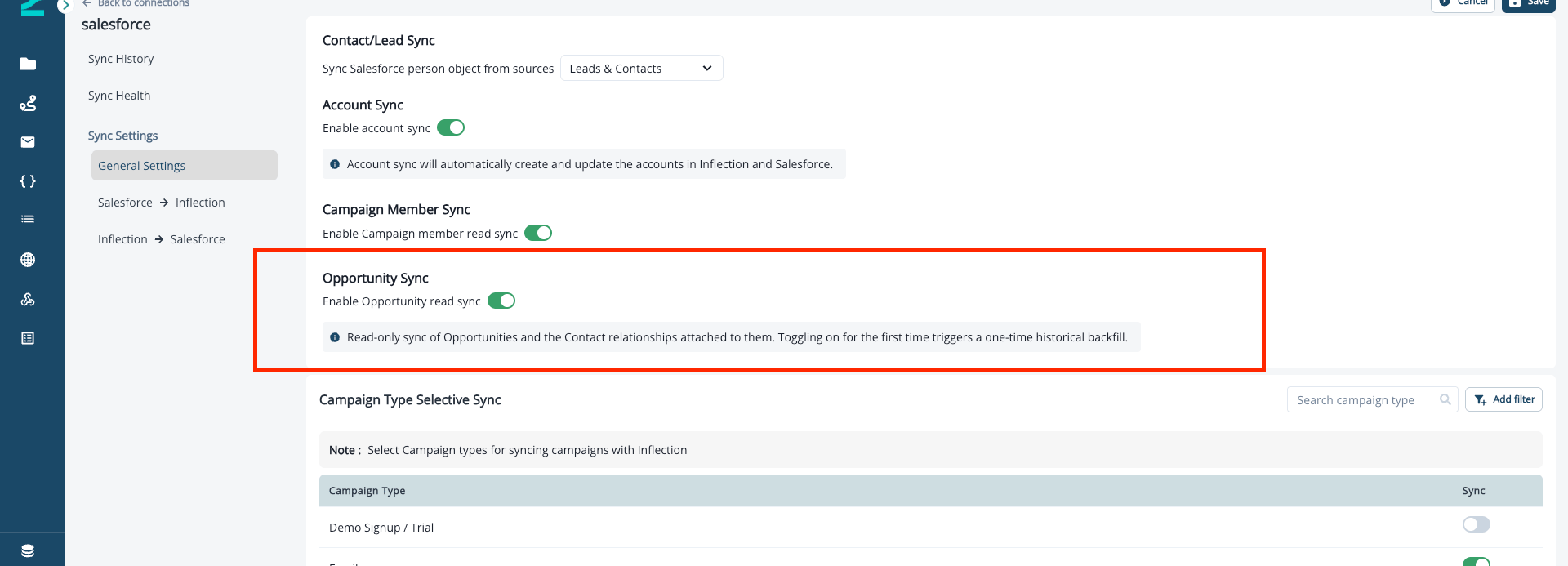 Toggling on for the first time triggers a one-time historical backfill of all your existing Opportunity records. Subsequent syncs run on the standard interval and pull only Opportunities updated since the last sync.
#### Set the Opportunity Matching Strategy
Your **Opportunity Matching Strategy** controls which contacts a **Has Salesforce Opportunity** filter returns. It is a single workspace-wide setting that applies to every Dynamic List, journey audience, and segment, so deal-aware audiences behave consistently everywhere. Choose the strategy in the same Opportunity Sync settings, below the sync toggle:
* **Deal Team Only:** matches a person to an Opportunity only when they appear as an explicit Contact Role on the deal. Smallest, most precise audience; depends on your Salesforce Contact Role data quality.
* **Salesforce Account Only:** matches anyone Salesforce links to the Opportunity’s account. Broader than Contact Roles but limited to contacts Salesforce has on the account, not Inflection’s own matches.
* **Salesforce + Our Matches:** matches anyone at the Opportunity’s account, including the contact-to-account matches Inflection discovers automatically. Broadest reach across the account.
Toggling on for the first time triggers a one-time historical backfill of all your existing Opportunity records. Subsequent syncs run on the standard interval and pull only Opportunities updated since the last sync.
#### Set the Opportunity Matching Strategy
Your **Opportunity Matching Strategy** controls which contacts a **Has Salesforce Opportunity** filter returns. It is a single workspace-wide setting that applies to every Dynamic List, journey audience, and segment, so deal-aware audiences behave consistently everywhere. Choose the strategy in the same Opportunity Sync settings, below the sync toggle:
* **Deal Team Only:** matches a person to an Opportunity only when they appear as an explicit Contact Role on the deal. Smallest, most precise audience; depends on your Salesforce Contact Role data quality.
* **Salesforce Account Only:** matches anyone Salesforce links to the Opportunity’s account. Broader than Contact Roles but limited to contacts Salesforce has on the account, not Inflection’s own matches.
* **Salesforce + Our Matches:** matches anyone at the Opportunity’s account, including the contact-to-account matches Inflection discovers automatically. Broadest reach across the account.
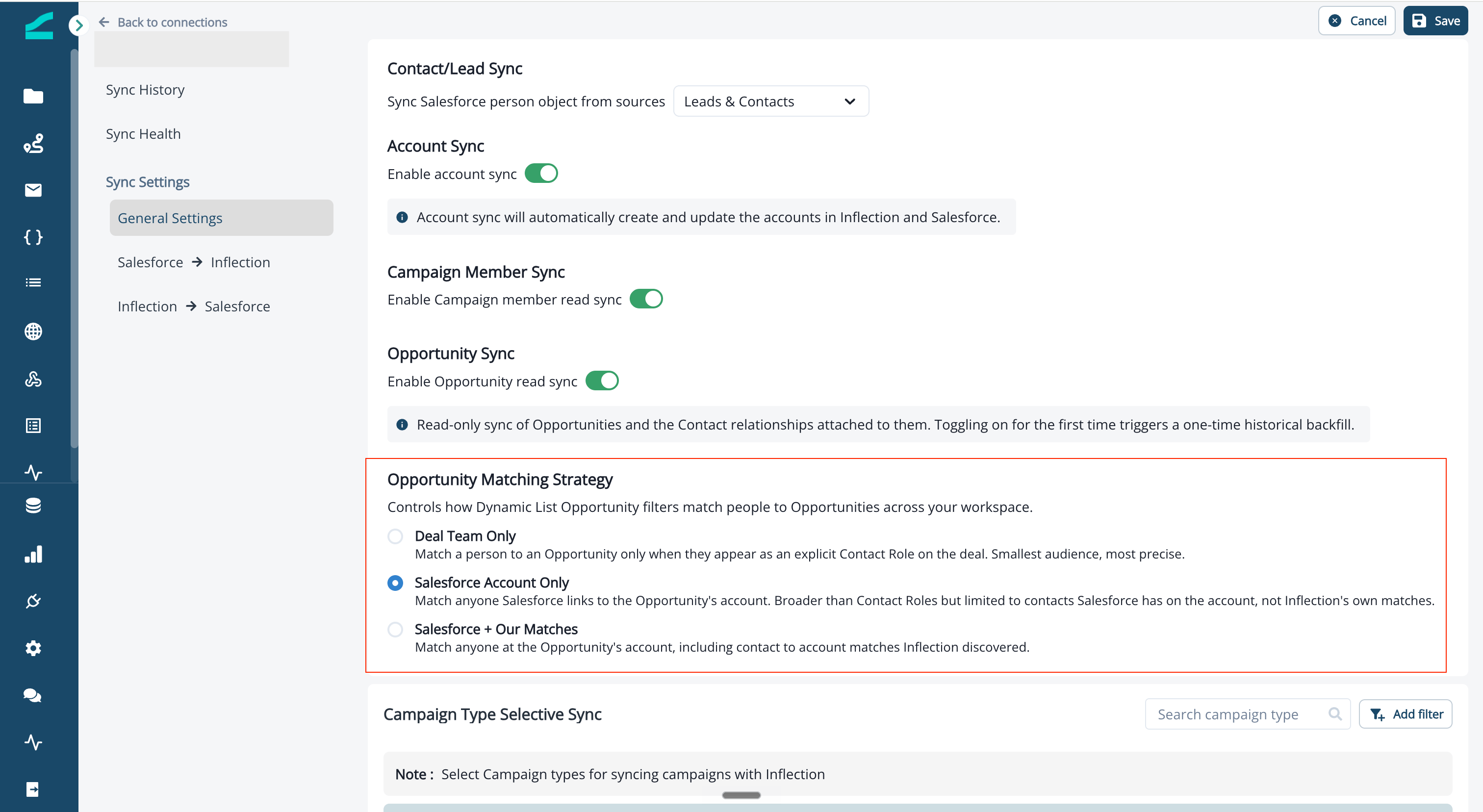 Workspaces that already use Opportunity sync stay on **Deal Team Only**, the original behavior, so your existing audiences do not change. Switch to a broader strategy whenever you are ready; the change applies on the next list evaluation, with no need to rebuild your lists.
#### Map Opportunity Fields in the Connections Page
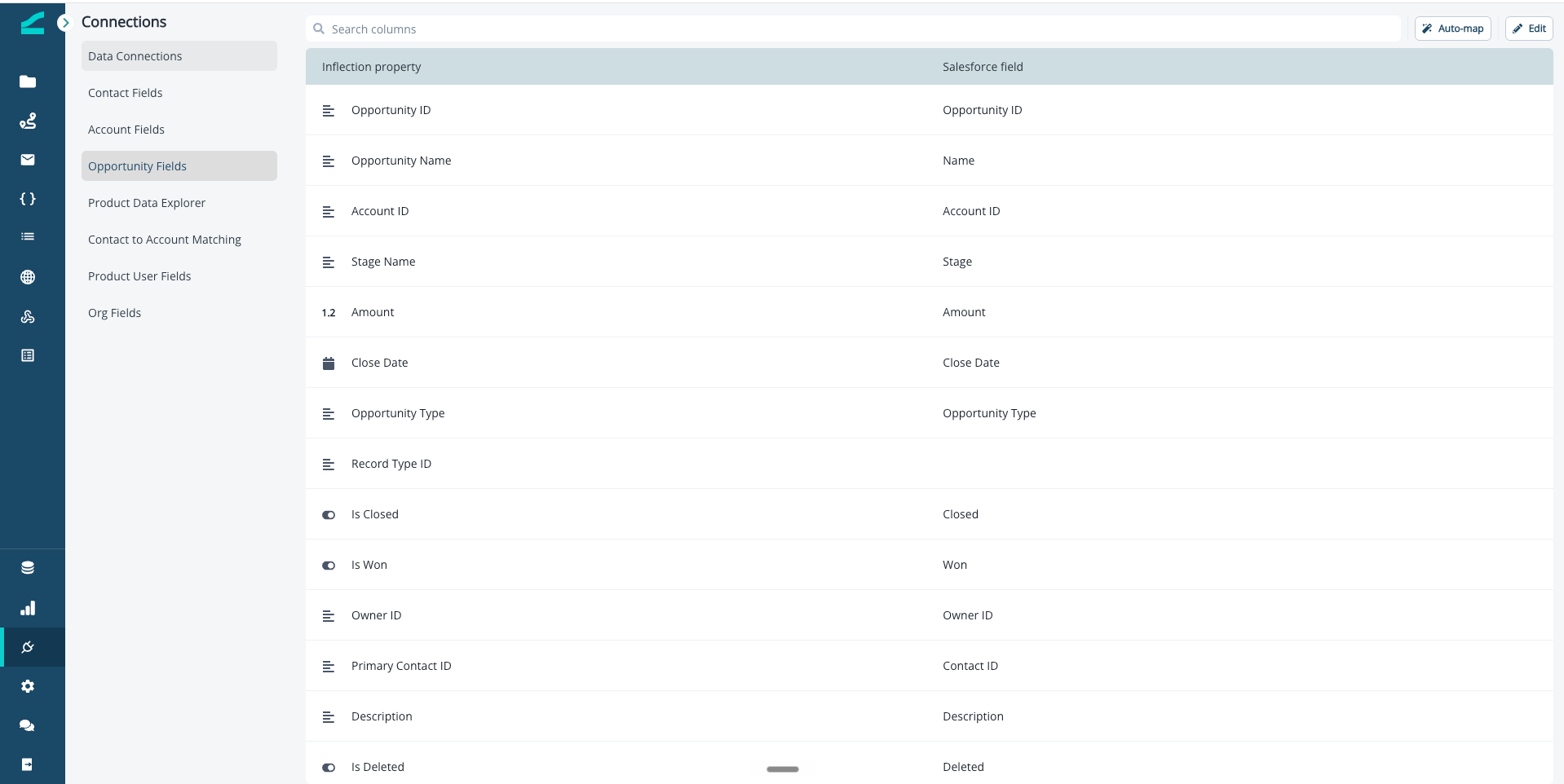
Map the standard and any custom Opportunity fields. Following are required fields in the mapping:
1. Opportunity ID
2. Salesforce Created Time
3. Salesforce Modified Time
Workspaces that already use Opportunity sync stay on **Deal Team Only**, the original behavior, so your existing audiences do not change. Switch to a broader strategy whenever you are ready; the change applies on the next list evaluation, with no need to rebuild your lists.
#### Map Opportunity Fields in the Connections Page
Map the standard and any custom Opportunity fields. Following are required fields in the mapping:
1. Opportunity ID
2. Salesforce Created Time
3. Salesforce Modified Time
 #### Browse Synced Opportunities
After sync completes, view all synced Opportunities in the listing page.
To open the listing page:
1. In the left navigation, click the **Database** icon
2. Select **Salesforce Opportunities**
#### Browse Synced Opportunities
After sync completes, view all synced Opportunities in the listing page.
To open the listing page:
1. In the left navigation, click the **Database** icon
2. Select **Salesforce Opportunities**
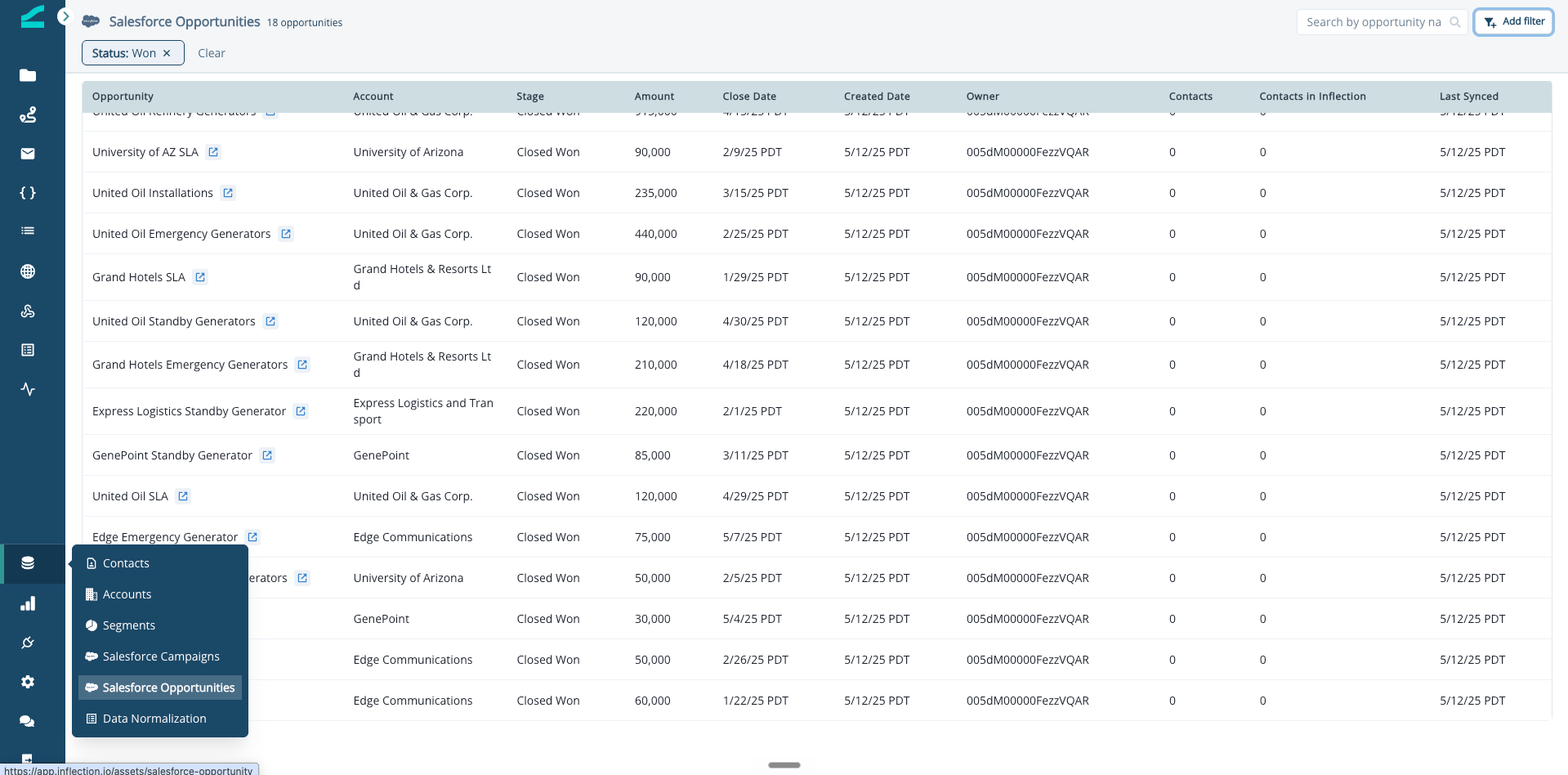 The listing page shows the following columns:
* **Opportunity** — Opportunity name with a link to open the record in Salesforce
* **Account** — The associated Salesforce Account
* **Stage** — Current Opportunity stage (e.g., Prospecting, Closed Won)
* **Amount** — Opportunity amount
* **Close Date** — Expected or actual close date
* **Created Date** — When the Opportunity was created in Salesforce
* **Owner** — Salesforce Owner of the Opportunity
* **Contacts** — Total Contact Roles on the Opportunity in Salesforce
* **Contacts in Inflection** — How many of those Contact Roles are matched to contacts in your Inflection database
* **Last Synced** — When Inflection last refreshed this record from Salesforce
The **Contacts in Inflection** column is a quick way to gauge how a contact-role-based audience will perform before you build it. A low value relative to **Contacts** indicates Salesforce contact roles that haven't been matched to any Inflection contact yet.
Use the **Search by opportunity name** field or **Add filter** to narrow the listing.
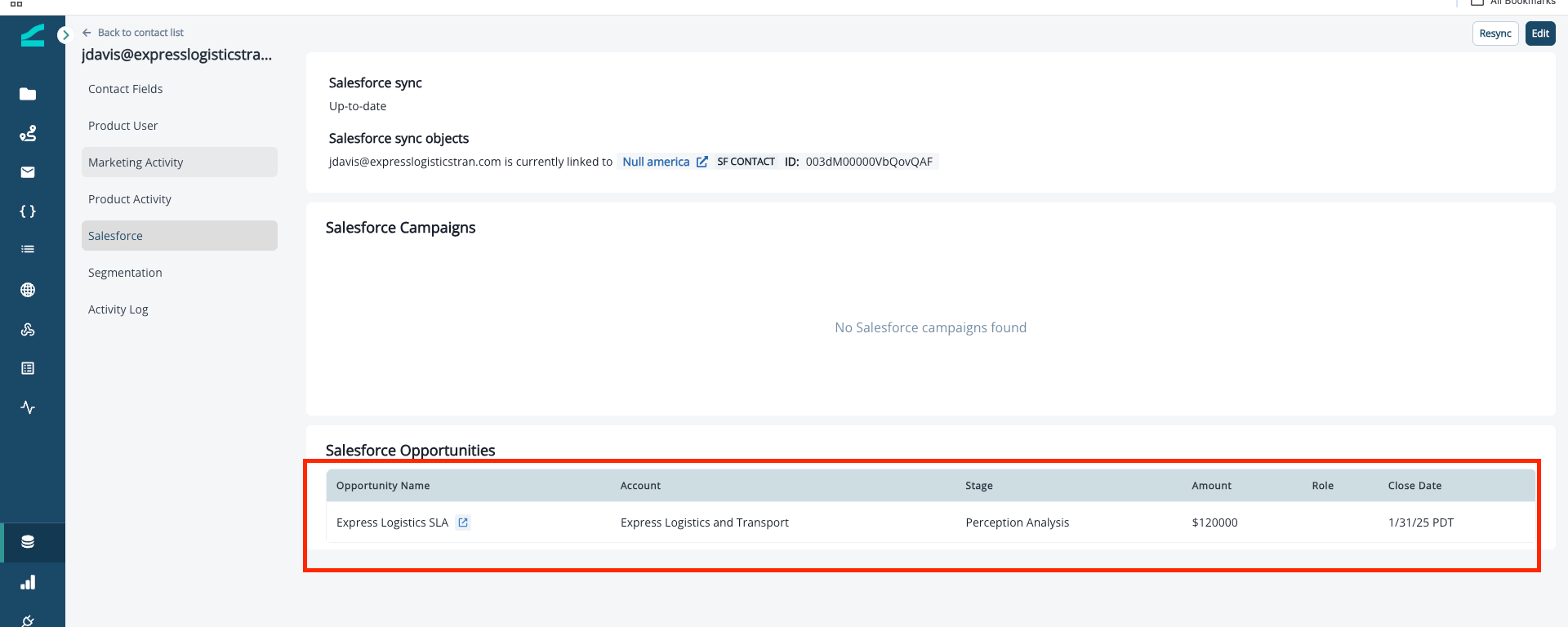
#### View Opportunities on a Contact
Each contact's profile shows the Opportunities they're associated with, alongside their Salesforce Campaign membership and sync status.
To view Opportunities on a contact:
1. Open any contact record
2. Click the **Salesforce** tab in the contact navigation
3. Scroll to the **Salesforce Opportunities** section
The Opportunities table on a contact profile shows:
* **Opportunity Name**, **Account**, **Stage**, **Amount**, **Close Date**
The listing page shows the following columns:
* **Opportunity** — Opportunity name with a link to open the record in Salesforce
* **Account** — The associated Salesforce Account
* **Stage** — Current Opportunity stage (e.g., Prospecting, Closed Won)
* **Amount** — Opportunity amount
* **Close Date** — Expected or actual close date
* **Created Date** — When the Opportunity was created in Salesforce
* **Owner** — Salesforce Owner of the Opportunity
* **Contacts** — Total Contact Roles on the Opportunity in Salesforce
* **Contacts in Inflection** — How many of those Contact Roles are matched to contacts in your Inflection database
* **Last Synced** — When Inflection last refreshed this record from Salesforce
The **Contacts in Inflection** column is a quick way to gauge how a contact-role-based audience will perform before you build it. A low value relative to **Contacts** indicates Salesforce contact roles that haven't been matched to any Inflection contact yet.
Use the **Search by opportunity name** field or **Add filter** to narrow the listing.
#### View Opportunities on a Contact
Each contact's profile shows the Opportunities they're associated with, alongside their Salesforce Campaign membership and sync status.
To view Opportunities on a contact:
1. Open any contact record
2. Click the **Salesforce** tab in the contact navigation
3. Scroll to the **Salesforce Opportunities** section
The Opportunities table on a contact profile shows:
* **Opportunity Name**, **Account**, **Stage**, **Amount**, **Close Date**
 #### Filter Audiences by Opportunity
Use the **Has Salesforce Opportunity** filter in any Dynamic List, journey audience, or segment to target contacts based on deal data: Stage, Amount, Close Date, Owner, custom Opportunity fields, and more.
For full setup of the filter and best practices on chaining conditions, see [Building Audiences](/database/building-audiences).
## Contact Field Mapping
Navigate to **Connections > Contact Fields** to view and update contact field mapping in Inflection.
#### Filter Audiences by Opportunity
Use the **Has Salesforce Opportunity** filter in any Dynamic List, journey audience, or segment to target contacts based on deal data: Stage, Amount, Close Date, Owner, custom Opportunity fields, and more.
For full setup of the filter and best practices on chaining conditions, see [Building Audiences](/database/building-audiences).
## Contact Field Mapping
Navigate to **Connections > Contact Fields** to view and update contact field mapping in Inflection.
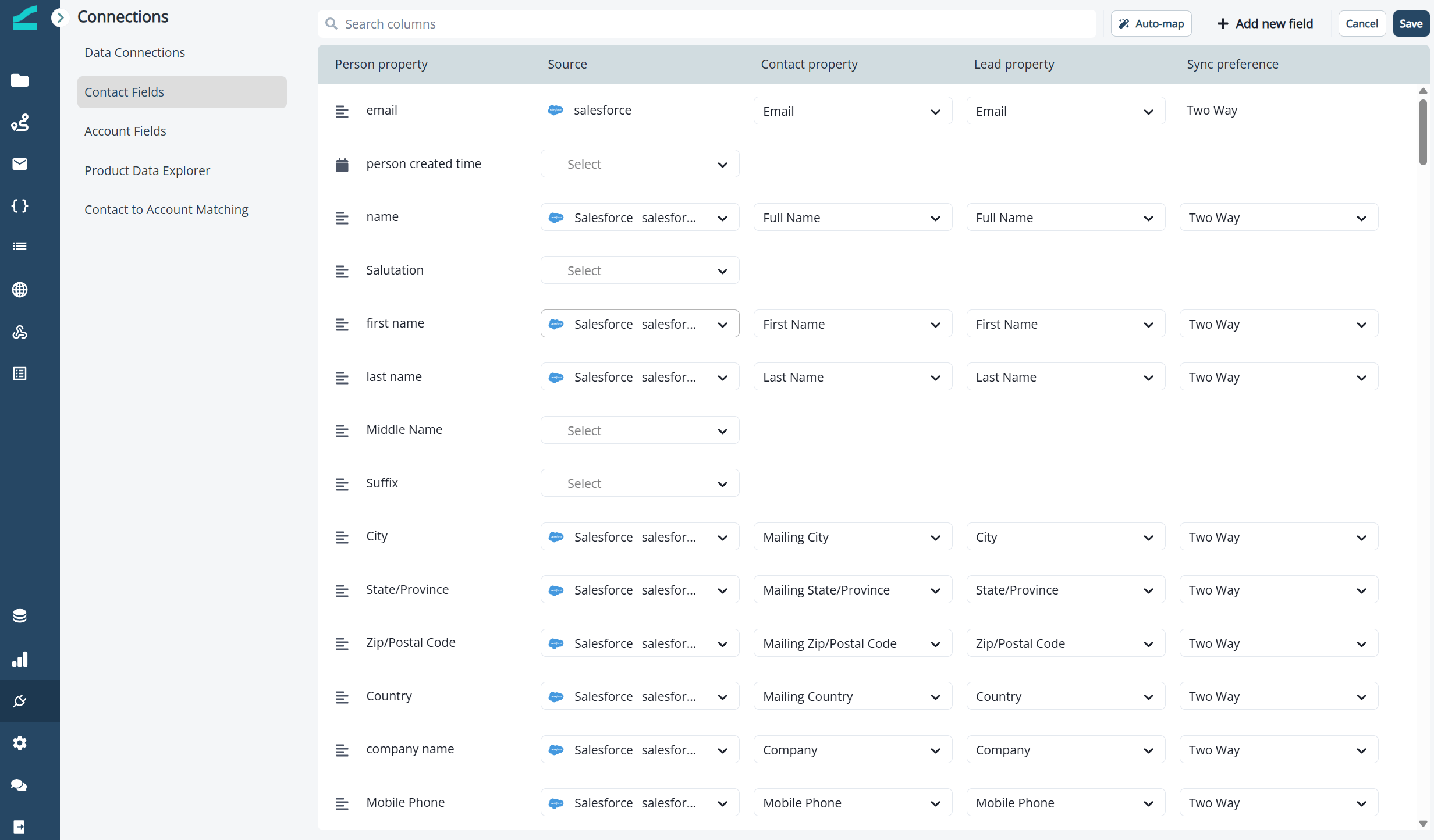 * **Automap Fields:** To revert to the default schema of mapping, click **Automap**.
* **Sync Preference:** Define sync preferences for each field.
* `Two Way`: Salesforce and Inflection will use the most recent value available. (Default)
* `Always use Salesforce`: Inflection update with the most recent value from Salesforce.
* `Prefer Salesforce unless blank`: Inflection will update with the most recent value from Salesforce, unless the Salesforce field is empty. If empty, Inflection will update Salesforce
* **Add New Field:** Click **Edit** and **Add a new field** to create a new contact field in Inflection.
When creating a custom field and mapping it to Salesforce, ensure that the field type is the same in both platforms. i.e., Mapping an Inflection field that is Boolean to a Salesforce field that is string can result in sync errors.
* Next, look up & map the corresponding Salesforce fields on the lead and contact that you want to map to your Inflection custom field.
* Click “Save” to save the mapping. Once save is clicked, the exchange of data will begin between Inflection and Salesforce.
## Frequently Asked Questions
Inflection sees person records as unique by email address. It will not allow duplicates (with rare exception). If two records exist in Salesforce with the same email address (two leads, two contacts, or a lead and a contact), Inflection will sync with the oldest record.
Inflection will follow the record. The Inflection contact that was synced to a lead will continue to sync with the contact it was converted to.
Inflection users set this frequency — the most frequent option is every 1 minute. What this means: 1 minute after every complete sync, Inflection/Salesforce sync records that were modified since the previous sync. Note that this frequency refers to the frequency between the syncs; the syncs themselves can take longer than 1 minute.
Yes. Map custom Opportunity fields the same way you map Account or Contact custom fields — see the **Contact Field Mapping** section above for the workflow.
Inflection links Opportunities to contacts using your workspace’s **Opportunity Matching Strategy**, set in your Salesforce connection’s Opportunity Sync settings. Choose **Deal Team Only** to match only contacts with an explicit Contact Role, **Salesforce Account Only** to match contacts linked to the account in Salesforce, or **Salesforce + Our Matches** to also include the contacts Inflection matches to the account automatically. Workspaces that already had Opportunity sync stay on **Deal Team Only** until you change it.
Opportunity sync is read-only, and Opportunity-based journey triggers and conversion events are planned for a future release. For now, use scheduled journeys with Dynamic List audiences that filter on Opportunity Stage.
No. Workspaces that already use Opportunity sync stay on **Deal Team Only**, the same behavior as before, so your existing audience counts will not change. To reach more contacts at an account — for example, to suppress an entire account during an active deal — switch your **Opportunity Matching Strategy** in the Salesforce connection’s Opportunity Sync settings.
* **Automap Fields:** To revert to the default schema of mapping, click **Automap**.
* **Sync Preference:** Define sync preferences for each field.
* `Two Way`: Salesforce and Inflection will use the most recent value available. (Default)
* `Always use Salesforce`: Inflection update with the most recent value from Salesforce.
* `Prefer Salesforce unless blank`: Inflection will update with the most recent value from Salesforce, unless the Salesforce field is empty. If empty, Inflection will update Salesforce
* **Add New Field:** Click **Edit** and **Add a new field** to create a new contact field in Inflection.
When creating a custom field and mapping it to Salesforce, ensure that the field type is the same in both platforms. i.e., Mapping an Inflection field that is Boolean to a Salesforce field that is string can result in sync errors.
* Next, look up & map the corresponding Salesforce fields on the lead and contact that you want to map to your Inflection custom field.
* Click “Save” to save the mapping. Once save is clicked, the exchange of data will begin between Inflection and Salesforce.
## Frequently Asked Questions
Inflection sees person records as unique by email address. It will not allow duplicates (with rare exception). If two records exist in Salesforce with the same email address (two leads, two contacts, or a lead and a contact), Inflection will sync with the oldest record.
Inflection will follow the record. The Inflection contact that was synced to a lead will continue to sync with the contact it was converted to.
Inflection users set this frequency — the most frequent option is every 1 minute. What this means: 1 minute after every complete sync, Inflection/Salesforce sync records that were modified since the previous sync. Note that this frequency refers to the frequency between the syncs; the syncs themselves can take longer than 1 minute.
Yes. Map custom Opportunity fields the same way you map Account or Contact custom fields — see the **Contact Field Mapping** section above for the workflow.
Inflection links Opportunities to contacts using your workspace’s **Opportunity Matching Strategy**, set in your Salesforce connection’s Opportunity Sync settings. Choose **Deal Team Only** to match only contacts with an explicit Contact Role, **Salesforce Account Only** to match contacts linked to the account in Salesforce, or **Salesforce + Our Matches** to also include the contacts Inflection matches to the account automatically. Workspaces that already had Opportunity sync stay on **Deal Team Only** until you change it.
Opportunity sync is read-only, and Opportunity-based journey triggers and conversion events are planned for a future release. For now, use scheduled journeys with Dynamic List audiences that filter on Opportunity Stage.
No. Workspaces that already use Opportunity sync stay on **Deal Team Only**, the same behavior as before, so your existing audience counts will not change. To reach more contacts at an account — for example, to suppress an entire account during an active deal — switch your **Opportunity Matching Strategy** in the Salesforce connection’s Opportunity Sync settings.