> ## Documentation Index
> Fetch the complete documentation index at: https://docs.inflection.io/llms.txt
> Use this file to discover all available pages before exploring further.
# BigQuery Setup and Configuration
> Set up BigQuery as an Inflection data source and export destination.
## Export Inflection Data to BigQuery
For information on tables and schemas that inflection exports to BigQuery, please read this
These steps need to be run by someone with access to
1. Go to **Connections → Data Connections**, then click **Add new connection**.
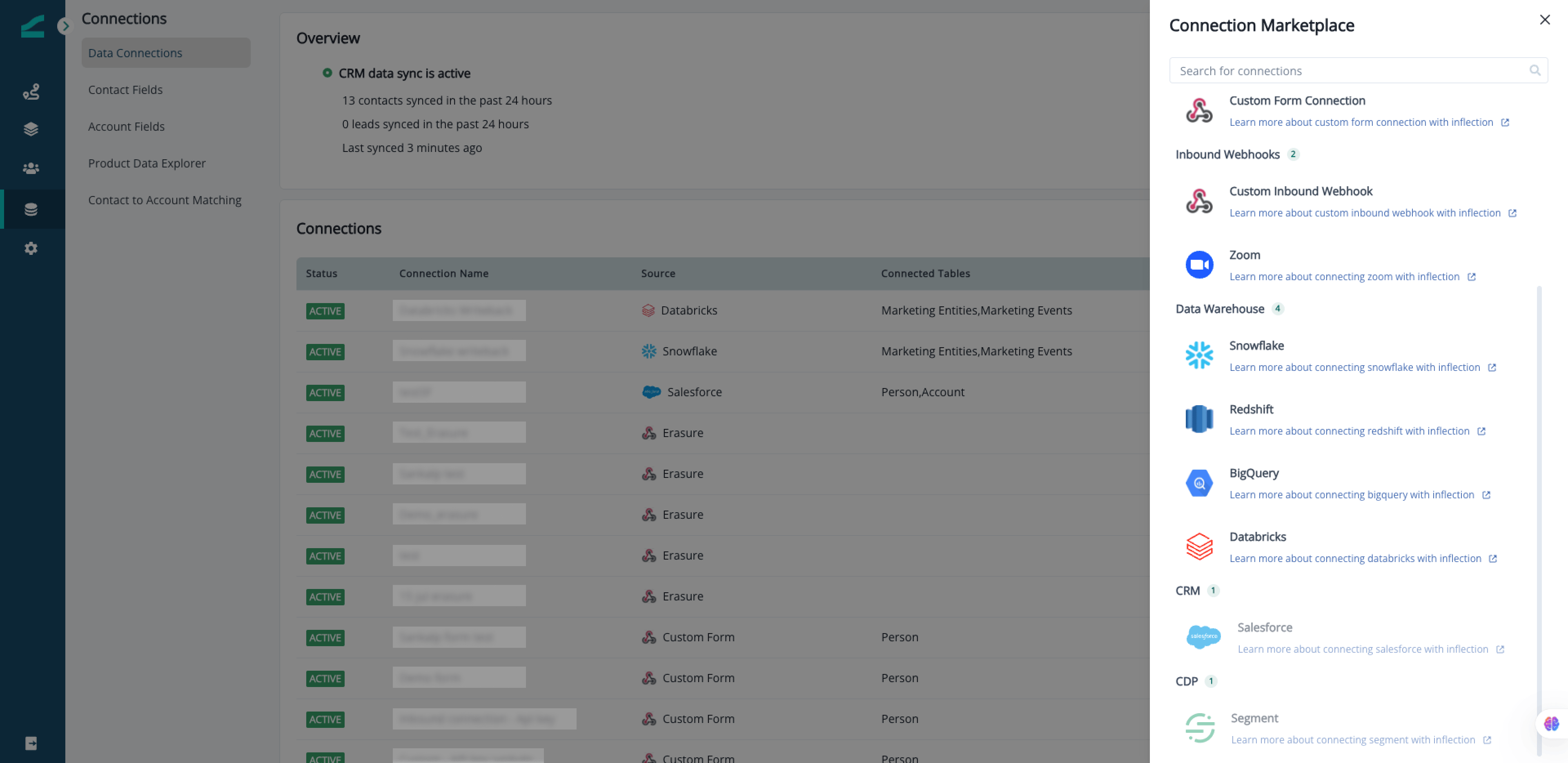 2. **Choose your platform**: Select **BigQuery** as your destination platform.
3. **Select connection type**: Choose **Export Data to BigQuery**.
2. **Choose your platform**: Select **BigQuery** as your destination platform.
3. **Select connection type**: Choose **Export Data to BigQuery**.
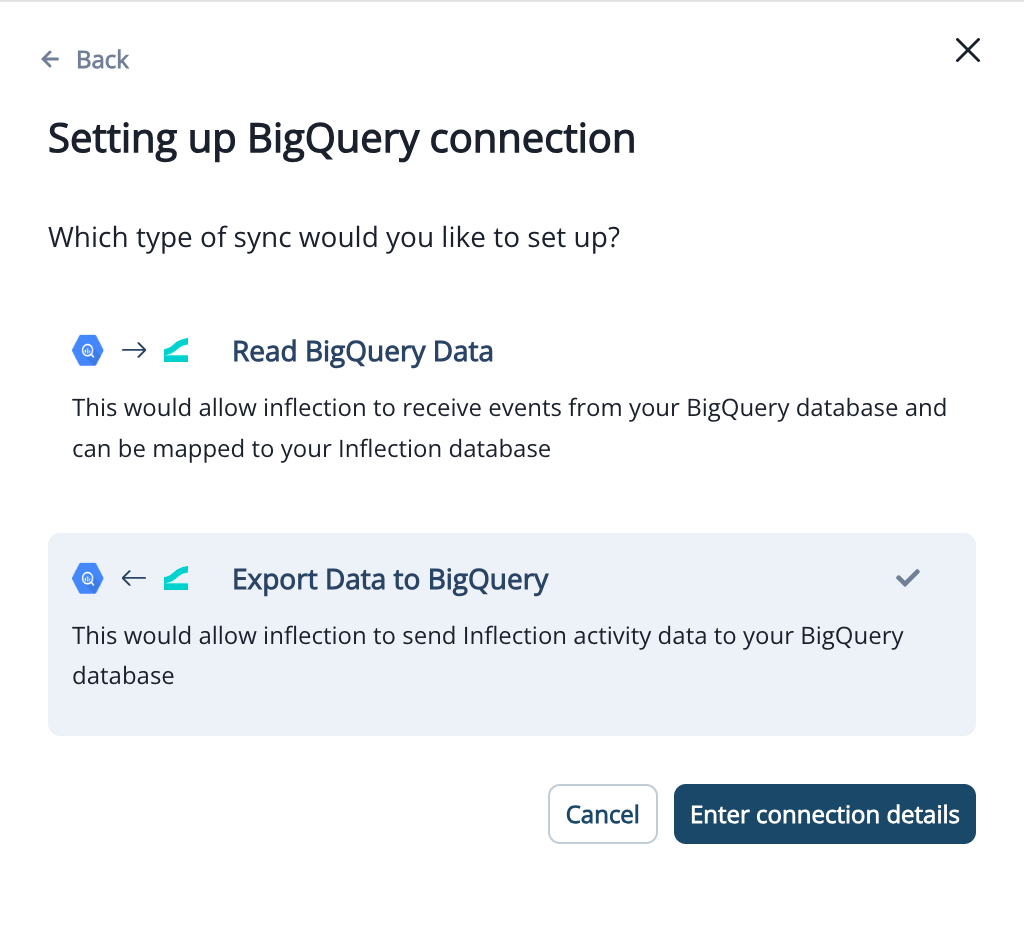 4. **Enter your BigQuery credentials**
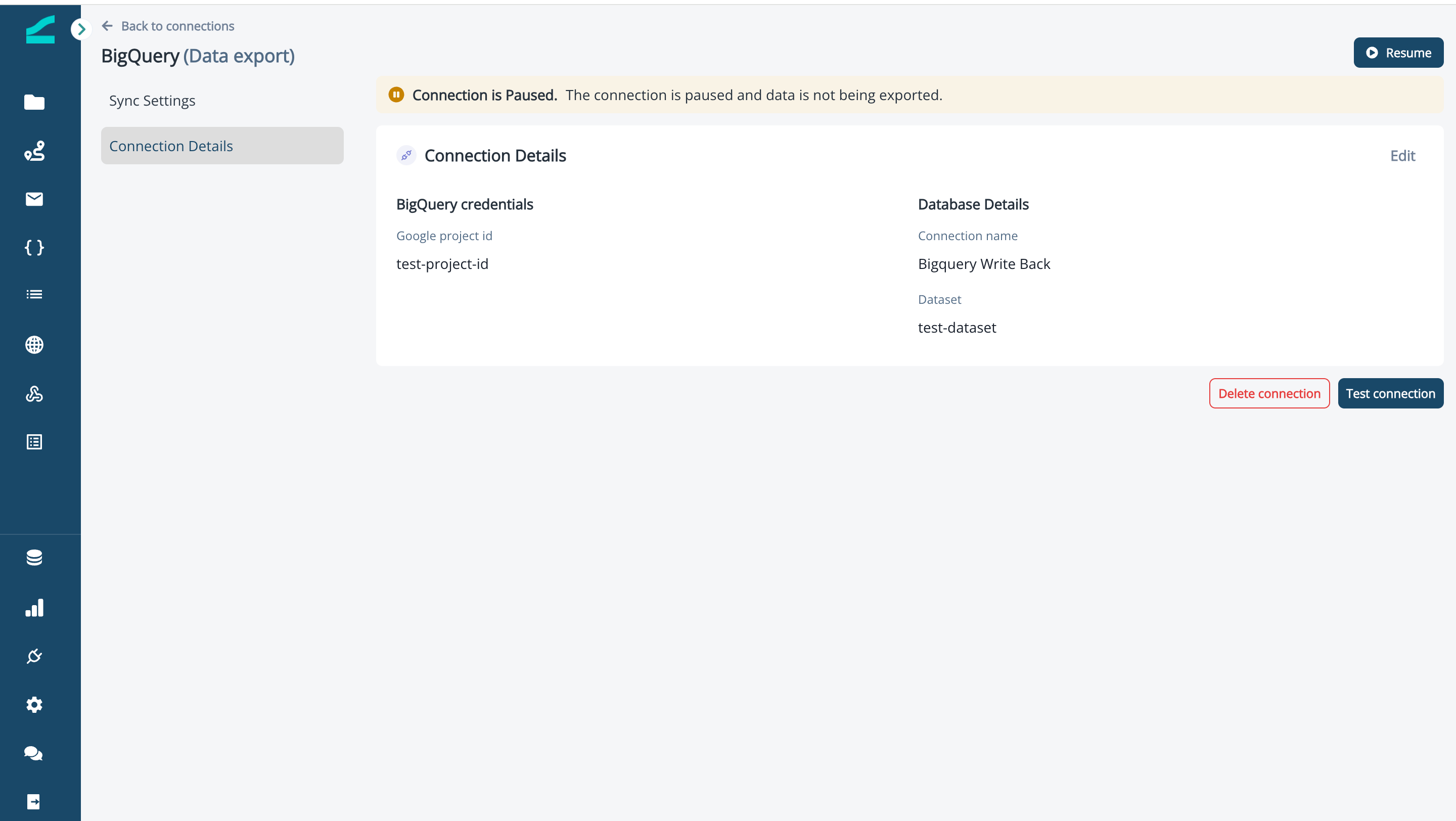
* Connection name - A human friendly name for this **BigQuery** connection
* Google Project Id - Project id of the GCP
* Dataset - Name of the dataset where inflection should write data
5. Click **Create Connection** to set up the connection. Note that syncing will NOT BEGIN and connection will be in INACTIVE state until the credentials and destination tables are created Inflection.
### Verifying access to sync data
Inflection requires specific permissions to sync data.
* On your Google Cloud console, ensure that you've selected the project containing your BigQuery Instance.
* From the navigation menu, go to IAM & Admin Panel. Click on "Grant Access".
* Then, add the following service account as principle and add the specified role.
* This will help us read the data and sync the data to inflection.
**Principal:** [inflection-datawarehouse-write@silken-fortress-380708.iam.gserviceaccount.com](mailto:inflection-datawarehouse-write@silken-fortress-380708.iam.gserviceaccount.com)
**Roles:**
```json theme={null}
bigquery.jobs.create, bigquery.tables.create, bigquery.tables.delete,
bigquery.tables.get, bigquery.tables.getData, bigquery.tables.update,
bigquery.tables.updateData
```
Once your credentials are saved and your data team gave above accesses, your setup is complete.
At this point:
* Inflection's team will validate the setup and activate the sync for you.
* No additional steps are required from your side.
* Optionally, you may test or delete the connection at this stage
* You will be notified once the sync has started and data is being sent.
Activation may take up to two business days.
4. **Enter your BigQuery credentials**
* Connection name - A human friendly name for this **BigQuery** connection
* Google Project Id - Project id of the GCP
* Dataset - Name of the dataset where inflection should write data
5. Click **Create Connection** to set up the connection. Note that syncing will NOT BEGIN and connection will be in INACTIVE state until the credentials and destination tables are created Inflection.
### Verifying access to sync data
Inflection requires specific permissions to sync data.
* On your Google Cloud console, ensure that you've selected the project containing your BigQuery Instance.
* From the navigation menu, go to IAM & Admin Panel. Click on "Grant Access".
* Then, add the following service account as principle and add the specified role.
* This will help us read the data and sync the data to inflection.
**Principal:** [inflection-datawarehouse-write@silken-fortress-380708.iam.gserviceaccount.com](mailto:inflection-datawarehouse-write@silken-fortress-380708.iam.gserviceaccount.com)
**Roles:**
```json theme={null}
bigquery.jobs.create, bigquery.tables.create, bigquery.tables.delete,
bigquery.tables.get, bigquery.tables.getData, bigquery.tables.update,
bigquery.tables.updateData
```
Once your credentials are saved and your data team gave above accesses, your setup is complete.
At this point:
* Inflection's team will validate the setup and activate the sync for you.
* No additional steps are required from your side.
* Optionally, you may test or delete the connection at this stage
* You will be notified once the sync has started and data is being sent.
Activation may take up to two business days.
 And that's it! Once you are set up, you can monitor sync health by following our guide here
## Import Product Activity from BigQuery to Inflection
For information on generic import guidelines, please read this.
1. In the Inflection UI, select Connections on the left sidebar > "Data Connections" > "Add new Connection"
And that's it! Once you are set up, you can monitor sync health by following our guide here
## Import Product Activity from BigQuery to Inflection
For information on generic import guidelines, please read this.
1. In the Inflection UI, select Connections on the left sidebar > "Data Connections" > "Add new Connection"
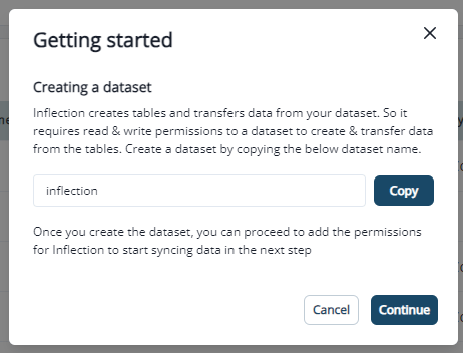
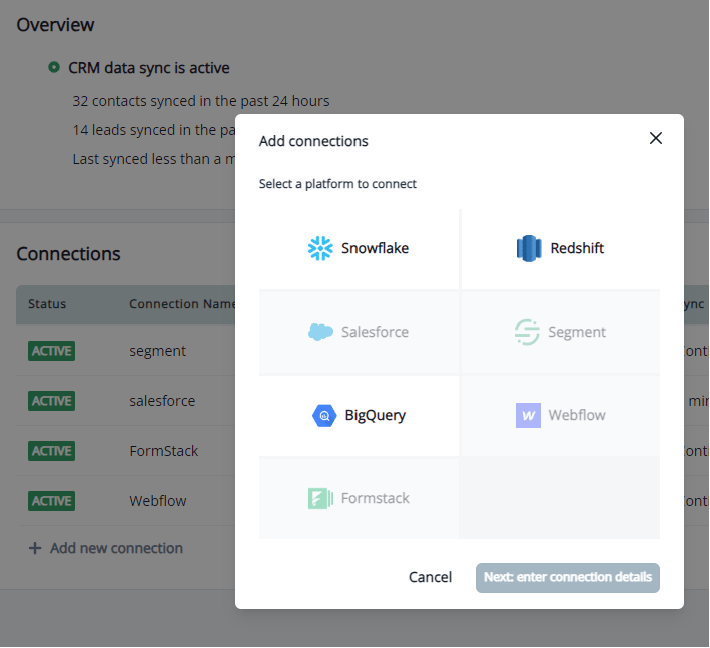 2. Copy the dataset name and select Continue to add required permissions.
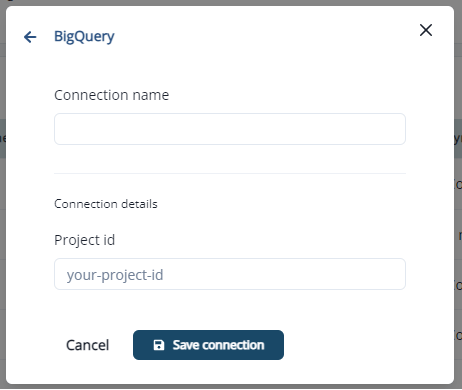
 3. Name your connection in the Connection name field, add your Project id, and save the connection:
 The below permission needs to be given to our service account by the customers on their project:
1. `bigquery.dataViewer`: For us to read the data. Cloud console command:
```shell theme={null}
gcloud projects add-iam-policy-binding --member serviceAccount: --role roles/bigquery.dataViewer
```
2. `biguquery.user`: For us to read the dataset's metadata and list tables in the dataset, and also to run export job. Cloud console command:
```shell theme={null}
gcloud projects add-iam-policy-binding --member serviceAccount: --role roles/bigquery.user
```
3. `bigquery.dataEditor`: This role has to be provided to the service account on the dataset `inflection`. This is for us to calculate diffs within the dataset `inflection`. Cloud console command:
```shell theme={null}
bq query --nouse_legacy_sql 'GRANT `roles/bigquery.dataEditor` ON SCHEMA inflection TO "serviceAccount:"'
```
The below permission needs to be given to our service account by the customers on their project:
1. `bigquery.dataViewer`: For us to read the data. Cloud console command:
```shell theme={null}
gcloud projects add-iam-policy-binding --member serviceAccount: --role roles/bigquery.dataViewer
```
2. `biguquery.user`: For us to read the dataset's metadata and list tables in the dataset, and also to run export job. Cloud console command:
```shell theme={null}
gcloud projects add-iam-policy-binding --member serviceAccount: --role roles/bigquery.user
```
3. `bigquery.dataEditor`: This role has to be provided to the service account on the dataset `inflection`. This is for us to calculate diffs within the dataset `inflection`. Cloud console command:
```shell theme={null}
bq query --nouse_legacy_sql 'GRANT `roles/bigquery.dataEditor` ON SCHEMA inflection TO "serviceAccount:"'
```