> ## Documentation Index
> Fetch the complete documentation index at: https://docs.inflection.io/llms.txt
> Use this file to discover all available pages before exploring further.
# Databricks Setup and Configuration
> Set up Databricks as an Inflection data source and export destination.
## Export Inflection Data to Databricks
For information on tables and schemas that inflection exports to Databricks, please read this
These steps need to be run by someone with access to
1. Go to **Connections → Data Connections**, then click **Add new connection**.
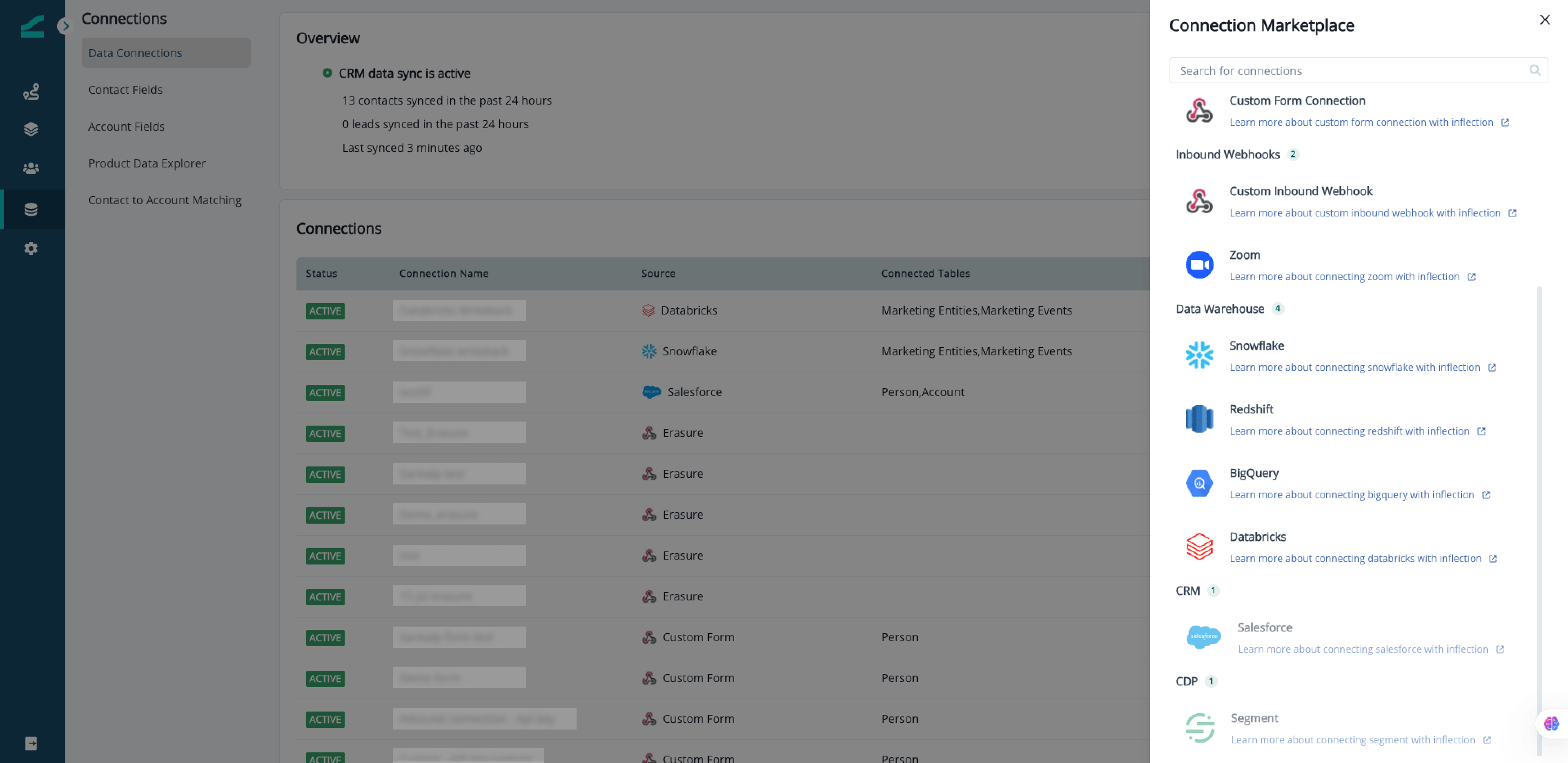 2. **Choose your platform**: Select **Databricks** as your destination platform.
3. **Select connection type**: Choose **Export Data to Databricks**.
2. **Choose your platform**: Select **Databricks** as your destination platform.
3. **Select connection type**: Choose **Export Data to Databricks**.
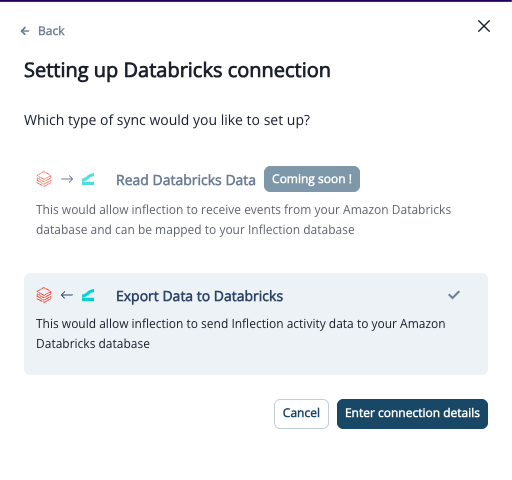 4. **Enter your DW credentials**
Give a name for your data warehouse connection and fill in your credentials.
* For **Databricks**: Enter client ID, client secret, host, catalog, schema and HTTP path.
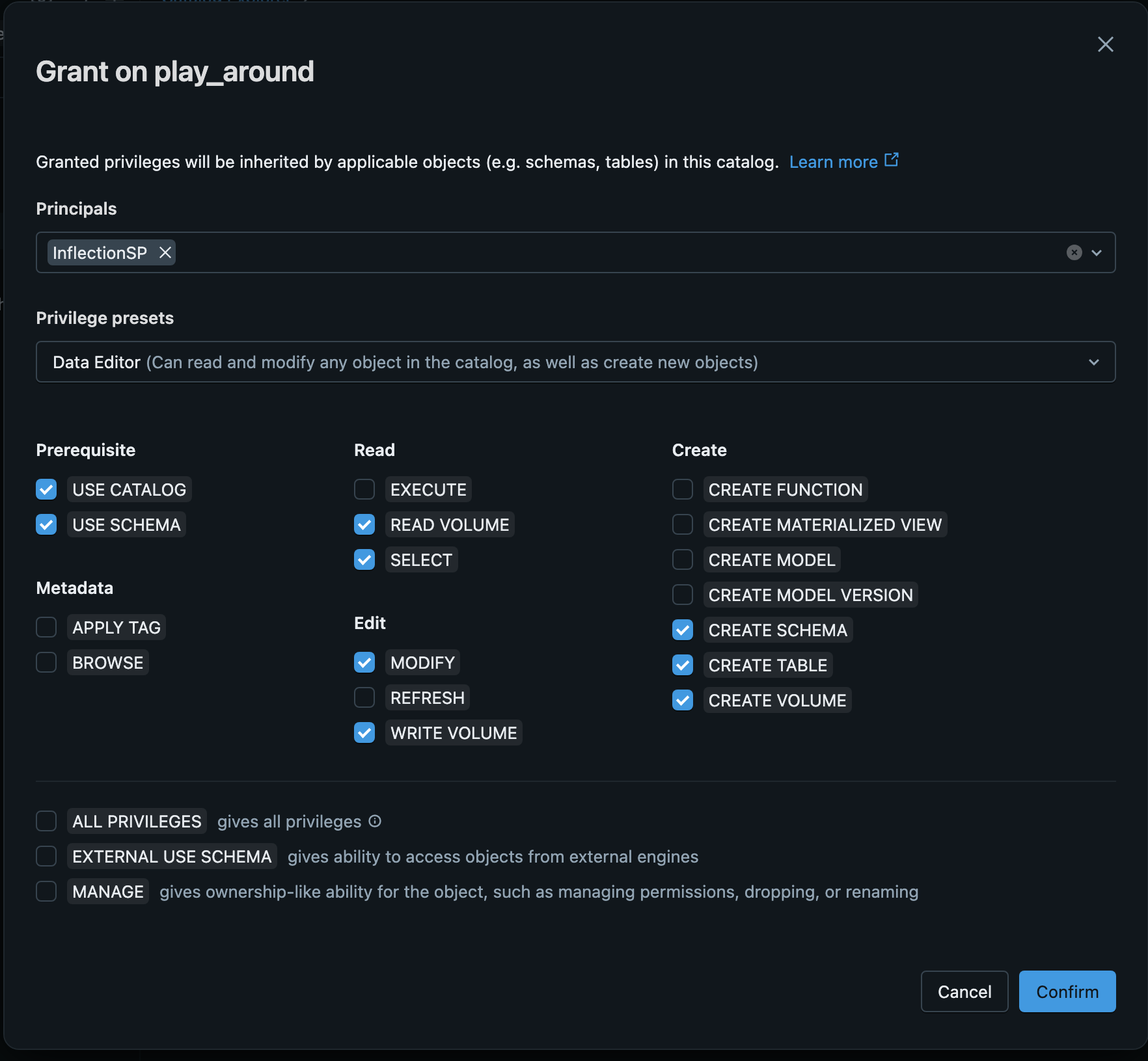
Make sure the service principal used for Inflection access has at least the following minimum permissions on the target catalog for data export.
4. **Enter your DW credentials**
Give a name for your data warehouse connection and fill in your credentials.
* For **Databricks**: Enter client ID, client secret, host, catalog, schema and HTTP path.
Make sure the service principal used for Inflection access has at least the following minimum permissions on the target catalog for data export.
 2. Click **Create Connection** to set up the connection. Note that syncing will NOT BEGIN and connection will be in INACTIVE state until the credentials and destination tables are validated by your Inflection team.
We provide a custom SQL script tailored to your configuration. You'll need to run this script to create the export tables in your DW.
2. Click **Create Connection** to set up the connection. Note that syncing will NOT BEGIN and connection will be in INACTIVE state until the credentials and destination tables are validated by your Inflection team.
We provide a custom SQL script tailored to your configuration. You'll need to run this script to create the export tables in your DW.
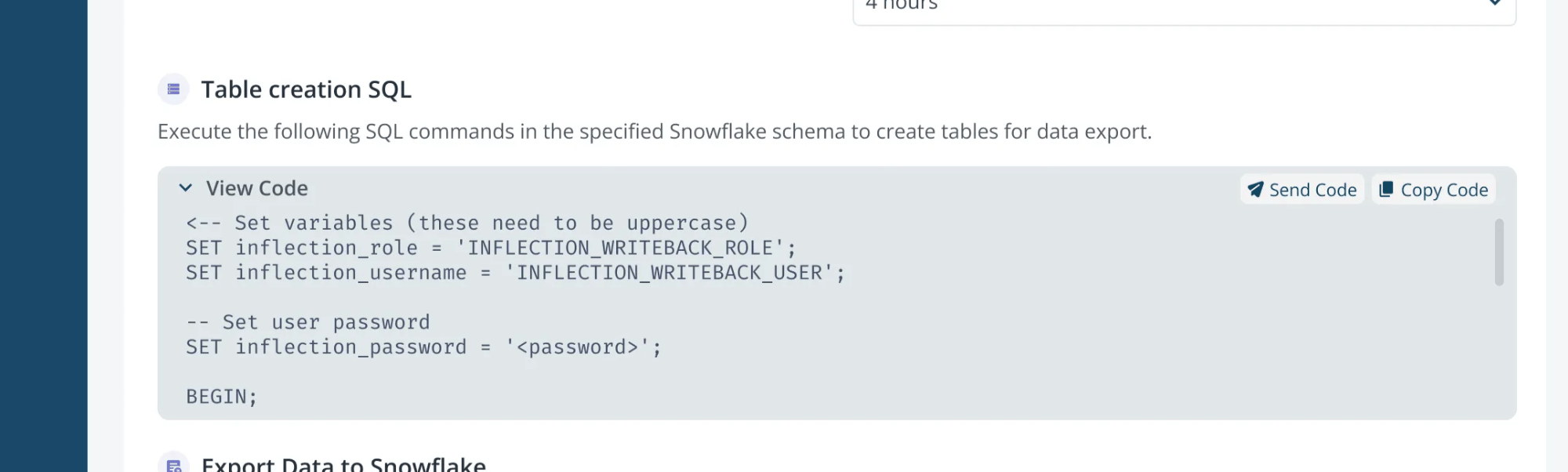 The script creates tables with the necessary structure and permissions (INSERT, UPDATE, DELETE) for Inflection to write data.
Once your credentials are saved and your data team has created the required tables in your warehouse, your setup is complete.
At this point:
* Inflection's team will validate the setup and activate the sync for you.
* No additional steps are required from your side.
* Optionally, you may test or delete the connection at this stage
* You will be notified once the sync has started and data is being sent.
Activation may take up to two business days. Please ensure your data team notifies you once your tables are set up in your data warehouse.
And that's it! Once you are set up, you can monitor sync health by following our guide here.
## Import Databricks Data to Inflection
Inflection can read data directly from your Databricks workspace using **Databricks-to-Databricks Delta Sharing**. You stay fully in control of what's shared; Inflection only receives read-only access to the specific tables you choose.
This instructions below walk you through:
1. Setting up a **Delta Sharing share** in your Databricks Unity Catalog.
2. Granting Inflection access using our **metastore identifier**.
3. Configuring the **Databricks connection** inside Inflection.
To complete this setup, you'll need:
* A **Unity Catalog–enabled** Databricks workspace.
* Permissions to:
* Create and manage **shares** and **recipients** in Unity Catalog.
* Grant `SELECT` access on the tables/schemas you want to share.
* The Inflection **Databricks metastore identifier**:
```text theme={null}
aws:us-west-2:7bd7c54d-5bf4-41c6-b6c8-752437ed524d
```
### Step 1: Choose what to share
Decide which objects Inflection should have access to:
* One or more **tables**, for example:
* `your_catalog.your_schema.product_activity`
* `your_catalog.your_schema.contacts`
* Or an entire **schema** in a catalog (e.g. `your_catalog.your_schema`).
You can add or remove objects from the share later; no need to get it perfect on day one.
### Step 2: Create a Share in Unity Catalog
You can create the share using the **Catalog Explorer**.
1. In Databricks, open the **Catalog** panel.
2. Click the **gear icon (⚙)** and choose **Delta Sharing**.
3. Under **Shared by me**, click **Create share** / **Share data**.
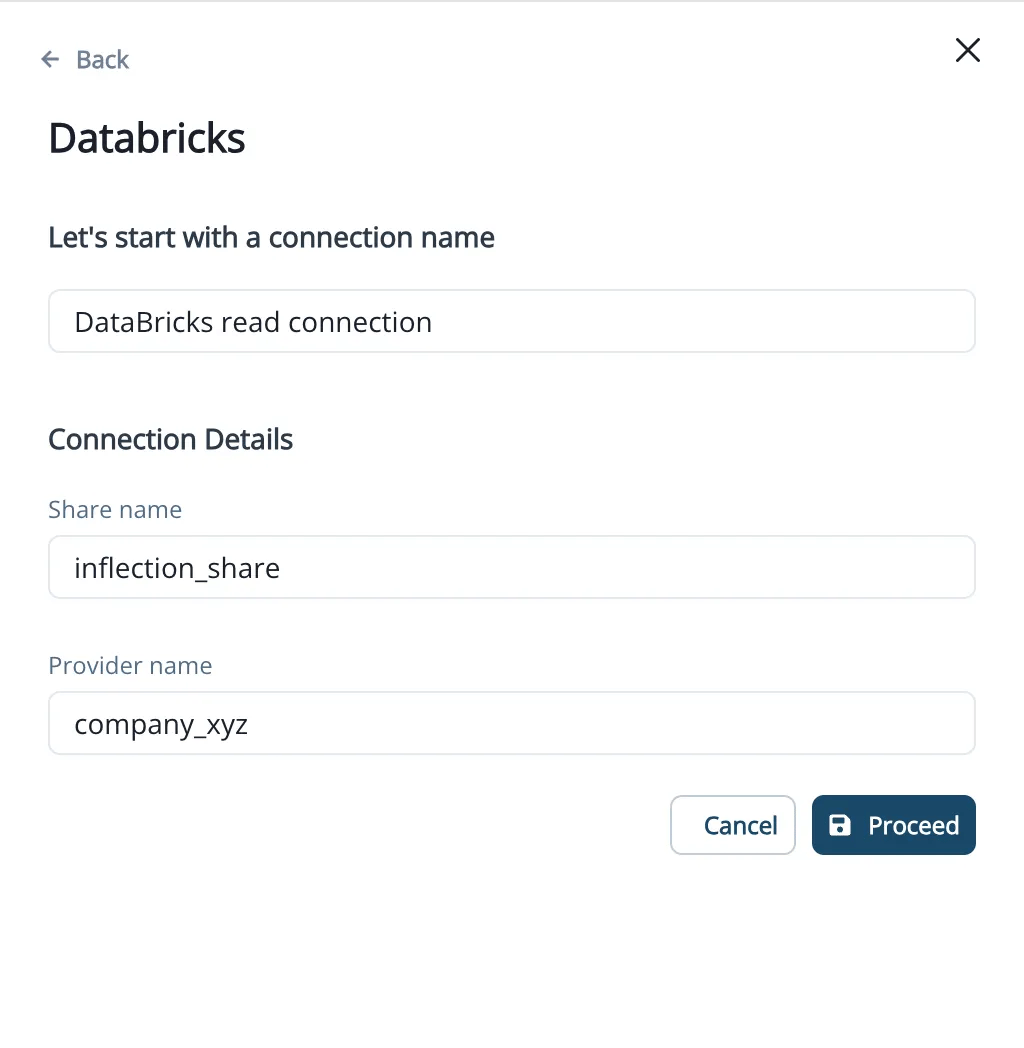
4. Enter a **Share name**, for example:
```text theme={null}
inflection_share
```
5. Click **Save and continue**.
6. On the next step, add the tables/schemas you want to share to Inflection, then save.
You'll use this exact **Share name** again when you configure the connection in Inflection.
### Step 3: Create a Databricks Recipient for Inflection
Next, create a **recipient** that represents Inflection's Unity Catalog metastore, using the identifier we provided.
1. In Databricks, go to **Catalog → ⚙ Delta Sharing**.
2. Go to the **Shared by me** tab.
3. Click **New recipient**.
4. Choose a **Recipient name**, for example:
```text theme={null}
inflection_recipient
```
5. For **Recipient type**, select **Databricks**.
6. In the **Databricks metastore identifier** field, paste:
```text theme={null}
aws:us-west-2:7bd7c54d-5bf4-41c6-b6c8-752437ed524d
```
7. Save the recipient.
### Step 4: Grant the Share to Inflection
Finally, grant the share to the recipient you just created.
1. In **Catalog → ⚙ Delta Sharing → Shared by me**, click your share (`inflection_share`).
2. Open the **Recipients** tab.
3. Add `inflection_recipient` and grant it access.
### Step 5: Open the Databricks Connector in Inflection
1. Log in to your Inflection workspace.
2. Navigate to **Connections → Data Connections**.
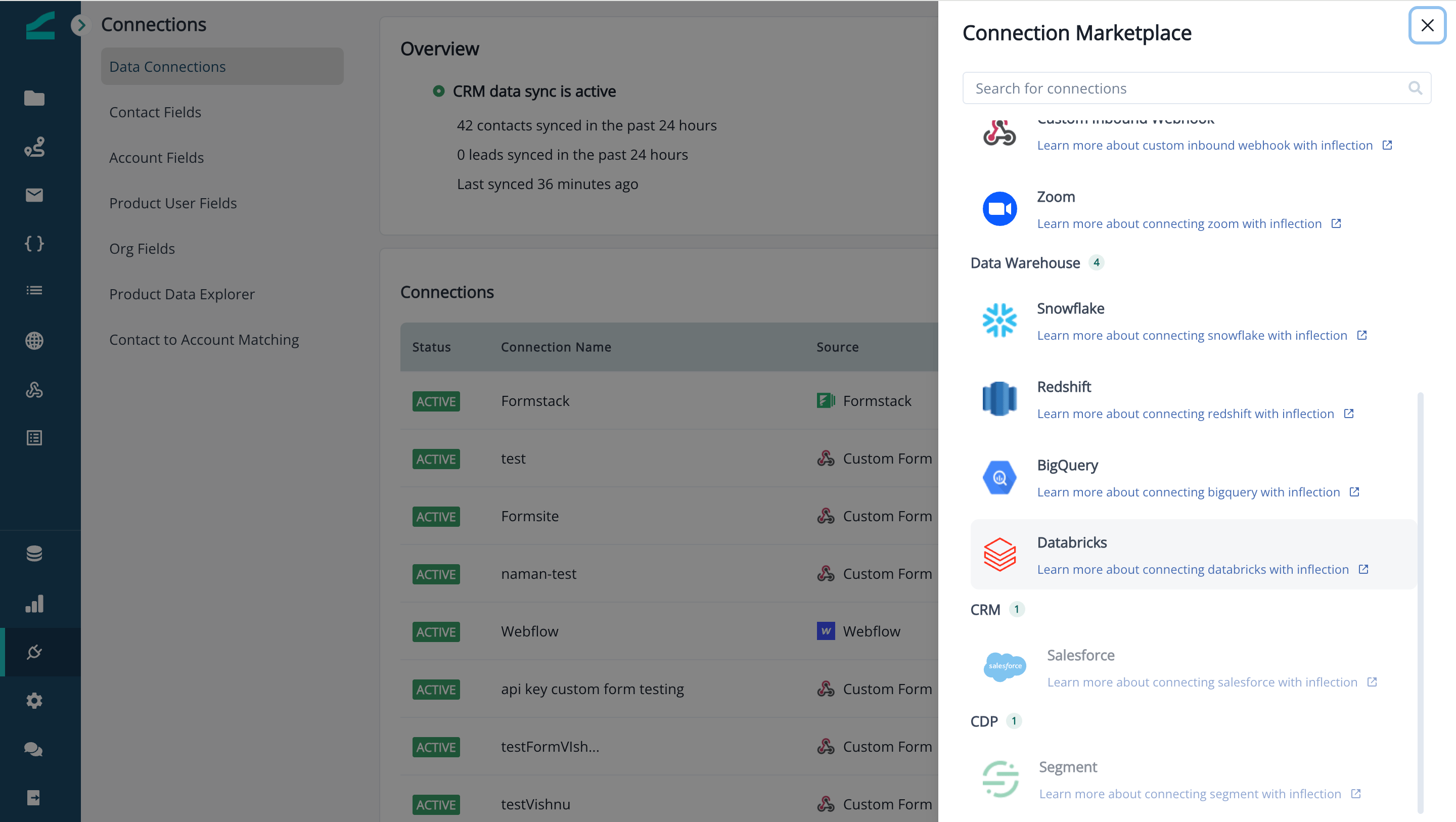
3. Click **+** / **Add connection** to open the **Connection Marketplace**.
4. Under **Data Warehouse**, choose **Databricks**.
The script creates tables with the necessary structure and permissions (INSERT, UPDATE, DELETE) for Inflection to write data.
Once your credentials are saved and your data team has created the required tables in your warehouse, your setup is complete.
At this point:
* Inflection's team will validate the setup and activate the sync for you.
* No additional steps are required from your side.
* Optionally, you may test or delete the connection at this stage
* You will be notified once the sync has started and data is being sent.
Activation may take up to two business days. Please ensure your data team notifies you once your tables are set up in your data warehouse.
And that's it! Once you are set up, you can monitor sync health by following our guide here.
## Import Databricks Data to Inflection
Inflection can read data directly from your Databricks workspace using **Databricks-to-Databricks Delta Sharing**. You stay fully in control of what's shared; Inflection only receives read-only access to the specific tables you choose.
This instructions below walk you through:
1. Setting up a **Delta Sharing share** in your Databricks Unity Catalog.
2. Granting Inflection access using our **metastore identifier**.
3. Configuring the **Databricks connection** inside Inflection.
To complete this setup, you'll need:
* A **Unity Catalog–enabled** Databricks workspace.
* Permissions to:
* Create and manage **shares** and **recipients** in Unity Catalog.
* Grant `SELECT` access on the tables/schemas you want to share.
* The Inflection **Databricks metastore identifier**:
```text theme={null}
aws:us-west-2:7bd7c54d-5bf4-41c6-b6c8-752437ed524d
```
### Step 1: Choose what to share
Decide which objects Inflection should have access to:
* One or more **tables**, for example:
* `your_catalog.your_schema.product_activity`
* `your_catalog.your_schema.contacts`
* Or an entire **schema** in a catalog (e.g. `your_catalog.your_schema`).
You can add or remove objects from the share later; no need to get it perfect on day one.
### Step 2: Create a Share in Unity Catalog
You can create the share using the **Catalog Explorer**.
1. In Databricks, open the **Catalog** panel.
2. Click the **gear icon (⚙)** and choose **Delta Sharing**.
3. Under **Shared by me**, click **Create share** / **Share data**.
4. Enter a **Share name**, for example:
```text theme={null}
inflection_share
```
5. Click **Save and continue**.
6. On the next step, add the tables/schemas you want to share to Inflection, then save.
You'll use this exact **Share name** again when you configure the connection in Inflection.
### Step 3: Create a Databricks Recipient for Inflection
Next, create a **recipient** that represents Inflection's Unity Catalog metastore, using the identifier we provided.
1. In Databricks, go to **Catalog → ⚙ Delta Sharing**.
2. Go to the **Shared by me** tab.
3. Click **New recipient**.
4. Choose a **Recipient name**, for example:
```text theme={null}
inflection_recipient
```
5. For **Recipient type**, select **Databricks**.
6. In the **Databricks metastore identifier** field, paste:
```text theme={null}
aws:us-west-2:7bd7c54d-5bf4-41c6-b6c8-752437ed524d
```
7. Save the recipient.
### Step 4: Grant the Share to Inflection
Finally, grant the share to the recipient you just created.
1. In **Catalog → ⚙ Delta Sharing → Shared by me**, click your share (`inflection_share`).
2. Open the **Recipients** tab.
3. Add `inflection_recipient` and grant it access.
### Step 5: Open the Databricks Connector in Inflection
1. Log in to your Inflection workspace.
2. Navigate to **Connections → Data Connections**.
3. Click **+** / **Add connection** to open the **Connection Marketplace**.
4. Under **Data Warehouse**, choose **Databricks**.
 ### Step 6: Choose sync type
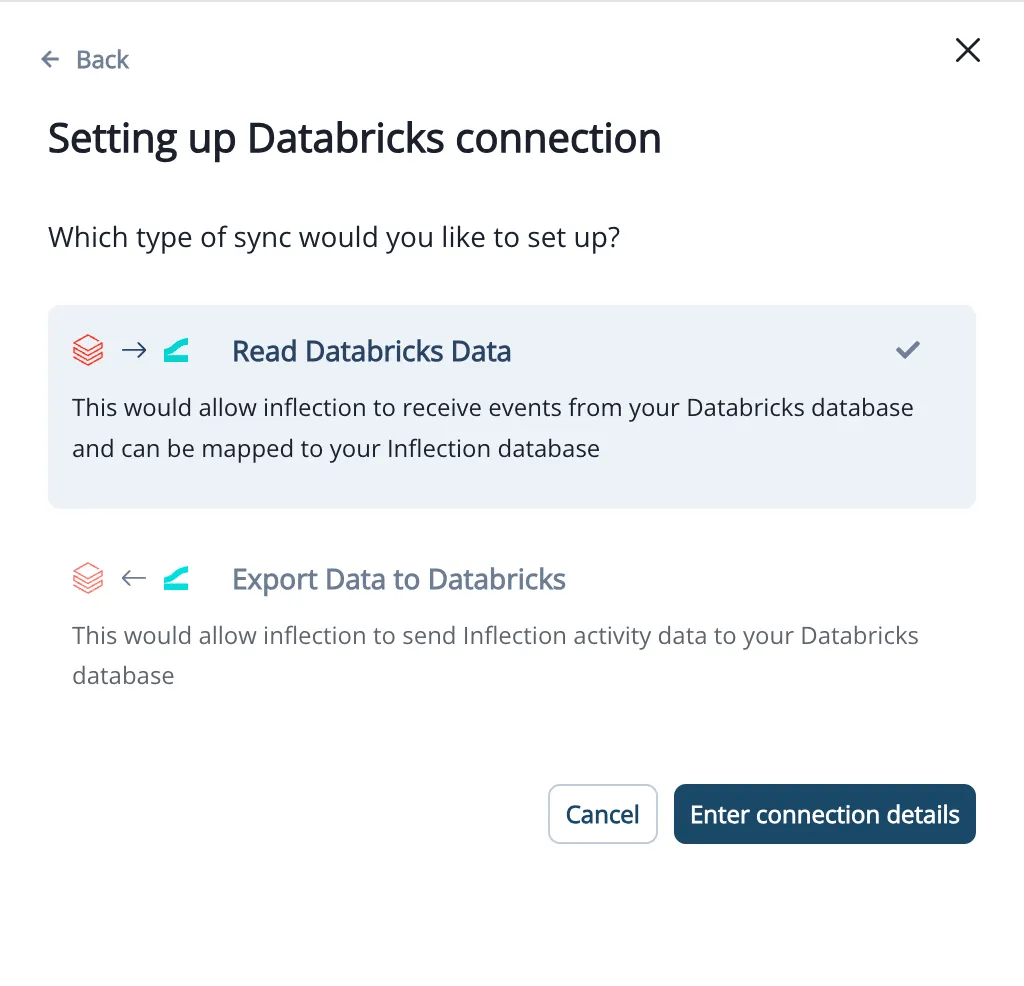
On the **"Setting up Databricks connection"** screen:
1. Select **Read Databricks Data**
2. Click **Enter connection details**.
### Step 6: Choose sync type
On the **"Setting up Databricks connection"** screen:
1. Select **Read Databricks Data**
2. Click **Enter connection details**.
 ### Step 7: Mapping DW to Inflection Objects
Use the document below to Map Inflection Tables to Databricks:
the related Help Center article
And that's it! Once you save the mapping and you connection is active, you can monitor the sync health. If you encounter any issues, reach out to the Inflection team.
### Step 7: Mapping DW to Inflection Objects
Use the document below to Map Inflection Tables to Databricks:
the related Help Center article
And that's it! Once you save the mapping and you connection is active, you can monitor the sync health. If you encounter any issues, reach out to the Inflection team.