> ## Documentation Index
> Fetch the complete documentation index at: https://docs.inflection.io/llms.txt
> Use this file to discover all available pages before exploring further.
# Building Audiences
> Learn about the many options to build audiences in Inflection, and best practices for structuring queries.
There are three primary ways to build audiences in Inflection:
* Journey audiences
* Dynamic lists
* Segments
Each has considerations, but the blocks (filters) available to create them are the same, as are the best practices we recommend.
## Filters
When targeting contacts or users based on a property value (also called an attribute or field value), select the person property filter. The prefix of the property indicates the Inflection entity the property describes.
* contact properties have no prefix (e.g., `name`, `email`, `title`)
* product user properties start with **product user.** (e.g., `product user.role`, `product user.created date`, `product user.last active`)
* org properties start with **org.** (e.g., `org.plan`, `org.open seats`, `org.credits available`)
* account properties start with **account.** (e.g., `account.owner`, `account.renewal date`, `account.geo`)
Read more about these entities and their common use cases: [Common Connections & Use Cases](/connections/common-connections-use-cases)
After selecting a field, click the data dictionary icon next to the operator dropdown to open **Insights from data dictionary**. The panel shows how the field is populated and what values it contains. For text fields, click values from the list to add them to your filter. Read more: [Data Dictionary](/database/data-dictionary)
When targeting contacts or users based on an activity they did in your product, select the performed a product event filter. Additional filters include:
* **Frequency**: How many times a contact or user did the activity
* **Timeframe**: Within `n` days, weeks, months
* Note that `in past 1 week` will evaluate the current calendar week; to evaluate a rolling 7-day period, use `in past 7 days`
* To reference a date in the future, state negative n (`-n`); i.e., `in past -7 days` will evaluate the next 7 days.
* **Add property group**: Reference activity properties
When targeting contacts or users based on engagement with your marketing materials like an Inflection journey, email, or form, select the performed a marketing activity filter. Additional filters include:
* **Frequency**: How many times a contact or user did the activity
* **Timeframe**: Within `n` days, weeks, months
* Note that `in past 1 week` will evaluate the current calendar week; to evaluate a rolling 7-day period, use `in past 7 days`
* To reference a date in the future, state negative n (`-n`); i.e., `in past -7 days` will evaluate the next 7 days.
* **Additional details**: additional filters will depend on the event selected: the **qualified for journey** activity will offer journey name; the **submitted webhook** activity will offer submission values; etc.
When targeting contacts or users based on engagement with your tracked web property, select the performed a web activity filter. Additional filters include:
* **Frequency**: How many times a contact or user did the activity
* **Timeframe**: Within `n` days, weeks, months
* Note that `in past 1 week` will evaluate the current calendar week; to evaluate a rolling 7-day period, use `in past 7 days`
* To reference a date in the future, state negative n (`-n`); i.e., `in past -7 days` will evaluate the next 7 days.
* **Source of visit**
* **Landing Page**, **Page URL**, **Page Title**
* **Referrer URL**
* **UTM** or **Custom Parameter**
Learn more about web tracking: [Web Tracking](/connections/web-tracking)
When targeting contacts or users based on their membership or lack of membership in a static list, dynamic list, or journey audience, select the list membership filter.
When targeting contacts or users based on their membership in a Salesforce campaign, select the Salesforce campaign membership filter. Additional filters include:
* Campaign Member Status
* Date Added
* Has Responded
* Responded Date
When targeting contacts based on their association with a Salesforce Opportunity, select the **Has Salesforce Opportunity** filter. Use this to power deal-aware audiences — segment by Stage, Amount, or Close Date; suppress contacts during active deals; or build expansion lists from recent Closed Won Opportunities.
Supported field conditions include:
* **Opportunity Name**
* **Account ID**
* **Stage**
* **Amount**
* **Close Date**
* **Type / Record Type**
* **Is Closed**
* **Is Won**
* **Owner**
* **Custom Opportunity fields** (synced automatically)
Chain multiple conditions with **AND** / **OR** within the filter. Use the negation form (e.g., "Does NOT have Salesforce Opportunity where Stage IN ...") to exclude contacts associated with active deals.
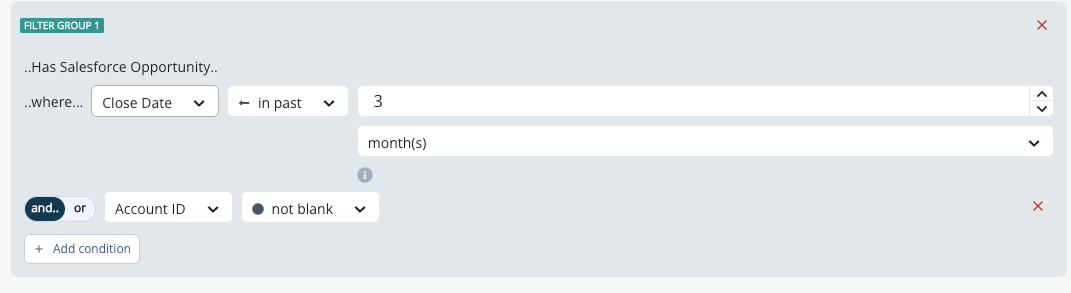 Which contacts a **Has Salesforce Opportunity** filter returns depends on your workspace’s **Opportunity Matching Strategy:** the explicit deal team only, everyone linked to the account in Salesforce, or everyone Inflection matches to the account. Because it is a single workspace-wide setting, the same filter behaves consistently across every Dynamic List, journey audience, and segment. Set or change it in your Salesforce connection’s Opportunity Sync settings.
For full setup of Opportunity sync, the **Opportunity Matching Strategy** setting, the listing page, and the Salesforce tab on contact profiles, see the **Opportunity Sync** section in [Salesforce](/connections/salesforce).
When targeting contacts or users based on their membership in a segment, select the Person segmentation filter.
Read more about segments: [Segments](/database/segments)
When targeting **contacts** based on the activity or properties of members within an **account**, select the **Account members filter**.
When targeting **users** based on the activity or properties of members within an **org**, select the **Org members filter**.
## Contact/User Lists and Journeys
Inflection models people at two grains:
* A **contact** is a person: one record per email address.
* A **product user** is that person's membership in a specific org: One contact can be *many* product users if they belong to multiple orgs. (Thing of orgs as product workspaces or tenants.)
A **contact journey / contact list** enrolls **one row per person** → one email per person.
A **user journey / user list** enrolls **one row per user** → a person with three distinct user IDs is enrolled three times and can receive three emails.
**Default to contact lists and journeys.** If your environment has people who have multiple user IDs, contact journeys are your safeguard against emailing the same person multiple times. The contact grain naturally collapses to one send per person. Reach for a **user** journey only when you've accounted for the duplicate-send behavior.
When a **contact with multiple users** qualifies for a **contact journey**, the oldest user will be chosen for personalization (branches or tokens that evaluate based on user or org data).
Choose a **user** grain only when one of these is true:
* **Grouped org logic:** "users where anyone in their org has \[done X]" uses the **Org members** filter, which targets users. This kind of filter is only possible in a user dynamic list or user journey.
* **Org- or user-specific personalization or branching:** seats, plan, role, or activity tied to a *specific* org membership — **and** you intentionally want one tailored email per membership.
Everything else stays at the contact grain:
* **Targeting** in a contact setting can still include attributes from contacts, accounts, users, and orgs; and activity from marketing/web activities and product activities.
* **Grouped account logic** — "contacts where anyone in the account has \[done X]" — uses the **Account members** filter and stays at the contact grain.
This is the common bind: the *content* depends on user/org data, but you don't want to email the same person multiple times. Don't default to a user journey here — use the **stamp-and-hand-off pattern**:
1. Run a **user journey** to resolve the user-specific value, **write it to a contact field**, and **add the person to a static list.**
2. The static list collapses to **one row per person.**
3. Run a **contact journey** off that static list to send — one email per person, personalized from the stamped field.
If a person belongs to multiple orgs, step 1 stamps them more than once. Decide upfront which value wins (most recent, highest-tier plan, etc.) so the final send is predictable.
## Best Practices
To ensure your list logic applies as-intended, we recommend these best practices.
When building list logic in Inflection, groups act as parenthesis — defining the order of operator evaluation (i.e., which AND/OR evaluates when).
Inflection supports two levels of operator nesting, which we call Outer Groups and Filter Groups. Filter groups are always nested within outer groups. As you build your list logic, these groupings are visually summarized in the top right corner of the list building UI.
Which contacts a **Has Salesforce Opportunity** filter returns depends on your workspace’s **Opportunity Matching Strategy:** the explicit deal team only, everyone linked to the account in Salesforce, or everyone Inflection matches to the account. Because it is a single workspace-wide setting, the same filter behaves consistently across every Dynamic List, journey audience, and segment. Set or change it in your Salesforce connection’s Opportunity Sync settings.
For full setup of Opportunity sync, the **Opportunity Matching Strategy** setting, the listing page, and the Salesforce tab on contact profiles, see the **Opportunity Sync** section in [Salesforce](/connections/salesforce).
When targeting contacts or users based on their membership in a segment, select the Person segmentation filter.
Read more about segments: [Segments](/database/segments)
When targeting **contacts** based on the activity or properties of members within an **account**, select the **Account members filter**.
When targeting **users** based on the activity or properties of members within an **org**, select the **Org members filter**.
## Contact/User Lists and Journeys
Inflection models people at two grains:
* A **contact** is a person: one record per email address.
* A **product user** is that person's membership in a specific org: One contact can be *many* product users if they belong to multiple orgs. (Thing of orgs as product workspaces or tenants.)
A **contact journey / contact list** enrolls **one row per person** → one email per person.
A **user journey / user list** enrolls **one row per user** → a person with three distinct user IDs is enrolled three times and can receive three emails.
**Default to contact lists and journeys.** If your environment has people who have multiple user IDs, contact journeys are your safeguard against emailing the same person multiple times. The contact grain naturally collapses to one send per person. Reach for a **user** journey only when you've accounted for the duplicate-send behavior.
When a **contact with multiple users** qualifies for a **contact journey**, the oldest user will be chosen for personalization (branches or tokens that evaluate based on user or org data).
Choose a **user** grain only when one of these is true:
* **Grouped org logic:** "users where anyone in their org has \[done X]" uses the **Org members** filter, which targets users. This kind of filter is only possible in a user dynamic list or user journey.
* **Org- or user-specific personalization or branching:** seats, plan, role, or activity tied to a *specific* org membership — **and** you intentionally want one tailored email per membership.
Everything else stays at the contact grain:
* **Targeting** in a contact setting can still include attributes from contacts, accounts, users, and orgs; and activity from marketing/web activities and product activities.
* **Grouped account logic** — "contacts where anyone in the account has \[done X]" — uses the **Account members** filter and stays at the contact grain.
This is the common bind: the *content* depends on user/org data, but you don't want to email the same person multiple times. Don't default to a user journey here — use the **stamp-and-hand-off pattern**:
1. Run a **user journey** to resolve the user-specific value, **write it to a contact field**, and **add the person to a static list.**
2. The static list collapses to **one row per person.**
3. Run a **contact journey** off that static list to send — one email per person, personalized from the stamped field.
If a person belongs to multiple orgs, step 1 stamps them more than once. Decide upfront which value wins (most recent, highest-tier plan, etc.) so the final send is predictable.
## Best Practices
To ensure your list logic applies as-intended, we recommend these best practices.
When building list logic in Inflection, groups act as parenthesis — defining the order of operator evaluation (i.e., which AND/OR evaluates when).
Inflection supports two levels of operator nesting, which we call Outer Groups and Filter Groups. Filter groups are always nested within outer groups. As you build your list logic, these groupings are visually summarized in the top right corner of the list building UI.
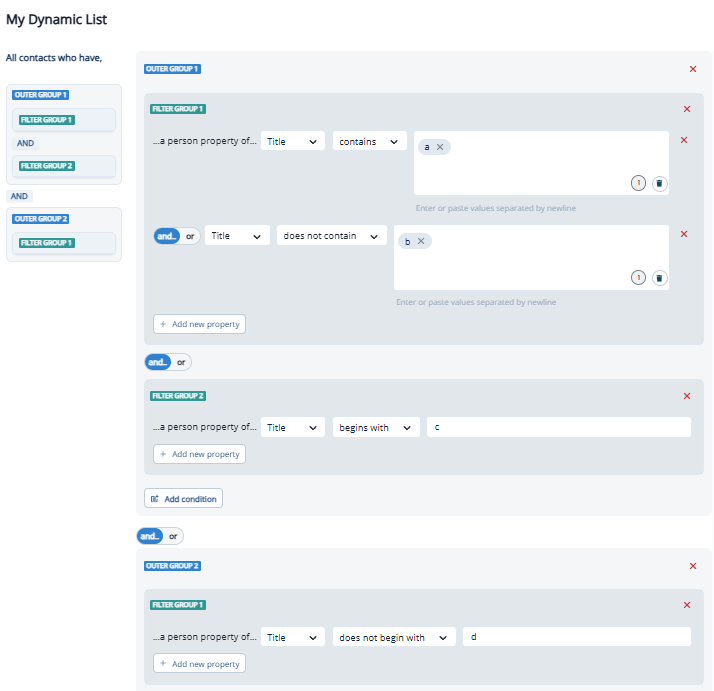 The example above has 4 criteria:
1. Title contains a
2. Title does not contain b
3. Title begins with c
4. Title does not begin with d
It evaluates to: ((1 AND 2) AND 3) AND 4
When order of operations is not explicitly assigned with groups, logic will evaluate according to Boolean order of operations. This means that unless otherwise specified through grouping, **AND** will evaluate before **OR**.
The example above has 4 criteria:
1. Title contains a
2. Title does not contain b
3. Title begins with c
4. Title does not begin with d
It evaluates to: ((1 AND 2) AND 3) AND 4
When order of operations is not explicitly assigned with groups, logic will evaluate according to Boolean order of operations. This means that unless otherwise specified through grouping, **AND** will evaluate before **OR**.
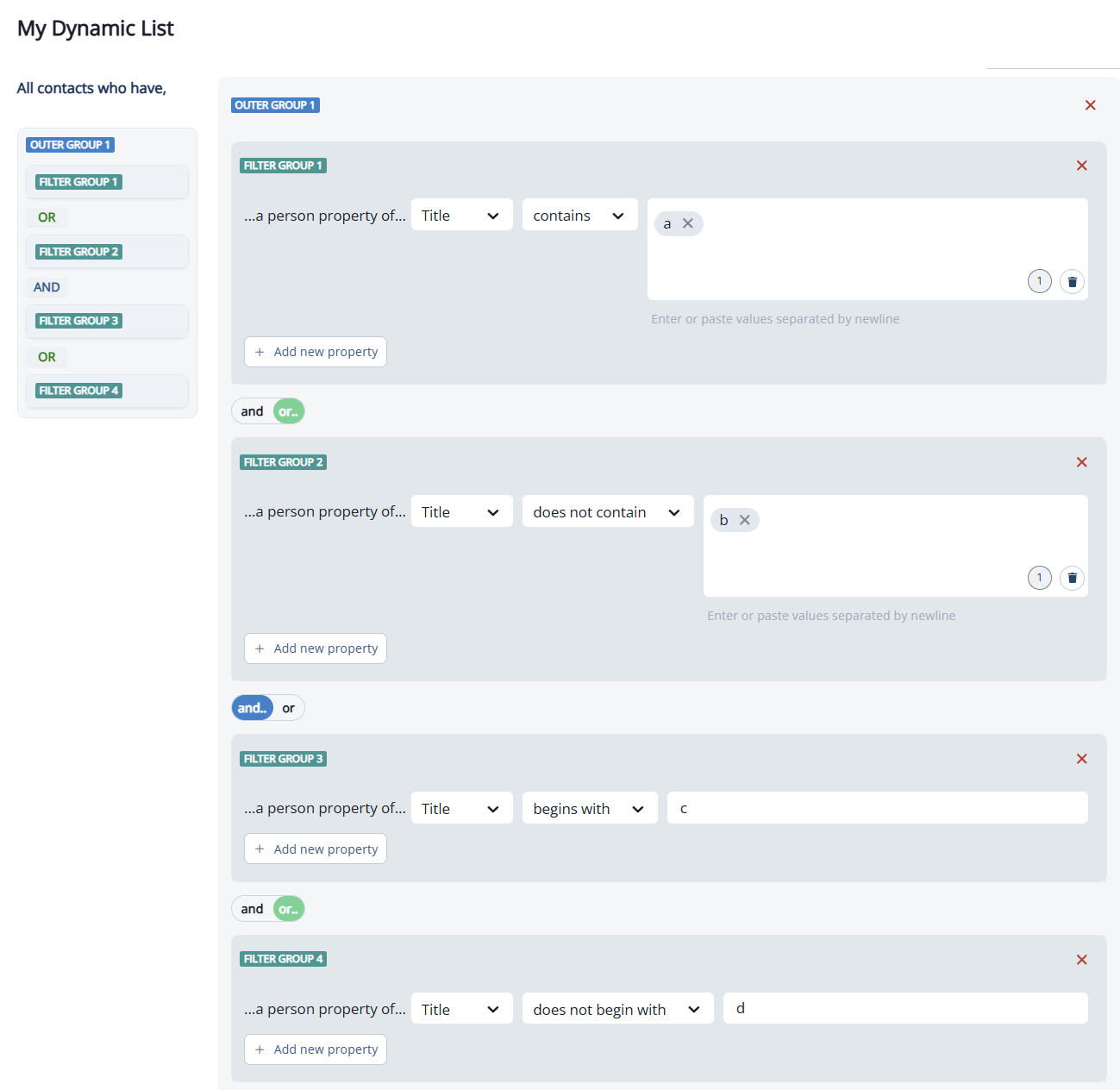 The example above evaluates to: 1 OR (2 AND 3) OR 4
Contacts will qualify who meet *any* of the three conditions below:
* (1) Their title contains `a`
* (2 AND 3) Their title does not contain `b` and their title begins with `c`
* (4) Their title does not begin with `d`
If in doubt, send a screenshot or asset ID to the Inflection agent and ask the agent to explain the audience in plain language. You can then ask it questions to verify the audience is exactly what you intend it to be.
* Ideally, a specific filter is only applied to an audience **one** time. If the audience references a dynamic list, evaluate the referenced dynamic list(s) to understand what filters are already applied. Where applicable, simplify so that each filter is only applied to the audience one time.
* Example: If your audience criteria is `Dynamic List 1` AND `Dynamic List 2` AND `Geo is not EMEA`; check to see if `Geo is not EMEA` is already used as criteria in Dynamic List 1 and 2. If it is, it’s not necessary a third time.
* Note that exclusion filters for unsubscribes and/or bounces are unnecessary. (Inflection automatically excludes unsubscribes and bounces from marketing sends.)
Fewer filters in audience criteria = simpler logic = easier to get it right.
More filters = more complex logic = more opportunities to get it wrong.
Pro tip: Simplifying your filters will also make your list queries compile faster.
Most Inflection customers have 100s of dynamic lists in their instance. When audience criteria is consistently ordered across journeys, it’s easier for everyone to quickly understand a list *and* spot errors. The cognitive load of reading a list decreases when filters are ordered in a standard way each time.
A general method of ordering list criteria:
1. Inclusion criteria
* Account attributes (enterprise customers; target accounts; churned accounts; etc.)
* Contact or user attributes (persona; title; user role; last sign-in date; etc.)
* Activities (filled out form; signed up; visited web page; etc.)
2. Exclusion criteria
* Account attributes (not a customer; not in an open opportunity; etc.)
* Contact or user attributes
* Activities
Example: When a person describes an audience, they might say “Enterprise customers who are VP and above, and signed up but haven’t activated yet.” Corresponding filters in the order described above would be:
1. Enterprise accounts (Inclusion criteria; account attribute)
2. VP and above (Inclusion criteria; contact attribute)
3. Signed up (Inclusion criteria; activity)
4. Activated never (Exclusion criteria; activity)
If you find that many of your journeys reference the same audience (i.e., free trials; admin users; a specific persona or product; etc.), consider identifying this criteria in a dynamic list or segment one time, and then referencing that dynamic list or segment in all journeys going forward. This helps users avoid rebuilding the same criteria over and over again, reducing room for error and inconsistency.
As you go, you will naturally evaluate:
1. Does it make sense?
2. Does it match the audience you intend to reach?
If the logic is complex, it can help to visualize rather than verbalize (try sketching the logic with Venn diagrams or similar).
If in doubt, send a screenshot or asset ID to the Inflection agent and ask the agent to explain the audience to you in plain language. You can then ask it questions to verify the audience is exactly what you intend it to be.
Preview the list and click into a contact record to check that the contact meets each filter criteria.
* Does the contact’s attributes match the filter criteria?
* Does the contact have the included product activity or marketing activity?
* Does the contact meet the exclusion criteria?
In some cases, it can help to export the full dynamic list preview and spot check domains or org IDs.
Depending on the following answers, the send may deserve additional care. How many contacts in the audience:
* have shown sign-of-life in the last 6 months? (marketing activity or product activity)
* have been delivered an Inflection email in the past 6 months?
* are more than 6 months old?
Sending to a stale list can cause a high bounce rate, low engagement, and a high unsubscribe rate. Steps to take to protect your sender reputation and optimize engagement:
1. Include activity criteria with a timeframe of 6 months or less.
2. In the absence of activity criteria, limit the send to contacts created or successfully delivered an email within the last 6 months.
3. Verify the list with a third-party vendor that will rate the reliability of each email address and check for spam traps.
The example above evaluates to: 1 OR (2 AND 3) OR 4
Contacts will qualify who meet *any* of the three conditions below:
* (1) Their title contains `a`
* (2 AND 3) Their title does not contain `b` and their title begins with `c`
* (4) Their title does not begin with `d`
If in doubt, send a screenshot or asset ID to the Inflection agent and ask the agent to explain the audience in plain language. You can then ask it questions to verify the audience is exactly what you intend it to be.
* Ideally, a specific filter is only applied to an audience **one** time. If the audience references a dynamic list, evaluate the referenced dynamic list(s) to understand what filters are already applied. Where applicable, simplify so that each filter is only applied to the audience one time.
* Example: If your audience criteria is `Dynamic List 1` AND `Dynamic List 2` AND `Geo is not EMEA`; check to see if `Geo is not EMEA` is already used as criteria in Dynamic List 1 and 2. If it is, it’s not necessary a third time.
* Note that exclusion filters for unsubscribes and/or bounces are unnecessary. (Inflection automatically excludes unsubscribes and bounces from marketing sends.)
Fewer filters in audience criteria = simpler logic = easier to get it right.
More filters = more complex logic = more opportunities to get it wrong.
Pro tip: Simplifying your filters will also make your list queries compile faster.
Most Inflection customers have 100s of dynamic lists in their instance. When audience criteria is consistently ordered across journeys, it’s easier for everyone to quickly understand a list *and* spot errors. The cognitive load of reading a list decreases when filters are ordered in a standard way each time.
A general method of ordering list criteria:
1. Inclusion criteria
* Account attributes (enterprise customers; target accounts; churned accounts; etc.)
* Contact or user attributes (persona; title; user role; last sign-in date; etc.)
* Activities (filled out form; signed up; visited web page; etc.)
2. Exclusion criteria
* Account attributes (not a customer; not in an open opportunity; etc.)
* Contact or user attributes
* Activities
Example: When a person describes an audience, they might say “Enterprise customers who are VP and above, and signed up but haven’t activated yet.” Corresponding filters in the order described above would be:
1. Enterprise accounts (Inclusion criteria; account attribute)
2. VP and above (Inclusion criteria; contact attribute)
3. Signed up (Inclusion criteria; activity)
4. Activated never (Exclusion criteria; activity)
If you find that many of your journeys reference the same audience (i.e., free trials; admin users; a specific persona or product; etc.), consider identifying this criteria in a dynamic list or segment one time, and then referencing that dynamic list or segment in all journeys going forward. This helps users avoid rebuilding the same criteria over and over again, reducing room for error and inconsistency.
As you go, you will naturally evaluate:
1. Does it make sense?
2. Does it match the audience you intend to reach?
If the logic is complex, it can help to visualize rather than verbalize (try sketching the logic with Venn diagrams or similar).
If in doubt, send a screenshot or asset ID to the Inflection agent and ask the agent to explain the audience to you in plain language. You can then ask it questions to verify the audience is exactly what you intend it to be.
Preview the list and click into a contact record to check that the contact meets each filter criteria.
* Does the contact’s attributes match the filter criteria?
* Does the contact have the included product activity or marketing activity?
* Does the contact meet the exclusion criteria?
In some cases, it can help to export the full dynamic list preview and spot check domains or org IDs.
Depending on the following answers, the send may deserve additional care. How many contacts in the audience:
* have shown sign-of-life in the last 6 months? (marketing activity or product activity)
* have been delivered an Inflection email in the past 6 months?
* are more than 6 months old?
Sending to a stale list can cause a high bounce rate, low engagement, and a high unsubscribe rate. Steps to take to protect your sender reputation and optimize engagement:
1. Include activity criteria with a timeframe of 6 months or less.
2. In the absence of activity criteria, limit the send to contacts created or successfully delivered an email within the last 6 months.
3. Verify the list with a third-party vendor that will rate the reliability of each email address and check for spam traps.