> ## Documentation Index
> Fetch the complete documentation index at: https://docs.inflection.io/llms.txt
> Use this file to discover all available pages before exploring further.
# Data Dictionary
> As you build a dynamic list, the data dictionary panel shows population stats, value distributions, and a searchable list of real values for the field you're filtering.
## Demo video
[Watch the demo video on Loom](https://www.loom.com/share/62d2c70f6a8542a88368634355ec3faa)
The Data Dictionary tells you what's in your data before you build with it. As you build a dynamic list, journey branch, or conversion event filter, the insights from data dictionary panel shows population stats, value distributions, and a searchable list of real values for the field you're filtering on. Admins can add descriptions to any field so everyone on the team knows what each field represents.
## Summary
The Data Dictionary surfaces two capabilities:
* **Insights from data dictionary:** a side panel that opens inside the filter row while you build a dynamic list, journey branch, or conversion event.
* It shows the field's description, how many records have a value for it, and a field specific distribution.
* For text fields, it includes a searchable list of distinct values sorted by frequency that you can click to add to your filter.
* **Field description:** an inline description on each field row in Unified Mapping that admins can edit. Descriptions appear inside Insights from data dictionary while building filters.
## Insights from Data Dictionary
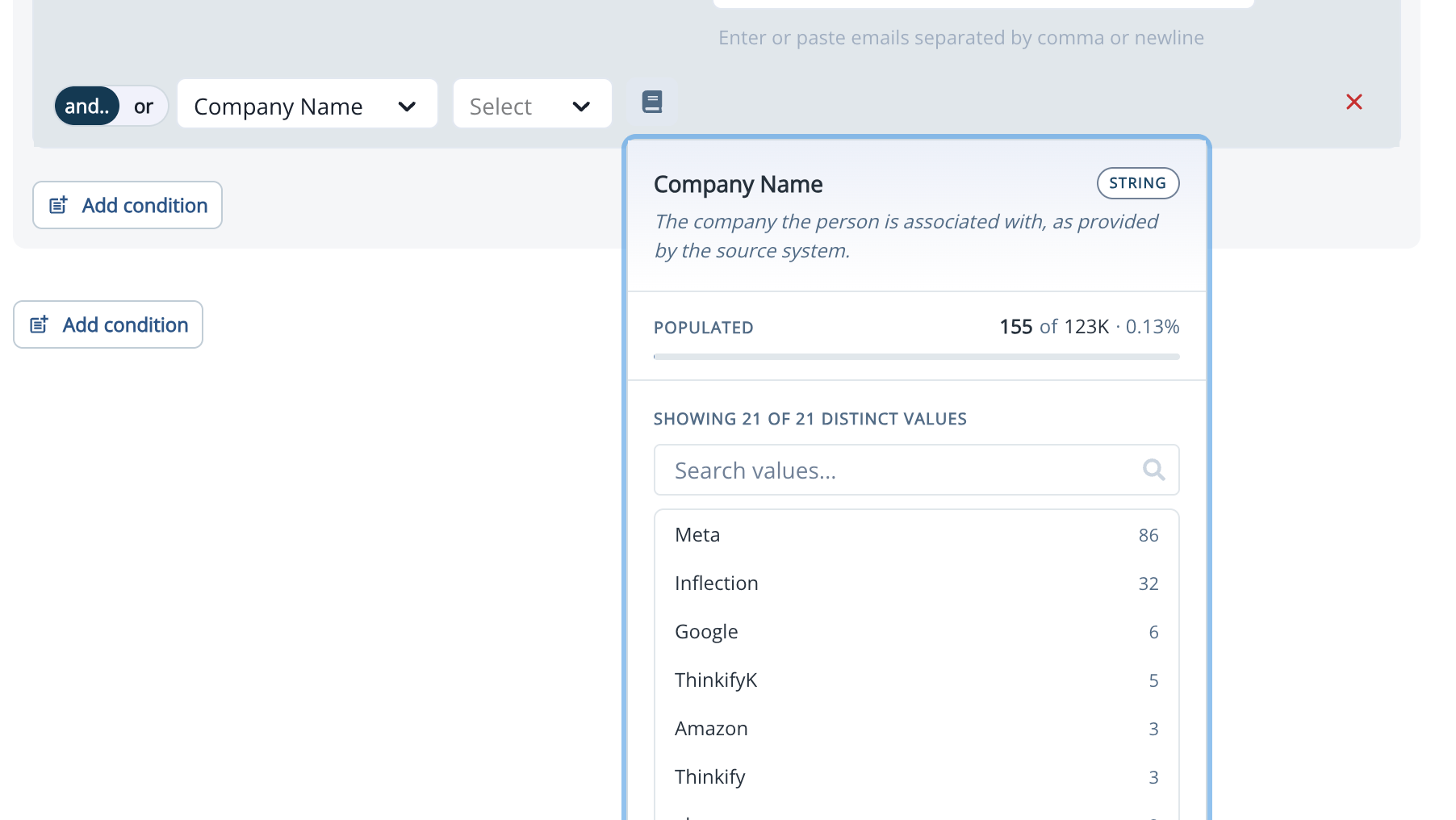
While building a filter in a dynamic list, click the data dictionary icon next to the operator dropdown. The panel opens to the right of the filter row.
 ### What the Panel Shows
The panel adapts to the field's type:
| **Field type** | **What you see** |
| -------------- | ----------------------------------------------------------------------------------------------------------------- |
| String | Description, % populated, count of distinct values, and a searchable list of distinct values sorted by frequency. |
| Number | Description, % populated, count of distinct values, minimum, and maximum. |
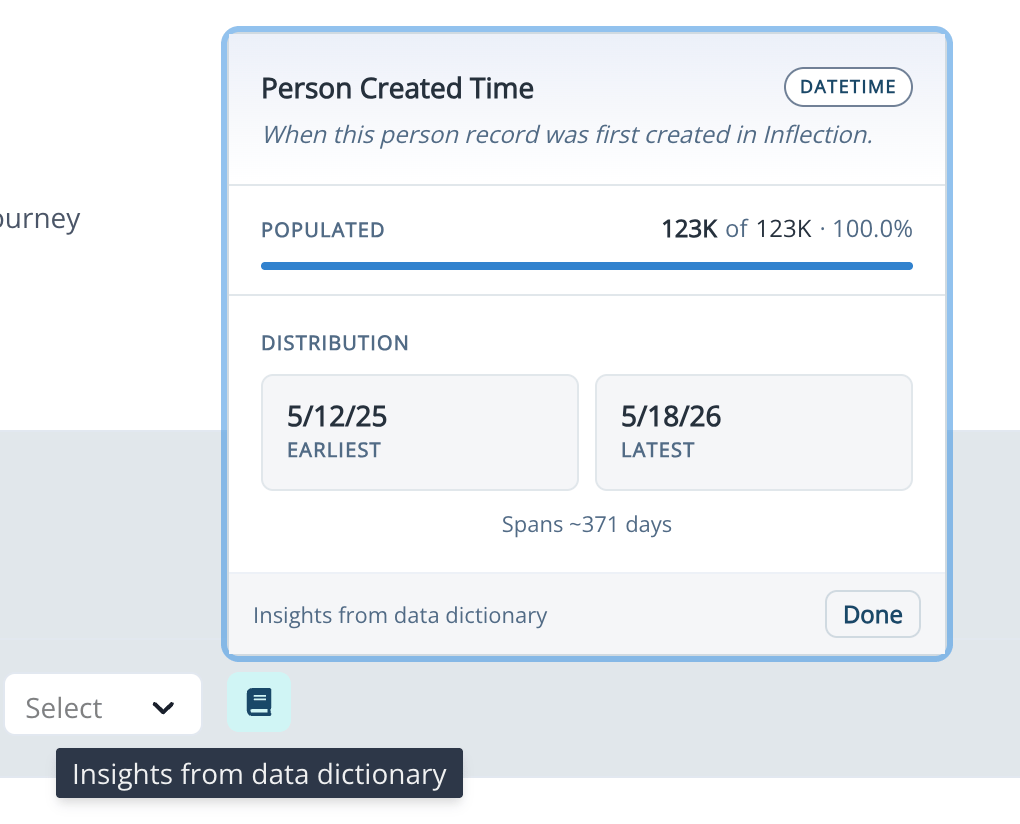
| Datetime | Description, % populated, count of distinct values, earliest, and latest. |
| Boolean | Description, % populated, count of true values, and count of false values. |
### What the Panel Shows
The panel adapts to the field's type:
| **Field type** | **What you see** |
| -------------- | ----------------------------------------------------------------------------------------------------------------- |
| String | Description, % populated, count of distinct values, and a searchable list of distinct values sorted by frequency. |
| Number | Description, % populated, count of distinct values, minimum, and maximum. |
| Datetime | Description, % populated, count of distinct values, earliest, and latest. |
| Boolean | Description, % populated, count of true values, and count of false values. |
 ### Inserting Values from the List
For text fields, click any value in the list to insert it into the filter. If the operator allows multiple values (for example, **is any of**), click as many values as you need to build up the filter.
For **contains**, **starts with**, and **ends with** operators, you can still type values manually.
## Field Descriptions
Admins can add a plain-English description to any field on the contact, account, product user, or org entity. Descriptions help everyone on your team and Inflection's AI agents understand what each field actually represents.
### Read a Description
Anyone can read descriptions:
* Inside **Insights from data dictionary** while building a filter.
* On the field row in **Unified Mapping:** click **View description** to expand the description inline.
When no description exists, the field row stays silent for non-admins.
### Add or Edit a Description
Only workspace admins can add or edit descriptions.
1. Click **Database** in the left navigation, then click **Contact Fields** or **Account Fields**.
2. Find the field you want to describe.
3. Click **View description** on the field row, then click **Edit**.
4. Enter a plain-text description (up to 300 characters) and save.
### Inserting Values from the List
For text fields, click any value in the list to insert it into the filter. If the operator allows multiple values (for example, **is any of**), click as many values as you need to build up the filter.
For **contains**, **starts with**, and **ends with** operators, you can still type values manually.
## Field Descriptions
Admins can add a plain-English description to any field on the contact, account, product user, or org entity. Descriptions help everyone on your team and Inflection's AI agents understand what each field actually represents.
### Read a Description
Anyone can read descriptions:
* Inside **Insights from data dictionary** while building a filter.
* On the field row in **Unified Mapping:** click **View description** to expand the description inline.
When no description exists, the field row stays silent for non-admins.
### Add or Edit a Description
Only workspace admins can add or edit descriptions.
1. Click **Database** in the left navigation, then click **Contact Fields** or **Account Fields**.
2. Find the field you want to describe.
3. Click **View description** on the field row, then click **Edit**.
4. Enter a plain-text description (up to 300 characters) and save.
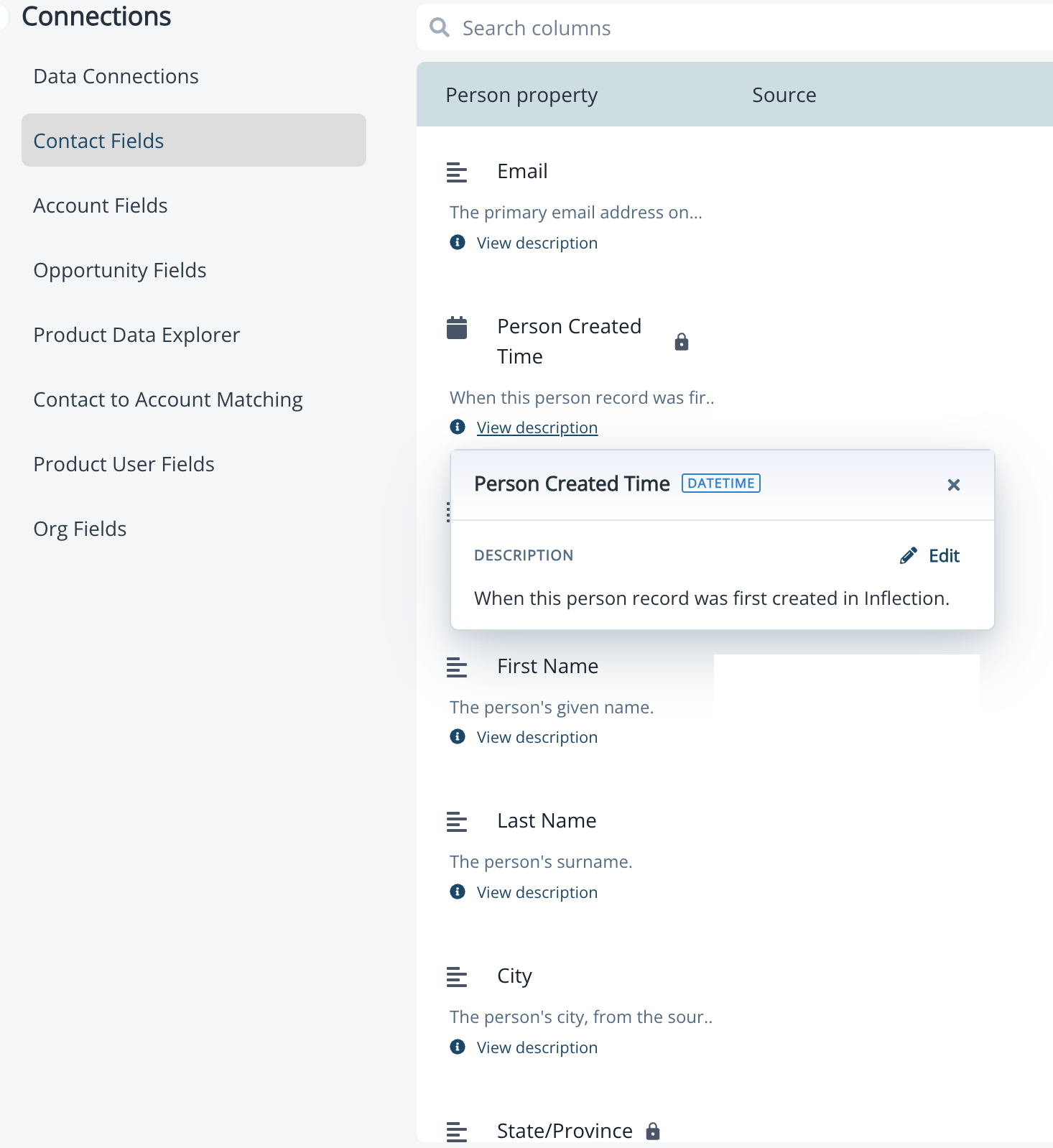 Descriptions are saved immediately to the field's record. They appear in Insights from data dictionary the next time someone opens the panel — no separate sync step is required.
## Where Insights from Data Dictionary Appears
Insights from data dictionary is available everywhere you build field-based filters:
| **Surface** | **Where to find it** |
| ------------------------ | --------------------------------------------------------------------------------------------- |
| Dynamic list builder | Inside any person property filter row. |
| Journey Branch by Filter | Inside any person property filter in the branch step. |
| Journey Branch by Value | Inside the field selector when defining branch values. |
| Conversion event filters | Inside contact, account, product user, or org property filters on a conversion event trigger. |
## What's Excluded
A few internal system columns Inflection uses never appear in Insights from data dictionary or anywhere else in the product. These include `_modified_time`, `_created_time`, `_source`, `_deleted_time`, and `_is_deleted`.
## Frequently Asked Questions
Descriptions are optional and admin-managed. If a field doesn't have a description yet, ask your workspace admin to add one in Unified Mapping. Once saved, the description appears in Insights from data dictionary on the next open.
Admins can add descriptions to fields on the contact, account, product user, and org entities. Internal system columns (fields starting with an underscore) are excluded.
Insights data is cached for 2 hours in production. If you've just updated your data and want to see the latest stats, wait for the cache to expire or open the panel for a field that hasn't been opened recently.
Not in this release. Insights from data dictionary is available inline while you build filters. A standalone page that lets you audit your data across all entities is on the roadmap for a future release.
Not in this release. A self-serve audit of mappings — including which integration writes to each field and when fields were first or last seen — is on the roadmap for a future release.
Yes. Descriptions are made available to Inflection's agents so they can reason about your fields accurately. The more carefully your fields are described, the better the agents can ground their work in your data model.
Descriptions are saved immediately to the field's record. They appear in Insights from data dictionary the next time someone opens the panel — no separate sync step is required.
## Where Insights from Data Dictionary Appears
Insights from data dictionary is available everywhere you build field-based filters:
| **Surface** | **Where to find it** |
| ------------------------ | --------------------------------------------------------------------------------------------- |
| Dynamic list builder | Inside any person property filter row. |
| Journey Branch by Filter | Inside any person property filter in the branch step. |
| Journey Branch by Value | Inside the field selector when defining branch values. |
| Conversion event filters | Inside contact, account, product user, or org property filters on a conversion event trigger. |
## What's Excluded
A few internal system columns Inflection uses never appear in Insights from data dictionary or anywhere else in the product. These include `_modified_time`, `_created_time`, `_source`, `_deleted_time`, and `_is_deleted`.
## Frequently Asked Questions
Descriptions are optional and admin-managed. If a field doesn't have a description yet, ask your workspace admin to add one in Unified Mapping. Once saved, the description appears in Insights from data dictionary on the next open.
Admins can add descriptions to fields on the contact, account, product user, and org entities. Internal system columns (fields starting with an underscore) are excluded.
Insights data is cached for 2 hours in production. If you've just updated your data and want to see the latest stats, wait for the cache to expire or open the panel for a field that hasn't been opened recently.
Not in this release. Insights from data dictionary is available inline while you build filters. A standalone page that lets you audit your data across all entities is on the roadmap for a future release.
Not in this release. A self-serve audit of mappings — including which integration writes to each field and when fields were first or last seen — is on the roadmap for a future release.
Yes. Descriptions are made available to Inflection's agents so they can reason about your fields accurately. The more carefully your fields are described, the better the agents can ground their work in your data model.