> ## Documentation Index
> Fetch the complete documentation index at: https://docs.inflection.io/llms.txt
> Use this file to discover all available pages before exploring further.
# Single Sign-on
> Google and Okta users can set up SSO for Inflection.
## Google SSO
This guide provides step-by-step instructions for Google Workspace administrators to enable Google Single Sign-On (SSO) for access to Inflection’s web portal.
* Google Workspace administrator account with super admin privileges
* A verified domain in Google Workspace
* User accounts set up in Google Workspace
1. **Open Google Admin console** ([https://admin.google.com](https://admin.google.com)) → *Apps* → *Web and mobile apps* → **Add app** → **Add custom SAML app**
2. **App details**
* Name: **Inflection**
* (Optional) Description and logo
* Click **Continue**
3. **Download IdP info** (from the *Google IdP Information* step)
* Either **Download Metadata** or copy:
* **SSO URL** (a URL like `https://accounts.google.com/o/saml2/idp?idpid=...`).
* **Entity ID / Issuer** (Google shows a similar URL).
* **Certificate** (X.509). You will paste this in Inflection later.
* Click **Continue**
4. **Service provider details**
* **ACS URL:** `https://auth.inflection.io/api/v1/saml/sso2`
* **Entity ID:** `https://auth.inflection.io`
* **Start URL:** *(leave blank)*
* **Signed response:** **Checked**
* **Name ID format:** **Email**
* **Name ID:** **Basic Information → Primary email**
* Click **Continue**
5. **Attribute mapping** (Add Mapping)
| Google Directory attribute | App attribute |
| -------------------------- | ------------- |
| Primary email | `email` |
| First name | `name` |
6. **Save**
7. **Turn on for users**
* On the app’s main page, click **User access** and turn **ON for everyone** or for specific **users/Groups**.
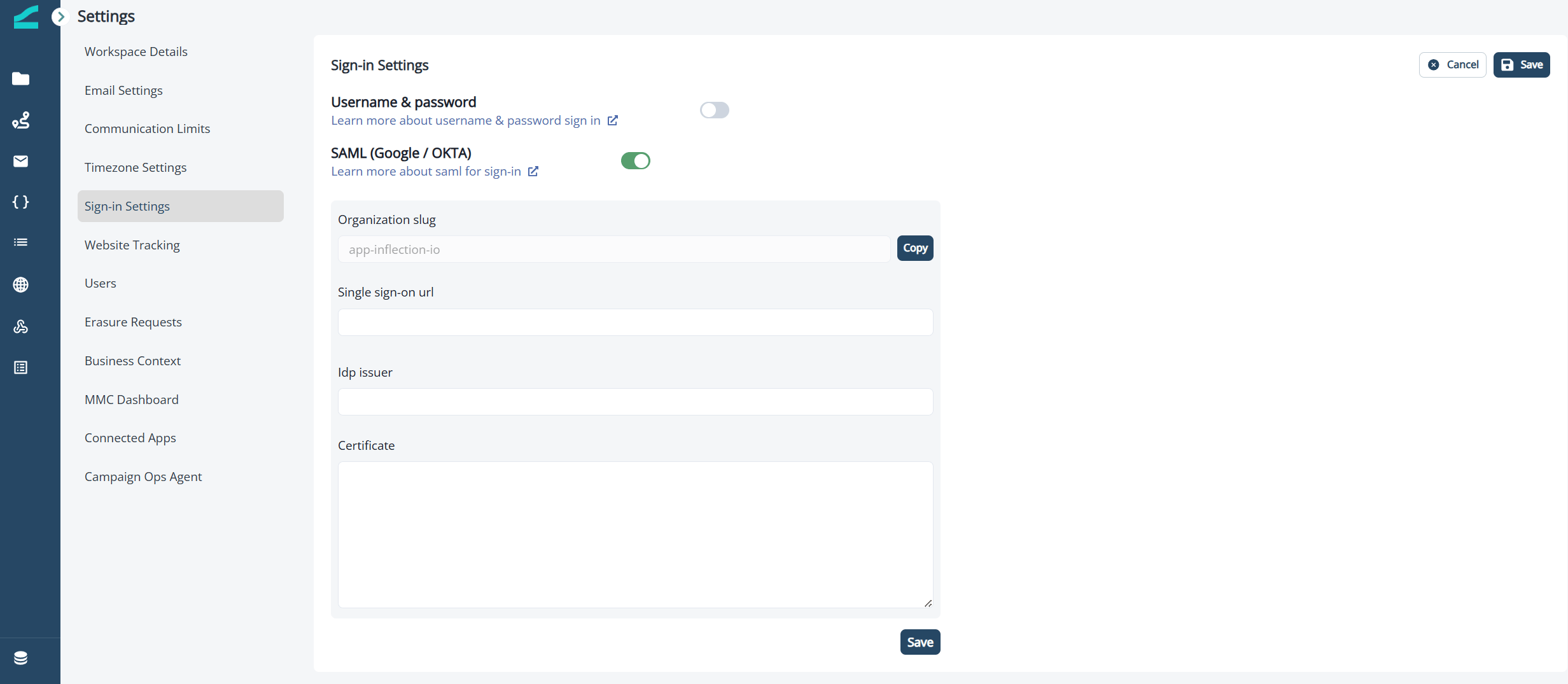
In Inflection, navigate to **Settings** > **Single Sign-on**.
In the **Single Sign-on** section, enable SAML. Then enter:
* **Single sign-on URL:** This is the SSO URL from the google admin page, typically of the form `https://accounts.google.com/o/saml2/idp?idpid=xxxxxxxxx`
* **Issuer:** This is the Entity ID entry from the google admin page, typically of the form accounts.google.com
* **Certificate:** Paste the contents of the certificate downloaded from google. Note: Ensure that the contents start with `---BEGIN CERTIFICATE---` and end with `--END CERTIFICATE--` for it to be parsed properly
* Click **Save**
 #### Step 1: Set Access Controls
1. Specify which user groups can access the application in Google admin console
2. Define role-based access if applicable
#### Step 2: Test the Configuration
1. Test the SSO setup with a test user account before rolling it out to all users
2. Verify that the user can use sign-up with Google on app.inflection.io, log in with their google credentials and see a fully populated inflection homepage on successful login
#### Step 3: Deploy to Users
1. Once testing is successful, deploy the SSO configuration to all intended users
2. Monitor for any authentication issues during the initial rollout
* [Google Workspace Admin Help: Set up SSO](https://support.google.com/a/answer/60224)
* [Google Workspace Admin Help: Manage SSO certificates](https://support.google.com/a/answer/6087519)
* [Google Workspace Admin Help: Troubleshoot SSO issues](https://support.google.com/a/answer/6348528)
* **`app_not_configured_for_user`**
* The user isn’t assigned to the SAML app. Turn the app **ON** for that user’s Organizational Unit or group.
* **Audience / Entity ID mismatch**
* Ensure **Entity ID** in Google is **exactly** `https://auth.inflection.io` (no trailing slash). Re‑save and try again.
* **Recipient / ACS mismatch**
* Ensure **ACS URL** is **exactly** `https://auth.inflection.io/api/v1/saml/sso2`.
* **`Response is not signed`**
* In the SAML app → *Service provider details*, ensure **Signed response** is **checked** (this guide assumes it is ON).
* **Attribute issues**
* Attribute mappings must include: Primary email → `email`, First name → `name`.
* **Clock/time errors (rare scenario)**
* Ensure devices and IdP time are in sync.
***
### What Inflection receives
* **NameID**: the user’s primary email
* **Attributes**:
* `email`: user’s primary email
* `name`: user’s first name
## Okta SSO
This guide provides step-by-step instructions for Google Workspace administrators to enable Okta Single Sign-On (SSO) for access to Inflection’s web portal.
This setup might fail without parameter values that are customized for your organization. Please use the Okta Administrator Dashboard to add an application and view the values that are specific for your organization.
Enabling SAML will affect all users who use this application, which means that users will not be able to sign in through their regular sign-in page. They will be able to access the app through the Okta service.
Inflection.io doesn't provide a backup sign-in URL where users can sign in using their regular username and password. You can contact Inflection.io Support ([team@inflection.io](mailto:team@inflection.io)) to turn off SAML, if necessary.
The Okta/Inflection.io SAML integration currently supports the following features:
* SP-initiated SSO
* IdP-initiated SSO
* JIT (Just In Time) Provisioning
For more information on the listed features, visit the [Okta Glossary](https://help.okta.com/en/prod/Content/Topics/Reference/glossary.htm).
The following SAML attributes are supported:
| Name | Value |
| ----- | ---------------- |
| email | user.email |
| name | user.displayName |
1. From the Okta Admin dashboard, click **Admin** button
2. Click **Applications** > **Applications**
3. Click **Browse App Catalog**
4. Search for and Select **Inflection** in Browse App Integration Catalog
5. Click **Add Integration** and Click **Done**
6. Under Assign tab, add the Okta users that must be granted access to Inflection and Save
7. Click Sign On tab, then click **Edit**.
8. **Encryption Certificate**: Save the following encryption certificate as **encryption.crt** then upload it to Okta.
```text theme={null}
-----BEGIN CERTIFICATE-----
MIIDOTCCAiGgAwIBAgIUUQof+MOhGZRme8w5h8MioYWU56cwDQYJKoZIhvcNAQEL
BQAwRTELMAkGA1UEBhMCQVUxEzARBgNVBAgMClNvbWUtU3RhdGUxITAfBgNVBAoM
GEludGVybmV0IFdpZGdpdHMgUHR5IEx0ZDAeFw0yNTA5MjMxMDQ1NTFaFw0yNjA5
MjMxMDQ1NTFaMEUxCzAJBgNVBAYTAkFVMRMwEQYDVQQIDApTb21lLVN0YXRlMSEw
HwYDVQQKDBhJbnRlcm5ldCBXaWRnaXRzIFB0eSBMdGQwggEiMA0GCSqGSIb3DQEB
AQUAA4IBDwAwggEKAoIBAQC/6F9P0Eo9HJstKX/VxLOIhxg+oYkd84KWNT3/RAZ8
U2WRYXl4BmY52VbNUmbOTjVwyOrCJ0Iw8TaoapNmPmjyfyItwyiSaPgONd+/oElY
2FhaIk915llTMTI5m098nvDCO2v5EksDnYn0BgVxqTXmaFTHxhTG6s4a03ktEyXP
fdPWP14JG8Z5/N7ZvvsdQI7kpxNt1kt8YkSnCfNrEBRuvQkFTvXbB4TOaMY19aWN
t0/riGIK4Rwn7QcKUvsoT0+m2CEdCBcCMVAA0Bwn8swVxSWxEyMwc4D2dr1x9NdI
+ATKKB4pGpNzoGi1EgHORlPmcKTsQePAdfIooniy8tG7AgMBAAGjITAfMB0GA1Ud
DgQWBBT0F8JobbAXcL8vKNv0AHe/4RBckjANBgkqhkiG9w0BAQsFAAOCAQEAJ5LB
UXjPore5Iq6jwCacWUBv3UVOBlJDeTJ6+49oJXjHg+zO+IHjcXoceeyfRf5+rYfZ
pB9NTgPqtj1qNrnUIF991+D5Fr7JC1ArFn9VahxQY9z3Q7JSAmm7dV15so7SLGtY
Y1YZDNqgS19OEEVOYKdEjfbR7iAr1ZwiZTQHyWnICmFMjIDEweC5iAC403NEfpgv
bEJicKPP3eVq2vYaOaFqAwwan9Vwhoq14+IecRTCRqdxMno/g4rb2h8qpX1kpque
f3JdiBKxCpCoolK9Po1q/5j8t0au6oEmsliUgoH9uxI0adkwaaCBu+H6DnBJbX7/
COdHE67kTDDa5gXLAQ==
-----END CERTIFICATE-----
```
9. Scroll down to **Advanced Sign-on Settings**.
10. Enter your **Organisation Slug** (Get it from inflection app → Settings page → Single Sign-on) into the corresponding field.
11. **Application username format**: Select **Email**.
12. Click **Save**.
13. Done!
1. Login to inflection account
2. Navigate to Settings
3. Choose Single Sign-on
The values for the following settings can be found on the Sign On tab of the Inflection Okta Application under "Metadata Details"
* Single Sign-On URL
* IDP Issuer
* Certificate
#### Step 1: Set Access Controls
1. Specify which user groups can access the application in Google admin console
2. Define role-based access if applicable
#### Step 2: Test the Configuration
1. Test the SSO setup with a test user account before rolling it out to all users
2. Verify that the user can use sign-up with Google on app.inflection.io, log in with their google credentials and see a fully populated inflection homepage on successful login
#### Step 3: Deploy to Users
1. Once testing is successful, deploy the SSO configuration to all intended users
2. Monitor for any authentication issues during the initial rollout
* [Google Workspace Admin Help: Set up SSO](https://support.google.com/a/answer/60224)
* [Google Workspace Admin Help: Manage SSO certificates](https://support.google.com/a/answer/6087519)
* [Google Workspace Admin Help: Troubleshoot SSO issues](https://support.google.com/a/answer/6348528)
* **`app_not_configured_for_user`**
* The user isn’t assigned to the SAML app. Turn the app **ON** for that user’s Organizational Unit or group.
* **Audience / Entity ID mismatch**
* Ensure **Entity ID** in Google is **exactly** `https://auth.inflection.io` (no trailing slash). Re‑save and try again.
* **Recipient / ACS mismatch**
* Ensure **ACS URL** is **exactly** `https://auth.inflection.io/api/v1/saml/sso2`.
* **`Response is not signed`**
* In the SAML app → *Service provider details*, ensure **Signed response** is **checked** (this guide assumes it is ON).
* **Attribute issues**
* Attribute mappings must include: Primary email → `email`, First name → `name`.
* **Clock/time errors (rare scenario)**
* Ensure devices and IdP time are in sync.
***
### What Inflection receives
* **NameID**: the user’s primary email
* **Attributes**:
* `email`: user’s primary email
* `name`: user’s first name
## Okta SSO
This guide provides step-by-step instructions for Google Workspace administrators to enable Okta Single Sign-On (SSO) for access to Inflection’s web portal.
This setup might fail without parameter values that are customized for your organization. Please use the Okta Administrator Dashboard to add an application and view the values that are specific for your organization.
Enabling SAML will affect all users who use this application, which means that users will not be able to sign in through their regular sign-in page. They will be able to access the app through the Okta service.
Inflection.io doesn't provide a backup sign-in URL where users can sign in using their regular username and password. You can contact Inflection.io Support ([team@inflection.io](mailto:team@inflection.io)) to turn off SAML, if necessary.
The Okta/Inflection.io SAML integration currently supports the following features:
* SP-initiated SSO
* IdP-initiated SSO
* JIT (Just In Time) Provisioning
For more information on the listed features, visit the [Okta Glossary](https://help.okta.com/en/prod/Content/Topics/Reference/glossary.htm).
The following SAML attributes are supported:
| Name | Value |
| ----- | ---------------- |
| email | user.email |
| name | user.displayName |
1. From the Okta Admin dashboard, click **Admin** button
2. Click **Applications** > **Applications**
3. Click **Browse App Catalog**
4. Search for and Select **Inflection** in Browse App Integration Catalog
5. Click **Add Integration** and Click **Done**
6. Under Assign tab, add the Okta users that must be granted access to Inflection and Save
7. Click Sign On tab, then click **Edit**.
8. **Encryption Certificate**: Save the following encryption certificate as **encryption.crt** then upload it to Okta.
```text theme={null}
-----BEGIN CERTIFICATE-----
MIIDOTCCAiGgAwIBAgIUUQof+MOhGZRme8w5h8MioYWU56cwDQYJKoZIhvcNAQEL
BQAwRTELMAkGA1UEBhMCQVUxEzARBgNVBAgMClNvbWUtU3RhdGUxITAfBgNVBAoM
GEludGVybmV0IFdpZGdpdHMgUHR5IEx0ZDAeFw0yNTA5MjMxMDQ1NTFaFw0yNjA5
MjMxMDQ1NTFaMEUxCzAJBgNVBAYTAkFVMRMwEQYDVQQIDApTb21lLVN0YXRlMSEw
HwYDVQQKDBhJbnRlcm5ldCBXaWRnaXRzIFB0eSBMdGQwggEiMA0GCSqGSIb3DQEB
AQUAA4IBDwAwggEKAoIBAQC/6F9P0Eo9HJstKX/VxLOIhxg+oYkd84KWNT3/RAZ8
U2WRYXl4BmY52VbNUmbOTjVwyOrCJ0Iw8TaoapNmPmjyfyItwyiSaPgONd+/oElY
2FhaIk915llTMTI5m098nvDCO2v5EksDnYn0BgVxqTXmaFTHxhTG6s4a03ktEyXP
fdPWP14JG8Z5/N7ZvvsdQI7kpxNt1kt8YkSnCfNrEBRuvQkFTvXbB4TOaMY19aWN
t0/riGIK4Rwn7QcKUvsoT0+m2CEdCBcCMVAA0Bwn8swVxSWxEyMwc4D2dr1x9NdI
+ATKKB4pGpNzoGi1EgHORlPmcKTsQePAdfIooniy8tG7AgMBAAGjITAfMB0GA1Ud
DgQWBBT0F8JobbAXcL8vKNv0AHe/4RBckjANBgkqhkiG9w0BAQsFAAOCAQEAJ5LB
UXjPore5Iq6jwCacWUBv3UVOBlJDeTJ6+49oJXjHg+zO+IHjcXoceeyfRf5+rYfZ
pB9NTgPqtj1qNrnUIF991+D5Fr7JC1ArFn9VahxQY9z3Q7JSAmm7dV15so7SLGtY
Y1YZDNqgS19OEEVOYKdEjfbR7iAr1ZwiZTQHyWnICmFMjIDEweC5iAC403NEfpgv
bEJicKPP3eVq2vYaOaFqAwwan9Vwhoq14+IecRTCRqdxMno/g4rb2h8qpX1kpque
f3JdiBKxCpCoolK9Po1q/5j8t0au6oEmsliUgoH9uxI0adkwaaCBu+H6DnBJbX7/
COdHE67kTDDa5gXLAQ==
-----END CERTIFICATE-----
```
9. Scroll down to **Advanced Sign-on Settings**.
10. Enter your **Organisation Slug** (Get it from inflection app → Settings page → Single Sign-on) into the corresponding field.
11. **Application username format**: Select **Email**.
12. Click **Save**.
13. Done!
1. Login to inflection account
2. Navigate to Settings
3. Choose Single Sign-on
The values for the following settings can be found on the Sign On tab of the Inflection Okta Application under "Metadata Details"
* Single Sign-On URL
* IDP Issuer
* Certificate
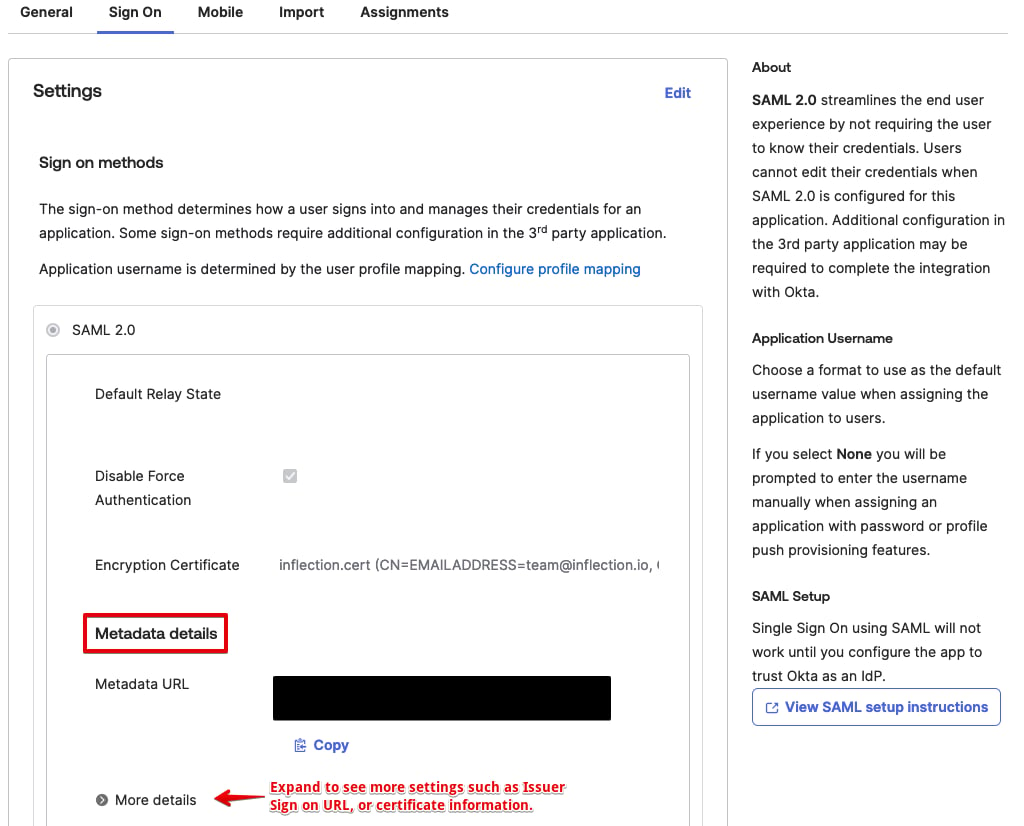 * **Single Sign-On URL**: Copy and paste the following:
*Sign On tab of the Inflection Okta Application under "Metadata Details" >> Sign on URL*
* **IDP Issuer**: Copy and paste the following:
*Sign On tab of the Inflection Okta Application under "Metadata Details" >> Issuer*
* **Certificate**: Copy and paste the following:
*Sign On tab of the Inflection Okta Application under "Metadata Details" >> Signing Certificate*
* Click **Save Changes**.
* Logout
* And log back In. This time Okta SSO login will be prompted
1. Go to: [https://app.inflection.io/login/start](https://app.inflection.io/login/start)
2. Enter your email, then click **Continue**