> ## Documentation Index
> Fetch the complete documentation index at: https://docs.inflection.io/llms.txt
> Use this file to discover all available pages before exploring further.
# Conversions
> Configure conversions to track how your journeys influenced business outcomes.
Conversions help you answer a simple question:
> "Did this journey actually drive the outcome I care about?"
With **Conversions**, you can:
* Define **conversion events** (marketing, product, or data changes)
* Set an **attribution window** (e.g. 7, 14, 30 days)
* Link those conversions to **journeys**
* See how many people from a journey **converted** within the set window
## What is a Conversion Event?
A **Conversion** is any important action or state change you want to optimize journeys for, such as:
* **Marketing actions**
* Submitted demo form
* Registered for a webinar
* Downloaded an ebook
* **Product actions**
* Signed up for a trial
* Activated a feature
* Completed onboarding checklist
* **Contact field value changes**
* Lifecycle stage → *Customer*
* User Adoption Stage changed from *Hobby* → *Pro*
Only **contact record field changes** are supported for conversion triggers. User record value changes and Account value changes are not currently supported.
You define these once as **Conversion Events** and then reuse them across journeys.
***
## How Attribution Works
1. Define a **Conversion Event** (e.g. "Lifecycle Stage = Customer") along with an **Attribution Window** (e.g. 30 days).
2. **Attach** that conversion to one or more journeys.
3. If a person performs the conversion event **after entering the journey** or **within X days (your attribution window) of exiting the journey**, they are attributed as converted for that journey.
***
## Creating a Conversion Event
### 1. Go to Conversions
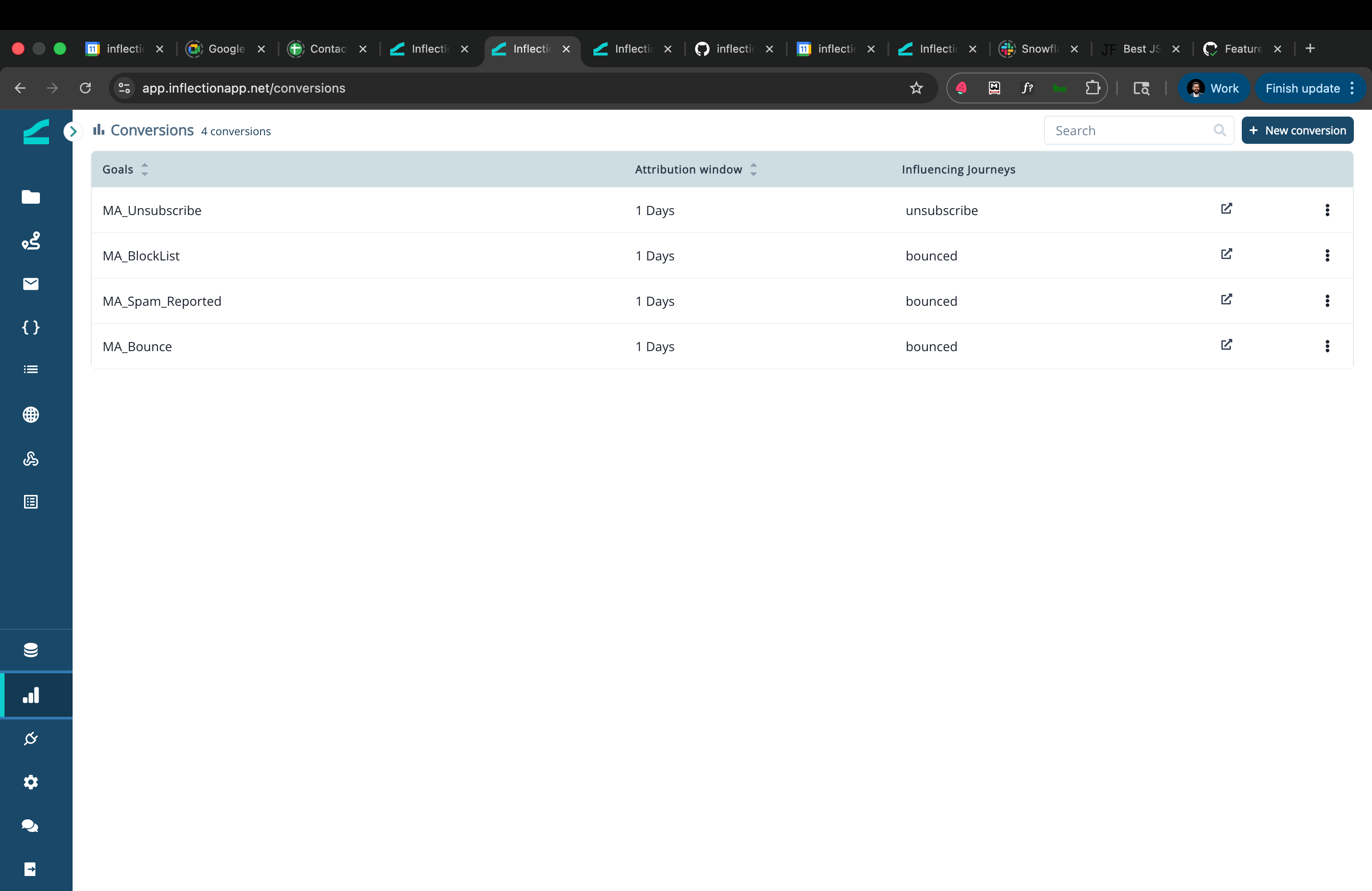
* In the left navigation, go to **Conversions**
* Click **"+ New Conversion"**
 ### 2. Name & Describe
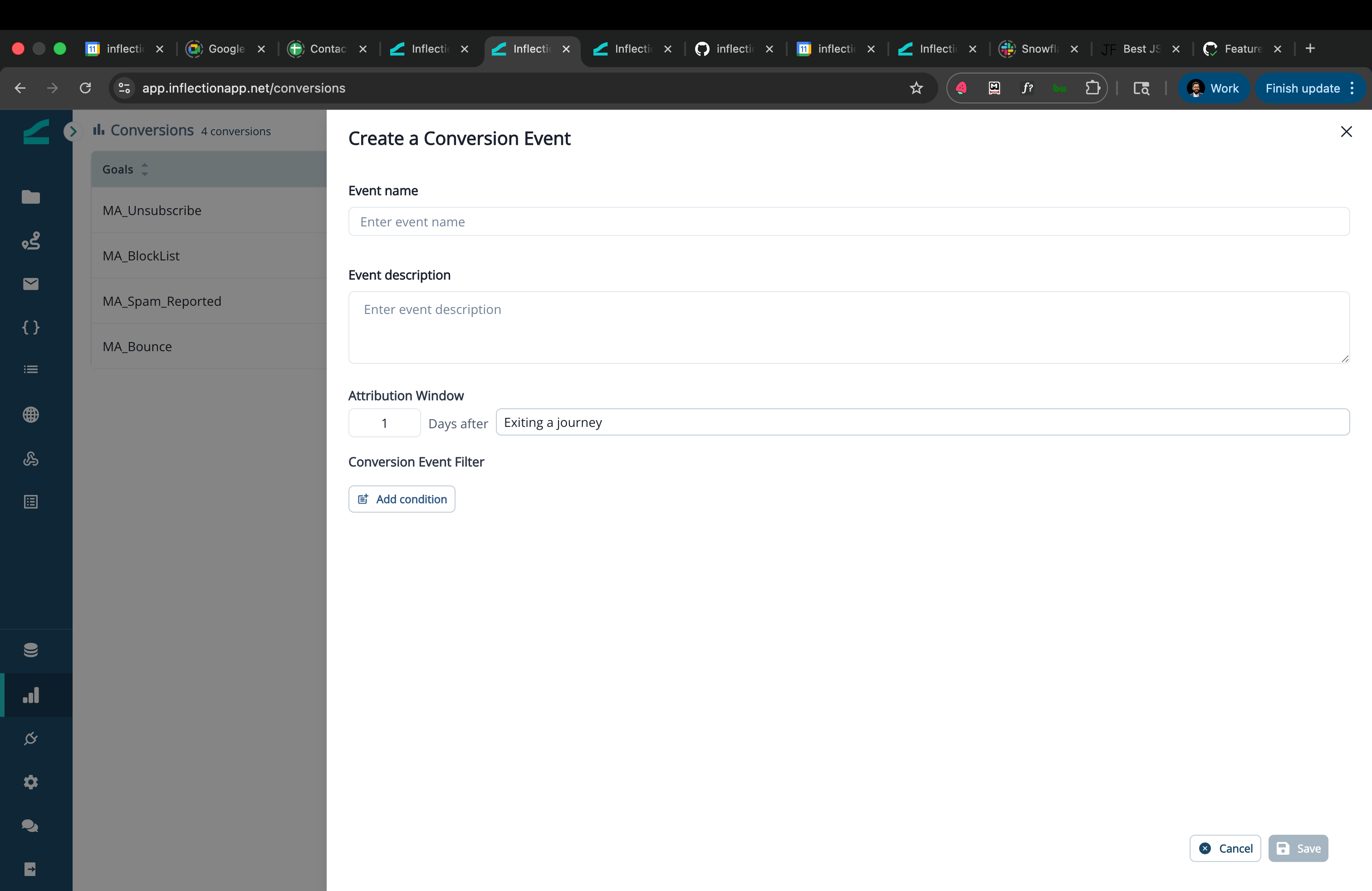
* **Event Name**: Use a clear, reusable name, e.g.:
* `Signed Up for free trial`
* `Registered for a webinar`
* `Converted to opportunity`
* **Event Description** (optional but recommended): Explain what this conversion represents and how it's used.
* Example: "Primary success metric for top-of-funnel nurture journeys. Triggered when Lifecycle Stage = MQL."
### 2. Name & Describe
* **Event Name**: Use a clear, reusable name, e.g.:
* `Signed Up for free trial`
* `Registered for a webinar`
* `Converted to opportunity`
* **Event Description** (optional but recommended): Explain what this conversion represents and how it's used.
* Example: "Primary success metric for top-of-funnel nurture journeys. Triggered when Lifecycle Stage = MQL."
 ### 3. Set the Attribution Window
Set **how long** you want to give a journey credit for driving the conversion.
* Common choices:
* **7 days** – very fast, reactive outcomes (e.g., ebook downloads after a campaign)
* **14–30 days** – typical for nurture programs and product activation
* **60–90 days** – longer sales cycles or multi-step onboarding
**What the window means:**
The attribution window spans from when a person **enters the journey** to **X days after they exit the journey**. If the person performs the conversion event anytime within this window, they are attributed as converted for that journey.
Click **Save** to create the Conversion.
**Note:** Conversion events cannot be edited once created. To make changes, you'll need to delete the conversion and create a new one.
### 4. Define the Conversion Trigger
You can base your conversion on:
1. **Events** (marketing or product)
* Example: `marketing event = "demo_form_submitted"`
* Example: `product_event = "project_created"`
2. **Contact Field value changes**
* Example: `is_engaged_customer changes to "true"`
* Example: `status changes to "MQL"`
### 3. Set the Attribution Window
Set **how long** you want to give a journey credit for driving the conversion.
* Common choices:
* **7 days** – very fast, reactive outcomes (e.g., ebook downloads after a campaign)
* **14–30 days** – typical for nurture programs and product activation
* **60–90 days** – longer sales cycles or multi-step onboarding
**What the window means:**
The attribution window spans from when a person **enters the journey** to **X days after they exit the journey**. If the person performs the conversion event anytime within this window, they are attributed as converted for that journey.
Click **Save** to create the Conversion.
**Note:** Conversion events cannot be edited once created. To make changes, you'll need to delete the conversion and create a new one.
### 4. Define the Conversion Trigger
You can base your conversion on:
1. **Events** (marketing or product)
* Example: `marketing event = "demo_form_submitted"`
* Example: `product_event = "project_created"`
2. **Contact Field value changes**
* Example: `is_engaged_customer changes to "true"`
* Example: `status changes to "MQL"`
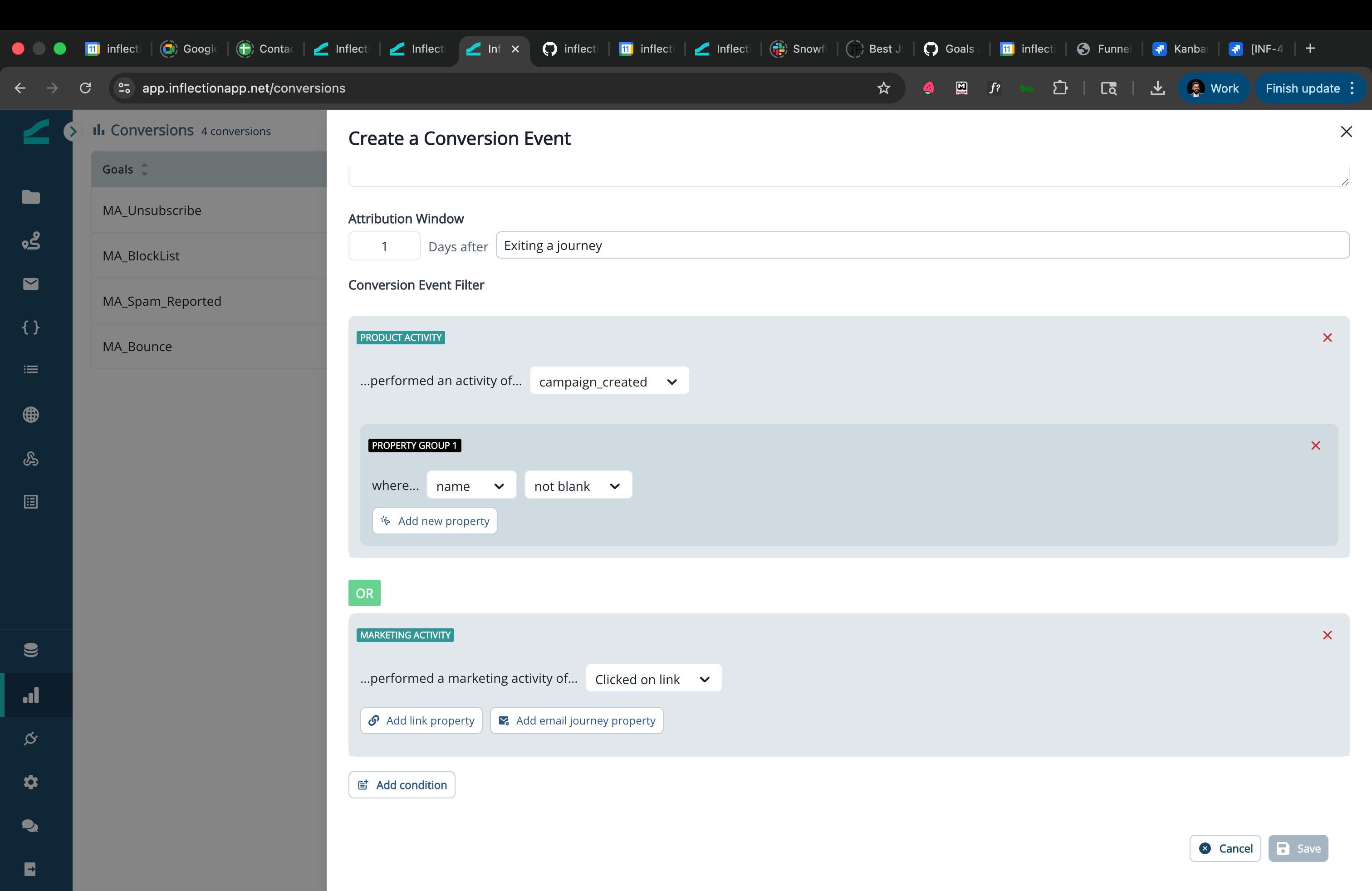 When configuring a **Contact Field value changes** trigger, click the data dictionary icon next to the operator dropdown on the field filter to open **Insights from data dictionary**. The panel shows how the field is populated and what values it contains. Read more: [Data Dictionary](/database/data-dictionary)
***
## Linking Conversions to a Journey
Once you've defined conversions, you can attach them to journeys you want to measure.
### 1. Open the Journey
* Go to **Journeys**.
* Open the journey you want to track
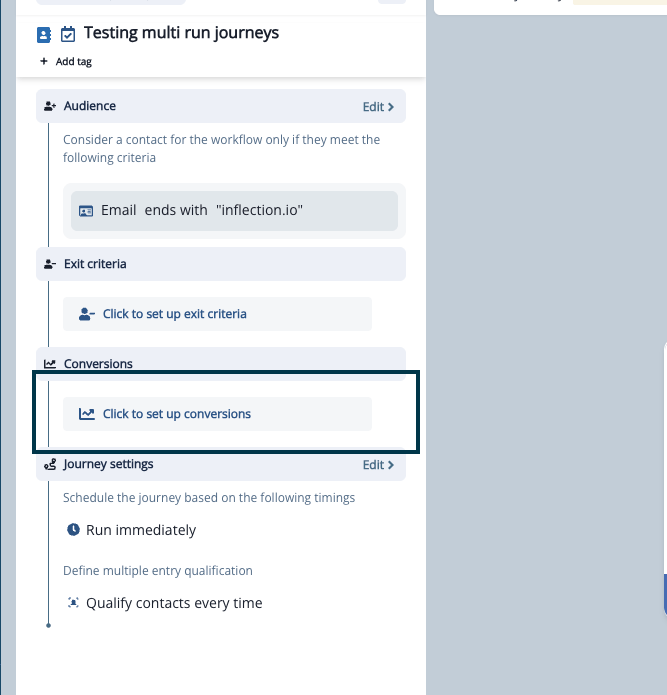
* In the left sidebar, find the **Conversions** section and click **"Click to set up conversions"**
When configuring a **Contact Field value changes** trigger, click the data dictionary icon next to the operator dropdown on the field filter to open **Insights from data dictionary**. The panel shows how the field is populated and what values it contains. Read more: [Data Dictionary](/database/data-dictionary)
***
## Linking Conversions to a Journey
Once you've defined conversions, you can attach them to journeys you want to measure.
### 1. Open the Journey
* Go to **Journeys**.
* Open the journey you want to track
* In the left sidebar, find the **Conversions** section and click **"Click to set up conversions"**
 ### 2. Add Conversions to the Journey
In the **Manage Conversions** modal:
* Search or browse the list of conversion events you created earlier.
* Check the box next to each conversion event you want to track for this journey.
* Each conversion shows its attribution window (e.g. "1d window", "2d window").
* Click **"Save changes"** to apply.
> Example:
>
> For a "Welcome Nurture" journey, you might add:
>
> * Primary: `Signed Up for Free Trial (30-day window)`
> * Secondary: `Activated Feature X (30-day window)`
Once attached, Inflection will start attributing conversions to this journey as people flow through it.
Note that a "Conversion Event" happens when a contact does any one of the selected events
**Note:** Conversions are tracked only from the point they are linked to a journey. Historical data before the conversion was linked will not be counted.
**Note:** Conversions do not clone with journeys. If you clone a journey, you will need to manually link conversion events to the new journey.
***
### 3. Reading Conversion Metrics on a Journey
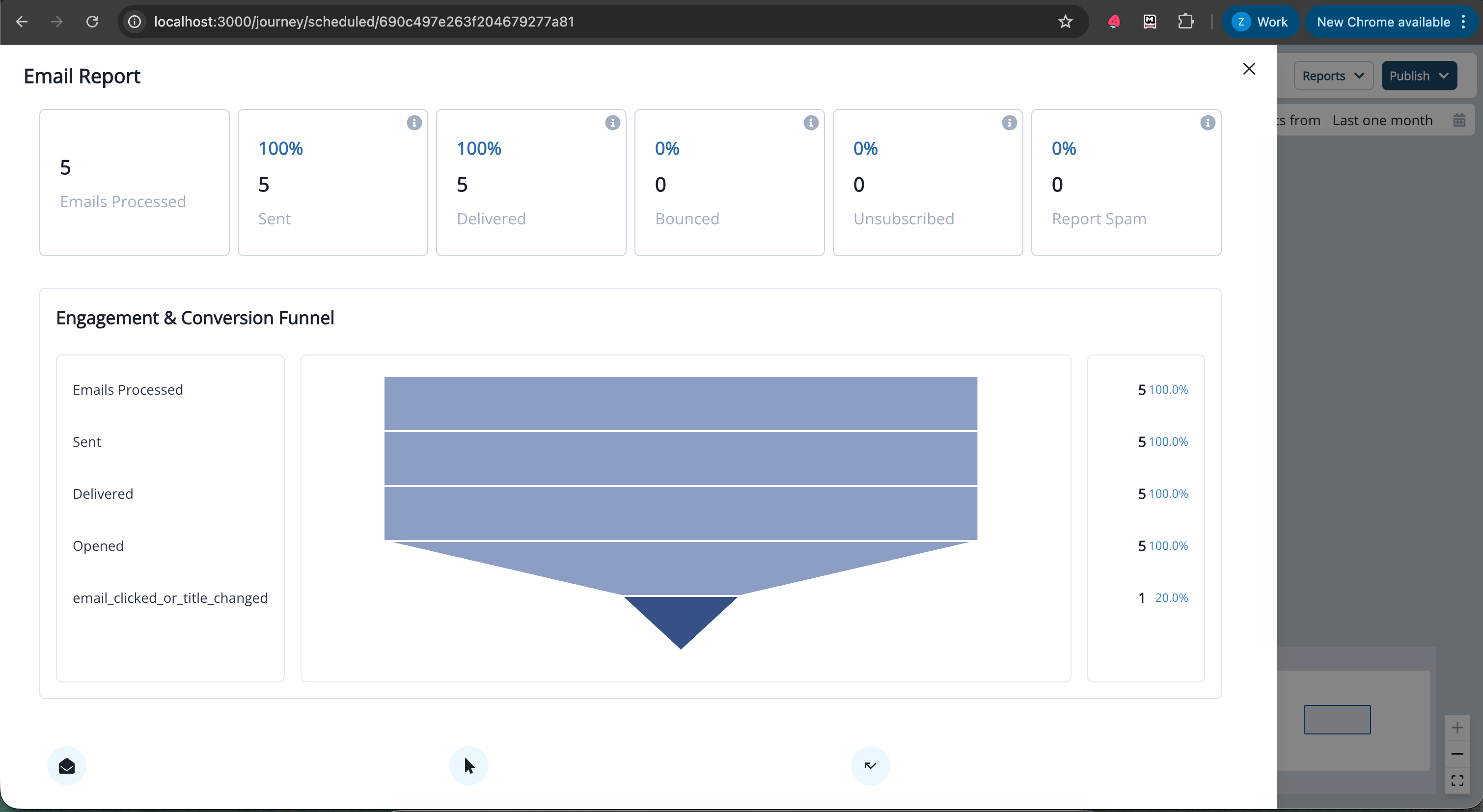
After your journey runs, you'll see conversion data appear in the Email Report overview.
**Note:** Conversion reporting is calculated **once a day at approximately 2:00 AM PST.** If a conversion event happens today (prior to 2:00 AM PST), it will reflect in reporting tomorrow.
Typical metrics you'll see:
* **Total Conversions**
Number of contacts who converted while in the journey and within the window.
* **Conversion Rate**
`% of people in the journey who converted`
```javascript theme={null}
(Total Conversions / Total people who entered the journey) × 100
```
### 2. Add Conversions to the Journey
In the **Manage Conversions** modal:
* Search or browse the list of conversion events you created earlier.
* Check the box next to each conversion event you want to track for this journey.
* Each conversion shows its attribution window (e.g. "1d window", "2d window").
* Click **"Save changes"** to apply.
> Example:
>
> For a "Welcome Nurture" journey, you might add:
>
> * Primary: `Signed Up for Free Trial (30-day window)`
> * Secondary: `Activated Feature X (30-day window)`
Once attached, Inflection will start attributing conversions to this journey as people flow through it.
Note that a "Conversion Event" happens when a contact does any one of the selected events
**Note:** Conversions are tracked only from the point they are linked to a journey. Historical data before the conversion was linked will not be counted.
**Note:** Conversions do not clone with journeys. If you clone a journey, you will need to manually link conversion events to the new journey.
***
### 3. Reading Conversion Metrics on a Journey
After your journey runs, you'll see conversion data appear in the Email Report overview.
**Note:** Conversion reporting is calculated **once a day at approximately 2:00 AM PST.** If a conversion event happens today (prior to 2:00 AM PST), it will reflect in reporting tomorrow.
Typical metrics you'll see:
* **Total Conversions**
Number of contacts who converted while in the journey and within the window.
* **Conversion Rate**
`% of people in the journey who converted`
```javascript theme={null}
(Total Conversions / Total people who entered the journey) × 100
```
 > **Example**
>
> * Journey: `Free Trial Onboarding`
> * Conversion: `Upgraded to Paid Plan (30-day window)`
> * 1,000 people entered the journey.
> * 150 people upgraded while in the journey and within 30 days.
>
> You would see:
>
> * **Total conversions:** 150
> * **Conversion rate:** 15%
>
> You can compare this against:
>
> * Previous versions of the journey
> * Other journeys targeting the same audience
***
## Common Questions
### What happens if a person is in multiple journeys that share the same conversion?
* **Multi-journey credit** (conversion is attributed to all journeys the person is in that meet the window criteria).
### What if a contact converts multiple times?
* A contact can perform a conversion event multiple times.
* The conversion event of a contact can be attributed to the same journey multiple times if they enter the journey multiple times
### Can I change the attribution window or the conversion event later?
You currently cannot edit the attribution window or the details of a conversion event. You can however link or unlink a conversion event against a journey at any point
### Do I need a separate conversion for every journey?
No. In fact, it's better to **reuse** the same conversion across multiple journeys so you can compare:
### Can I attach multiple conversions to one journey?
Yes. Common pattern:
* 1 **Primary Conversion** (main business outcome).
* 1–3 **Secondary Conversions** (supporting outcomes you care about).
Example:
* Primary: `Webinar attended`
* Secondary: `Recording viewed`, `Logged into App`
### How does attribution work differently for Contact Journeys vs User Journeys?
Attribution behavior depends on the **type of journey** and the **type of conversion event** you're tracking. **When attribution works seamlessly:**
* **Contact Journey + Contact-level conversion** (e.g., contact field change, marketing activity) Works as expected, since the conversion happens at the contact level, there's no ambiguity.
* **User Journey + User-level conversion** (e.g., product activity performed by a specific user) Works as expected, the journey tracks specific users, and conversions are attributed to those same users.
**When attribution can be problematic:**
* **Contact Journey + User-level conversion** (e.g., product activity) This combination can cause missed or misattributed conversions. Here's why:
A single contact can have **multiple users** linked to it. When a Contact Journey runs, it qualifies the contact, but if the conversion event is a user-level activity, the system attributes it to the **most recently linked user**. This means:
* If **User A** is in the journey and performs the conversion activity, but **User B** was linked to the contact more recently, the conversion may not be counted correctly.
* You could miss conversions or see them attributed to the wrong user.
**Tip:** To avoid attribution issues, match your journey type with your conversion type. Use Contact Journeys with contact-level conversions, and User Journeys with user-level conversions.
**Recommendation:**
| Journey Type | Best Conversion Types |
| --------------- | ------------------------------------------- |
| Contact Journey | Contact field changes, Marketing activities |
| User Journey | Product activities |
> **Example**
>
> * Journey: `Free Trial Onboarding`
> * Conversion: `Upgraded to Paid Plan (30-day window)`
> * 1,000 people entered the journey.
> * 150 people upgraded while in the journey and within 30 days.
>
> You would see:
>
> * **Total conversions:** 150
> * **Conversion rate:** 15%
>
> You can compare this against:
>
> * Previous versions of the journey
> * Other journeys targeting the same audience
***
## Common Questions
### What happens if a person is in multiple journeys that share the same conversion?
* **Multi-journey credit** (conversion is attributed to all journeys the person is in that meet the window criteria).
### What if a contact converts multiple times?
* A contact can perform a conversion event multiple times.
* The conversion event of a contact can be attributed to the same journey multiple times if they enter the journey multiple times
### Can I change the attribution window or the conversion event later?
You currently cannot edit the attribution window or the details of a conversion event. You can however link or unlink a conversion event against a journey at any point
### Do I need a separate conversion for every journey?
No. In fact, it's better to **reuse** the same conversion across multiple journeys so you can compare:
### Can I attach multiple conversions to one journey?
Yes. Common pattern:
* 1 **Primary Conversion** (main business outcome).
* 1–3 **Secondary Conversions** (supporting outcomes you care about).
Example:
* Primary: `Webinar attended`
* Secondary: `Recording viewed`, `Logged into App`
### How does attribution work differently for Contact Journeys vs User Journeys?
Attribution behavior depends on the **type of journey** and the **type of conversion event** you're tracking. **When attribution works seamlessly:**
* **Contact Journey + Contact-level conversion** (e.g., contact field change, marketing activity) Works as expected, since the conversion happens at the contact level, there's no ambiguity.
* **User Journey + User-level conversion** (e.g., product activity performed by a specific user) Works as expected, the journey tracks specific users, and conversions are attributed to those same users.
**When attribution can be problematic:**
* **Contact Journey + User-level conversion** (e.g., product activity) This combination can cause missed or misattributed conversions. Here's why:
A single contact can have **multiple users** linked to it. When a Contact Journey runs, it qualifies the contact, but if the conversion event is a user-level activity, the system attributes it to the **most recently linked user**. This means:
* If **User A** is in the journey and performs the conversion activity, but **User B** was linked to the contact more recently, the conversion may not be counted correctly.
* You could miss conversions or see them attributed to the wrong user.
**Tip:** To avoid attribution issues, match your journey type with your conversion type. Use Contact Journeys with contact-level conversions, and User Journeys with user-level conversions.
**Recommendation:**
| Journey Type | Best Conversion Types |
| --------------- | ------------------------------------------- |
| Contact Journey | Contact field changes, Marketing activities |
| User Journey | Product activities |