> ## Documentation Index
> Fetch the complete documentation index at: https://docs.inflection.io/llms.txt
> Use this file to discover all available pages before exploring further.
# Emails
> Steps and considerations when building an email in Inflection.
Inflection's email editor is built with [BeeFree.io](https://beefree.io/). This article will walk through the steps and considerations when building an email in Inflection.
## Create a new email
1. Navigate to **Emails** on the left panel.
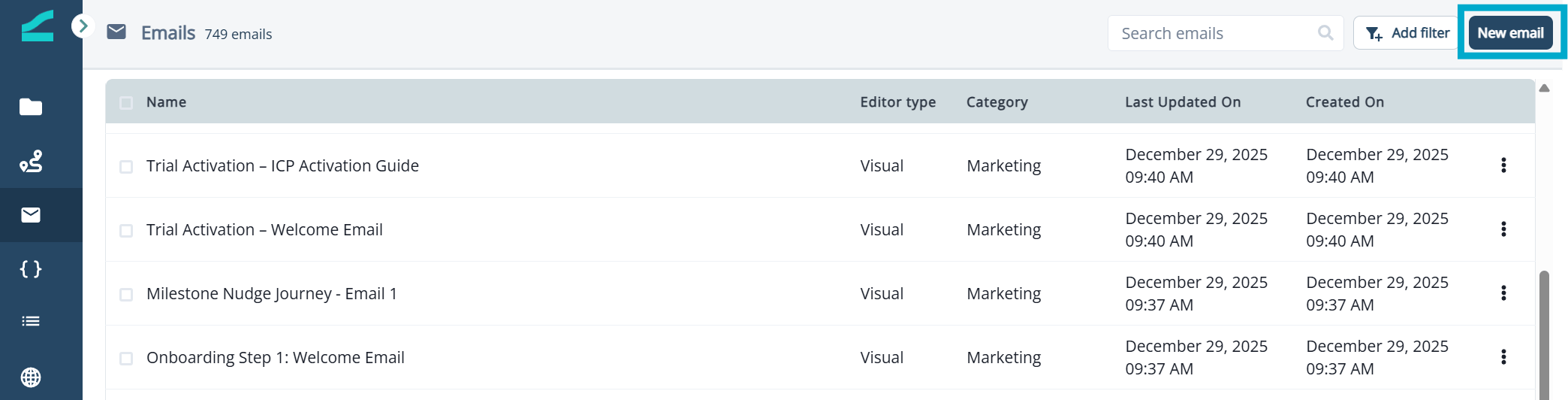
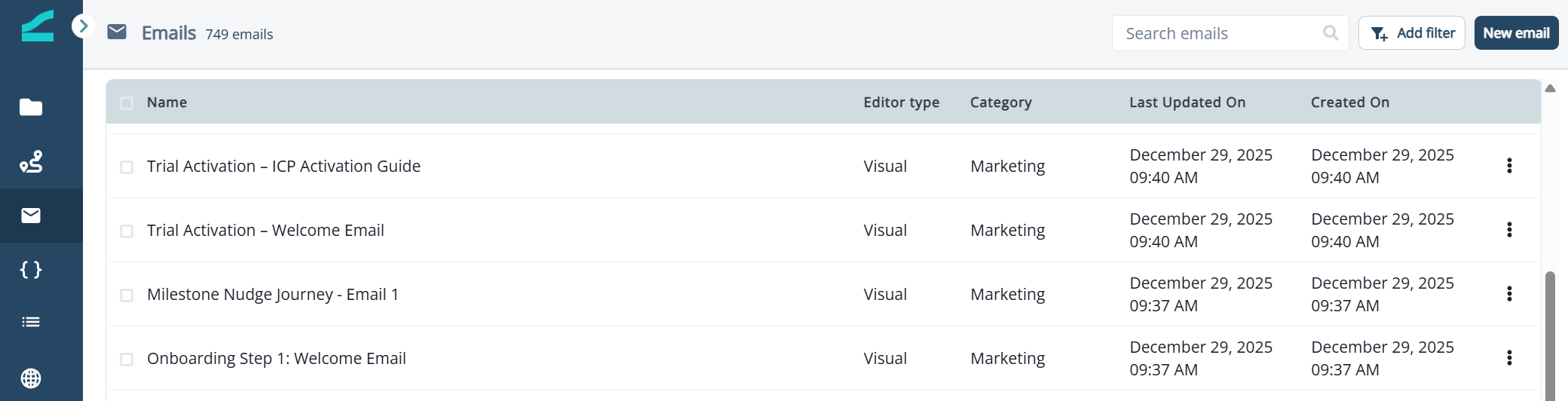 2. Click **New email.**
 3. Name the email, select the appropriate editor, and categorize the email (Marketing or Transactional).
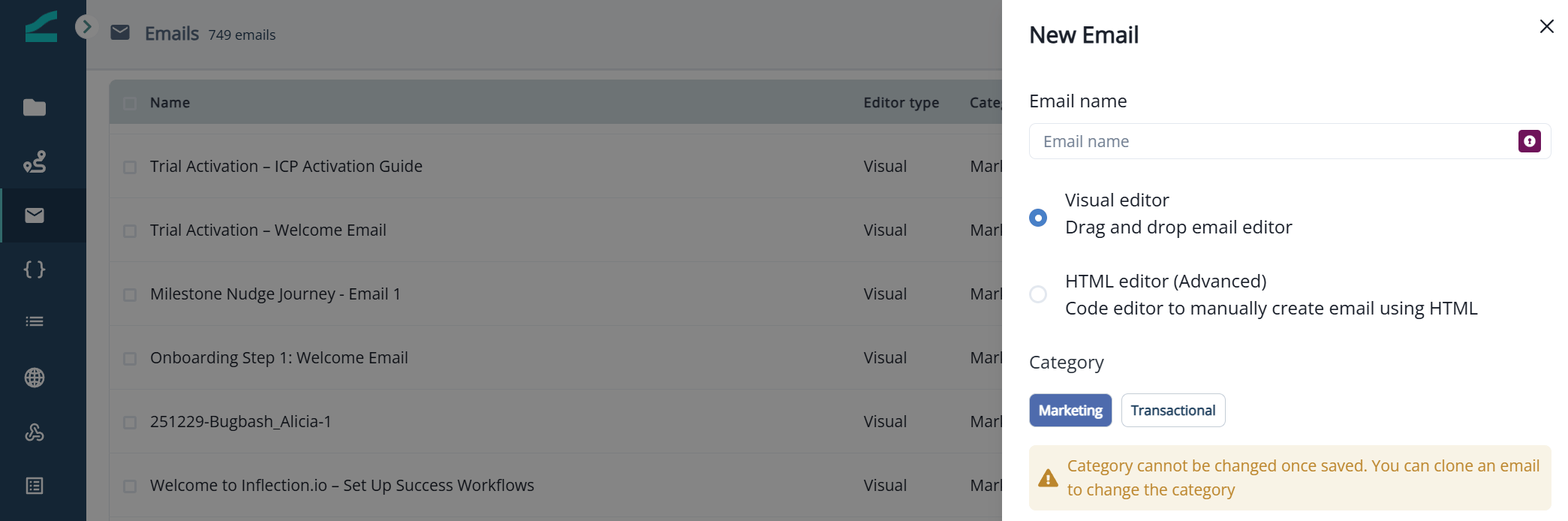 Note that email category cannot be updated once the email is created.
Read more about transactional emails: [Transactional Emails](/journeys/transactional-emails)
4. Choose to create an email from scratch (**Start from scratch**) or select an existing template.
## Asset Settings
### Email Settings
When an email is created, **Email settings** will slide out on the right.
Note that email category cannot be updated once the email is created.
Read more about transactional emails: [Transactional Emails](/journeys/transactional-emails)
4. Choose to create an email from scratch (**Start from scratch**) or select an existing template.
## Asset Settings
### Email Settings
When an email is created, **Email settings** will slide out on the right.
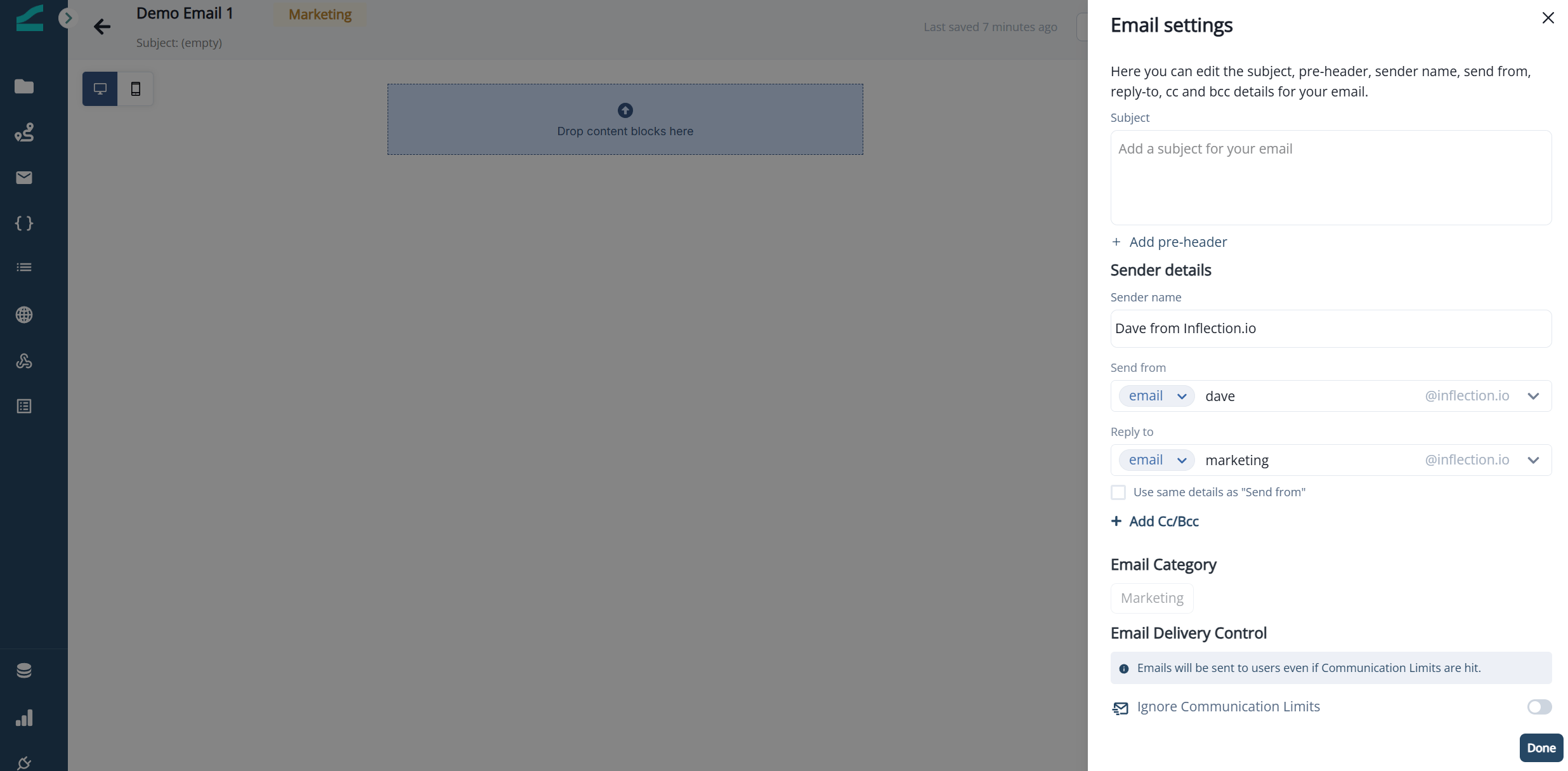 Here you can:
* Add/edit subject line, sender name
* Add/edit pre-header
* Update sender details like name, email, and reply to email
* Add/edit Cc and Bcc contacts
* See the email category (marketing or transactional)
* Select to ignore communications limits
Note that sender name, send from and reply to will be pre-populated with information from Email Settings.
Use Cc and Bcc fields responsibly to protect email privacy and comply with regulations. Misuse may lead to privacy violations and negative impacts on your email campaigns, email metrics, and sender reputation.
Click **Done** after entering all the information.
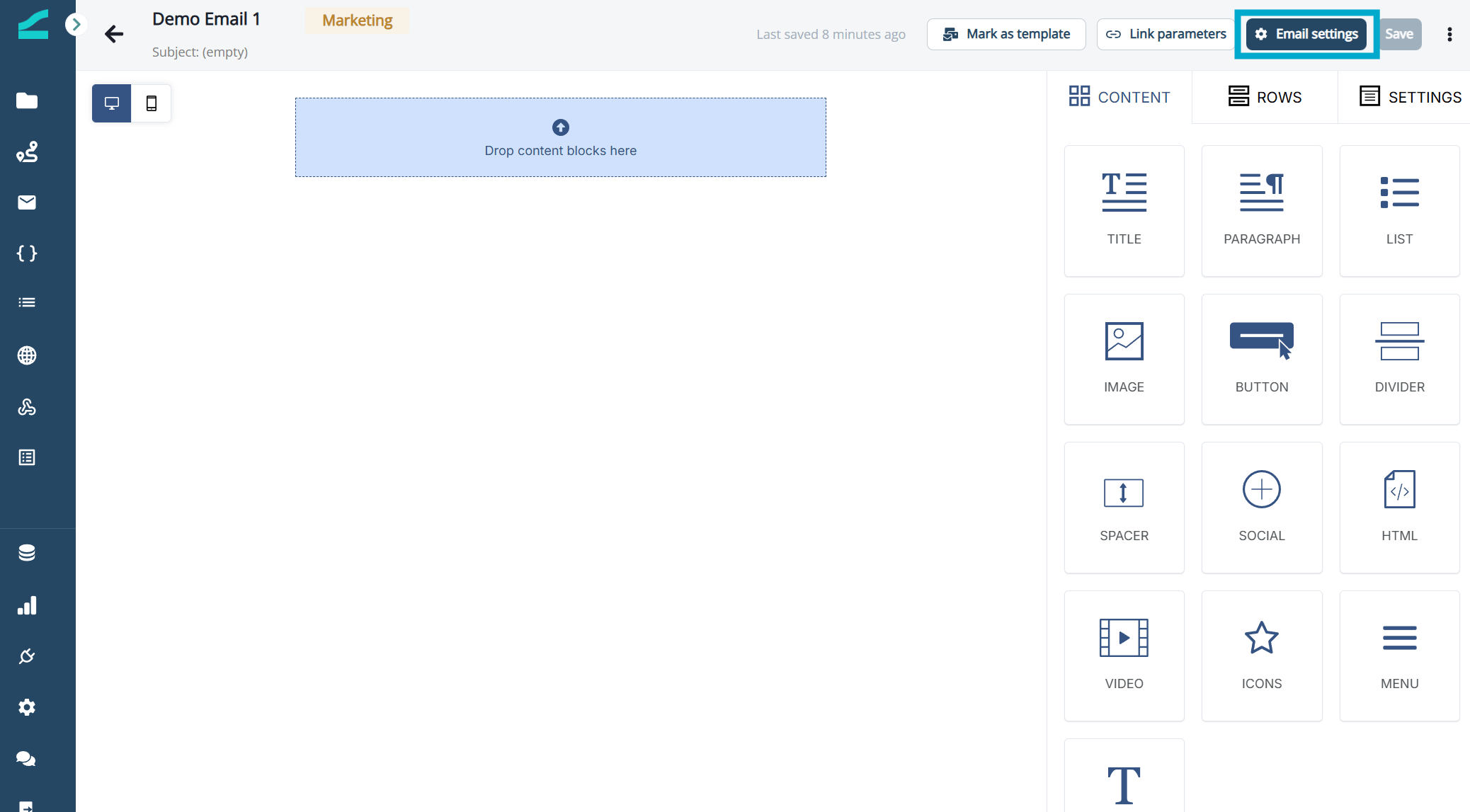
To view or update these settings, select **Email settings** in the top navigation of your email asset.
Here you can:
* Add/edit subject line, sender name
* Add/edit pre-header
* Update sender details like name, email, and reply to email
* Add/edit Cc and Bcc contacts
* See the email category (marketing or transactional)
* Select to ignore communications limits
Note that sender name, send from and reply to will be pre-populated with information from Email Settings.
Use Cc and Bcc fields responsibly to protect email privacy and comply with regulations. Misuse may lead to privacy violations and negative impacts on your email campaigns, email metrics, and sender reputation.
Click **Done** after entering all the information.
To view or update these settings, select **Email settings** in the top navigation of your email asset.
 ### UTM Parameters
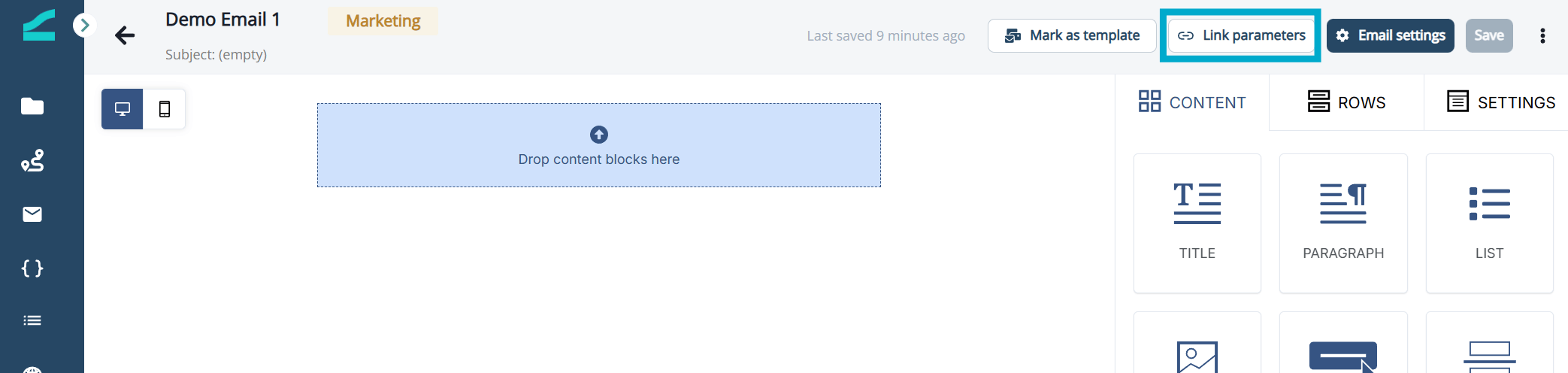
Select **UTM parameters** in the top navigation of your email asset to view and/or update UTM parameters.
### UTM Parameters
Select **UTM parameters** in the top navigation of your email asset to view and/or update UTM parameters.
 Note that UTM parameters will be pre-populated with default information configured in **Global UTM Parameters** within **Admin Settings**. Talk to your instance administrator to update global settings.
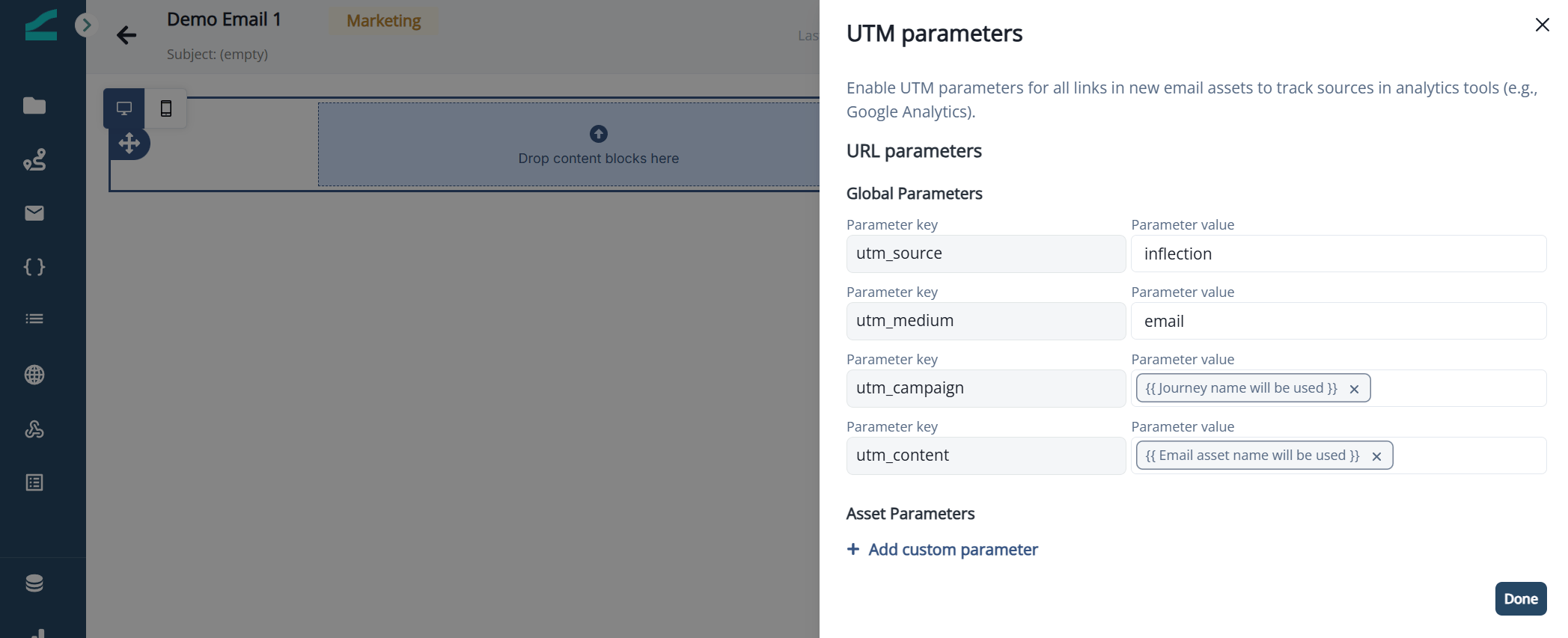 Here you can:
* Overwrite global default parameters
* Add/edit custom parameters
### Mark as template
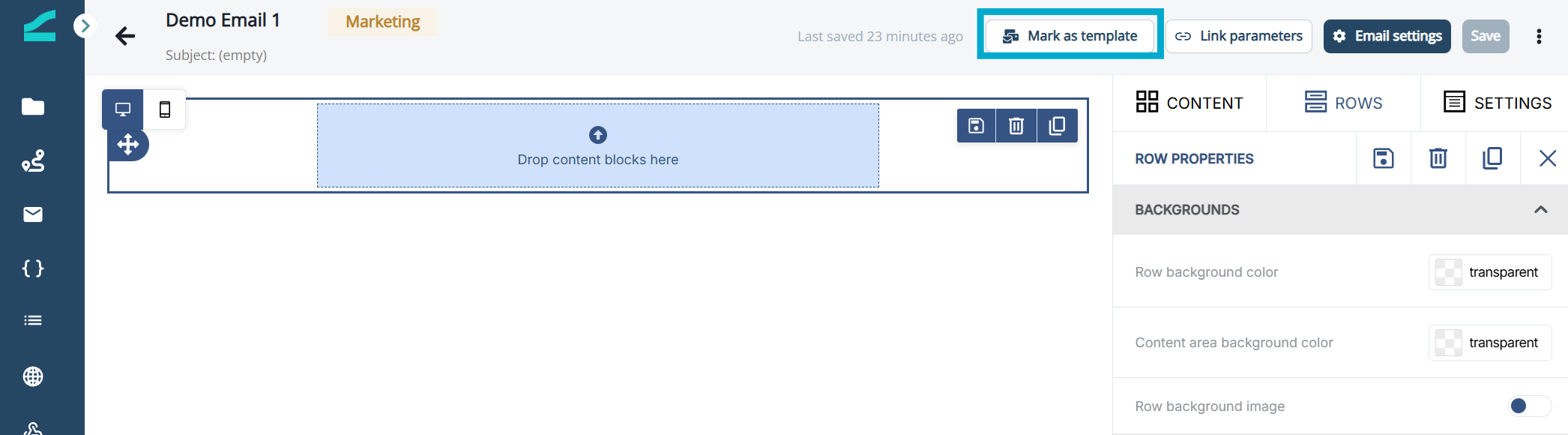
To make the email asset available as a template (for others to use as a starting point in their email builds), select **Mark as template**. The template will retain all current content and email settings.
Here you can:
* Overwrite global default parameters
* Add/edit custom parameters
### Mark as template
To make the email asset available as a template (for others to use as a starting point in their email builds), select **Mark as template**. The template will retain all current content and email settings.
 Once marked, the tag `Template` will be shown next to the email name in the Emails list.
Templates are just regular emails that happen to be reusable. You can:
* Open the template from the Emails list.
* Modify its content or settings.
* These changes will update the template and affect any future emails created from it.
* Editing a template will not affect any emails already created from the template.
#### Template Tips & Best Practices
* Name templates clearly so they're easily discoverable (e.g., "Promo Template – Summer 2025").
* Use templates for:
* Recurring campaign formats
* Product updates
* Onboarding flows
## Build with Visual Editor
Check out [Mastering the Beefree builder](https://academy.beefree.io/course/finding-your-way-around-the-builder) for a tutorial. Note that some capabilities may have a slightly different UI in the Inflection builder.
## Preview, Export, and Test
### Preview
Preview email designs on **desktop** and **mobile** devices:
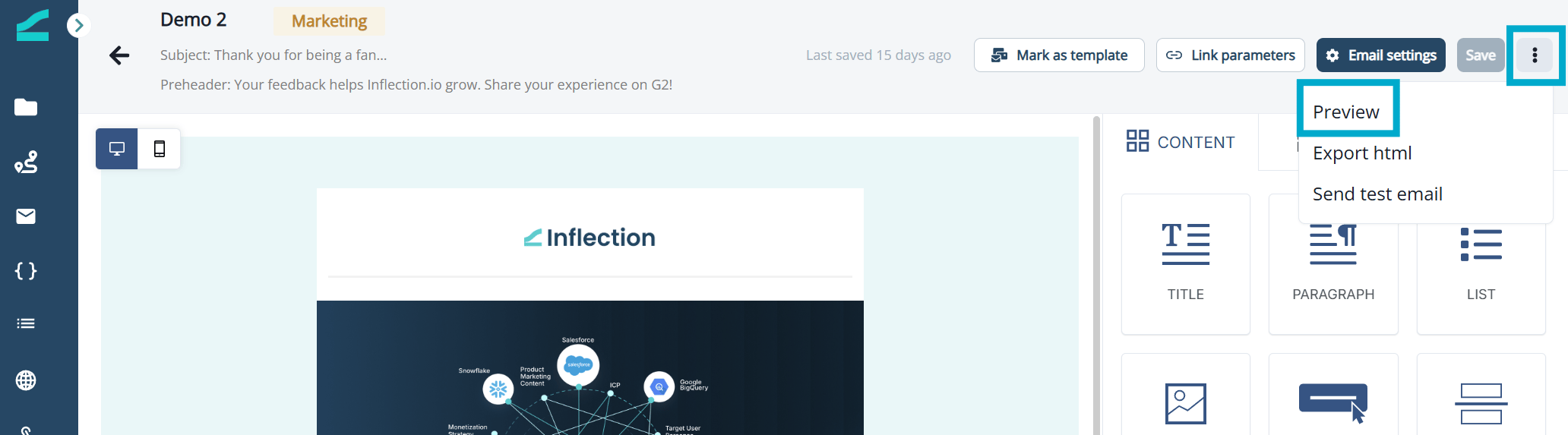
1. Click the ellipsis icon on the top right of the page.
2. Select **Preview** from the drop down.
Once marked, the tag `Template` will be shown next to the email name in the Emails list.
Templates are just regular emails that happen to be reusable. You can:
* Open the template from the Emails list.
* Modify its content or settings.
* These changes will update the template and affect any future emails created from it.
* Editing a template will not affect any emails already created from the template.
#### Template Tips & Best Practices
* Name templates clearly so they're easily discoverable (e.g., "Promo Template – Summer 2025").
* Use templates for:
* Recurring campaign formats
* Product updates
* Onboarding flows
## Build with Visual Editor
Check out [Mastering the Beefree builder](https://academy.beefree.io/course/finding-your-way-around-the-builder) for a tutorial. Note that some capabilities may have a slightly different UI in the Inflection builder.
## Preview, Export, and Test
### Preview
Preview email designs on **desktop** and **mobile** devices:
1. Click the ellipsis icon on the top right of the page.
2. Select **Preview** from the drop down.
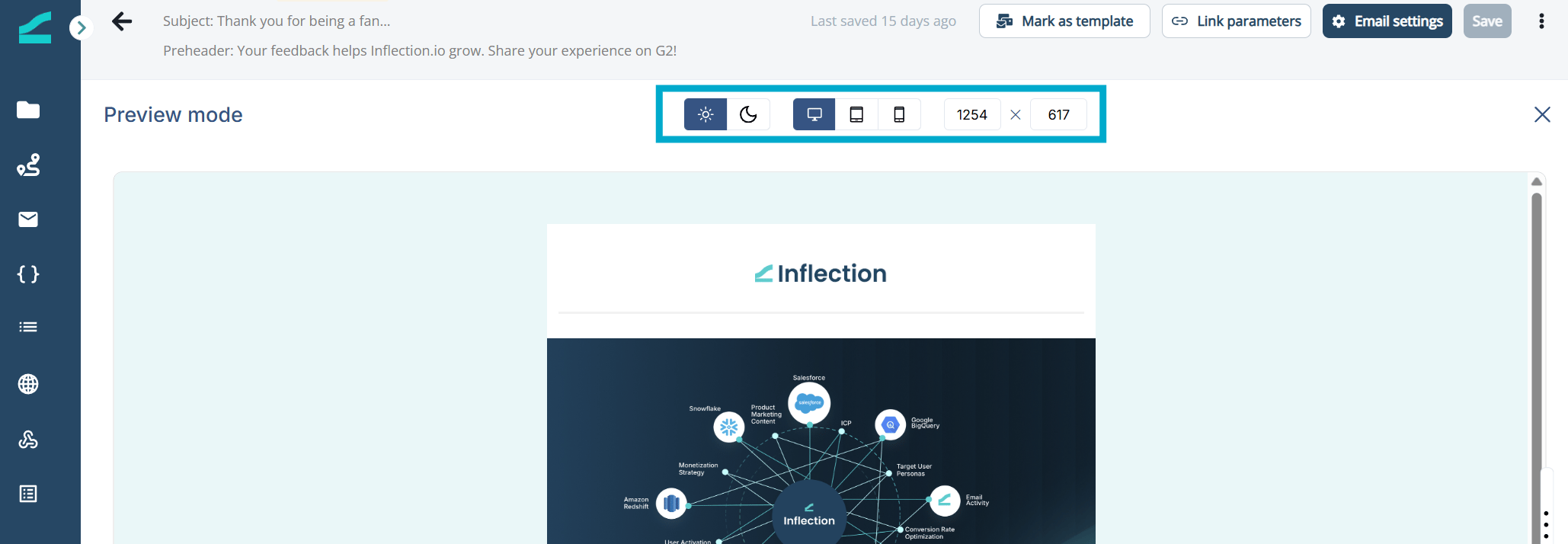
 3. Update the menu options to preview the email:
1. In light and dark mode
2. On a desktop, tablet and mobile
3. In custom dimensions
3. Update the menu options to preview the email:
1. In light and dark mode
2. On a desktop, tablet and mobile
3. In custom dimensions
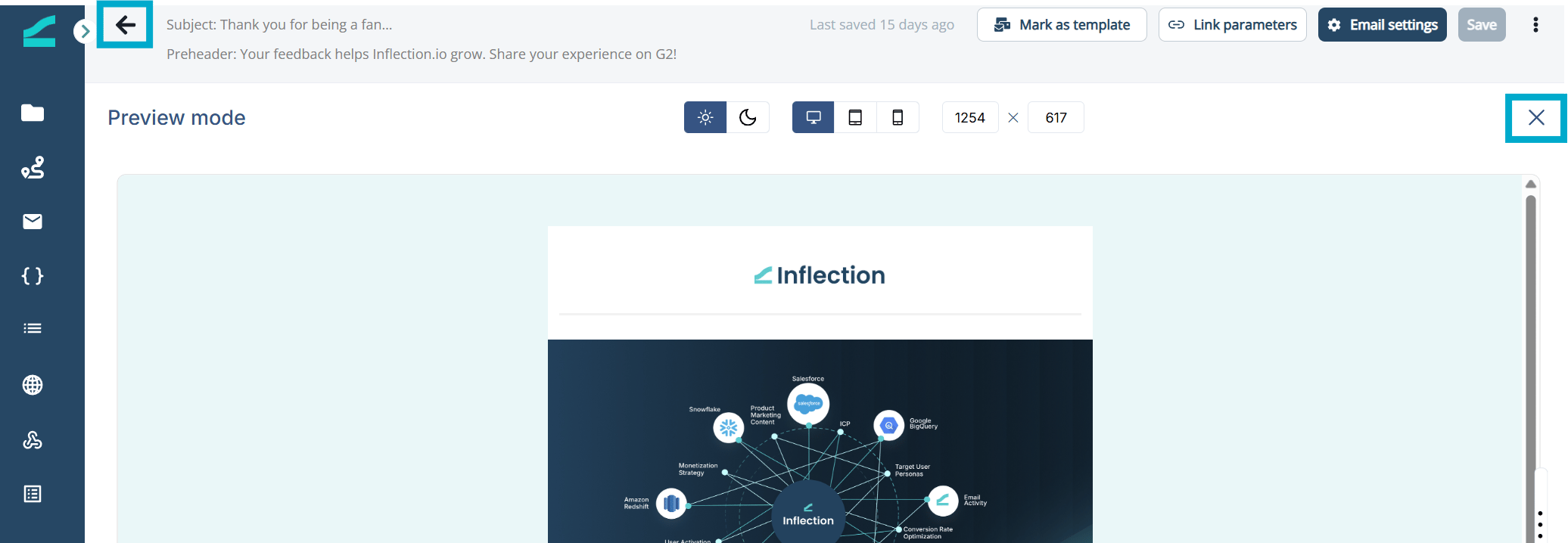
 4. Click the back arrow (top left) or exit icon (top right) to exit preview mode.
 ### Export as HTML
To export an email as an HTML file:
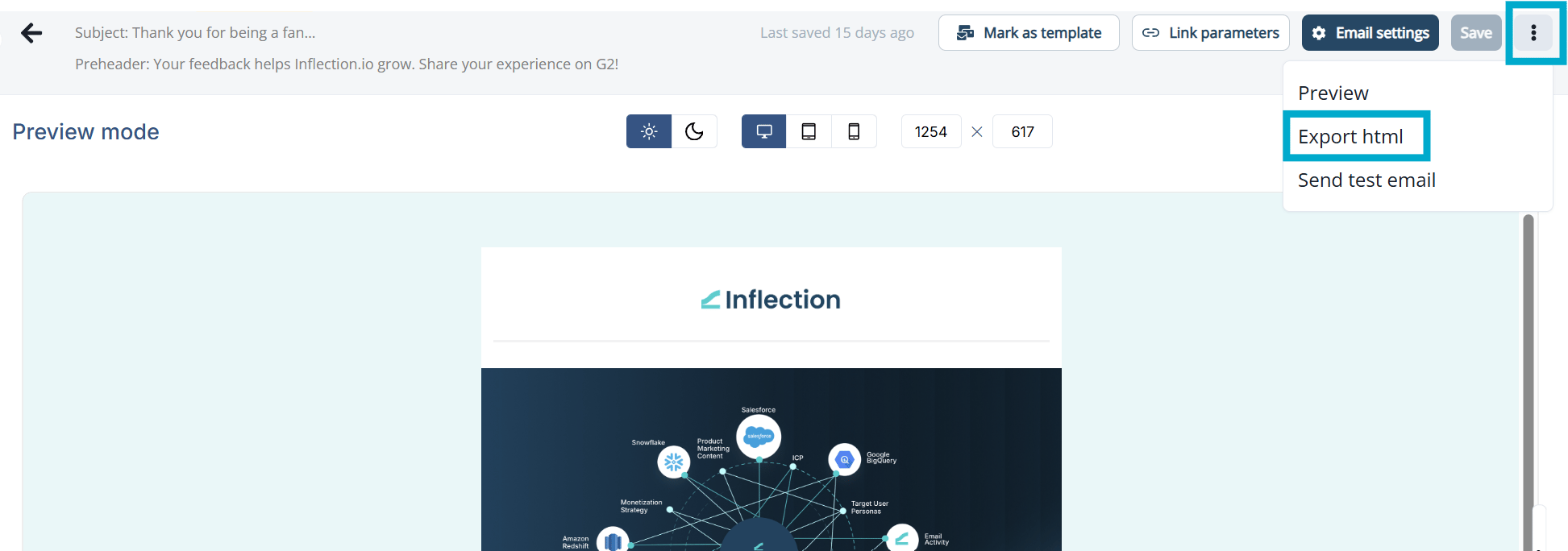
1. Click the ellipsis icon on the top right side of the email editor page.
2. Select **Export html**.
An HTML file will download to your device.
### Export as HTML
To export an email as an HTML file:
1. Click the ellipsis icon on the top right side of the email editor page.
2. Select **Export html**.
An HTML file will download to your device.
 ### Send test email
Send a test email to yourself, a colleague, or to your team:
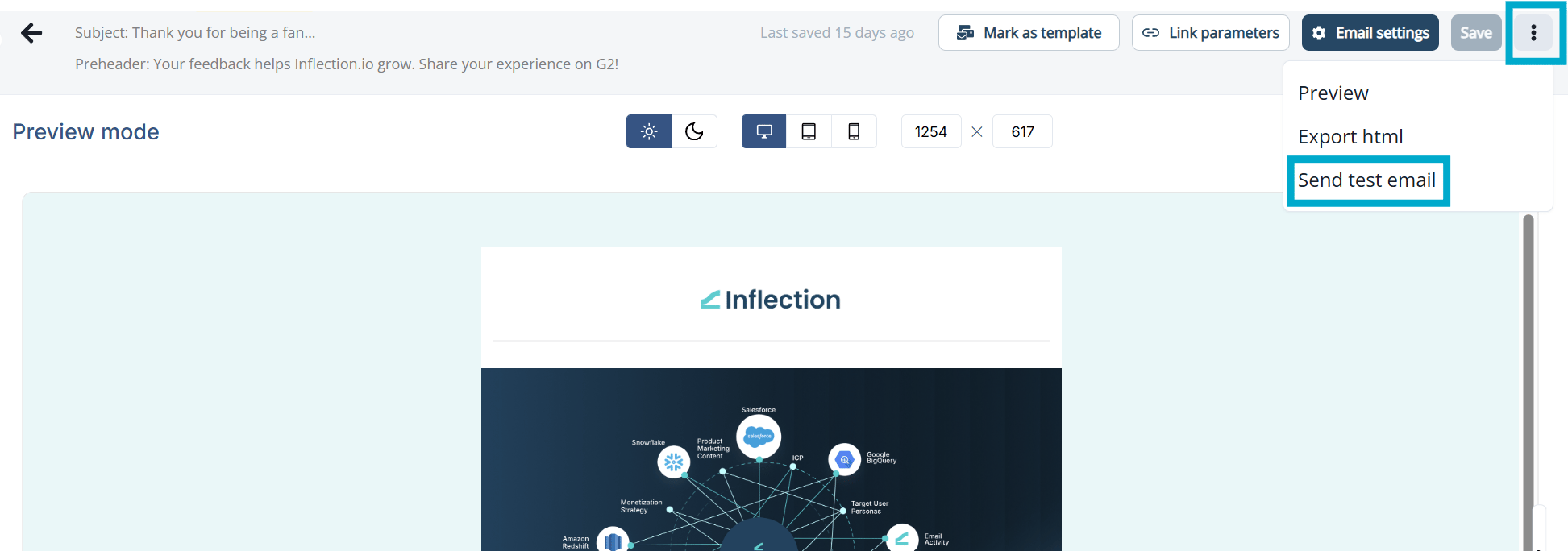
1. Click on the ellipsis icon on the top right side.
2. Select **Send test email**.
3. In **Send to**, enter the email(s) to send the test email to.
4. In **Preview as a specific user**, enter the email address of an Inflection contact or user.
5. Click **Send preview**.
### Send test email
Send a test email to yourself, a colleague, or to your team:
1. Click on the ellipsis icon on the top right side.
2. Select **Send test email**.
3. In **Send to**, enter the email(s) to send the test email to.
4. In **Preview as a specific user**, enter the email address of an Inflection contact or user.
5. Click **Send preview**.
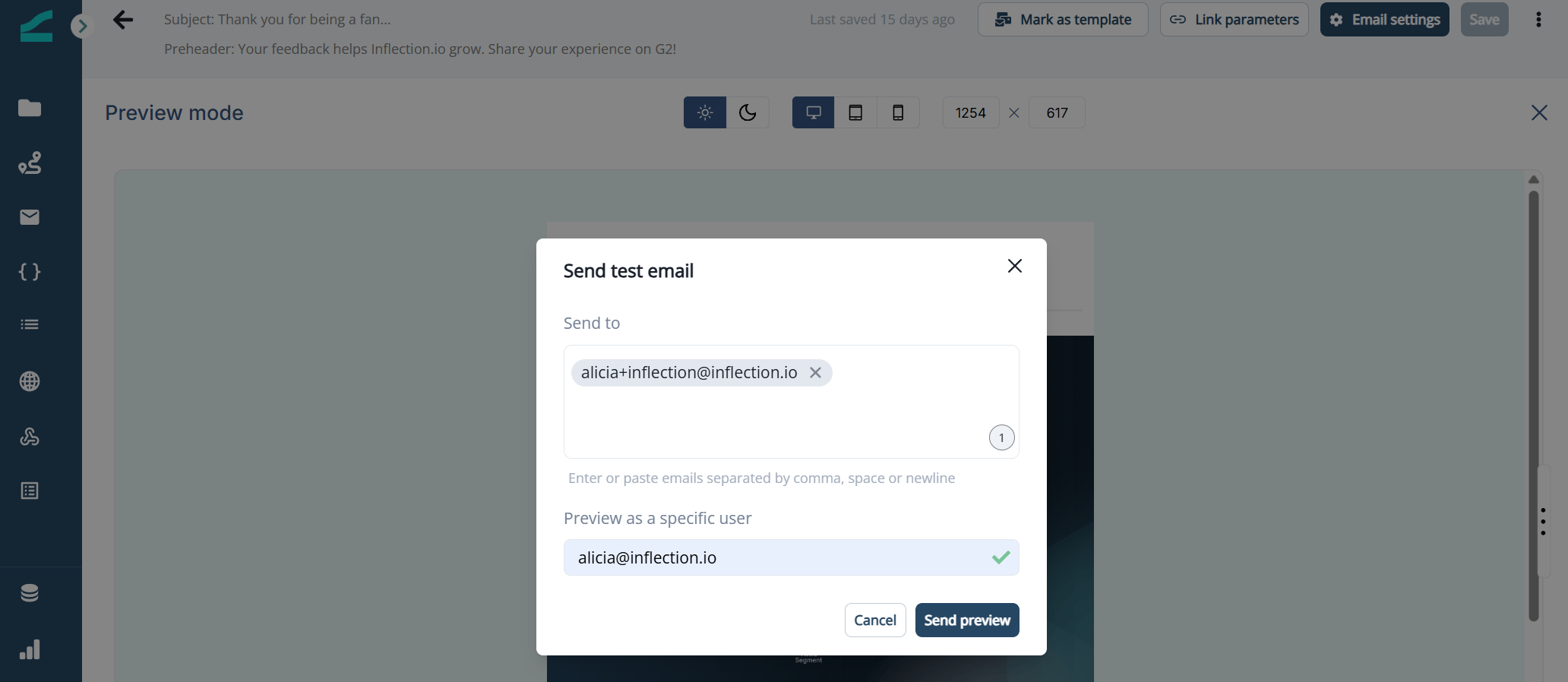 The preview user must exist as a contact or user in the Inflection database. A checkmark indicates that the contact exists in your contact database. If the email address you entered is not in the database, an error is displayed.
## Create an Unsubscribe link
To configure an unsubscribe link in your emails:
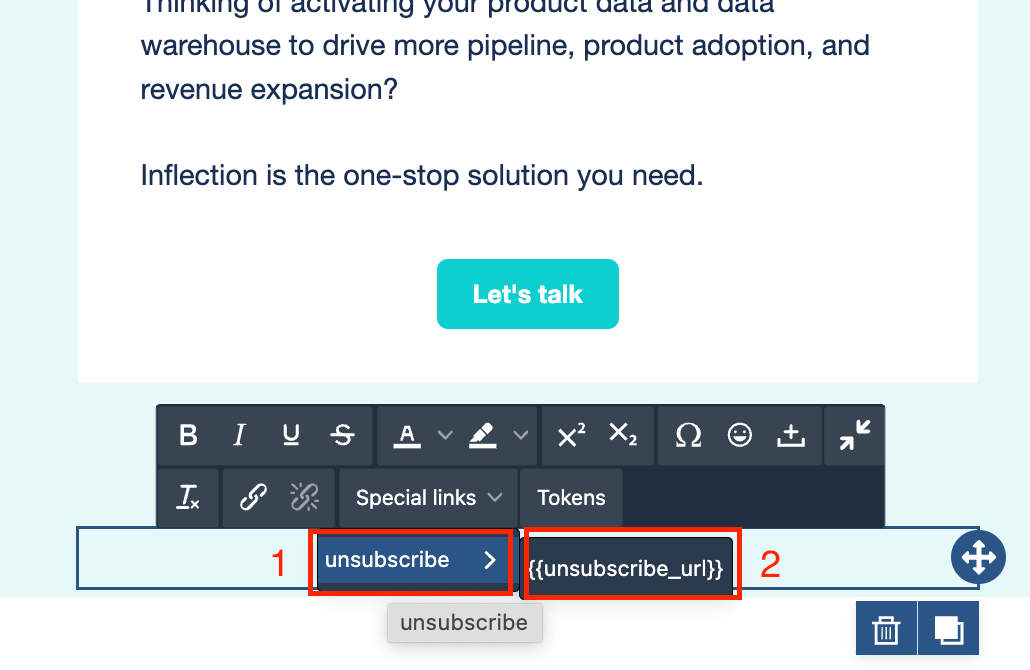
1. Select the text you want to link.
The preview user must exist as a contact or user in the Inflection database. A checkmark indicates that the contact exists in your contact database. If the email address you entered is not in the database, an error is displayed.
## Create an Unsubscribe link
To configure an unsubscribe link in your emails:
1. Select the text you want to link.
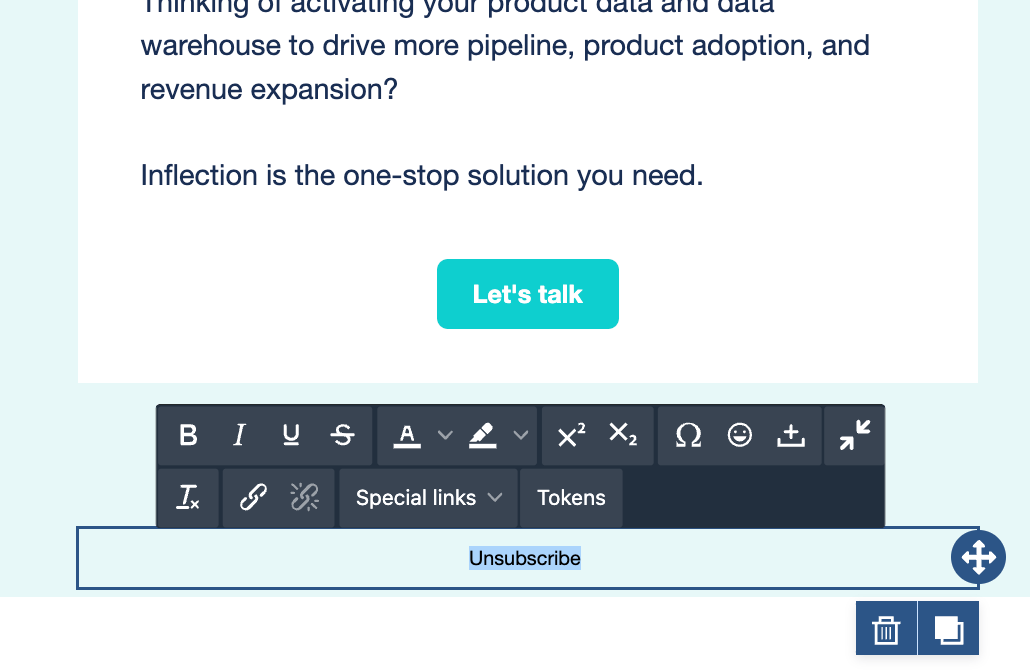 2. Select the **Special links** option on the tool bar that appears.
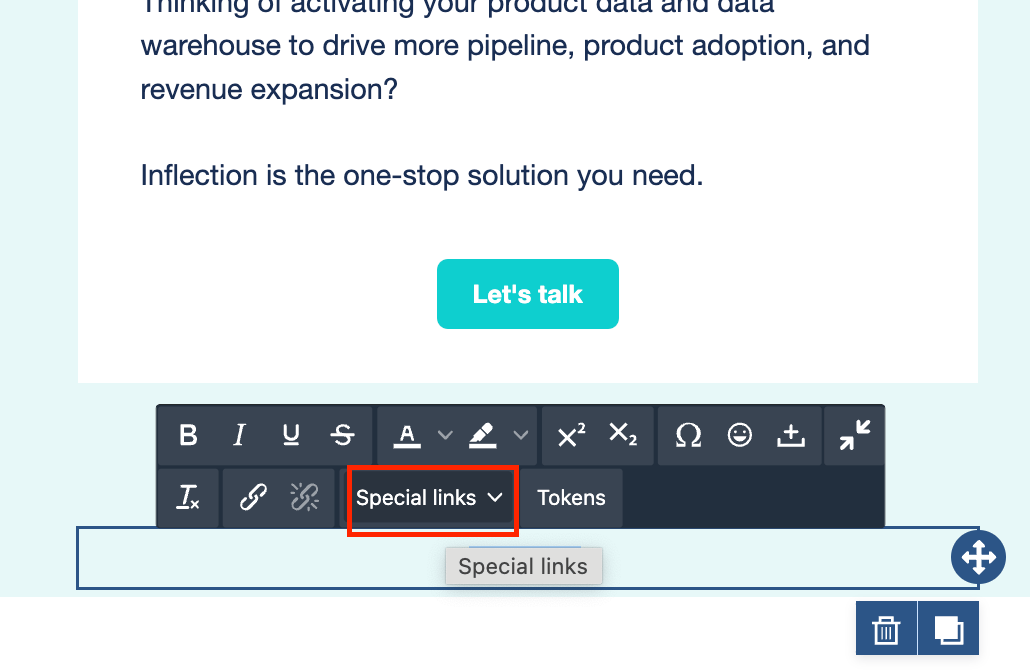 3. Select **unsubscribe** and select the token that slides out. The link is now configured.