> ## Documentation Index
> Fetch the complete documentation index at: https://docs.inflection.io/llms.txt
> Use this file to discover all available pages before exploring further.
# Tokens
> Personalize journeys and emails with tokens that reference and calculate based on attributes and activities.
In Inflection, tokens are elements that reference an attribute or calculation related to a contact, user, org, or account. They are used to personalize journeys and emails.
## Token categories & examples
We think of tokens in 3 categories:
* On the contact: `first name`, `company name`, `lead score`, `email address`, `job title`, `phone number`, etc.
* On the user: `role`, `last login date`, `user ID`, `permissions level`, etc.
* On the org (or workspace): `plan`, `workspace created date`, `feature enabled`, `organization ID`, `subscription tier`, `billing status`, etc.
* On the account: `AE`, `CSM`, `renewal date`, `contract value`, `health score`, `onboarding status`, etc.
* **Sums**: like summed intent and fit scores (`+`)
* **Concatenations**: like full name concatenation; first name & last name (`concat()`)
* **If statements**: if user role = "Admin", show admin-specific content; if login count > 10, return "Active User"; etc. (`if()`)
* For a full list, visit our tokens glossary
* **User-level aggregations**:
* Number of times a user has completed a specific event (`countIf`)
* User's most recent product events (`getMostRecentProductEventUser`)
* Top event properties for a specific user (`topEventPropertyValuesUser`)
* For a full list, visit our tokens glossary
* **Workspace-level aggregations**:
* Number of times a specific event has occurred in a workspace (`countIfPersonsGroup`)
* Top users by events in a workspace (`topEventPropertyValuesOrg`)
* Whether any user in the workspace has performed specific actions (`countIfPersonsGroupPersonField`)
* For a full list, visit our tokens glossary
Similar to Excel formulas, calculations and advanced functions can be nested. More on syntax and use of tokens, below.
## Where to use tokens
Tokens are used to personalize journeys and emails.
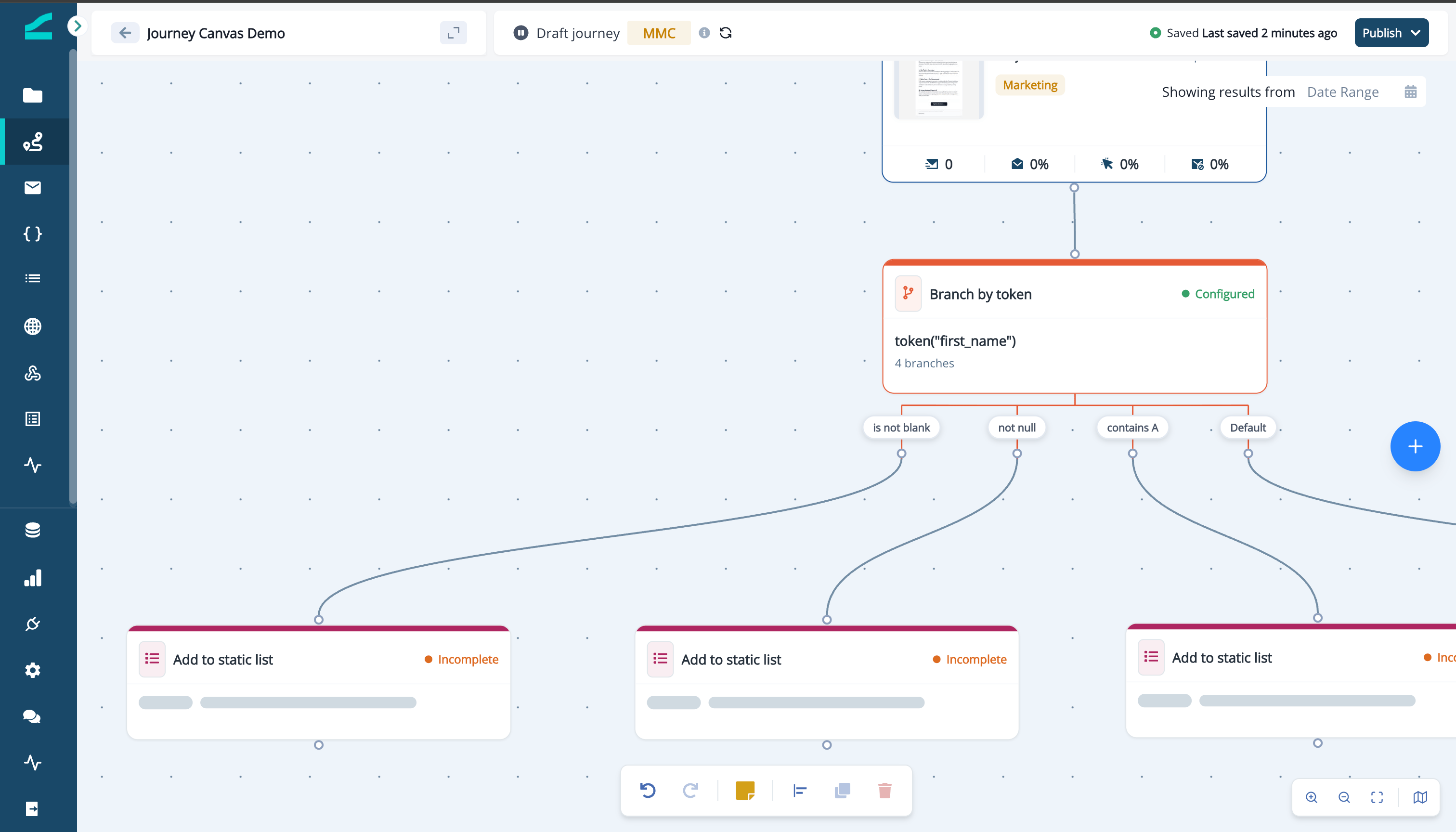
Tip: To use token values as audience criteria, leverage a journey that sorts contacts into static lists, based on the token value. (1) Build a journey that branches users or contacts by token (note: this will count as an MMC journey); (2) Add users or contacts to static lists based on their token values; (3) Reference the static lists in the dynamic list.
### Tokens in emails
Once you've created your token, follow the following methods to use the token in an email.
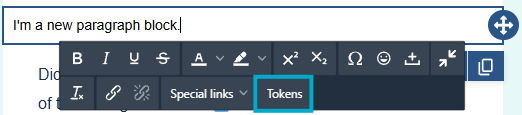
To include a token in email copy:
1. In a text content block, select **Tokens** in the menu.
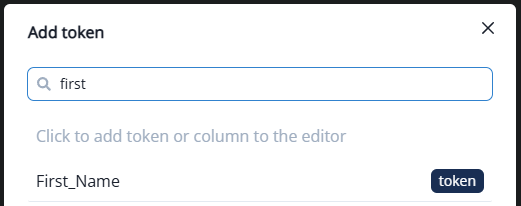
 2. Search for and select the token to include.
 3. Once selected, the token will appear in the email as below. Note that the token will take on the formatting of the text block its in.
 To include a token in the subject line of the email, begin typing the field or token you wish to include.
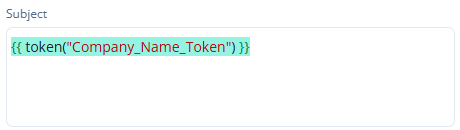
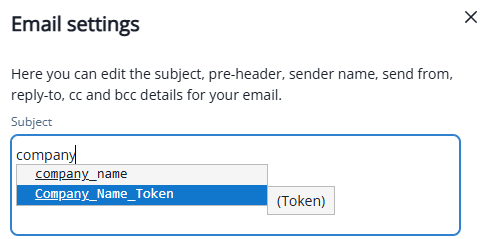 Once selected, the token will appear in the subject line as below.
 To use a token to display a dynamic image in an email, drag an image block onto the email and enable Dynamic image. Then copy/paste the token into the **Dynamic Url** editor.
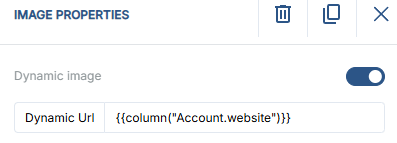 Tip: To ensure the correct syntax, follow the steps to insert the token in the subject line. Copy the token and paste it into the **Dynamic Url** editor.
To use a token to create a personalized link, copy/paste the token in the **Url** editor. Note that the syntax is slightly different (single quotes rather than double).
Tip: To ensure the correct syntax, follow the steps to insert the token in the subject line. Copy the token and paste it into the **Dynamic Url** editor.
To use a token to create a personalized link, copy/paste the token in the **Url** editor. Note that the syntax is slightly different (single quotes rather than double).
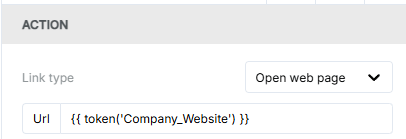 Tip: To ensure the correct syntax, follow the steps to insert the token in the subject line. Copy the token and paste it into the **Url** editor. Replace the double quotes with single quotes.
### Tokens in journeys
To use a token to determine the path of a journey, use the **Branch by token** flow step.
## Testing
Test token values directly in the editor. Add a contact to the preview table and click **Add to preview**.
Tip: To ensure the correct syntax, follow the steps to insert the token in the subject line. Copy the token and paste it into the **Url** editor. Replace the double quotes with single quotes.
### Tokens in journeys
To use a token to determine the path of a journey, use the **Branch by token** flow step.
## Testing
Test token values directly in the editor. Add a contact to the preview table and click **Add to preview**.
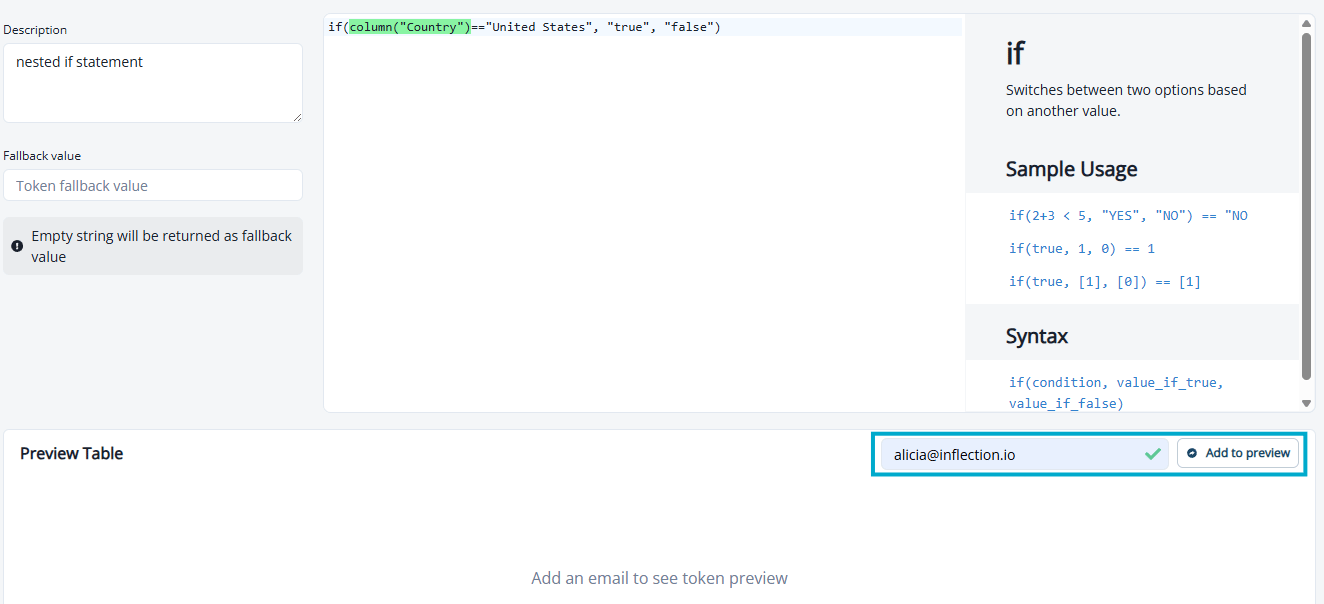 Once added, view the token output value and variables used to calculate it. The variables visible in the preview editor will change depending on the variables used in the token calculation.
 Note that the token must be saved to test it.
To test a token in an email, follow the testing steps detailed in the Visual Email Editor doc. Note that when sending an email test where the email contains a token, a contact with a token value is required to send the test email.
To test a token in a journey, clone the journey and replace all actions in journey paths with an **add to static list** flow step. This will provide a preview for how pathing will behave in the actual journey.
Note that the token must be saved to test it.
To test a token in an email, follow the testing steps detailed in the Visual Email Editor doc. Note that when sending an email test where the email contains a token, a contact with a token value is required to send the test email.
To test a token in a journey, clone the journey and replace all actions in journey paths with an **add to static list** flow step. This will provide a preview for how pathing will behave in the actual journey.
 ## Tokens glossary
#### abSplit(n)
**Formula:** `abSplit(2)`
**Components:** `n` = number of splits for A/B testing
**Use Case:** Randomly assign users to different test groups for A/B testing campaigns
**Example:** `abSplit(3)` assigns users to groups 1, 2, or 3 for testing three email variants
#### add (+)
**Formula:** `value1 + value2`
**Components:** `value1` and `value2` = numbers to add or strings to concatenate
**Use Case:** Calculate totals or combine text fields
**Example:** `column("deal_value") + column("upsell_value")` to get total opportunity value
#### and
**Formula:** `condition1 and condition2`
**Components:** `condition1` and `condition2` = Boolean expressions
**Use Case:** Combine multiple conditions for complex logic
**Example:** `column("status") == "Active" and column("last_login") >= now()-30` for active recent users
#### capitalize()
**Formula:** `capitalize(string)`
**Components:** `string` = text to capitalize
**Use Case:** Format names with proper capitalization
**Example:** `capitalize(column("first_name"))` converts "john" to "John"
#### column()
**Formula:** `column("field_name")`
**Components:** `field_name` = name of the data field to reference
**Use Case:** Reference contact, user, org, or account fields in calculations
**Example:** `column("company_name")` retrieves the company name field
#### concat()
**Formula:** `concat(string1, string2, ...string_n)`
**Components:** `string1, string2, etc.` = text values to combine
**Use Case:** Combine multiple fields into a single text value
**Example:** `concat(column("first_name"), " ", column("last_name"))` creates full name
#### concatWithSpace()
**Formula:** `concatWithSpace(string1, string2, ...string_n)`
**Components:** `string1, string2, etc.` = text values to combine with spaces
**Use Case:** Combine text fields with automatic spacing
**Example:** `concatWithSpace(column("first_name"), column("last_name"))` creates "John Smith"
#### contains()
**Formula:** `contains(text, search_value)`
**Components:** `text` = text to search in, `search_value` = text to find
**Use Case:** Check if a field contains specific text
**Example:** `contains(column("job_title"), "Manager")` returns true if title contains "Manager"
#### dateTimeFormat()
**Formula:** `dateTimeFormat(date_time, format_string)`
**Components:** `date_time` = date field, `format_string` = desired format pattern
**Use Case:** Format dates for display in emails
**Example:** `dateTimeFormat(column("renewal_date"), "%m/%d/%y")` formats as "12/15/24"
#### divide (/)
**Formula:** `value1 / value2`
**Components:** `value1` = dividend, `value2` = divisor
**Use Case:** Calculate percentages or ratios
**Example:** `column("closed_deals") / column("total_leads")` for conversion rate
#### endsWith()
**Formula:** `endsWith(text, suffix)`
**Components:** `text` = text to check, `suffix` = ending text to match
**Use Case:** Filter records based on text endings
**Example:** `endsWith(column("email"), ".edu")` identifies educational email addresses
#### equal (==)
**Formula:** `value1 == value2`
**Components:** `value1` and `value2` = values to compare
**Use Case:** Compare field values for conditional logic
**Example:** `column("plan_type") == "Enterprise"` checks for enterprise customers
#### greater\_than (>)
**Formula:** `value1 > value2`
**Components:** `value1` and `value2` = values to compare
**Use Case:** Compare numeric values or dates
**Example:** `column("deal_size") > 10000` identifies large deals
#### greater\_than\_or\_equal (>=)
**Formula:** `value1 >= value2`
**Components:** `value1` and `value2` = values to compare
**Use Case:** Set minimum thresholds
**Example:** `column("lead_score") >= 80` for high-quality leads
#### hash()
**Formula:** `hash(string, seed)`
**Components:** `string` = text to hash, `seed` = number for randomization
**Use Case:** Create consistent random assignments based on user data
**Example:** `hash(column("email"), 0)` creates consistent hash for email personalization
#### if()
**Formula:** `if(condition, value_if_true, value_if_false)`
**Components:** `condition` = boolean test, `value_if_true` = result when true, `value_if_false` = result when false
**Use Case:** Conditional content or calculations
**Example:** `if(column("plan") == "Pro", "Premium Features", "Standard Features")` for plan-specific messaging
#### isEmpty()
**Formula:** `isEmpty(value)`
**Components:** `value` = field or expression to test
**Use Case:** Check for empty or null fields
**Example:** `isEmpty(column("phone_number"))` returns true if phone is blank
#### isNotEmpty()
**Formula:** `isNotEmpty(value)`
**Components:** `value` = field or expression to test
**Use Case:** Verify required fields have values
**Example:** `isNotEmpty(column("company_name"))` confirms company name exists
#### join()
**Formula:** `join(separator, string1, ...string_n)`
**Components:** `separator` = text between values, `string1, etc.` = values to join
**Use Case:** Combine multiple values with custom separators
**Example:** `join(", ", column("city"), column("state"))` creates "Austin, TX"
#### length()
**Formula:** `length(value)`
**Components:** `value` = text or array to measure
**Use Case:** Count characters in text or items in lists
**Example:** `length(column("description"))` returns character count
#### lesser\_than (\<)
**Formula:** `value1 < value2`
**Components:** `value1` and `value2` = values to compare
**Use Case:** Find values below thresholds
**Example:** `column("days_since_login") < 7` for recently active users
#### lesser\_than\_or\_equal (\<=)
**Formula:** `value1 <= value2`
**Components:** `value1` and `value2` = values to compare
**Use Case:** Set maximum limits
**Example:** `column("team_size") <= 50` for small to medium teams
#### mod (%)
**Formula:** `value1 % value2`
**Components:** `value1` = dividend, `value2` = divisor
**Use Case:** Create patterns or cycles
**Example:** `hash(column("email"), 0) % 2` for even/odd splitting
#### multiply (\*)
**Formula:** `value1 * value2`
**Components:** `value1` and `value2` = numbers to multiply
**Use Case:** Calculate totals or scale values
**Example:** `column("seat_count") * column("price_per_seat")` for total cost
#### not()
**Formula:** `not(boolean_value)`
**Components:** `boolean_value` = true/false expression to reverse
**Use Case:** Invert boolean conditions
**Example:** `not(column("unsubscribed"))` to find subscribed users
#### not\_equal (!=)
**Formula:** `value1 != value2`
**Components:** `value1` and `value2` = values to compare
**Use Case:** Exclude specific values
**Example:** `column("status") != "Canceled"` for active accounts
#### now()
**Formula:** `now()`
**Components:** None
**Use Case:** Get current date/time for calculations
**Example:** `now() - column("created_date")` for account age
#### or
**Formula:** `condition1 or condition2`
**Components:** `condition1` and `condition2` = boolean expressions
**Use Case:** Create inclusive conditions
**Example:** `column("source") == "Website" or column("source") == "Referral"` for organic leads
#### randint()
**Formula:** `randint(start, end)`
**Components:** `start` = minimum value, `end` = maximum value
**Use Case:** Generate random numbers for testing or sampling
**Example:** `randint(1, 100)` creates random number between 1 and 100
#### replace()
**Formula:** `replace(text, old_value, new_value)`
**Components:** `text` = original text, `old_value` = text to replace, `new_value` = replacement text
**Use Case:** Clean or standardize text data
**Example:** `replace(column("phone"), "-", "")` removes dashes from phone numbers
#### round()
**Formula:** `round(number, digits)`
**Components:** `number` = value to round, `digits` = decimal places
**Use Case:** Format numeric values for display
**Example:** `round(column("conversion_rate"), 2)` shows percentage with 2 decimal places
#### startsWith()
**Formula:** `startsWith(text, prefix)`
**Components:** `text` = text to check, `prefix` = beginning text to match
**Use Case:** Filter records based on text beginnings
**Example:** `startsWith(column("phone"), "+1")` identifies US phone numbers
#### stringToDateTime()
**Formula:** `stringToDateTime(time_string)`
**Components:** `time_string` = date in text format
**Use Case:** Convert text dates to datetime for calculations
**Example:** `stringToDateTime("2024-12-31")` converts text to date object
#### subString()
**Formula:** `subString(text, separator, position)`
**Components:** `text` = original text, `separator` = split character, `position` = which part to return
**Use Case:** Extract parts of text fields
**Example:** `subString(column("full_name"), " ", 1)` extracts first name
#### subtract (-)
**Formula:** `value1 - value2`
**Components:** `value1` = starting value, `value2` = value to subtract
**Use Case:** Calculate differences or time spans
**Example:** `column("renewal_date") - now()` for days until renewal
#### title()
**Formula:** `title(string)`
**Components:** `string` = text to format
**Use Case:** Format text with proper title case
**Example:** `title(column("job_title"))` converts "product manager" to "Product Manager"
#### toLower()
**Formula:** `toLower(string)`
**Components:** `string` = text to convert
**Use Case:** Standardize text for comparisons
**Example:** `toLower(column("industry"))` converts all industry names to lowercase
#### toUpper()
**Formula:** `toUpper(string)`
**Components:** `string` = text to convert
**Use Case:** Format text for emphasis or standardization
**Example:** `toUpper(column("state"))` converts state abbreviations to uppercase
#### String Operators
* `=` or `is_one_of` - **equal to** (accepts multiple values)
* `!=` or `is_not_one_of` - **not equal to** (accepts multiple values)
* `contains` - **contains** (accepts multiple values)
* `not_contains` - **does not contain** (accepts multiple values)
* `begins_with` - **begins with**
* `not_begin_with` - **does not begin with**
* `ends_with` - **ends with**
* `not_ends_with` - **does not end with**
* `is_blank` - **blank** (no arguments)
* `is_not_blank` - **not blank** (no arguments)
#### Integer/Number Operators
* `=` or `is_one_of` - **equal to** (accepts multiple values)
* `!=` or `is_not_one_of` - **not equal to** (accepts multiple values)
* `>` or `greater_than` - **greater than**
* `>=` or `greater_or_equal` - **greater than or equal to**
* `<` or `less_than` - **less than**
* `<=` or `lesser_or_equal` - **less than or equal to**
* `between` - **between (inclusive)** (requires 2 values)
* `number_not_between_includes_null` - **not between** (requires 2 values)
* `number_is_null` - **blank** (no arguments)
* `number_is_not_null` - **not blank** (no arguments)
* `is_zero_or_blank` - **zero or blank** (no arguments)
#### Boolean Operators
* `is_true` - **true** (no arguments)
* `is_false` - **false** (no arguments)
#### Date Operators
* `is_on` - **on** (specific date)
* `not_on` - **not on** (specific date)
* `before` - **before**
* `after` - **after**
* `on_or_before` - **on or before**
* `on_or_after` - **on or after**
* `date_between` - **between (inclusive)** (requires 2 dates)
* `date_not_between` - **not between** (requires 2 dates)
* `relative_in_past` - **in past** (e.g., "in past 30 days")
* `relative_timeframe` - **in relative timeframe between (inclusive)**
* `date_is_null` - **blank** (no arguments)
* `is_not_blank` - **not blank** (no arguments)
Note: When referencing a product event in a token formula, write the event as it is recorded in Inflection, including spaces and capital letters as relevant.
#### allOrgs()
**Formula:** `allOrgs()`
**Components:** None
**Use Case:** Get list of all organizations in the tenant for cross-org analysis
**Example:** `allOrgs()` returns array of all organization data
#### countIf()
**Formula:** `countIf("product_activity", column, operator, value, [connector, column2, operator2, value2])`
**Components:** `"product_activity"` = table referenced, `column` = field to filter, `operator` = comparison type, `value` = filter value
**Use Case:** Count user-specific product events
**Example:** `countIf("product_activity", "event_name", =, "campaign_published")` counts campaigns published by user
**Example filtered by date:** `countIf("product_activity", "event_name", =, "campaign_published", and, "event_date", >=, "2025-01-01")` counts campaigns published by user after January 1, 2025
#### countIfPersonsGroup()
**Formula:** `countIfPersonsGroup("product_activity", org_field, column, operator, value, [conditions])`
**Components:** `"product_activity"` = table referenced, `org_field` = organization identifier, `column` = field to filter, `operator` = comparison, `value` = filter value
**Use Case:** Count events across all users in an organization
**Example:** `countIfPersonsGroup("product_activity", "User.org_id", "event_name", =, "user_login")` counts all logins in workspace
#### countIfPersonsGroupPersonField()
**Formula:** `countIfPersonsGroupPersonField("product_activity", column, operator, value, [conditions])`
**Components:** `"product_activity"` = table referenced, `column` = field to filter, `operator` = comparison, `value` = filter value
**Use Case:** Check if anyone in organization has performed an action
**Example:** `countIfPersonsGroupPersonField("product_activity", "event_name", =, "integration_connected")` checks if org has any integrations
#### getMostRecentProductEventAllUsers()
**Formula:** `getMostRecentProductEventAllUsers(event_name, [properties], [filters], time_frame)`
**Components:** `event_name` = product event type, `properties` = fields to return, `filters` = conditions, `time_frame` = days to look back
**Use Case:** Find the latest occurrence of an event across all users
**Example:** `getMostRecentProductEventAllUsers("campaign_published", ["campaign_name"], [], 30)` gets most recent campaign published anywhere
#### getMostRecentProductEventOrg()
**Formula:** `getMostRecentProductEventOrg(event_name, [properties], [filters], time_frame)`
**Components:** `event_name` = product event type, `properties` = fields to return, `filters` = conditions, `time_frame` = days to look back
**Use Case:** Find the latest event within user's organization
**Example:** `getMostRecentProductEventOrg("template_created", ["template_name"], [], 7)` gets org's most recent template
#### getMostRecentProductEventUser()
**Formula:** `getMostRecentProductEventUser(event_name, [properties], [filters], time_frame)`
**Components:** `event_name` = product event type, `properties` = fields to return, `filters` = conditions, `time_frame` = days to look back
**Use Case:** Find user's most recent activity of a specific type
**Example:** `getMostRecentProductEventUser("login", ["login_time"], [], 10)` gets user's last login details
#### getProductEventByAllUsers()
**Formula:** `getProductEventByAllUsers(event_name, [properties], [filters], sort_field, sort_order, time_frame, limit)`
**Components:** `event_name` = event type, `properties` = fields to return, `filters` = conditions, `sort_field` = field to sort by, `sort_order` = asc/desc, `time_frame` = days, `limit` = max results
**Use Case:** Retrieve events across all users with specific criteria
**Example:** `getProductEventByAllUsers("campaign_created", ["campaign_name"], [], "event_date", desc, 30, 10)` gets recent campaigns from all users
#### getProductEventByOrg()
**Formula:** `getProductEventByOrg(event_name, [properties], [filters], sort_field, sort_order, time_frame, limit)`
**Components:** `event_name` = event type, `properties` = fields to return, `filters` = conditions, `sort_field` = sort field, `sort_order` = asc/desc, `time_frame` = days, `limit` = max results
**Use Case:** Get organization-specific events with sorting and filtering
**Example:** `getProductEventByOrg("user_invited", ["invitee_email"], [], "event_date", desc, 7, 5)` gets recent invitations in org
#### getProductEventByUser()
**Formula:** `getProductEventByUser(event_name, [properties], [filters], sort_field, sort_order, time_frame, limit)`
**Components:** `event_name` = event type, `properties` = fields to return, `filters` = conditions, `sort_field` = sort field, `sort_order` = asc/desc, `time_frame` = days, `limit` = max results
**Use Case:** Retrieve user's events with specific parameters
**Example:** `getProductEventByUser("template_used", ["template_name"], [], "event_date", desc, 30, 5)` gets user's recent template usage
#### orgCount()
**Formula:** `orgCount()`
**Components:** None
**Use Case:** Count how many organizations a user belongs to
**Example:** `orgCount()` returns number of orgs for multi-org users
#### topEventPropertyValuesAllUsers()
**Formula:** `topEventPropertyValuesAllUsers(N, event_name, [properties], [filters], group_field, sort_order, time_frame)`
**Components:** `N` = number of results, `event_name` = event type, `properties` = fields to return, `filters` = conditions, `group_field` = grouping field, `sort_order` = asc/desc, `time_frame` = days
**Use Case:** Find top values across all users for analytics
**Example:** `topEventPropertyValuesAllUsers(5, "page_viewed", ["page_name"], [], "page_name", desc, 30)` gets most viewed pages
#### topEventPropertyValuesOrg()
**Formula:** `topEventPropertyValuesOrg(N, event_name, [properties], [filters], group_field, sort_order, time_frame)`
**Components:** `N` = number of results, `event_name` = event type, `properties` = fields to return, `filters` = conditions, `group_field` = grouping field, `sort_order` = asc/desc, `time_frame` = days
**Use Case:** Identify top activity within an organization
**Example:** `topEventPropertyValuesOrg(10, "feature_used", ["feature_name"], [], "feature_name", desc, 7)` gets org's most used features
#### topEventPropertyValuesUser()
**Formula:** `topEventPropertyValuesUser(N, event_name, [properties], [filters], group_field, sort_order, time_frame)`
**Components:** `N` = number of results, `event_name` = event type, `properties` = fields to return, `filters` = conditions, `group_field` = grouping field, `sort_order` = asc/desc, `time_frame` = days
**Use Case:** Analyze user's top activities or preferences
**Example:** `topEventPropertyValuesUser(3, "email_clicked", ["link_url"], [], "link_url", desc, 14)` gets user's most clicked links
## Tokens glossary
#### abSplit(n)
**Formula:** `abSplit(2)`
**Components:** `n` = number of splits for A/B testing
**Use Case:** Randomly assign users to different test groups for A/B testing campaigns
**Example:** `abSplit(3)` assigns users to groups 1, 2, or 3 for testing three email variants
#### add (+)
**Formula:** `value1 + value2`
**Components:** `value1` and `value2` = numbers to add or strings to concatenate
**Use Case:** Calculate totals or combine text fields
**Example:** `column("deal_value") + column("upsell_value")` to get total opportunity value
#### and
**Formula:** `condition1 and condition2`
**Components:** `condition1` and `condition2` = Boolean expressions
**Use Case:** Combine multiple conditions for complex logic
**Example:** `column("status") == "Active" and column("last_login") >= now()-30` for active recent users
#### capitalize()
**Formula:** `capitalize(string)`
**Components:** `string` = text to capitalize
**Use Case:** Format names with proper capitalization
**Example:** `capitalize(column("first_name"))` converts "john" to "John"
#### column()
**Formula:** `column("field_name")`
**Components:** `field_name` = name of the data field to reference
**Use Case:** Reference contact, user, org, or account fields in calculations
**Example:** `column("company_name")` retrieves the company name field
#### concat()
**Formula:** `concat(string1, string2, ...string_n)`
**Components:** `string1, string2, etc.` = text values to combine
**Use Case:** Combine multiple fields into a single text value
**Example:** `concat(column("first_name"), " ", column("last_name"))` creates full name
#### concatWithSpace()
**Formula:** `concatWithSpace(string1, string2, ...string_n)`
**Components:** `string1, string2, etc.` = text values to combine with spaces
**Use Case:** Combine text fields with automatic spacing
**Example:** `concatWithSpace(column("first_name"), column("last_name"))` creates "John Smith"
#### contains()
**Formula:** `contains(text, search_value)`
**Components:** `text` = text to search in, `search_value` = text to find
**Use Case:** Check if a field contains specific text
**Example:** `contains(column("job_title"), "Manager")` returns true if title contains "Manager"
#### dateTimeFormat()
**Formula:** `dateTimeFormat(date_time, format_string)`
**Components:** `date_time` = date field, `format_string` = desired format pattern
**Use Case:** Format dates for display in emails
**Example:** `dateTimeFormat(column("renewal_date"), "%m/%d/%y")` formats as "12/15/24"
#### divide (/)
**Formula:** `value1 / value2`
**Components:** `value1` = dividend, `value2` = divisor
**Use Case:** Calculate percentages or ratios
**Example:** `column("closed_deals") / column("total_leads")` for conversion rate
#### endsWith()
**Formula:** `endsWith(text, suffix)`
**Components:** `text` = text to check, `suffix` = ending text to match
**Use Case:** Filter records based on text endings
**Example:** `endsWith(column("email"), ".edu")` identifies educational email addresses
#### equal (==)
**Formula:** `value1 == value2`
**Components:** `value1` and `value2` = values to compare
**Use Case:** Compare field values for conditional logic
**Example:** `column("plan_type") == "Enterprise"` checks for enterprise customers
#### greater\_than (>)
**Formula:** `value1 > value2`
**Components:** `value1` and `value2` = values to compare
**Use Case:** Compare numeric values or dates
**Example:** `column("deal_size") > 10000` identifies large deals
#### greater\_than\_or\_equal (>=)
**Formula:** `value1 >= value2`
**Components:** `value1` and `value2` = values to compare
**Use Case:** Set minimum thresholds
**Example:** `column("lead_score") >= 80` for high-quality leads
#### hash()
**Formula:** `hash(string, seed)`
**Components:** `string` = text to hash, `seed` = number for randomization
**Use Case:** Create consistent random assignments based on user data
**Example:** `hash(column("email"), 0)` creates consistent hash for email personalization
#### if()
**Formula:** `if(condition, value_if_true, value_if_false)`
**Components:** `condition` = boolean test, `value_if_true` = result when true, `value_if_false` = result when false
**Use Case:** Conditional content or calculations
**Example:** `if(column("plan") == "Pro", "Premium Features", "Standard Features")` for plan-specific messaging
#### isEmpty()
**Formula:** `isEmpty(value)`
**Components:** `value` = field or expression to test
**Use Case:** Check for empty or null fields
**Example:** `isEmpty(column("phone_number"))` returns true if phone is blank
#### isNotEmpty()
**Formula:** `isNotEmpty(value)`
**Components:** `value` = field or expression to test
**Use Case:** Verify required fields have values
**Example:** `isNotEmpty(column("company_name"))` confirms company name exists
#### join()
**Formula:** `join(separator, string1, ...string_n)`
**Components:** `separator` = text between values, `string1, etc.` = values to join
**Use Case:** Combine multiple values with custom separators
**Example:** `join(", ", column("city"), column("state"))` creates "Austin, TX"
#### length()
**Formula:** `length(value)`
**Components:** `value` = text or array to measure
**Use Case:** Count characters in text or items in lists
**Example:** `length(column("description"))` returns character count
#### lesser\_than (\<)
**Formula:** `value1 < value2`
**Components:** `value1` and `value2` = values to compare
**Use Case:** Find values below thresholds
**Example:** `column("days_since_login") < 7` for recently active users
#### lesser\_than\_or\_equal (\<=)
**Formula:** `value1 <= value2`
**Components:** `value1` and `value2` = values to compare
**Use Case:** Set maximum limits
**Example:** `column("team_size") <= 50` for small to medium teams
#### mod (%)
**Formula:** `value1 % value2`
**Components:** `value1` = dividend, `value2` = divisor
**Use Case:** Create patterns or cycles
**Example:** `hash(column("email"), 0) % 2` for even/odd splitting
#### multiply (\*)
**Formula:** `value1 * value2`
**Components:** `value1` and `value2` = numbers to multiply
**Use Case:** Calculate totals or scale values
**Example:** `column("seat_count") * column("price_per_seat")` for total cost
#### not()
**Formula:** `not(boolean_value)`
**Components:** `boolean_value` = true/false expression to reverse
**Use Case:** Invert boolean conditions
**Example:** `not(column("unsubscribed"))` to find subscribed users
#### not\_equal (!=)
**Formula:** `value1 != value2`
**Components:** `value1` and `value2` = values to compare
**Use Case:** Exclude specific values
**Example:** `column("status") != "Canceled"` for active accounts
#### now()
**Formula:** `now()`
**Components:** None
**Use Case:** Get current date/time for calculations
**Example:** `now() - column("created_date")` for account age
#### or
**Formula:** `condition1 or condition2`
**Components:** `condition1` and `condition2` = boolean expressions
**Use Case:** Create inclusive conditions
**Example:** `column("source") == "Website" or column("source") == "Referral"` for organic leads
#### randint()
**Formula:** `randint(start, end)`
**Components:** `start` = minimum value, `end` = maximum value
**Use Case:** Generate random numbers for testing or sampling
**Example:** `randint(1, 100)` creates random number between 1 and 100
#### replace()
**Formula:** `replace(text, old_value, new_value)`
**Components:** `text` = original text, `old_value` = text to replace, `new_value` = replacement text
**Use Case:** Clean or standardize text data
**Example:** `replace(column("phone"), "-", "")` removes dashes from phone numbers
#### round()
**Formula:** `round(number, digits)`
**Components:** `number` = value to round, `digits` = decimal places
**Use Case:** Format numeric values for display
**Example:** `round(column("conversion_rate"), 2)` shows percentage with 2 decimal places
#### startsWith()
**Formula:** `startsWith(text, prefix)`
**Components:** `text` = text to check, `prefix` = beginning text to match
**Use Case:** Filter records based on text beginnings
**Example:** `startsWith(column("phone"), "+1")` identifies US phone numbers
#### stringToDateTime()
**Formula:** `stringToDateTime(time_string)`
**Components:** `time_string` = date in text format
**Use Case:** Convert text dates to datetime for calculations
**Example:** `stringToDateTime("2024-12-31")` converts text to date object
#### subString()
**Formula:** `subString(text, separator, position)`
**Components:** `text` = original text, `separator` = split character, `position` = which part to return
**Use Case:** Extract parts of text fields
**Example:** `subString(column("full_name"), " ", 1)` extracts first name
#### subtract (-)
**Formula:** `value1 - value2`
**Components:** `value1` = starting value, `value2` = value to subtract
**Use Case:** Calculate differences or time spans
**Example:** `column("renewal_date") - now()` for days until renewal
#### title()
**Formula:** `title(string)`
**Components:** `string` = text to format
**Use Case:** Format text with proper title case
**Example:** `title(column("job_title"))` converts "product manager" to "Product Manager"
#### toLower()
**Formula:** `toLower(string)`
**Components:** `string` = text to convert
**Use Case:** Standardize text for comparisons
**Example:** `toLower(column("industry"))` converts all industry names to lowercase
#### toUpper()
**Formula:** `toUpper(string)`
**Components:** `string` = text to convert
**Use Case:** Format text for emphasis or standardization
**Example:** `toUpper(column("state"))` converts state abbreviations to uppercase
#### String Operators
* `=` or `is_one_of` - **equal to** (accepts multiple values)
* `!=` or `is_not_one_of` - **not equal to** (accepts multiple values)
* `contains` - **contains** (accepts multiple values)
* `not_contains` - **does not contain** (accepts multiple values)
* `begins_with` - **begins with**
* `not_begin_with` - **does not begin with**
* `ends_with` - **ends with**
* `not_ends_with` - **does not end with**
* `is_blank` - **blank** (no arguments)
* `is_not_blank` - **not blank** (no arguments)
#### Integer/Number Operators
* `=` or `is_one_of` - **equal to** (accepts multiple values)
* `!=` or `is_not_one_of` - **not equal to** (accepts multiple values)
* `>` or `greater_than` - **greater than**
* `>=` or `greater_or_equal` - **greater than or equal to**
* `<` or `less_than` - **less than**
* `<=` or `lesser_or_equal` - **less than or equal to**
* `between` - **between (inclusive)** (requires 2 values)
* `number_not_between_includes_null` - **not between** (requires 2 values)
* `number_is_null` - **blank** (no arguments)
* `number_is_not_null` - **not blank** (no arguments)
* `is_zero_or_blank` - **zero or blank** (no arguments)
#### Boolean Operators
* `is_true` - **true** (no arguments)
* `is_false` - **false** (no arguments)
#### Date Operators
* `is_on` - **on** (specific date)
* `not_on` - **not on** (specific date)
* `before` - **before**
* `after` - **after**
* `on_or_before` - **on or before**
* `on_or_after` - **on or after**
* `date_between` - **between (inclusive)** (requires 2 dates)
* `date_not_between` - **not between** (requires 2 dates)
* `relative_in_past` - **in past** (e.g., "in past 30 days")
* `relative_timeframe` - **in relative timeframe between (inclusive)**
* `date_is_null` - **blank** (no arguments)
* `is_not_blank` - **not blank** (no arguments)
Note: When referencing a product event in a token formula, write the event as it is recorded in Inflection, including spaces and capital letters as relevant.
#### allOrgs()
**Formula:** `allOrgs()`
**Components:** None
**Use Case:** Get list of all organizations in the tenant for cross-org analysis
**Example:** `allOrgs()` returns array of all organization data
#### countIf()
**Formula:** `countIf("product_activity", column, operator, value, [connector, column2, operator2, value2])`
**Components:** `"product_activity"` = table referenced, `column` = field to filter, `operator` = comparison type, `value` = filter value
**Use Case:** Count user-specific product events
**Example:** `countIf("product_activity", "event_name", =, "campaign_published")` counts campaigns published by user
**Example filtered by date:** `countIf("product_activity", "event_name", =, "campaign_published", and, "event_date", >=, "2025-01-01")` counts campaigns published by user after January 1, 2025
#### countIfPersonsGroup()
**Formula:** `countIfPersonsGroup("product_activity", org_field, column, operator, value, [conditions])`
**Components:** `"product_activity"` = table referenced, `org_field` = organization identifier, `column` = field to filter, `operator` = comparison, `value` = filter value
**Use Case:** Count events across all users in an organization
**Example:** `countIfPersonsGroup("product_activity", "User.org_id", "event_name", =, "user_login")` counts all logins in workspace
#### countIfPersonsGroupPersonField()
**Formula:** `countIfPersonsGroupPersonField("product_activity", column, operator, value, [conditions])`
**Components:** `"product_activity"` = table referenced, `column` = field to filter, `operator` = comparison, `value` = filter value
**Use Case:** Check if anyone in organization has performed an action
**Example:** `countIfPersonsGroupPersonField("product_activity", "event_name", =, "integration_connected")` checks if org has any integrations
#### getMostRecentProductEventAllUsers()
**Formula:** `getMostRecentProductEventAllUsers(event_name, [properties], [filters], time_frame)`
**Components:** `event_name` = product event type, `properties` = fields to return, `filters` = conditions, `time_frame` = days to look back
**Use Case:** Find the latest occurrence of an event across all users
**Example:** `getMostRecentProductEventAllUsers("campaign_published", ["campaign_name"], [], 30)` gets most recent campaign published anywhere
#### getMostRecentProductEventOrg()
**Formula:** `getMostRecentProductEventOrg(event_name, [properties], [filters], time_frame)`
**Components:** `event_name` = product event type, `properties` = fields to return, `filters` = conditions, `time_frame` = days to look back
**Use Case:** Find the latest event within user's organization
**Example:** `getMostRecentProductEventOrg("template_created", ["template_name"], [], 7)` gets org's most recent template
#### getMostRecentProductEventUser()
**Formula:** `getMostRecentProductEventUser(event_name, [properties], [filters], time_frame)`
**Components:** `event_name` = product event type, `properties` = fields to return, `filters` = conditions, `time_frame` = days to look back
**Use Case:** Find user's most recent activity of a specific type
**Example:** `getMostRecentProductEventUser("login", ["login_time"], [], 10)` gets user's last login details
#### getProductEventByAllUsers()
**Formula:** `getProductEventByAllUsers(event_name, [properties], [filters], sort_field, sort_order, time_frame, limit)`
**Components:** `event_name` = event type, `properties` = fields to return, `filters` = conditions, `sort_field` = field to sort by, `sort_order` = asc/desc, `time_frame` = days, `limit` = max results
**Use Case:** Retrieve events across all users with specific criteria
**Example:** `getProductEventByAllUsers("campaign_created", ["campaign_name"], [], "event_date", desc, 30, 10)` gets recent campaigns from all users
#### getProductEventByOrg()
**Formula:** `getProductEventByOrg(event_name, [properties], [filters], sort_field, sort_order, time_frame, limit)`
**Components:** `event_name` = event type, `properties` = fields to return, `filters` = conditions, `sort_field` = sort field, `sort_order` = asc/desc, `time_frame` = days, `limit` = max results
**Use Case:** Get organization-specific events with sorting and filtering
**Example:** `getProductEventByOrg("user_invited", ["invitee_email"], [], "event_date", desc, 7, 5)` gets recent invitations in org
#### getProductEventByUser()
**Formula:** `getProductEventByUser(event_name, [properties], [filters], sort_field, sort_order, time_frame, limit)`
**Components:** `event_name` = event type, `properties` = fields to return, `filters` = conditions, `sort_field` = sort field, `sort_order` = asc/desc, `time_frame` = days, `limit` = max results
**Use Case:** Retrieve user's events with specific parameters
**Example:** `getProductEventByUser("template_used", ["template_name"], [], "event_date", desc, 30, 5)` gets user's recent template usage
#### orgCount()
**Formula:** `orgCount()`
**Components:** None
**Use Case:** Count how many organizations a user belongs to
**Example:** `orgCount()` returns number of orgs for multi-org users
#### topEventPropertyValuesAllUsers()
**Formula:** `topEventPropertyValuesAllUsers(N, event_name, [properties], [filters], group_field, sort_order, time_frame)`
**Components:** `N` = number of results, `event_name` = event type, `properties` = fields to return, `filters` = conditions, `group_field` = grouping field, `sort_order` = asc/desc, `time_frame` = days
**Use Case:** Find top values across all users for analytics
**Example:** `topEventPropertyValuesAllUsers(5, "page_viewed", ["page_name"], [], "page_name", desc, 30)` gets most viewed pages
#### topEventPropertyValuesOrg()
**Formula:** `topEventPropertyValuesOrg(N, event_name, [properties], [filters], group_field, sort_order, time_frame)`
**Components:** `N` = number of results, `event_name` = event type, `properties` = fields to return, `filters` = conditions, `group_field` = grouping field, `sort_order` = asc/desc, `time_frame` = days
**Use Case:** Identify top activity within an organization
**Example:** `topEventPropertyValuesOrg(10, "feature_used", ["feature_name"], [], "feature_name", desc, 7)` gets org's most used features
#### topEventPropertyValuesUser()
**Formula:** `topEventPropertyValuesUser(N, event_name, [properties], [filters], group_field, sort_order, time_frame)`
**Components:** `N` = number of results, `event_name` = event type, `properties` = fields to return, `filters` = conditions, `group_field` = grouping field, `sort_order` = asc/desc, `time_frame` = days
**Use Case:** Analyze user's top activities or preferences
**Example:** `topEventPropertyValuesUser(3, "email_clicked", ["link_url"], [], "link_url", desc, 14)` gets user's most clicked links