> ## Documentation Index
> Fetch the complete documentation index at: https://docs.inflection.io/llms.txt
> Use this file to discover all available pages before exploring further.
# Trigger Journeys
> Enroll contacts automatically the moment a real-time event occurs.
Contact Journeys in Inflection come in two types: **Scheduled** and **Trigger**. Trigger Journeys enroll contacts automatically the moment a real-time event occurs, enabling instant follow-up and event-driven automation at scale.
Unlike Scheduled Journeys, which run against a pre-defined audience at a set time, Trigger Journeys respond to individual contact actions as they happen. When a qualifying event occurs - such as a form submission or an inbound webhook call - the contact is enrolled immediately, provided they match any audience criteria you've defined, and can receive a follow-up email within seconds.
| | Trigger | Scheduled |
| ------------------- | ------------------------------------------ | ---------------------------------- |
| When contacts enter | Immediately, when an event occurs | On a schedule, against an audience |
| Entry criteria | A real-time event (e.g., form submission) | An audience list or segment |
| Best for | Instant follow-up, event-driven automation | Newsletters, scheduled campaigns |
## Create a Trigger Journey
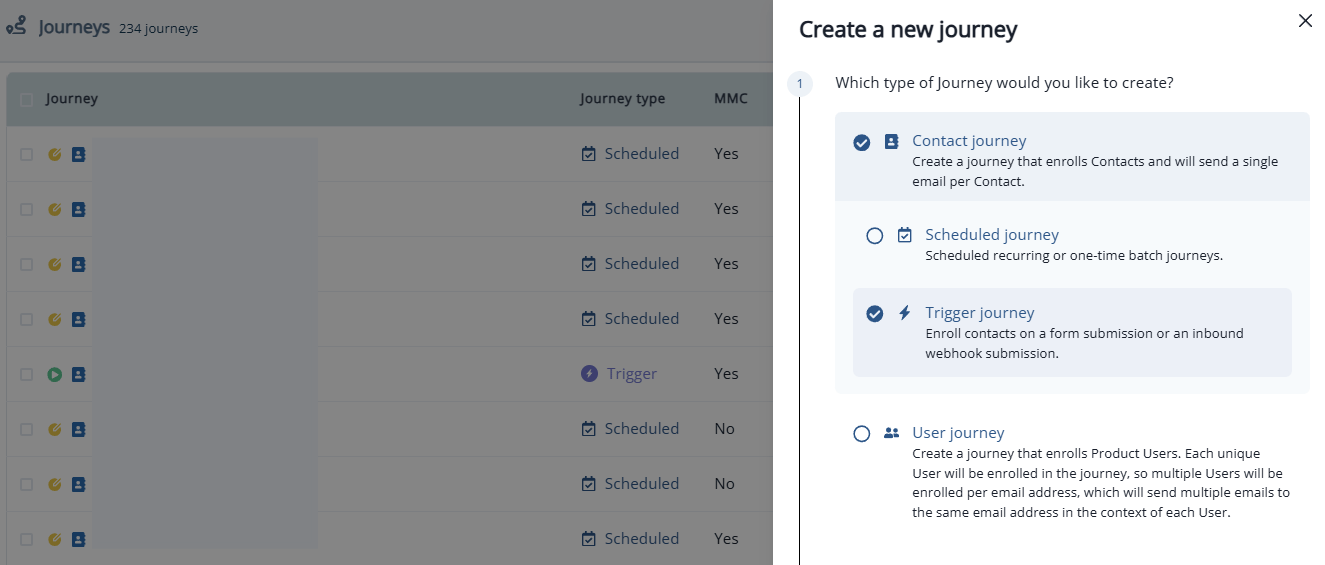
When creating a new journey, select **Contact Journey**, then choose **Trigger** as the journey type. Use the Triggers section to define the real-time event that starts the journey.
 ## Triggers
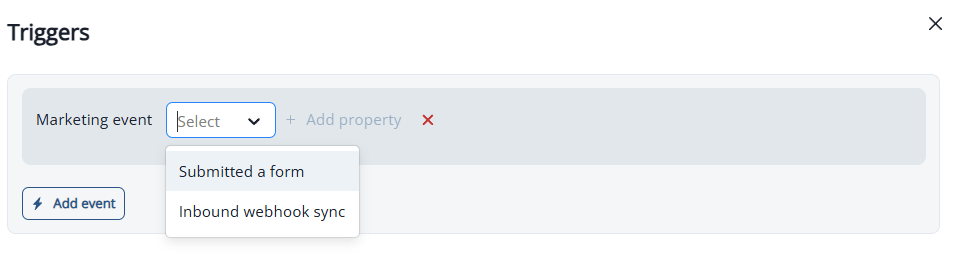
The Triggers section defines the real-time event that enrolls contacts into the journey. Inflection supports two trigger types: Form Submission and Inbound Webhook.
## Triggers
The Triggers section defines the real-time event that enrolls contacts into the journey. Inflection supports two trigger types: Form Submission and Inbound Webhook.
 ### Form Submission
The Form Submission trigger enrolls a contact when they submit an Inflection form. Select one or more specific forms.
#### Form Field Filters
Filter the trigger so it fires only when a submitted form contains a specific field value. After selecting a form, click **Add Filter**, choose a form field, and enter the value to match (e.g., UTM Source = google).
Only contacts who submit the form with the matching field value are enrolled. Contacts who submit with a different value are not enrolled.
### Inbound Webhook
The Inbound Webhook trigger enrolls a contact when a payload is received from a configured inbound webhook. Select an inbound webhook to associate with the journey. Any contact whose data arrives via that webhook is enrolled in real time.
Common use cases include enrolling contacts from third-party form providers (e.g., Webflow, Typeform) or any external system capable of sending a POST request to Inflection.
### Qualification Criteria
Qualification criteria control what happens when a contact qualifies for the journey more than once.
* **Qualify Once** — Enroll a contact on their first qualifying submission only. Subsequent submissions are ignored.
* **Qualify Always** — Enroll a contact every time they make a qualifying submission, as long as they are not currently active in the journey.
A contact cannot re-enter a journey while actively progressing through its steps, regardless of the qualification setting.
## Audience
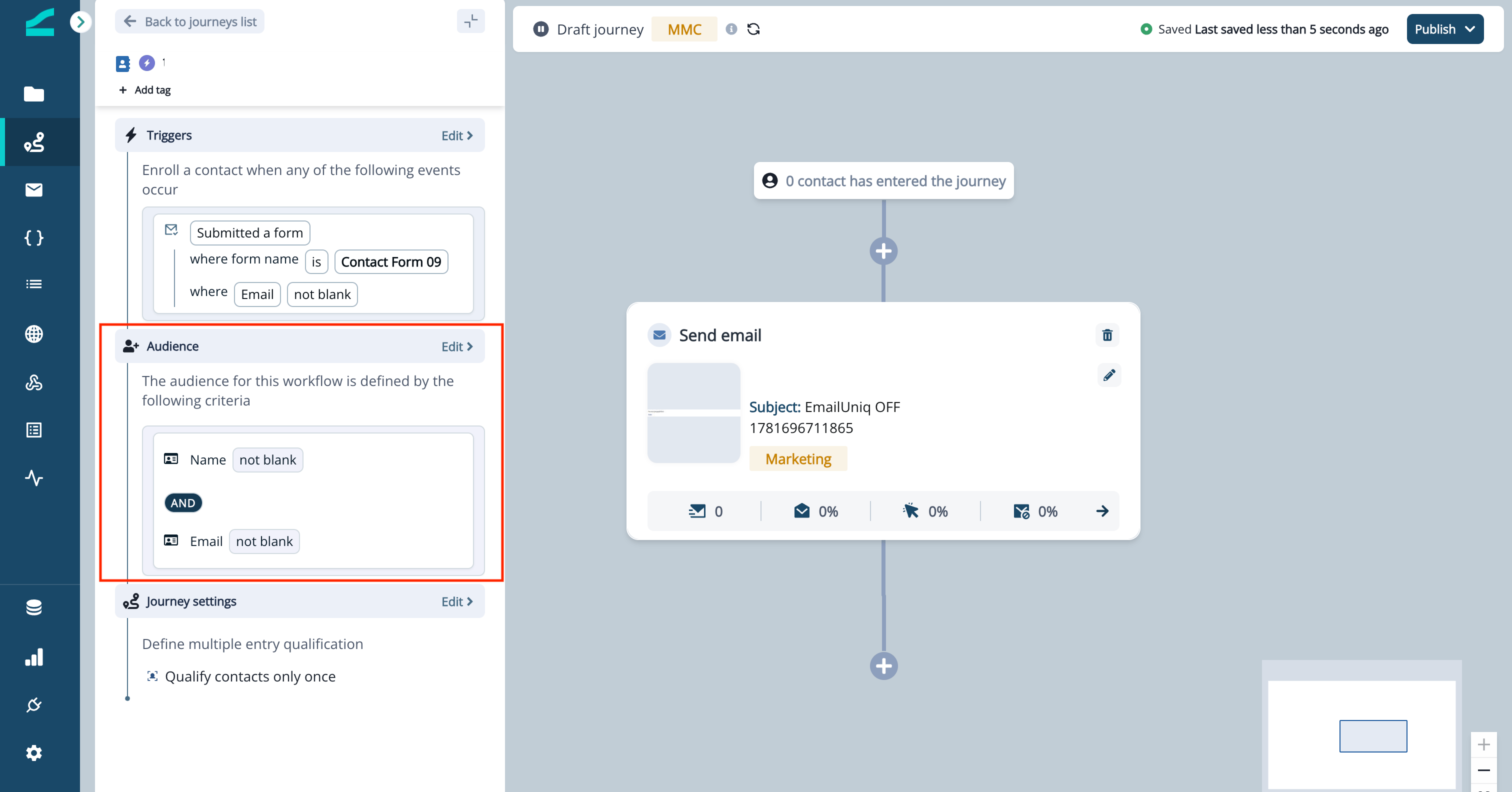
The Audience section narrows enrollment to the contacts you care about. After a trigger event fires, Inflection checks the contact against your audience criteria — only contacts who match are enrolled in the journey.
To define an audience, click **Edit** in the Audience section and add one or more filters. The Audience section uses the same filter blocks as dynamic lists and journey audiences, so you can qualify contacts by **person property**. For example, add a **person property** filter such as **Company** set to a specific value, or **Email** set to **not blank**, to enroll only matching contacts.
Combine multiple filters with **AND** / **OR** to express precise enrollment logic. With **AND**, a contact must match every filter to enroll. With **OR**, matching any one filter is enough.
The Audience section applies to both trigger types — Submitted a form and inbound webhook.
A contact is enrolled only when both conditions are true: the trigger event occurs **and** the contact matches the audience criteria. Leave the Audience section empty to enroll every contact who triggers the event.
Audience filters evaluate the contact's stored properties, such as **Name**, **Email**, or **Company**. This is different from **Form Field Filters**, which match values in the submitted form payload. Use **Form Field Filters** to react to what was submitted; use the Audience section to qualify who the contact is.
### Form Submission
The Form Submission trigger enrolls a contact when they submit an Inflection form. Select one or more specific forms.
#### Form Field Filters
Filter the trigger so it fires only when a submitted form contains a specific field value. After selecting a form, click **Add Filter**, choose a form field, and enter the value to match (e.g., UTM Source = google).
Only contacts who submit the form with the matching field value are enrolled. Contacts who submit with a different value are not enrolled.
### Inbound Webhook
The Inbound Webhook trigger enrolls a contact when a payload is received from a configured inbound webhook. Select an inbound webhook to associate with the journey. Any contact whose data arrives via that webhook is enrolled in real time.
Common use cases include enrolling contacts from third-party form providers (e.g., Webflow, Typeform) or any external system capable of sending a POST request to Inflection.
### Qualification Criteria
Qualification criteria control what happens when a contact qualifies for the journey more than once.
* **Qualify Once** — Enroll a contact on their first qualifying submission only. Subsequent submissions are ignored.
* **Qualify Always** — Enroll a contact every time they make a qualifying submission, as long as they are not currently active in the journey.
A contact cannot re-enter a journey while actively progressing through its steps, regardless of the qualification setting.
## Audience
The Audience section narrows enrollment to the contacts you care about. After a trigger event fires, Inflection checks the contact against your audience criteria — only contacts who match are enrolled in the journey.
To define an audience, click **Edit** in the Audience section and add one or more filters. The Audience section uses the same filter blocks as dynamic lists and journey audiences, so you can qualify contacts by **person property**. For example, add a **person property** filter such as **Company** set to a specific value, or **Email** set to **not blank**, to enroll only matching contacts.
Combine multiple filters with **AND** / **OR** to express precise enrollment logic. With **AND**, a contact must match every filter to enroll. With **OR**, matching any one filter is enough.
The Audience section applies to both trigger types — Submitted a form and inbound webhook.
A contact is enrolled only when both conditions are true: the trigger event occurs **and** the contact matches the audience criteria. Leave the Audience section empty to enroll every contact who triggers the event.
Audience filters evaluate the contact's stored properties, such as **Name**, **Email**, or **Company**. This is different from **Form Field Filters**, which match values in the submitted form payload. Use **Form Field Filters** to react to what was submitted; use the Audience section to qualify who the contact is.
 Learn more about the available filter blocks and audience best practices: [Building Audiences](/database/building-audiences)
## Supported Flow Steps
The following flow steps are available on the Trigger Journey canvas.
Learn more about the available filter blocks and audience best practices: [Building Audiences](/database/building-audiences)
## Supported Flow Steps
The following flow steps are available on the Trigger Journey canvas.
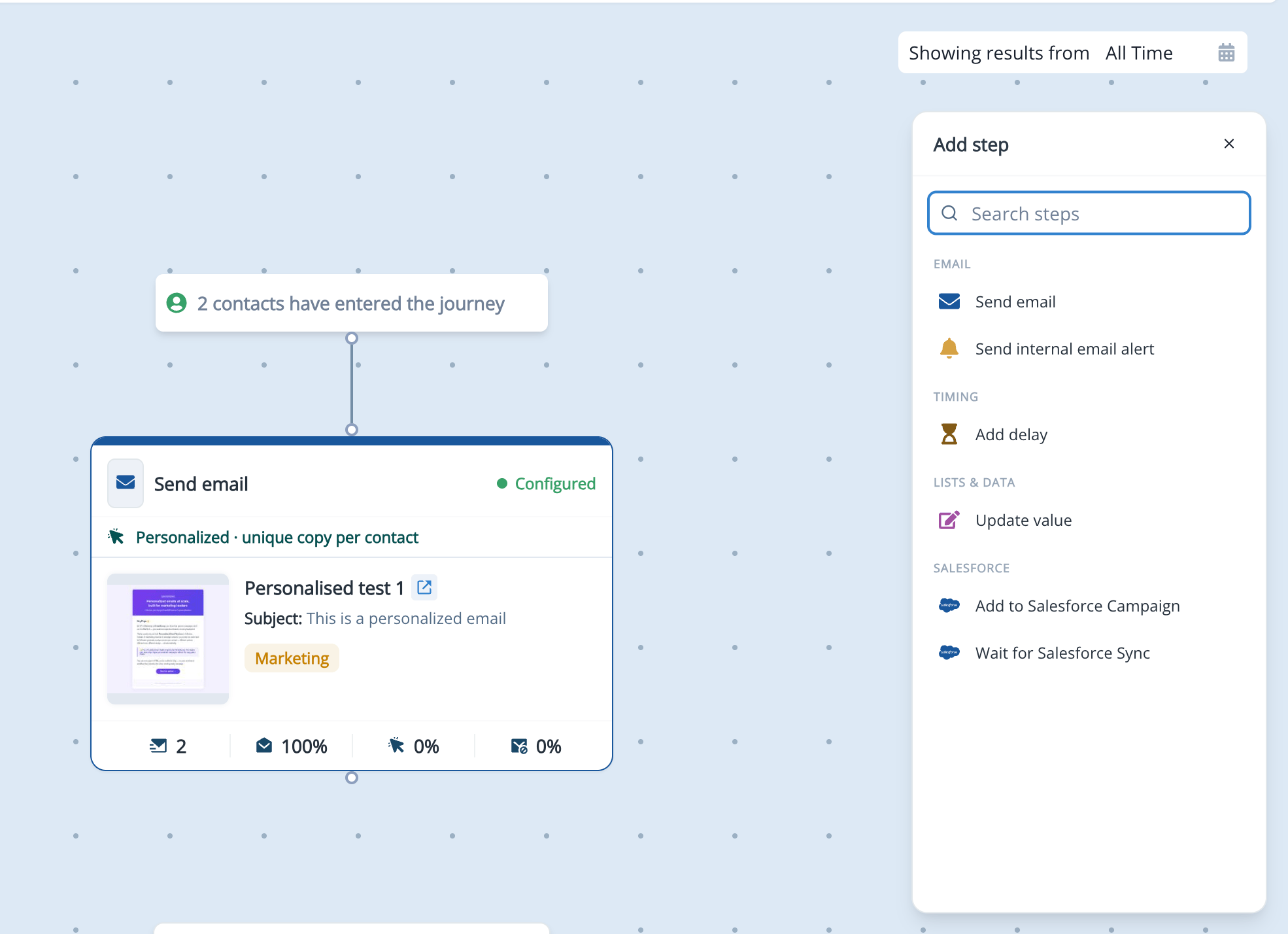 | Flow Step | Available |
| -------------------------- | --------- |
| Send Email | ✅ |
| Add Delay | ✅ |
| Update Value | ✅ |
| Add to Salesforce Campaign | ✅ |
| Send Internal Email Alert | ✅ |
| Wait for Salesforce Sync | ✅ |
Learn more about configuring individual flow steps and how to combine them: [Journey Flow Steps Reference](/journeys/journey-flow-steps)
## Publish Your Journey
Click **Publish** to activate the journey. The journey moves to Active status within seconds, and contacts begin enrolling in real time as qualifying events come in.
| Flow Step | Available |
| -------------------------- | --------- |
| Send Email | ✅ |
| Add Delay | ✅ |
| Update Value | ✅ |
| Add to Salesforce Campaign | ✅ |
| Send Internal Email Alert | ✅ |
| Wait for Salesforce Sync | ✅ |
Learn more about configuring individual flow steps and how to combine them: [Journey Flow Steps Reference](/journeys/journey-flow-steps)
## Publish Your Journey
Click **Publish** to activate the journey. The journey moves to Active status within seconds, and contacts begin enrolling in real time as qualifying events come in.