

About This Guide
Scope of This Documentation
This guide covers general-purpose OAuth 2.1 authentication for:- Custom integrations and applications
- Third-party automation tools (n8n, Zapier, Make, etc.)
- API testing tools (Postman, Insomnia, etc.)
- Custom scripts and internal tooling
- Calling the Inflection Developer API
MCP Authentication (Claude, ChatGPT, etc.)
If you’re looking to connect Inflection with AI assistants via MCP (Model Context Protocol), such as:- Claude (Anthropic)
- ChatGPT (OpenAI)
Overview
Inflection uses OAuth 2.1 with PKCE (Proof Key for Code Exchange) for secure API authentication. This modern authentication standard provides enhanced security for both web and native applications.Key Features
When to Use This Authentication Method
Prerequisites
Before you begin, ensure you have:- Access to the Inflection Settings panel
- A redirect URL for your application (can be localhost for testing)
Step 1: Create a Connected App
Step 1: Create a Connected App
- Log in to your Inflection account
- Navigate to Settings → Connected Apps
- Click Create App Credentials
- Fill in the required fields:
- Click Connect to create the app
Important: Save Your Credentials
After creating the app, you will receive:- Client ID - A public identifier for your app
- Client Secret - A confidential key (keep this secure!)
Step 2: OAuth 2.1 Endpoints
Step 2: OAuth 2.1 Endpoints
Use these endpoints for authentication (you can also discover these via the well-known endpoint):
Step 4: Using the Access Token
Step 4: Using the Access Token
Include the access token in the Authorization header for all API requests:The same token works on the Developer API, and it acts as the user who authorized the app (see Authentication):
Step 5: Refreshing Tokens
Step 5: Refreshing Tokens
When your access token expires, use the refresh token to get a new one:
Integration Examples
Integration Examples
Postman Setup
Postman Setup
- Create a new request in Postman
- Go to the Authorization tab
- Select OAuth 2.0 as the type
- Configure with these settings:
- Click Get New Access Token
- Complete the login in your browser
- Use the token to make API requests
https://oauth.pstmn.io/v1/browser-callback) is added as a Redirect URL in your Connected App settings.n8n Setup
n8n Setup
Prerequisite: Make sure you have created an app in inflection for n8n (shared above)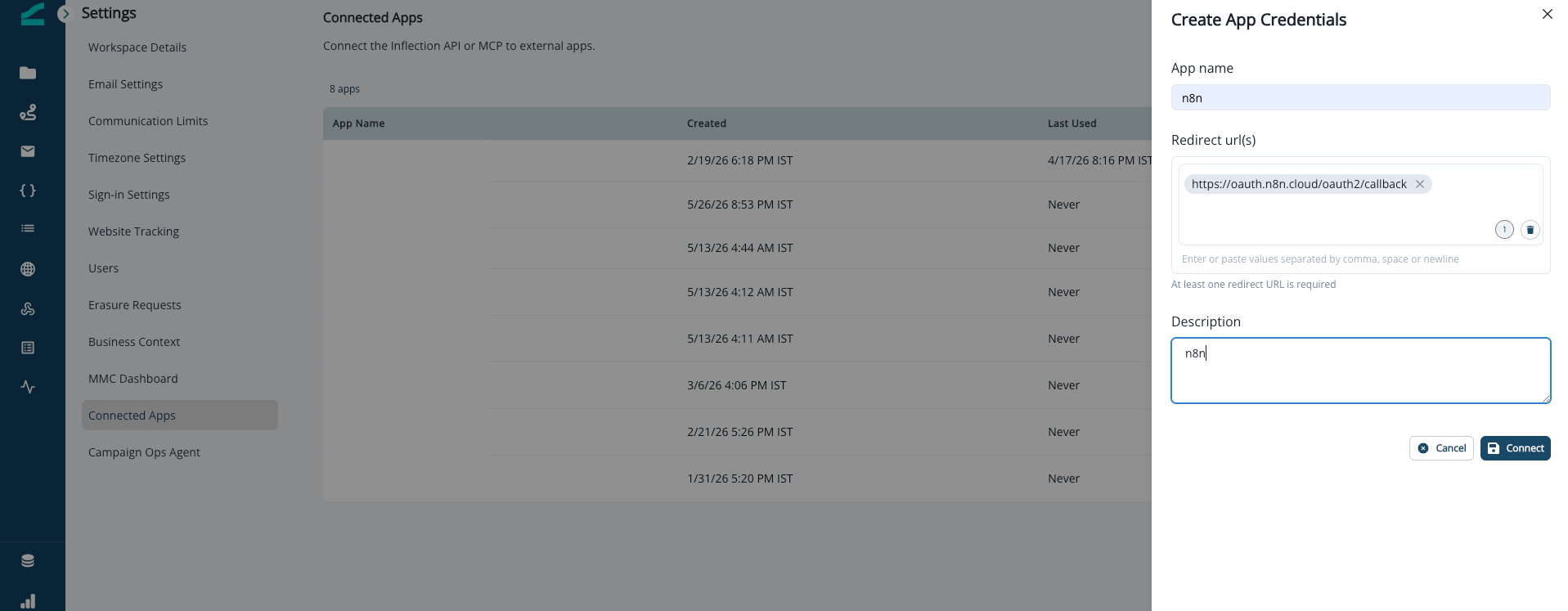
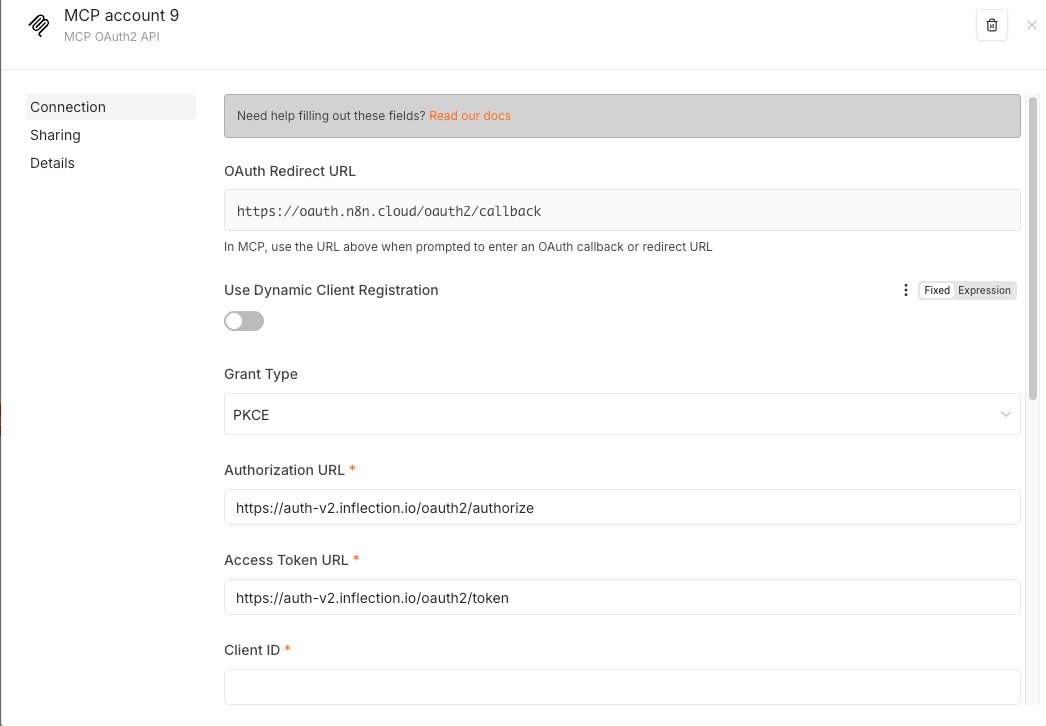
- Use the MCP Client (If you want to use the MCP) or create and HTTP Request (If you want to use an API)
-
Set Authentication to MCP OAUTH2 or Generic Credential Type (OAuth2)
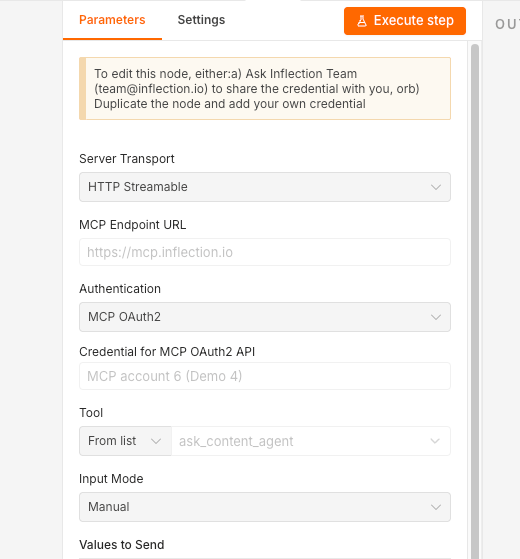
- Configure a new OAuth2 credential:
-
Click Connect to authorize
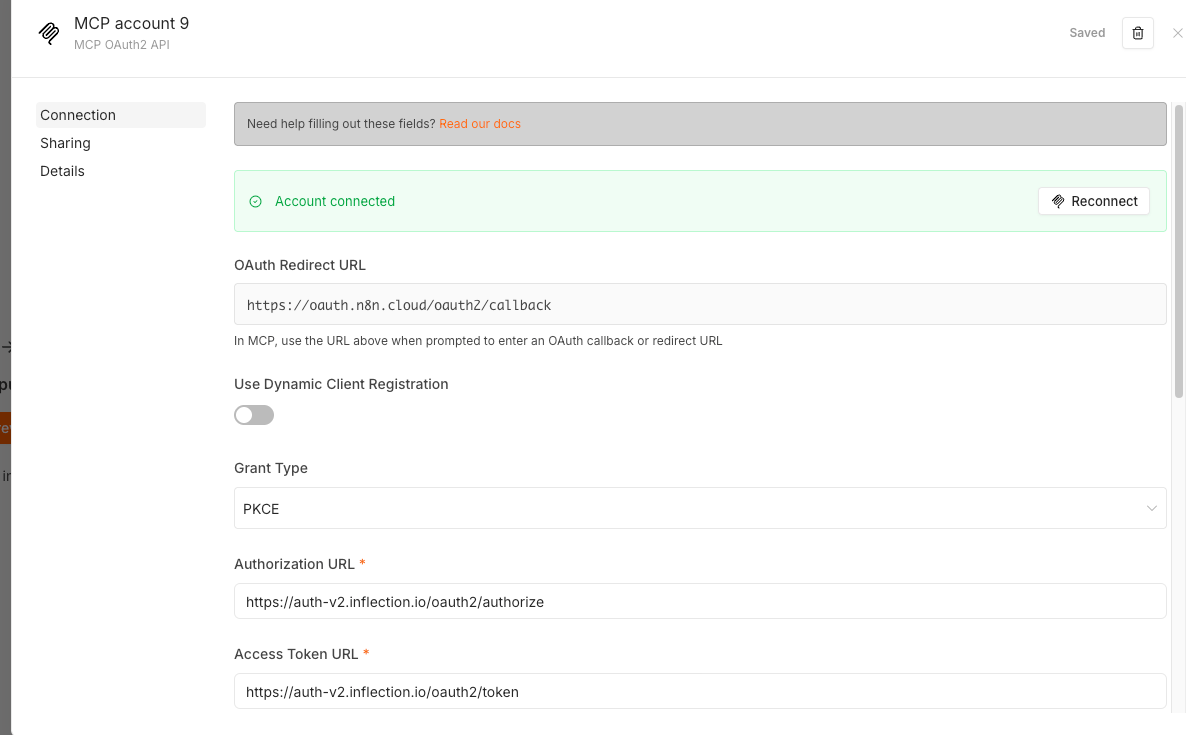
- n8n will automatically handle token refresh
Security Best Practices
Security Best Practices
- Never expose your Client Secret in client-side code or public repositories
- Use HTTPS for all redirect URLs in production
- Store tokens securely - use encrypted storage or secure vaults
- Implement token refresh before expiration to ensure uninterrupted access
- Use short-lived access tokens and rely on refresh tokens for extended sessions
- Validate redirect URIs match exactly what’s registered in your app
Tips
- Authorization codes are valid for 5 minutes and are single-use, exchange them promptly, as reusing a code invalidates the entire session
- If using Postman, ensure the callback URL in your Connected App matches Postman’s callback URL
- For local development,
http://localhostredirect URLs are acceptable