

- a default email — the fallback everyone gets, and
- a store of per-contact versions — pushed in over the API or MCP.
How it resolves: for each contact at the Send email step → their version if it’s ready, otherwise the default email. Evaluated per contact, when they reach the step.
Create a Personalized Email
- Go to Emails → New Email.
- Choose Per-Contact as the editor type and give it a name.
- Pick the default email — the fallback sent to anyone without a version. It must be an existing, sendable email (Visual or HTML).
- Create. You land on the asset’s Versions page.

The Asset at a Glance
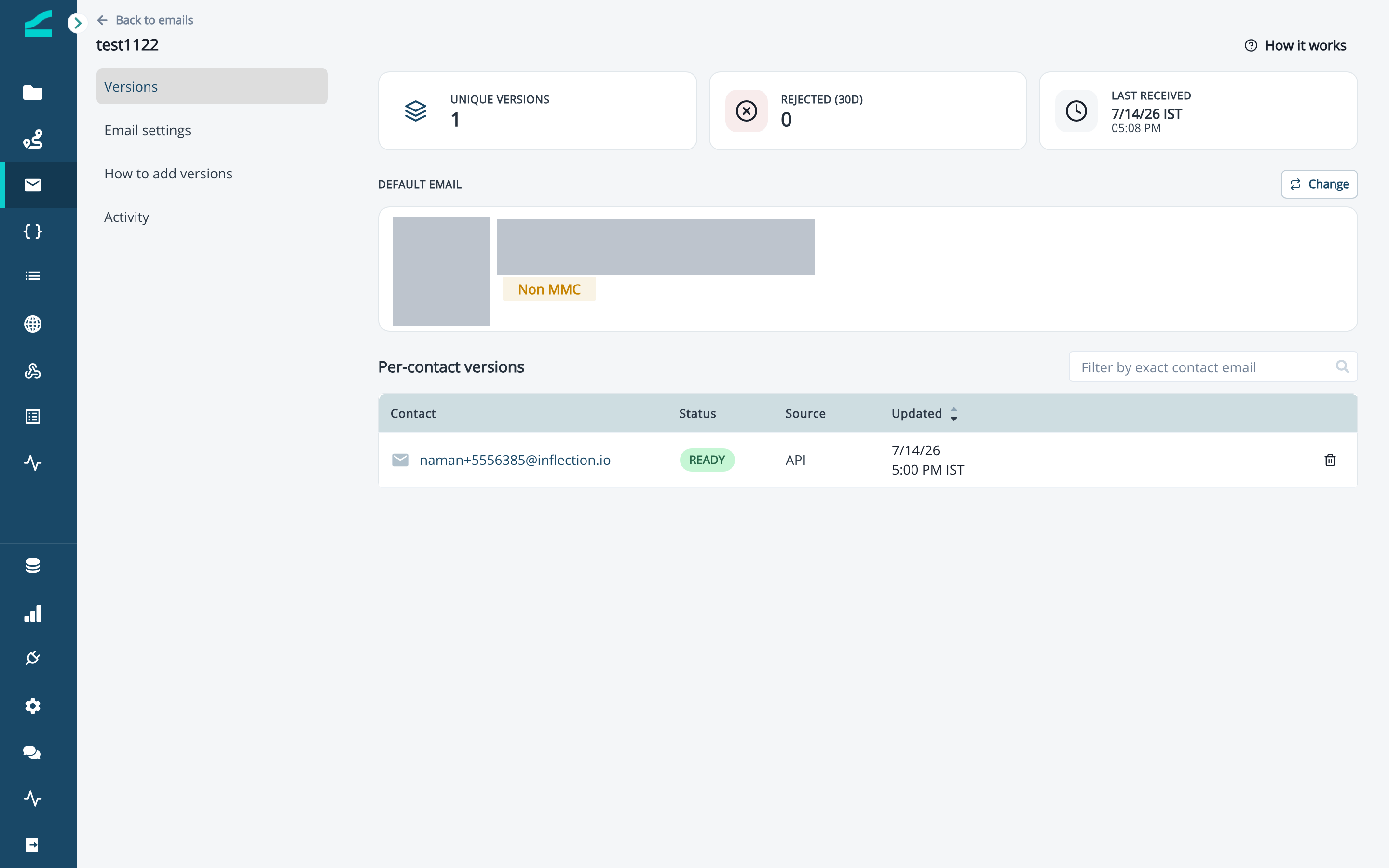
The Versions page is the home of a personalized email. It has three tabs — Versions, How to add versions, and Activity. The Versions tab shows:- Stats strip — Unique versions, Rejected (30d), and Last received.
- Default email card — the fallback, with a thumbnail and a Change button.
- Per-contact versions table — one row per contact (Contact · Status · Source · Updated), searchable by exact contact email.
Set or Change the Default Email
The default email is required — a personalized email can’t run without one. To change it, click Change on the Default email card, pick another sendable email, and it’s saved. Only Visual or HTML emails can be the default (not other personalized or AI emails). The default email also supplies the sender configuration for the asset — from name, from address, and reply-to all come from the default.Add Per-Contact Versions
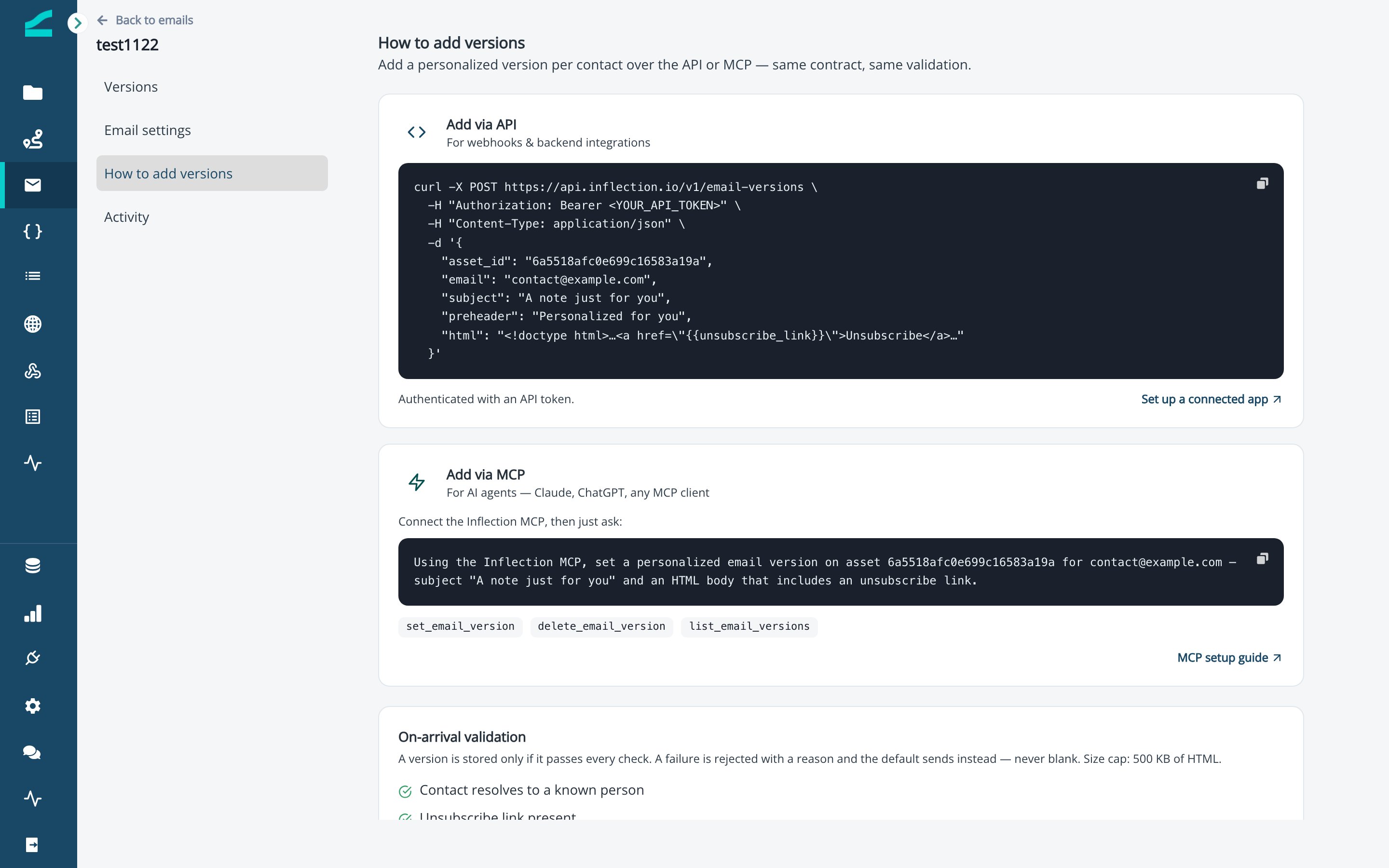
Versions are pushed in programmatically — never typed in the dashboard. Open the How to add versions tab for the exact endpoint and MCP tool for this asset.- API — for webhooks and backend integrations.
POSTthe asset’s endpoint (shown on the How to add versions tab) with aBeareraccess token and a JSON body of{ assetId, email, subject, preheader, html }— add an optionalexpiresAtto expire the version. The access token comes from a connected app. - MCP — for AI agents in Claude, ChatGPT, or any MCP client. Connect the Inflection MCP, then ask in plain language, for example: “Add a personalized version on this asset for contact@example.com — subject ‘A note just for you’ and an HTML body that includes an unsubscribe link.”
Review Coverage and Preview a Version
The stats strip tells you how many contacts have a version. To check exactly what a contact will receive, click their row in the versions table to open a live preview of their email.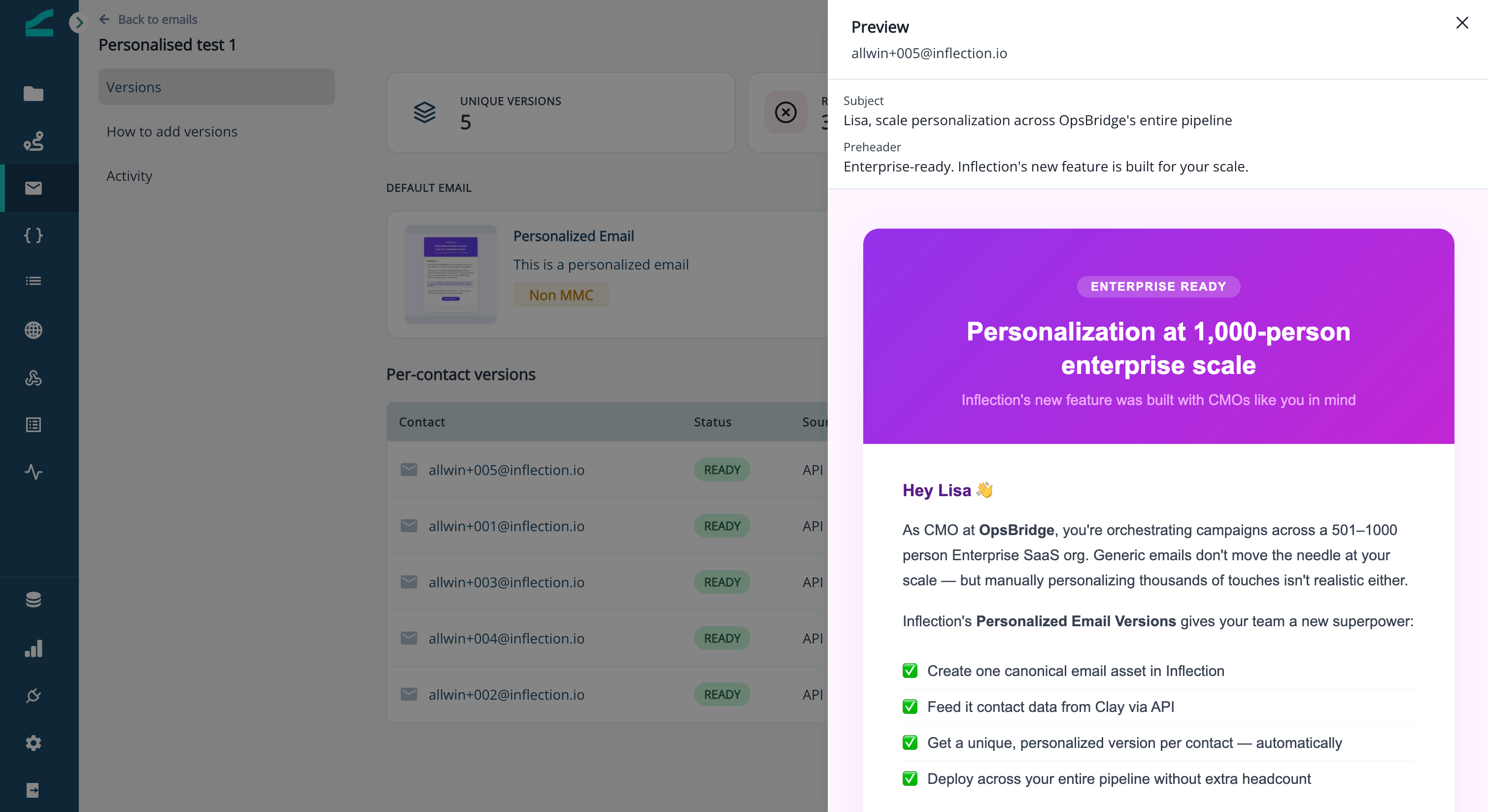
Track Changes in Activity
The Activity tab is the audit trail: every version created, updated, deleted, or rejected (with its reason), filterable by action and source.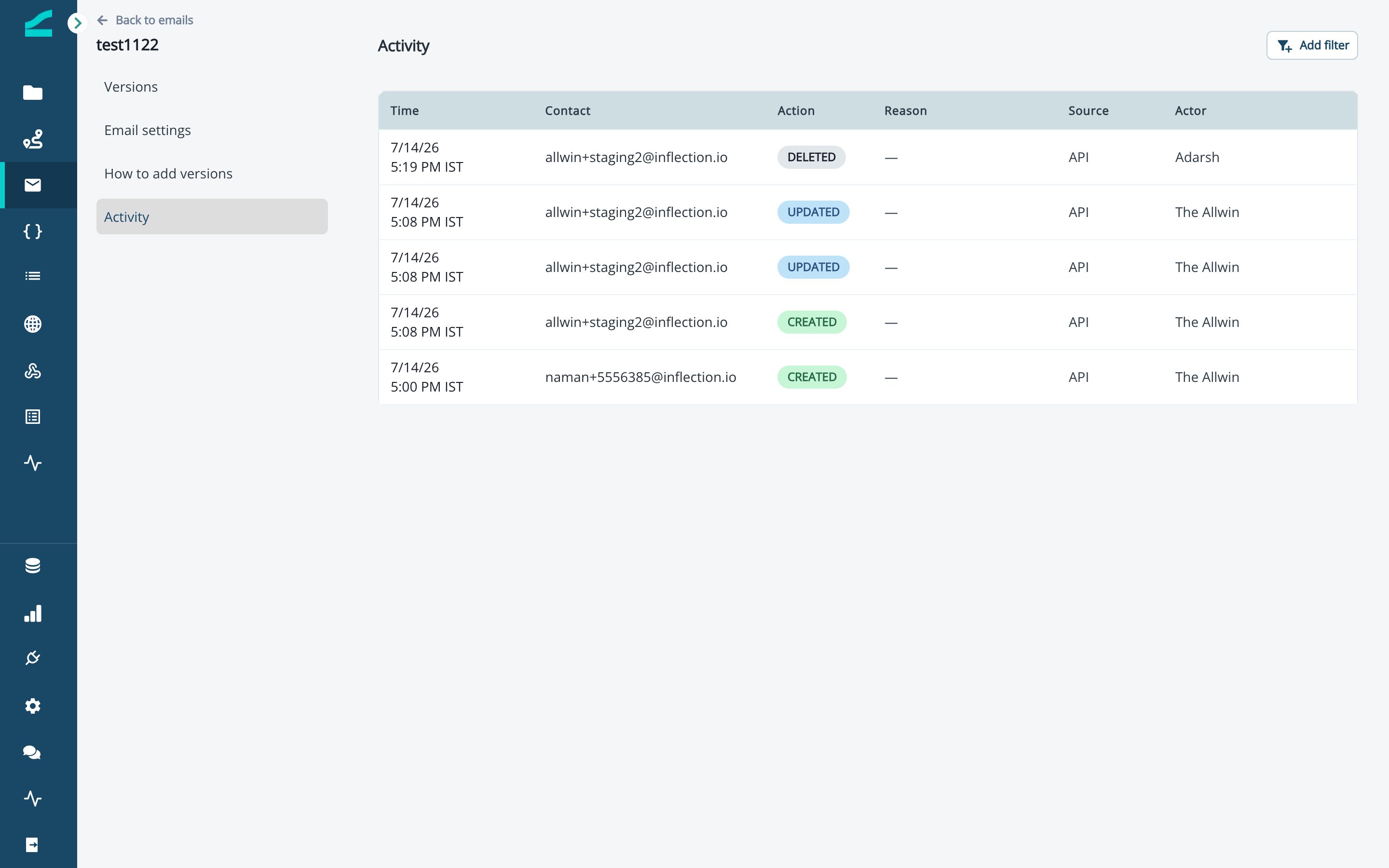
Send It in a Journey
Add a Send email step and pick the personalized email. The step shows a Personalized · falls back to default pill so you know it resolves per contact. When a contact reaches the step, they get their version if it’s ready, otherwise the default.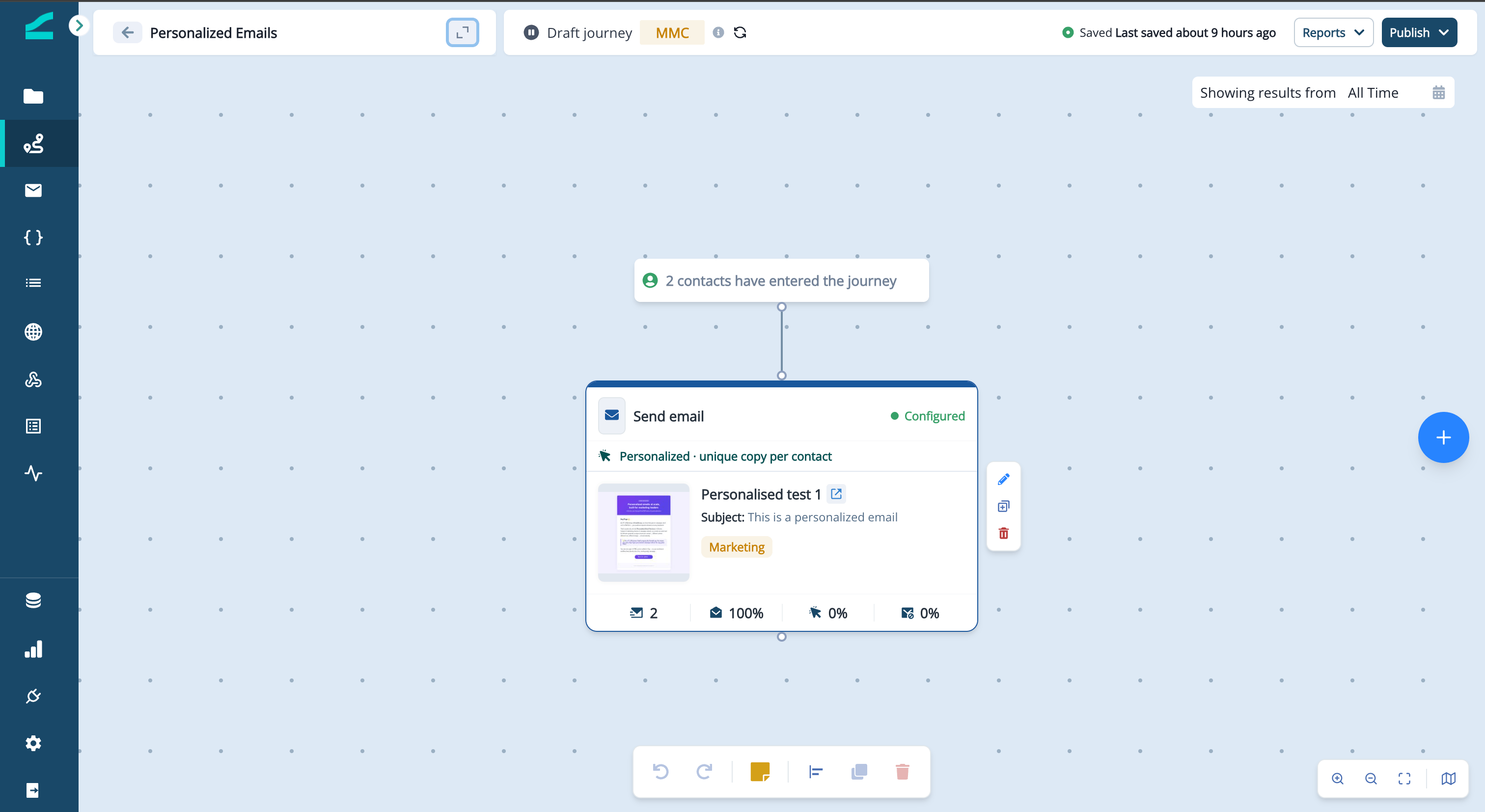
See a Contact’s Personalized Versions
On any contact’s detail page, the Personalised assets tab lists every personalized email that contact has a version for — with its status, source, and last updated.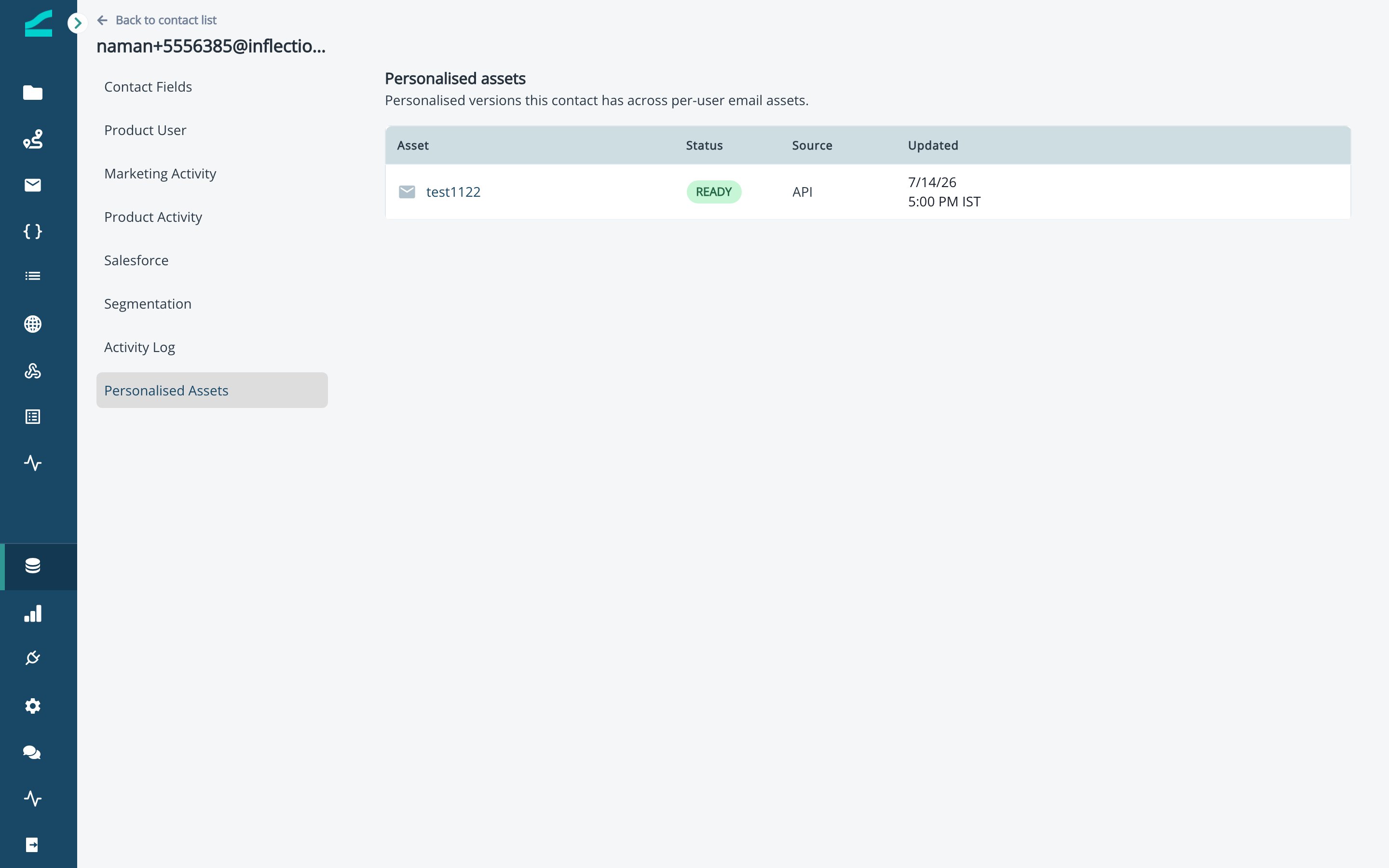
In short: one asset = a default email + a per-contact version store. Push versions over API/MCP, review coverage, and send in a journey — each contact gets their version, everyone else gets the default.
Good to Know
- One asset, one journey step — resolution happens per contact at send time, so reporting and deliverability work exactly like a normal email.
- The default is mandatory — the asset can’t run without a sendable default.
- Versions are programmatic — pushed over API or MCP, never typed in the dashboard.
Additional Resources
- Send Personalized Emails from Clay — push per-contact versions from a Clay table
- Integrate with Claude — add versions by chatting with an AI agent
- Inflection MCP — the complete tool reference