

Prerequisites
Before you begin, confirm you have:- An active Inflection account
- Access to Claude Desktop or Claude.ai
- On Claude Team or Enterprise plans: an Owner or Primary Owner to add the connector to your organization (one-time setup)
Add Inflection to Your Workspace
This section applies to Claude Team and Enterprise plans. Members can only connect to connectors an Owner or Primary Owner has added to the organization. On Pro and Max plans, skip ahead to Connect Inflection to Claude.
- Log in to claude.ai.
- Click your profile icon in the bottom-left corner, then click Organization settings.
- Click Connectors.
- Click Browse connectors at the bottom of the page.
- Search for
inflectionand select Inflection.io — it’s listed as a Community connector by Inflection.io.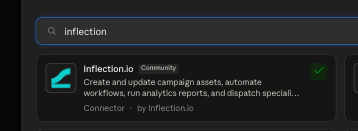
- On the connector’s directory page, click Add to your team.
Connect Inflection to Claude
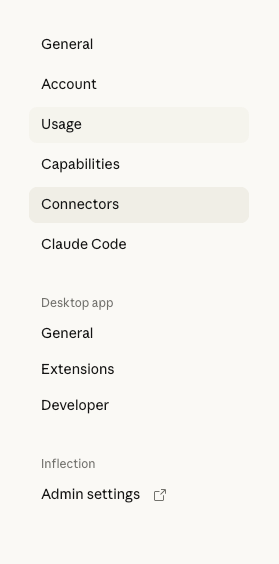
Each user completes these steps once in their own Claude account.Step 1: Open Connectors
- Open Claude Desktop or go to claude.ai.
- Click your profile icon in the bottom-left corner.
- Click Settings.
- Click Connectors.
Step 2: Find Inflection and Connect
- Find Inflection.io in your connectors list.
- On Team and Enterprise plans it’s already listed once your admin has added it.
- On Pro and Max plans, click Browse connectors, search for
inflection, and select Inflection.io (the Community connector by Inflection.io).
- Click Connect.
Step 3: Authenticate
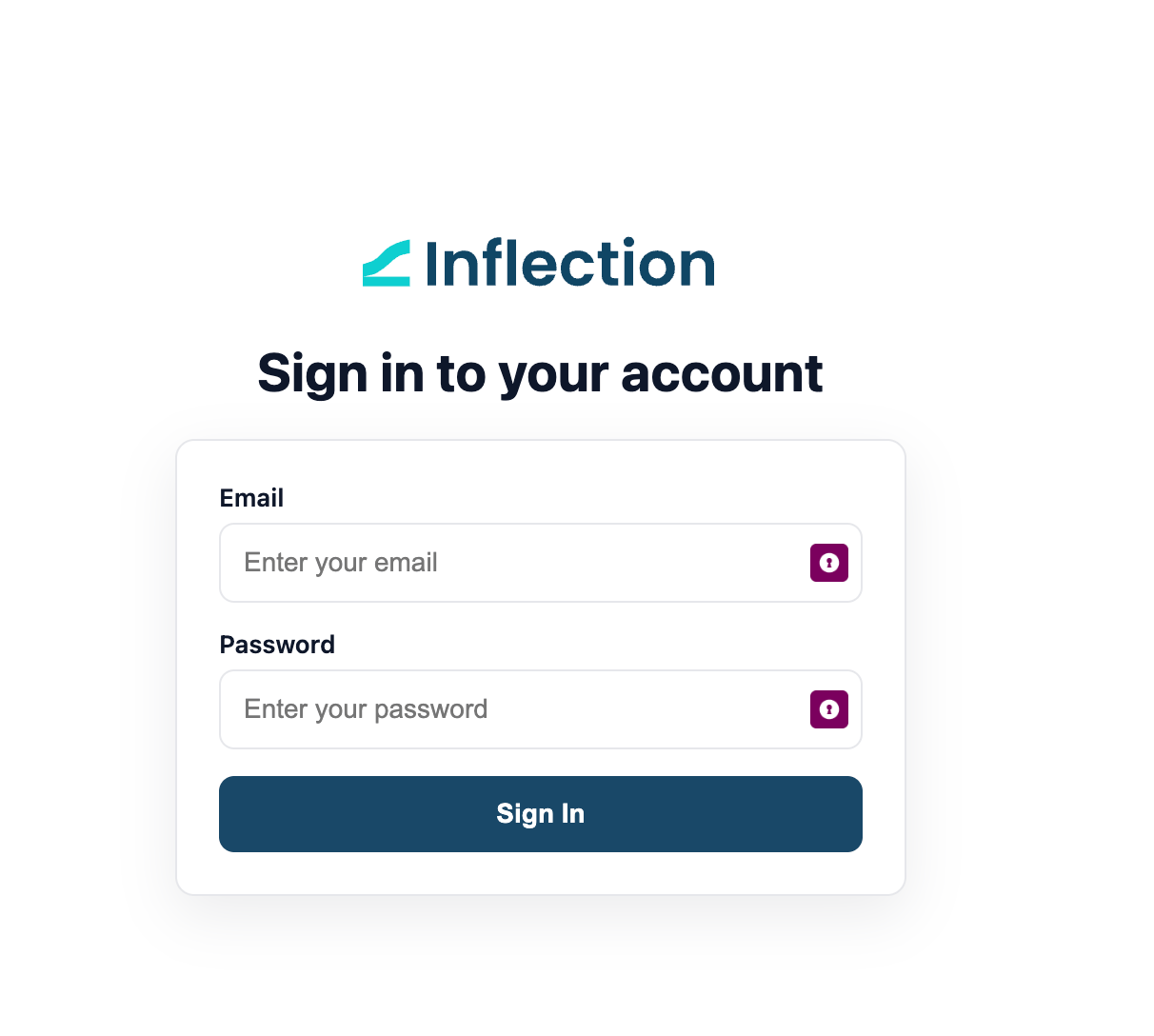
- A browser window opens automatically.
- Log in with your Inflection credentials if prompted.
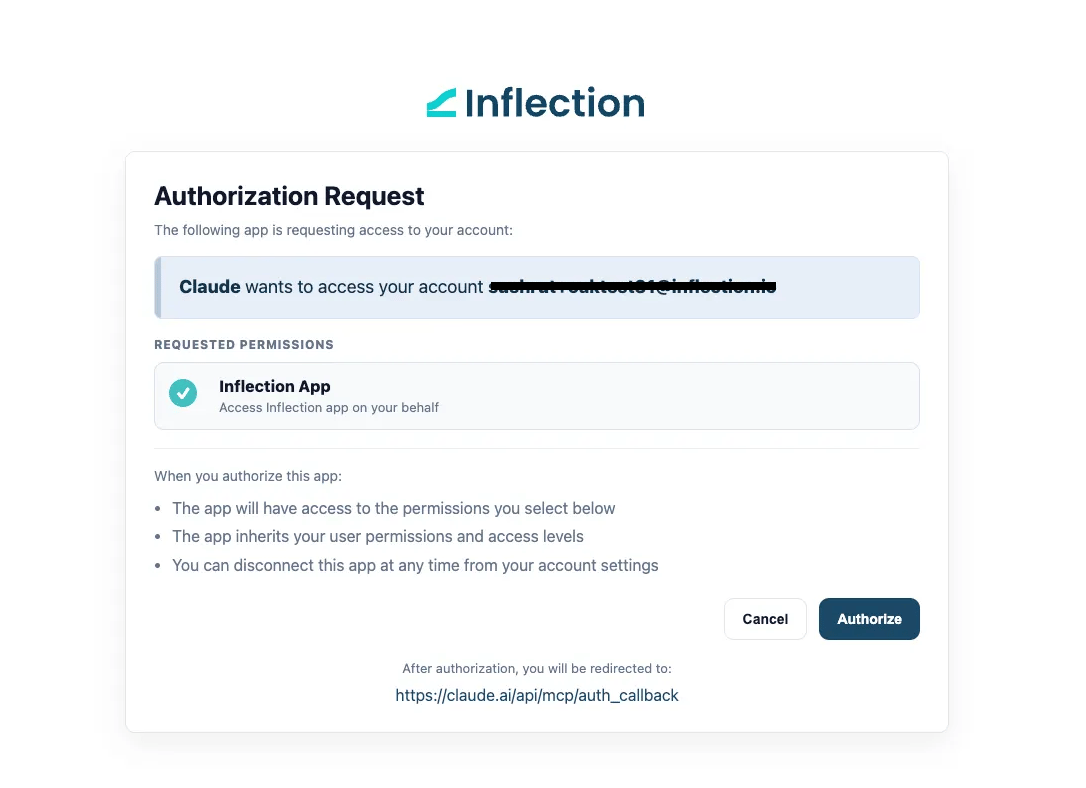
- Review the consent screen, which shows the app name (Claude), the redirect URL, and the permissions being requested.
- Click Authorize to grant access.
Step 4: Confirm the Connection
Once authenticated, the browser shows “Authentication complete” — close that tab. Back in Claude, the Inflection.io connector status changes to Connected.On the first message of each new thread, the agent loads your business context so everything it builds fits your account.
Use Inflection in Claude
The table below shows what you can do and example phrases to get started.
Chain tasks in one thread — size an audience, draft the emails, assemble the journey — because the agent keeps context across turns.
Example commands
Campaigns:- “Show me my recent campaigns.”
- “What’s the performance of my last email campaign?”
- “List all active campaigns.”
- “Create a new segment for users who signed up last month.”
- “Show me the segment for enterprise customers.”
- “List my email templates.”
- “Show me the details of the welcome email template.”
- “What’s the open rate for my newsletter campaign?”
- “Show me campaign analytics for the last 30 days.”
A good first session
- “How many contacts opened an email in the last 30 days?”
- “Draft a re-engagement email for the ones who didn’t, and save it.”
- “Build an audience of those contacts and save it as ‘Dormant – 30d’.”
Tips
Set tools to Always allow to avoid repeated permission prompts. Refresh the tool list after new tools ship — go to Settings > Connectors > Inflection.io > Refresh tool list. One build per request. Say “save” when you’re ready to commit a draft.Good to know
- Drafts, not activation — activate journeys and sends in the Inflection app.
- No custom CSS in emails via chat (use the BEE editor in-app); style fields are supported.
- Some assets are read-only here — forms, webhooks, conversions, and accounts.
Additional resources
- Inflection Agents — what each specialist agent does
- Inflection MCP — the complete tool reference
- Integrate with ChatGPT