

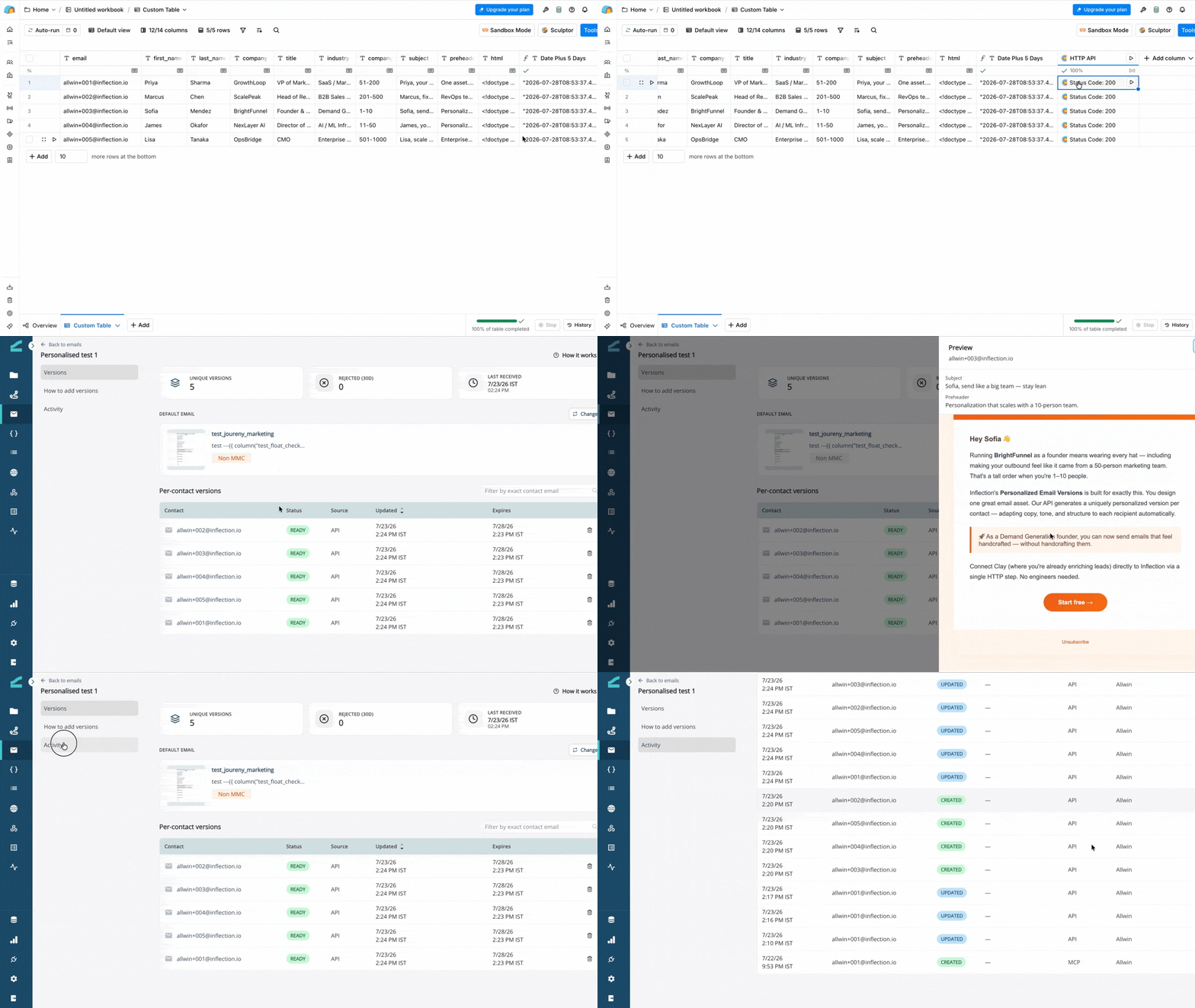
This guide assumes you already have a Personalized Email Asset in Inflection. To create one, see Personalized Email Asset.
Prerequisites
Before you begin, confirm you have:- A Clay account with access to the HTTP API integration column.
- An Inflection account, and a Personalized Email Asset already created. Copy its asset ID from the asset URL (
…/assets/email/per-user/<ASSET_ID>/versions) or the How to add versions tab. - An Inflection API token — a Personal Access Token (PAT) from a connected app, or an OAuth access token. Both work as bearer tokens.
- Test contacts that already exist in your Inflection tenant. The API rejects versions for unknown contacts.
Get Your Inflection Token
Create a PAT under Settings → Connected Apps — the step-by-step is in Get Your Personal Access Token. Copy the token and store it securely — you won’t be able to see it again.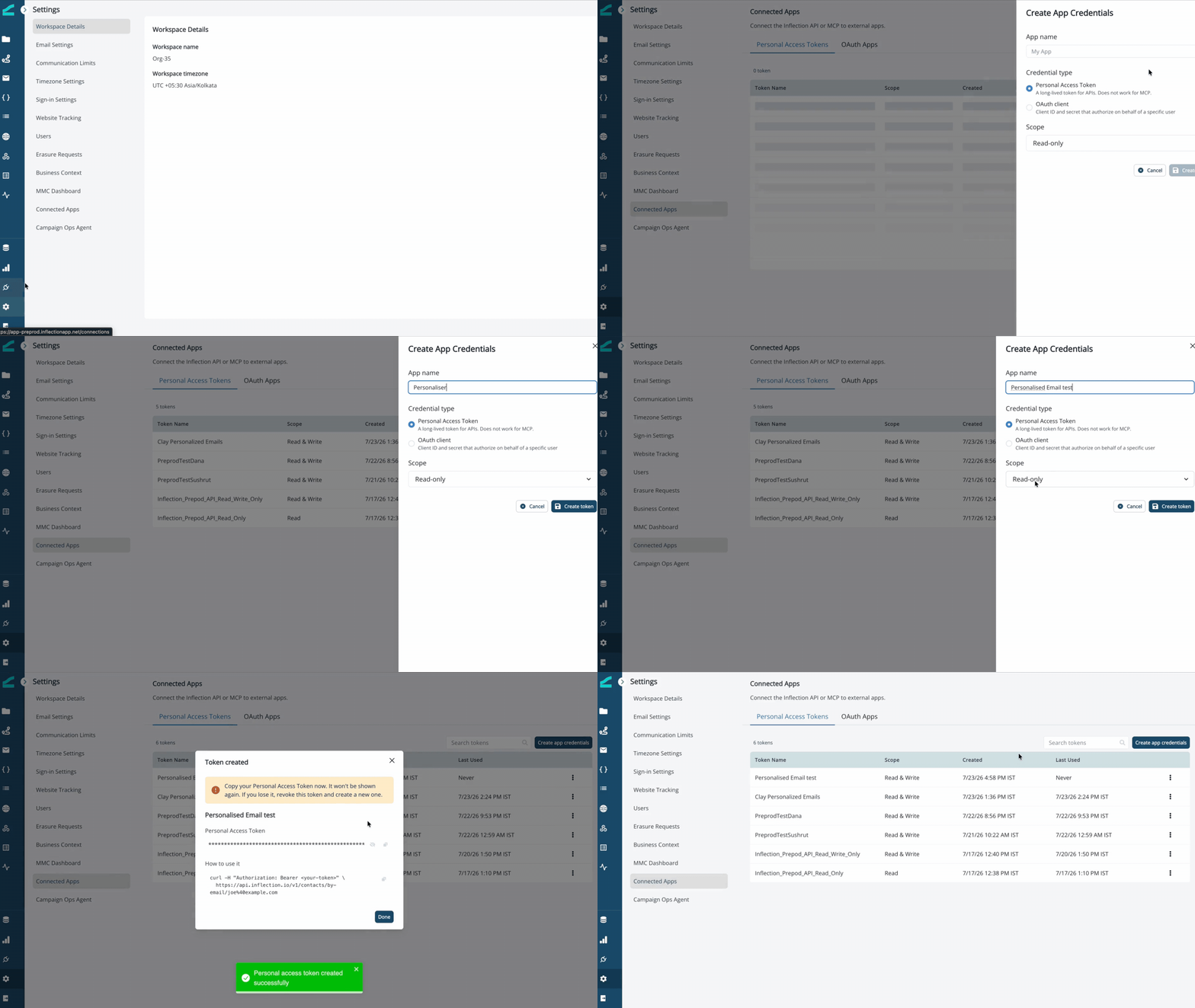
Prepare Your Clay Table
Your table needs one column for each field you’ll send:
Use enrichment or an AI column (drawing on fields like first name, company, or title) to generate the
Html column before the HTTP step.
The unsubscribe rule. Every version’s HTML must contain the literal token
{{unsubscribe_url}}, and Inflection rejects any other {{…}} token. Clay’s own merge and formula fields also use {{ }}, so when you build the Html column, make sure {{unsubscribe_url}} survives as literal text — for example, wrap it as {% raw %}{{unsubscribe_url}}{% endraw %} in a formula. Referenced into the request body as /Html, the literal passes through unchanged.Configure the HTTP API Column
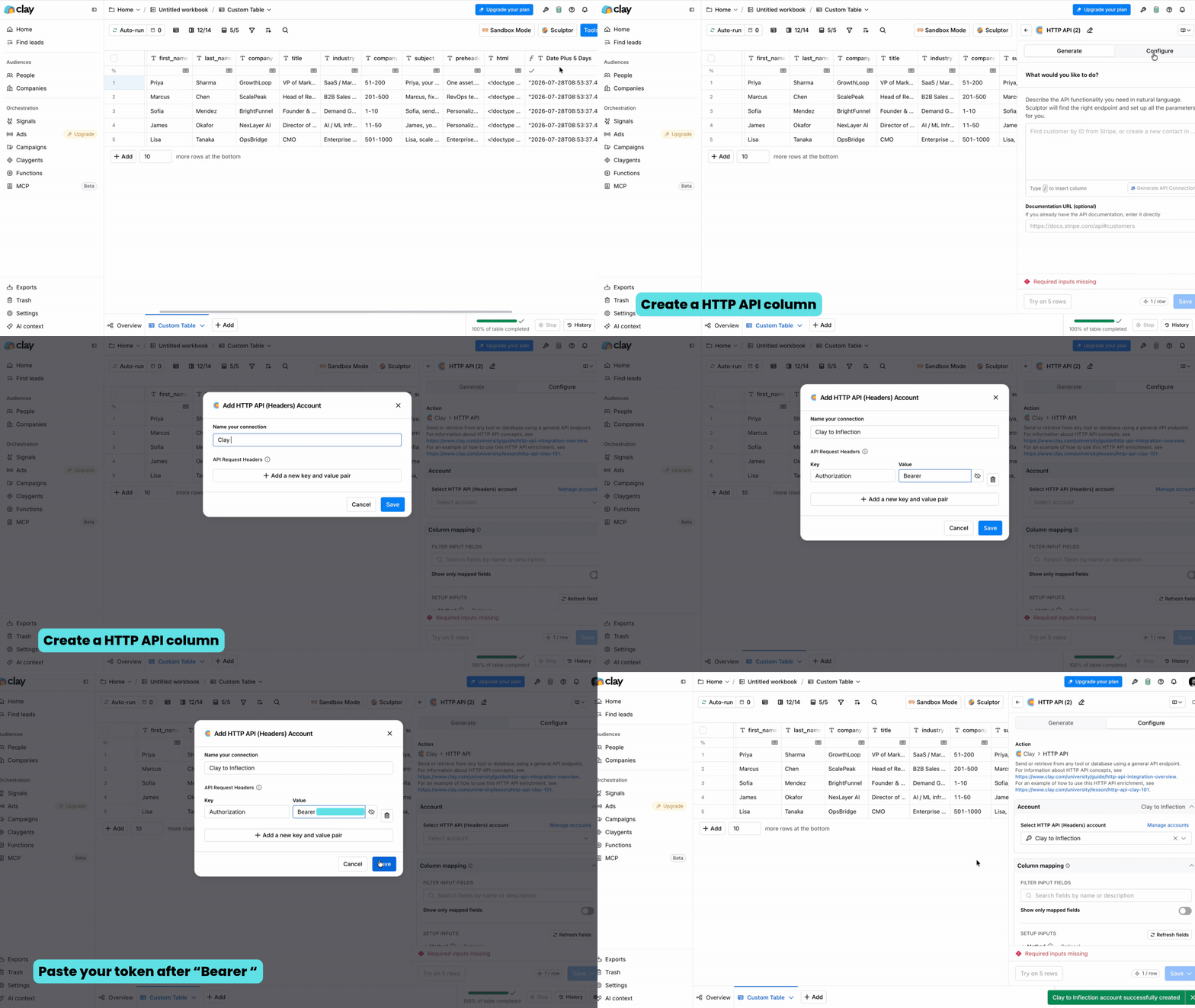
Click + to add a column, search for HTTP API, and select it. The column’s setup has a few sections — fill each one exactly as below.1. Account (Authentication)
The Account holds your Inflection token so it never sits in the table. Create it once and reuse it.- Click Select account → + Add account.
- Under API Request Headers, add one row:
- Key:
Authorization - Value:
Bearer <your token>— paste only the token afterBearer, with no quotes, no<or>or extra spaces.
- Key:
- Give the account a name (for example,
Inflection PAT), save it, and select it.
Keep the token in the Account, not in the column’s own Headers — the Account keeps it out of the table and lets you reuse it across columns.
2. Column Mapping
Fill the request fields:- Method:
POST - Endpoint:
https://api.inflection.io/v1/email-versions - Body: choose JSON and paste the following. Each
/Columnmaps to that column’s value for the row:
.gif?s=9553767f8814ac6a467cfcc3dfae22d7)
- Headers: add one key/value row —
- Key:
Content-Type - Value:
application/json
- Key:
-1.gif?s=d4bddd759f35075947c8329ffc121630)
"email": "/Email"); leave numeric or date references unquoted. To expire a version automatically, add an expiresAt field (ISO-8601): either a literal "expiresAt": "2030-01-01T00:00:00Z", or map it to a Clay date column such as a “Date + 5 days” formula (unquoted). Omit the field entirely for a version that never expires.
3. Retry on Failure
Leave Retry on failure off. A rejected version (for example, a missing unsubscribe link) is a data issue to fix in the row, not something a retry resolves — keeping it off makes failures visible.4. Run Settings
- Auto-run: off — so the column runs only when you click Run. This lets you test one row before pushing the whole table.
- Custom rate limit: optional. Set one if you’re pushing a large table and want to pace the requests.
Test, Then Run
- Click Run on a single row.
- Confirm a
200response. A stored version returns{ "data": { "status": "stored" }, "meta": { "status": "SUCCESS" } }. - In Inflection, open the asset’s Versions tab and confirm the contact now shows a version.
- Run the column across the full table.
Optional: Create Contacts First
The Email Versions API rejects versions for contacts that don’t exist yet. If your Clay rows include new people, add an upstream HTTP API column that seeds them before the versions step — same Account, with:- Method:
POST - Endpoint:
https://api.inflection.io/v1/contacts - Body:
{ "email": "/Email" }
Troubleshooting
401 Unauthorized- Confirm the Account header is exactly
Authorization: Bearer <token>with no duplicatedBearer, quotes, or whitespace — a malformed value is the most common cause. - Confirm the Endpoint is
/v1/email-versions, not a/dash/...path. - Confirm the token’s environment matches the host (preprod token → preprod host).
- Check the JSON — string values need quotes.
- Confirm
assetIdis a valid, existing Personalized Email Asset.
- Contact not found — the contact doesn’t exist in the tenant yet. Seed it first.
- Missing unsubscribe link — the
Htmlis missing the literal{{unsubscribe_url}}token. - Disallowed token — the
Htmlcontains a{{…}}token other than{{unsubscribe_url}}(often a Clay merge field that leaked through). - Over size limit — the
Htmlis larger than 500 KB. Keep it lean and use hosted image URLs instead of inline base64.
Good to Know
- One version per contact, per asset. Re-sending updates that contact’s version.
- The default always covers the rest. Contacts without a version get the asset’s default email — never a blank send.
- Clay runs row by row. Large tables take time depending on your Clay rate limits.
Additional Resources
- Personalized Email Asset — how the asset, versions, and default work
- Inflection MCP — push versions from an AI agent instead of Clay
- Clay HTTP API documentation