

Overview
Inflection integrates with ChatGPT through MCP (Model Context Protocol) using Dynamic Client Registration (DCR) for secure, streamlined authentication. Once connected, use Inflection’s specialist agents directly from ChatGPT to build audiences, emails, tokens, segments, and journeys, and pull performance data — all through natural language.Prerequisites
- An active Inflection account
- A ChatGPT Plus, Team, or Enterprise subscription
- Workspace admin permissions in ChatGPT (for initial setup)
For Workspace Admins: Add the Inflection MCP Server
Before users can connect, a workspace admin must enable Developer mode, create the app, and publish it to the workspace.Step 1: Enable Developer mode and create the app
- Log in to ChatGPT.
- Click your profile icon, then click Settings.
- Select Apps in the left sidebar.
- Scroll to the bottom and click Advanced settings.
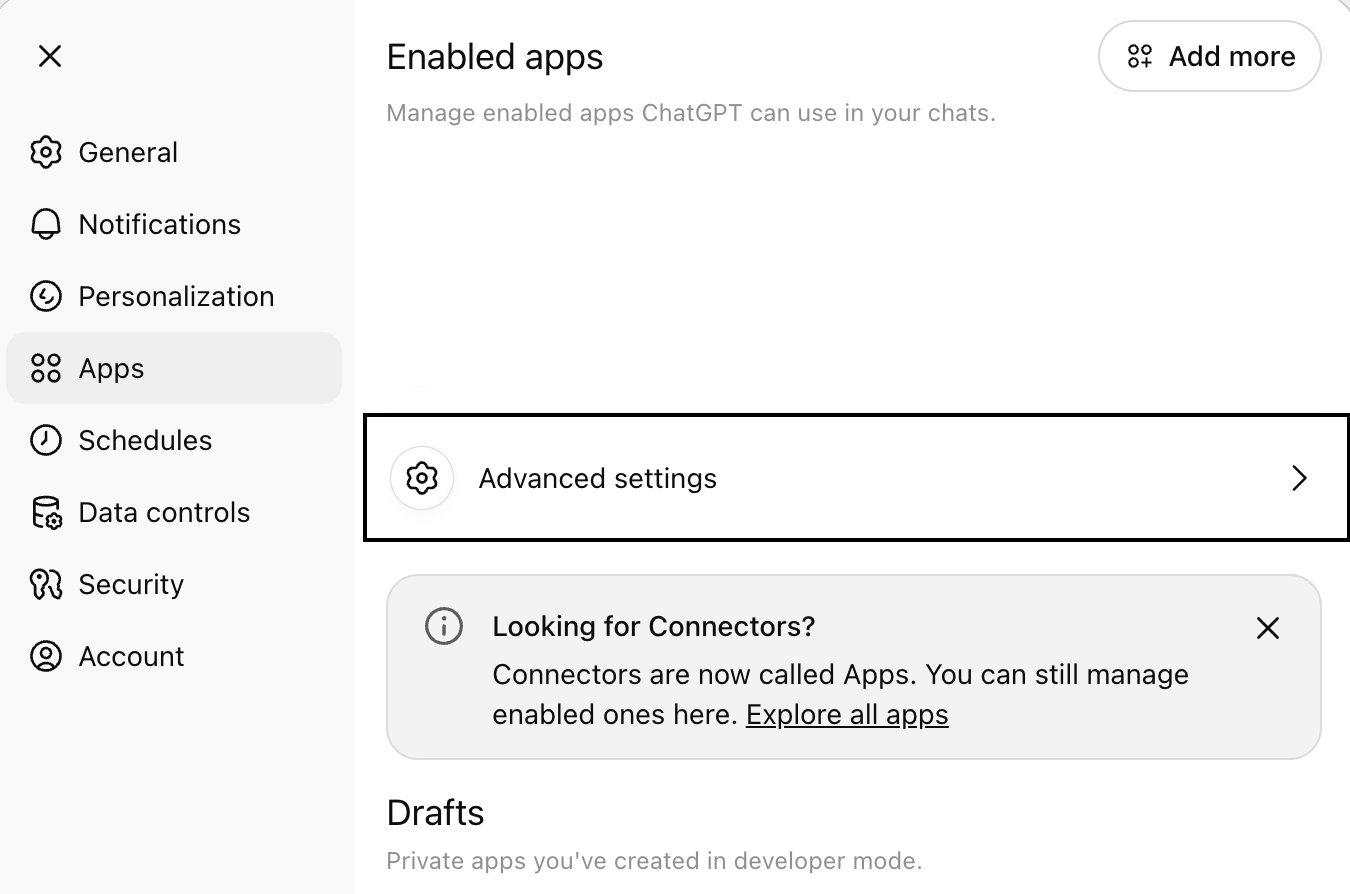
- Toggle Developer mode on.
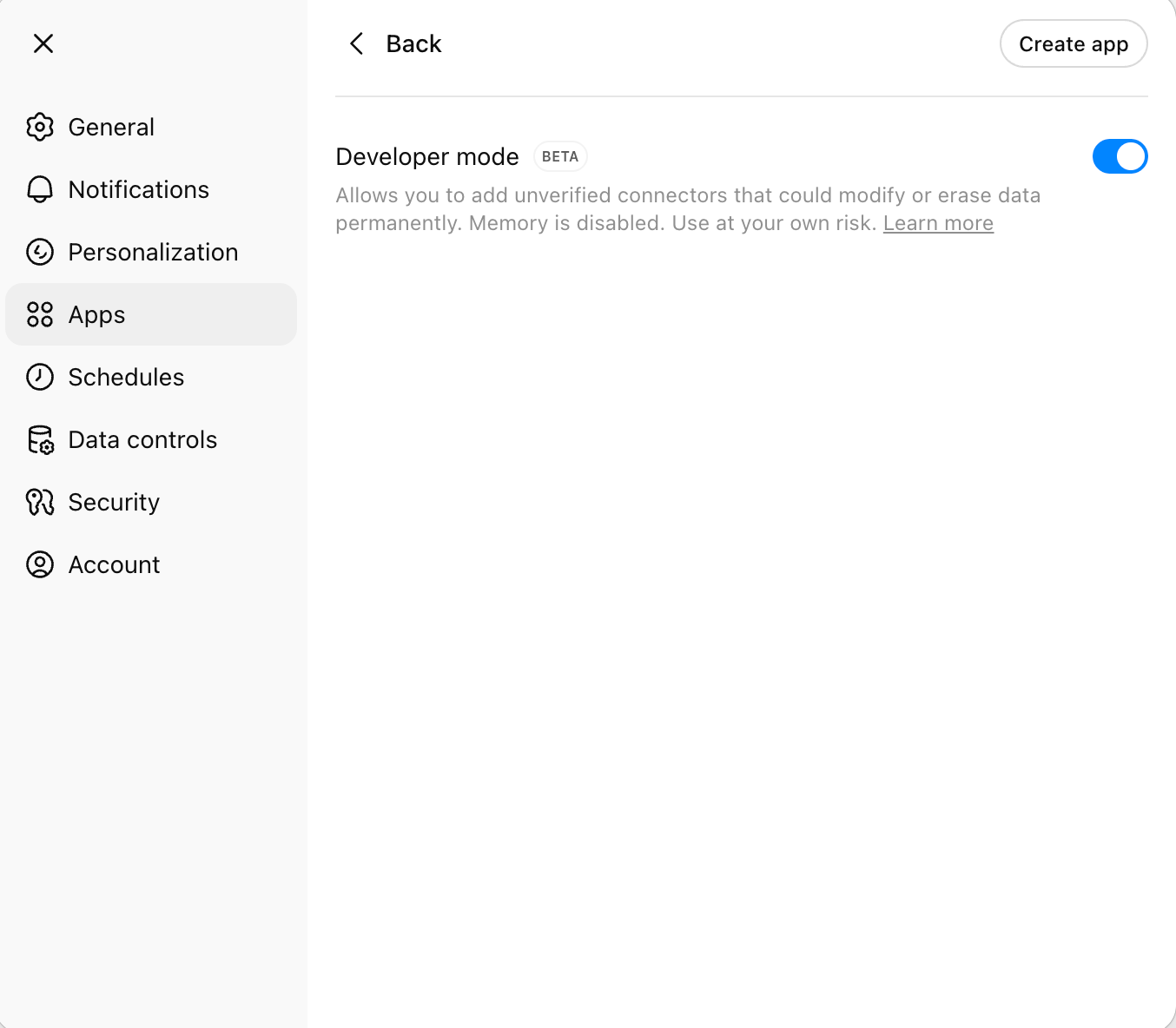
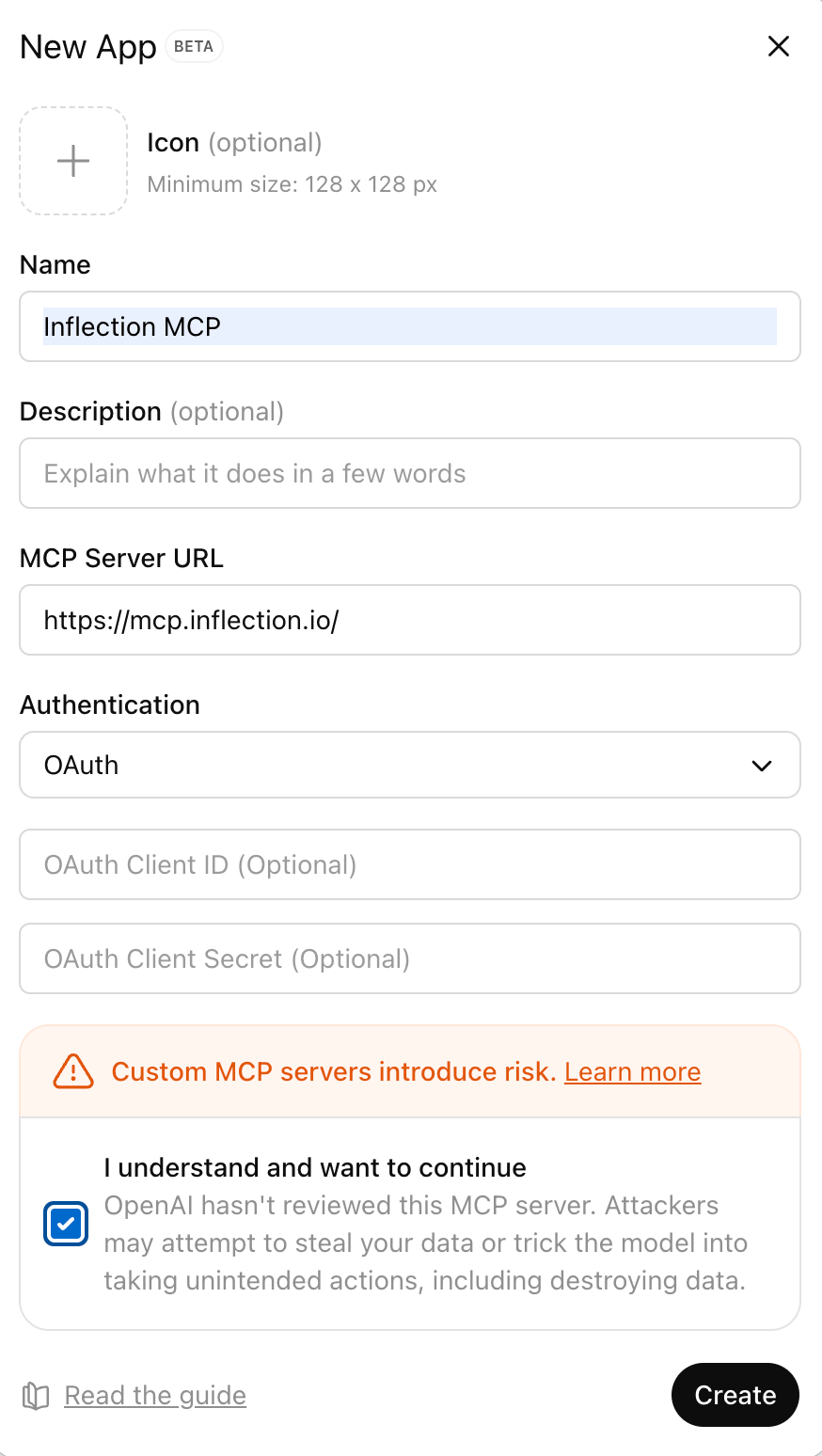
- Click Create app and fill in the details:
- Name:
Inflection MCP - Description: (optional)
Connect to Inflection MAP - MCP Server URL:
https://mcp.inflection.io/ - Authentication: Select
OAuth - Leave OAuth Client ID and OAuth Client Secret blank — DCR handles this automatically.
- Name:
- Select the acknowledgment checkbox: “I understand and want to continue”.
- Click Create.
Step 2: Test the app
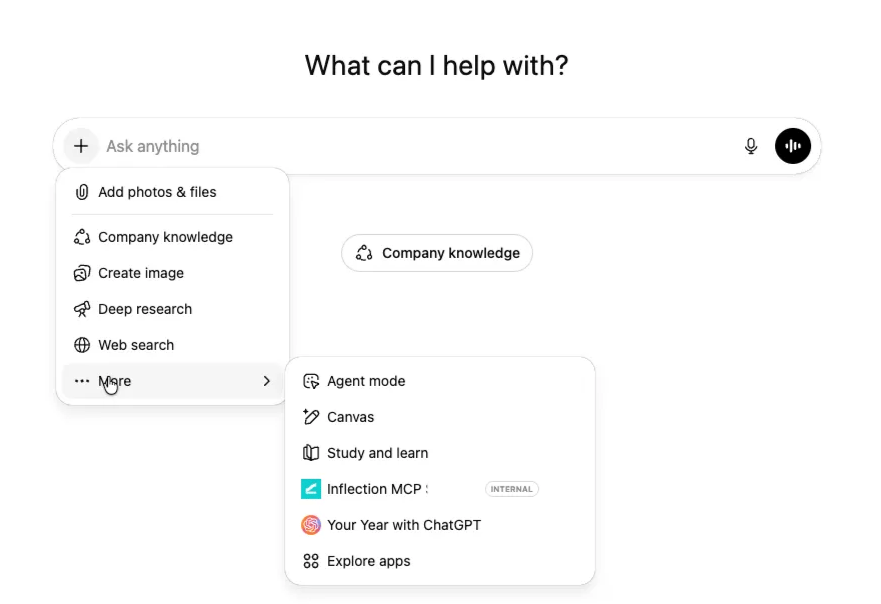
- Open a new chat in ChatGPT.
- Click the + button near the message composer, then click More.
- Select Inflection MCP from the list of available tools.
- Enter:
Show me my campaigns in Inflection - Complete the OAuth authorization flow when prompted.
- Verify the tools work — ChatGPT displays tool-call payloads for confirmation.
Step 3: Publish for your workspace
- Go to Settings → Apps.
- Find your app under Drafts.
- Click Publish.
- Review the safety warnings (especially for write actions).
- Confirm publishing.
OpenAI documentation
Connect ChatGPT to external apps — OpenAI developer docsFor Users: Connect Inflection to ChatGPT
Step 1: Access settings
- Log in to ChatGPT.
- Click your profile icon.
- Go to Settings → Connectors.
Step 2: Find Inflection and connect
- Find Inflection MCP server in the list of available connectors.
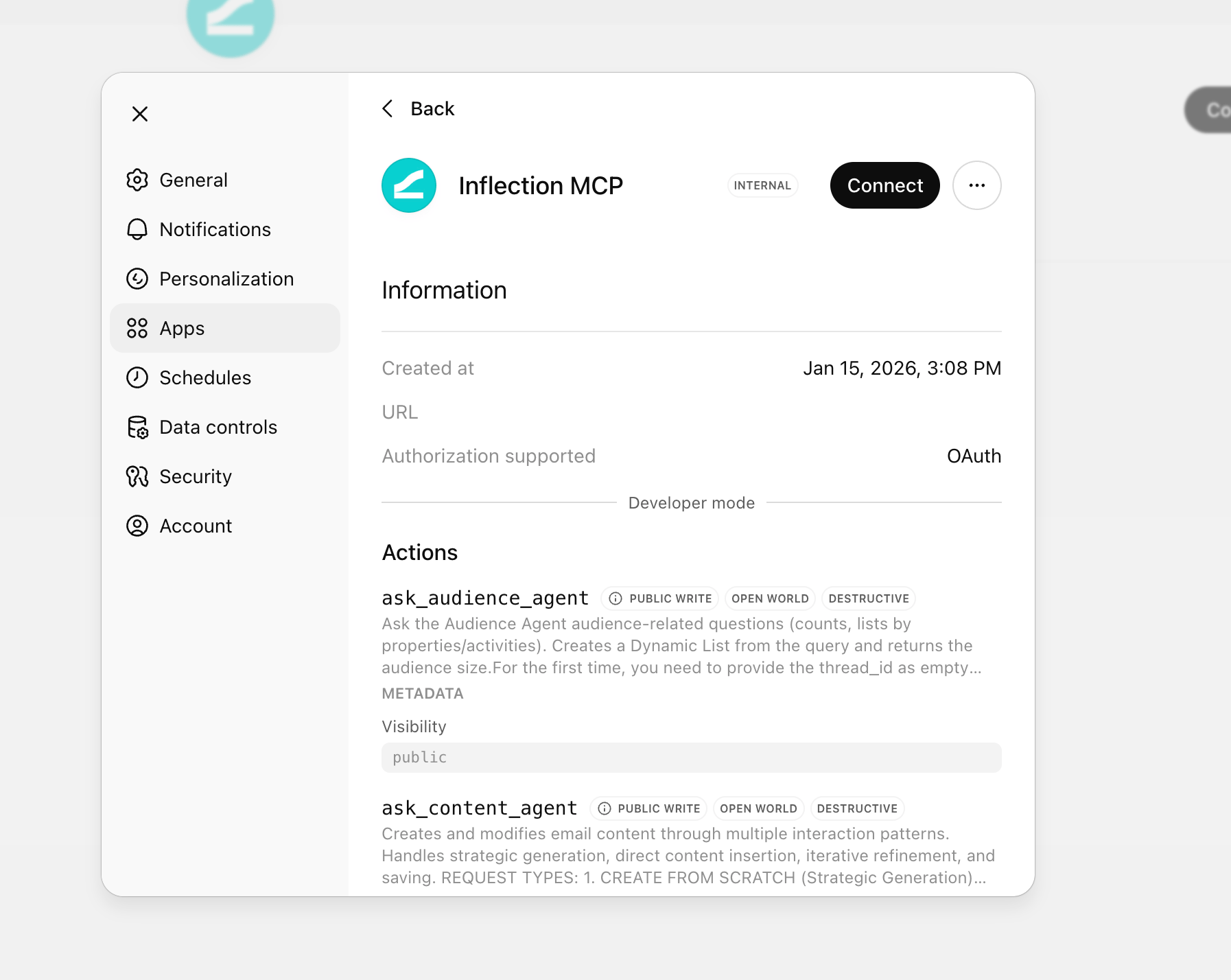
- Click Connect.
Step 3: Authenticate
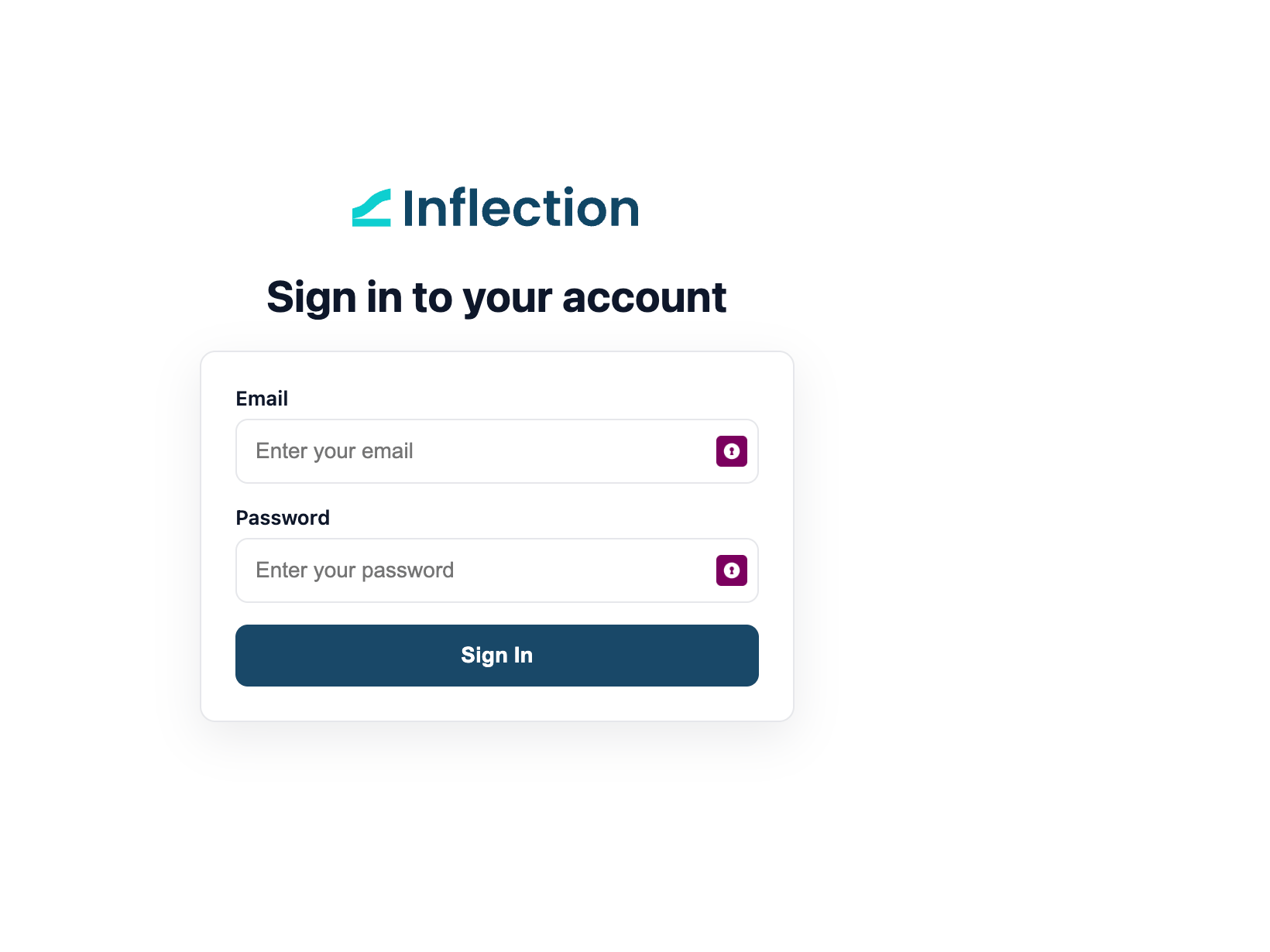
- A browser window opens automatically.
- Log in with your Inflection credentials if prompted.
- Review the consent screen, which shows:
- The app name (ChatGPT)
- The redirect URL
- The permissions being requested
- Click Authorize to grant access.
Step 4: Confirmation
Once authenticated:- The browser displays “Authentication complete”.
- Close the browser tab.
- Return to ChatGPT — your connection status changes to Connected.
Using Inflection in ChatGPT
Once connected, use natural language to interact with Inflection.What you can do
Example commands
Campaigns:Show me my recent campaigns in InflectionWhat's the performance of my last email campaign?List all active campaigns
Create a new segment for users who signed up last monthShow me the segment for enterprise customers
List my email templatesShow me the details of the welcome email template
What's the open rate for my newsletter campaign?Show me campaign analytics for the last 30 days
Troubleshooting
Do not copy the authentication URL. The auth flow sets cookies in your browser. Copying the URL breaks the session.
Use the same browser. Complete the entire auth flow in the browser that ChatGPT opens automatically.
Tool calls may not all display. ChatGPT sometimes doesn’t show all tool calls in the UI, but they are still executing.
Additional resources
- Inflection Agents — what each specialist agent does
- Inflection MCP — the complete tool reference
- Integrate with Claude