

Inflection does not interact with Activities or Custom Objects at this time.
Install the App
As required by Salesforce, new connected apps must be installed by a System Administrator, or by a user with theApprove Uninstalled Connected Apps permission.
You must be a System Administrator or have the Approve Uninstalled Connected Apps permission.
Authorize the Inflection connected app in Salesforce
- Open the correct link for your instance type
- Regular: https://login.salesforce.com/services/oauth2/authorize?client_id=3MVG9OGq41FnYVsE24zTULLGqhaM8wOKF3Rd5EhSxqkbQlwEG.hkGRLg1DqUTaw_Zm38froHzEgduB_7iNMAu&redirect_uri=https://app.inflection.io/salesforce/install-app&response_type=code
- Sandbox: https://test.salesforce.com/services/oauth2/authorize?client_id=3MVG9OGq41FnYVsE24zTULLGqhaM8wOKF3Rd5EhSxqkbQlwEG.hkGRLg1DqUTaw_Zm38froHzEgduB_7iNMAu&redirect_uri=https://app.inflection.io/salesforce/install-app&response_type=code
- Sign in to Salesforce if prompted. If already signed in, you will be redirected automatically.
- Click Allow to authorize the Inflection connected app for your Salesforce org.
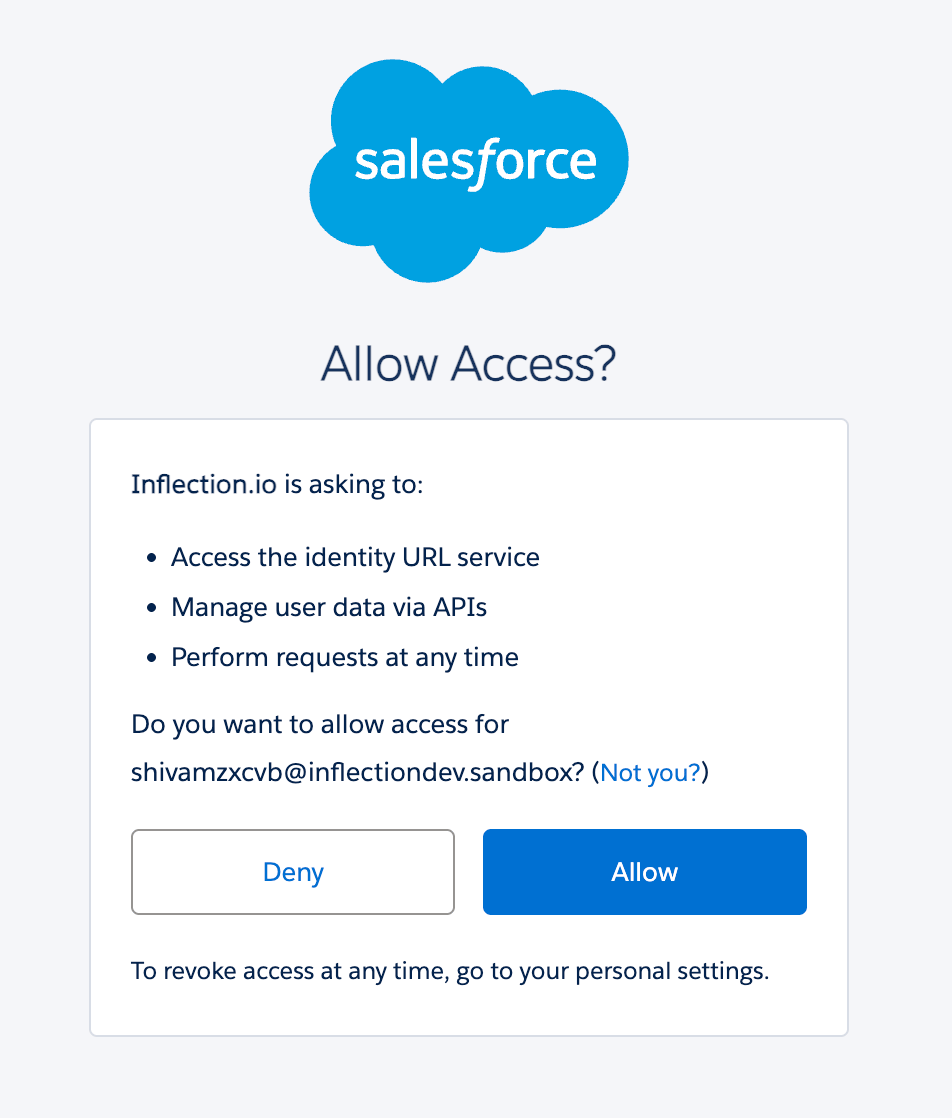
- After authorization, proceed to install the app.
Install the Inflection connected app in Salesforce
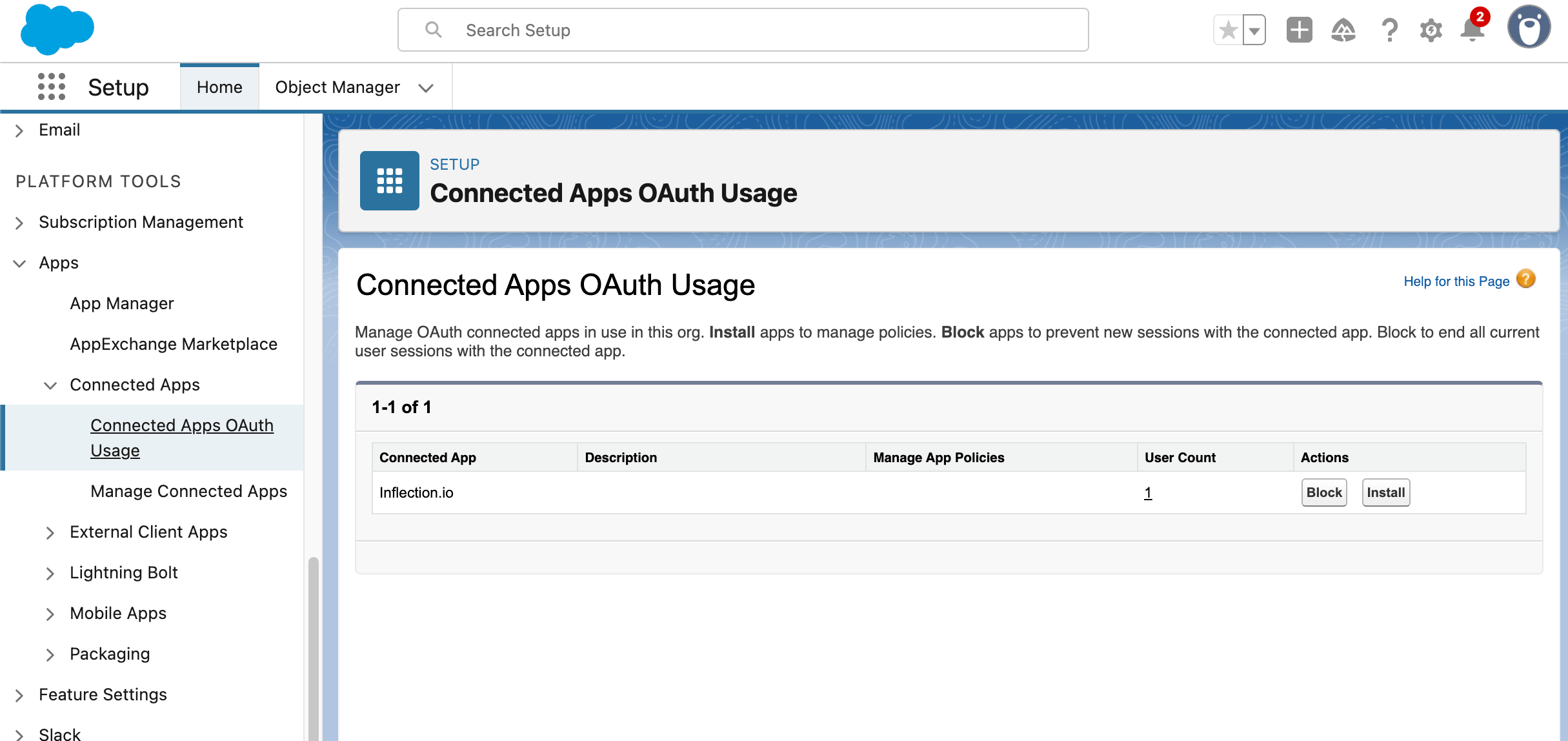
- In Salesforce, go to Setup.
- Under Platform Tools, navigate to Apps → Connected Apps → Connected Apps OAuth Usage.
- Click Install next to the
Inflection.ioconnected app.
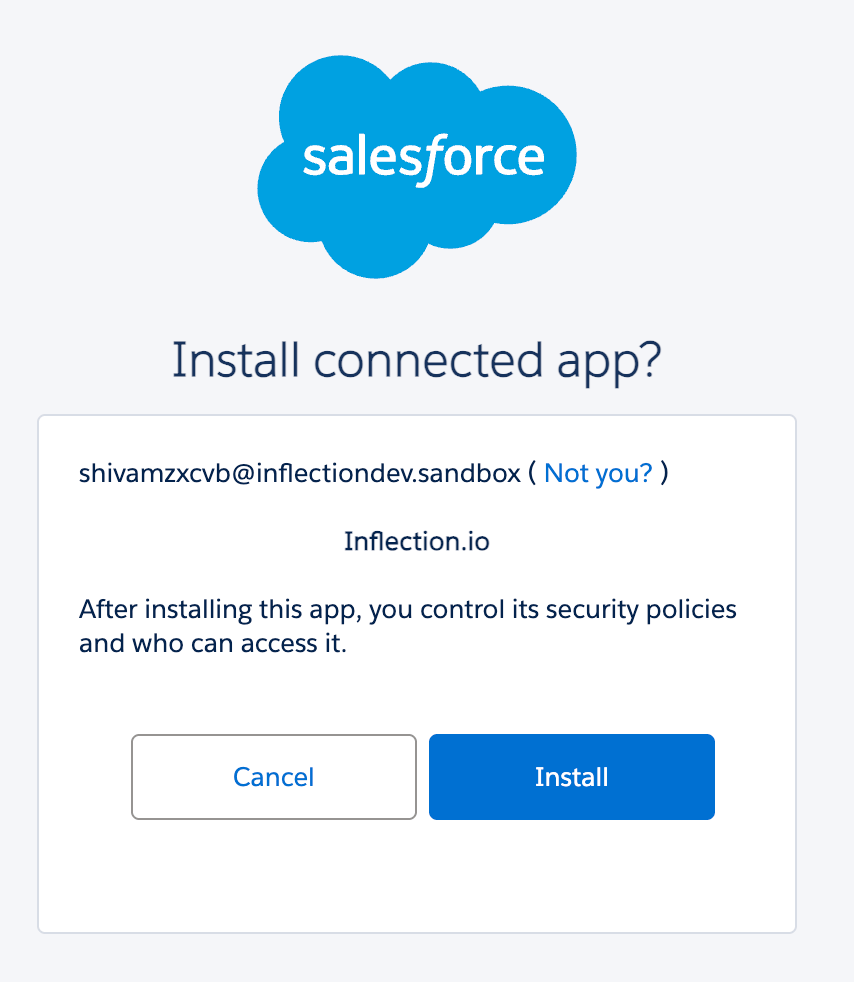
- In the modal, click Install to complete the installation.
Connect Salesforce to Inflection
Pre-requisites: Before setting up a Salesforce connection in Inflection, decide which objects to sync and ensure the following:
- You have administrator access to your Salesforce account
- Your Salesforce edition has API access
- Your user profile meets the minimum requirements
Only one Salesforce connection is allowed per account.
- In Connections, navigate to Data Connections and click Add new connection. Select Salesforce.
- Make sure that you have provided admin credentials to the Inflection sync user and it has API access. Name your connection and click Save.
- You will be re-directed to log in to Salesforce. Log in.
-
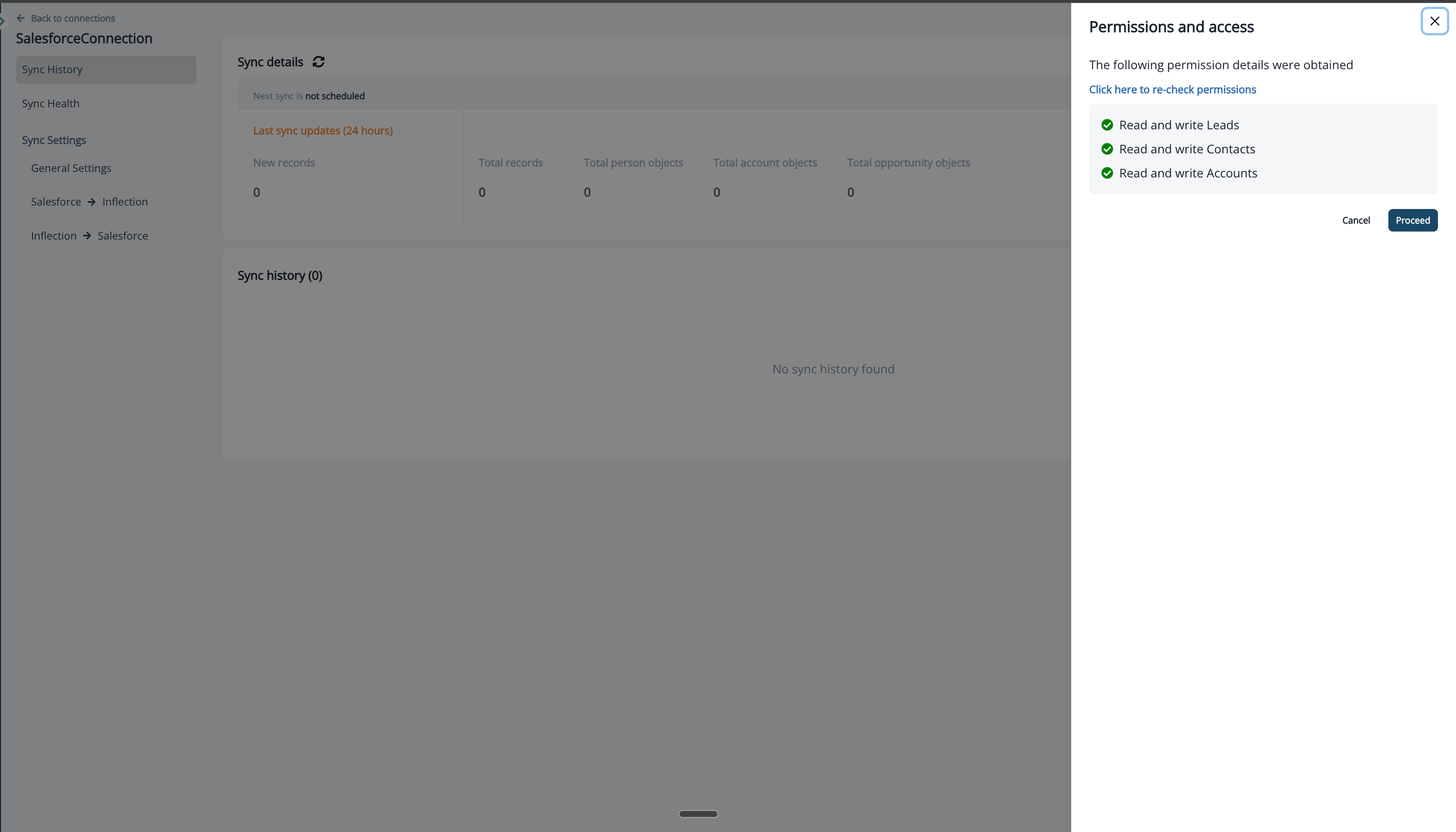
The Permissions and access panel lists the permissions Inflection obtained for each object (for example, Read and write Leads). If you don’t have the necessary permissions for the object you wish to sync, provide the correct access to the Inflection sync user in Salesforce, then click Click here to re-check permissions to validate them. Once the appropriate permissions are provided, click Proceed.
-
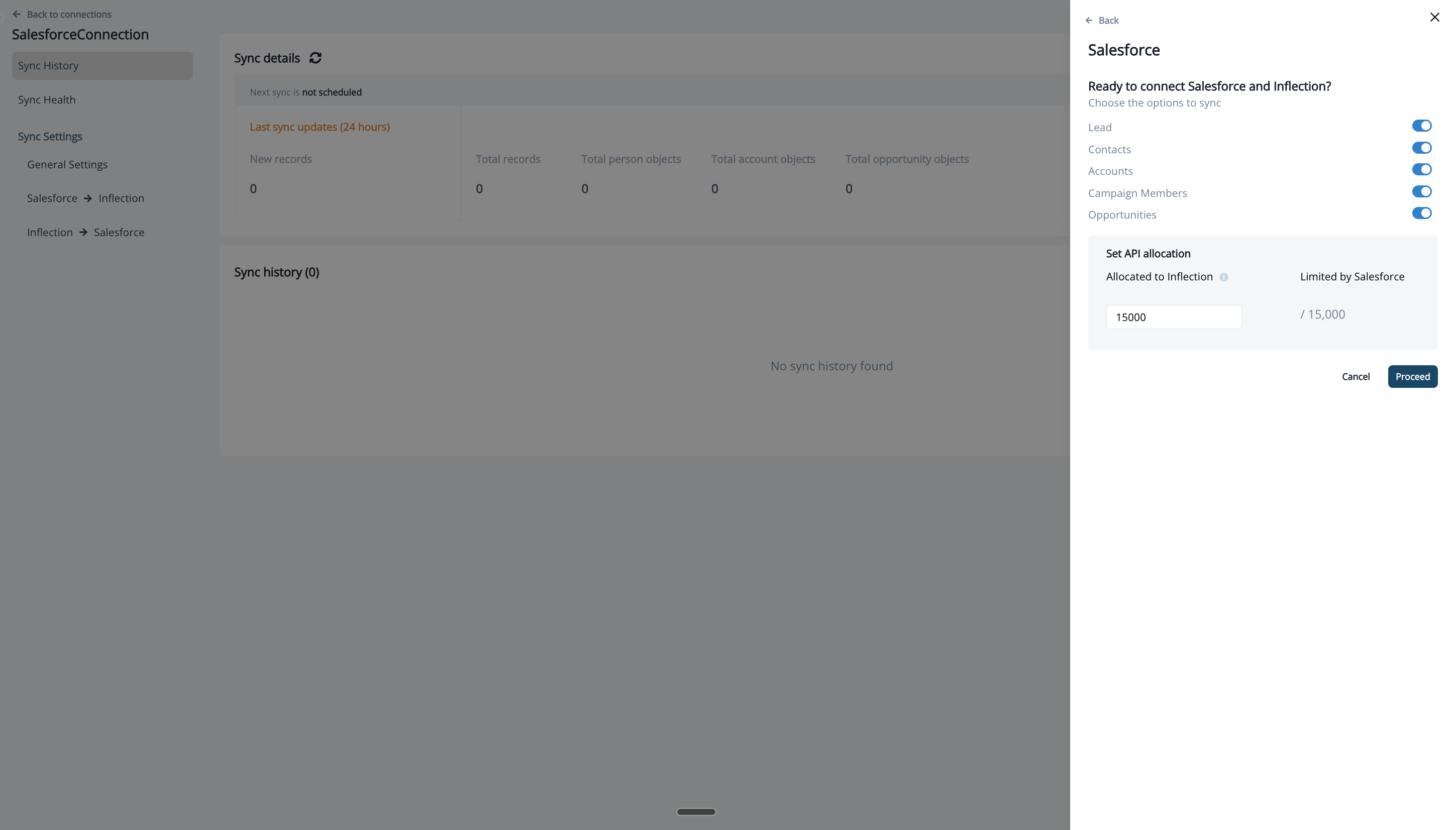
Under Choose the options to sync, turn on the objects to sync: Lead, Contacts, Accounts, Campaign Members, and Opportunities. Under Set API allocation, enter how many Salesforce API calls to allocate to Inflection (Allocated to Inflection), up to the limit shown under Limited by Salesforce. Click Proceed.
-
The Summary shows the Connection Name, APIs Allocated to Inflection, Approximate Sync Interval, and Objects Synced.
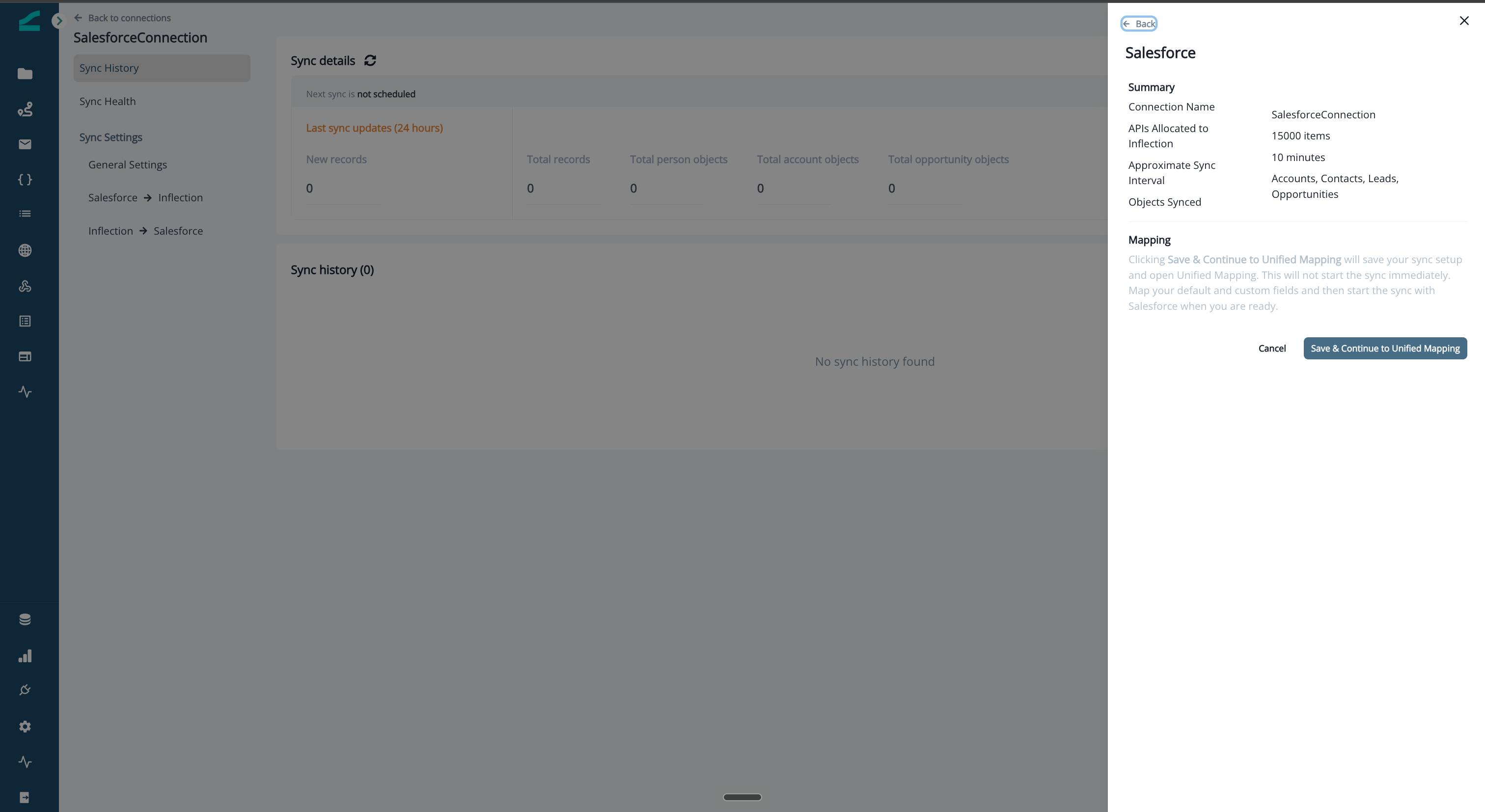
- Under Mapping, click Save & Continue to Unified Mapping. This saves your sync setup and opens Unified Mapping without starting the sync.
-
Map your default and custom fields, then start the sync with Salesforce when you are ready.
We recommend mapping all default fields, and any fields that are mandatory in Salesforce for lead or contact creation. To find out which fields are mandatory for each object in your Salesforce instance, contact your Salesforce system administrator.
General Settings
After the connection is set up, open it from Connections and go to Sync Settings → General Settings. Click Edit to change a setting and Save to apply it.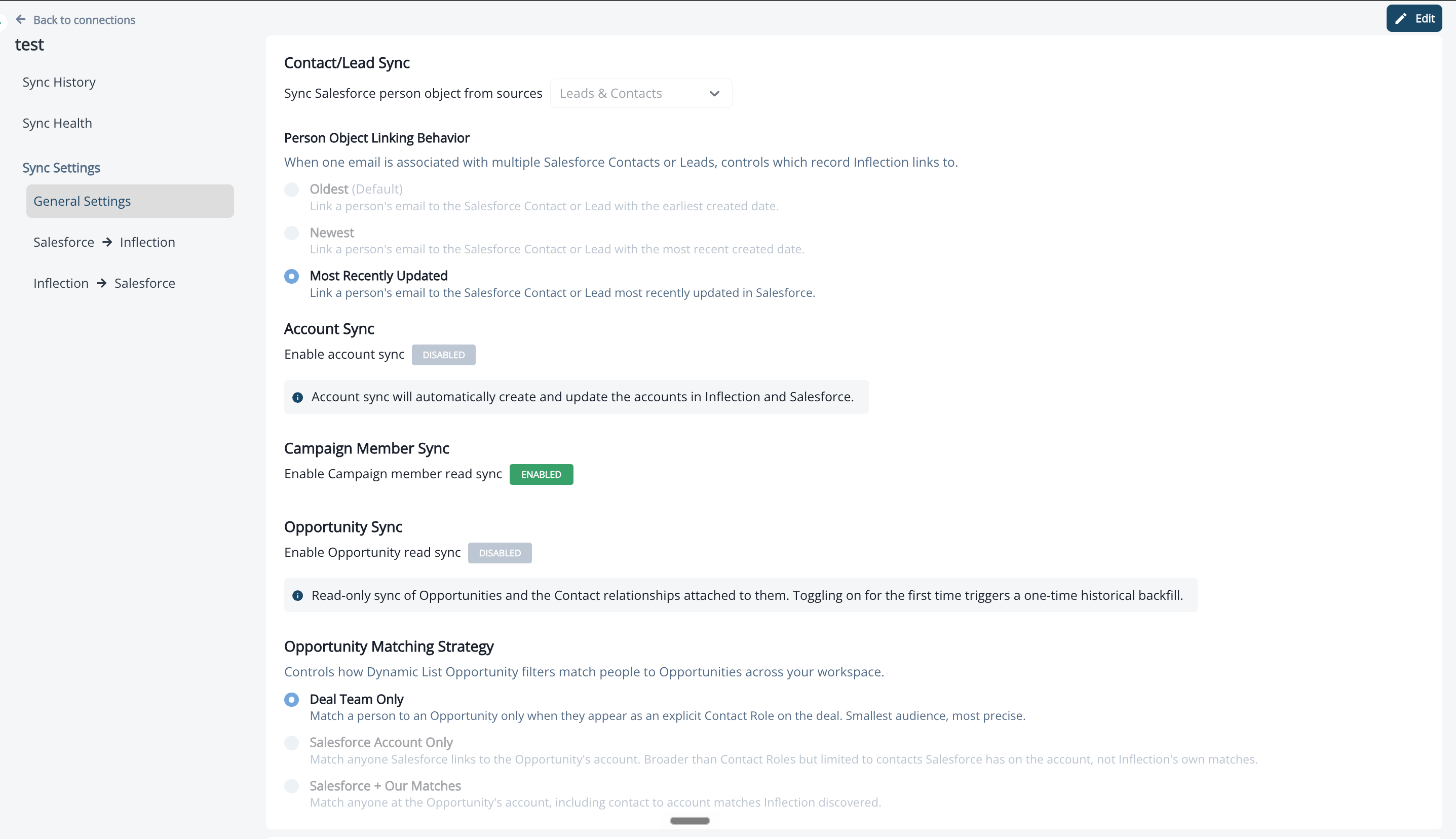
Contact/Lead Sync
Use Sync Salesforce person object from sources to choose which Salesforce person objects sync to Inflection: Leads, Contacts, or Leads & Contacts.Person Object Linking Behavior
Inflection treats each email address as one contact. When one email matches more than one Salesforce Lead or Contact, Inflection links the contact to a single record. Field updates, campaign membership, and lead status are written to that record. Use Person Object Linking Behavior to choose which record Inflection links to:- Oldest — Link to the Salesforce Contact or Lead with the earliest created date. This is the default.
- Newest — Link to the Salesforce Contact or Lead with the most recent created date.
- Most Recently Updated — Link to the Salesforce Contact or Lead most recently updated in Salesforce.
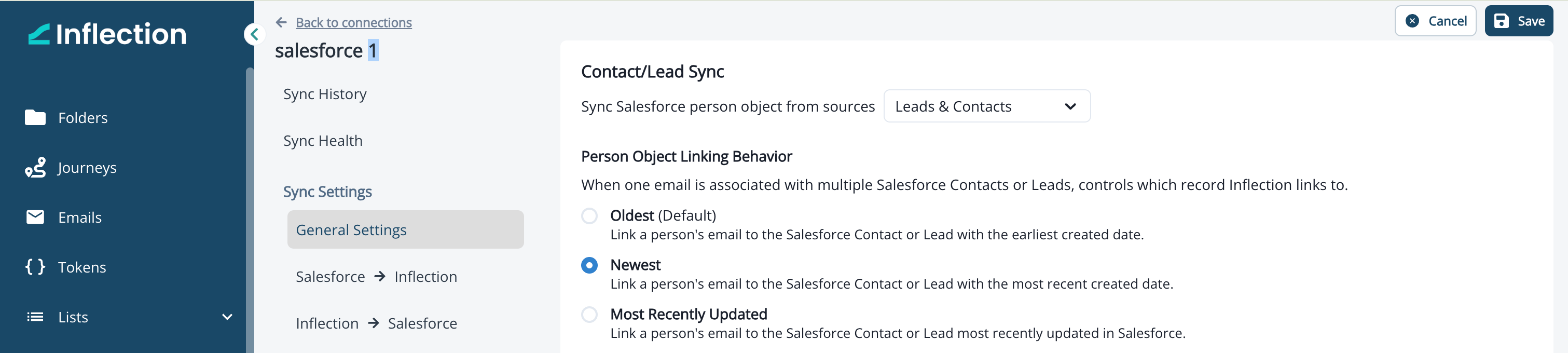
A new setting applies to an email the next time one of its Salesforce records is created or updated. Contacts are not re-linked all at once when you save.
If you link a contact to a specific Salesforce record yourself, from the Salesforce tab on the contact, Inflection keeps that link. The setting never overrides a record you chose manually.
Account Sync
Turn on Enable account sync to sync Salesforce Accounts into Inflection. Account sync is read-only: Inflection reads Accounts from Salesforce and does not write them back. Map Account fields in Unified Mapping.Campaign Member Sync
Turn on Enable Campaign member read sync to sync Salesforce Campaign membership into Inflection. Use Campaign Type Selective Sync, below the Opportunity settings, to choose which campaigns sync. Each Salesforce campaign type is listed with a Sync toggle; only campaigns of the types you turn on sync with Inflection. Use Search campaign type or Add filter to find a type. To add contacts to a Salesforce campaign from Inflection, use the Add to Salesforce Campaign journey flow step.Opportunity Sync
Opportunity sync is a read-only sync of Salesforce Opportunities and the Contact Roles attached to them.Pre-requisites:
- Read access to the Opportunity object on your Salesforce sync user’s profile
- Read access to the Opportunity Contact Role object
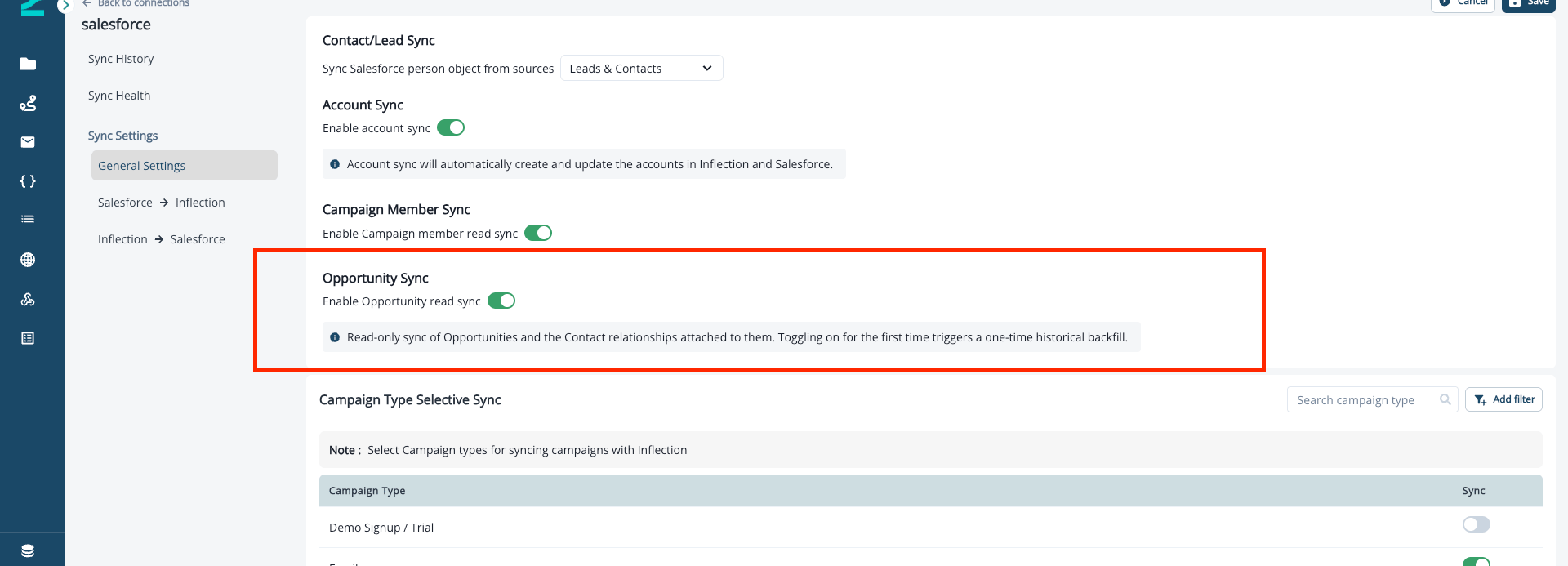
Turning the sync on for the first time triggers a one-time historical backfill of all your existing Opportunity records. Subsequent syncs run on the standard interval and pull only Opportunities updated since the last sync.
Opportunity Matching Strategy
Your Opportunity Matching Strategy controls which contacts a Has Salesforce Opportunity filter returns. It is a single workspace-wide setting that applies to every Dynamic List, journey audience, and segment, so deal-aware audiences behave consistently everywhere.- Deal Team Only: matches a person to an Opportunity only when they appear as an explicit Contact Role on the deal. Smallest, most precise audience; depends on your Salesforce Contact Role data quality.
- Salesforce Account Only: matches anyone Salesforce links to the Opportunity’s account. Broader than Contact Roles but limited to contacts Salesforce has on the account, not Inflection’s own matches.
- Salesforce + Our Matches: matches anyone at the Opportunity’s account, including the contact-to-account matches Inflection discovers automatically. Broadest reach across the account.
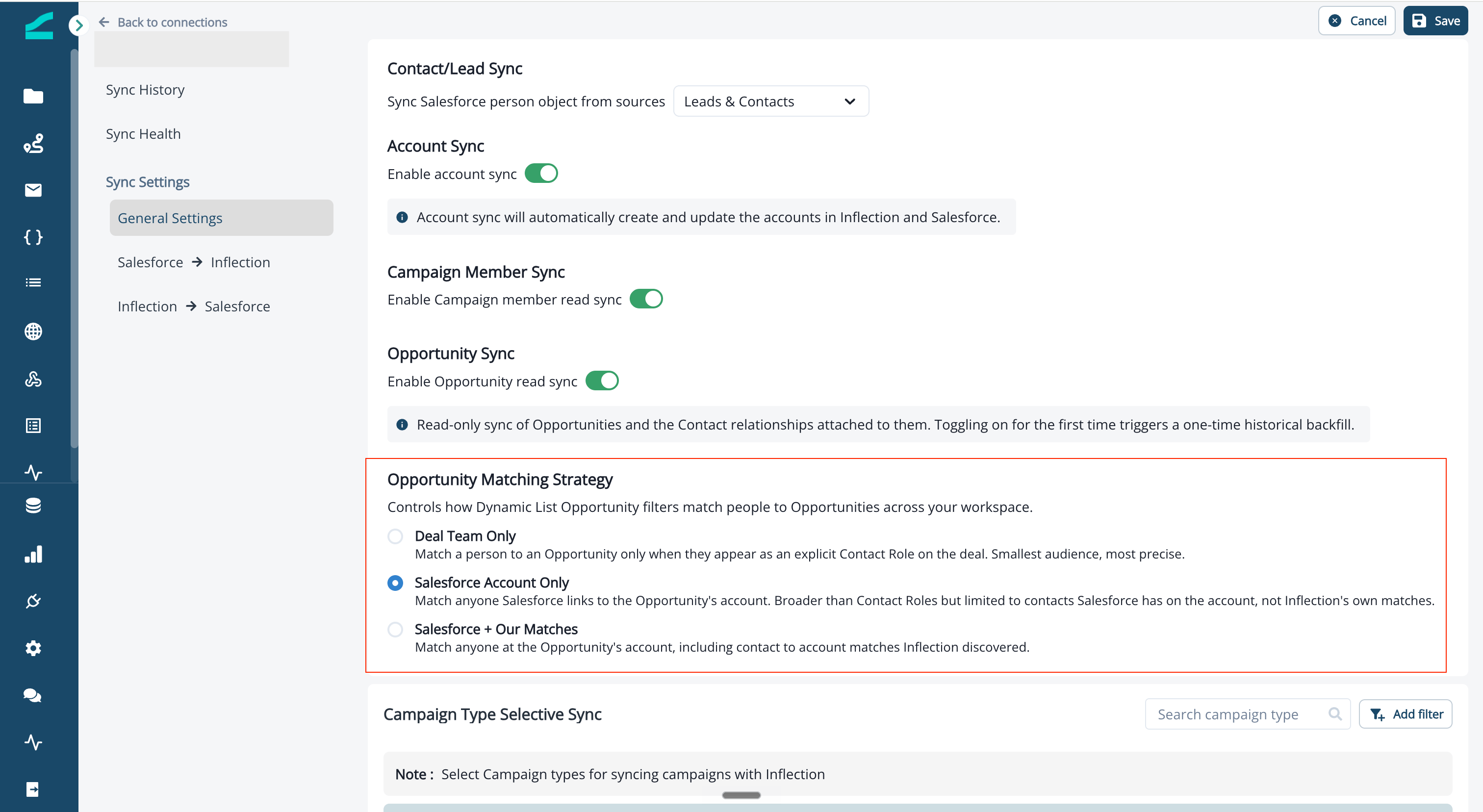
Workspaces that already use Opportunity sync stay on Deal Team Only, the original behavior, so your existing audiences do not change. Switch to a broader strategy whenever you are ready; the change applies on the next list evaluation, with no need to rebuild your lists.
Salesforce → Inflection Settings
Go to Sync Settings → Salesforce → Inflection to control which Salesforce records sync into Inflection and what happens when they change.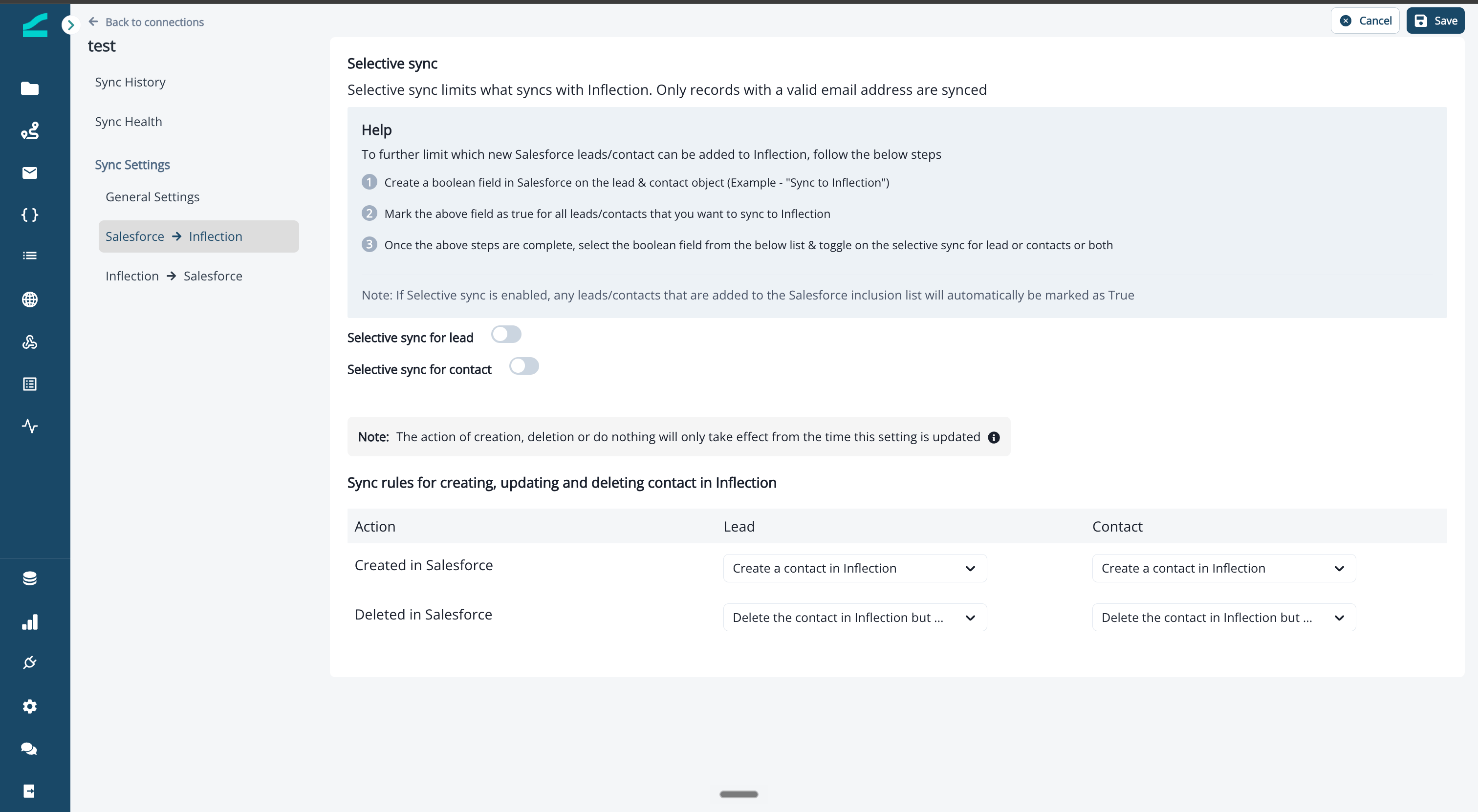
- Where an Inflection contact already exists, the Inflection contact links to the Salesforce lead or contact record.
- Where an Inflection contact does not already exist, an Inflection contact is created and linked to the Salesforce lead or contact record.
Selective Sync
Limit which new Salesforce leads and contacts are created in Inflection:- In Salesforce, create a Boolean field on the lead and contact objects, for example Sync to Inflection.
- Set the field to
truefor every lead or contact you want to create in Inflection. - In Inflection, turn on Selective sync for lead and/or Selective sync for contact, and select the Boolean field. Salesforce leads or contacts are then created in Inflection only when the field is
true.
Even when Sync to Inflection is
false, if the record already exists in Inflection, the Salesforce record is linked to the existing Inflection record. Field updates for both records follow the mapping rules configured in Inflection.If Selective sync is enabled, any leads or contacts added to the Salesforce inclusion list are automatically marked
true.Sync Rules
Under Sync rules for creating, updating and deleting contact in Inflection, choose what happens in Inflection when a Salesforce lead or contact is created or deleted. Set each rule separately for Leads and Contacts.The action of creation, deletion, or do nothing only takes effect from the time the setting is updated. For example, if the deletion setting is Do nothing on day 1 and is changed to delete on day 2, Inflection only deletes contacts whose Salesforce leads or contacts are deleted after the change on day 2.
Converted leads: When a lead has been converted to a contact in Salesforce and that contact is later deleted, Inflection deletes the contact and does not recreate the person as a lead. This applies regardless of the Lead deletion preference.
Inflection → Salesforce Settings
Go to Sync Settings → Inflection → Salesforce to control which Inflection contacts are created in Salesforce and what happens when they change.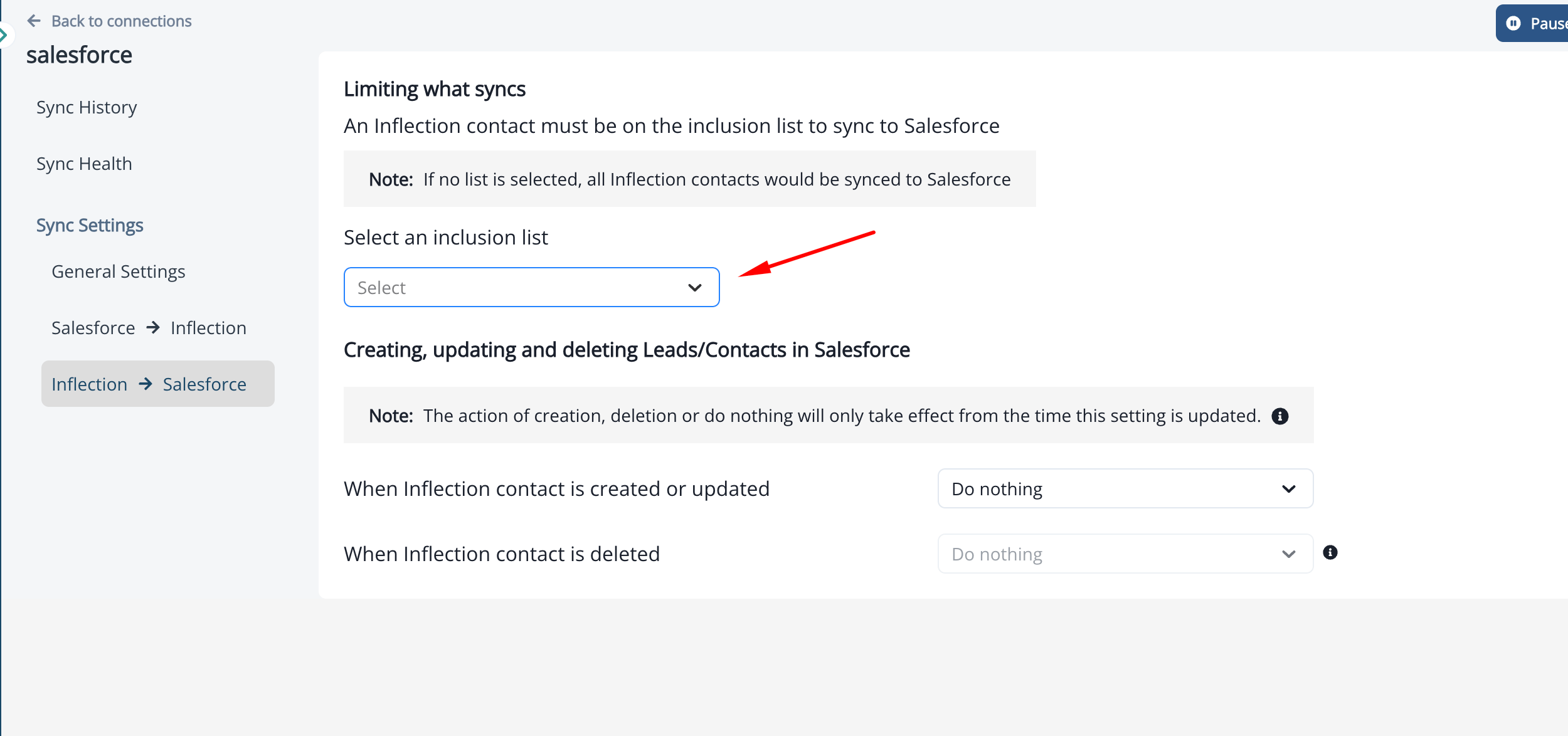
Inclusion List
An Inflection contact must be on the inclusion list to sync to Salesforce. Under Select an inclusion list, choose one of:- Dynamic list asset
- Static list
- Journey Audience
If no list is selected, all Inflection contacts are synced to Salesforce.
Creating, Updating, and Deleting Leads/Contacts in Salesforce
- When Inflection contact is created or updated: choose whether Inflection creates a contact in Salesforce (Create a contact in Salesforce) or does nothing.
- When Inflection contact is deleted: defaults to Do nothing.
Salesforce Opportunities
With Opportunity Sync on, synced Opportunities are available across Inflection.Map Opportunity Fields
Opportunity fields are mapped in Unified Mapping. Click Unified Mapping, and open the Opportunity Mapping tab to map the standard and any custom Opportunity fields.Opportunity ID, Is Deleted, Salesforce Created Time, and Salesforce Modified Time are handled automatically. Opportunity ID is the identifier for the record, and the other three are connection-managed fields fetched from Salesforce. None of them can be mapped.
Browse Synced Opportunities
After sync completes, view all synced Opportunities in the listing page. To open the listing page:- In the left navigation, click the Database icon
- Select Salesforce Opportunities
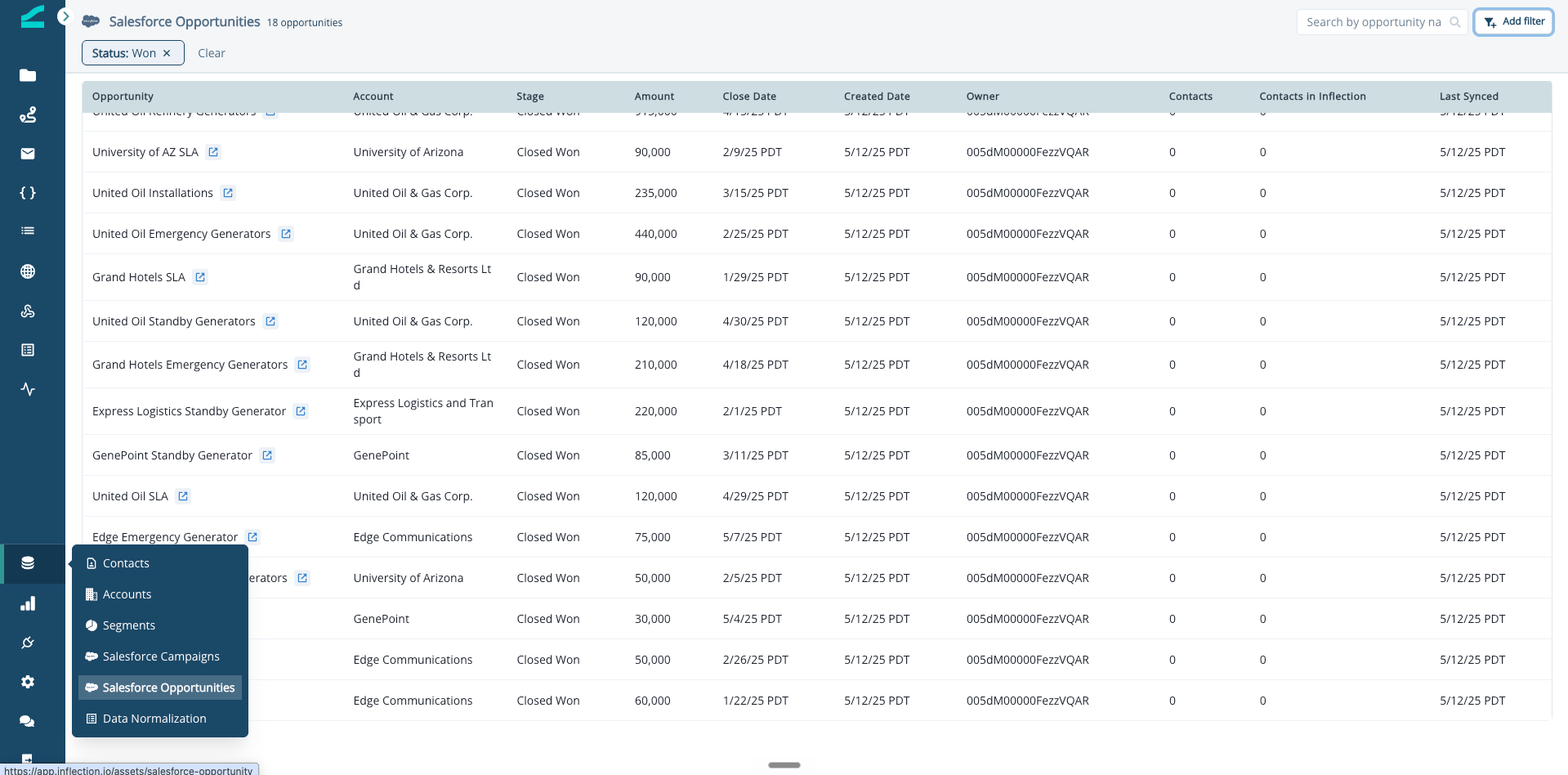
- Opportunity — Opportunity name with a link to open the record in Salesforce
- Account — The associated Salesforce Account
- Stage — Current Opportunity stage (e.g., Prospecting, Closed Won)
- Amount — Opportunity amount
- Close Date — Expected or actual close date
- Created Date — When the Opportunity was created in Salesforce
- Owner — Salesforce Owner of the Opportunity
- Contacts — Total Contact Roles on the Opportunity in Salesforce
- Contacts in Inflection — How many of those Contact Roles are matched to contacts in your Inflection database
- Last Synced — When Inflection last refreshed this record from Salesforce
View Opportunities on a Contact
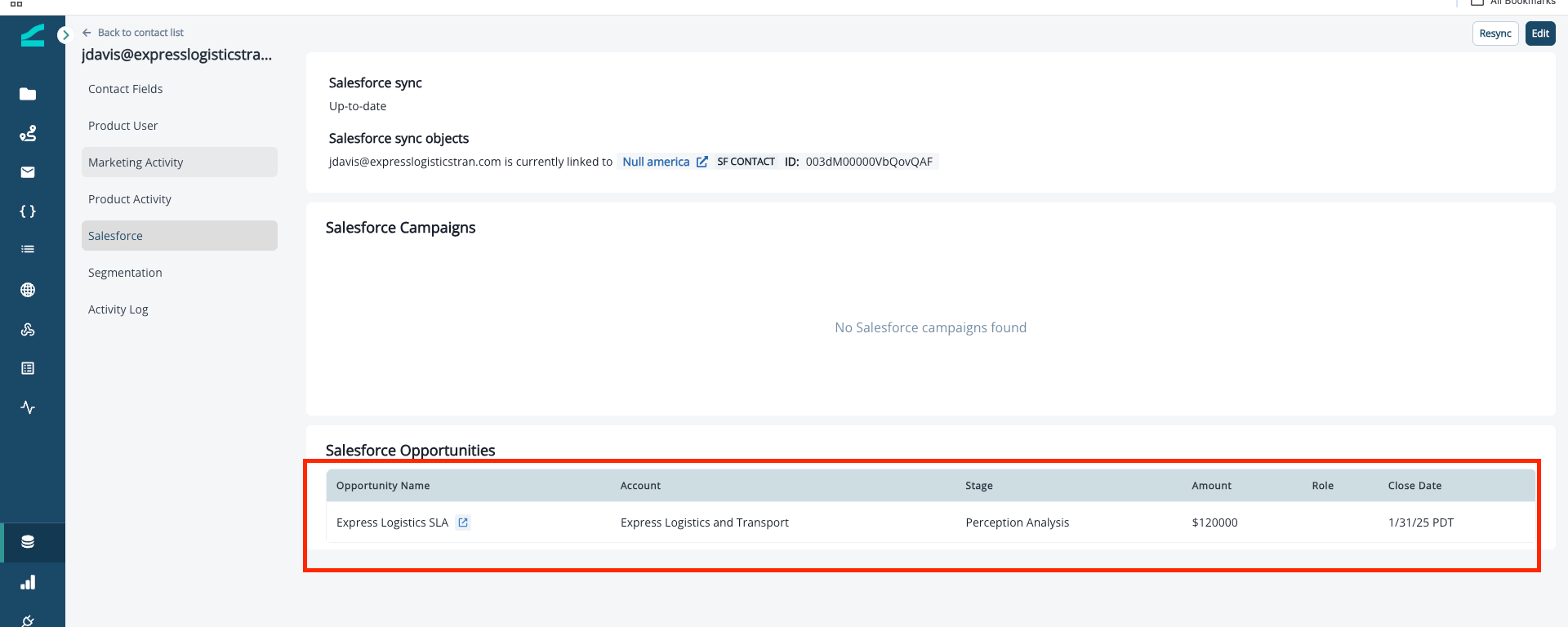
Each contact’s profile shows the Opportunities they’re associated with, alongside their Salesforce Campaign membership and sync status. To view Opportunities on a contact:- Open any contact record
- Click the Salesforce tab in the contact navigation
- Scroll to the Salesforce Opportunities section
- Opportunity Name, Account, Stage, Amount, Close Date
Filter Audiences by Opportunity
Use the Has Salesforce Opportunity filter in any Dynamic List, journey audience, or segment to target contacts based on deal data: Stage, Amount, Close Date, Owner, custom Opportunity fields, and more. Which contacts match depends on your Opportunity Matching Strategy.For full setup of the filter and best practices on chaining conditions, see Building Audiences.
Monitor Your Sync
Sync History
The Sync History tab lists each sync run. Runs with errors show a red underlined error count, e.g. “3 errors”. Click the count to open those errors in Sync Health.Sync Health
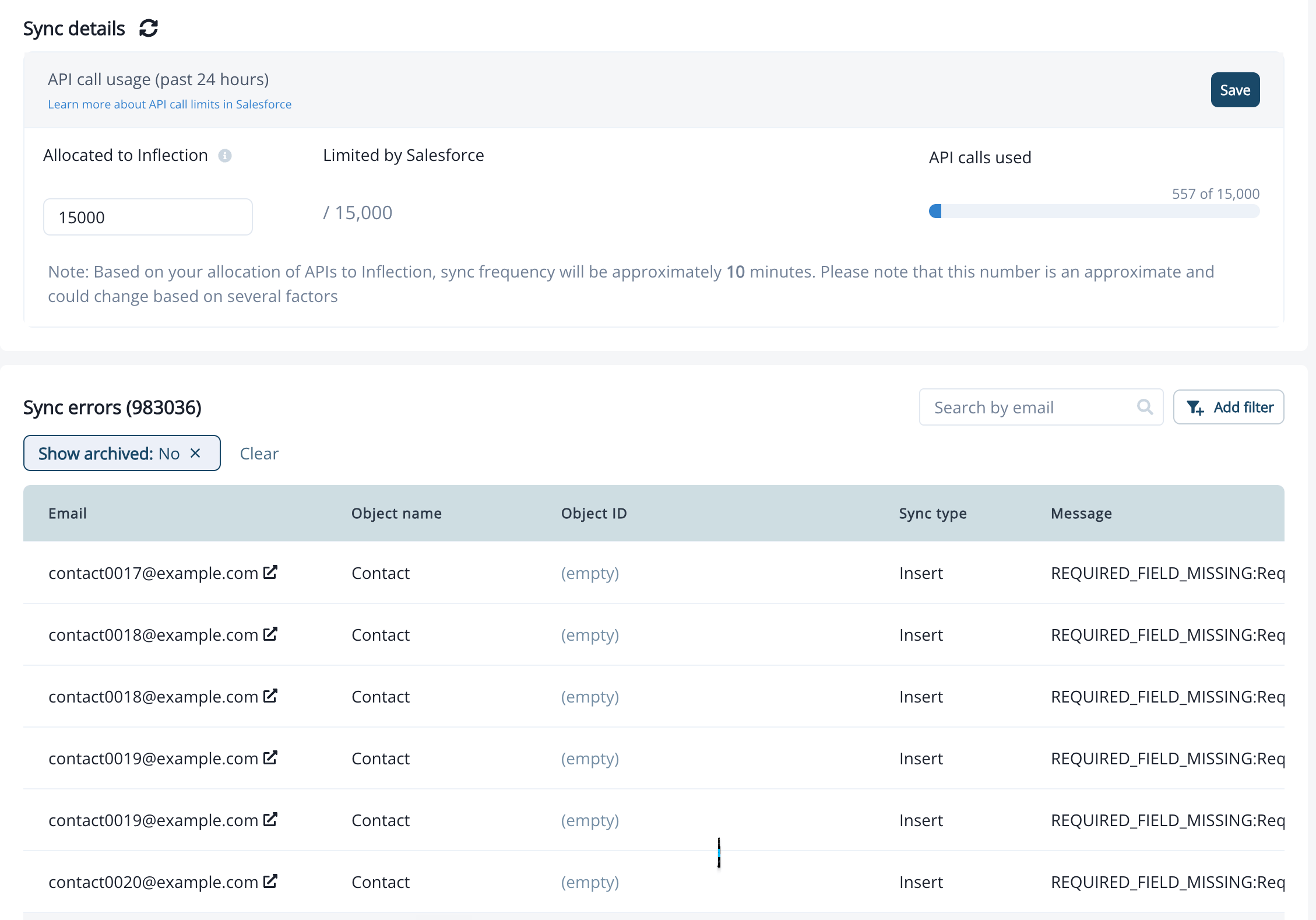
The Sync Health tab lets you monitor API usage and investigate sync errors between Inflection and Salesforce. To access Sync Health, go to Connections > Salesforce and click the Sync Health tab in the sidebar. The page displays:- An API Limit summary at the top showing your current Salesforce API usage.
- A Sync Errors table below it with a count header (e.g. “Sync errors (42)”).
Sync Errors Table
The Sync Errors table shows individual errors from Salesforce sync runs. Each row includes:Cells with no data display ”—” instead of blank values.
Filter Sync Errors
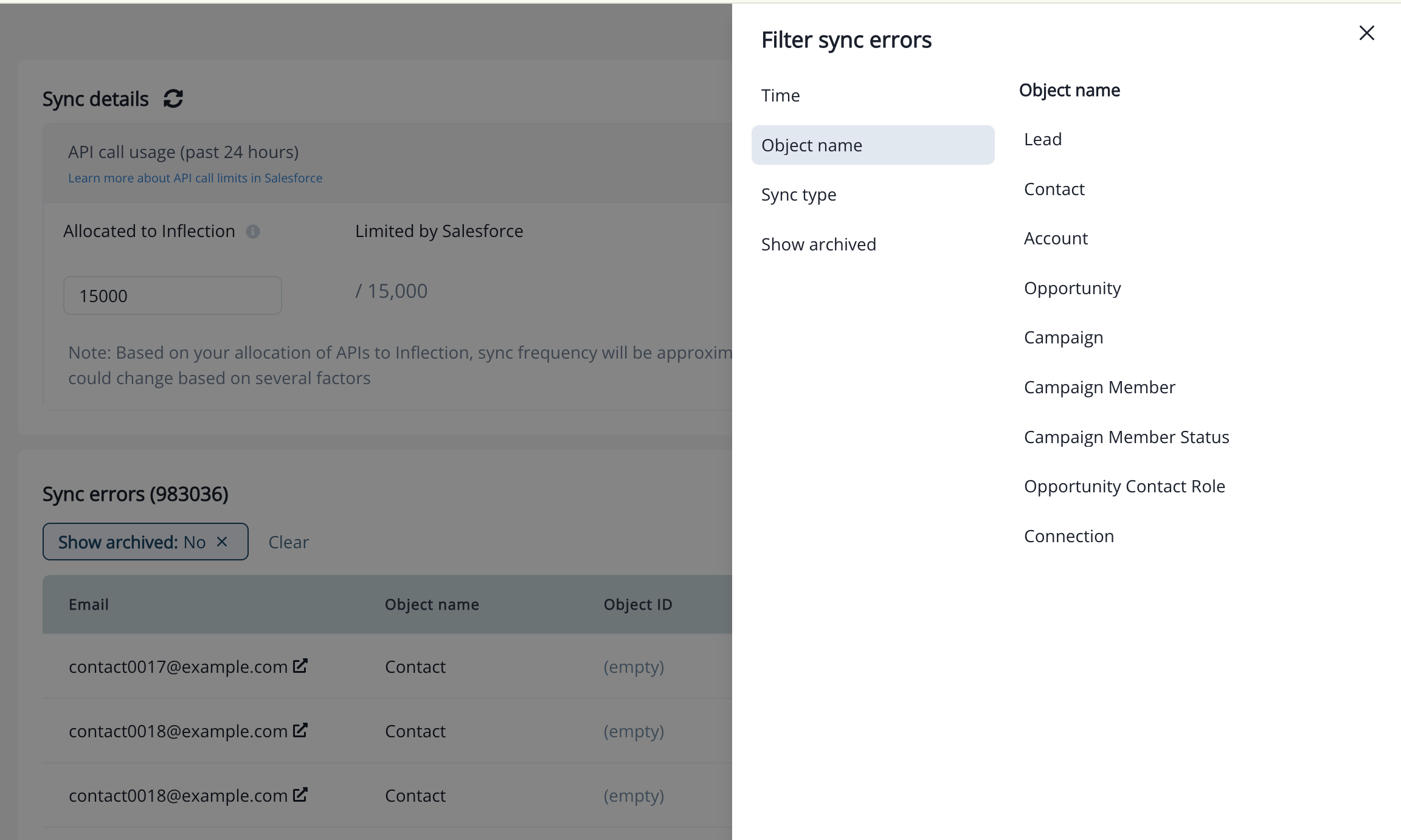
Click the filter icon next to the search field to open the filter panel. The following filters are available:
Applied filters appear as chips above the table. Click the X on a chip to remove that filter.
Search by Email
Use the Search by email field above the table to find errors for a specific contact. Type an email address and the table filters after a short delay. The search field accepts up to 200 characters.Navigate From Sync History
You can jump directly from a sync run to its errors:- Go to the Sync History tab.
- Find a sync run that has errors (shown as a red underlined count, e.g. “3 errors”).
- Click the error count. The view switches to the Sync Health tab with the Sync Errors table filtered to that sync run. A filter chip “Sync run: [runId]” appears above the table.
- To clear the filter and see all errors, click the X on the sync run filter chip.
Export Sync Errors
Download sync errors as a CSV file to review them offline or share them with your Salesforce admin.- Go to Connections > Salesforce and click the Sync Health tab.
- Optionally, search by email or add filters to narrow down the errors you need.
- Click Export CSV.
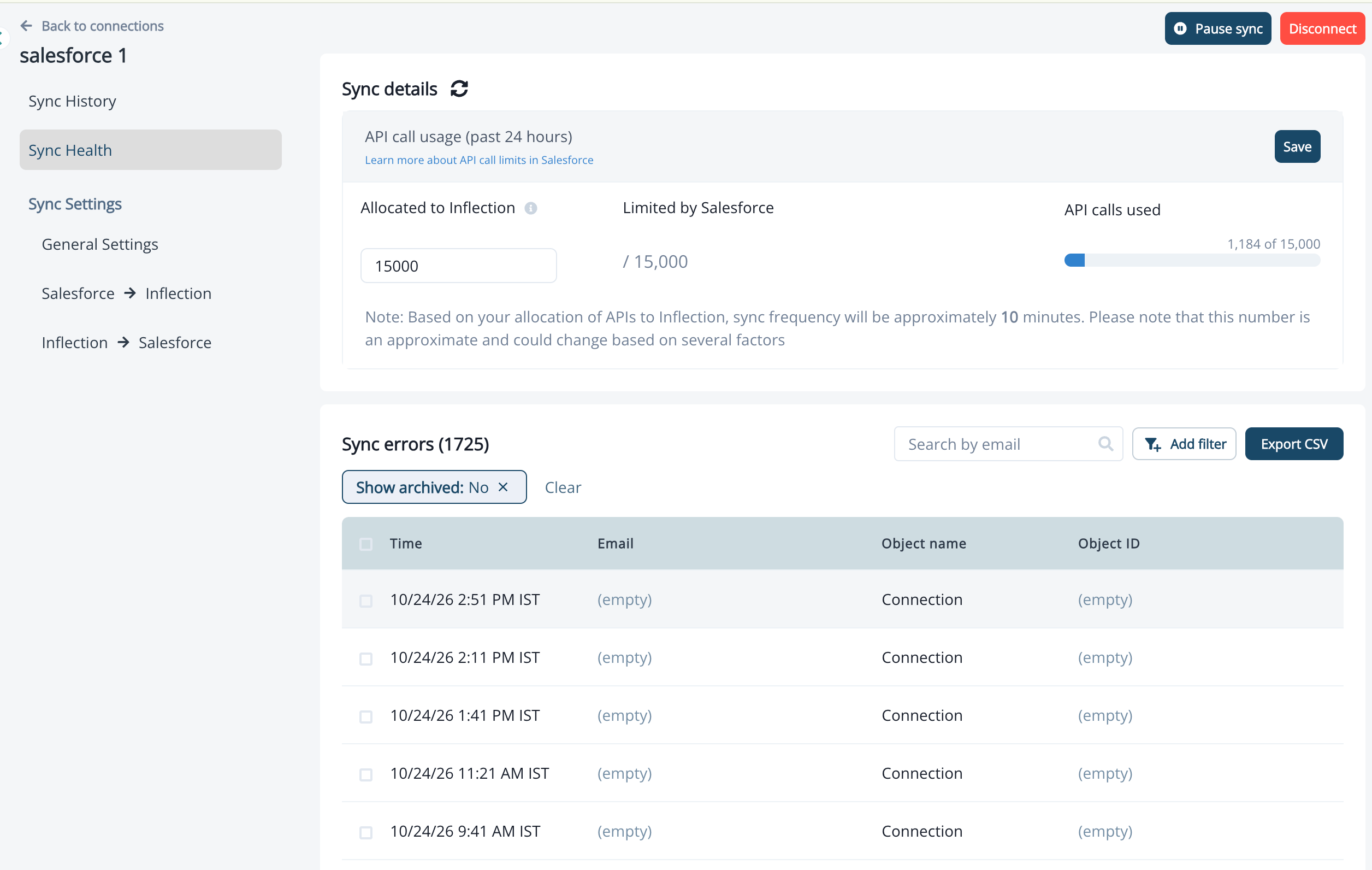
Exports are limited to the last 6 months (180 days) of sync errors.
CRM Links and Contact Navigation
- Email column: Click any email address to navigate to that contact’s detail page in Inflection.
- Object ID column: For object types that have a CRM record page — Contact, Lead, Account, and Opportunity — the Object ID is a clickable link that opens the Salesforce record in a new browser tab. For other object types (e.g. Connection, Campaign Member Status), the Object ID displays as plain text.
Disconnect Salesforce
Click Disconnect in your Salesforce connection to remove it.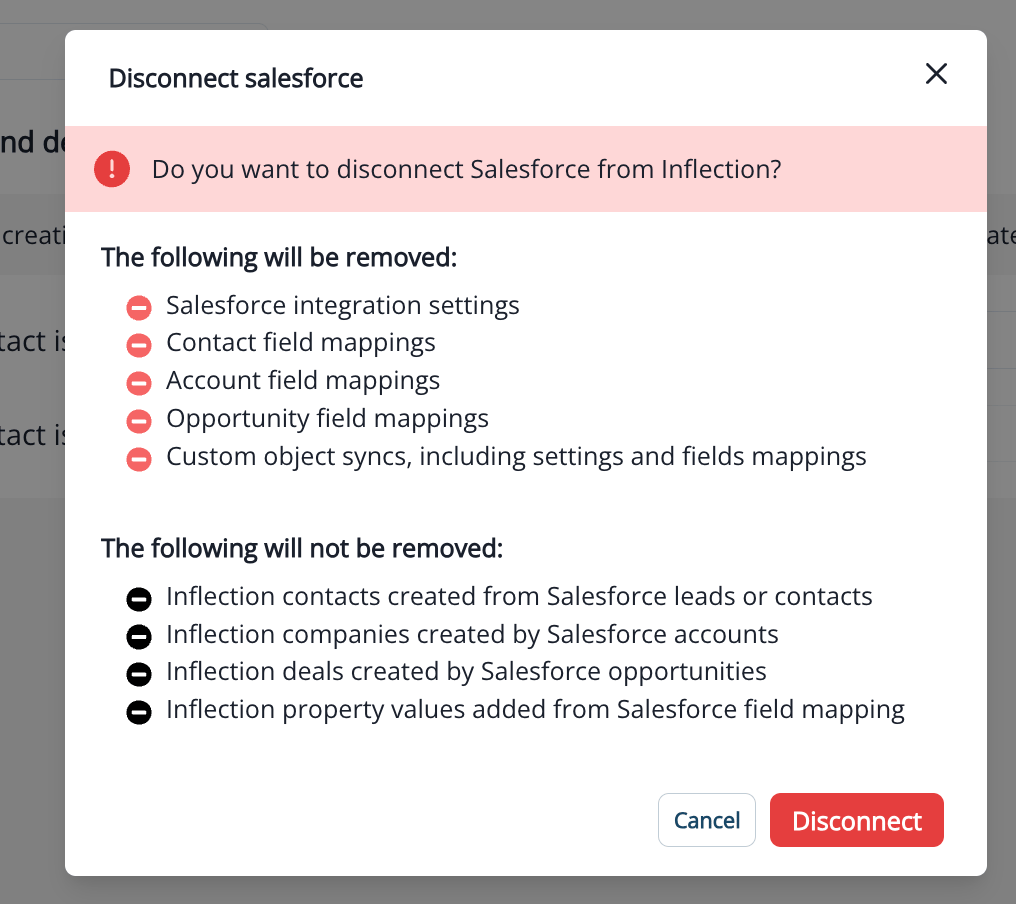
- Salesforce integration settings
- Contact, Account, and Opportunity field mappings
- Custom object syncs, including their settings and field mappings
Frequently Asked Questions
How does Inflection handle duplicate Salesforce records?
How does Inflection handle duplicate Salesforce records?
Inflection sees person records as unique by email address. It will not allow duplicates (with rare exception). If more than one record exists in Salesforce with the same email address (two leads, two contacts, or a lead and a contact), Inflection links the contact to one of them. By default, that’s the oldest record. To link to the newest or the most recently updated record instead, change the Person Object Linking Behavior setting in your Salesforce connection’s General Settings.
I changed Person Object Linking Behavior. Why is my contact still linked to the same Salesforce record?
I changed Person Object Linking Behavior. Why is my contact still linked to the same Salesforce record?
The setting applies to an email the next time one of its Salesforce Leads or Contacts is created or updated. Until then, the contact keeps its current link. If you linked the contact to a record yourself from the contact’s Salesforce tab, it stays linked to that record whatever the setting is.
What happens when a lead is converted to a contact?
What happens when a lead is converted to a contact?
Inflection follows the record. The Inflection contact that was synced to a lead continues to sync with the contact it was converted to.If the converted contact is later deleted in Salesforce, and your Contact deletion preference is set to delete, Inflection deletes the contact. The person is not recreated as a lead from the original lead record.
How frequently does Inflection sync with Salesforce?
How frequently does Inflection sync with Salesforce?
Inflection users set this frequency — the most frequent option is every 1 minute. What this means: 1 minute after every complete sync, Inflection/Salesforce sync records that were modified since the previous sync. Note that this frequency refers to the frequency between the syncs; the syncs themselves can take longer than 1 minute.
Can I sync custom Opportunity fields?
Can I sync custom Opportunity fields?
Yes. Map custom Opportunity fields on the Opportunity Mapping tab in Unified Mapping, the same way you map Account or Contact custom fields.
How are Opportunities linked to my Inflection contacts?
How are Opportunities linked to my Inflection contacts?
Inflection links Opportunities to contacts using your workspace’s Opportunity Matching Strategy, set in your Salesforce connection’s Opportunity Sync settings. Choose Deal Team Only to match only contacts with an explicit Contact Role, Salesforce Account Only to match contacts linked to the account in Salesforce, or Salesforce + Our Matches to also include the contacts Inflection matches to the account automatically. Workspaces that already had Opportunity sync stay on Deal Team Only until you change it.
Can I write back to Salesforce Opportunities or trigger journeys on stage changes?
Can I write back to Salesforce Opportunities or trigger journeys on stage changes?
Opportunity sync is read-only, and Opportunity-based journey triggers and conversion events are planned for a future release. For now, use scheduled journeys with Dynamic List audiences that filter on Opportunity Stage.
Will my Dynamic List audiences change when matching strategy is released?
Will my Dynamic List audiences change when matching strategy is released?
No. Workspaces that already use Opportunity sync stay on Deal Team Only, the same behavior as before, so your existing audience counts will not change. To reach more contacts at an account — for example, to suppress an entire account during an active deal — switch your Opportunity Matching Strategy in the Salesforce connection’s Opportunity Sync settings.