

Connection States
Pausing only stops new syncs. It never removes data that has already been synced.
Open a Connection
Click Connections in the left navigation, then Data Connections. The list shows every connection with its state. The Active only toggle is off by default so drafts and paused connections stay visible. Turn it on to see only active connections. Click a connection to open it. The connection page has three tabs: Sync, Connection Details, and Change Log.- Sync shows the next scheduled sync, the duration of the last completed sync, the number of records synced, the tables updated, and a sync history table with one row per run: timestamp, target table, rows inserted or updated, and error count. Filter the history by date range or to hide empty syncs.
- Connection Details shows the credentials and database details. Secrets are stored securely and never displayed. For Snowflake connections this tab also holds the Storage Setup SQL and, for exports, the Table Creation SQL.
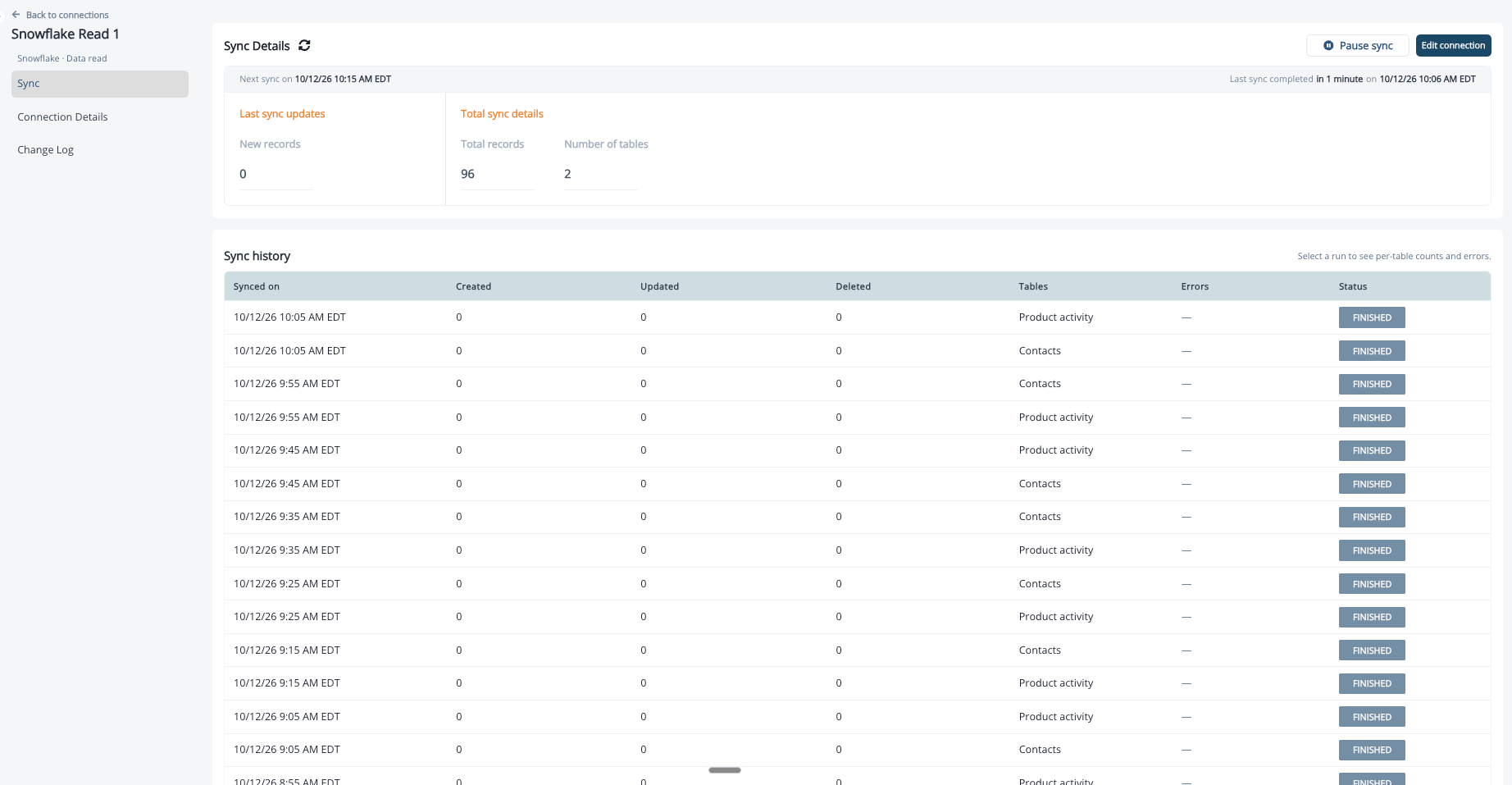
Pause and Resume
Click Pause Sync in the top right of the connection page to stop new syncs. Click it again to resume. Data already synced is untouched either way. A connection can also pause on its own. The common causes:- A source agreement was broken. On an import connection that reads a table as it is, a mapped column was renamed or dropped, or the ID or modified date stopped meeting its rule. The error names the column. Fix the source, or update the mapping, then resume.
- Credentials expired or were rotated. Update them under Connection Details, then resume.
- Repeated sync failures. Check the sync history for the error, then resume once the cause is fixed.
Change Credentials and Settings
- Open the connection and click Connection Details.
- Click Edit Details. The sync pauses while you edit.
- Update the fields and save. For an import connection you can re-enter secrets without redoing setup, then test the connection again.
Change the Sync Schedule
Import connections are self-serve. Open the connection, edit the schedule, and choose a Frequency: Every 10 minutes, Every 30 minutes, Hourly, Every 4 hours, Every 12 hours, or Daily. For Every 12 hours and Daily you also set a Time of day and time zone. Shorter frequencies run on a cycle from activation. Each object can follow the connection schedule or override it. Pick a frequency that matches how often your source tables actually update. A table refreshed nightly gains nothing from a 10-minute sync. Suppression or trigger logic that depends on recent activity may justify a shorter interval. Export connections are scheduled at activation. To change the interval, contact your Inflection team with the interval you want and why. Intervals between 24 and 72 hours keep export volumes manageable on Redshift and Snowflake.Delete a Connection
Delete a connection from the connection page. A draft can be deleted at any time. An active connection can be deleted only when none of its columns are still mapped to a field in Unified Mapping. If any are, the delete is blocked and the mapped fields are listed. Remove this connection as a source from those fields in Unified Mapping, then delete. To stop syncing a single object without deleting the connection, remove that object instead. See Remove an Object from a Connection.Remove an Object from a Connection
You can remove one object, such as Accounts or Product activity, and keep the rest of the connection running.- Open the connection and go to Set up your data.
- Select the object in the left rail.
- Click Remove from connection, then click Remove to confirm.
Change Your Source Tables Safely
Inflection expects a stable schema on the tables it reads.- Adding columns is safe. New columns appear as unmapped sources in Unified Mapping and change nothing until you map them.
- Renaming or dropping a mapped column pauses the sync. The error names the column. Before you rename or remove a column that Inflection reads, remove its mapping in Unified Mapping first, or coordinate with your Inflection team.
- Sequence larger changes. If you are adding new columns while retiring old ones, add the new columns first, confirm they sync, and drop the old ones as a separate later step.
- A full resync follows a schema fix. Once the table is repaired, Inflection resyncs it in full. Timing depends on volume and is typically within a day. Avoid structural changes right before a time-sensitive send.
How Inflection Handles Duplicates and Deletes
Contacts are identified by email. Keep one row per email address in your source. If the same email appears on several rows, they should carry the same data. When a table is read as it is, the most recently updated row wins. When Inflection drafted a view for you, the deduplication rule you approved decides. An email wrapped in JSON is treated as invalid, and Inflection may resolve the contact from a different, less complete row. Product activity is append-only. Events are never deleted by the sync, even if the rows disappear from your warehouse. Deleted rows. On Snowflake and Amazon Redshift, Inflection keeps an ID-only snapshot in the write location and compares it with the source on each sync to detect rows that disappeared. On BigQuery and Databricks there is no snapshot, so removing a row from your table does not remove the record from Inflection. Where deletes are not detected, add anis_deleted flag column to your table instead of deleting rows, sync it as an attribute, and use it as an exclusion filter in journeys and audiences.
Switching the key to email. If a sync is keyed on a hashed or generated ID and records are deleted and recreated on every run, which can blank fields set by forms or webhooks, keying the sync on email stops the churn. This requires one stable row per email in the source and a full resync. Talk to your Inflection team before making the change.
Sync Timing
- A change in your warehouse shows in Inflection after the next scheduled sync, not instantly. Before assuming something is broken, compare when the last sync completed with when the source changed.
- Inflection syncs incrementally using the modified date or event timestamp you confirmed during setup. Rows whose timestamp falls outside the window since the last sync are not picked up. Add a column that records the real insert or update time, such as
updated_at, so late-arriving rows are caught. - Organizations and product users must land before their activity. If an activity event arrives before the matching user or organization exists, it has nothing to attach to and looks missing until the user record catches up. Keep the user, organization, and activity tables syncing on aligned intervals, and do not let user data lag behind activity.
- After activation, the schedule takes up to five minutes to register. During that window the page may show Next sync paused and a manual first sync may not start. Wait and try again.
Before a Large Backfill
Troubleshooting
Product activity shows up, but users or organizations are missing.
Product activity shows up, but users or organizations are missing.
The most common cause is a key mismatch between tables. The product user ID on your activity or membership table does not match the ID on your Product users table, or the organization ID does not match your Organizations table. Column swaps in view logic are a frequent culprit.Check it in your warehouse:If the counts are large, fix the join key in your source or view. Also confirm which column actually holds the organization ID on your users table. If many users legitimately have no organization, a blank organization field on those records is expected.
Rows I expect are missing or stale.
Rows I expect are missing or stale.
Check, in order: when the last sync completed relative to the change; whether the row’s modified date or event timestamp was updated when the row changed; whether the timestamp column carries the time zone you declared; and whether the connection is paused. If the row is from a batch job that ran late or crossed midnight, an audit column with the real write time is what lets Inflection catch it.
The sync is stuck in process.
The sync is stuck in process.
First narrow what you sync. A separate contacts table alongside your product users is often unnecessary and can complicate the sync, because Inflection creates contacts from product users automatically. If narrowing the scope does not clear it, contact your Inflection team with the connection name and the time it stalled.
The sync paused by itself.
The sync paused by itself.
Open the connection and read the latest error in the sync history. A broken source agreement names the column. Expired credentials say so. Fix the cause and click Pause Sync again to resume. If there is no visible cause, contact your Inflection team; a pause should always have a trigger you can see.
The sync fails with an invalid identifier error after a warehouse change.
The sync fails with an invalid identifier error after a warehouse change.
A column Inflection reads was renamed or dropped. Either restore the column name in the warehouse, or remove the field’s mapping in Unified Mapping and, if needed, map the new column. The sync resumes with a full resync of that table.
My export sync fails on a missing column such as ENTITY_TYPE or ENTITY_META_INFO.
My export sync fails on a missing column such as ENTITY_TYPE or ENTITY_META_INFO.
The export tables in your warehouse do not match the shape Inflection writes. Compare them with the Table Creation SQL under Connection Details and add the missing columns, or drop and recreate the tables from the script. See Export to Data Warehouse for the expected columns.
How do I read a sync error that names a column?
How do I read a sync error that names a column?
The column named is the one that stopped meeting its source agreement: it was renamed, dropped, or its values no longer satisfy the rule, for example a null ID. Check the column in your source table first, then the view if you built one, then the mapping in Unified Mapping.