

Prerequisites
- Admin or Editor access to Settings. Viewers can see attribution settings but can’t change them.
- Website tracking installed on your domains, if website visits should count.
- A connected Salesforce instance with write access to the target fields, if you want to send attribution to Salesforce. See Salesforce.
- Attribution Touchpoints turned on for your workspace. If you don’t see Attribution Touchpoints in Settings, contact your Inflection account team.
How Attribution Works
Every contact records three touches:
A touchpoint is any event that counts toward attribution, such as a form submission or a website visit with UTM parameters. You choose which activity counts in the Where touchpoints come from section of the settings page.
Set Up Attribution
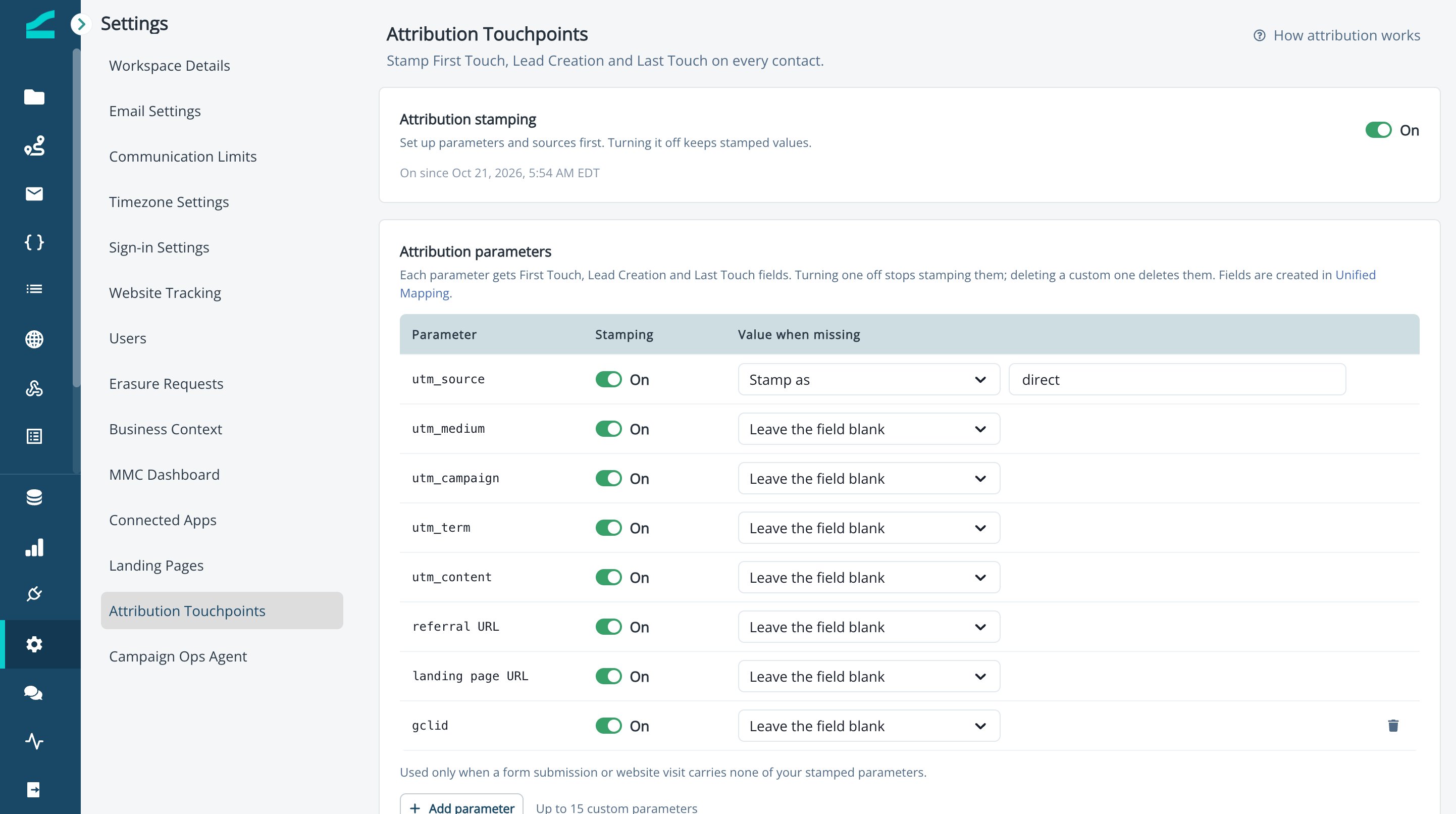
Set up parameters and sources first, then turn on stamping. When stamping turns on, Inflection backfills existing contacts from past visits and submissions, and First Touch is set only once. Configuring first avoids stamping values you’ll want to change later.Configure Parameters
Parameters are the values Inflection captures from each touch. Each parameter you turn on gets a First Touch, Lead Creation, and Last Touch field on the contact.- Navigate to Settings > Attribution Touchpoints.
- In the Attribution parameters card, use the Stamping switch to turn each parameter on or off.
- Under Value when missing, select one option for each parameter:
- Leave the field blank: keeps the field empty when a touch carries no value.
- Stamp as: enter a fallback value, for example
directforutm_source.
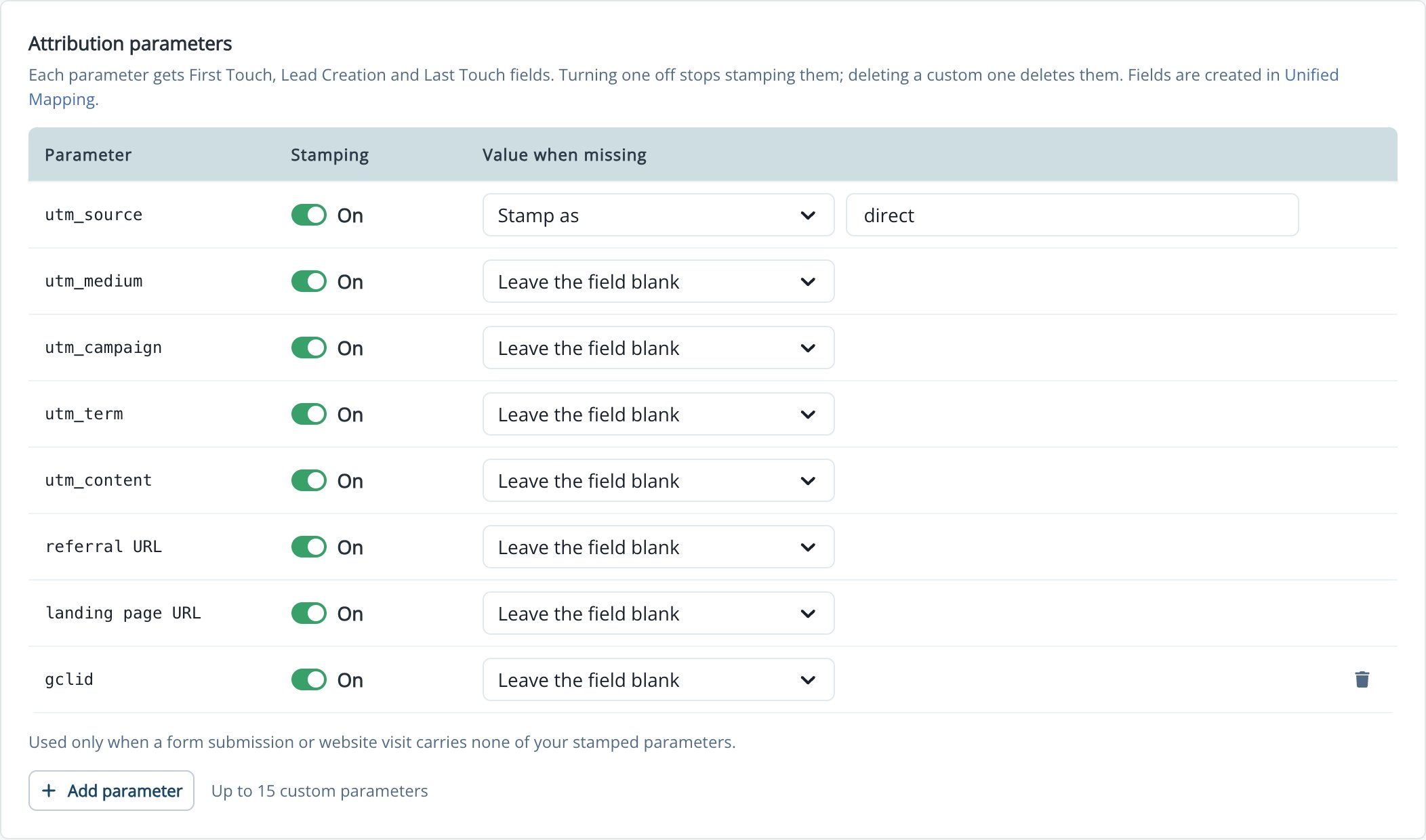
Value when missing is used only when a form submission or website visit carries none of your stamped parameters. Fallback values can be up to 255 characters.
Standard Parameters
Add a Custom Parameter
Capture your own URL parameters, such asgclid or partner_id.
- Click Add parameter.
- Enter the parameter name. Use 1 to 40 lowercase letters, numbers, or underscores.
- Click Add.
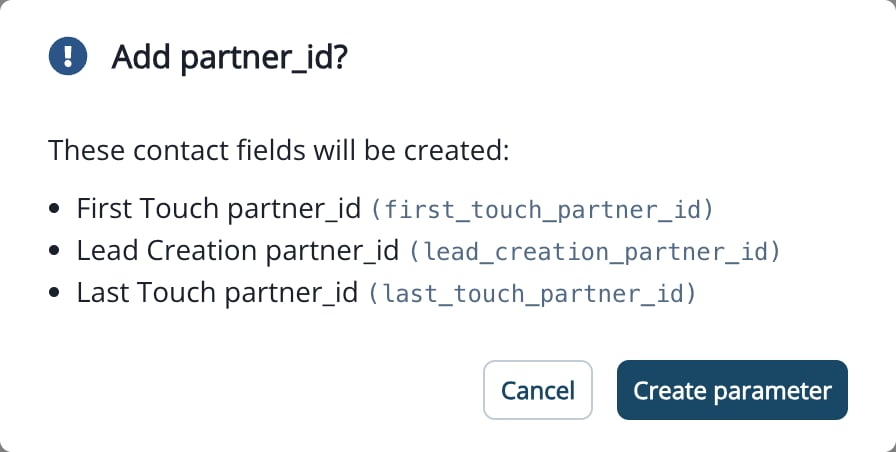
- Review the three contact fields that will be created, then click Create parameter.
Turn Off or Delete a Parameter
- Turn off: switch off Stamping. Its fields stop being stamped until you turn it back on. Stamped values are kept.
- Delete (custom only): click the delete icon on the row. This deletes the parameter’s three contact fields and all their values, and it can’t be undone. If an audience, journey, or other asset uses one of the fields, Inflection lists those assets and blocks the delete until you remove the references.
Choose Where Touchpoints Come From
The Where touchpoints come from card lists every source that can carry attribution parameters, its status, and how it captures parameters. Status shows Active when the source counts and stamping is on, Ready when stamping is off, and Off when the source doesn’t count.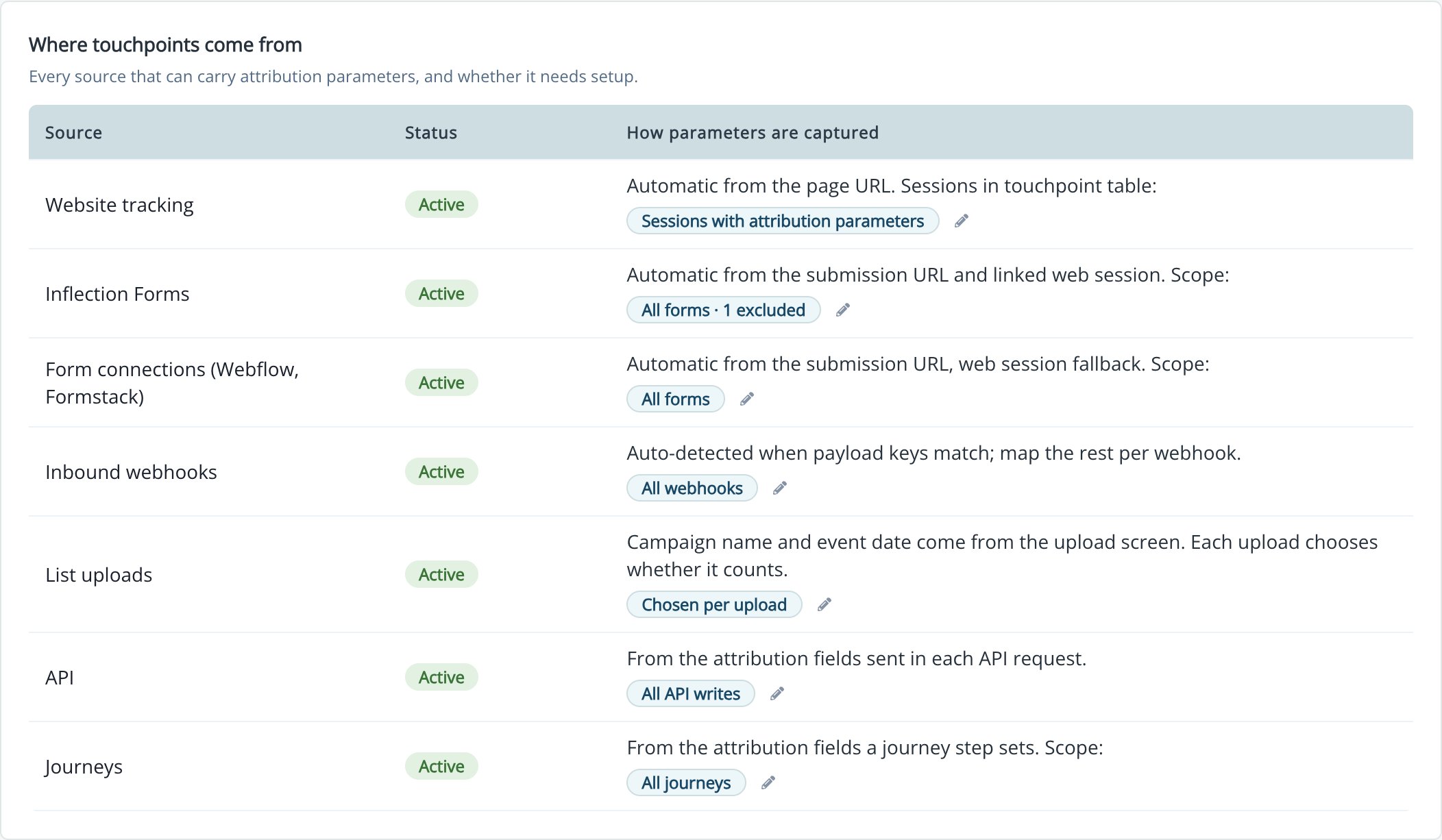
- Click the edit icon next to a source’s scope to open its panel.
- Turn on Include as touchpoints to count activity from this source.
- Select the scope, if the source has one. For example, for Inflection Forms select All forms, All forms, except the ones you leave out, or Only the forms you choose, then click Choose forms to pick them.
- Turn on Updates last touch if a newer touch from this source should move Last Touch.
- Click Save.
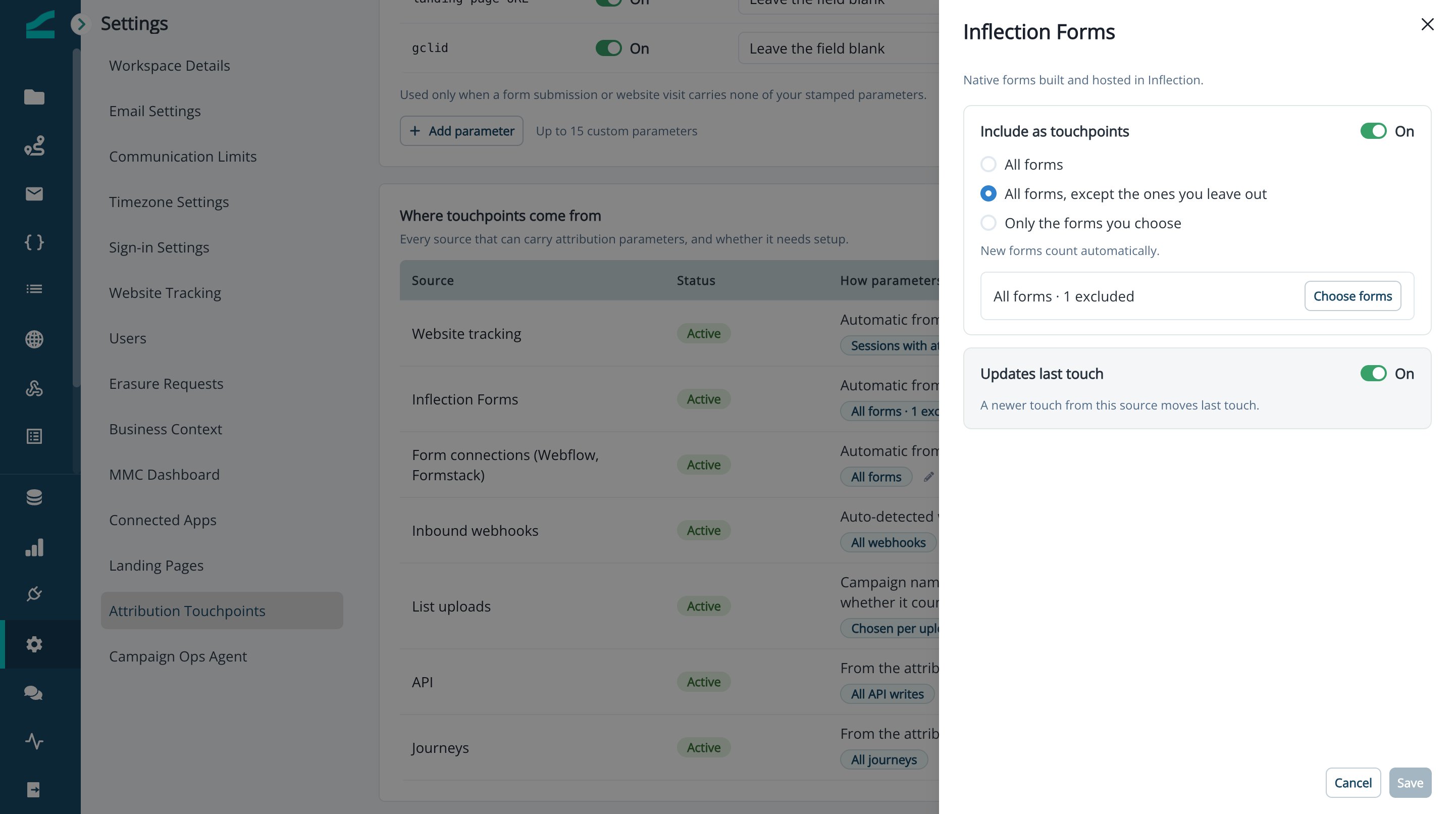
When you count all items, or all except the ones you leave out, new forms, webhooks, and journeys count automatically. When you count only the ones you choose, new ones don’t count until you choose them.
Website Tracking Levels
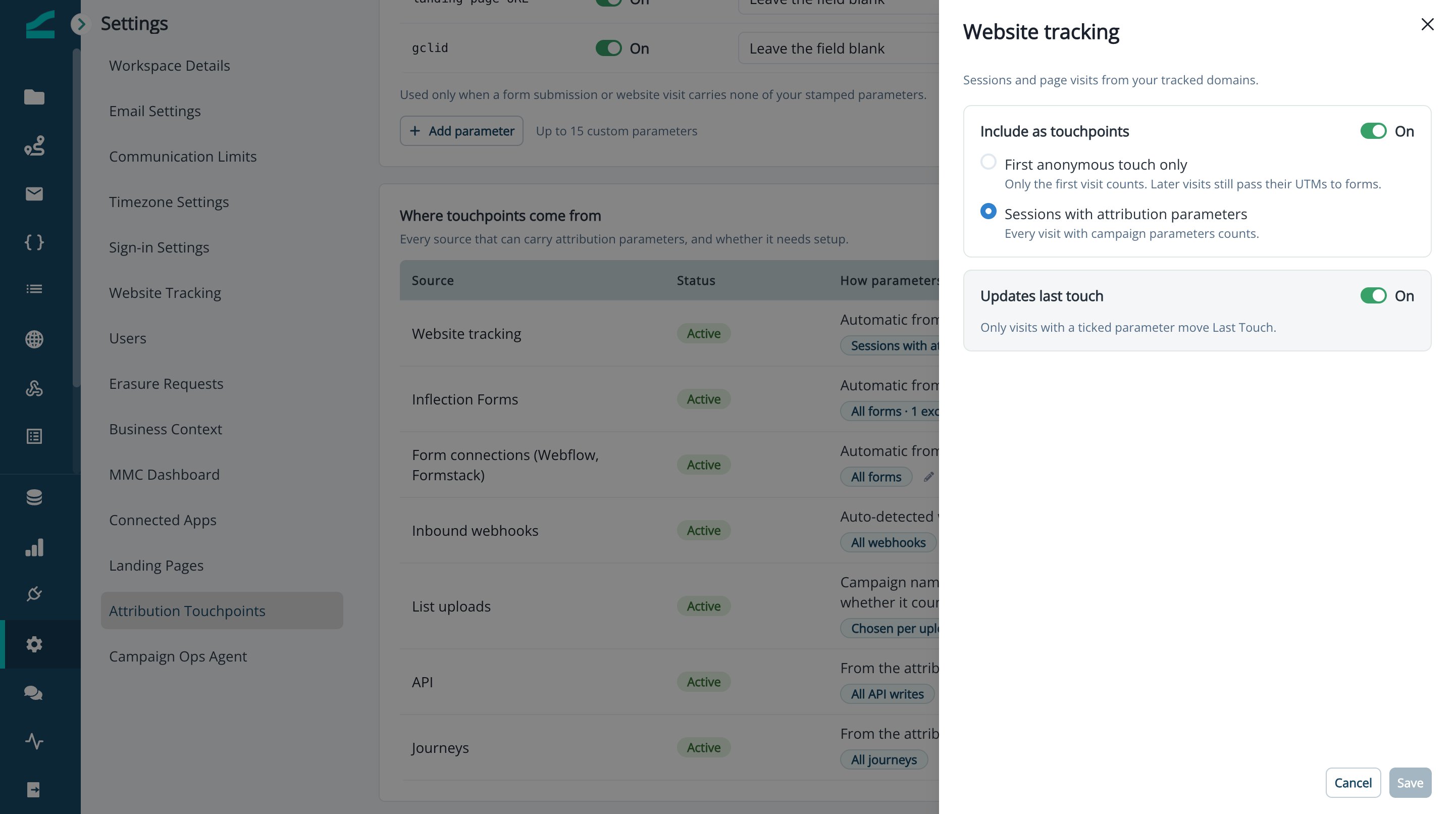
- First anonymous touch only: only the first visit counts. Later visits still pass their UTMs to forms. At this level, web sessions never move Last Touch.
- Sessions with attribution parameters: every visit with campaign parameters counts. Only visits that carry a stamped parameter move Last Touch.
Include or Exclude a Single Form
You can also change inclusion from the asset itself. In the form builder, use the Include in attribution switch (Count submissions from this form as touchpoints). The switch stays in sync with the scope in Attribution settings.Turn On Stamping
- In the Attribution stamping card, turn on the switch.
- In Turn on attribution stamping?, click Turn on.

While stamping is off, you can still change parameters and sources. The page shows Stamping is off. These settings apply once it’s on., and source statuses show Ready instead of Active.
Attribution Fields
Each touch gets its own set of contact fields, named<touch>_<attribute>. For example, first_touch_utm_source, lead_creation_utm_source, and last_touch_utm_source.
Custom parameters follow the same pattern, for example
last_touch_gclid. Fields are created in Unified Mapping and marked Derived field: computed by Attribution Touchpoints. You can’t delete them there or map a form or webhook key to a Last Touch field.
In form and webhook mappings, keys that attribution already reads show Captured by attribution. Last Touch fields are filled by attribution, so they can’t be mapped there. Send standard UTM keys, or add your own key as a custom parameter in Attribution settings.
Send Attribution to Salesforce
Write attribution fields back to Salesforce so sales and reporting teams see the same First Touch, Lead Creation, and Last Touch values. Each attribution field writes to a Salesforce Contact field and a Lead field.- Create the target fields on the Contact and Lead objects in Salesforce, if they don’t exist. Use Long Text fields for
referral_url,landing_page_url, andsource_name. - In Inflection, navigate to Unified Mapping > Contact Fields. You can also click Unified Mapping in the Attribution parameters card.
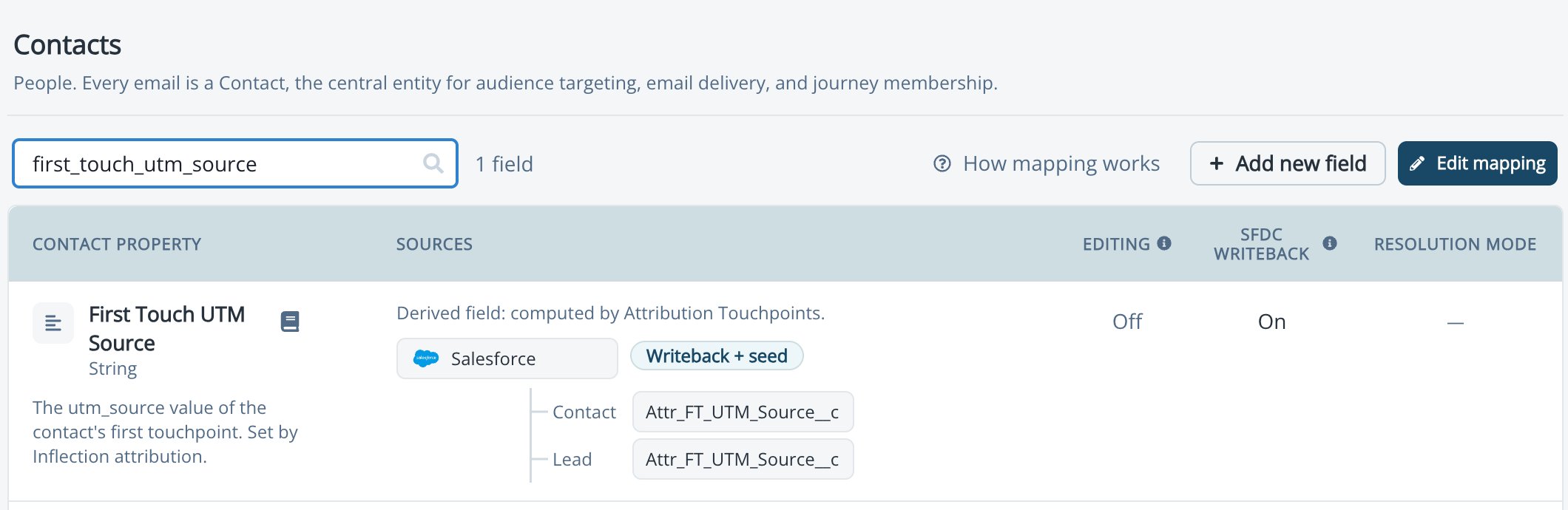
- Search for the attribution field, for example
first_touch_utm_source, and click Edit mapping. - Click Add destination and select:
- Salesforce · write-back + seed for First Touch and Lead Creation fields.
- Salesforce · write-back only for Last Touch fields.
- Select the Salesforce Contact and Lead fields to write to.
- Save the mapping.
Writeback + Seed vs. Writeback Only
Seeding keeps attribution history you already have in Salesforce, for example First Touch values captured by a previous tool. Inflection takes the Salesforce value only while its own field is empty, then owns the field from then on.
Count a List Upload as a Touchpoint
Use list uploads to record offline touches, such as a tradeshow or webinar list, or to load attribution history from another system.- Upload a CSV file. See Importing Contacts.
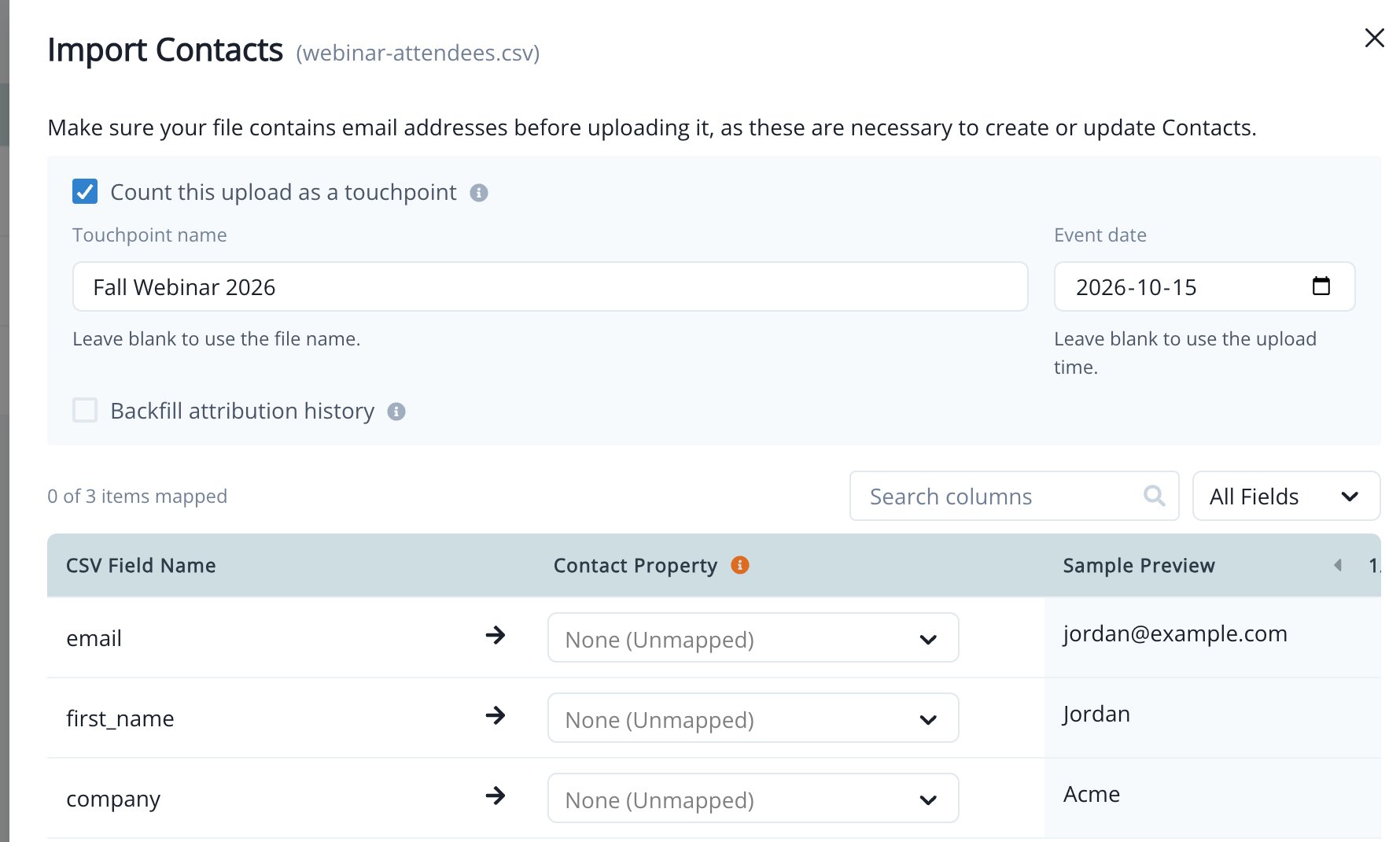
- On the mapping step, select Count this upload as a touchpoint. This adds a touchpoint to each contact imported from this file.
- Enter a Touchpoint name, for example the event name. Leave it blank to use the file name.
- Select an Event date. Leave it blank to use the upload time. The date can’t be in the future or before 1900.
- Map your columns and complete the import.
Load Attribution History From a File
Map CSV columns directly to attribution fields to bring in First Touch, Lead Creation, or Last Touch values from another system.- Map a date column for each touch you load. For example, map a column to First Touch date when you map First Touch fields.
- For Last Touch fields, map a Last Touch date column, or count the upload as a touchpoint.
- Select Backfill attribution history to also map Source Type and Source Name from your file. They need that touch’s date column. Leave it unselected and they fill in automatically.
Rows that have attribution values but no date are still imported, without those values. The import report shows them as Skipped attribution (no date).
Send Attribution Through the API or Journeys
- API: include attribution fields in a contact create or update request. A request counts as a touchpoint only when it sends attribution fields.
- Journeys: use an Update value step to set an attribution field. The step counts as a touchpoint only when it sets attribution fields and the journey is in scope. If the journey doesn’t count, the step shows This journey doesn’t count for attribution, so this field is skipped.
View Attribution on a Contact
Attribution Section
Open a contact to see the Attribution section, marked system managed. It shows three columns, First touch, Lead creation, and Last touch, each with the touch date and its parameters, including any custom parameters.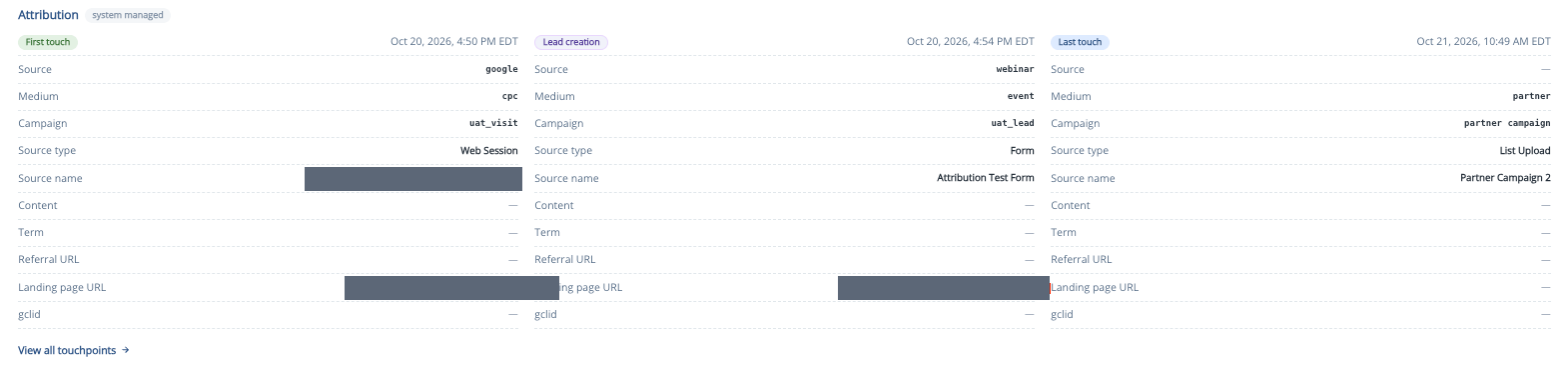
Touchpoints Tab
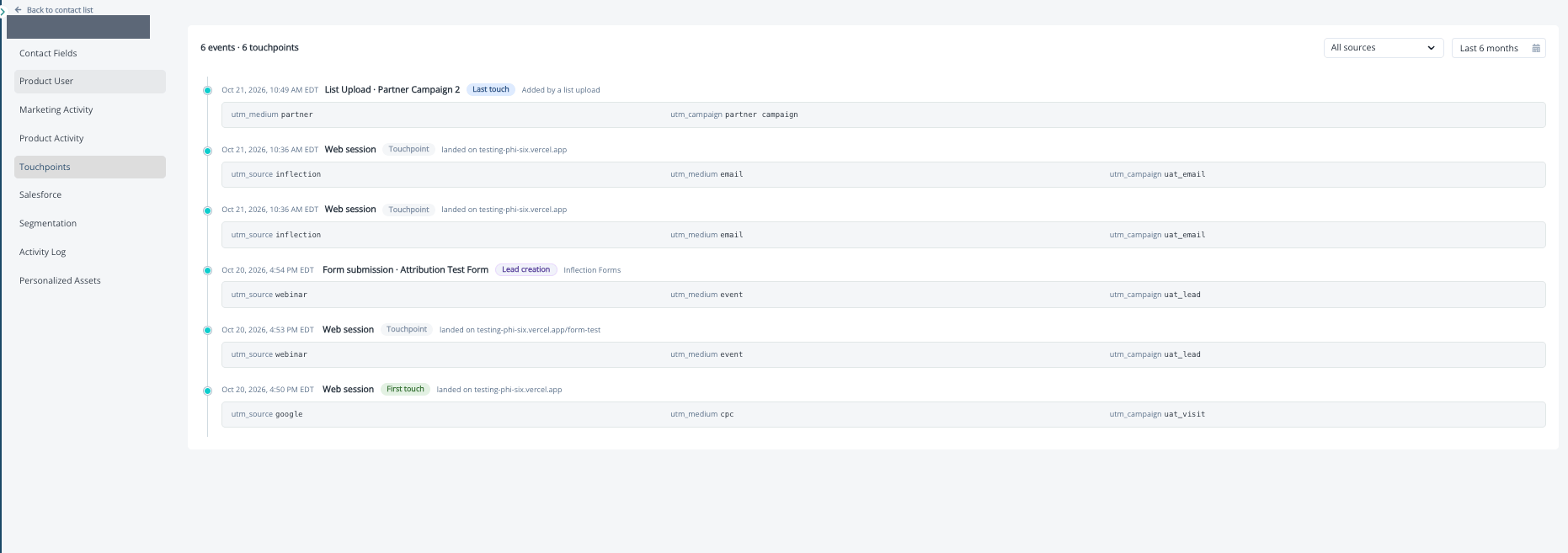
Click View all touchpoints, or open the Touchpoints tab, to see the contact’s web sessions, form submissions, and webhook events, newest first.- Each event shows a First touch, Lead creation, or Last touch badge when it set that touch, or Touchpoint when it counted without setting one.
- Events that didn’t count are muted and show why, for example Excluded in your settings, Not selected in your settings, No attribution parameters, or Only the first anonymous touch counts.
- Values set by a list upload, journey step, API call, or manual edit show where they came from, for example Added by a list upload.
- Filter by source with All sources and by date range. The default range is Last 6 months. The header shows the count, for example 1 event · 1 touchpoint.
Common Use Cases
- Report on the campaigns that create pipeline: write First Touch and Lead Creation to Salesforce and report on them next to opportunities.
- Keep history from a previous tool: use Writeback + seed so existing Salesforce First Touch values carry over, or load history from a CSV with Backfill attribution history.
- Record offline events: upload a tradeshow or webinar list with Count this upload as a touchpoint and the event date.
- Segment by acquisition channel: build audiences on fields such as
first_touch_utm_sourceorlead_creation_utm_campaign. - Track paid click IDs: add
gclidor another key as a custom parameter.
FAQ
Does turning off stamping delete attribution data?
Does turning off stamping delete attribution data?
No. Stamping stops, and the fields and stamped values are kept.
What happens to existing contacts when I turn on stamping?
What happens to existing contacts when I turn on stamping?
Inflection backfills them from past visits and submissions. Progress shows at the top of the settings page.
Does changing a source or scope rewrite past touchpoints?
Does changing a source or scope rewrite past touchpoints?
No. Changes apply to new activity. Turning a parameter off stops stamping its fields and keeps stamped values.
Why didn't a website visit change Last Touch?
Why didn't a website visit change Last Touch?
At the First anonymous touch only level, web sessions never move Last Touch. At Sessions with attribution parameters, only visits that carry a stamped parameter move it, and only when Updates last touch is on.
Why can't I map a webhook key to a Last Touch field?
Why can't I map a webhook key to a Last Touch field?
Last Touch fields are filled by attribution. Send standard UTM keys, or add your key as a custom parameter in Attribution settings.
Can Salesforce campaign membership count as a touchpoint?
Can Salesforce campaign membership count as a touchpoint?
Not in this release. Use a list upload with Count this upload as a touchpoint to record campaign or event attendance.
Does Inflection include attribution reports?
Does Inflection include attribution reports?
No. Use attribution fields in audiences, write them to Salesforce, or export them to your data warehouse for reporting.