

Add a domain for tracking on Inflection
- Go to Settings > Website Tracking
- Click Add Domain
- Type or paste your domain here and click Proceed
Only base domains are accepted as input. If you enter a full link, it will be automatically truncated to just the base domain. For example, entering “https://sub.example.com/page” will simplify to “example.com.” This ensures consistency and accuracy in tracking.
- Copy the shown tracking code to be installed in the domain you just added. You can also directly send the tracking code as an email to your developer. Click Proceed.
- Your domain may take up to 24 hours to be approved. Meanwhile, you may go ahead and copy and install the tracking code in the pages you wish to track. Once approved, the domain status will be marked as Active, and tracking will commence.
Track only specific subdomains
By default, all subdomains of an added domain is tracked by Inflection. (Given that the tracking code is installed in them). If you wish to disable tracking for certain subdomains and include only specific ones, you may edit the tracking setup in the domain table.- Click on the three dots icon at the end of the domain and click Edit tracking
- Disable Automatically Track all Subdomains. This disables tracking for all subdomains under the domain.
-
Domains you wish to track or ignore have to be individually added and enabled/disabled. Click + Add another subdomain to add a subdomain.
Only subdomains of the added domain are accepted. Full links will be automatically truncated.
Set up your website for effective tracking
Add the tracking code
- The tracking code must be added to the <head> tag of your website. Adding it inside or after the <body> or <footer> tag may result in sub-optimal tracking.
- Page visits are tracked only on pages where the tracking code is installed. For example, adding the tracking code to example.com does not automatically track visits to blog.example.com unless the tracking code is also installed on blog.example.com.
Set up forms for tracking
Set up your forms so Inflection can link tracked browsing activity to the contact who submits the form. How you do this depends on the form type. Inflection Forms are tracked automatically. For custom forms, include the tracking data in the submission payload. Formstack and Webflow forms use a hiddeninflection_form_context field. For other HTML forms, call the identify method.
Inflection Forms
Inflection Forms are tracked automatically. You don’t need to add a hidden field. When a visitor submits the form, Inflection links their browsing session to the contact.Custom Forms
If you send submissions to Inflection through a custom form, add awebsiteTracking object to the JSON payload. When the submission arrives, Inflection links the visitor’s browsing session to the contact. You don’t need to map these fields.
Map the Email contact field on the connection. The session is linked to the contact with that email.
Send
websiteTracking as a nested object, using the key and field names exactly as shown above. Inflection displays the nested fields with -- (for example websiteTracking--anonymous_id), but you can’t send them that way. Flat keys that contain -- are rejected.inflection-anon-id and inflection-session-id. Read them in your submit handler and add them to the payload as plain strings.
Formstack
If you are using embedded Formstack forms in your website to receive form submissions, you’ll have to include a custom hidden field in your Formstack builder for Inflection to track. Follow these instructions from Formstack: Use Hidden Fields for Admin Purposes. Create a hidden text field with labelinflection_form_context and keep the default value blank.
Webflow
Webflow forms are tracked automatically. This is done by adding a hidden field when the form first loads on the page. However, manually adding the hidden field is recommended as a fallback to prevent visual or submission issues. In order to identify anonymous users from your website and associate browsing activity with them, you can embed a custom hidden input in the forms of your website. Copy the following HTML code into your form element and follow the instructions given here to add a hidden field.Other HTML forms
Inflection provides a customidentify method which has to be explicitly called by your form’s onsubmit function in order for Inflection to associate the session activity to an anonymous user.
While full submission data is not received from these forms, the email will be used for tracking.
Include the following line of code in the submit function of your website’s forms. Replace ‘example@email.com’ with the email input received from your form.
Exceptions
- iFrames and lightboxes cannot be tracked
- Inflection does not automatically capture new leads unless they submit their email through a properly set up form, as discussed above.
How does Inflection identify contacts for associating browsing activities to?
Assuming that the tracking code is installed and forms configured correctly as mentioned above, contacts are identified when any of these actions are performed:- Visitor fills out an Inflection Form.
- Visitor submits a custom form whose payload includes a
websiteTrackingobject. - Visitor fills out a Formstack or Webflow form that contains the hidden
inflection_form_contextfield. window.inflection.identify()JS function is called from your website.- Visitor clicks on a link in an email sent via Inflection, landing on a website with the tracking code installed.
Each email has an Identify visitors on your website switch in its tracking settings. If this switch is turned off for a specific email, clicks on links in that email do not identify the visitor on your website — even if website tracking is set up and the tracking code is installed. See Email Settings for details.
Consent Management
Inflection’s Website Tracking does not include a built-in cookie banner. Instead, we provide a callable function within our tracking code that can disable website tracking. This function (window.inflection.disableTracking()) can be integrated into the rejection function of your chosen consent management platform.
By default, tracking is enabled once the tracking code is installed on your website. However, note that some consent management platforms may block tracking pixels entirely. If a user clicks reject, our tracking service may be disabled as a result.
As a Marketing Automation Platform (MAP), ensure our cookie is categorized appropriately within your consent management settings. This will help maintain proper tracking functionality while adhering to privacy regulations.
Use Website Tracking in Your Marketing Strategy
Marketing Activity
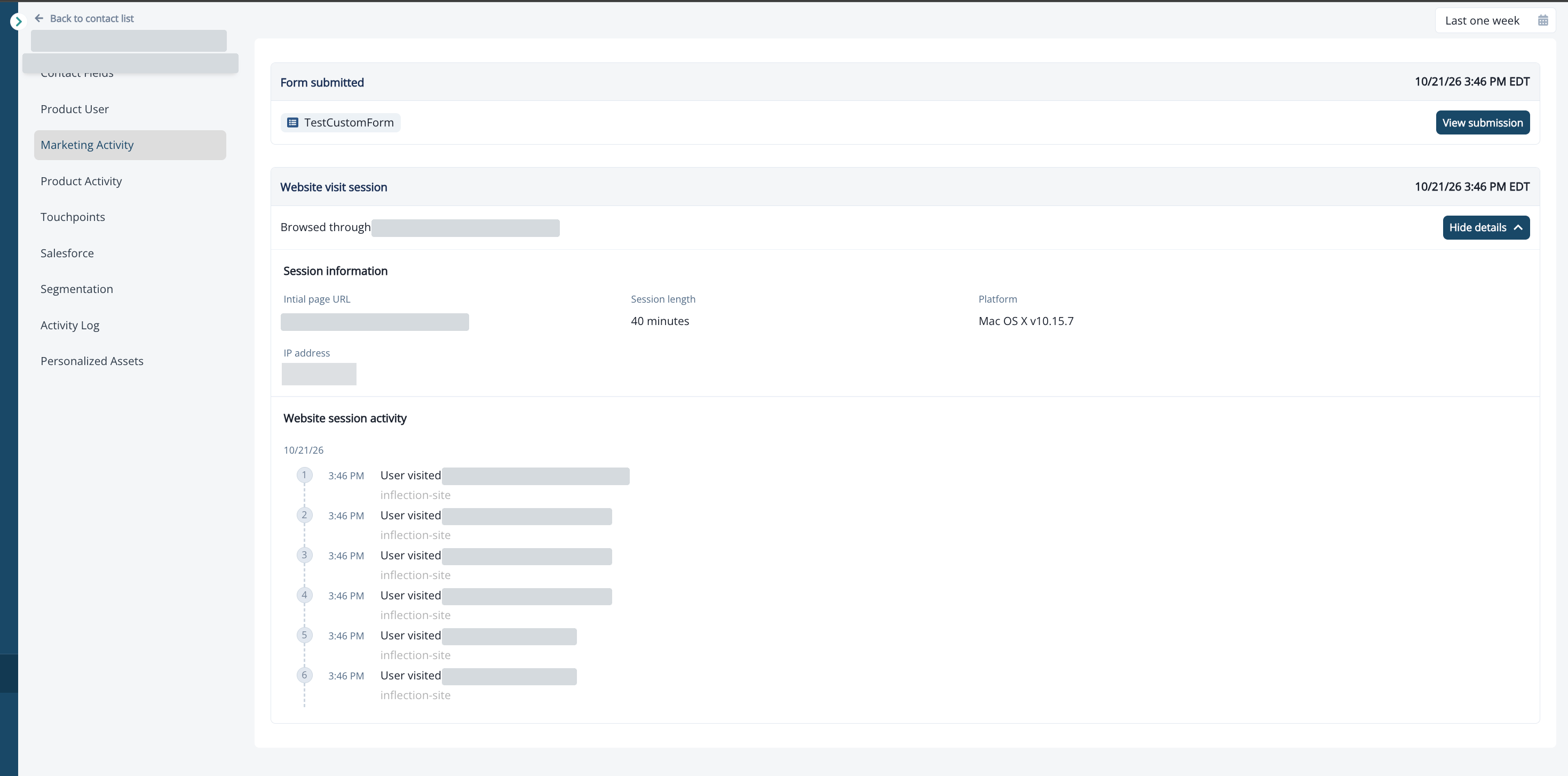
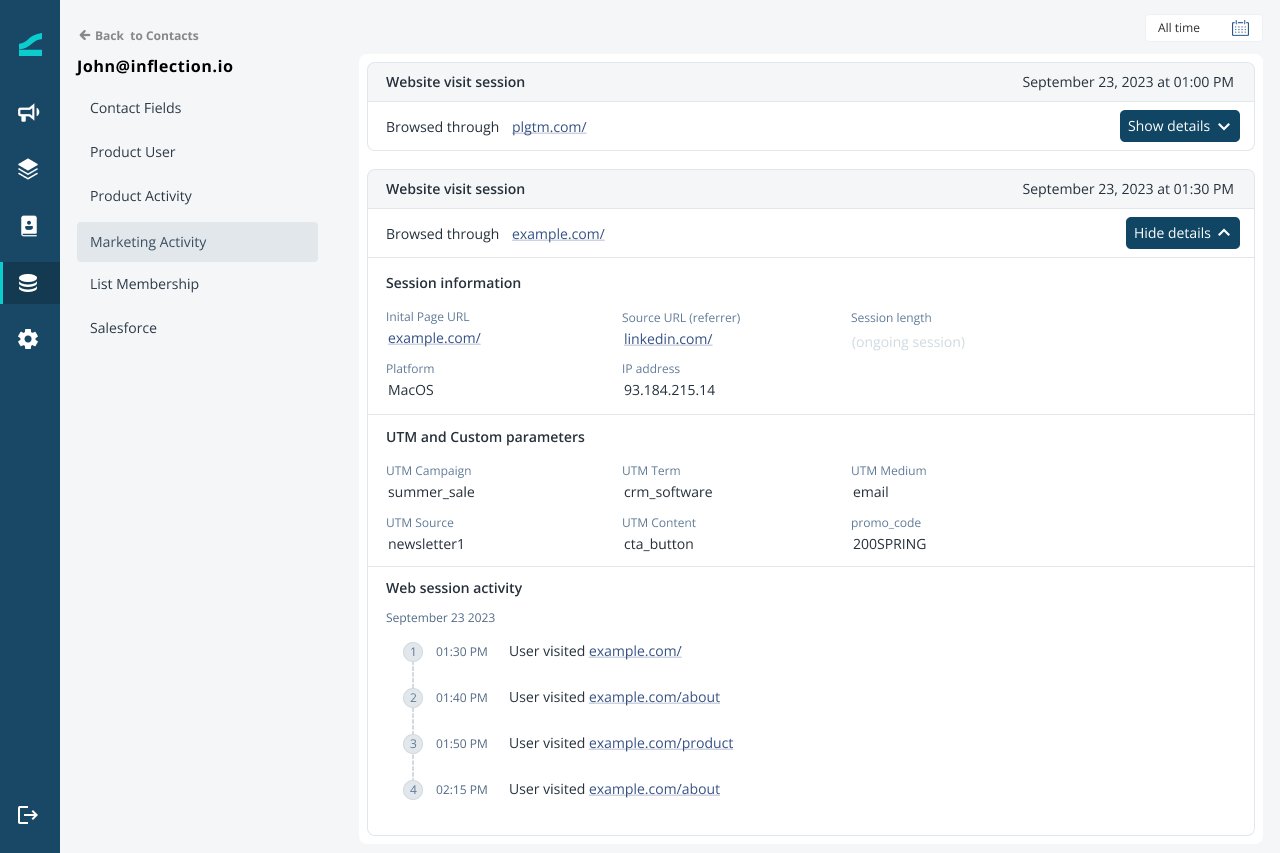
Website activity appears as a marketing activity for individual contacts once their page visits are associated with their email. This association can occur when they submit a form with their email, when anidentify call is made with their email, or when they click an email link that leads to a tracked website.
All website activities are grouped per session. A single session may contain multiple page visits.
Dynamic List
Website activity can also be used for filtering your contacts as audience in your journeys.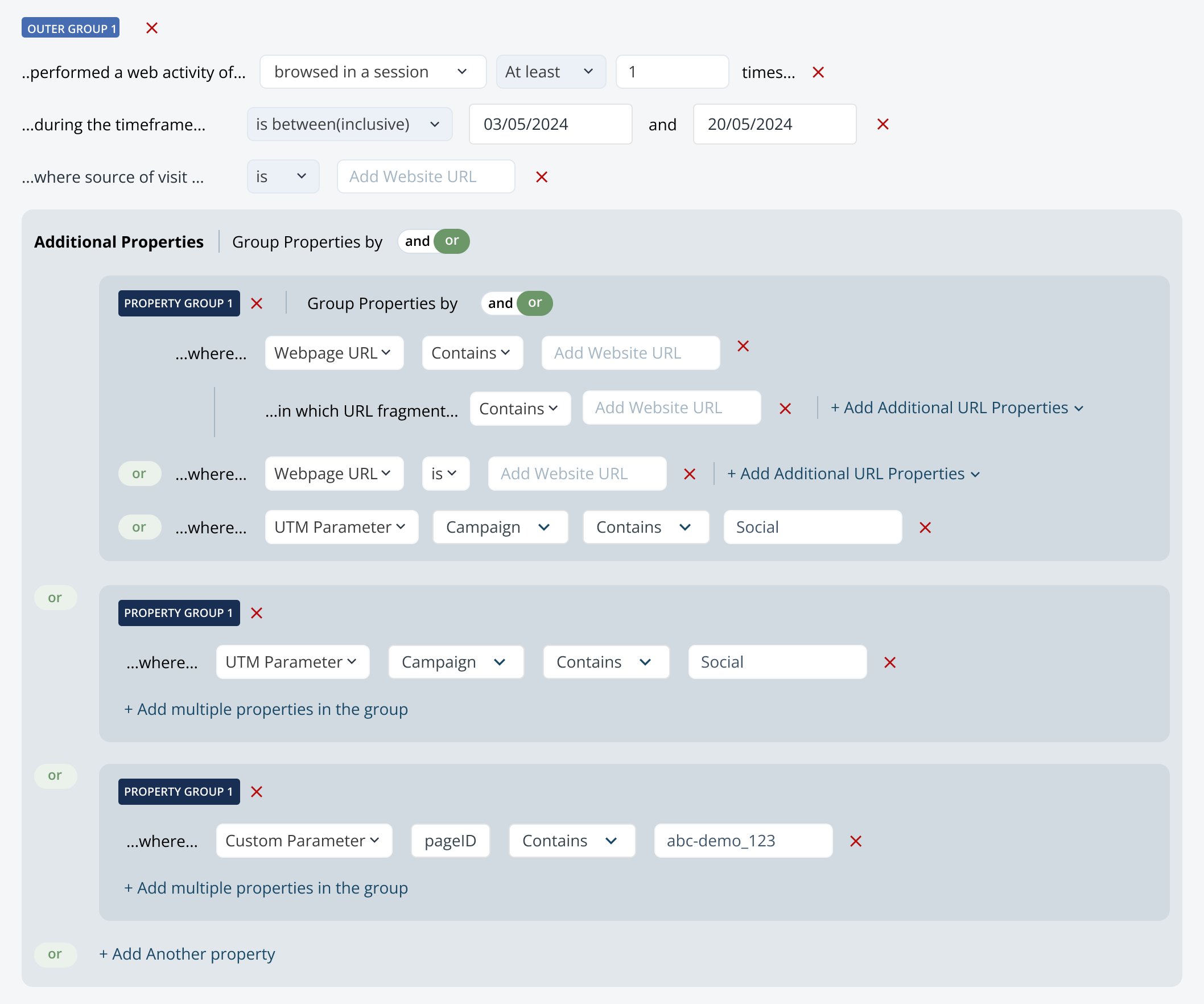
Troubleshoot
My domain's status is shown as 'Inactive'
My domain's status is shown as 'Inactive'
Inactive status is shown when Inflection does not receive any data from the website for the past 48 hours. Ensure that:
- You have correctly installed the tracking code. Watch out for typos or accidental spaces.
- Your website is loading correctly. Tracking scripts have to be loaded in timely, in order for us to begin tracking.
- If you are visiting the website to check it yourself, ensure that you are not using script blocking apps like uBlock Origin, etc and Javascript is enabled in your browser.
I had added a domain, but I see that it has disappeared from the domains list
I had added a domain, but I see that it has disappeared from the domains list
This could be because the domain was rejected for approval. Please contact our team before attempting to add it again.
I do not see website activities associated to my contacts
I do not see website activities associated to my contacts
Ensure the following are correctly setup:
- Tracking code is present in the <head> tag of all the pages you wish to track.
- All domains or subdomains you wish to track are correctly added and enabled in the settings page.
- Ensure that your form submissions contain a field called
inflection_form_context. You can check your submissions in Assets > Forms, for this if you’ve added the connection. - If you send submissions to a custom form connection, ensure each payload includes a nested
websiteTrackingobject withanonymous_idandsession_id. - If you’re using custom HTML forms, ensure that you’ve configured the identify function to be called correctly.