

This feature is in beta release. If you don’t have access to this feature and would like to get access, please contact your CS team.
Control Where Your Data Comes From
Unified Mapping gives you one place to control where every field of your customer data comes from. Each field on each entity reads from one or more sources: Salesforce, your data warehouse, Segment, Amplitude and Inflection resolves them into a single unified record (the golden record) that powers your dynamic lists, journeys, tokens, and personalization across the platform.You need admin access to your Inflection workspace to change mapping. Connect at least one source (Salesforce, a data warehouse, Segment, or Amplitude) before configuring mapping for it.
Open the Mapping Page
Click Connections in the left navigation, then click Unified Mapping.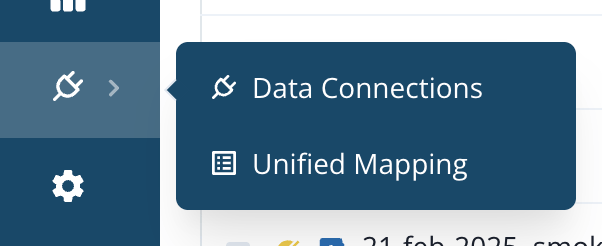
The Six Entities
How Mapping Works
The Unified Record
Each field reads from one or more sources. Inflection resolves the sources into one value per field, the unified record, and that value is what you filter on, personalize with, and trigger from everywhere in Inflection..gif?s=66525cacfa1044fc4b722599f206d826)
Backfill and Resolution
Resolution runs when a source sends an update. Here’s which changes reach back into records you already have: Applies from the next source update
Backfills existing records
Segment backfill might take some time. If you don’t see your backfilled values within 24 hours of adding a Segment source, please contact your CS team.
Sources and Priority
Every connection is its own source block. The Salesforce block contains both Contact and Lead properties for Person fields; each data warehouse connection, Segment, and Amplitude are separate blocks. When a field has more than one source, choose how conflicts resolve:- Priority order: the first source in the list that has a value wins. Reorder sources with the arrows next to each source number.
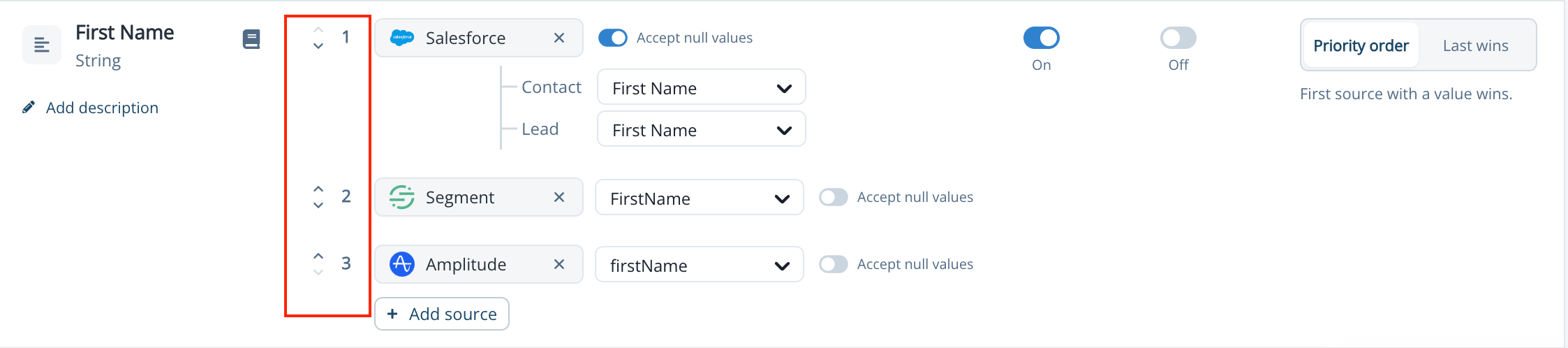
- Last wins: the newest change across all sources wins.
Accept Null Values
By default, when a source’s value for a field is blank or null, that source is skipped and the next source that has a real value wins instead. Turn on Accept null values for a source to let its blank value win its priority slot and clear the field, which is useful when an empty value is a meaningful signal. Leave it off for sources like event streams where blanks are just noise.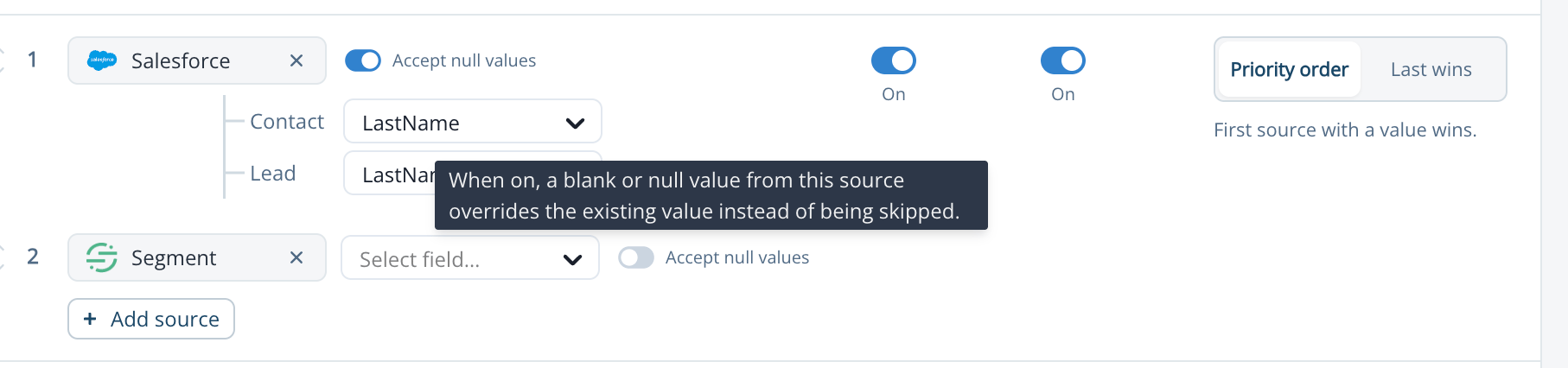
Editing in Inflection
The Editing toggle controls whether a field can be changed from inside Inflection: forms, manual edits, CSV uploads, Journeys, Webhooks, and Data Normalization. When on, Inflection edits compete with the sources on a last-write-wins basis. Turn it off to make the field read-only on all Inflection surfaces.Manual edits always follow last-wins; they are never part of the priority order.
Write Back to Salesforce
The Write back toggle sends the unified value back to Salesforce. It requires Salesforce to be one of the field’s sources, and when the field uses Priority order, Salesforce must stay at the top of the order. The page enforces this and shows Salesforce must stay at the top while write-back is enabled. Blank values are never written back: Inflection only updates a Salesforce field when the unified record has a non-empty value.
Map a Field to a Source
- On the entity’s tab, click Edit mapping.
- Find the field. Use Search fields to filter the list.
- Click + Add source on the field row.
- Select the connection block (for example, Salesforce, Segment, or your warehouse connection).
- Select the source property to read from. For Salesforce Person fields, set the Contact and Lead properties.
- Optionally turn on Accept null values for the source.
- Click Save changes.
Create a Custom Field
- Click + Add new field on the entity’s tab.
- Enter a Field name. Names are case- and space-insensitive.
- Select a Field type — String, Number, Boolean, or Datetime.
- Optionally add a Description (up to 300 characters) so your team and Inflection’s AI agents know what the field represents.
- Click Add field.
Field names must start with a letter, be 250 characters or fewer, and be unique per entity. Names ending in
_pom are reserved for Product User Organization Mapping fields.Delete a Custom Field
Only custom fields can be deleted: system, default, and Inflection-managed fields are protected. Deletion is blocked while the field is in use by journeys, segments, exports, or forms, while changes are still saving, or while another delete is in progress. Inflection runs a dependency check and asks for confirmation before removing anything.Field Descriptions and Insights
Click Add description or Edit description under a field name to document what the field represents. Descriptions appear here and in Insights from data dictionary wherever you build filters. Click the book icon next to a field name to open Insights from data dictionary for that field — how many records have a value (populated count and percentage) and a searchable list of distinct values sorted by frequency.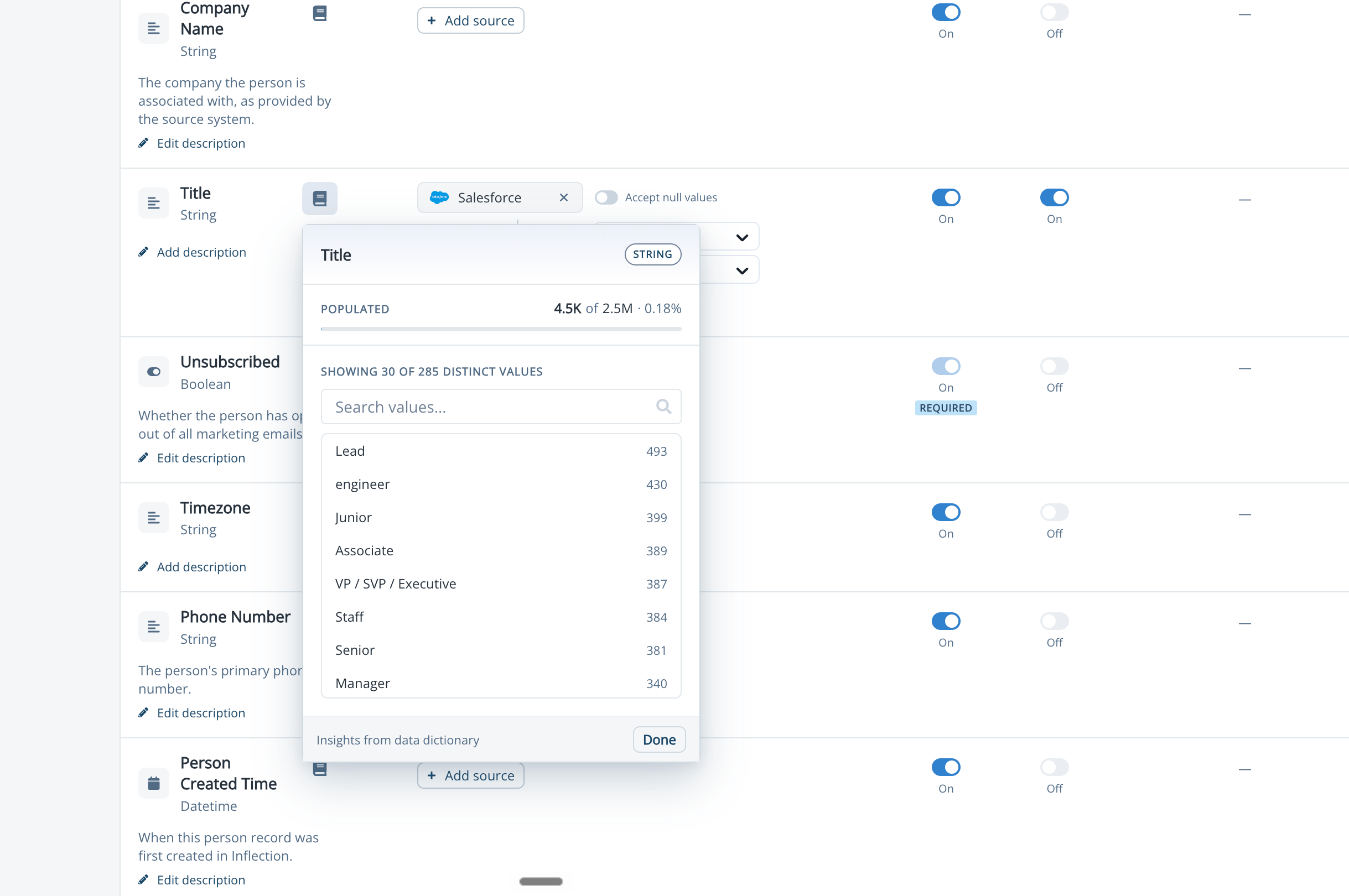
Track Mapping Changes
Click Change Log to see every mapping change in the workspace — date and time, entity, change type (for example Field created or Mapping changed), the field, and who changed it. Filter by field name or date range, and click Show details on any row.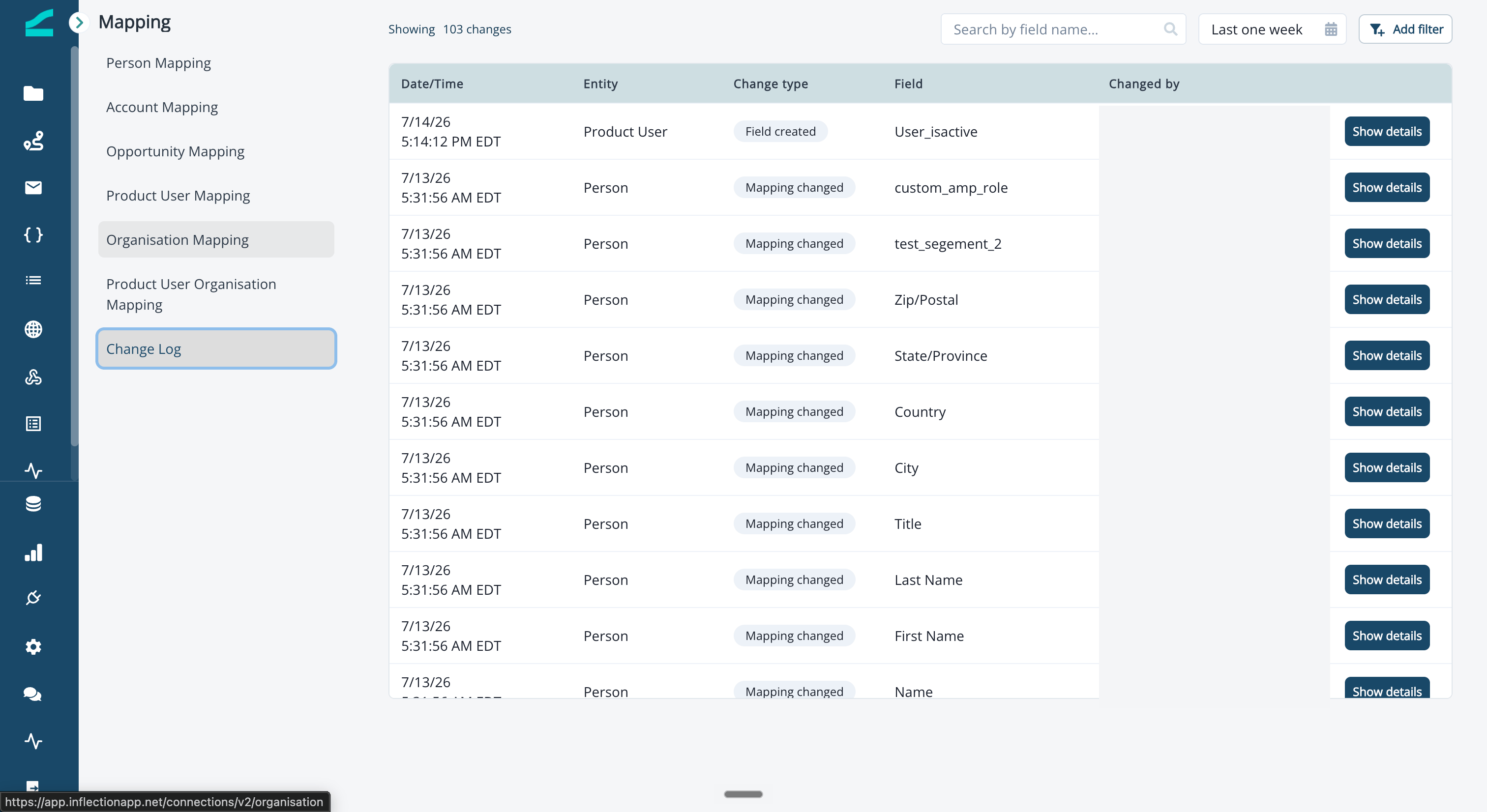
Fields You Can’t Map
- Identity fields (marked Identifier) uniquely identify records and cannot be mapped — for example Person Inflection ID and Email, Account Account Id, and Opportunity Opportunity ID.
- System fields are managed by Inflection and cannot be edited.
- Inflection-managed fields, such as account scoring fields, always have Inflection as their locked source — no external source can be mapped to them.
- Unsubscribed always allows Inflection edits, and when Salesforce is one of its sources it always writes back — this keeps opt-outs consistent everywhere.
Common Use Cases
- Keep Salesforce authoritative with product data as backup. Put Salesforce first in the Priority order and Segment second — Salesforce wins whenever it has a value, and Segment fills the gaps.
- Let the freshest system win. Use Last wins on fields fed by both your warehouse and product events so the most recent update always shows.
- Lock a field against manual changes. Turn Editing off to make a warehouse-owned field read-only in forms, CSV imports, and manual edits.
- Push enriched values back to your CRM. Map a field from your warehouse, turn on Write back, and Inflection keeps the Salesforce field up to date.
Frequently Asked Questions
What happened to Auto-map?
What happened to Auto-map?
Auto-map was removed. Fields are mapped explicitly on the Mapping page, so what you see there is always exactly what is configured.
What happened to Sync Preference (Two Way, Always use Salesforce, Prefer Connection)?
What happened to Sync Preference (Two Way, Always use Salesforce, Prefer Connection)?
Sync preferences were replaced by the source, resolution, editing, and write-back model. The closest equivalents: Two Way is a Salesforce source with Editing and Write back on; Always use Salesforce is Salesforce as the only (or top-priority) source with Editing off; Prefer Connection is Last wins.
Can I use Priority order on Product User, Organization, or Product User Organization Mapping fields?
Can I use Priority order on Product User, Organization, or Product User Organization Mapping fields?
Not yet. These entities resolve with Last wins for now; priority resolution is planned for a future release.
Can I see which source produced the current value for a specific person?
Can I see which source produced the current value for a specific person?
Not yet — a per-record source view is planned. The Change Log shows every mapping configuration change today.
Are Segment field types validated?
Are Segment field types validated?
No. Segment traits carry no type information, so a type-mismatched Segment mapping saves without error and can fail later at sync time. Keep the Inflection field type matched to the trait’s actual type.
My write-back saved but values aren't landing in Salesforce. Why?
My write-back saved but values aren't landing in Salesforce. Why?
Write permission on the Salesforce field is not checked when you save the mapping. If the Salesforce field isn’t updateable for the integration user, writes fail at sync time — check the field’s accessibility in Salesforce.
Do data warehouse fields still need a second mapping step?
Do data warehouse fields still need a second mapping step?
The current warehouse flow is unchanged: sync the table, then map its columns as sources. A single-step flow is planned.
What happens to my existing mappings?
What happens to my existing mappings?
Existing mappings are converted automatically and keep their behavior. A small number of patterns need cleanup during conversion — for example a Salesforce field mapped to the wrong entity’s object, or a write-back where Salesforce isn’t the top source. The Inflection team coordinates any cleanup with you.
Why do I see "Unable to validate mapping — please check your connection"?
Why do I see "Unable to validate mapping — please check your connection"?
The referenced connection is errored, deleted, or mid-setup. Fix the connection under Connections > Data Connections, then save the mapping again. If the provider is temporarily unreachable you’ll see a transient error instead — just try again.