

Create a Trigger Journey
When creating a new journey, select Contact Journey, then choose Trigger as the journey type. Use the Triggers section to define the real-time event that starts the journey.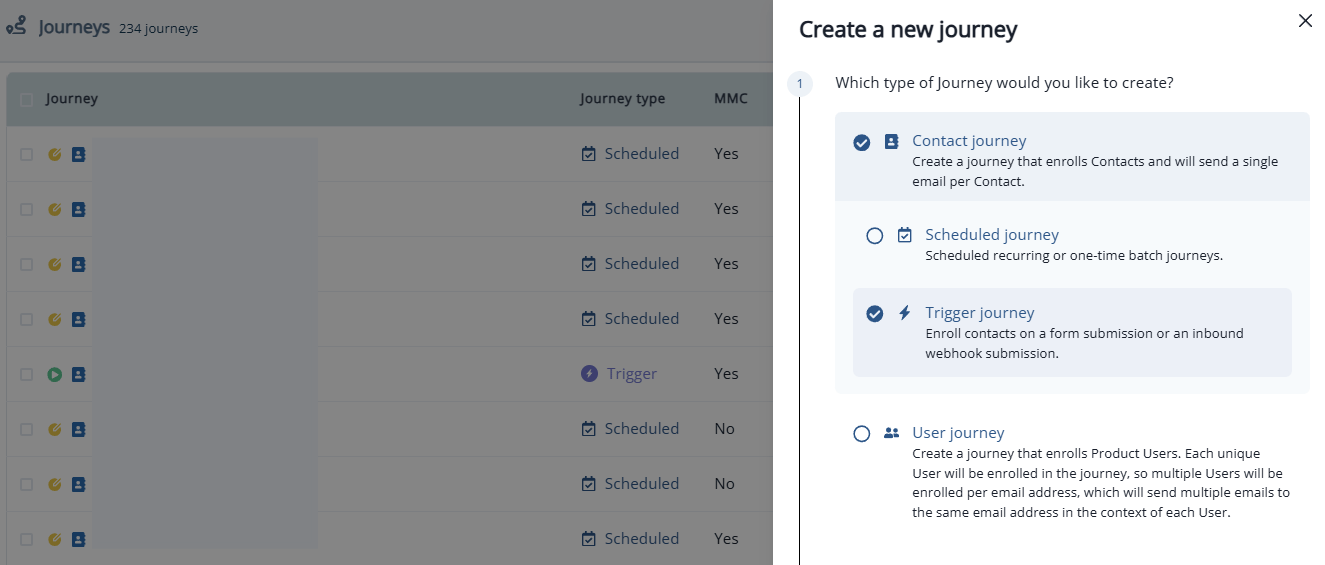
Triggers
The Triggers section defines the real-time events that enroll contacts into the journey. A contact is enrolled when any of the events you add occurs.- In the journey builder, click Triggers, or click Click to set up trigger criteria if the journey has no triggers yet.
- Click Add event and select an event type: Marketing event, Product event, or Contact event.
- Select the event from the dropdown, then add any conditions to narrow it down.
- To add another event, click Add event again. Events are joined with Or.
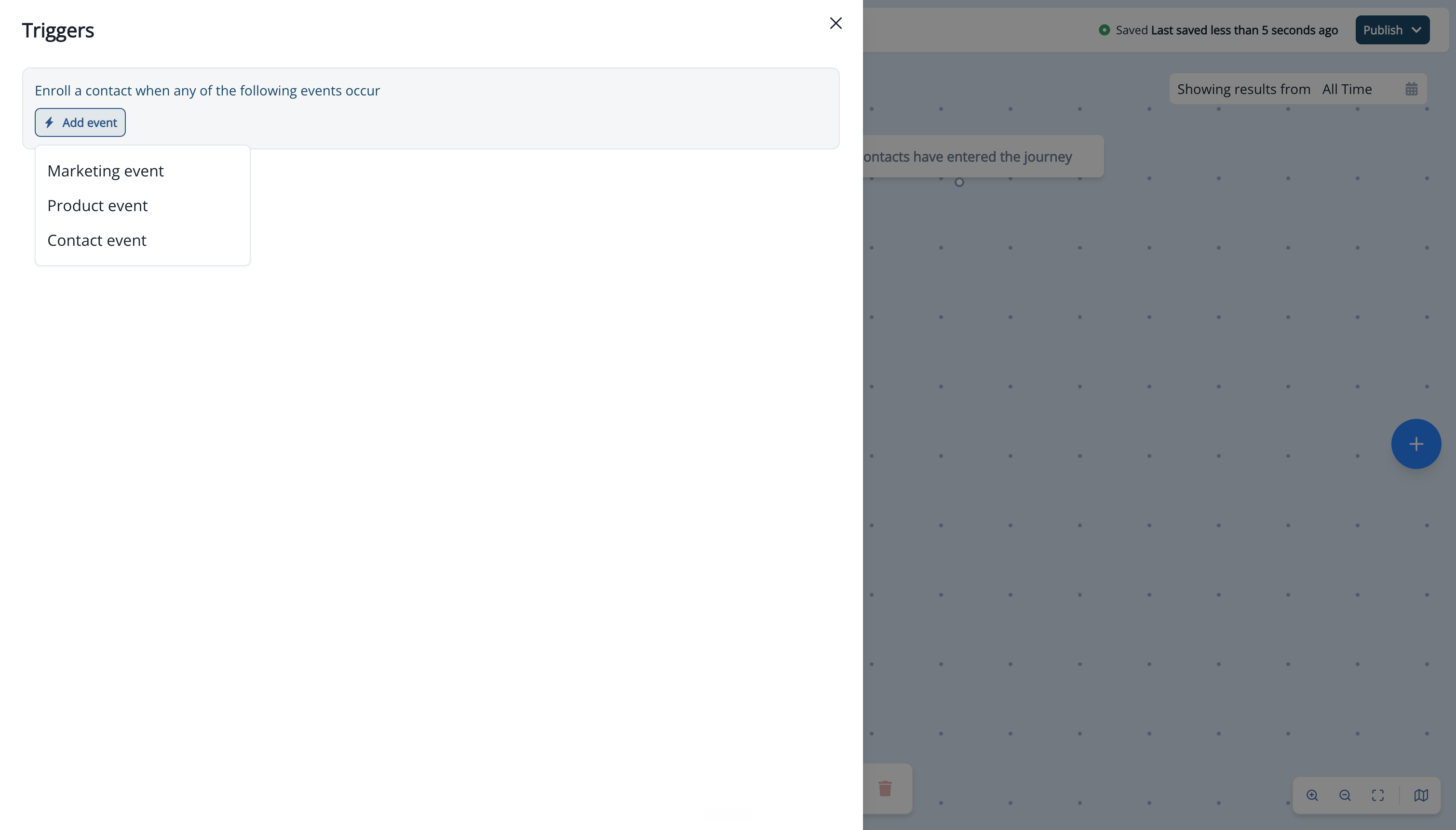
Conditions are optional for every event except Contact updated. Any condition row you add must be fully filled in before you can publish.
Marketing Event
A marketing event enrolls a contact when they submit a form, sync through an inbound webhook, or engage with an email.Submitted a Form
Select Submitted a form, then select the form next to where form name is. To fire the trigger only for specific answers, click Add form field, select a field, select an operator, and enter the value to match (e.g., UTM Source equal to google). Add more fields to combine them with and / or.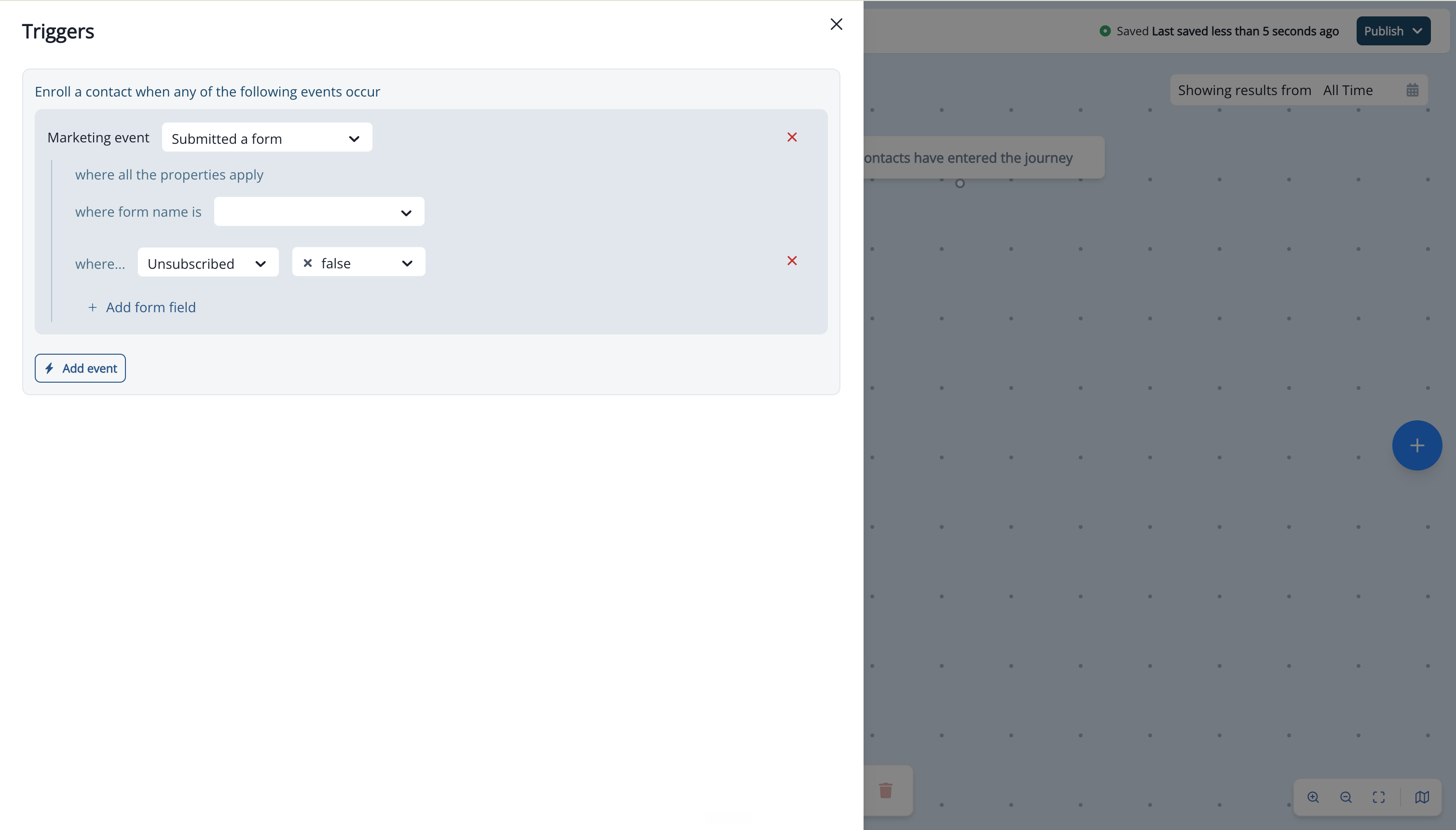
Only contacts who submit the form with matching field values are enrolled. Contacts who submit with a different value are not enrolled.
Inbound Webhook Sync
Select Inbound webhook sync, then select the webhook next to where webhook name is. Any contact whose data arrives through that webhook is enrolled in real time. To match specific values in the payload, click Add webhook field. Common use cases include enrolling contacts from third-party form providers (e.g., Webflow, Typeform) or any external system capable of sending a POST request to Inflection.Email Engagement Events
Select an email event, such as Clicked on link. To limit it to a specific journey, email, or link, click the matching add button (e.g., Add journey, Add email, Add link clicked), select an operator, and select or enter a value.- For Journey and Email, select is to pick a specific journey or email, or select Name contains / Name does not contain to match by name.
- When you pick a specific journey, the Email list only shows that journey’s emails.
Product Event
A product event enrolls a contact when they perform an action in your product, such as starting a trial or inviting a teammate. The event list shows the product events already sent to Inflection for your workspace.- Select Product event, then select the event.
- To narrow it down, click Add property, select an event property, select an operator, and enter a value.
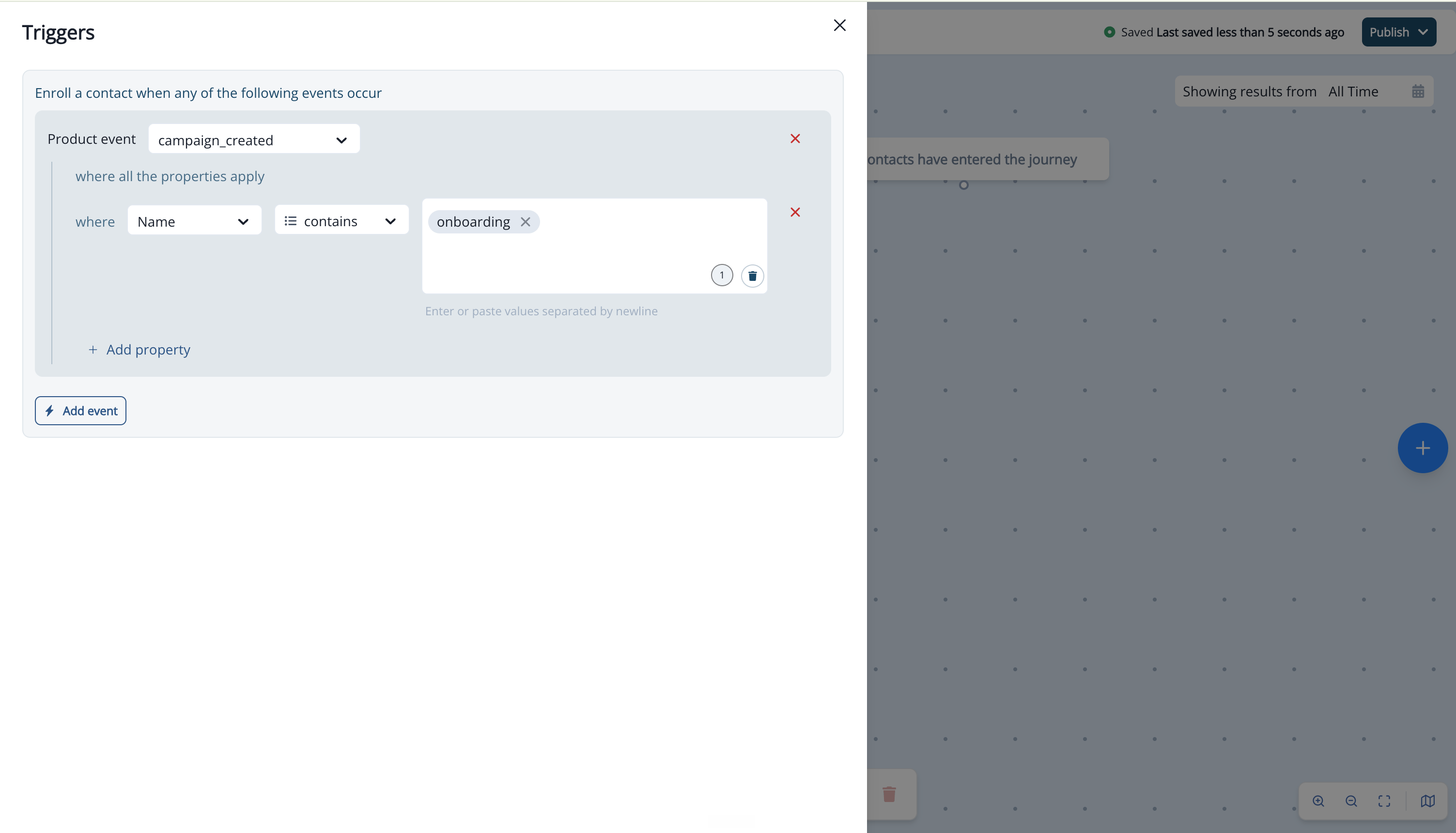
Changing the selected event clears its property conditions.
Contact Event
A contact event enrolls a contact when their record is created or changed in Inflection, whatever the source.Contact Created
Contact created enrolls every new contact the moment it is added to Inflection — for example from a Salesforce sync, a CSV upload, a form, or the API. To enroll only some new contacts, click Add field, select a contact field, select an operator, and enter a value (e.g., Company Size greater than 500). Click Add another field to combine more fields with and / or.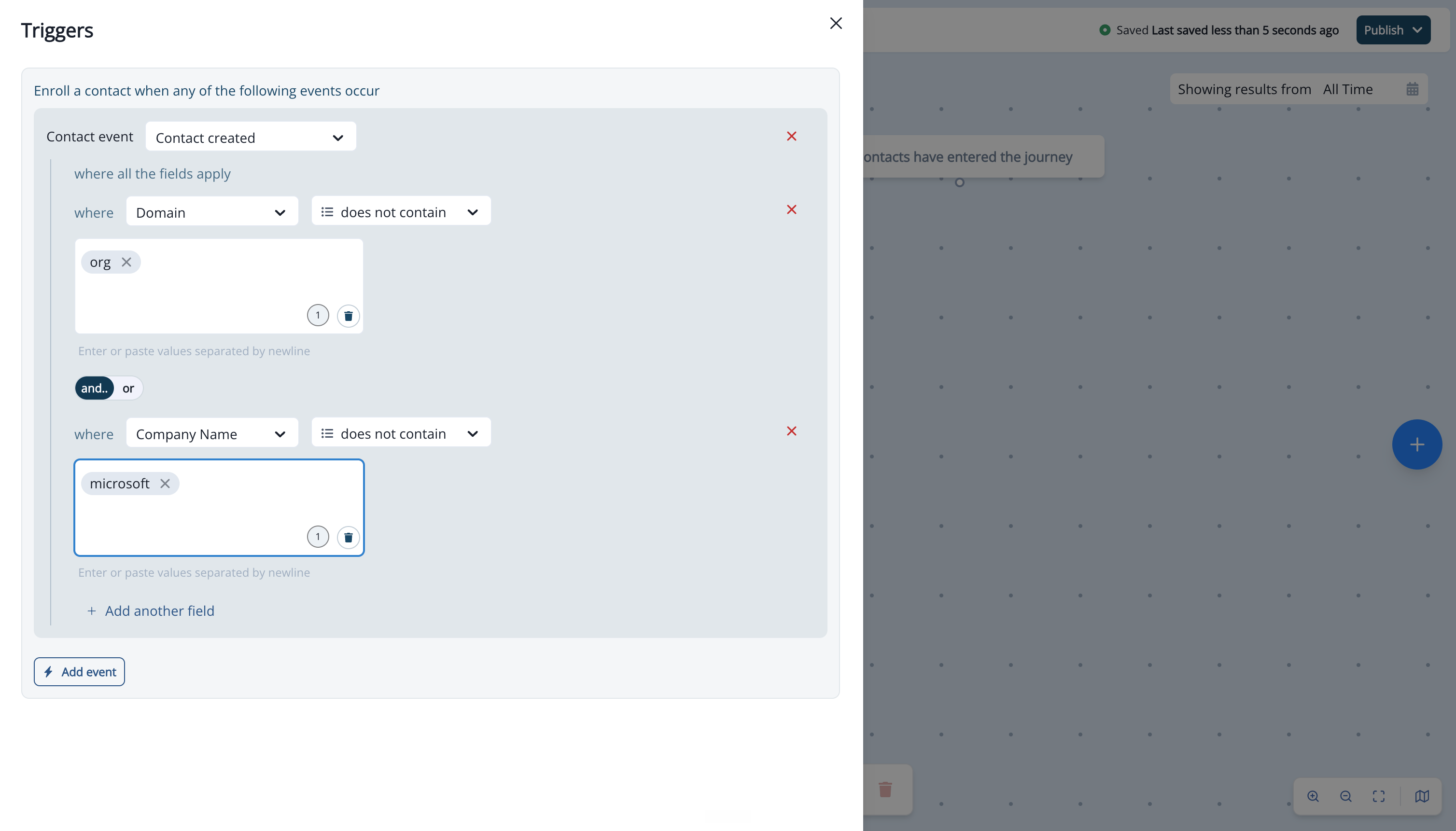
Contact Updated
Contact updated enrolls a contact when a specific field on their record changes. Select a contact field, then select how it must change.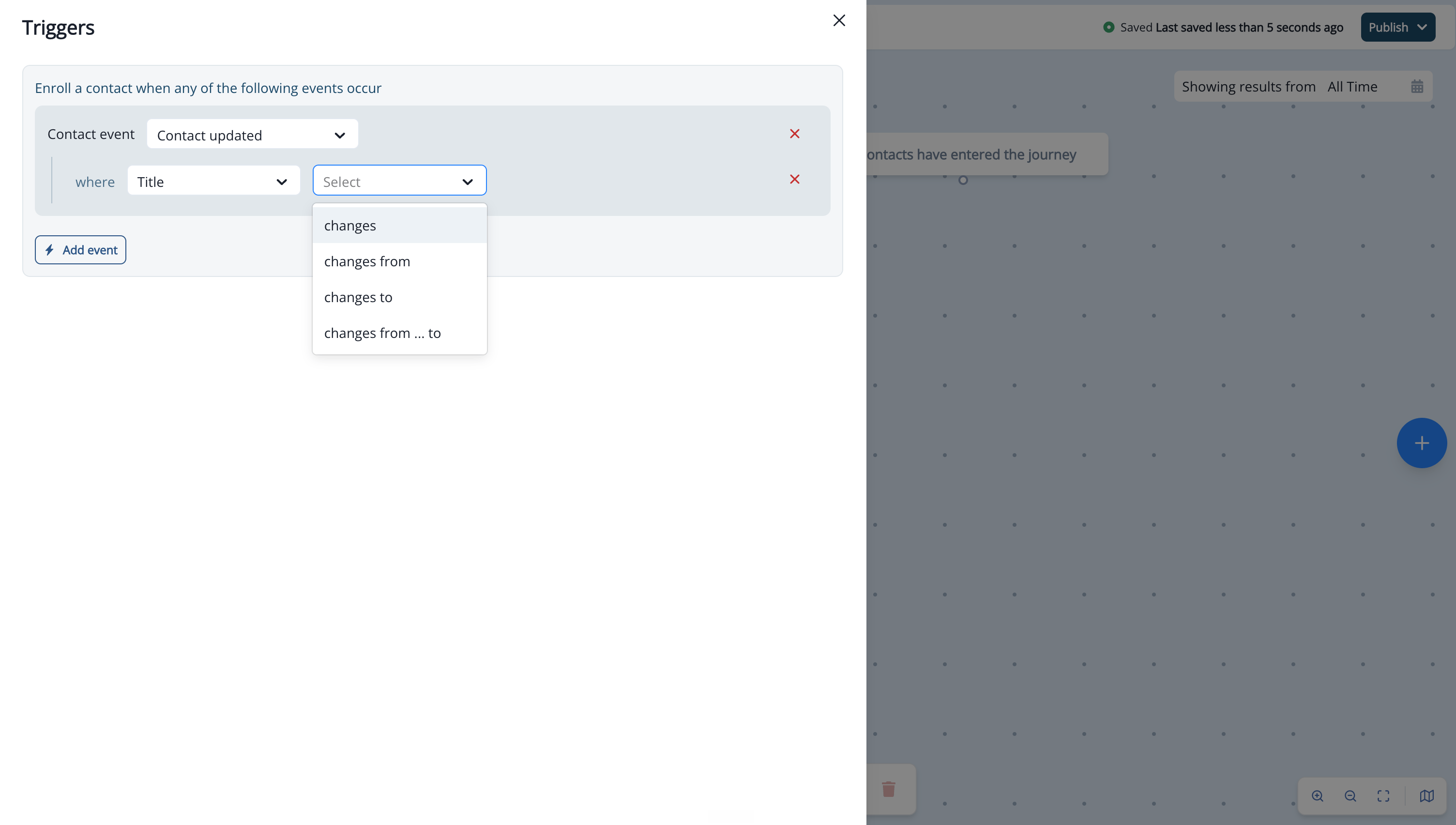
Contact updated takes exactly one field and only fires when that field’s value actually changes. To also check a contact’s current values (e.g., enroll only when Lifecycle Stage changes to Customer and Country is US), add the second check in the Audience section.
Qualification Criteria
Qualification criteria control what happens when a contact qualifies for the journey more than once. Set qualification criteria in Journey settings.- Qualify only once — Enroll a contact the first time a trigger event occurs. Later events are ignored.
- Qualify once every — Enroll a contact at most once per period you choose (days, weeks, or months).
- Qualify always — Enroll a contact every time a trigger event occurs, as long as they are not currently active in the journey.
A contact cannot re-enter a journey while actively progressing through its steps, regardless of the qualification setting.
Audience
The Audience section narrows enrollment to the contacts you care about. After a trigger event fires, Inflection checks the contact against your audience criteria — only contacts who match are enrolled in the journey. To define an audience, click Edit in the Audience section and add one or more filters. The Audience section uses the same filter blocks as dynamic lists and journey audiences, so you can qualify contacts by person property. For example, add a person property filter such as Company set to a specific value, or Email set to not blank, to enroll only matching contacts. Combine multiple filters with AND / OR to express precise enrollment logic. With AND, a contact must match every filter to enroll. With OR, matching any one filter is enough. The Audience section applies to every trigger event — marketing, product, and contact events.A contact is enrolled only when both conditions are true: the trigger event occurs and the contact matches the audience criteria. Leave the Audience section empty to enroll every contact who triggers the event.
Audience filters evaluate the contact’s stored properties, such as Name, Email, or Company. This is different from Form Field Filters, which match values in the submitted form payload. Use Form Field Filters to react to what was submitted; use the Audience section to qualify who the contact is.
Use a Contact updated condition to react to a field changing, and use the Audience section to check a field’s current value. For example, a Contact updated trigger on Lifecycle Stage changes to Customer, with an Audience filter of Country is US, enrolls only US contacts who just became customers.
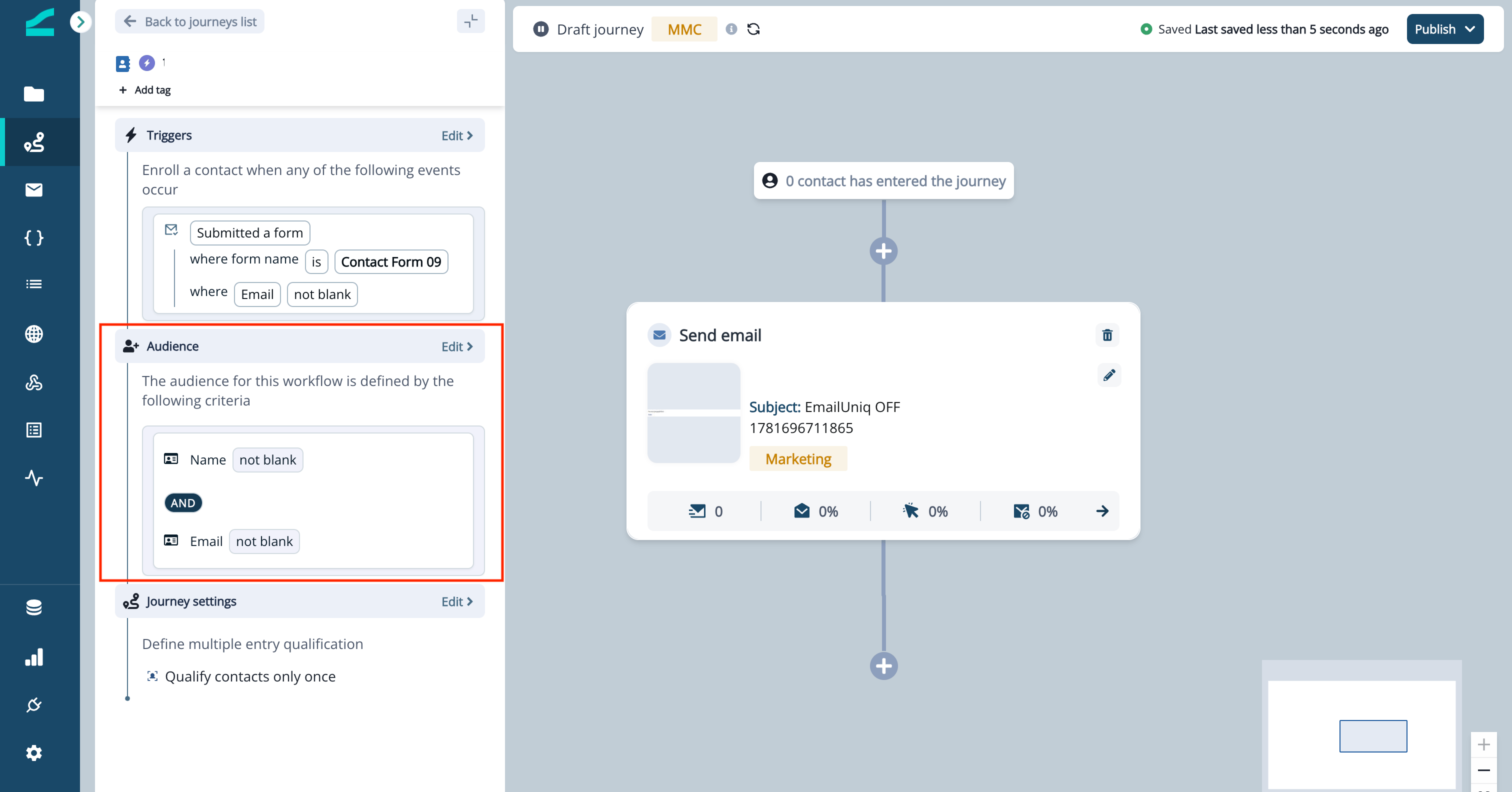
Learn more about the available filter blocks and audience best practices: Building Audiences
Supported Flow Steps
The following flow steps are available on the Trigger Journey canvas.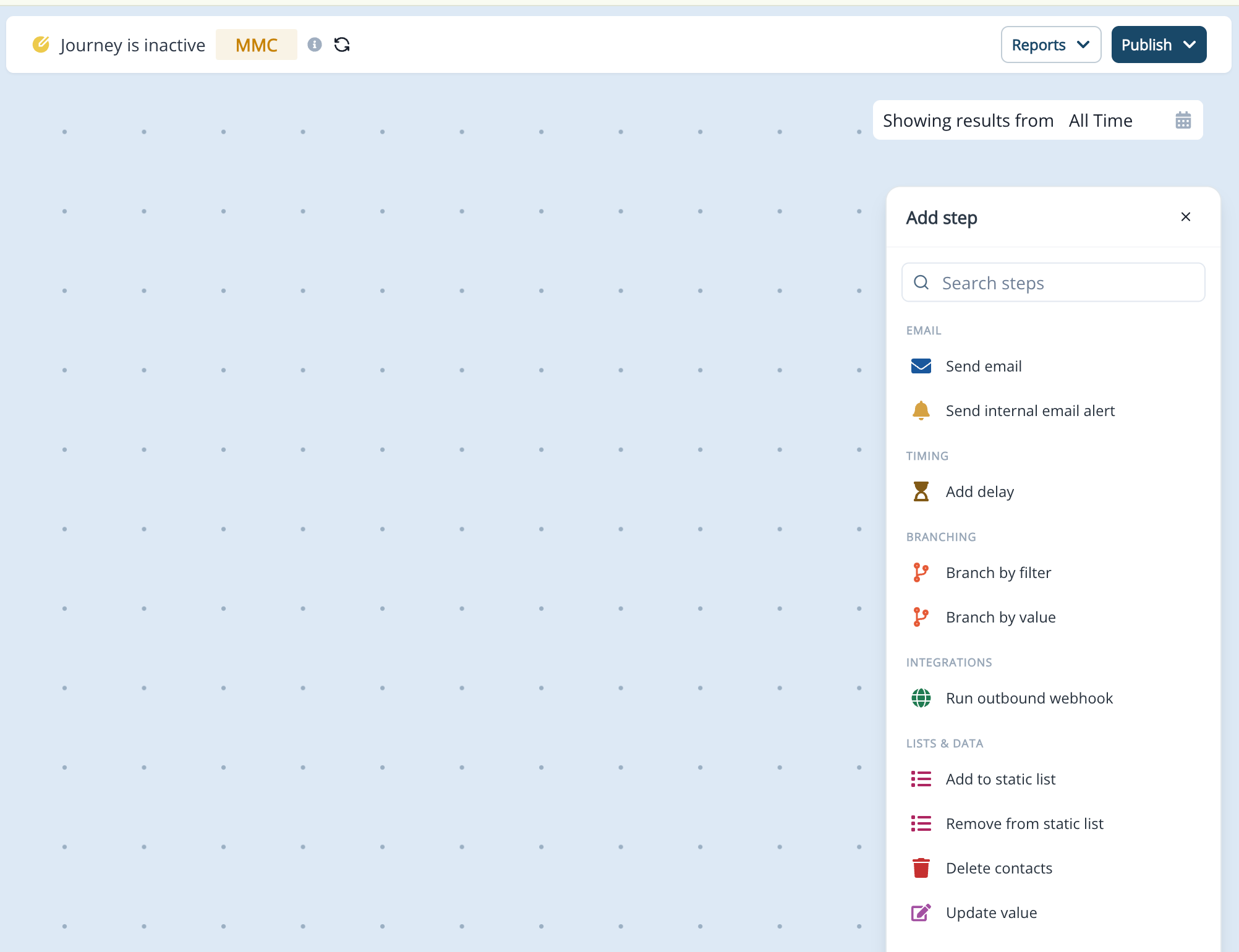
Learn more about configuring individual flow steps and how to combine them: Journey Flow Steps Reference
Add To Static List And Remove From Static List
In a Trigger Journey, click Add flow step and choose Add to static list or Remove from static list from the Lists menu group.- Add to static list: search for and select a static list. The step displays a green Add badge with the list name. When the trigger fires, Inflection adds the contact to that list.
- Remove from static list: search for and select a static list. The step displays a red Remove badge with the list name. When the trigger fires, Inflection removes the contact from that list.
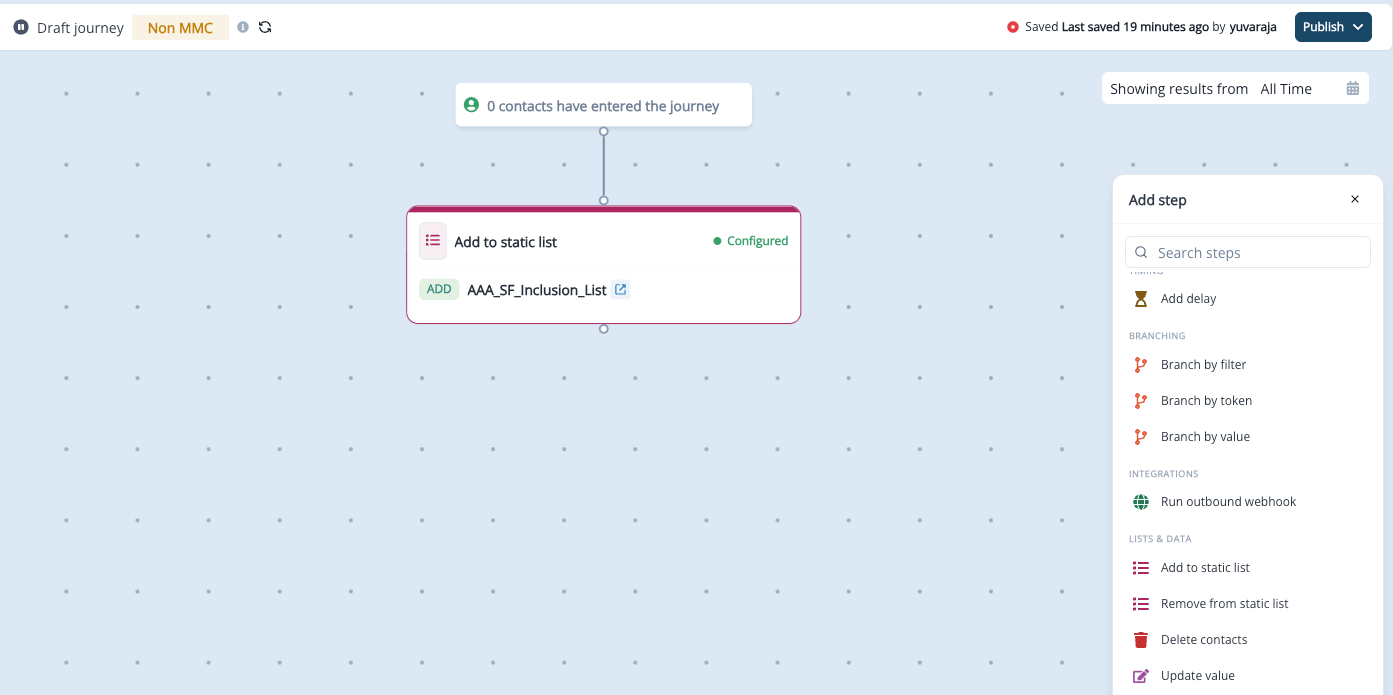
List membership changes can take up to a few minutes to reflect.
Run Outbound Webhook
In a Trigger Journey, click Add flow step and choose Run outbound webhook from the Integrations menu group. Search for and select an existing outbound webhook. The step displays the webhook name, its HTTP method, and a Captures response badge when the webhook is configured to capture a response. When the trigger fires, Inflection calls the webhook at its destination endpoint. Read the Journey Flow Steps Reference for full configuration details.Branching
Trigger journeys support the same branching flow steps as scheduled journeys. Use branching to split contacts into different paths based on their attributes or field values.- Branch by Filter — Splits contacts into two paths (True / False) based on dynamic list filter criteria. Use this for precise condition-based routing using person properties. See Journey Flow Steps Reference for full configuration details.
- Branch by Value — Splits contacts into multiple paths based on a contact or account field value. Each unique value follows its own path, with a Default path for contacts that do not match any specified value.
Publish Your Journey
Click Publish to activate the journey. The journey moves to Active status within seconds, and contacts begin enrolling in real time as qualifying events come in.FAQ
Can I trigger a journey when a product user or an account is created or updated?
Can I trigger a journey when a product user or an account is created or updated?
Not yet. Contact events support contacts only.
Does Contact updated fire when any field on the contact changes?
Does Contact updated fire when any field on the contact changes?
No. It fires only when the field you selected changes and the change matches the operator. Updates that don’t change the field’s value do not fire it.
Can I add more than one field to a Contact updated trigger?
Can I add more than one field to a Contact updated trigger?
No. Each Contact updated event takes one field. To react to changes on different fields, click Add event and add another Contact updated event — the journey enrolls the contact when either one fires. To check other fields’ current values, use the Audience section.
Will contacts created before I publish the journey be enrolled?
Will contacts created before I publish the journey be enrolled?
No. Trigger journeys only respond to events that happen after the journey is published.
Can I combine events, such as a form submission and a product event?
Can I combine events, such as a form submission and a product event?
Yes. Add each event with Add event. A contact is enrolled when any of them occurs.