

- Journey audiences
- Dynamic lists
- Segments
Filters
A Person Property
When targeting contacts or users based on a property value (also called an attribute or field value), select the person property filter. The prefix of the property indicates the Inflection entity the property describes.- contact properties have no prefix (e.g.,
name,email,title) - product user properties start with product user. (e.g.,
product user.role,product user.created date,product user.last active) - org properties start with org. (e.g.,
org.plan,org.open seats,org.credits available) - account properties start with account. (e.g.,
account.owner,account.renewal date,account.geo)
Read more about these entities and their common use cases: Common Connections & Use Cases
After selecting a field, click the data dictionary icon next to the operator dropdown to open Insights from data dictionary. The panel shows how the field is populated and what values it contains. For text fields, click values from the list to add them to your filter. Read more: Data Dictionary
Performed a Product Event
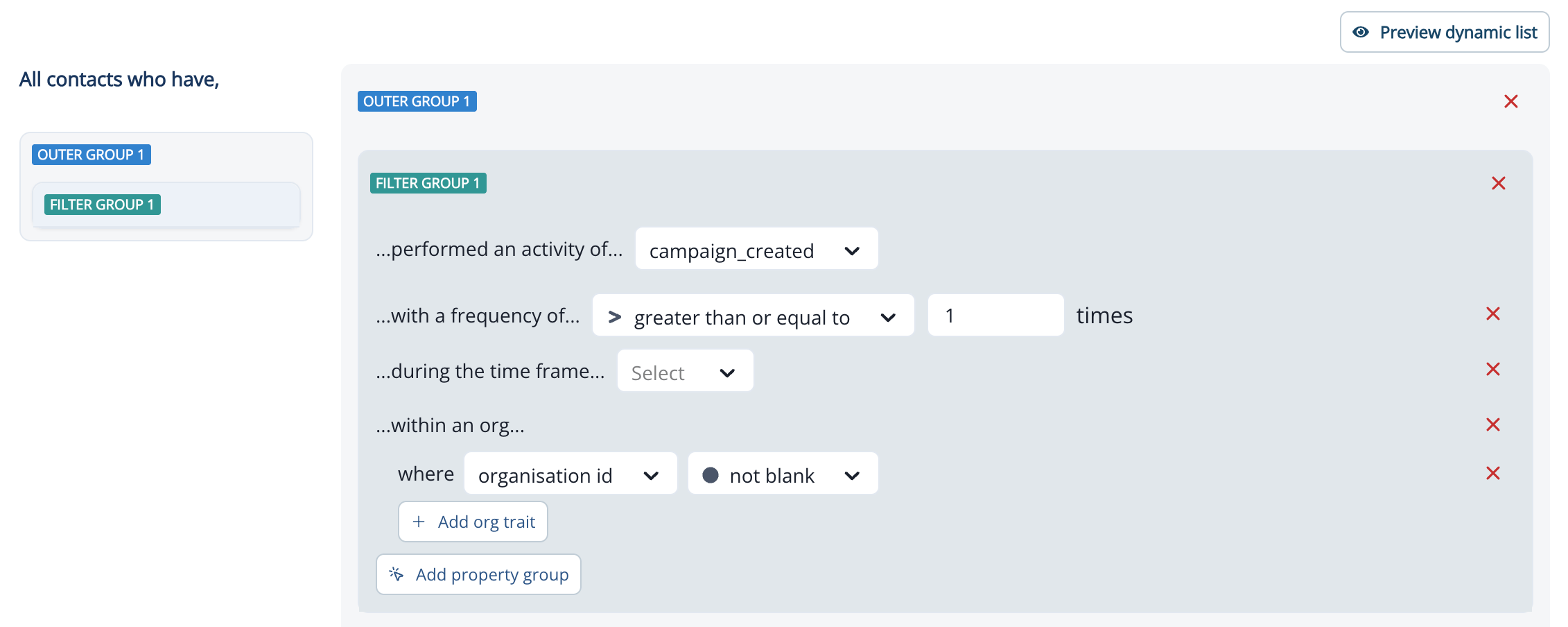
When targeting contacts or users based on an activity they did in your product, select the performed a product event filter. Additional filters include:- Frequency: How many times a contact or user did the activity
- Timeframe: Within
ndays, weeks, months- Note that
in past 1 weekwill evaluate the current calendar week; to evaluate a rolling 7-day period, usein past 7 days - To reference a date in the future, state negative n (
-n); i.e.,in past -7 dayswill evaluate the next 7 days.
- Note that
- Add property group: Reference activity properties
- Activity with no org attached (for example, events received before this feature was enabled, or events where the org could not be resolved) does not match org-requiring conditions.
- If you do not enable “Within an org where…”, the filter counts all activity regardless of org — this is the existing default behavior and is unchanged.
- The org is attached to each activity at ingest, from one of two sources:
- Segment: the org ID property set in the Product Data Explorer.
- Data warehouse import: the Organization ID column mapped on the Product activity object. See product activity fields for data warehouse import.
Performed a Marketing Activity
When targeting contacts or users based on engagement with your marketing materials like an Inflection journey, email, or form, select the performed a marketing activity filter. Additional filters include:- Frequency: How many times a contact or user did the activity
- Timeframe: Within
nhours, days, weeks, months- Note that
in past 1 weekwill evaluate the current calendar week; to evaluate a rolling 7-day period, usein past 7 days - To reference a date in the future, state negative n (
-n); i.e.,in past -7 dayswill evaluate the next 7 days.
- Note that
For the in past and in relative timeframe between (inclusive) operators, you can choose hour(s) alongside day(s), week(s), and month(s) as the unit. Hours accepts a value from 1 to 100. This unit is available both in the Dynamic List builder and in a journey or campaign node’s Audience Criteria. Existing lists built on day, week, or month units are unaffected and need no changes.
- Additional details: additional filters will depend on the event selected: the qualified for journey activity will offer journey name; the submitted webhook activity will offer submission values; etc.
Performed a Web Activity
When targeting contacts or users based on engagement with your tracked web property, select the performed a web activity filter. Additional filters include:- Frequency: How many times a contact or user did the activity
- Timeframe: Within
nhours, days, weeks, months- Note that
in past 1 weekwill evaluate the current calendar week; to evaluate a rolling 7-day period, usein past 7 days - To reference a date in the future, state negative n (
-n); i.e.,in past -7 dayswill evaluate the next 7 days.
- Note that
For the in past and in relative timeframe between (inclusive) operators, you can choose hour(s) alongside day(s), week(s), and month(s) as the unit. Hours accepts a value from 1 to 100. This unit is available both in the Dynamic List builder and in a journey or campaign node’s Audience Criteria. Existing lists built on day, week, or month units are unaffected and need no changes.
- Source of visit
- Landing Page, Page URL, Page Title
- Referrer URL
- UTM or Custom Parameter
Learn more about web tracking: Web Tracking
List Membership
When targeting contacts or users based on their membership or lack of membership in a static list, dynamic list, or journey audience, select the list membership filter.Salesforce Campaign Membership
When targeting contacts or users based on their membership in a Salesforce campaign, select the Salesforce campaign membership filter. Additional filters include:- Campaign Member Status
- Date Added
- Has Responded
- Responded Date
Salesforce Opportunity
When targeting contacts based on their association with a Salesforce Opportunity, select the Has Salesforce Opportunity filter. Use this to power deal-aware audiences — segment by Stage, Amount, or Close Date; suppress contacts during active deals; or build expansion lists from recent Closed Won Opportunities. Supported field conditions include:- Opportunity Name
- Account ID
- Stage
- Amount
- Close Date
- Type / Record Type
- Is Closed
- Is Won
- Owner
- Custom Opportunity fields (synced automatically)
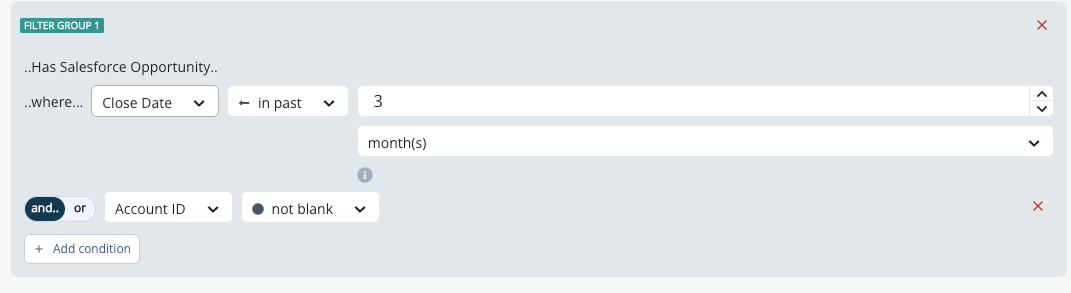
For full setup of Opportunity sync, the Opportunity Matching Strategy setting, the listing page, and the Salesforce tab on contact profiles, see the Opportunity Sync section in Salesforce.
Person Segmentation
When targeting contacts or users based on their membership in a segment, select the Person segmentation filter.Read more about segments: Segments
Grouped Properties: Account Members
When targeting contacts based on the activity or properties of members within an account, select the Account members filter. When targeting users based on the activity or properties of members within an org, select the Org members filter.Contact/User Lists and Journeys
Inflection models people at two grains:- A contact is a person: one record per email address.
- A product user is that person’s membership in a specific org: One contact can be many product users if they belong to multiple orgs. (Thing of orgs as product workspaces or tenants.)
General guidance
General guidance
Default to contact lists and journeys. If your environment has people who have multiple user IDs, contact journeys are your safeguard against emailing the same person multiple times. The contact grain naturally collapses to one send per person. Reach for a user journey only when you’ve accounted for the duplicate-send behavior.
When a contact with multiple users qualifies for a contact journey, the oldest user will be chosen for personalization (branches or tokens that evaluate based on user or org data).
When to step up to a user list/journey
When to step up to a user list/journey
Choose a user grain only when one of these is true:
- Grouped org logic: “users where anyone in their org has [done X]” uses the Org members filter, which targets users. This kind of filter is only possible in a user dynamic list or user journey.
- Org- or user-specific personalization or branching: seats, plan, role, or activity tied to a specific org membership — and you intentionally want one tailored email per membership.
- Targeting in a contact setting can still include attributes from contacts, accounts, users, and orgs; and activity from marketing/web activities and product activities.
- Grouped account logic — “contacts where anyone in the account has [done X]” — uses the Account members filter and stays at the contact grain.
When you need user-specific personalization and one email per person
When you need user-specific personalization and one email per person
This is the common bind: the content depends on user/org data, but you don’t want to email the same person multiple times. Don’t default to a user journey here — use the stamp-and-hand-off pattern:
- Run a user journey to resolve the user-specific value, write it to a contact field, and add the person to a static list.
- The static list collapses to one row per person.
- Run a contact journey off that static list to send — one email per person, personalized from the stamped field.
If a person belongs to multiple orgs, step 1 stamps them more than once. Decide upfront which value wins (most recent, highest-tier plan, etc.) so the final send is predictable.
Best Practices
To ensure your list logic applies as-intended, we recommend these best practices.Use groups to explicitly define list logic.
Use groups to explicitly define list logic.
When building list logic in Inflection, groups act as parenthesis — defining the order of operator evaluation (i.e., which AND/OR evaluates when).
Inner and Outer Groups
Inner and Outer Groups
Inflection supports two levels of operator nesting, which we call Outer Groups and Filter Groups. Filter groups are always nested within outer groups. As you build your list logic, these groupings are visually summarized in the top right corner of the list building UI.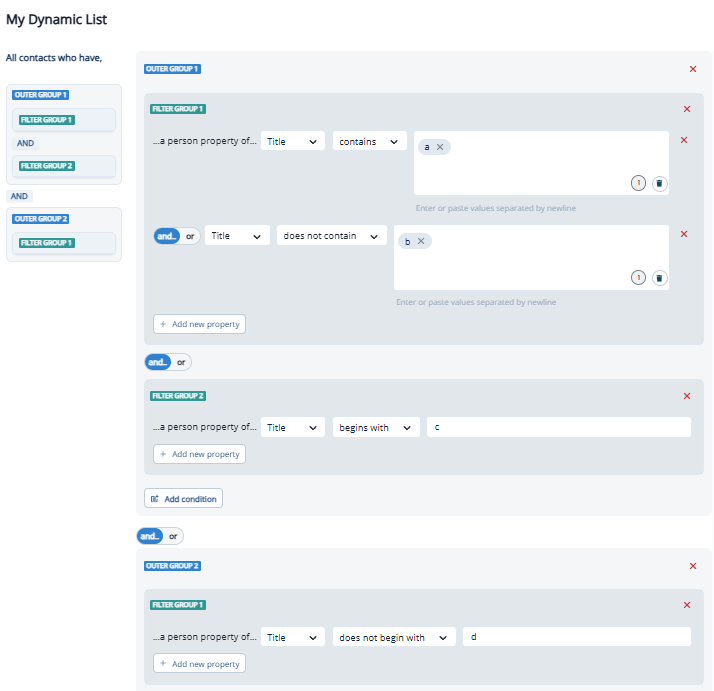
- Title contains a
- Title does not contain b
- Title begins with c
- Title does not begin with d
Default Order of Operations
Default Order of Operations
When order of operations is not explicitly assigned with groups, logic will evaluate according to Boolean order of operations. This means that unless otherwise specified through grouping, AND will evaluate before OR.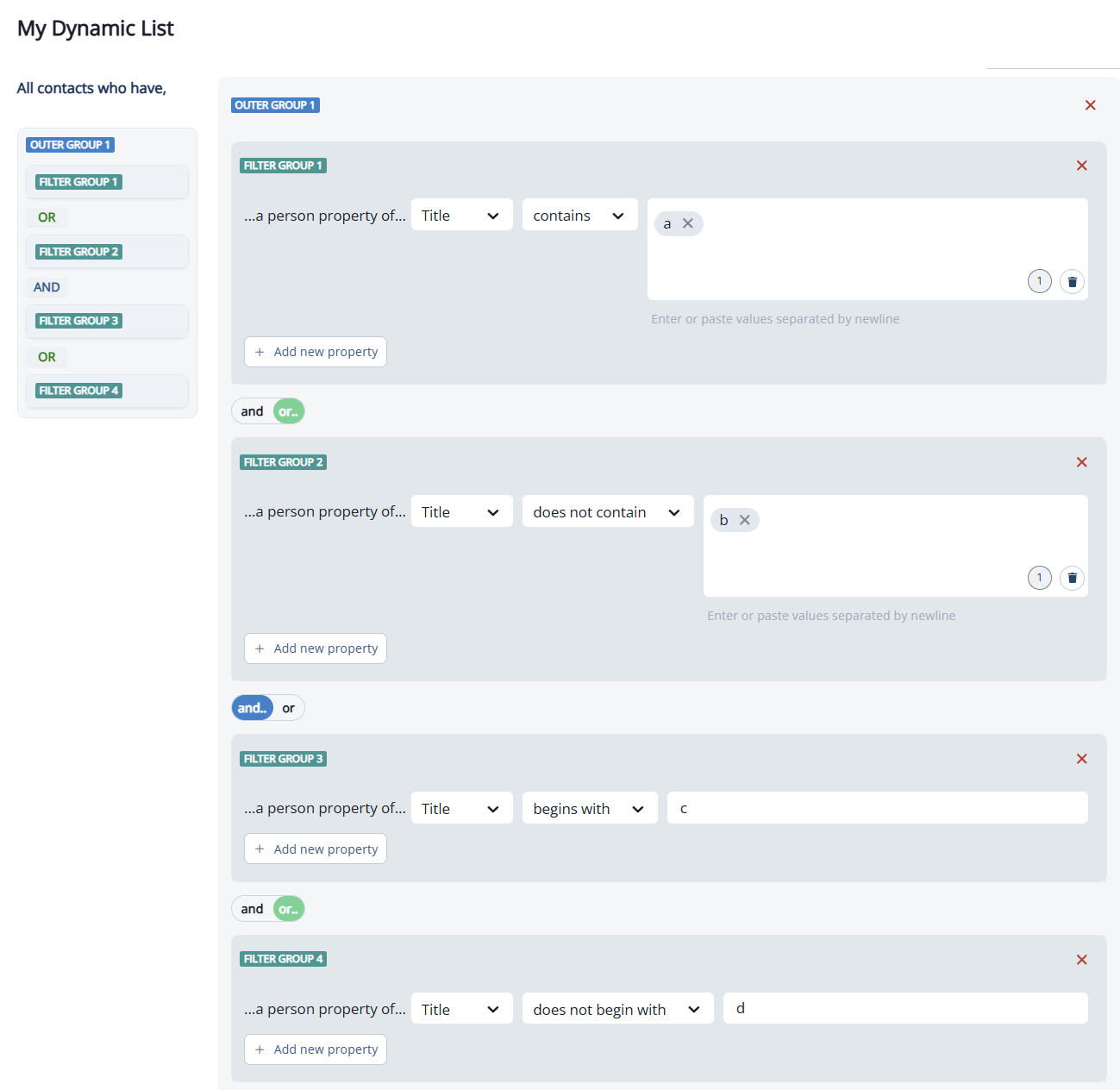
- (1) Their title contains
a - (2 AND 3) Their title does not contain
band their title begins withc - (4) Their title does not begin with
d
Use filters that are absolutely necessary; delete everything else.
Use filters that are absolutely necessary; delete everything else.
- Ideally, a specific filter is only applied to an audience one time. If the audience references a dynamic list, evaluate the referenced dynamic list(s) to understand what filters are already applied. Where applicable, simplify so that each filter is only applied to the audience one time.
- Example: If your audience criteria is
Dynamic List 1ANDDynamic List 2ANDGeo is not EMEA; check to see ifGeo is not EMEAis already used as criteria in Dynamic List 1 and 2. If it is, it’s not necessary a third time.
- Example: If your audience criteria is
- Note that exclusion filters for unsubscribes and/or bounces are unnecessary. (Inflection automatically excludes unsubscribes and bounces from marketing sends.)
Order similar filters together, and in the way that natural language reads.
Order similar filters together, and in the way that natural language reads.
Most Inflection customers have 100s of dynamic lists in their instance. When audience criteria is consistently ordered across journeys, it’s easier for everyone to quickly understand a list and spot errors. The cognitive load of reading a list decreases when filters are ordered in a standard way each time.A general method of ordering list criteria:
- Inclusion criteria
- Account attributes (enterprise customers; target accounts; churned accounts; etc.)
- Contact or user attributes (persona; title; user role; last sign-in date; etc.)
- Activities (filled out form; signed up; visited web page; etc.)
- Exclusion criteria
- Account attributes (not a customer; not in an open opportunity; etc.)
- Contact or user attributes
- Activities
Use segments to codify commonly-used audiences.
Use segments to codify commonly-used audiences.
If you find that many of your journeys reference the same audience (i.e., free trials; admin users; a specific persona or product; etc.), consider identifying this criteria in a dynamic list or segment one time, and then referencing that dynamic list or segment in all journeys going forward. This helps users avoid rebuilding the same criteria over and over again, reducing room for error and inconsistency.
Once a list is built, read the filters out loud.
Once a list is built, read the filters out loud.
As you go, you will naturally evaluate:
- Does it make sense?
- Does it match the audience you intend to reach?
Preview the list and check a few contacts.
Preview the list and check a few contacts.
Preview the list and click into a contact record to check that the contact meets each filter criteria.
- Does the contact’s attributes match the filter criteria?
- Does the contact have the included product activity or marketing activity?
- Does the contact meet the exclusion criteria?
Assess potential risk to deliverability.
Assess potential risk to deliverability.
Depending on the following answers, the send may deserve additional care. How many contacts in the audience:
- have shown sign-of-life in the last 6 months? (marketing activity or product activity)
- have been delivered an Inflection email in the past 6 months?
- are more than 6 months old?
- Include activity criteria with a timeframe of 6 months or less.
- In the absence of activity criteria, limit the send to contacts created or successfully delivered an email within the last 6 months.
- Verify the list with a third-party vendor that will rate the reliability of each email address and check for spam traps.