

Accessing Segments
Accessing Segments
To access segments in Inflection, navigate to Database > Segments from the main menu. You’ll see a list of all your segments with their descriptions, last refreshed dates, and last updated dates.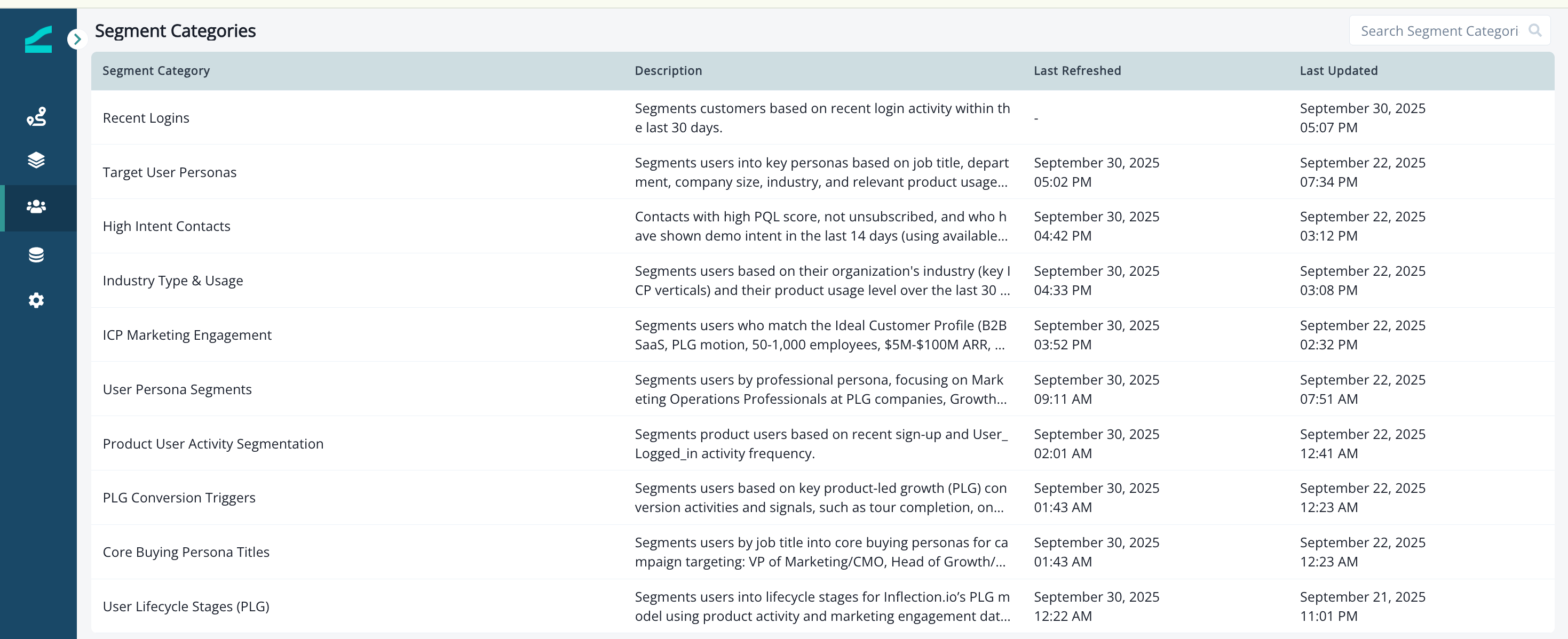
How to use Segments in Dynamic Lists
How to use Segments in Dynamic Lists
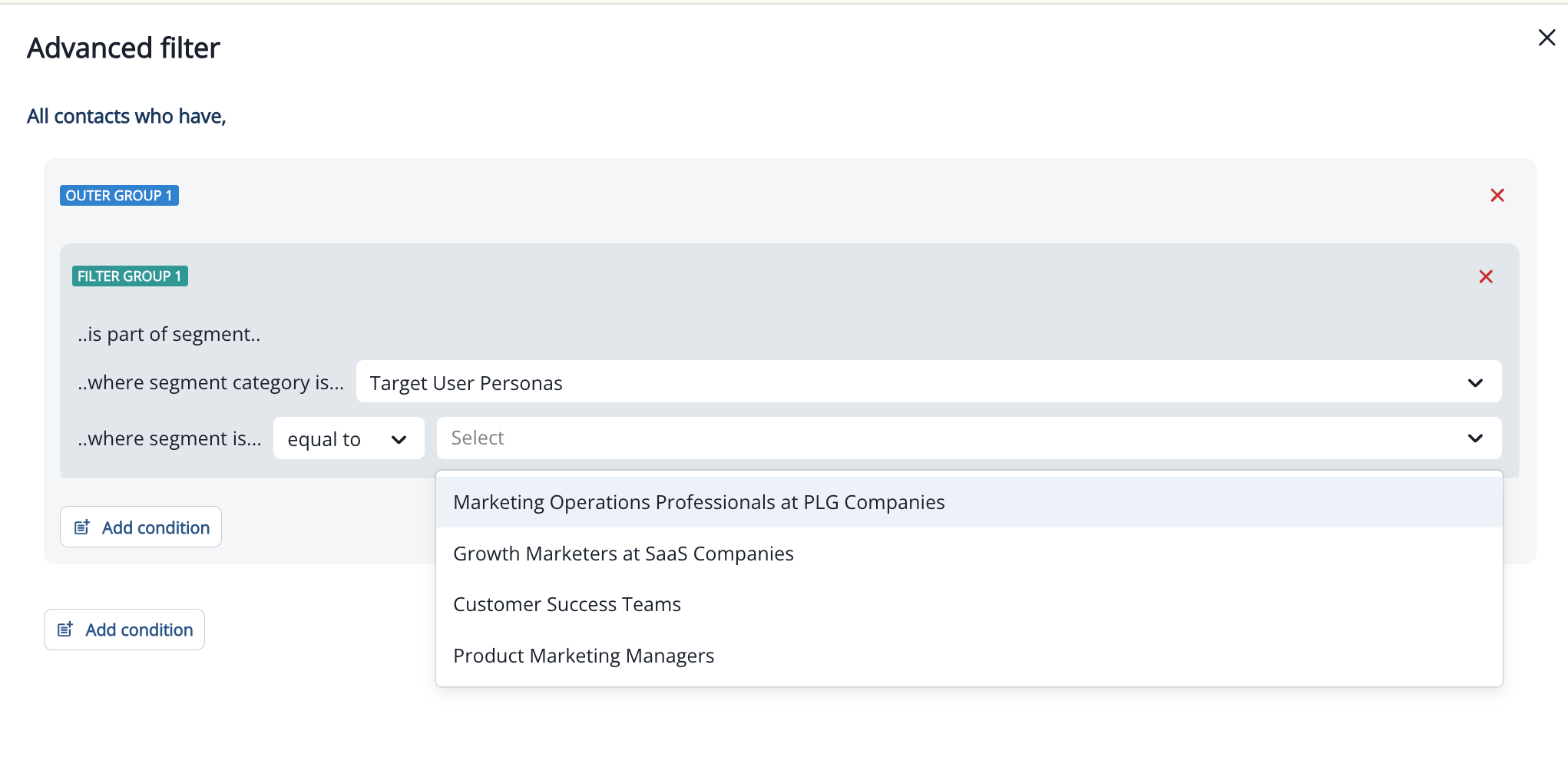
Segments can be used as filters in Dynamic Lists throughout Inflection, including in journey audiences.To use a segment in a Dynamic List:
- Open the Dynamic List editor (e.g., when defining a journey audience)
- Click Add condition
- Select Person segmentation
- Choose the segment you want to use from the dropdown (e.g., “Target User Personas”)
- Select the specific sub-segment (e.g., “Marketing Operations Professionals at PLG Companies”)
-
The Dynamic List will now filter to include only contacts matching that segment
How to create a new segment
How to create a new segment
Currently, Segments can only be created using AI Chat (requires AI features to be enabled in your instance).If you have AI features enabled, you can create segments using natural language: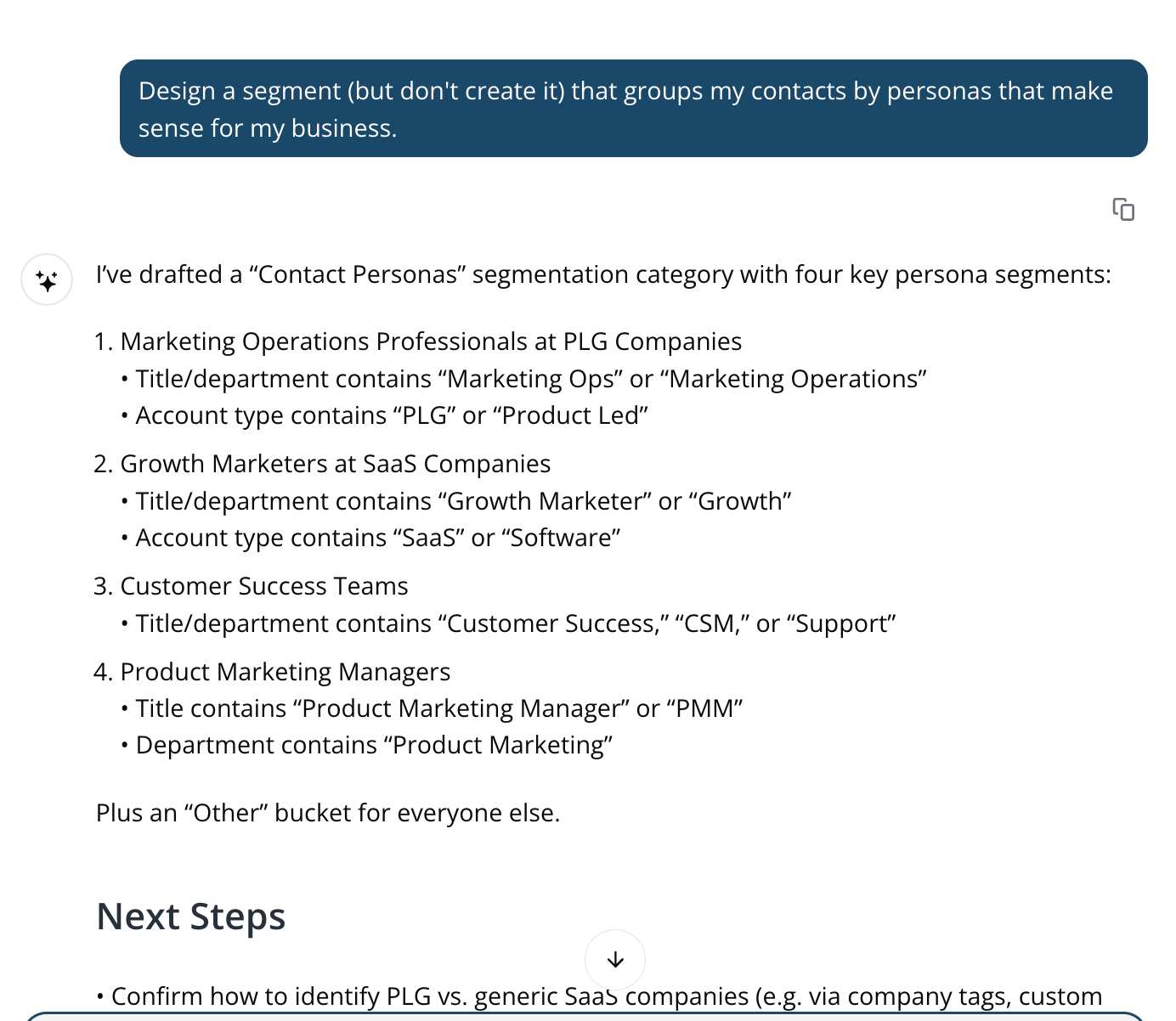
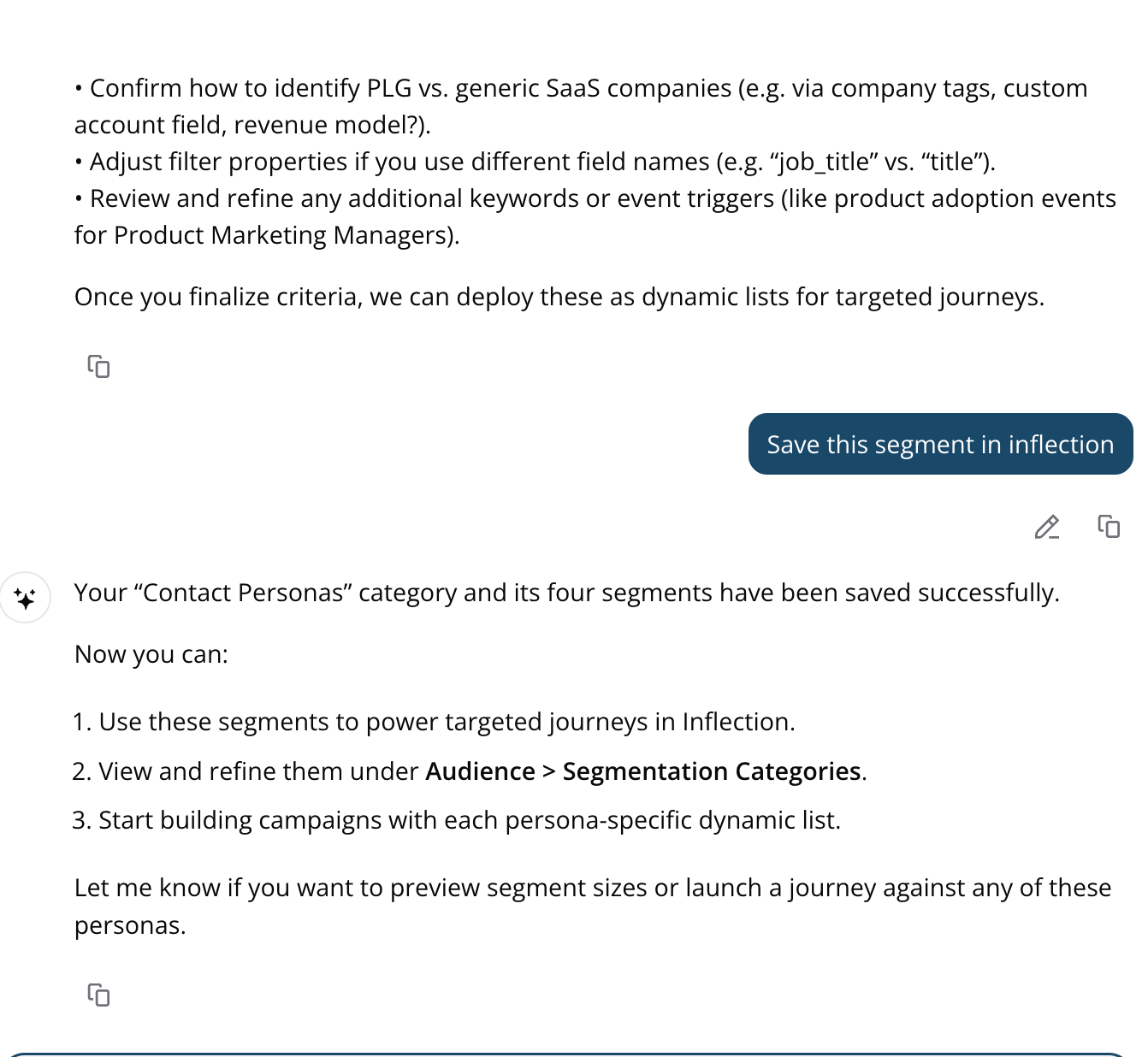
- Use the AI to describe your desired audience in plain language (e.g., “Create a segment of customers who logged in the last 30 days”)
- The AI will generate a segment
- Ask AI to save the segment in Inflection
Note: Manual segment creation via the UI will be available in the future.
How to edit a segment
How to edit a segment
All users and admins can edit existing segments, regardless of whether they have AI features enabled.
- Navigate to Database > Segments
- Click on the segment you want to edit
- Click on the specific sub-segment you want to edit (if applicable)
-
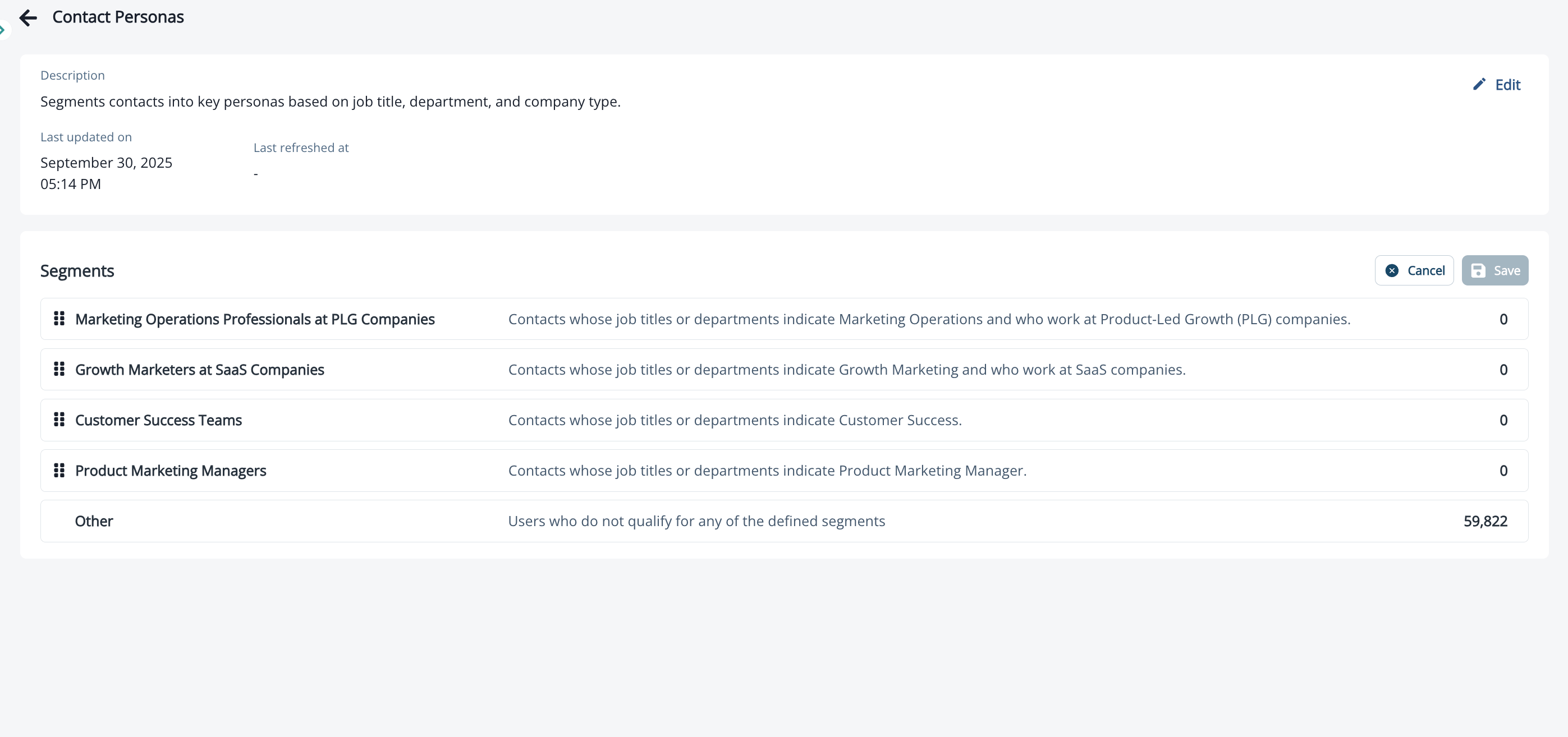
In the Dynamic List view, you can:
- Edit the segment name and description
- Modify criteria and conditions
- Reorder segment conditions by dragging and dropping
- Add conditions to reference other segments (e.g., filter by “where segment category is… Target User Personas”)
- View the current segment count
- See Last Updated timestamp (when the segment configuration was last changed)
- See Last Refresh timestamp (when the segment data was last refreshed)
-
Click ‘Save changes’
Note: While only users with AI enabled can create segments via chat, all users can view, edit, and manage existing segments through the Dynamic List interface.
How to delete a segment
How to delete a segment
To delete a segment, please reach out to the Inflection team
Note: Deleting a segment will remove it from any journeys currently using it.
Understanding segment exclusivity and order
Understanding segment exclusivity and order
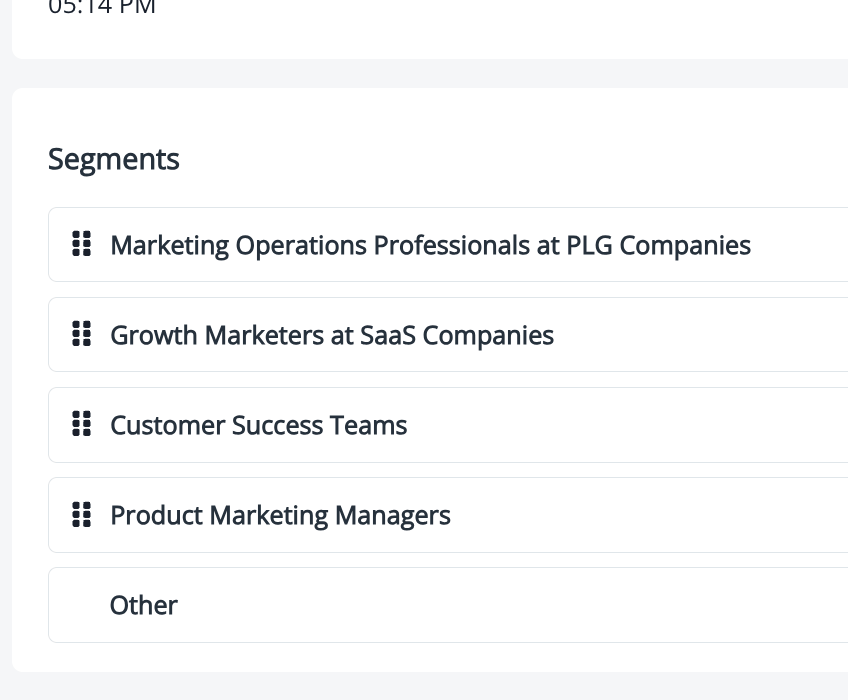
A contact can only exist in one sub-segment within a segment at a time. If a contact qualifies for multiple sub-segments, order determines which sub-segment they belong to.How ordering works:
- Sub-segments are evaluated from top to bottom
- Once a contact matches a sub-segment, they are assigned to it and evaluation stops
- Contacts are not evaluated against sub-segments below their match
-
The order of sub-segments is critical - place your most specific or high-priority segments at the top
- VP of Marketing at Enterprise Companies
- Marketing Managers at SaaS Companies
- Other Marketing Professionals
Understanding segment metadata
Understanding segment metadata
When viewing a segment, you’ll see two important timestamps:
- Last Updated: Shows when the segment configuration was last modified (e.g., criteria changed, conditions added/removed)
- Last Refresh: Shows when the segment data was last refreshed to reflect current contact information
Note that segments will automatically refresh once daily, or within 10 minutes of an update.