Journey Statuses
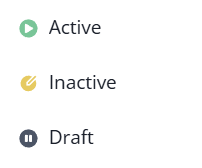
Inflection journeys can be in one of the following statuses:- Draft: when creating a new journey or cloning an existing journey, the new journey is in a draft status. Draft journeys do not qualify contacts or send emails.
- Published as Inactive: publish a journey as inactive to reference it in another journey, for example to use the qualify-for-journey audience criteria or exit criteria, or to reference the journey audience.
- Published as Active: publish a journey as active to qualify contacts who meet the audience criteria, according to the schedule and frequency set in the journey’s settings.
Read about the considerations and steps when pausing or editing active journeys: Pausing/Editing Active Journeys
Journey Audiences
Inflection users have a few options to build an audience for targeting in a journey:- Dynamic lists
- Segments
- Journey audiences
- Static lists
For more detail on audience filters and logic: Building Audiences
Journey Exit Criteria
Exit criteria can remove a contact from a journey before the contact completes the journey flow. To configure or edit exit criteria, select Click to set up exit criteria in the side panel of any journey.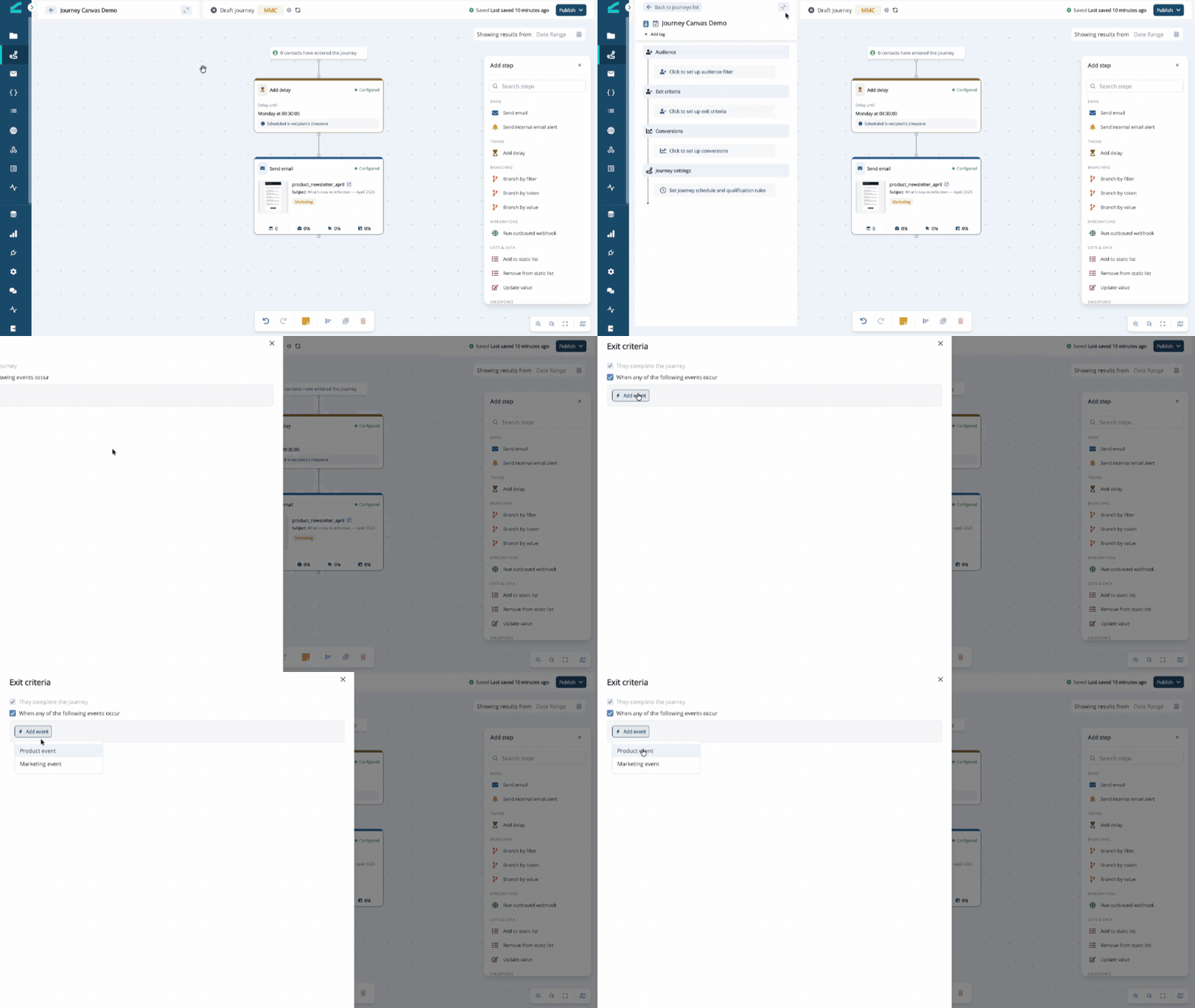
Journey Settings
Use the side panel in any journey to control when and how frequently your audience qualifies for your journey. Select Edit > next to Journey settings to open the control panel.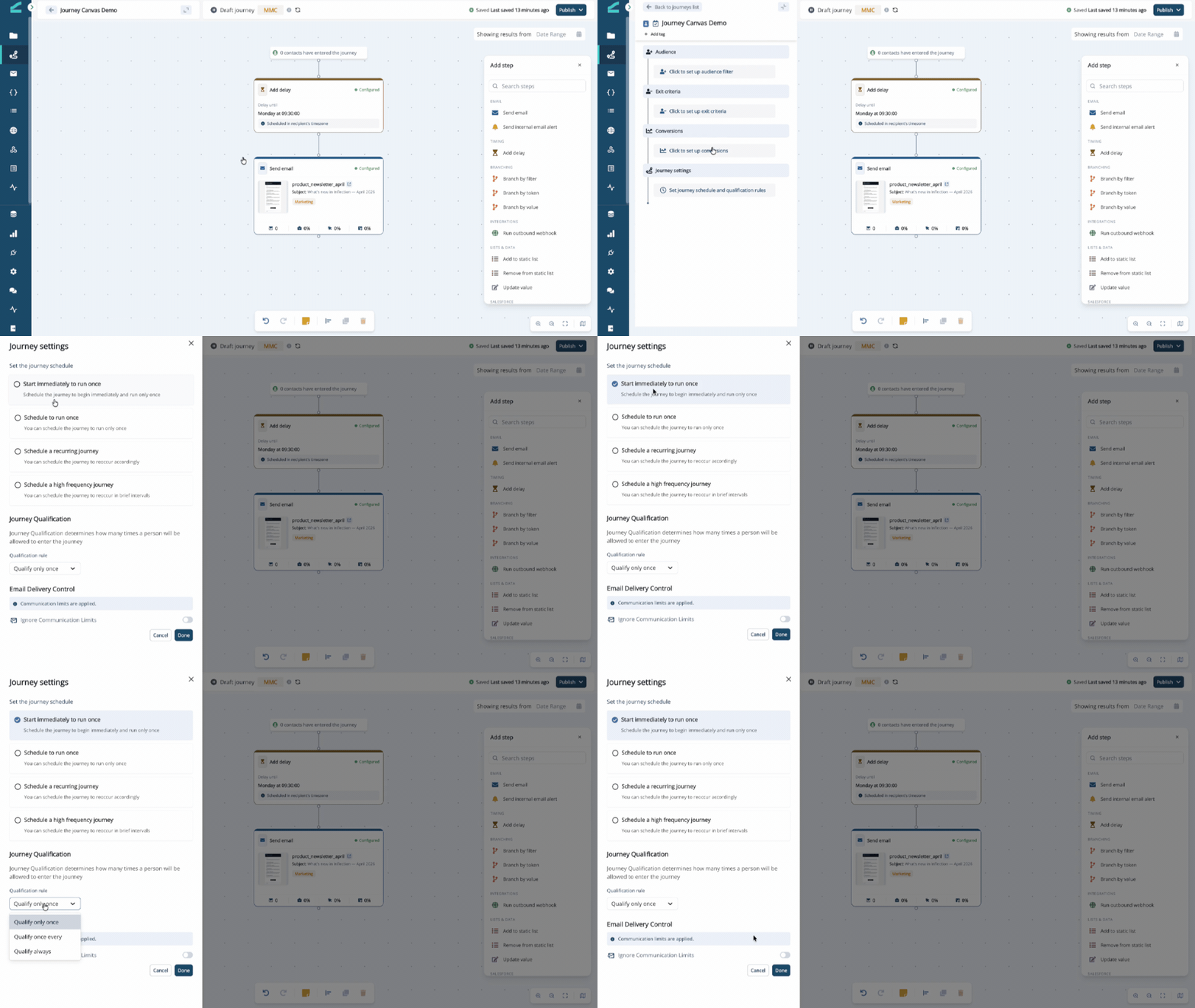
Schedule
Inflection users have four options to schedule:- Start immediately to run once: immediately publishes the journey as active, qualifies the audience, and moves them through the flow one time. After running once, the journey reverts to a published-as-inactive state.
- Schedule to run once: select a date and time in the future to publish the journey as active, qualify the audience, and move them through the flow one time. After running once, the journey reverts to a published-as-inactive state.
- Schedule a recurring journey: select a date and time in the future to publish the journey as active, and a frequency at which to run the journey (every X days, day of week, day of month, or day of year).
- Schedule a high frequency journey: select a date and time in the future to publish the journey as active, and a frequency at which to run the journey (every X minutes or hours).
Journey Qualification
Choose how frequently a contact can qualify for the journey:- Qualify only once: a contact qualifies for the journey when it first meets the journey audience criteria. After the contact qualifies the first time, it does not qualify again, even if it continues to meet the audience criteria.
- Qualify once every: a contact qualifies for the journey when it first meets the journey audience criteria. After the contact qualifies the first time, it is eligible for requalification according to the frequency set. The contact must meet the audience criteria each time in order to qualify.
- Qualify always: every time the contact meets the audience criteria, it qualifies for the journey. Note that a contact can be in a journey multiple times.
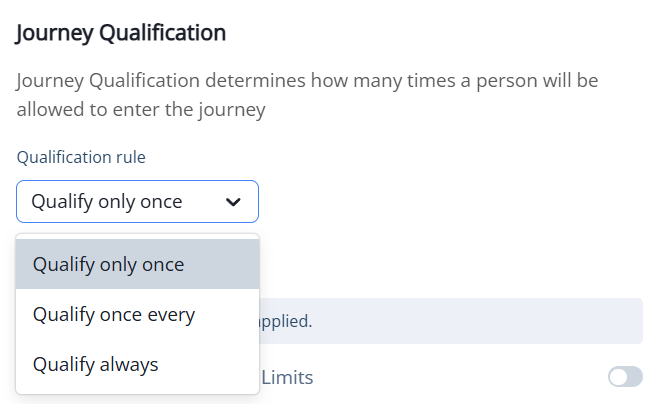
Qualify only once is appropriate for most journeys.
Email Delivery Control
Inflection users can choose to override, or ignore, globally set communications limits for an individual journey. This setting applies to all emails within the journey.Learn more about global communications limits here: Email Settings
Pausing/Editing Active Journeys
Pausing a Journey
When a journey is paused:- Contacts in the journey will freeze where they are in the journey canvas.
- No additional contacts will qualify for the journey.
- No emails will send from the journey.
Note that any email send flow step already in process at time of pausing will complete and emails will be sent.
Delay Flow Steps
When a journey is paused and a contact is in a delay flow step, the contact will delay for the amount of time configured when they entered the delay flow step.- If a contact enters a delay step set to
1 hour, and during that hour the journey is paused and the delay step is updated to2 days, the contact will wait 1 hour before moving to the next step. Contacts that enter the delay step after it’s set to 2 days, will wait 2 days.
- If a contact enters a delay flow step set to
1 hourat 9AM, and at 9:30AM the journey is paused — the contact will still move to the next step at 10AM. They’ll wait there and not process further until the journey is republished as active. (If the next step is an email flow step, they will not be sent the email. They’ll wait on that step and get sent the email when the journey is republished as active.)
Deleted Flow Steps
If a contact enters a flow step, the journey is paused, and that flow step is deleted: the contact will not move forward in the canvas. The contacts in the deleted flow step will be deleted from the journey along with the flow step. If constructing a journey where an email is sent after a delay step, and you know you may need to shorten the delay step later — rather than inserting a delay step, try adding the contacts to a static list. This way, you can target the static list with an email send when the time is right.Journey Tags
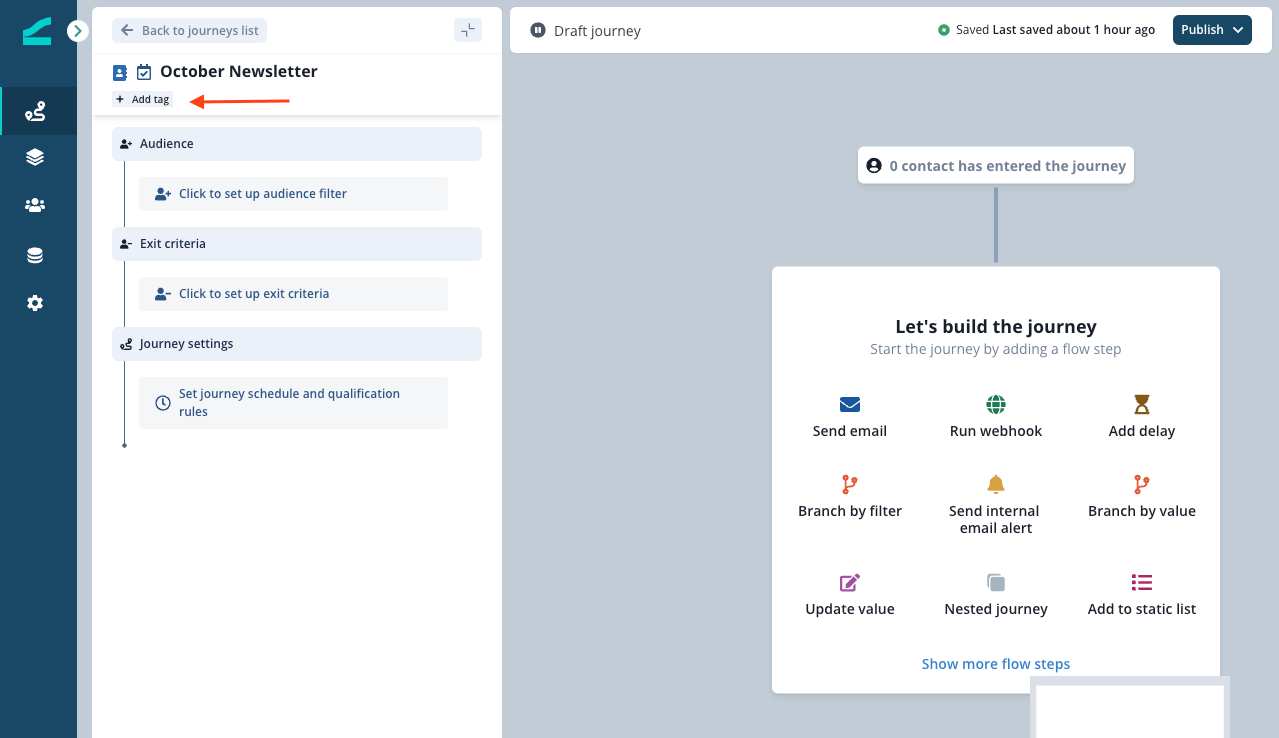
Tag journeys to streamline search on the journeys page. Each journey can have multiple tags.