

This feature is in beta release. If you don’t have access to this feature and would like to get access, please contact your CS team.
Before You Start
- Landing pages must be turned on for your workspace. If you don’t see Landing Pages in the left navigation, contact your Inflection account team.
- An admin must set up the workspace’s default subdomain before anyone can publish. See Set Up Landing Pages for Your Workspace.
- To put a form on a page, build it first in Forms. Only forms built in Inflection can be placed on a landing page.
What each role can do:
- Admins can do everything, including publish, unpublish, delete pages and change workspace settings.
- Other non-viewer roles can create, edit, rename, duplicate and share pages.
- Viewers can open pages and read agent conversations, but can’t make changes.
Set Up Landing Pages for Your Workspace
Workspace settings control where your pages are hosted and which scripts load on them. Navigate to Settings > Landing Pages.Choose Your Default Subdomain
Every page gets an address on an Inflection-managed subdomain, so you can publish without any DNS work.- Navigate to Settings > Landing Pages.
- In Default subdomain, enter a name in Choose your subdomain. Use lowercase letters, numbers and hyphens. The preview line shows where your pages will be published.
- Click Continue.
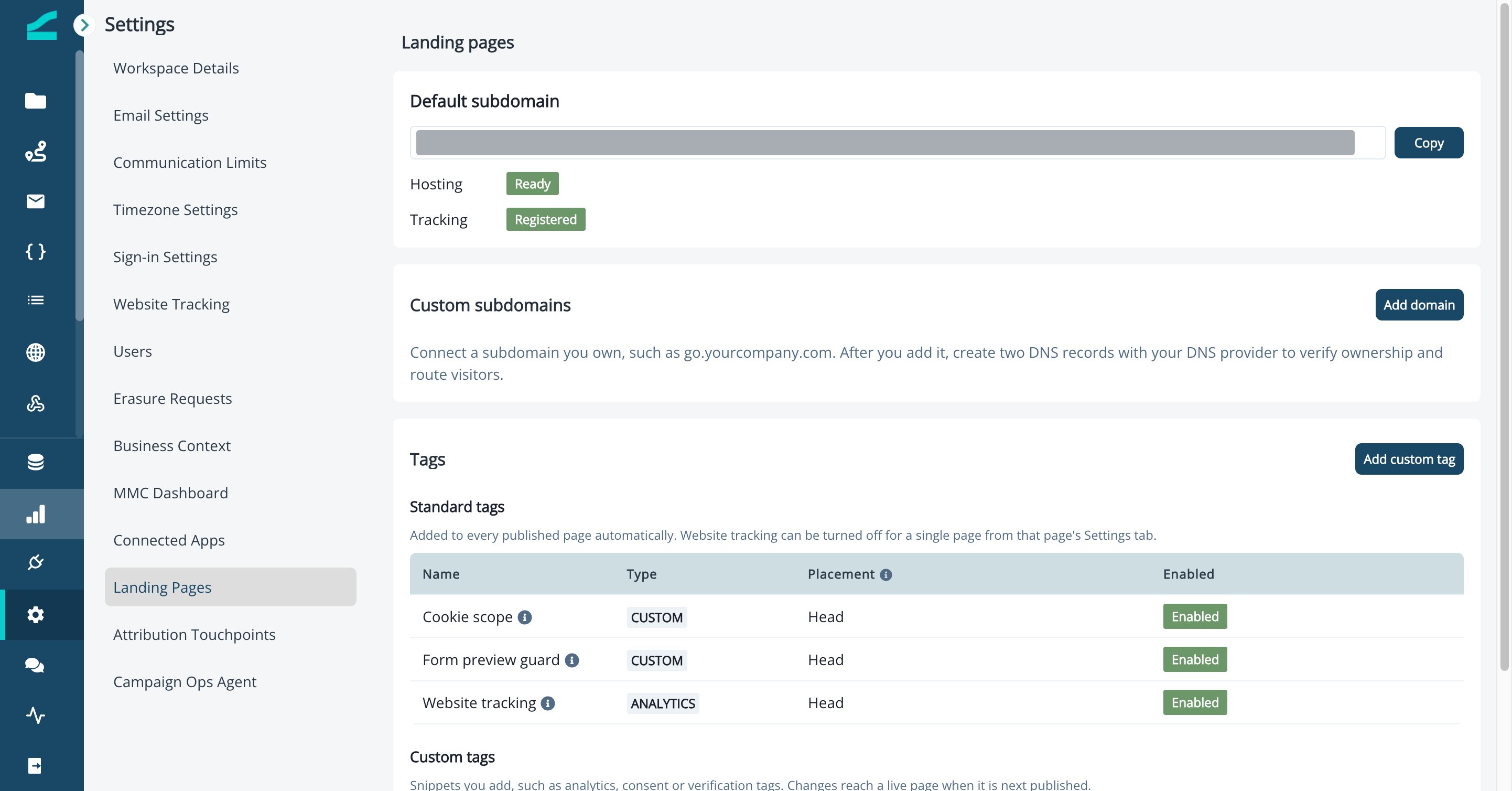
If the subdomain you enter is already taken, Inflection assigns a similar one and shows you the final address. Subdomains ending in
-preview are reserved.Connect a Custom Subdomain
Publish pages on a subdomain you own, such asgo.yourcompany.com. Inflection hosts the pages and issues the HTTPS certificate for you. You never upload a certificate.
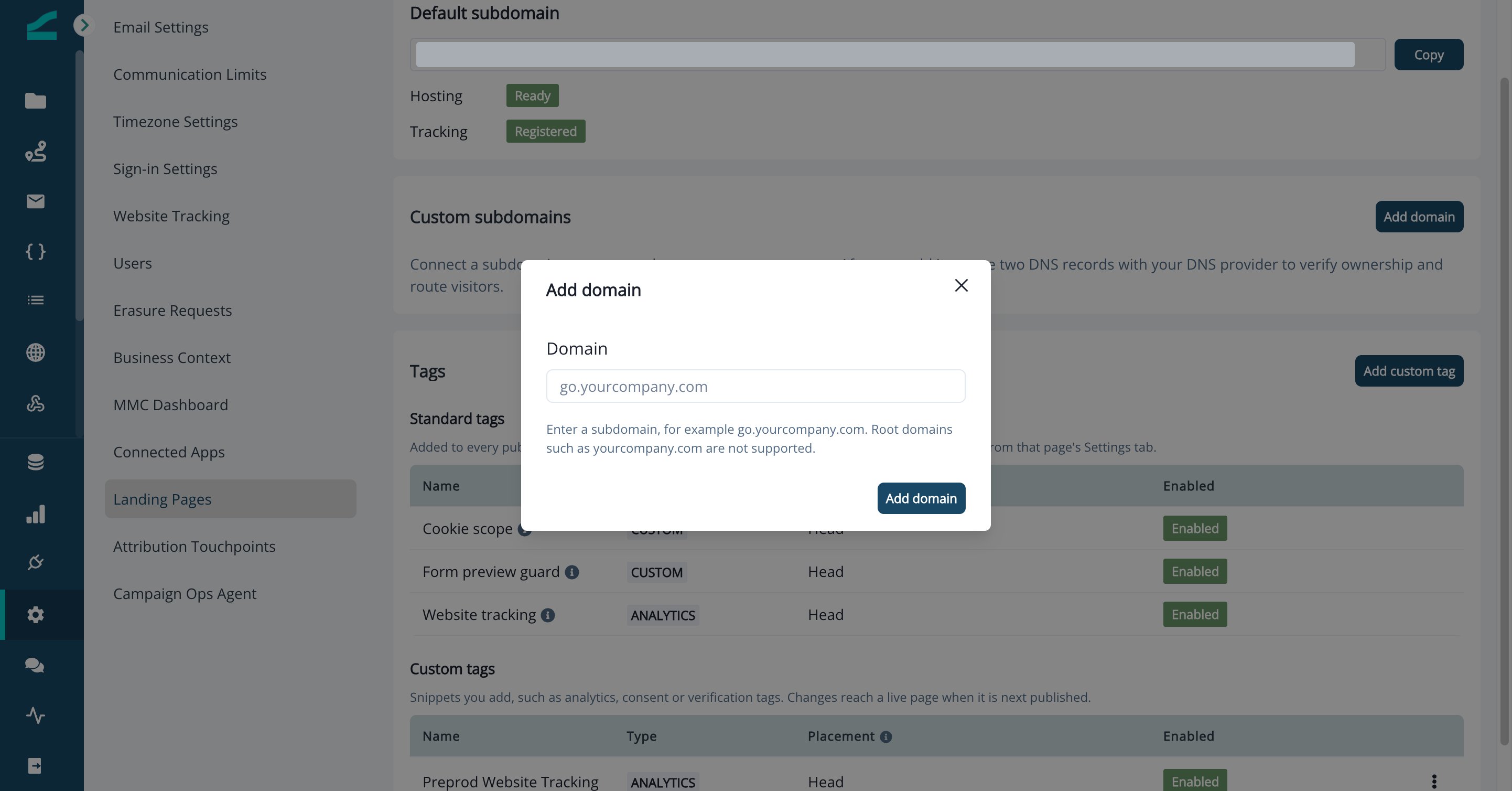
- In Custom subdomains, click Add domain.
- In Domain, enter your subdomain, for example
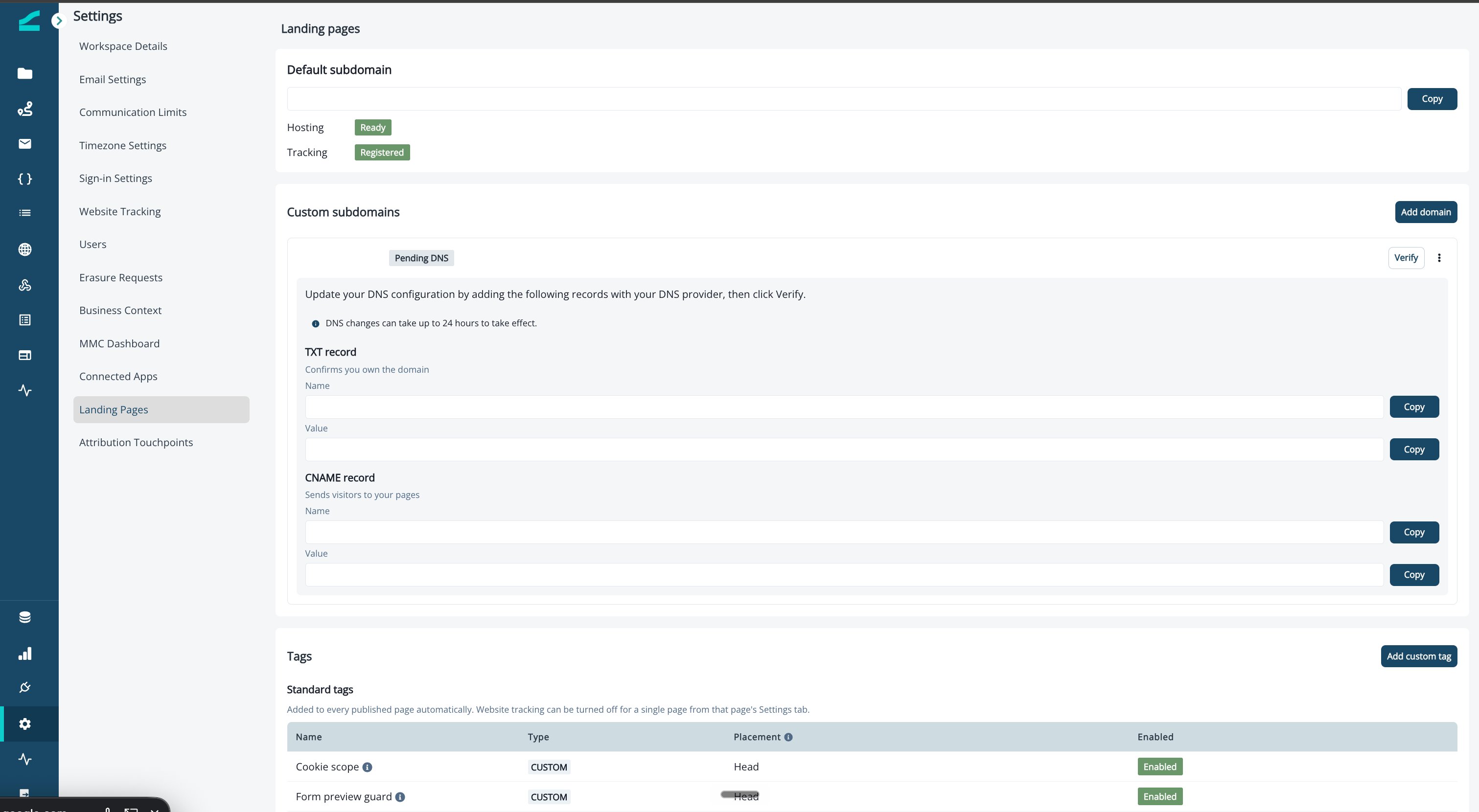
go.yourcompany.com, and click Add domain. - Copy the two DNS records Inflection shows and add them with your DNS provider:
- A TXT record, which confirms you own the domain.
- A CNAME record, which sends visitors to your pages.
- Click Verify. Each record shows Verified or Not verified. If a record isn’t verified yet, wait and click Re-check. DNS changes can take up to 24 hours to take effect.
Once a domain is Active, you can:
- Select it as the Domain for a page in that page’s Settings tab.
- Move every page from the default subdomain to it at once. Open the domain’s Options menu and click Move pages here. Visitors to the old addresses are redirected. After a week, click Make redirects permanent.
- Remove it from the Options menu with Remove. Unpublish or move the pages on the domain first.
Only subdomains are supported. Root domains such as
yourcompany.com must keep serving your main website. A workspace can connect up to 10 domains.Manage Tags
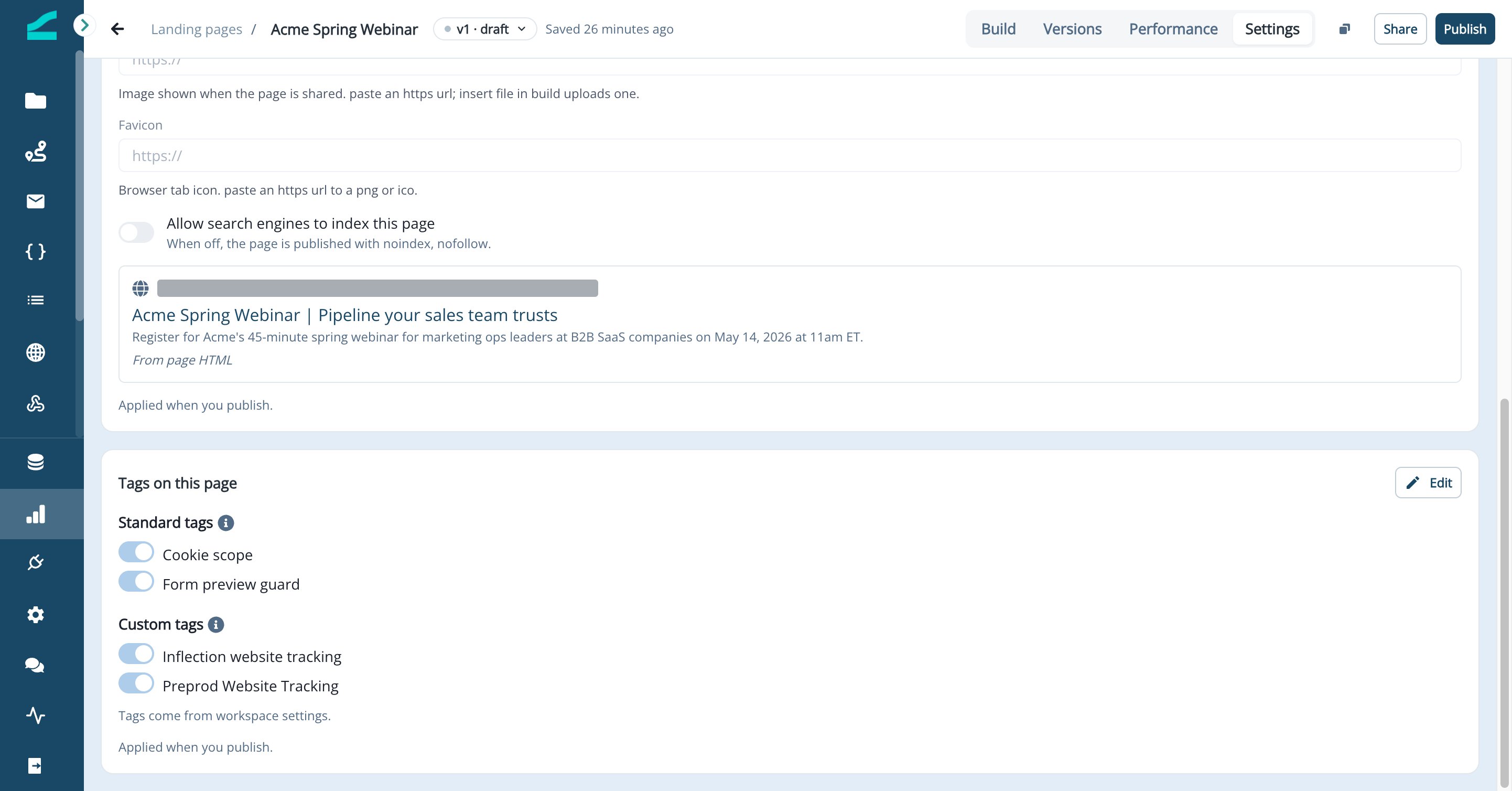
Tags are the scripts and snippets that load on every published page, such as an analytics tool, a consent banner or a site verification tag. Admins manage them once for the whole workspace. Authors can turn individual tags off for a single page, but they can’t add new scripts to a page outside of the HTML. Standard tags are added to every published page automatically and can’t be edited or removed: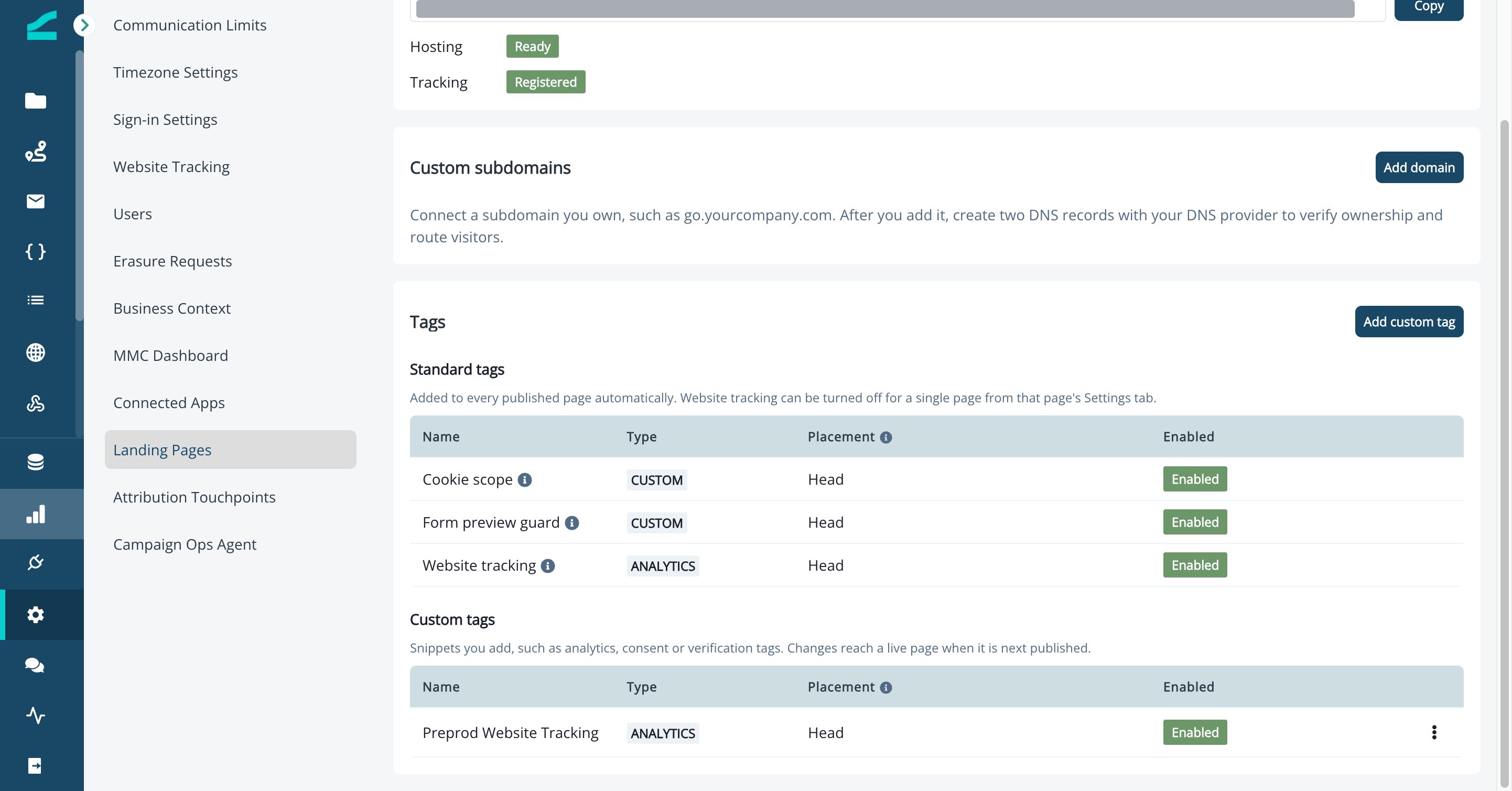
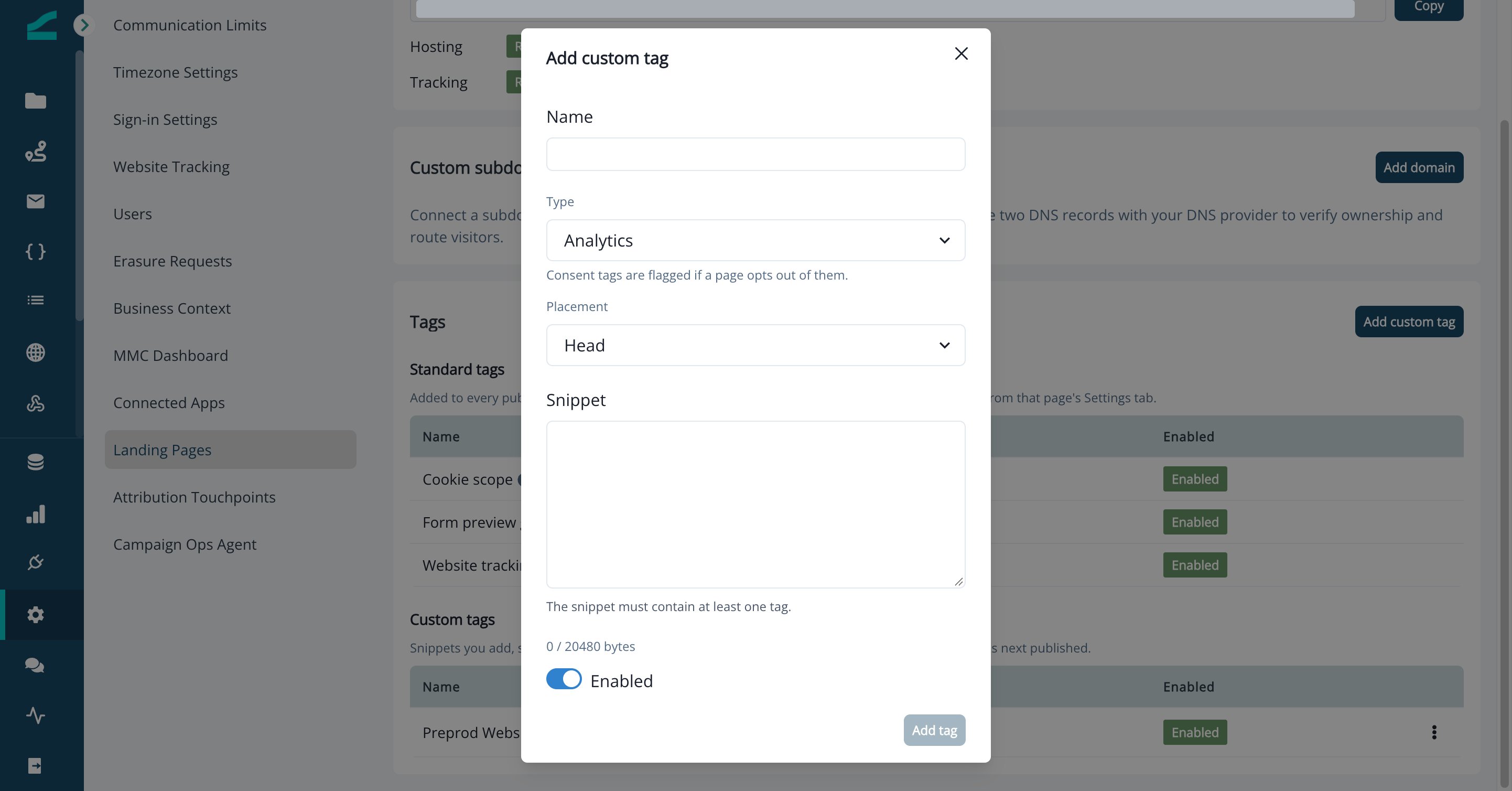
- In Tags, click Add custom tag.
- Enter a Name.
- Select a Type: Analytics, Consent or Custom. Select Consent for your cookie consent tool, so pages that opt out of it are flagged.
- Select a Placement: Head or End of body.
- Paste the vendor’s code into Snippet. The snippet must contain at least one HTML tag and can be up to 20 KB.
- Leave Enabled on, then click Add tag.
Tag changes reach a live page the next time it is published. Before you delete a tag, Inflection shows how many published pages use it. A workspace can have up to 25 custom tags.
Create a Landing Page
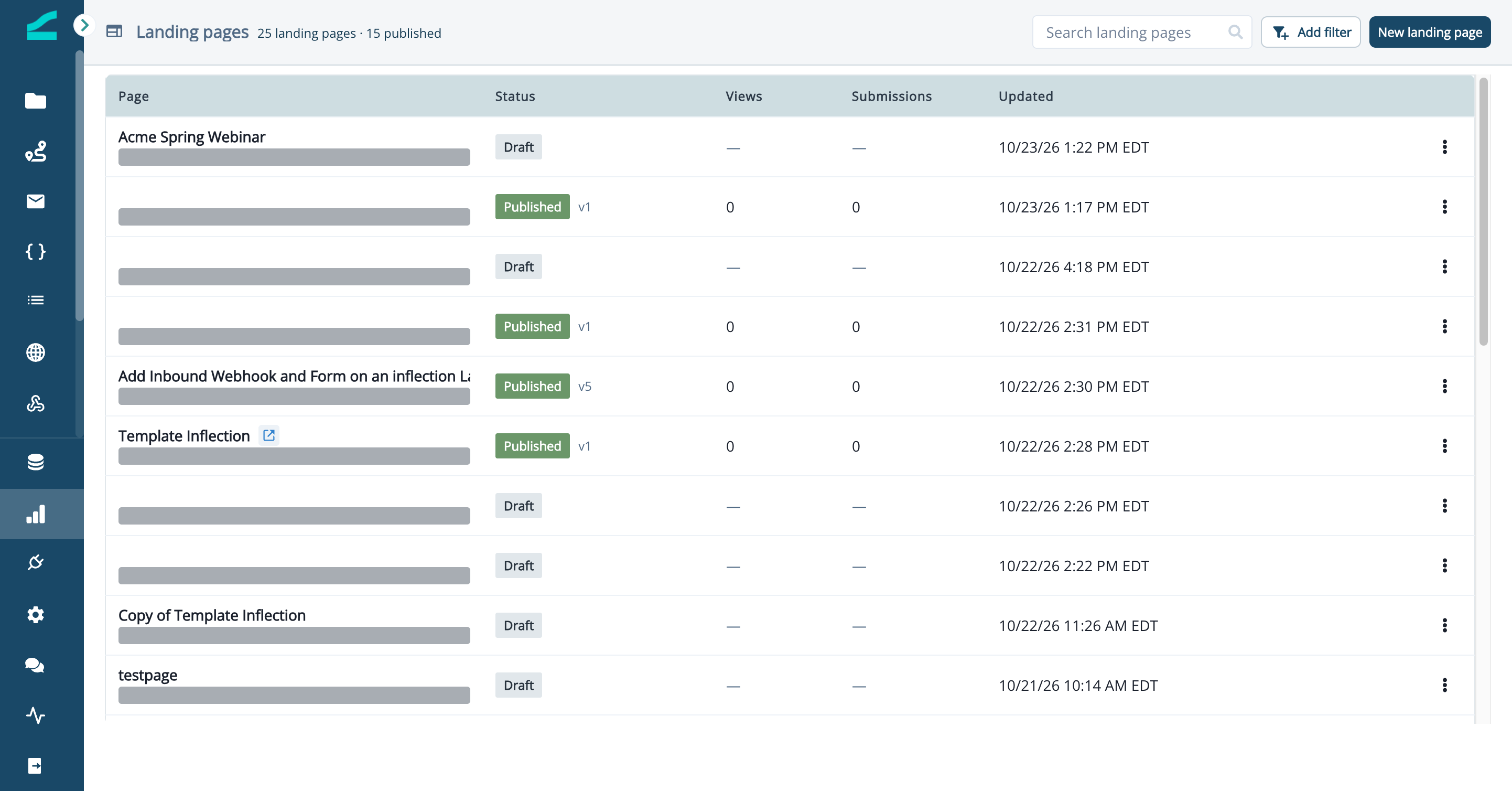
- In the left navigation, click Landing Pages. The list shows every page with its status, views, submissions and last update.
- Click New landing page.
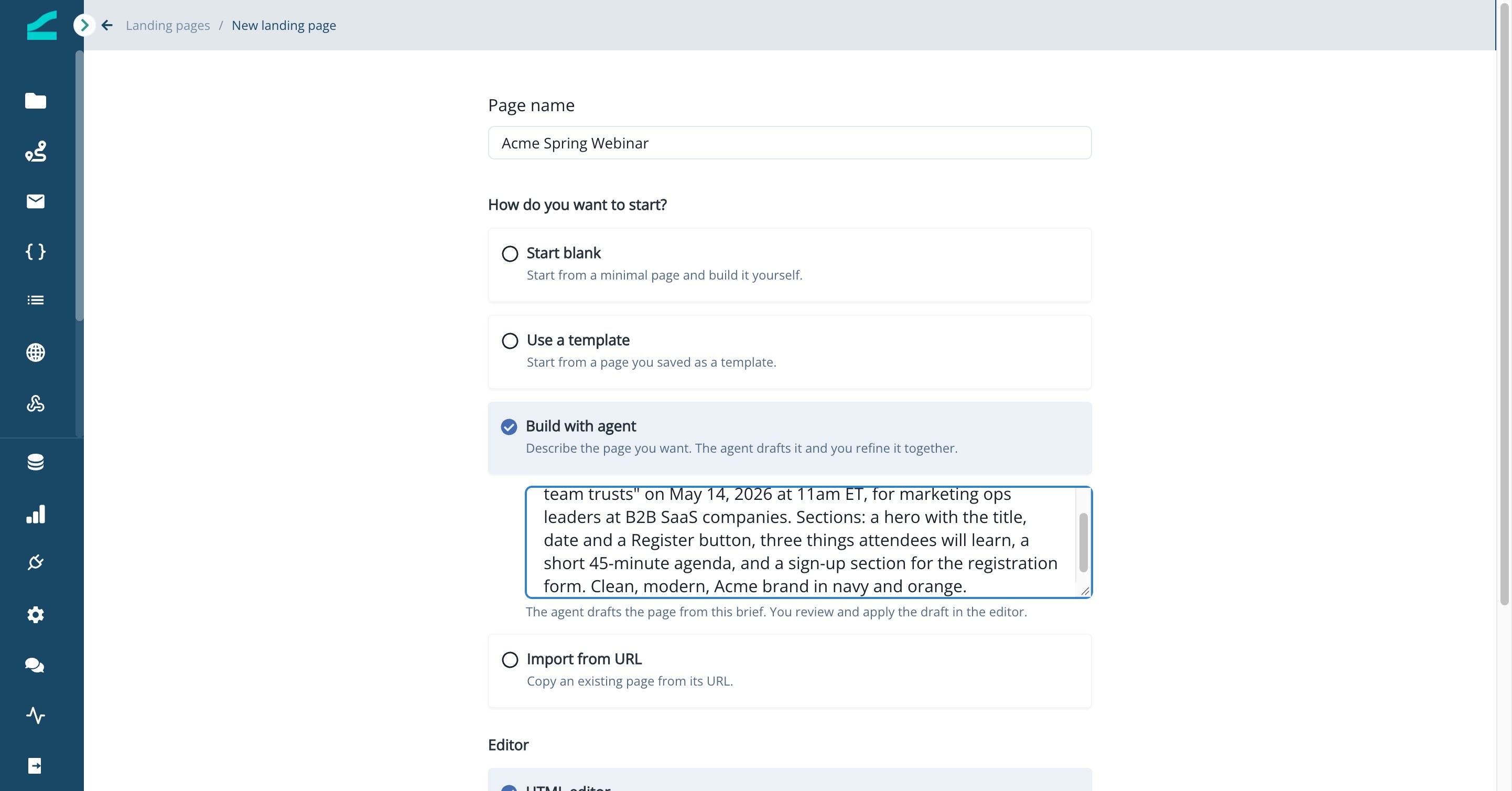
- Enter a Page name.
- Under How do you want to start?, select one option:
- Start blank: start from a minimal page and build it yourself.
- Use a template: start from a page you saved as a template. Select it from Choose a template.
- Build with agent: describe the page you want. The agent drafts it and you refine it together.
- Import from URL: copy an existing page from its URL. The page’s HTML, styles, scripts and images are copied.
- Under Editor, leave HTML editor selected.
- Click Continue.
Import an Existing Page
Use Import from URL to bring over a page you already host elsewhere, such as a webinar page built in your CMS or by an agency. Enter a publichttps:// address. Inflection copies the page’s HTML, inlines its stylesheets and copies its images into your file library.
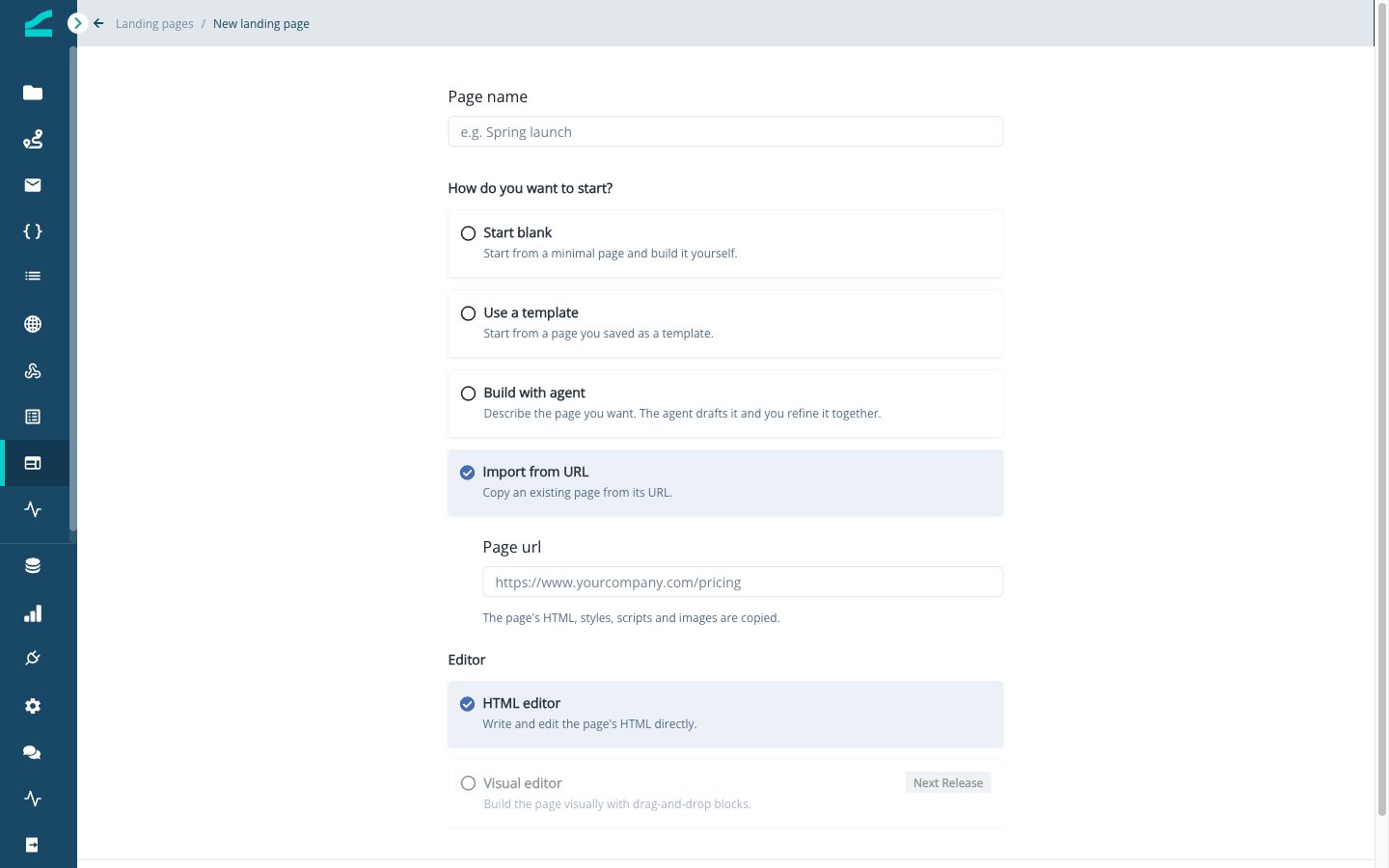
Imported pages can be up to 2 MB. Pages that build themselves in the browser, or that sit behind a login, may import with very little content. Check the preview before you publish.
Build Your Page
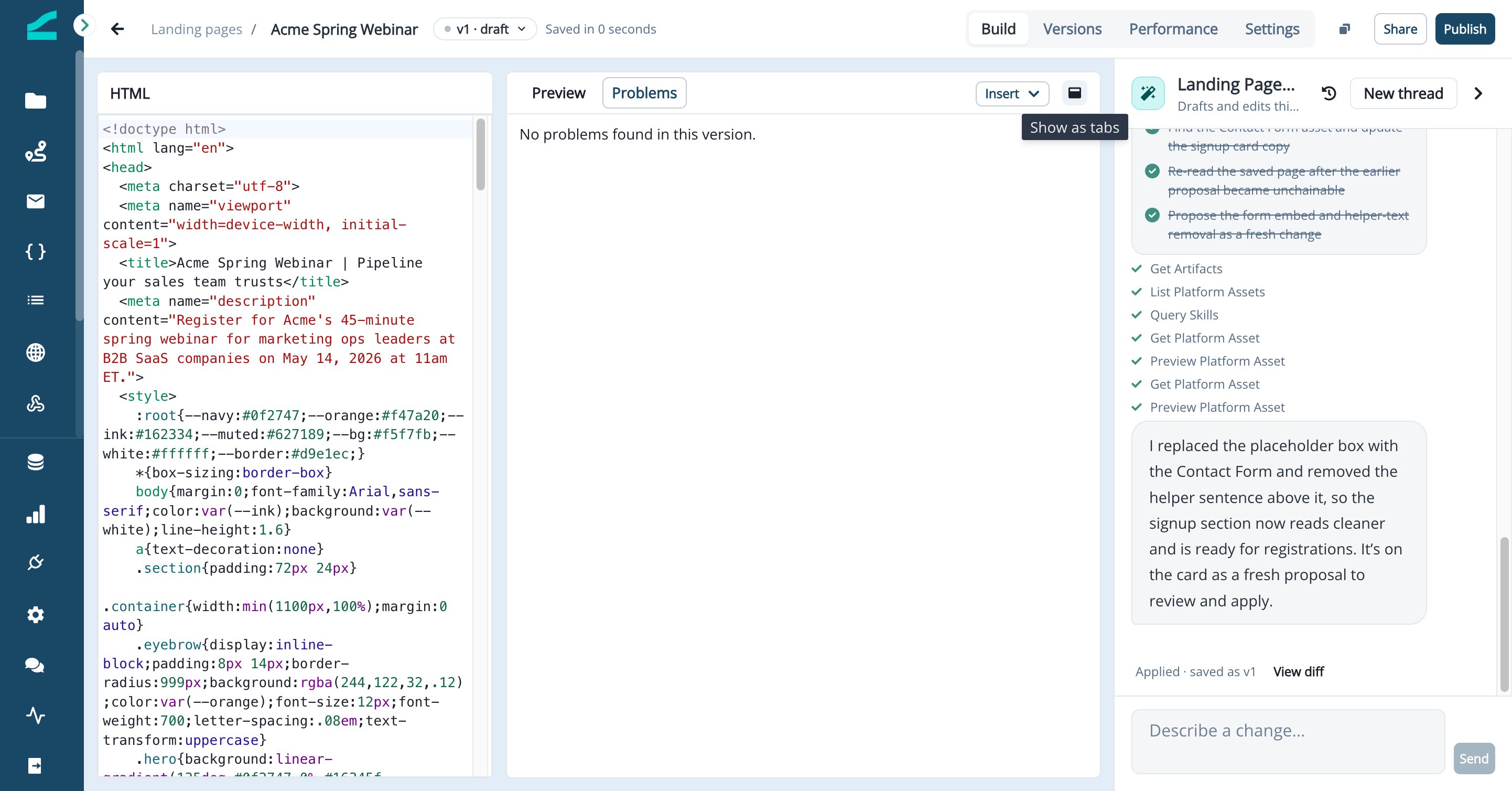
The Build tab has the page preview on the left and the Landing Page Agent on the right. Switch between Preview, HTML and Problems at the top of the left pane.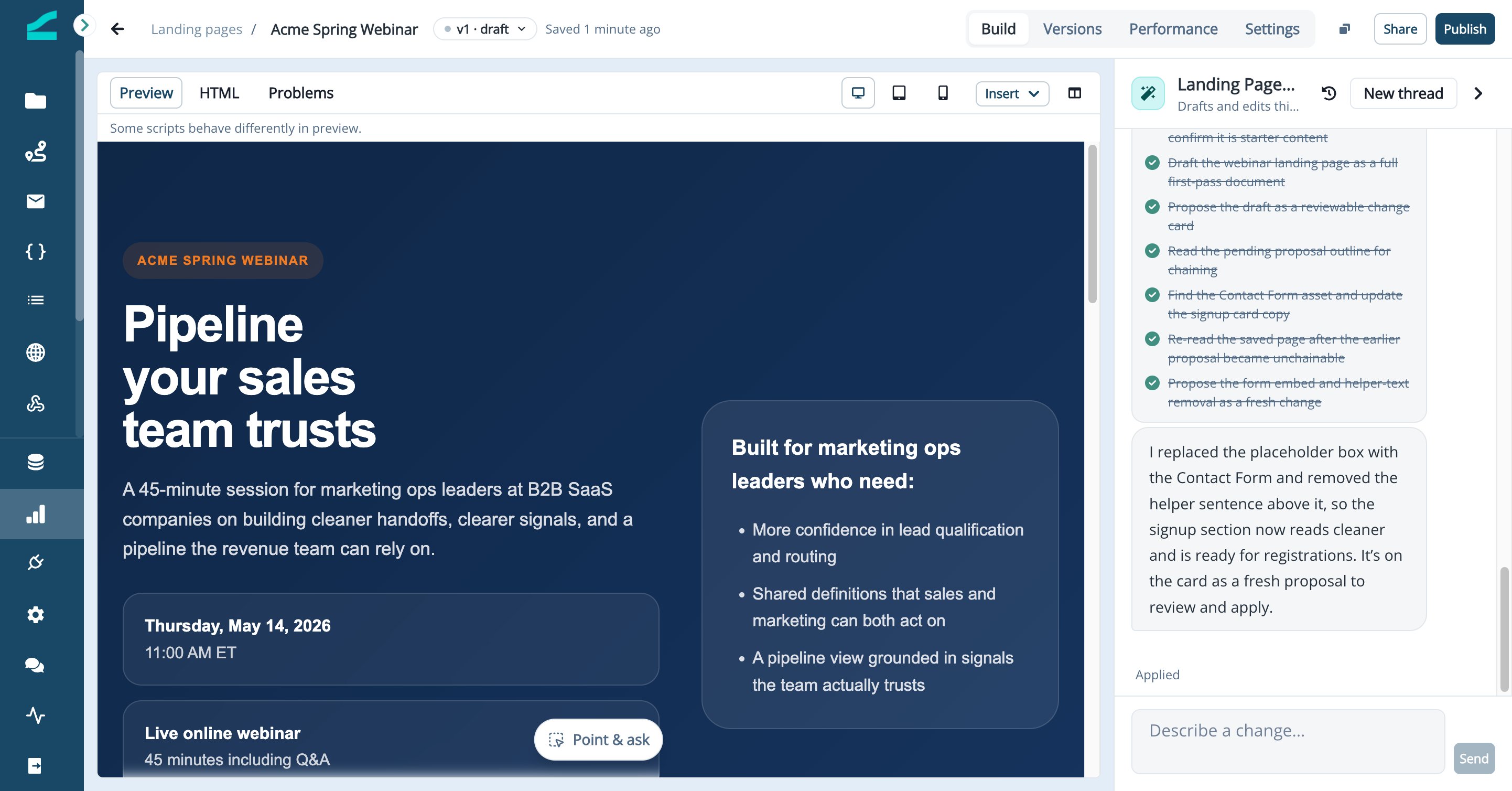
- Click the desktop, tablet or mobile icon to preview the page at that width.
- Click the split icon (Show side by side) to edit the HTML and watch the preview update next to it.
- Click Save to save your changes to the current draft, or Save as new version to keep the current draft and continue on a copy.
Some scripts behave differently in preview. The preview runs the page in a restricted frame, so scripts that store data, open new windows or call other services may only work on a share link or the published page.
Work With the Agent
The agent drafts pages, rewrites sections, adds forms and images, and fixes problems. It never changes your page on its own: every change arrives as a proposal you review first.- Click the wand icon (Open the assistant) if the agent panel is closed.
- Type a request in Describe a change…, for example “Add an FAQ section with three questions about the webinar”, and click Send.
- When the agent finishes, a Proposed change card appears. Click View diff to see exactly which lines change.
- Click Apply and save to accept the change, or Discard to drop it.
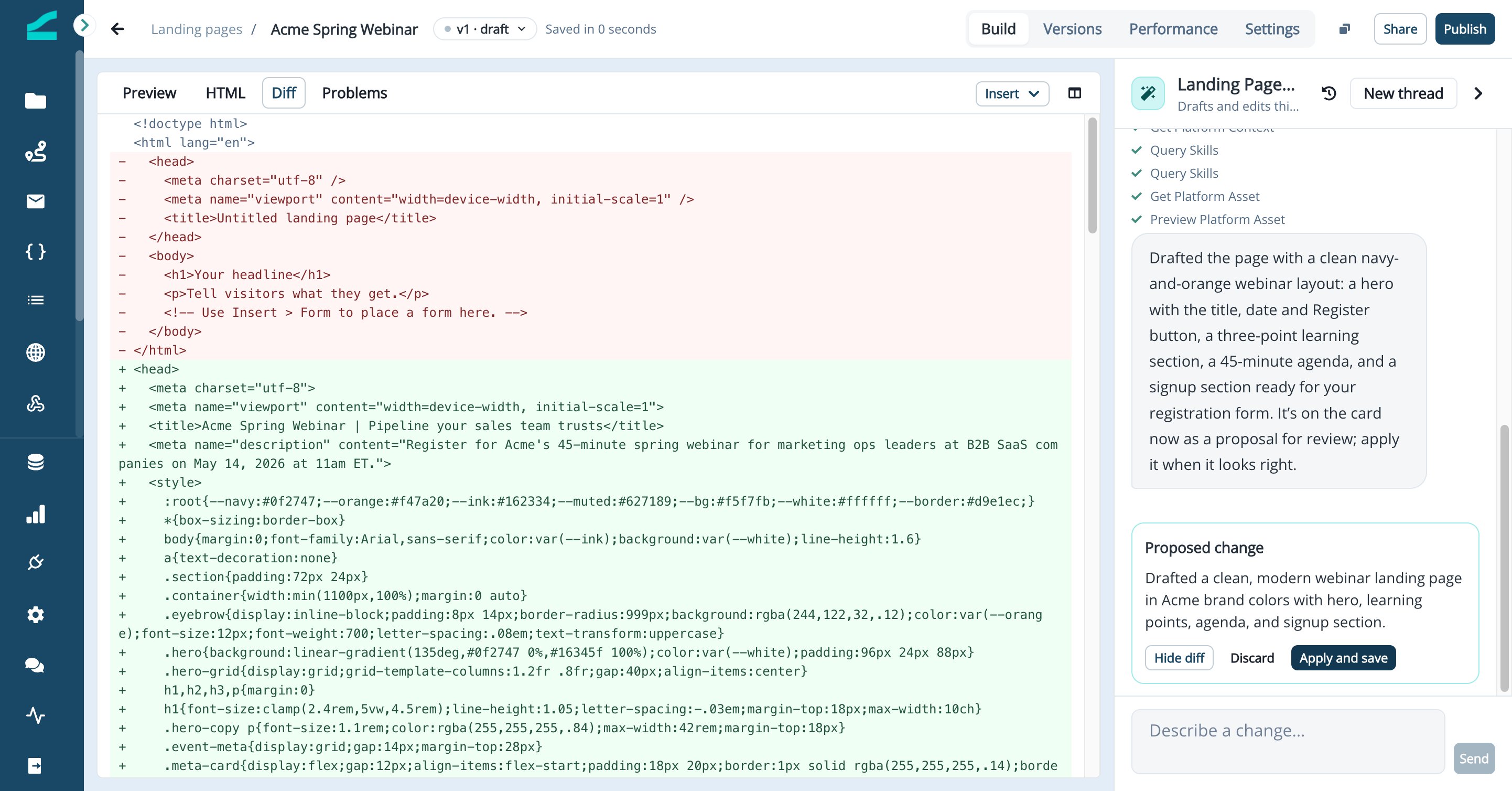
If the open version is already published, the button reads Create a draft and apply. The agent’s change goes into a new draft and the live page stays as it is until you publish. Click New thread to start a fresh conversation, or the history icon to reopen an earlier one.
Point to an Element With Point & Ask
Instead of describing where something is, click it.- Save any unsaved edits. Point & ask only works on the saved page.
- Click Point & ask at the bottom of the preview. The agent panel opens.
- Click the element you want to change, such as a heading, button or section. It is outlined in blue and an Editing: chip appears above the message box.
- Describe the change, for example “Make this button orange and change the text to Save my seat”, and click Send.
- Review the proposal and click Apply and save.
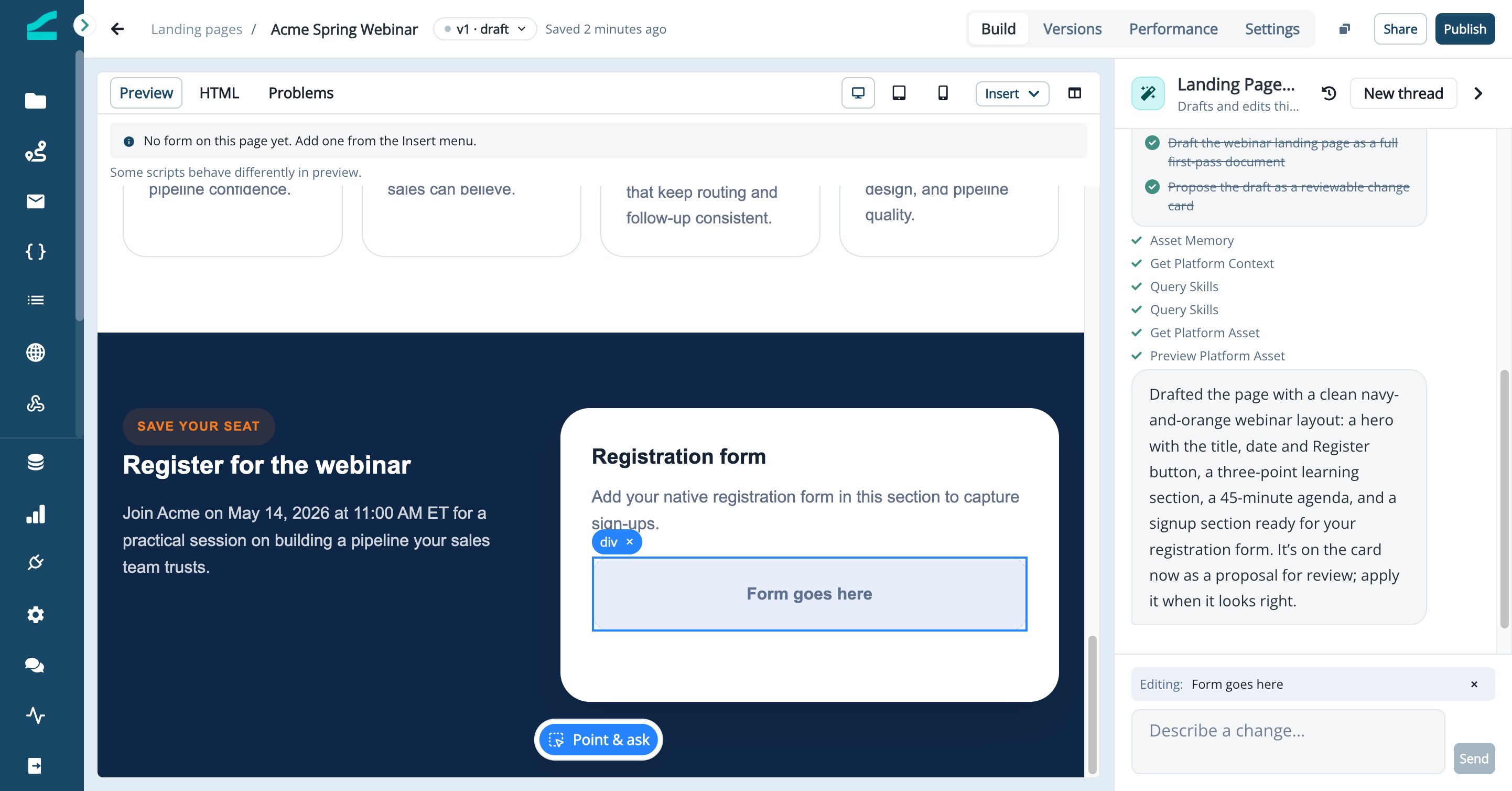
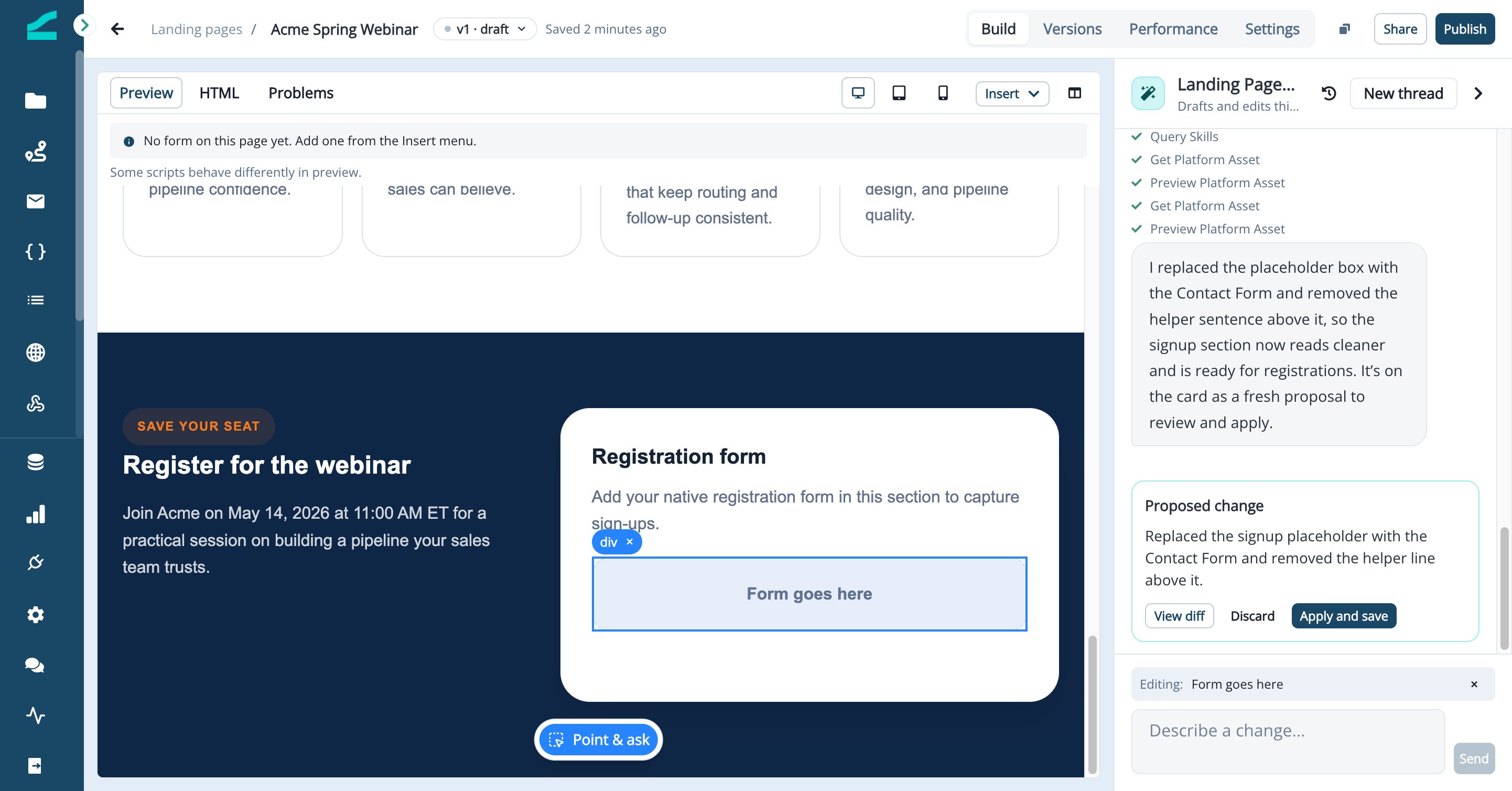
Click the × on the chip to clear the selection. The selection also clears when you edit the HTML, save, or switch the preview size. You can’t type directly into the preview to edit text.
Insert a Form
Forms are added by reference, so the page always shows the current version of the form. Any change you make in the form builder appears on the page without republishing the form.- Click Insert > Insert form.
- Select a form from Choose a form and click Insert.
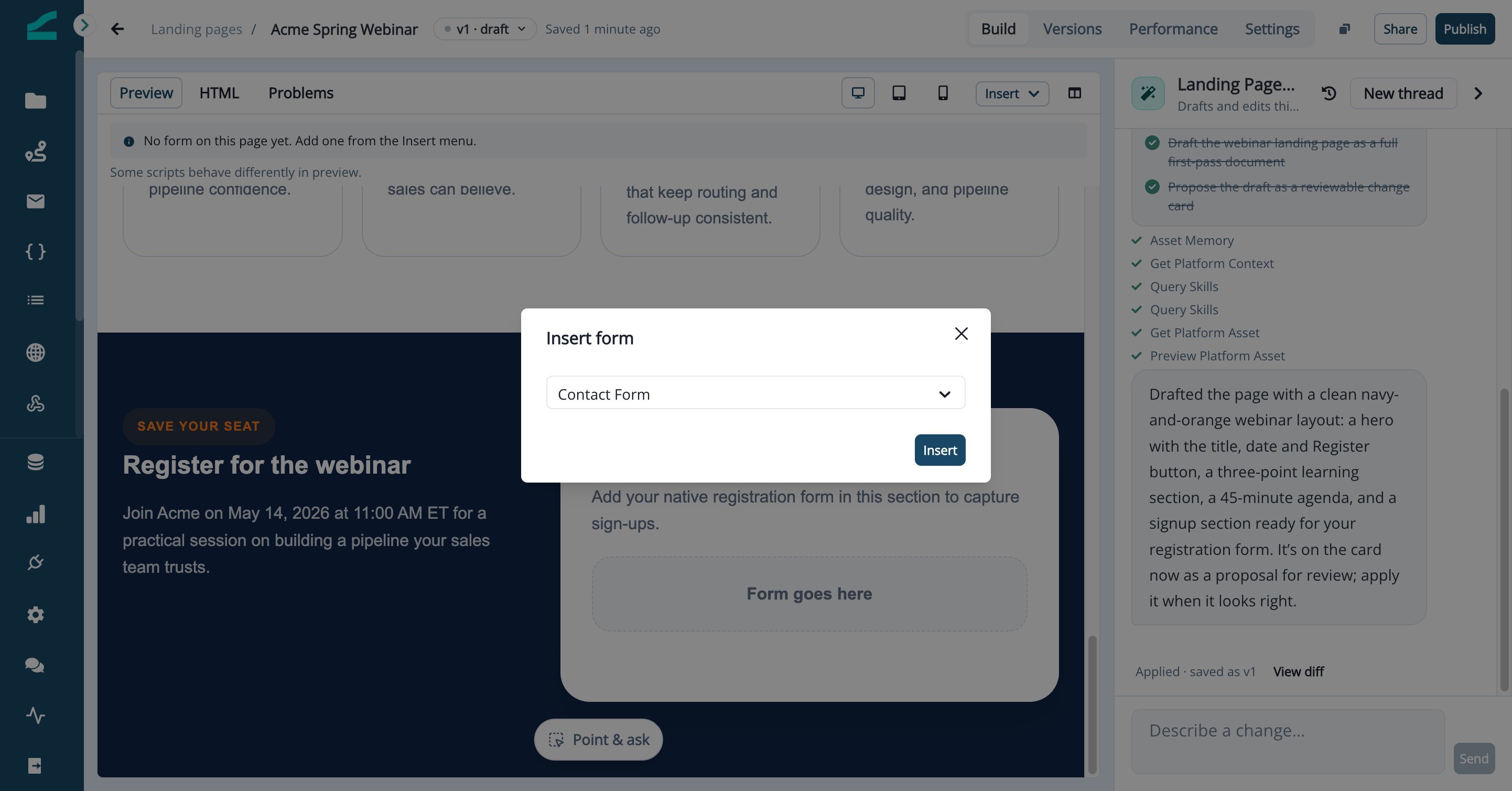
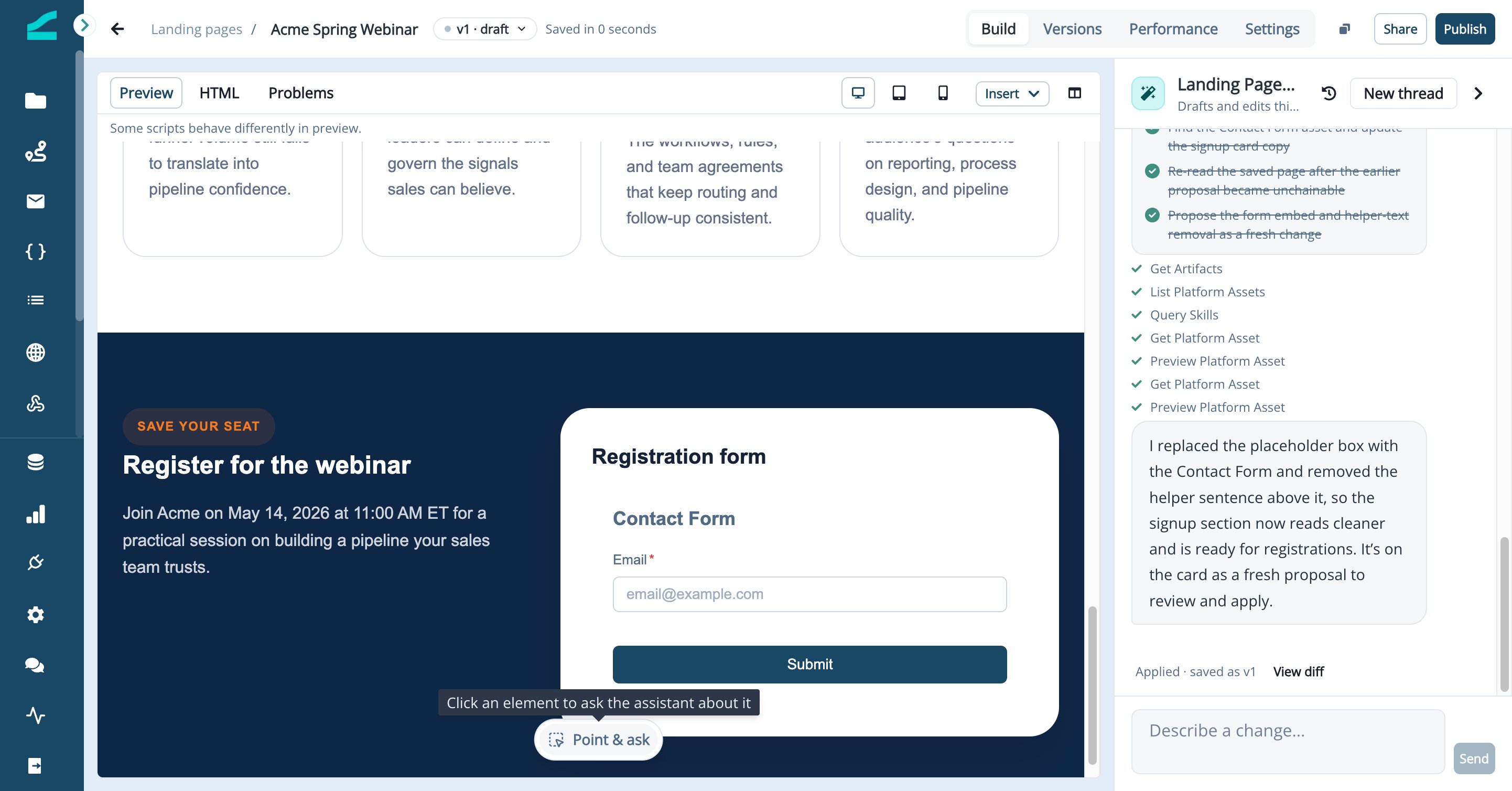
A page can have more than one form, and each one submits on its own with its own settings. Field mapping, consent, reCAPTCHA, the thank-you message or redirect and journey triggers all come from the form itself. Forms can’t be submitted from the preview or from share links, so testing never creates contacts. A page with no form shows the hint No form on this page yet. Add one from the Insert menu. You can still publish it, for example as a thank-you page.
Insert a File
- Click Insert > Insert file.
- Click Click to upload or drag a file into the box. You can upload PNG, JPG, GIF, WEBP or PDF files up to 10 MB.
- To reuse a file, search for it with Search files and select it.
- Click Insert.
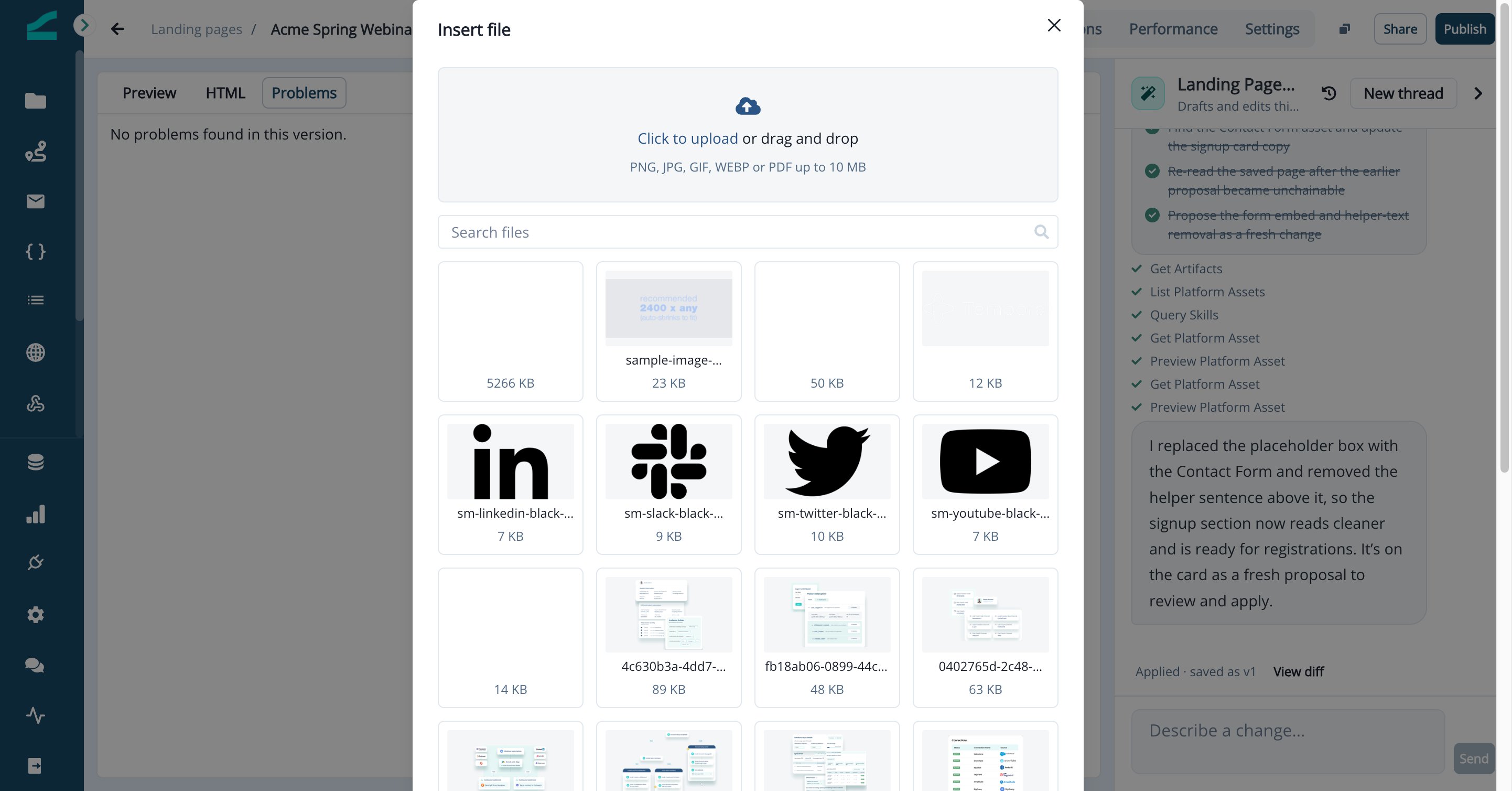
The file library is shared with the email editor, so images you uploaded for emails are available here too.
Review Problems
Inflection checks the page’s HTML every time you save. Open Problems to see the results.- Blocking problems stop the page from being published or shared. A banner above the editor shows how many there are.
- Warnings are worth fixing but don’t stop you from publishing, for example a missing page title, a missing image description or an image loaded over
http://.
Configure Page Settings
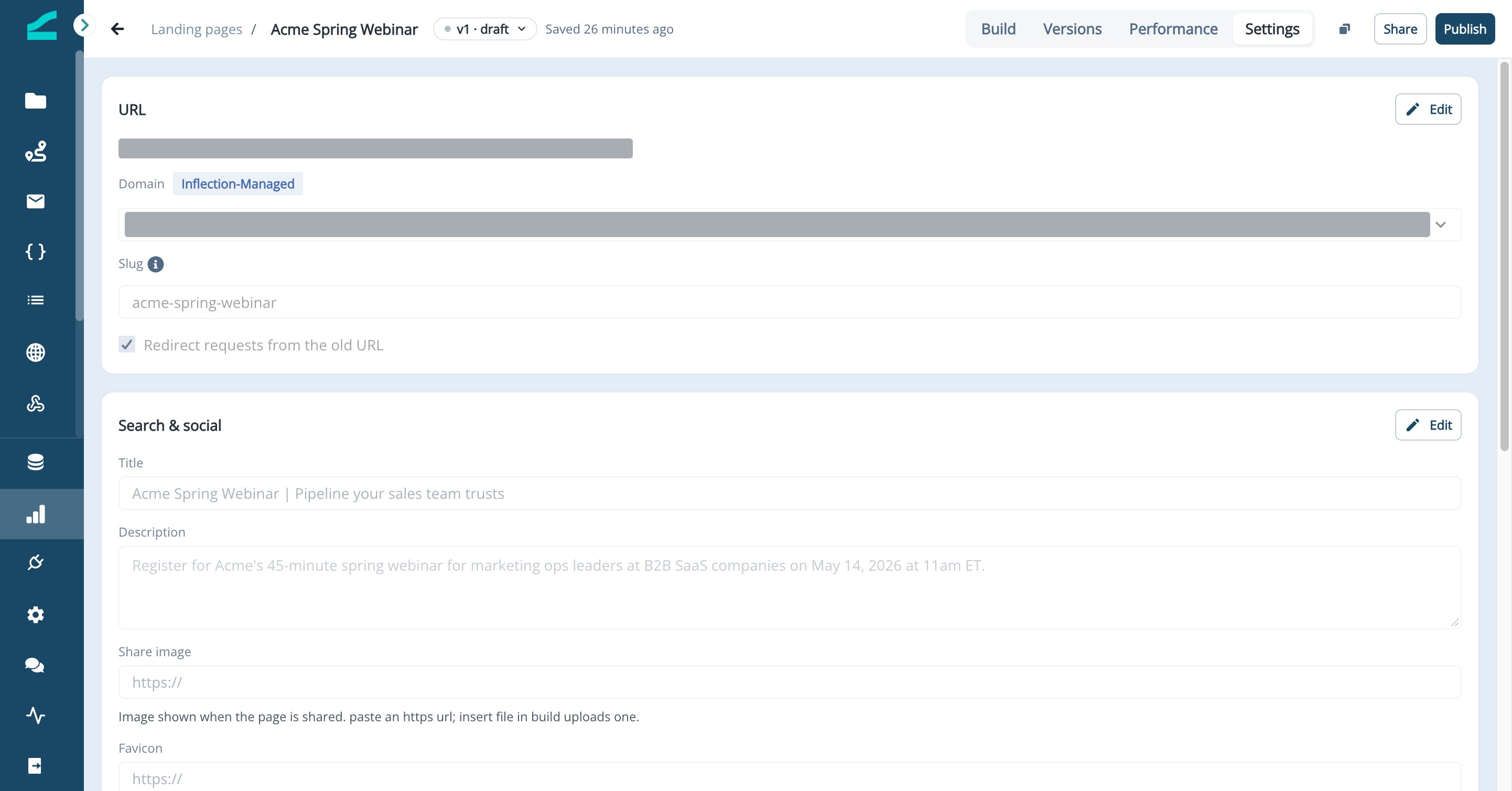
Open the page’s Settings tab. Click Edit on a card to change it, then Save. On a draft page, settings apply when you publish. On a published page, saved changes update the live page. URL: choose where the page lives.- Domain: your default subdomain, shown as Inflection-Managed, or any Active custom subdomain. You can’t change the domain while a page is published. Use Move pages here in workspace settings instead.
- Slug: the part after the domain, using lowercase letters, numbers and hyphens. Inflection checks that the address is free.
- Redirect requests from the old URL: keep this selected so existing links keep working when you change the slug.
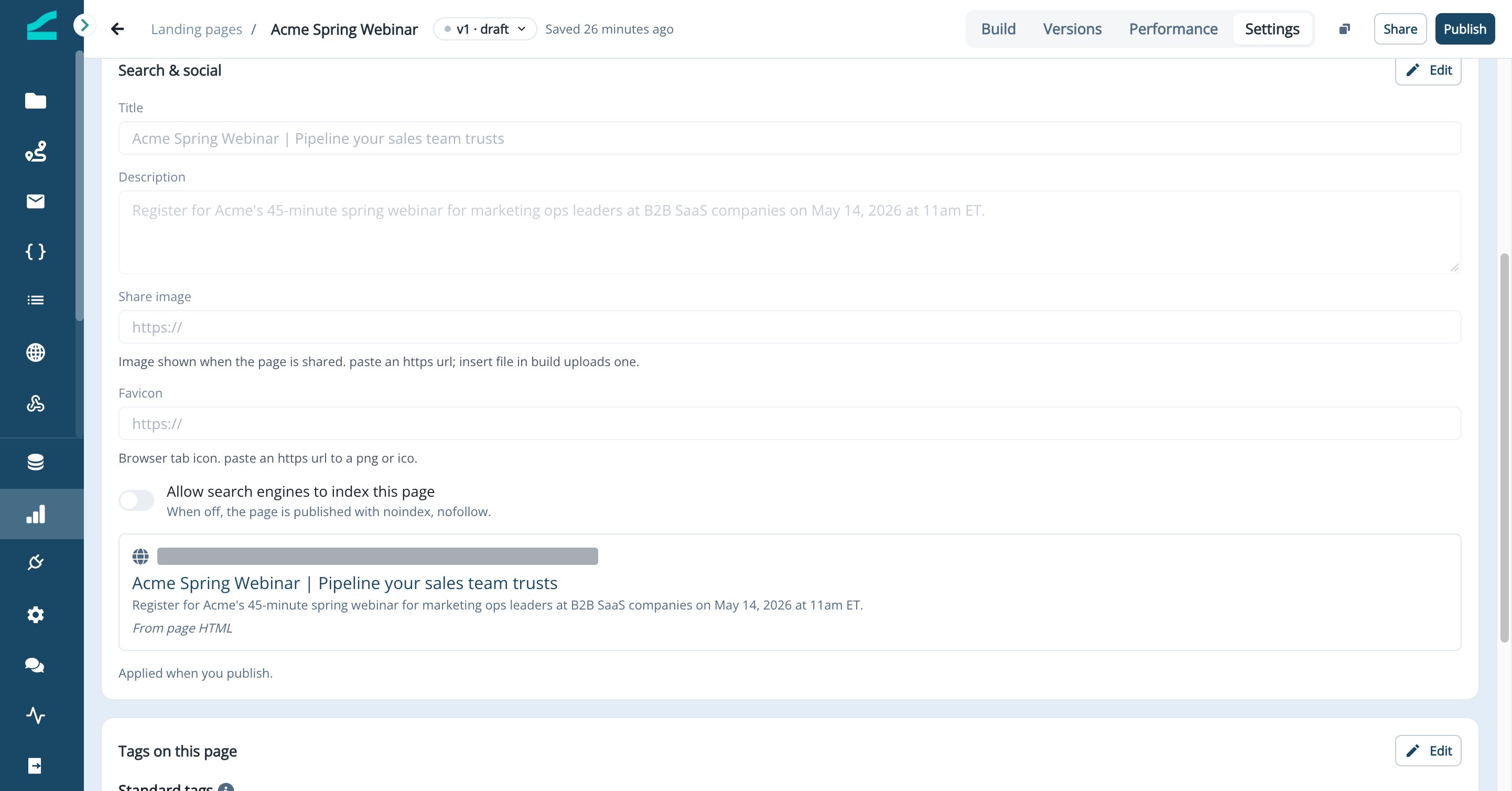
- Title and Description default to the title and meta description in your HTML.
- Share image and Favicon take an
https://image URL. Use Insert file in the Build tab to upload an image and copy its address. - Allow search engines to index this page is off by default. When it’s off, the page is published with
noindex, nofollow.
- Standard tags are always on.
- Under Custom tags, turn off Inflection website tracking to stop tracking visits on this page only. Turn off any other custom tag to leave it off this page.
Share and Publish
Share a Draft for Review
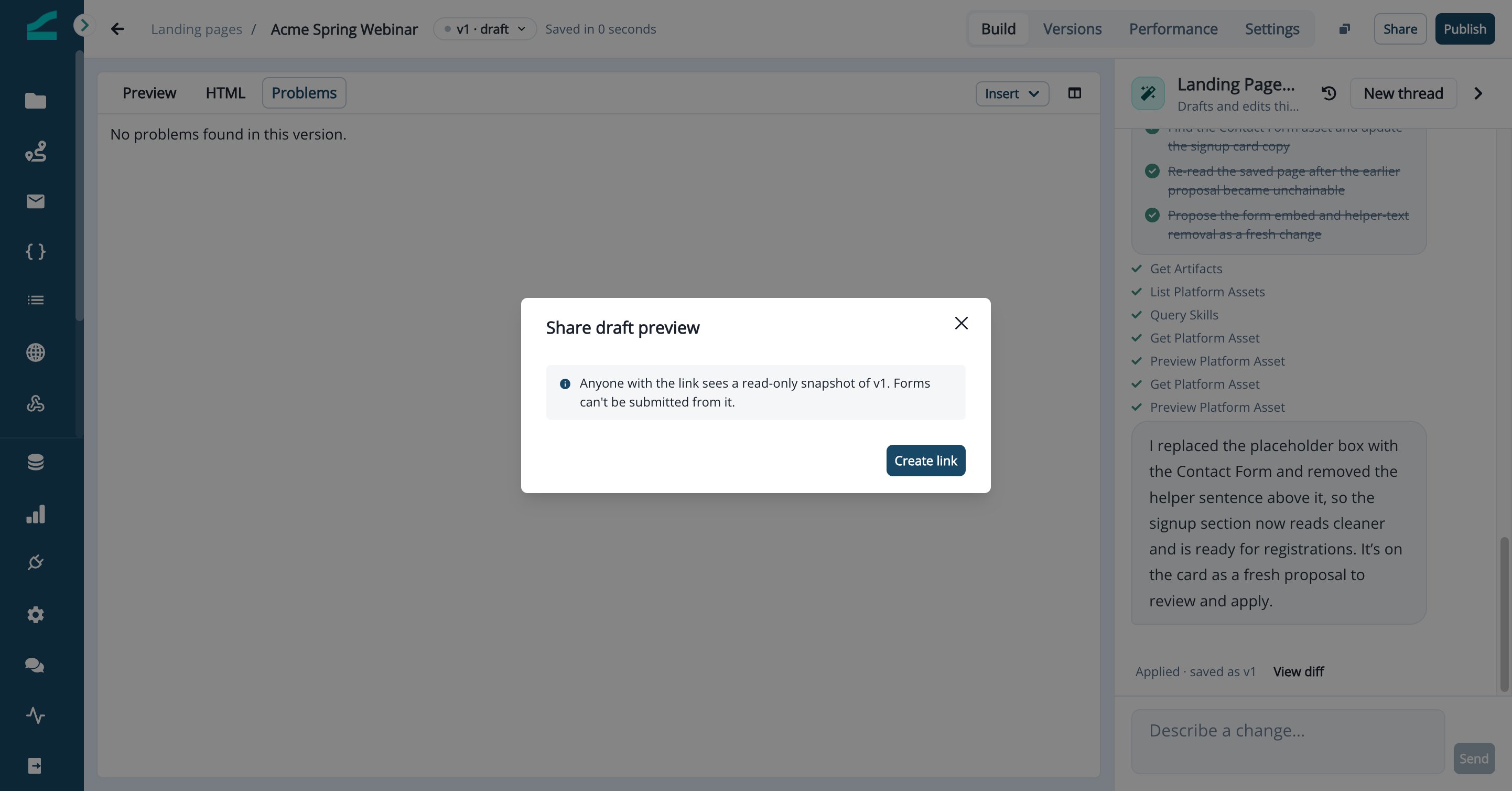
- Click Share.
- Click Create link and copy the link.
Publish the Page
Only admins can publish.- Click Publish.
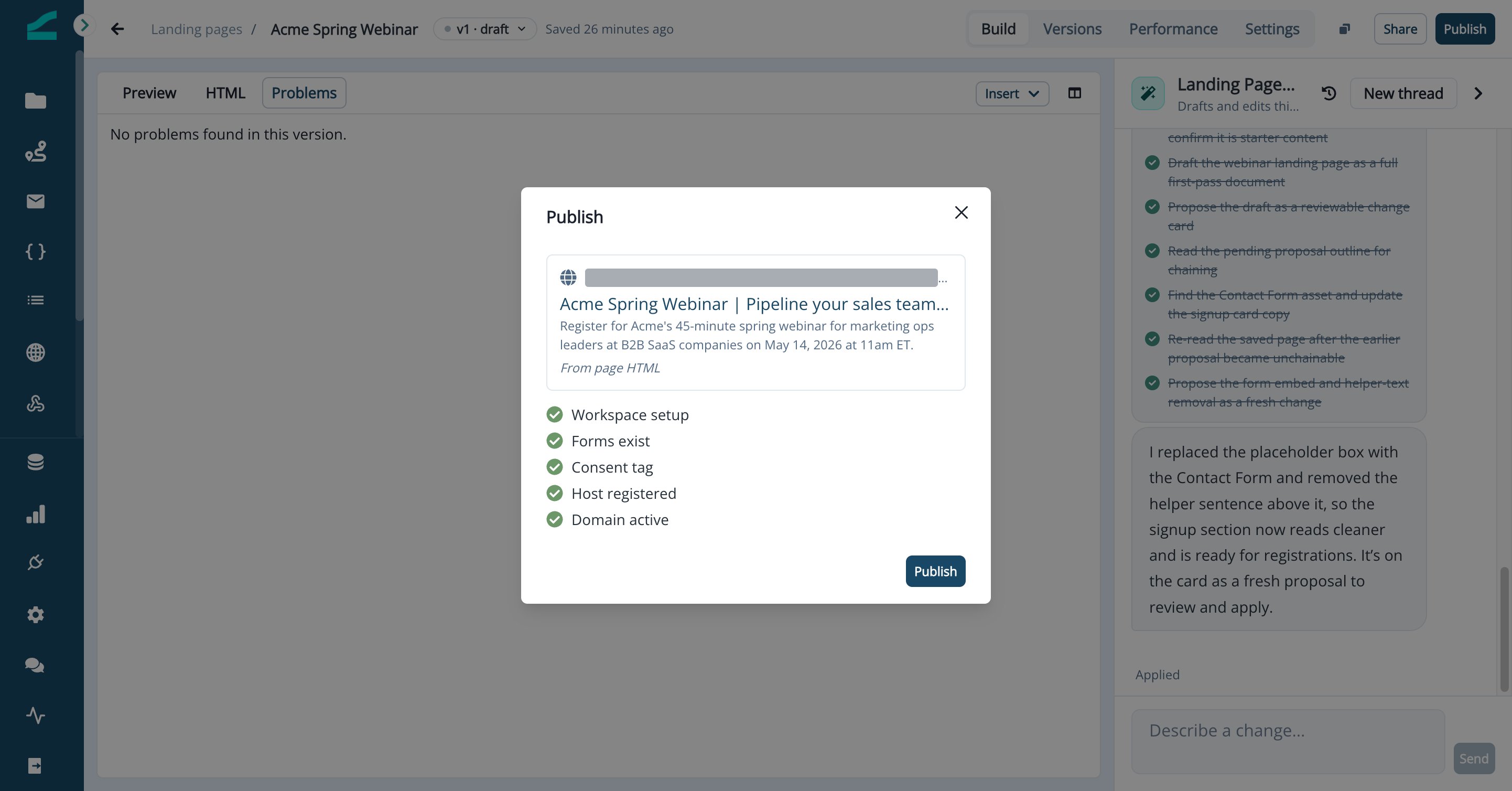
- Review the search preview and the checks: Workspace setup, Forms exist, Consent tag, Host registered and Domain active. Fix any blocking problems listed.
- Click Publish.
Manage Versions
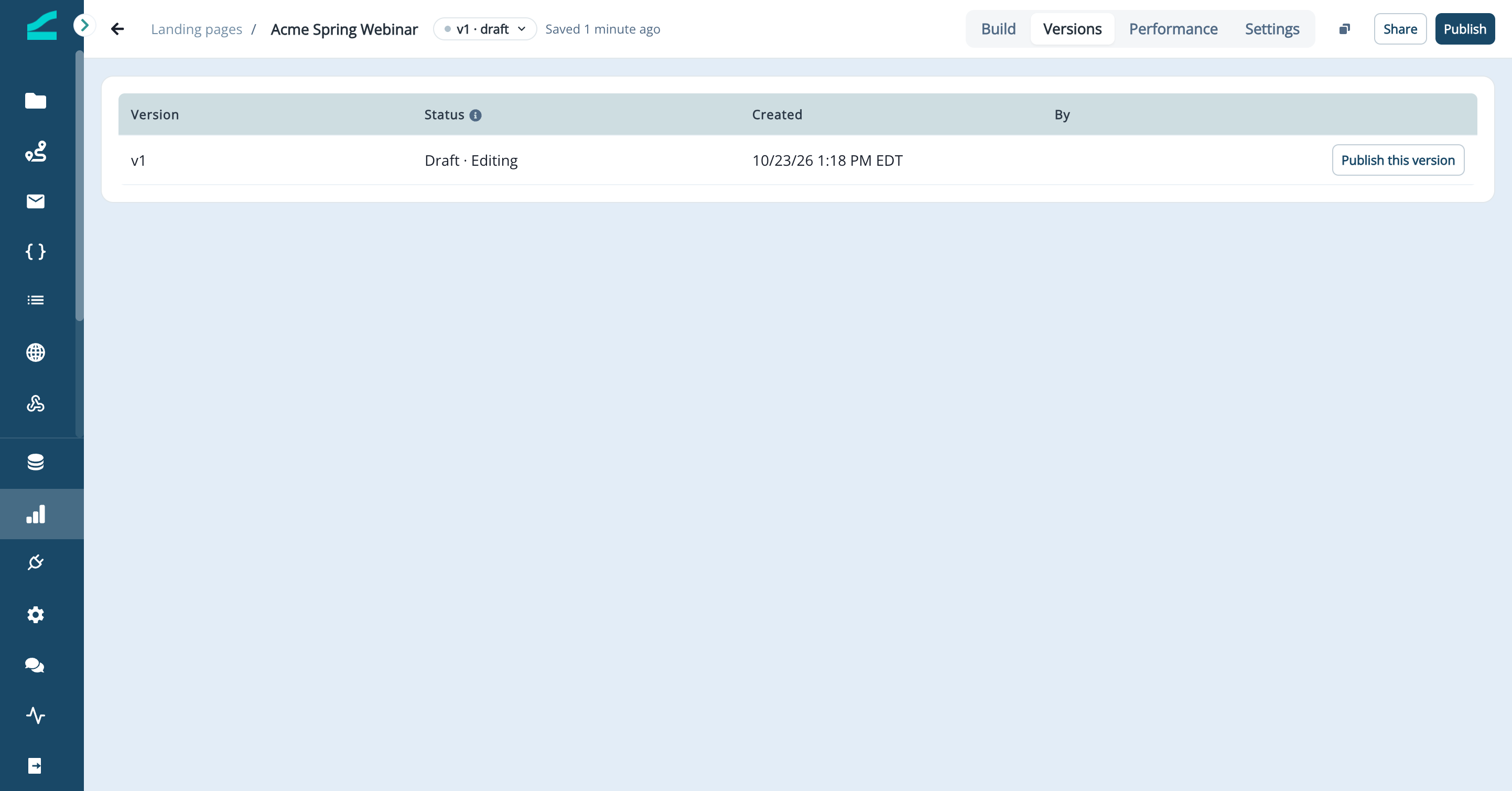
Each page keeps numbered versions. Editing a published version never changes what visitors see: your edits are saved as a new draft, and the live version stays published until you publish the draft. Open the Versions tab to see every version with its status:- Live: what visitors see now.
- Draft: editable, not published.
- Previous: read-only. Publish it to roll back.
Measure Performance
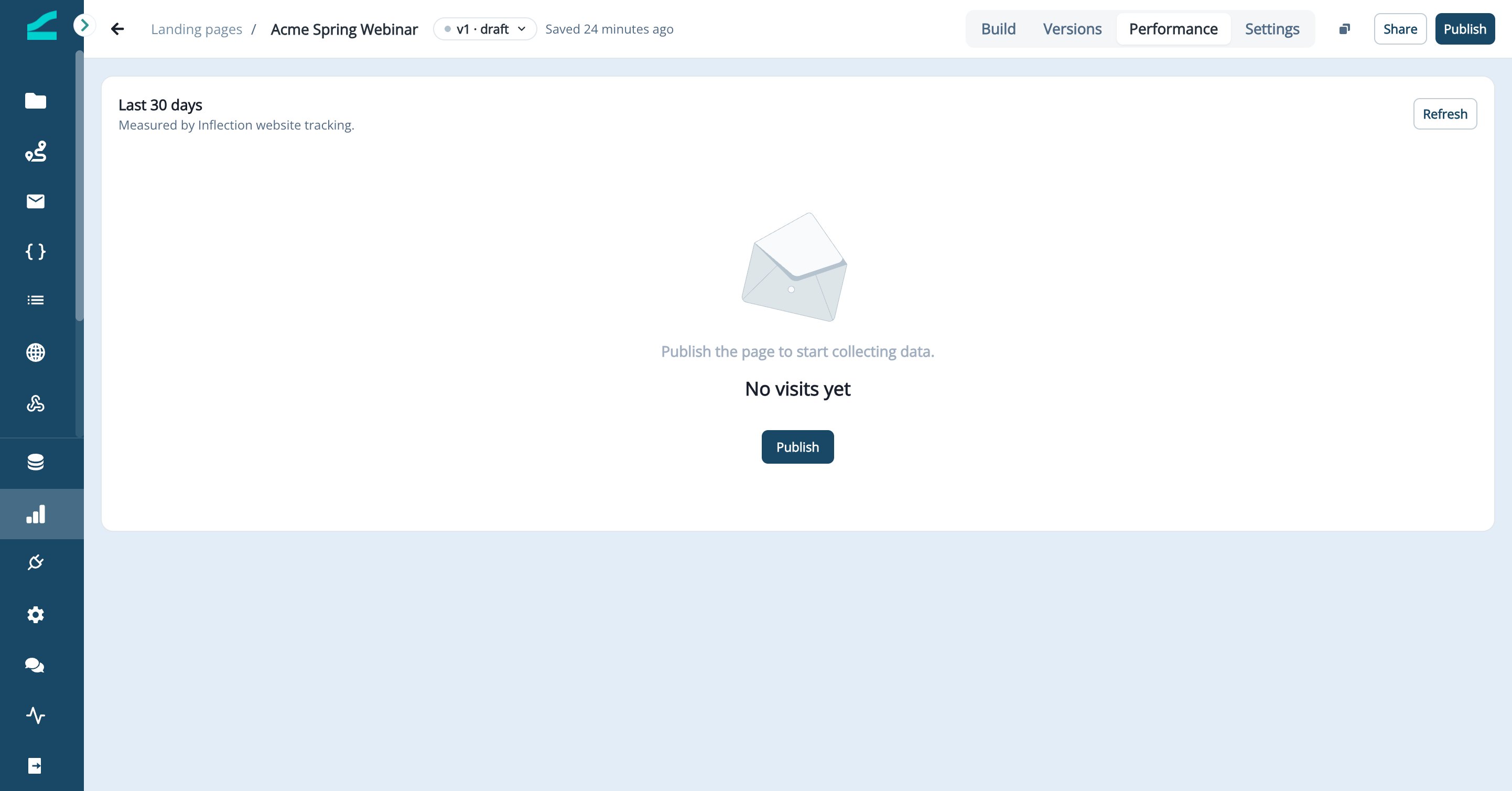
Open the Performance tab to see the last 30 days for a published page. Until a page is published, the tab shows No visits yet. Click Refresh to update the numbers.- Views and Visitors count visits by known contacts, measured by Inflection website tracking.
- Submissions counts form submissions recorded with this page’s address.
- Sources breaks visitors and views down by source and medium.
- Forms lists submissions per form. Click a form to open its submissions.
Create Landing Pages With the Inflection MCP
If you’ve connected Inflection to Claude, ChatGPT or another AI assistant through the Inflection MCP, you can create and edit landing pages from a chat. Ask your assistant to:- Create a page from scratch, from a template, from an existing page’s URL or from a description.
- Edit a page, for example “Change the headline on the Spring Webinar page to mention the May 14 date.”
- Add or swap a form by name, for example “Add the Webinar Registration form under the agenda.”
- Upload an image from a URL to your file library and use it on a page.
- Check a page for problems before publishing.
- Create a share link for review.
- Publish or unpublish a page.
Some tasks are only available in Inflection: deleting pages, connecting custom subdomains, managing tags and other workspace settings, and revoking share links.
How Landing Pages Are Kept Secure
- HTTPS everywhere. Every page is served over HTTPS, on your Inflection-managed subdomain or your own. Inflection issues the certificate. Images, share images and favicons must use
https://addresses. - Domain ownership is verified. A custom subdomain only goes live after its TXT record proves you own it.
- Pages are isolated. Each workspace’s pages are served from their own subdomain, and the Cookie scope tag keeps cookies on that subdomain.
- Previews are sandboxed. The editor preview runs your HTML in a restricted frame that can’t reach your Inflection session, submit forms or open new windows.
- Test traffic doesn’t create contacts. Forms can’t be submitted from previews or share links.
- Checks run on every save and publish. Elements that can’t be published safely block publishing. These include plugin embeds (
<object>,<embed>,<applet>),<base>and<meta http-equiv>tags, stylesheet links that don’t usehttps://, and form code typed by hand instead of added with Insert form. The same checks run when you share a draft, and when a page is changed through the API or the MCP. - Only admins publish and manage tags. Scripts that load on every page come from workspace tags, which only admins can add.
- Share links can be revoked at any time from the Share dialog.
FAQ
Can I build a page with drag-and-drop blocks?
Can I build a page with drag-and-drop blocks?
Not yet. The Visual editor is planned for a future release. Today pages are built in the HTML editor, with the agent doing most of the writing.
Can I publish on my root domain?
Can I publish on my root domain?
No. Only subdomains such as
go.yourcompany.com are supported, so your root domain keeps serving your main website.Can I add Google Analytics, Google Tag Manager or a LinkedIn pixel?
Can I add Google Analytics, Google Tag Manager or a LinkedIn pixel?
Yes. An admin adds the snippet as a custom tag in Settings > Landing Pages, and it loads on every published page. Turn it off for individual pages from each page’s Settings tab.
Can I A/B test landing pages?
Can I A/B test landing pages?
Not yet. A/B testing and personalization are planned for a future release.
Can I upload an HTML file?
Can I upload an HTML file?
Not as a file. Choose Start blank, open the HTML tab and paste your HTML over the starter page, or use Import from URL if the page is already online.
Can I change the date range on the Performance tab?
Can I change the date range on the Performance tab?
Not yet. The tab always shows the last 30 days.
Why are some visitors missing from the Performance numbers?
Why are some visitors missing from the Performance numbers?
Views and Visitors count known contacts only, so visits from people Inflection hasn’t identified yet aren’t included.