

“Did this journey actually drive the outcome I care about?”With Conversions, you can:
- Define conversion events (marketing, product, or data changes)
- Set an attribution window (e.g. 7, 14, 30 days)
- Link those conversions to journeys
- See how many people from a journey converted within the set window
What is a Conversion Event?
A Conversion is any important action or state change you want to optimize journeys for, such as:- Marketing actions
- Submitted demo form
- Registered for a webinar
- Downloaded an ebook
- Product actions
- Signed up for a trial
- Activated a feature
- Completed onboarding checklist
- Contact field value changes
- Lifecycle stage → Customer
- User Adoption Stage changed from Hobby → Pro
Only contact record field changes are supported for conversion triggers. User record value changes and Account value changes are not currently supported.
How Attribution Works
- Define a Conversion Event (e.g. “Lifecycle Stage = Customer”) along with an Attribution Window (e.g. 30 days).
- Attach that conversion to one or more journeys.
- If a person performs the conversion event after entering the journey or within X days (your attribution window) of exiting the journey, they are attributed as converted for that journey.
Creating a Conversion Event
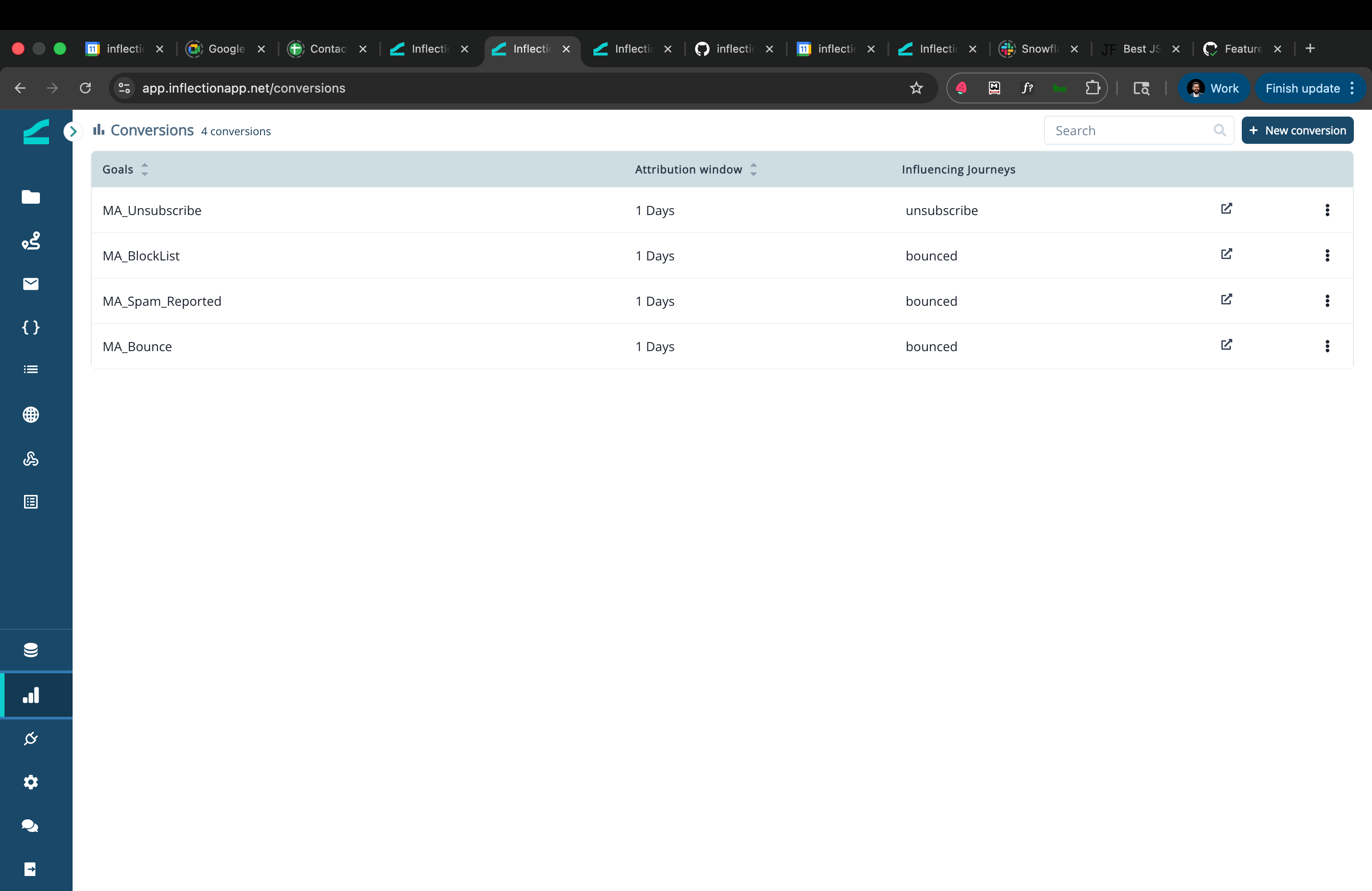
1. Go to Conversions
- In the left navigation, go to Conversions
- Click ”+ New Conversion”
2. Name & Describe
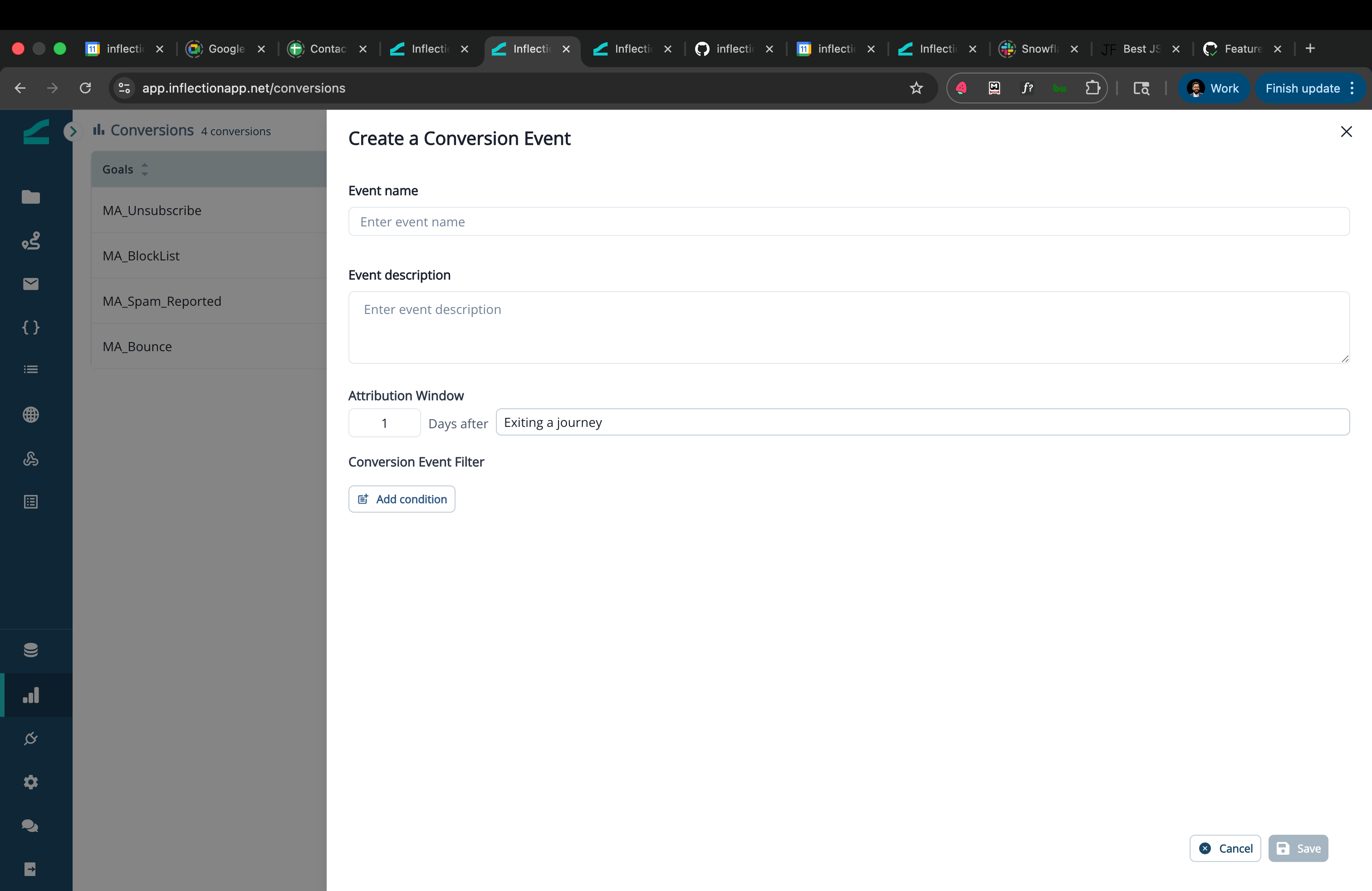
- Event Name: Use a clear, reusable name, e.g.:
Signed Up for free trialRegistered for a webinarConverted to opportunity
- Event Description (optional but recommended): Explain what this conversion represents and how it’s used.
- Example: “Primary success metric for top-of-funnel nurture journeys. Triggered when Lifecycle Stage = MQL.”
3. Set the Attribution Window
Set how long you want to give a journey credit for driving the conversion.- Common choices:
- 7 days – very fast, reactive outcomes (e.g., ebook downloads after a campaign)
- 14–30 days – typical for nurture programs and product activation
- 60–90 days – longer sales cycles or multi-step onboarding
4. Define the Conversion Trigger
You can base your conversion on:- Events (marketing or product)
- Example:
marketing event = "demo_form_submitted" - Example:
product_event = "project_created"
- Example:
- Contact Field value changes
- Example:
is_engaged_customer changes to "true" - Example:
status changes to "MQL"
- Example:
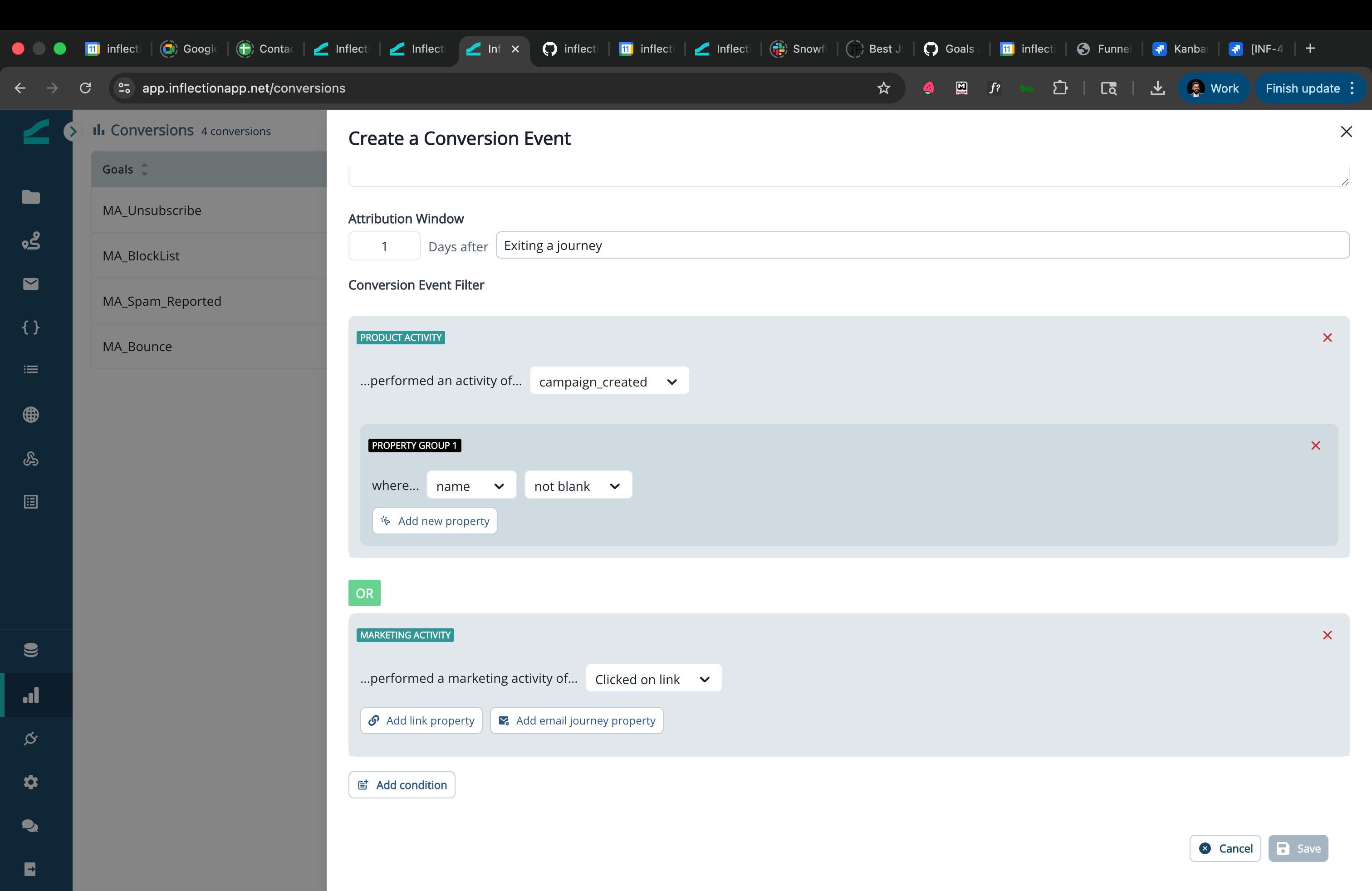
When configuring a Contact Field value changes trigger, click the data dictionary icon next to the operator dropdown on the field filter to open Insights from data dictionary. The panel shows how the field is populated and what values it contains. Read more: Data Dictionary
Linking Conversions to a Journey
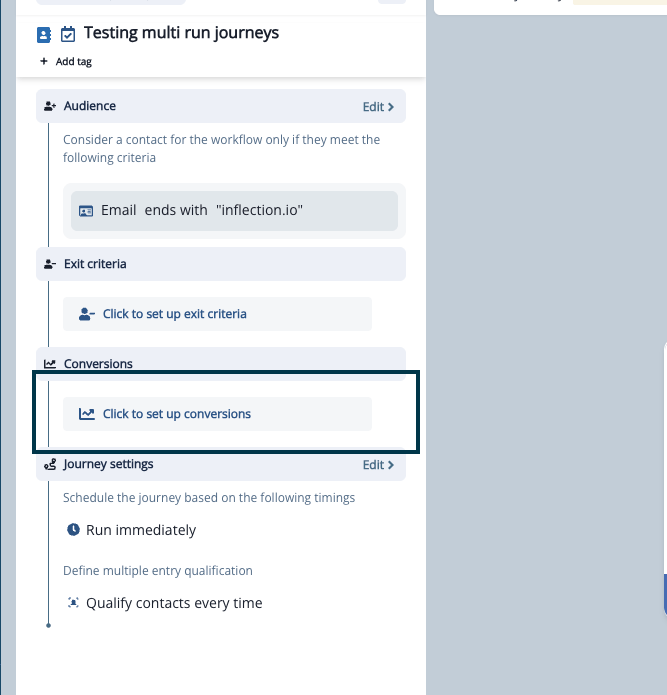
Once you’ve defined conversions, you can attach them to journeys you want to measure.1. Open the Journey
- Go to Journeys.
- Open the journey you want to track
- In the left sidebar, find the Conversions section and click “Click to set up conversions”
2. Add Conversions to the Journey
In the Manage Conversions modal:- Search or browse the list of conversion events you created earlier.
- Check the box next to each conversion event you want to track for this journey.
- Each conversion shows its attribution window (e.g. “1d window”, “2d window”).
- Click “Save changes” to apply.
Example: For a “Welcome Nurture” journey, you might add:Once attached, Inflection will start attributing conversions to this journey as people flow through it.
- Primary:
Signed Up for Free Trial (30-day window)- Secondary:
Activated Feature X (30-day window)
Note that a “Conversion Event” happens when a contact does any one of the selected events
Note: Conversions are tracked only from the point they are linked to a journey. Historical data before the conversion was linked will not be counted.
Note: Conversions do not clone with journeys. If you clone a journey, you will need to manually link conversion events to the new journey.
3. Reading Conversion Metrics on a Journey
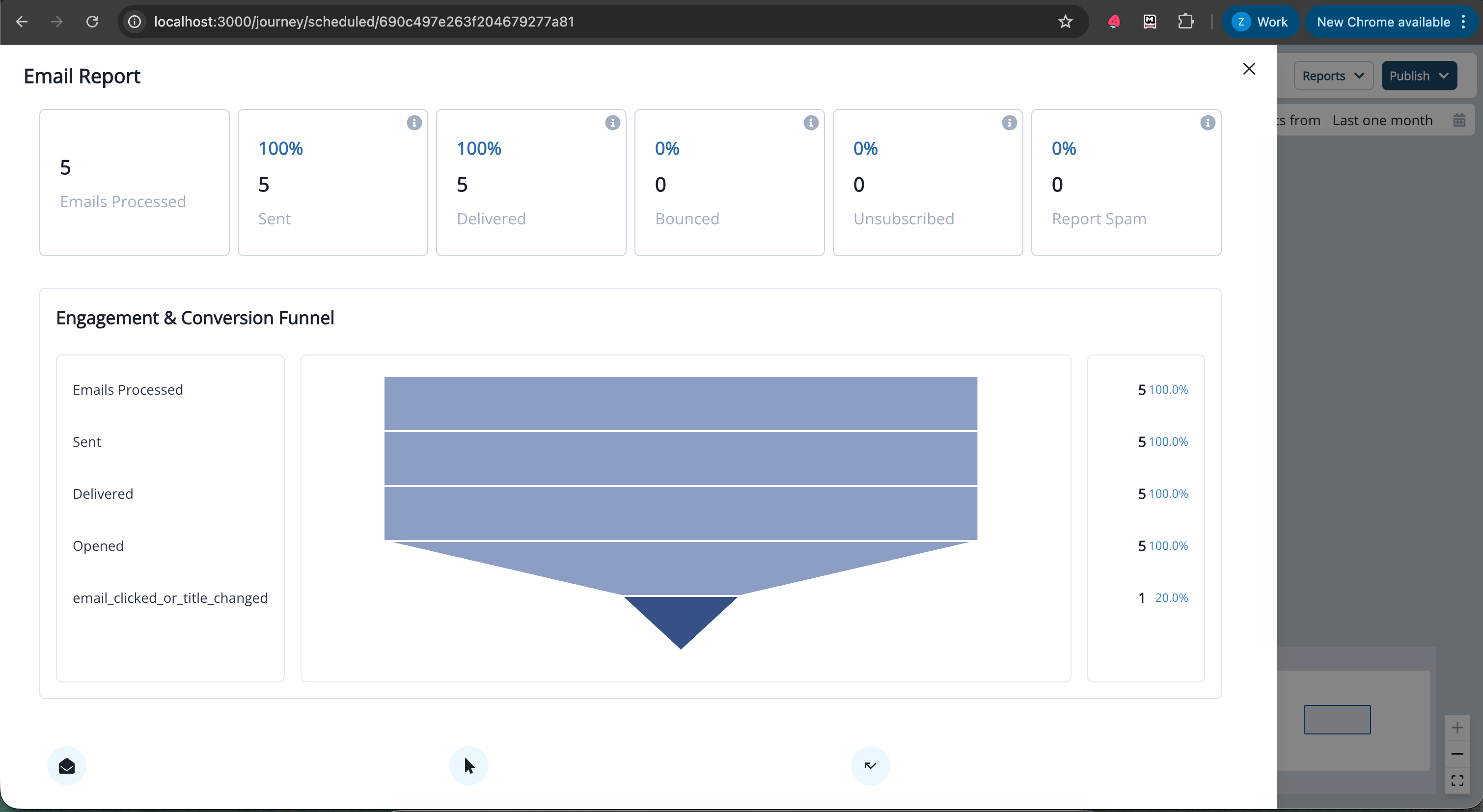
After your journey runs, you’ll see conversion data appear in the Email Report overview.Note: Conversion reporting is calculated once a day at approximately 2:00 AM PST. If a conversion event happens today (prior to 2:00 AM PST), it will reflect in reporting tomorrow.
- Total Conversions Number of contacts who converted while in the journey and within the window.
-
Conversion Rate
% of people in the journey who converted
ExampleYou would see:
- Journey:
Free Trial Onboarding- Conversion:
Upgraded to Paid Plan (30-day window)- 1,000 people entered the journey.
- 150 people upgraded while in the journey and within 30 days.
You can compare this against:
- Total conversions: 150
- Conversion rate: 15%
- Previous versions of the journey
- Other journeys targeting the same audience
Common Questions
What happens if a person is in multiple journeys that share the same conversion?
- Multi-journey credit (conversion is attributed to all journeys the person is in that meet the window criteria).
What if a contact converts multiple times?
- A contact can perform a conversion event multiple times.
- The conversion event of a contact can be attributed to the same journey multiple times if they enter the journey multiple times
Can I change the attribution window or the conversion event later?
You currently cannot edit the attribution window or the details of a conversion event. You can however link or unlink a conversion event against a journey at any pointDo I need a separate conversion for every journey?
No. In fact, it’s better to reuse the same conversion across multiple journeys so you can compare:Can I attach multiple conversions to one journey?
Yes. Common pattern:- 1 Primary Conversion (main business outcome).
- 1–3 Secondary Conversions (supporting outcomes you care about).
- Primary:
Webinar attended - Secondary:
Recording viewed,Logged into App
How does attribution work differently for Contact Journeys vs User Journeys?
Attribution behavior depends on the type of journey and the type of conversion event you’re tracking. When attribution works seamlessly:- Contact Journey + Contact-level conversion (e.g., contact field change, marketing activity) Works as expected, since the conversion happens at the contact level, there’s no ambiguity.
- User Journey + User-level conversion (e.g., product activity performed by a specific user) Works as expected, the journey tracks specific users, and conversions are attributed to those same users.
- Contact Journey + User-level conversion (e.g., product activity) This combination can cause missed or misattributed conversions. Here’s why:
- If User A is in the journey and performs the conversion activity, but User B was linked to the contact more recently, the conversion may not be counted correctly.
- You could miss conversions or see them attributed to the wrong user.