

This page covers what your Google Cloud administrator sets up. The steps you take inside Inflection are in Import from Data Warehouse and Export to Data Warehouse.
Prerequisites
- Permission to grant IAM roles on your Google Cloud project or on the BigQuery datasets involved.
- For import, source tables or views that meet the source table requirements in Import from Data Warehouse.
Connection Fields
Import connection
Export connection
Network Access
None. BigQuery does not require an IP allowlist.Prepare BigQuery for Import
Inflection reads your tables directly from your dataset. It keeps nothing in your project and needs no write access. The Connect step of the import wizard shows a Required permissions panel with the Inflection service account to share with. Copy the principal from there.- In the Google Cloud console, select the project that holds your BigQuery datasets.
- Open IAM & Admin and click Grant Access.
- Add the Inflection service account shown in the wizard as the principal.
-
Grant it read access to the tables you want to sync. The wizard lists the permissions as
bigquery.tables.getandbigquery.tables.getData. The simplest way to grant them is the predefined BigQuery Data Viewer role on each source dataset, which also lets Inflection list the tables in the dataset:
Inflection cannot create objects in your BigQuery project, so Create it for me is not offered when Inflection drafts a view. Click Copy SQL, run the statement in your dataset, and click Verify View.
Prepare BigQuery for Export
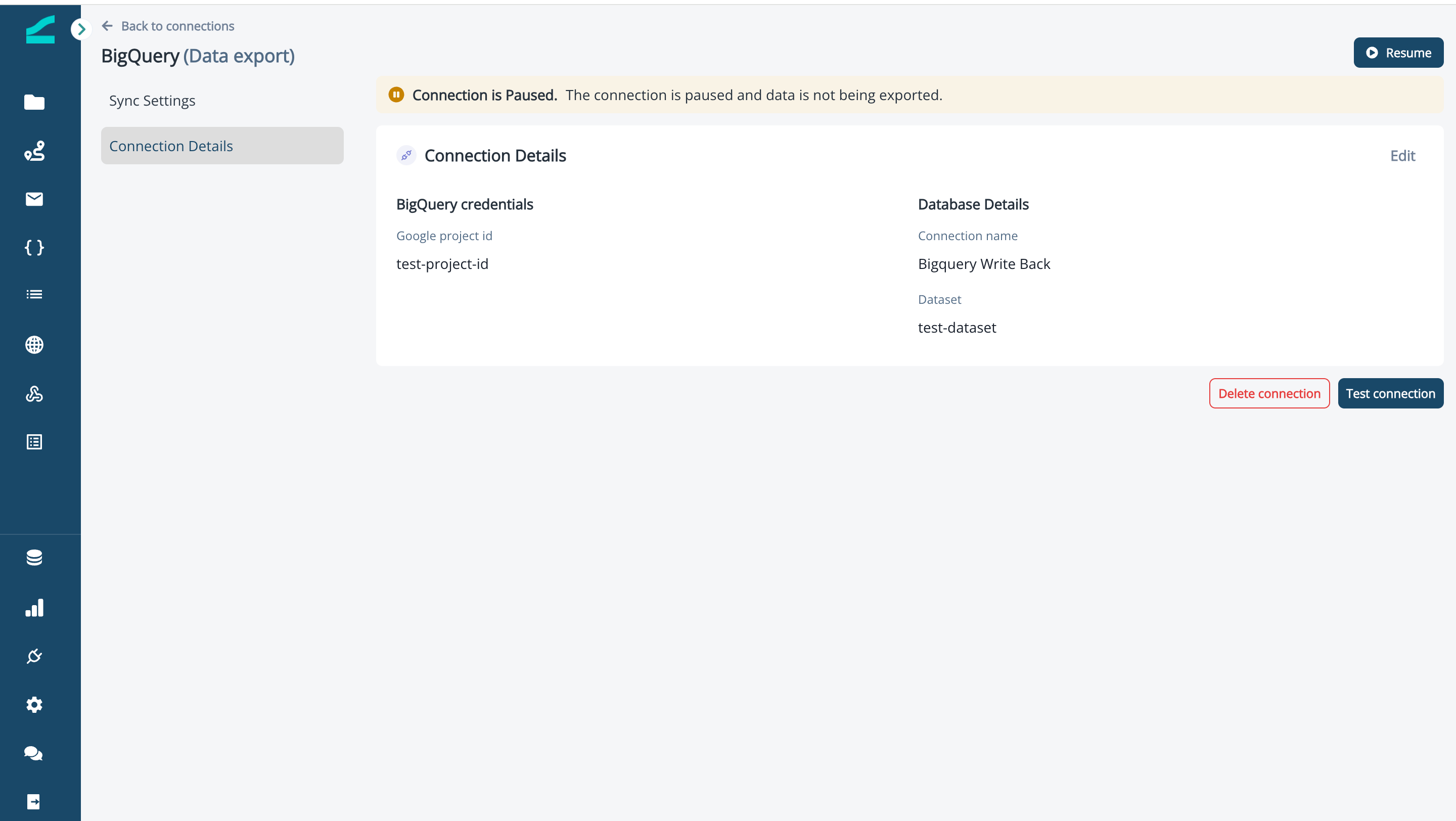
Inflection creates and maintains the export tables itself, so there is no table-creation script for BigQuery. Grant the write service account the permissions it needs on the destination dataset.- In the Google Cloud console, select the project that holds the destination dataset.
- Open IAM & Admin and click Grant Access.
-
Add the following principal:
inflection-datawarehouse-write@silken-fortress-380708.iam.gserviceaccount.com -
Grant a role that includes these permissions on the destination dataset:
Troubleshooting
The Types check blocks on a numeric column.
The Types check blocks on a numeric column.
Check whether the source column is
BIGNUMERIC rather than NUMERIC. Large numeric types can fail the type check in a way that is not obvious from the error. Confirm the exact column type with whoever manages the schema, and cast it in a view if needed.A user in my product belongs to several workspaces, and rows collide.
A user in my product belongs to several workspaces, and rows collide.
A row ID based only on
user_id is not unique when one person belongs to more than one workspace. Include the workspace in the identifier, for example user_id combined with workspace_id, so each user-workspace pair is a distinct row, and sync the Product user organization object.An attribute I expected on Organizations is not showing up.
An attribute I expected on Organizations is not showing up.
An attribute reaches Inflection only if it lives on the table you mapped to Organization. If plan type is a property of a workspace but you mapped a parent company table to Organization, map the workspace table instead.
Can I delete a BigQuery connection myself?
Can I delete a BigQuery connection myself?
Yes, once none of its columns are mapped to a field in Unified Mapping. Open the connection and delete it. If mapped fields remain, the delete is blocked and the fields are listed; remove the connection as a source from them first.