

This page covers what your Snowflake administrator sets up. The steps you take inside Inflection are in Import from Data Warehouse and Export to Data Warehouse.
Prerequisites
- A Snowflake role with
ACCOUNTADMIN, orMANAGE GRANTSplus ownership of the objects you will grant. - Key-pair authentication, or a Snowflake user created with
TYPE = SERVICE. Snowflake requires multi-factor authentication for password logins by people. Inflection connects as a service and cannot answer an MFA prompt, so a plain password on a normal user fails with Failed to authenticate: MFA with TOTP is required. - For import, source tables or views that meet the source table requirements in Import from Data Warehouse.
Snowflake is retiring single-factor password authentication for service users. Move to key-pair authentication now rather than later. See Snowflake’s authentication policy timeline.
Connection Fields
Import connection
Export connection
Network Access
Only needed if your account uses a network policy that restricts access by IP. The Connect step of the import wizard lists Inflection’s IP addresses under Network access (optional). Add them to your network policy.Prepare Snowflake for Import
Create the Key Pair
On your computer, in a macOS or Linux terminal:Private key is not encrypted.
Create the Warehouse, Role, and User
Run the following in a Snowflake worksheet. The names are defaults. Use your own if you prefer, and use them consistently in every later step.Give the User a Default Warehouse and Role
Every Snowflake query, including listing your tables, runs on a compute warehouse. The access statements Inflection generates in Step 2 grant the role access to your data, but they do not cover the warehouse. Without this step the connection test passes and Step 2 cannot list your tables.Grant Access to Your Data
In Step 2 of the import wizard, the Warehouse access chip checks read access on your source schemas and write access on the write location. If anything is missing, it shows the exact statements to run, built from your database, role, schemas, and write location. Click Copy statements, run them asACCOUNTADMIN or the owning role, then click Re-check.
The generated statements have this shape. Run the generated version, not this one.
CREATE SCHEMA on the database even when the schema already exists, and if your write location is in a different database from your sources, the role needs USAGE on that database too.
inflection in the same database you read from. You can choose a different database and schema in the wizard.
Run the Storage Integration SQL
Shown only when Inflection has enabled it for your account. Inflection moves your tables out of Snowflake through an Inflection-owned S3 location. By default that transfer carries temporary AWS credentials inside the sync query. A storage integration replaces those credentials with a one-time trust between your Snowflake account and Inflection’s storage, which some security teams require.- In the import wizard, on Save & activate, open Storage Setup SQL and copy the script. It is generated for the connection’s primary schema after the Step 2 access check.
- Run it in a Snowflake worksheet as
ACCOUNTADMIN. It creates the integration and a stage, and finishes withDESCRIBE INTEGRATION. - From that output, copy
STORAGE_AWS_IAM_USER_ARNandSTORAGE_AWS_EXTERNAL_IDinto the two fields in Inflection and click Submit aws setup. - The activation requirement Snowflake storage integration is set up turns green and Activate connection is enabled.
Create Views Yourself (Optional)
When you choose We draft a view for you in the wizard, Inflection writes theCREATE OR REPLACE VIEW statement for you. You can either click Create it for me, which runs it with the write grant above, or click Copy SQL, run it yourself, and click Verify View. You can also build your own view ahead of time and pick it as a source like any table:
Prepare Snowflake for Export
Create the Destination Schema and User
Inflection needs a database and schema to write the export tables to, and a user with the role that owns them. You can reuse the role and user from the import steps, or create dedicated ones the same way. Inflection needs only table-level permissions:INSERT, UPDATE, DELETE, and ALTER on the export tables.
Run the Storage Setup SQL
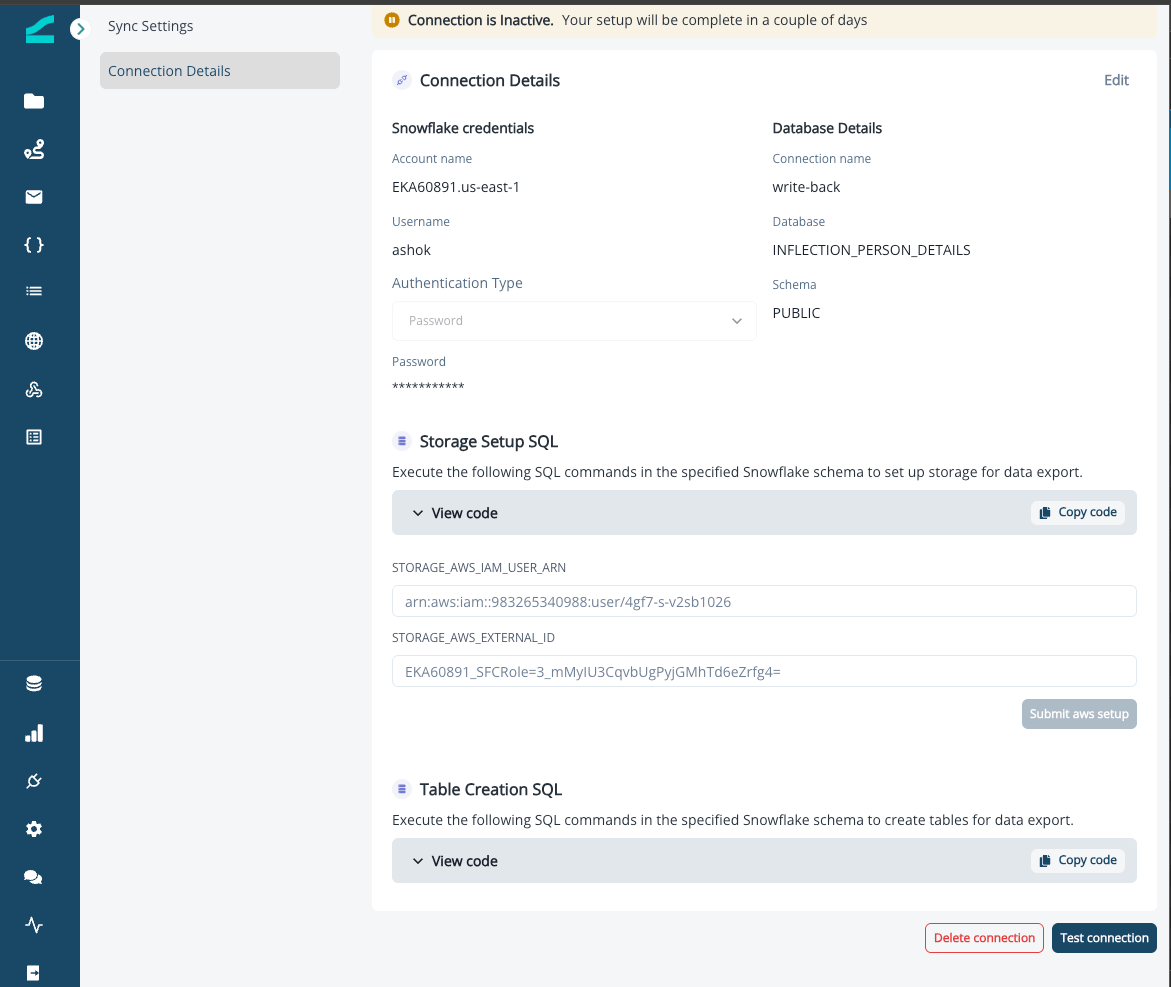
After you create the export connection in Inflection, open it, run the Storage Setup SQL shown under Connection Details in a Snowflake worksheet asACCOUNTADMIN, and enter the STORAGE_AWS_IAM_USER_ARN and STORAGE_AWS_EXTERNAL_ID values from the result into the two fields in Inflection.
Create the Export Tables
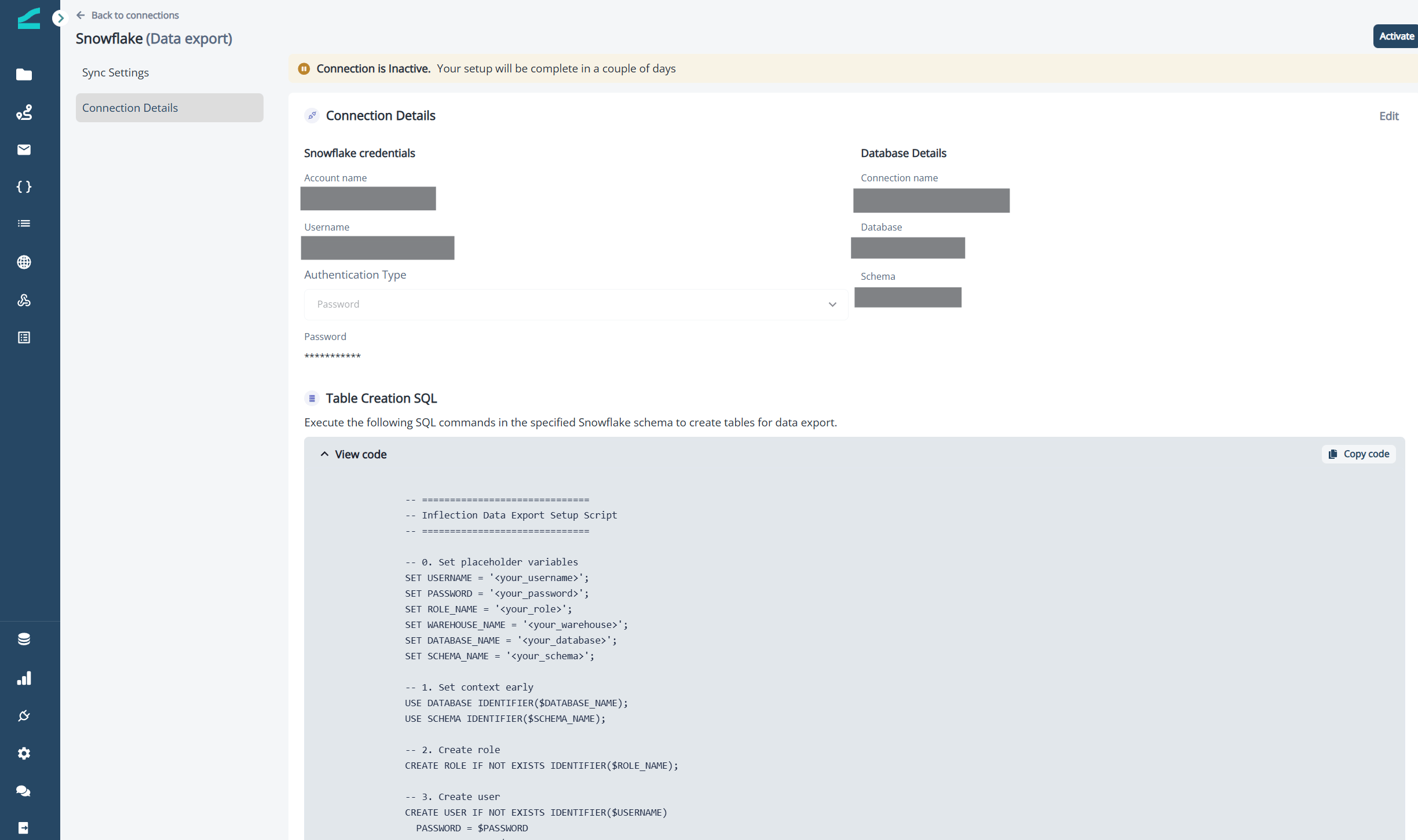
- In Inflection, open the export connection and click Connection Details.
- Click Copy code in the Table Creation SQL section.
- Run the script in Snowflake.
Switch from Password to Key-Pair Authentication
The steps are the same for import and export connections. Register the matching public key on the Snowflake user first, as shown in Create the Warehouse, Role, and User.- In Inflection, open your Snowflake connection.
-
Click the Connection Details tab.
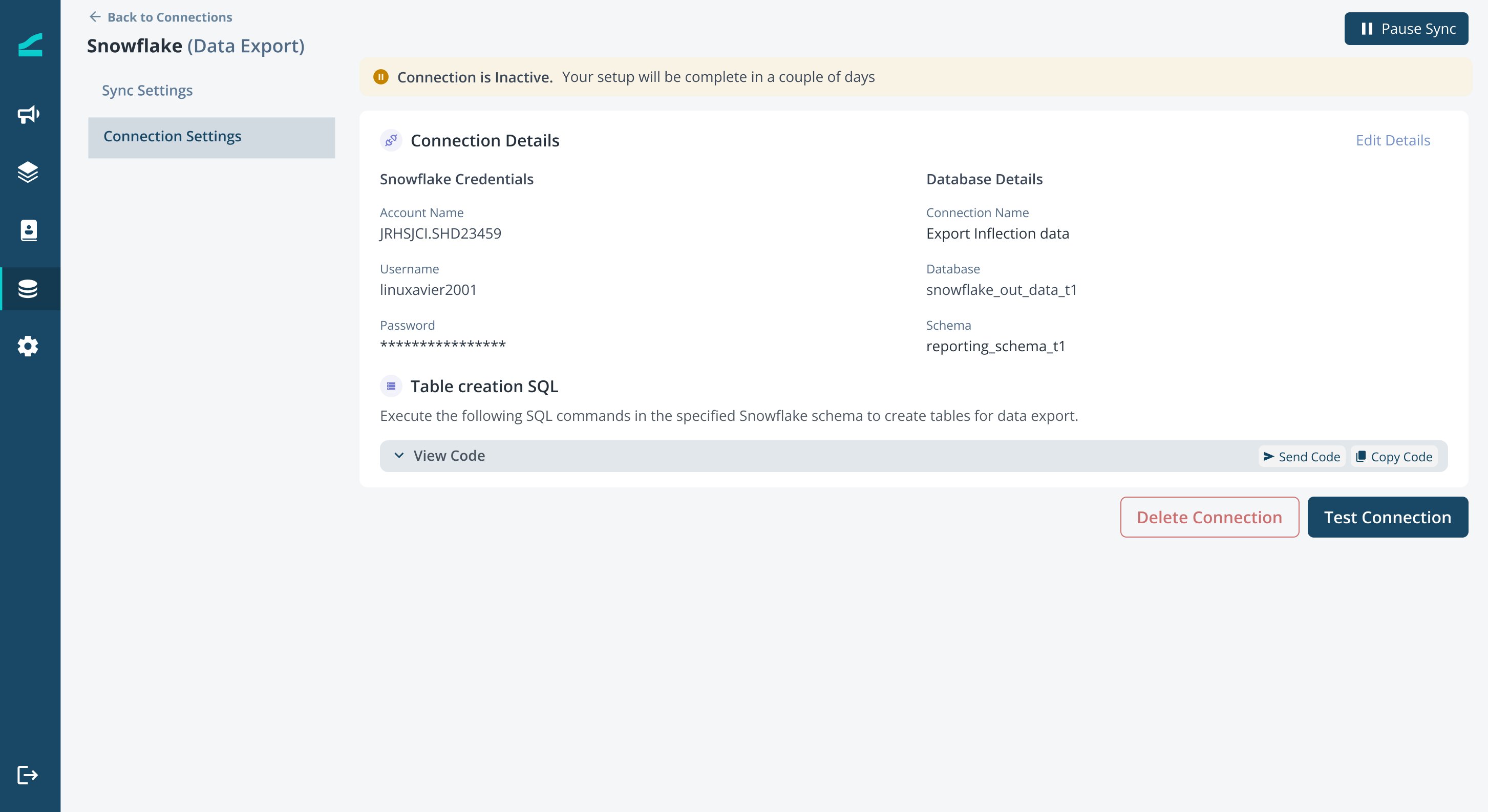
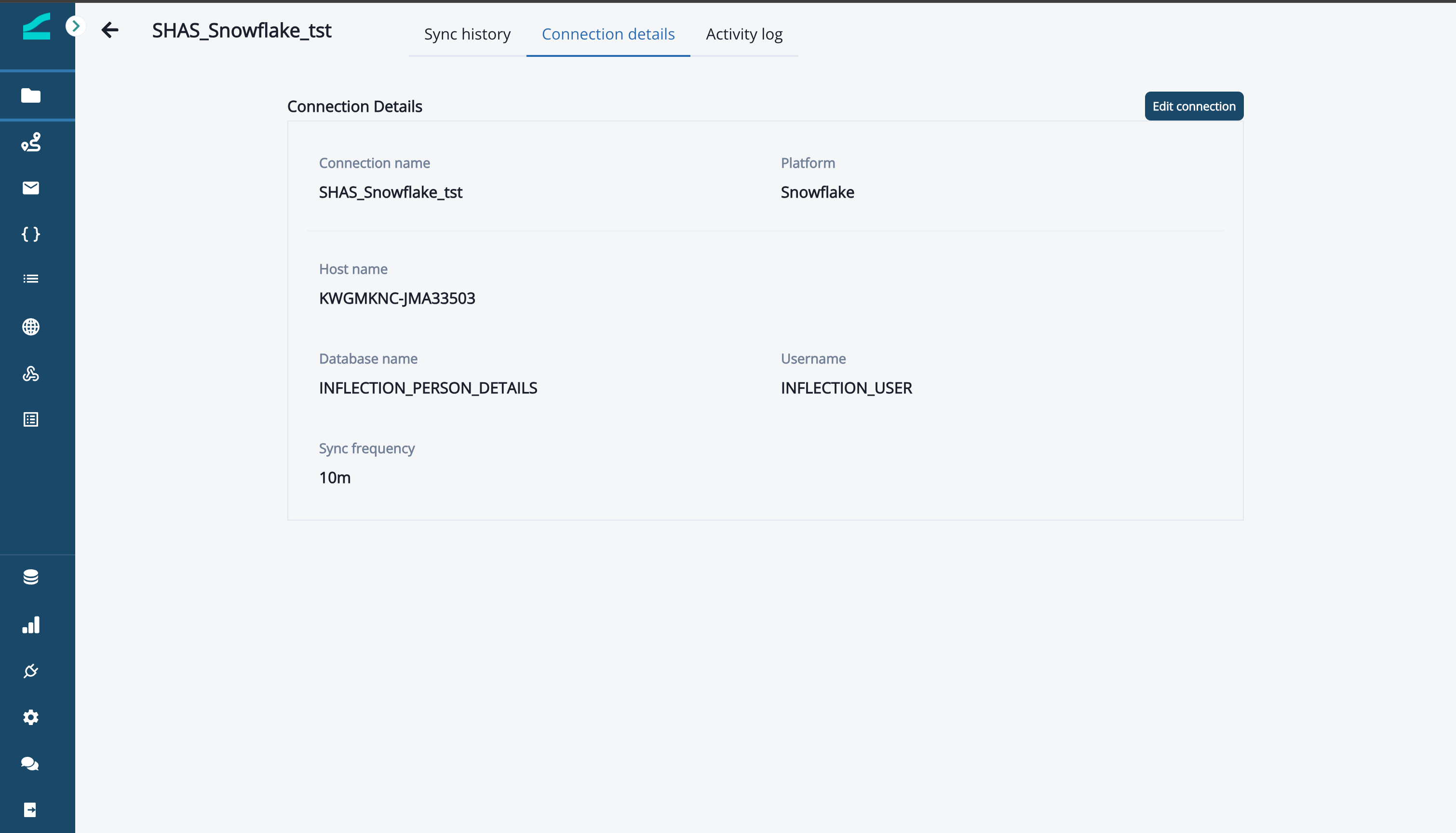
- Click Edit Details in the top right.
-
Change Authentication Type to Key Pair.
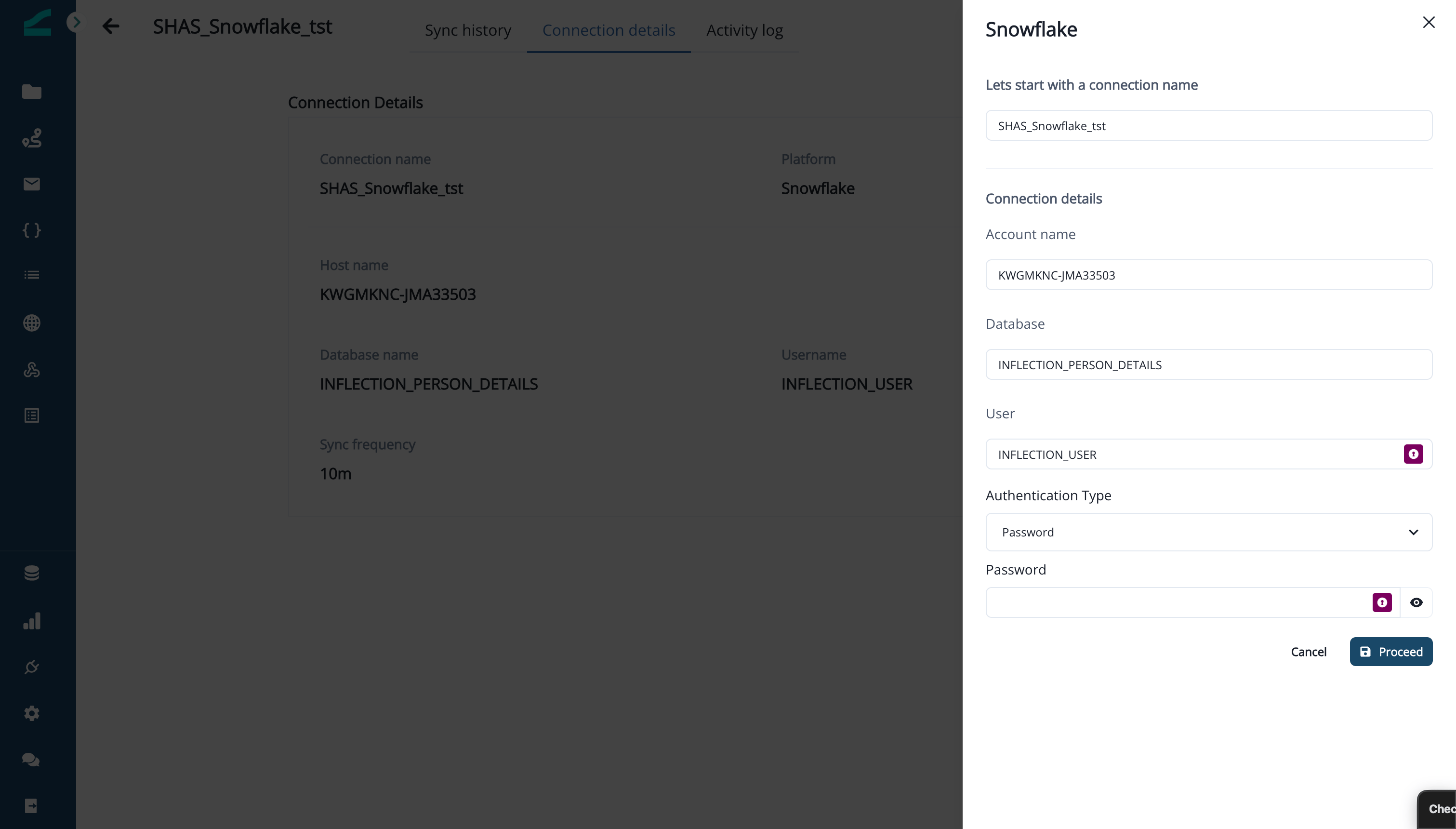
- Paste the encrypted private key into Private key and enter the Private key passphrase. For an export connection, confirm the Database and Schema Inflection writes to.
- Click Save.
Troubleshooting
Test connection fails with 'MFA with TOTP is required'.
Test connection fails with 'MFA with TOTP is required'.
You are signing in as a normal user with a password. Snowflake’s MFA policy blocks that for services. Switch to Key Pair authentication, or create the user with
TYPE = SERVICE.Test connection fails with 'Private key is not encrypted' or 'Invalid private key format'.
Test connection fails with 'Private key is not encrypted' or 'Invalid private key format'.
Inflection requires an encrypted PKCS#8 private key plus its passphrase. Generate the key with the
openssl commands above, paste the contents of rsa_key.p8 (not rsa_key.pub), and enter the passphrase.The connection test passes, but Step 2 says it can't list my tables.
The connection test passes, but Step 2 says it can't list my tables.
The Inflection user has no default warehouse, so Snowflake cannot run the listing query. Run Give the User a Default Warehouse and Role, then click Re-check.
The access check still shows 'No write access' after I ran the generated statements.
The access check still shows 'No write access' after I ran the generated statements.
The role is missing
CREATE SCHEMA on the write database, or USAGE on it when the write location is in a different database from your sources. Run GRANT USAGE, CREATE SCHEMA ON DATABASE <write db> TO ROLE INFLECTION_SYNC; and click Re-check. Alternatively, set the write database to the same database you read from.An export sync fails on a missing column such as ENTITY_TYPE or ENTITY_META_INFO.
An export sync fails on a missing column such as ENTITY_TYPE or ENTITY_META_INFO.
The export tables do not match the Table Creation SQL. Compare them with the script under Connection Details and add the missing columns, or drop and recreate the tables from the script, then re-run the sync.
A sync fails with 'invalid identifier' after a change in Snowflake.
A sync fails with 'invalid identifier' after a change in Snowflake.
A column Inflection reads was renamed or dropped, or a view it reads broke because an underlying table changed. See Change Your Source Tables Safely in Manage and Troubleshoot Data Warehouse Syncs.