

Do not delete fields to switch warehouses. Deleting a custom field is blocked while journeys or audiences use it. Removing the old source from the field is all you need, and it has no dependency check.
Before You Start
Prerequisites
- Admin access to your Inflection workspace.
- Credentials for the new warehouse. See Import from Data Warehouse and the setup guide for your warehouse.
- A table or view in the new warehouse for each object you are moving, with a column for each field you map today.
Step 1: Remove the Old Source in Unified Mapping
- Go to Connections > Unified Mapping in the left nav.
- Select the fields for the object that reads from the old warehouse, for example Product User Fields.
- Click Edit mapping.
- On each field fed by the old warehouse, click the × on the old warehouse’s source block, for example Snowflake. You can remove all of them before saving.
- Click Save changes.
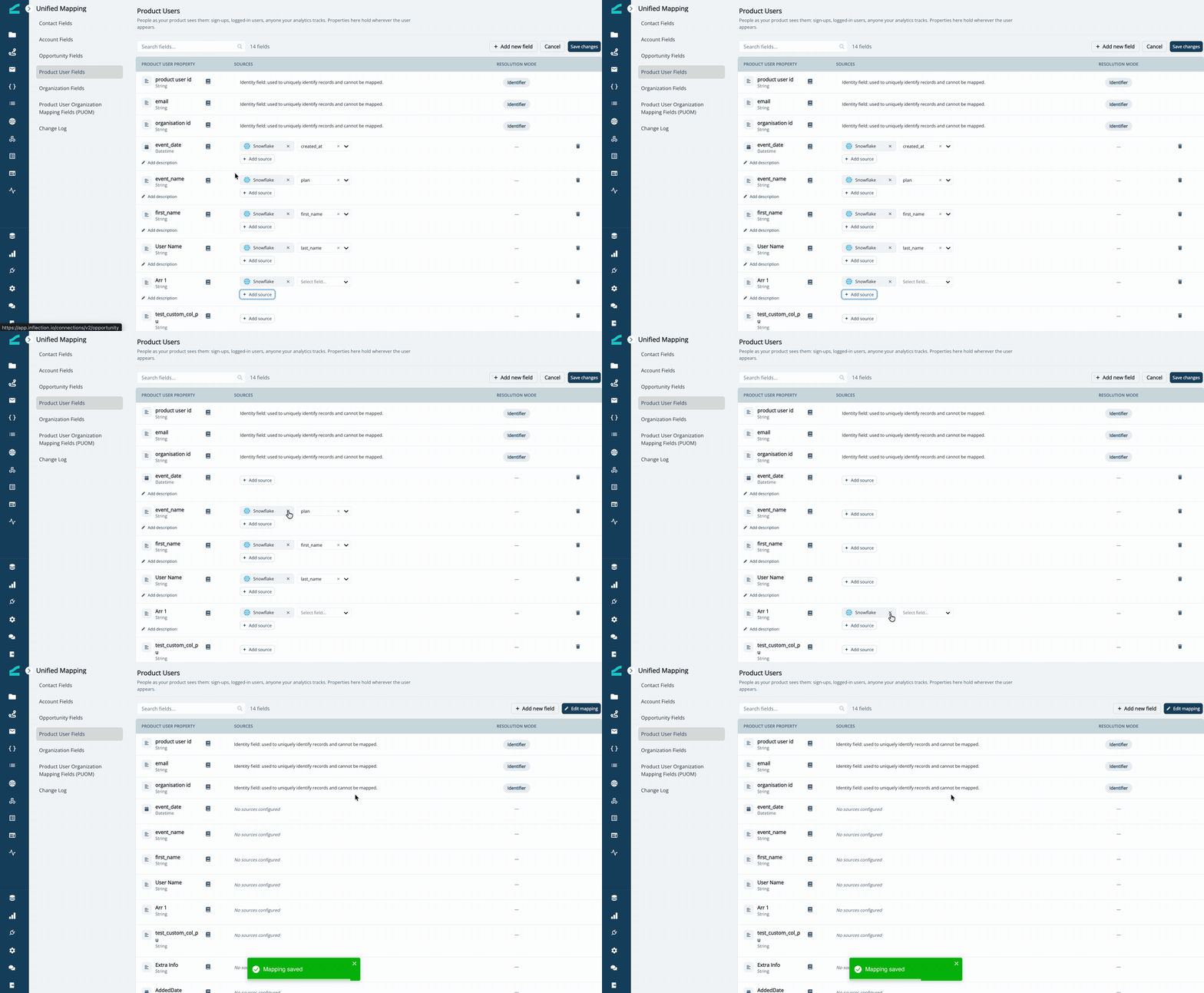
Removing a source only stops new data from coming in from that source. It does not delete data already in Inflection. Existing values stay and your journeys and audiences keep running as they are. New updates resume once you map the new source. Learn more in Unified Mapping.
Step 2: Clear the Old Connection
The new connection cannot read an object while the old connection still holds it. Until you finish this step, the new connection shows This object is already mapped by another connection and cannot be configured here.Full Swap: Delete the Old Connection
- Go to Connections > Data Connections in the left nav.
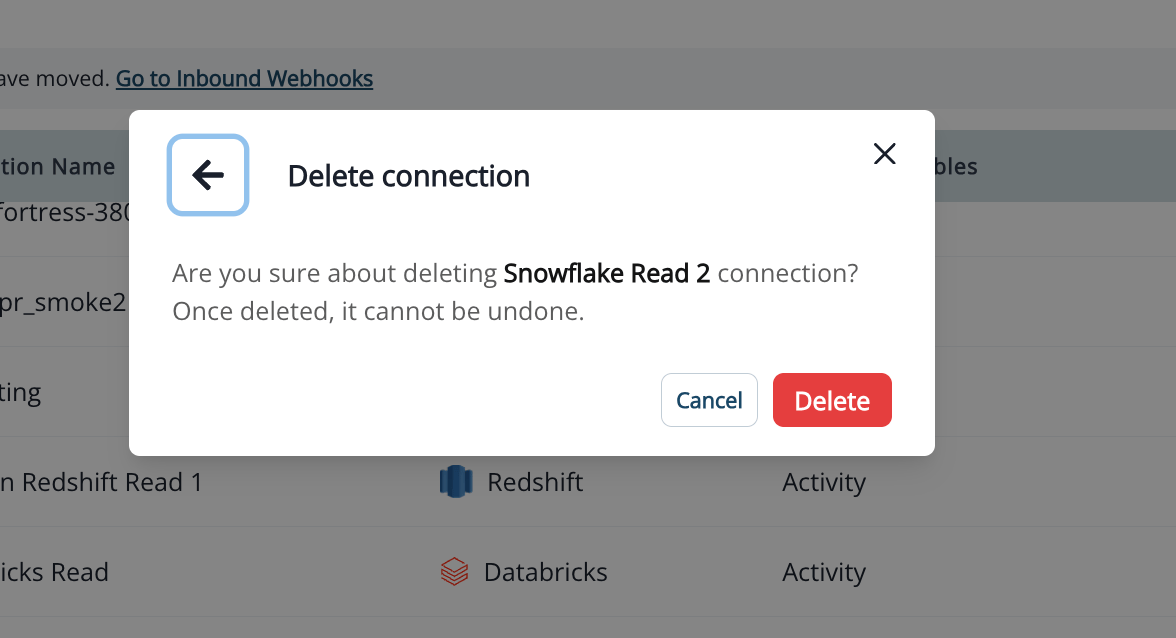
- Find the old connection and delete it.
- Click Delete to confirm.
Partial Swap: Remove the Moving Objects
- Open the old connection and go to Set up your data.
- Select the object in the left rail, for example Product users.
- Click Remove from connection, then click Remove to confirm.
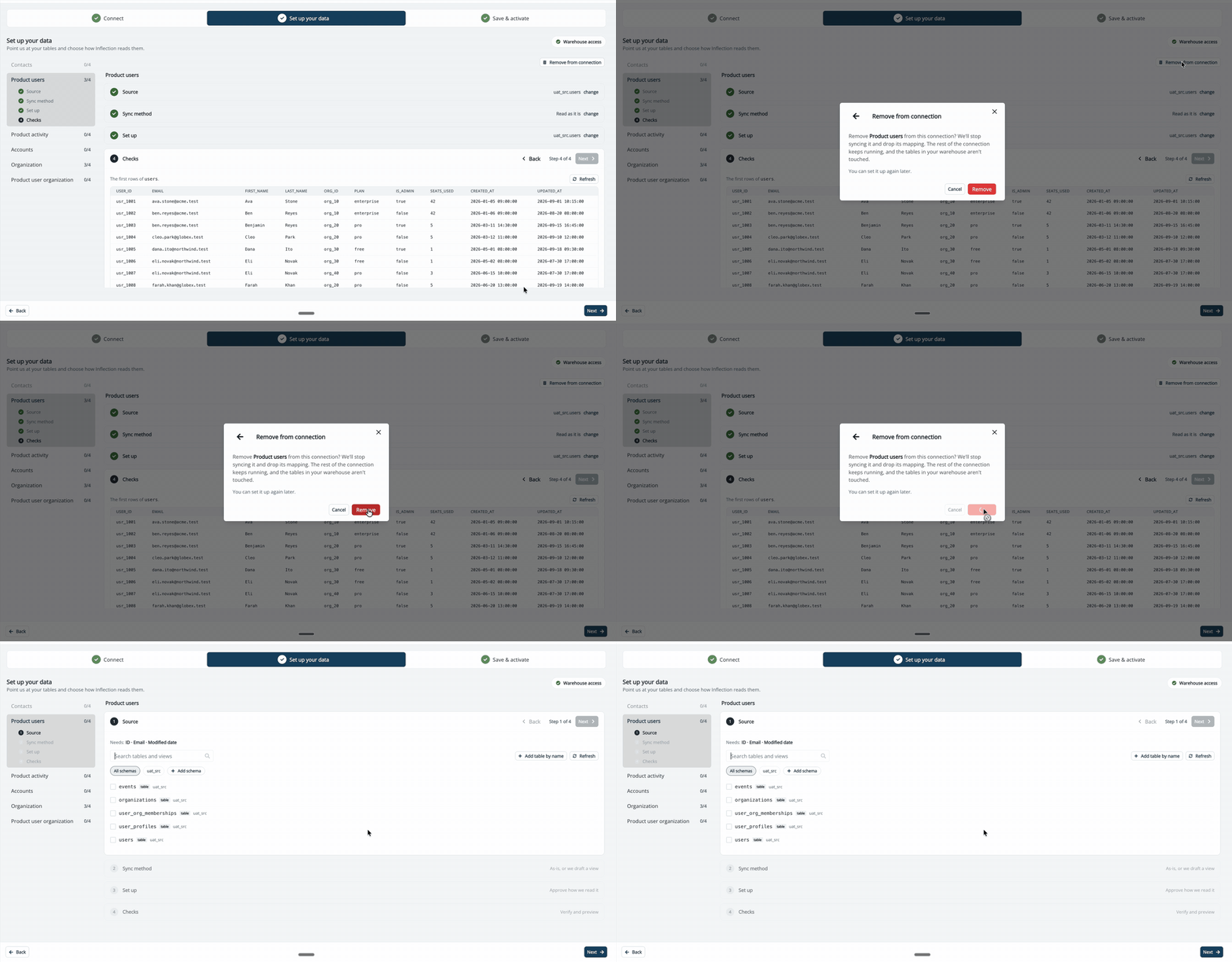
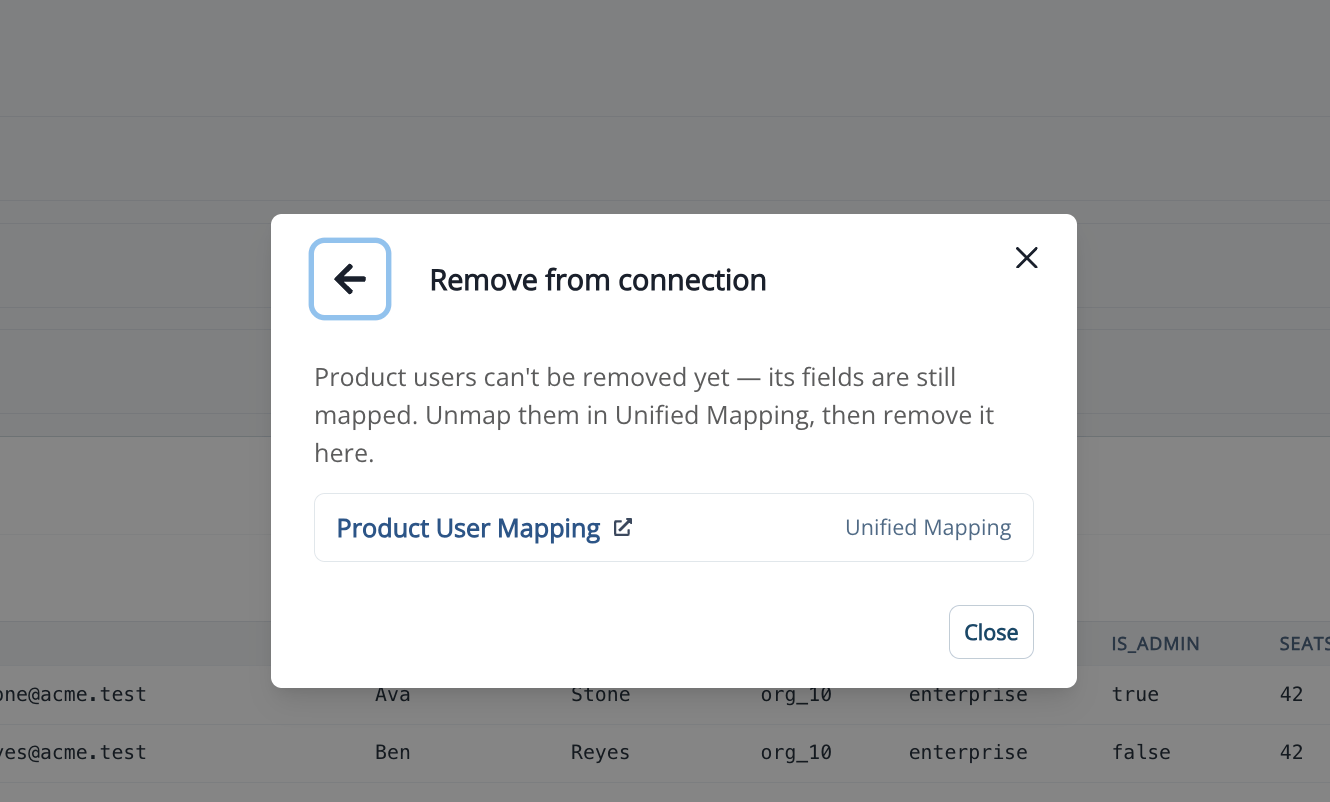
You cannot remove the last object on a connection. If every object is moving, delete the connection instead (full swap).
Step 3: Set Up the New Connection
Create the new connection and set up the objects you are moving. Follow Import from Data Warehouse for the full wizard: Connect, Set up your data, and Save & activate. When you activate, the page shows This connection is live.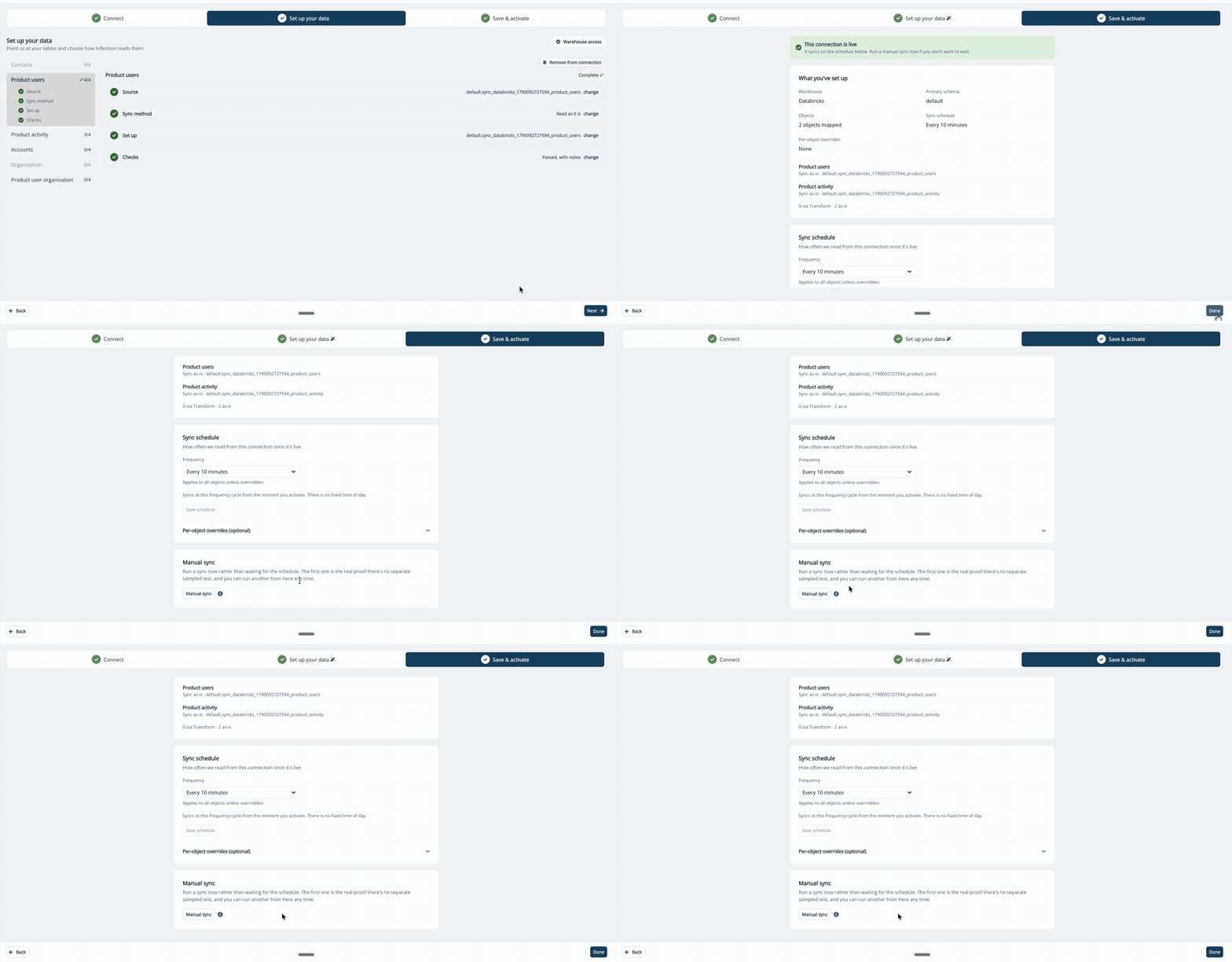
You do not need to run a sync before mapping. The new connection’s columns are available in Unified Mapping as soon as you save the connection. We recommend finishing the mapping in step 4 before the first sync, so the first sync fills in your field values. If the first sync runs before you finish mapping, the values populate on the next sync, which re-reads the full table.
Step 4: Map the New Source in Unified Mapping
- Go to Connections > Unified Mapping in the left nav.
- Select the object’s fields, for example Product User Fields.
- Click Edit mapping.
- On each field, click Add source and select the new warehouse, for example Databricks.
- Select the column to read from.
- Click Save changes.
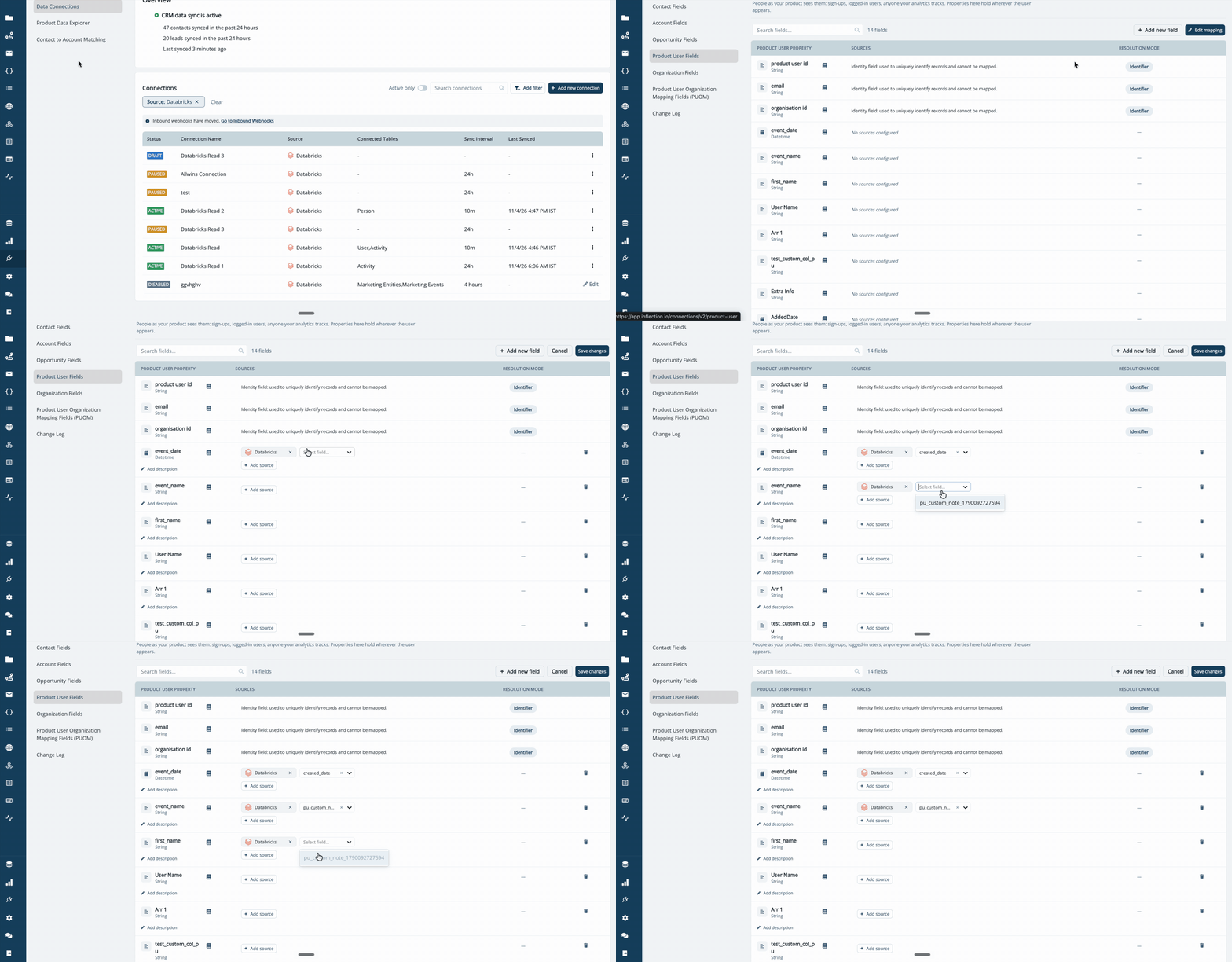
After the first sync from the new warehouse, review the journeys and audiences that rely on the moved fields to confirm the values look as expected.
Troubleshooting
I can't delete a field because journeys use it.
I can't delete a field because journeys use it.
You do not need to delete it. Remove the old warehouse as a source on the field instead (step 1). The field and its journey references stay in place.
The connection can't be deleted yet.
The connection can't be deleted yet.
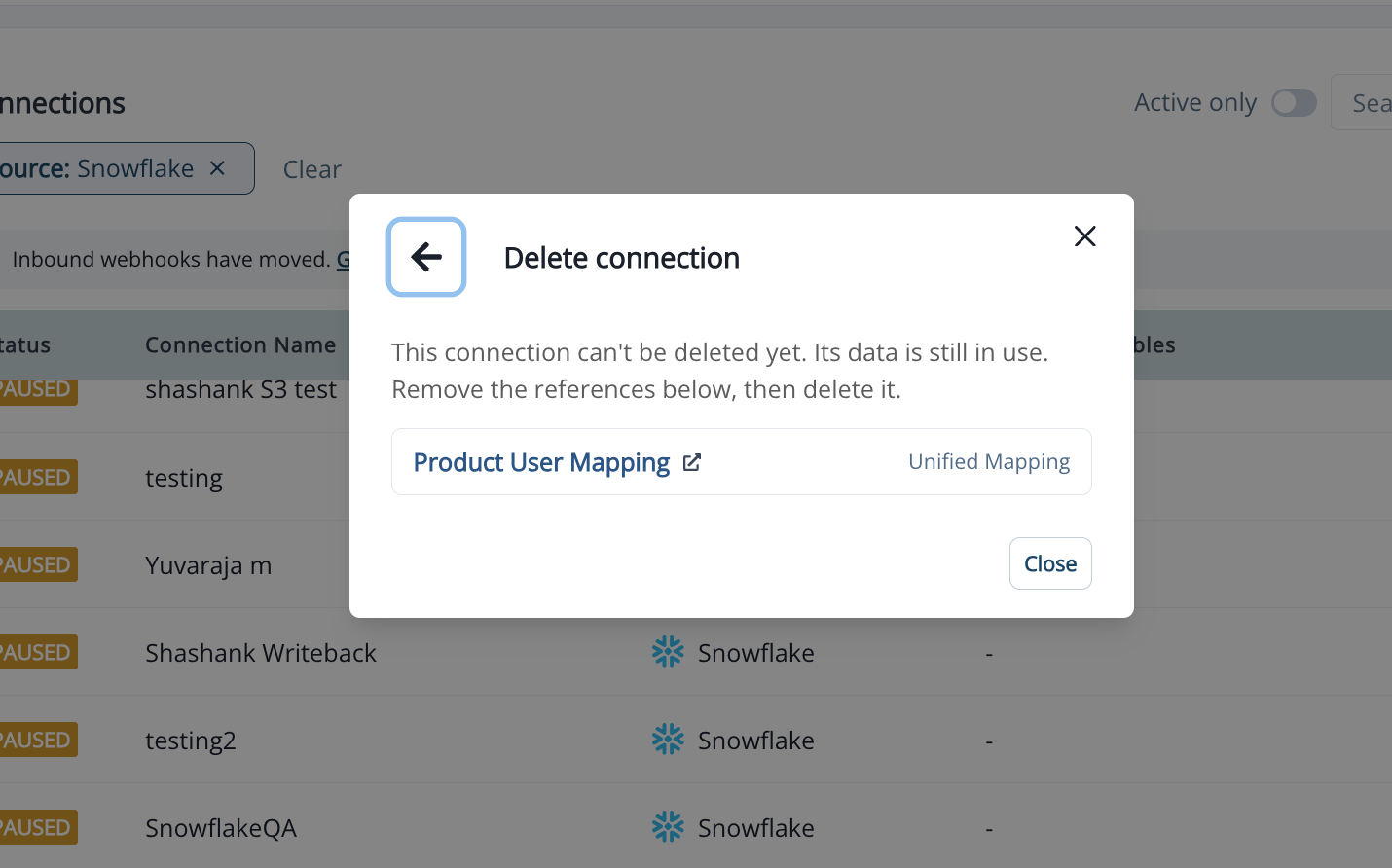
The message This connection can’t be deleted yet. Its data is still in use. means a field in Unified Mapping still reads from it. Click each listed mapping, remove the source, and try again.
The object can't be removed yet.
The object can't be removed yet.
The message can’t be removed yet means the object’s fields are still mapped in Unified Mapping. Click the listed mapping, remove the source, and try again.
The object is the only object on this connection.
The object is the only object on this connection.
You cannot remove the last object on a connection. Delete the connection instead.
The new connection says the object is already mapped by another connection.
The new connection says the object is already mapped by another connection.
The old connection still holds the object. Finish step 2, then return to the new connection.
Frequently Asked Questions
Does removing a source delete my data?
Does removing a source delete my data?
No. Data already synced stays in Inflection. Removing a source only stops new updates from it.
Do I need to rebuild my journeys or audiences?
Do I need to rebuild my journeys or audiences?
No. They reference Inflection fields, not warehouse columns, so they keep working when you swap the source.
Can I pause the old connection instead of deleting it?
Can I pause the old connection instead of deleting it?
Pausing stops syncs but does not free the objects for the new connection. Delete the connection or remove the objects instead.