

This page covers what your Databricks administrator sets up. The steps you take inside Inflection are in Import from Data Warehouse and Export to Data Warehouse.
This page covers importing from Databricks with a service principal, and Databricks export. If your workspace imports over Delta Sharing, see Databricks Delta Sharing. To switch your import to the other method, contact your Inflection customer success team.
Connection Fields
Import and export connections use the same fields.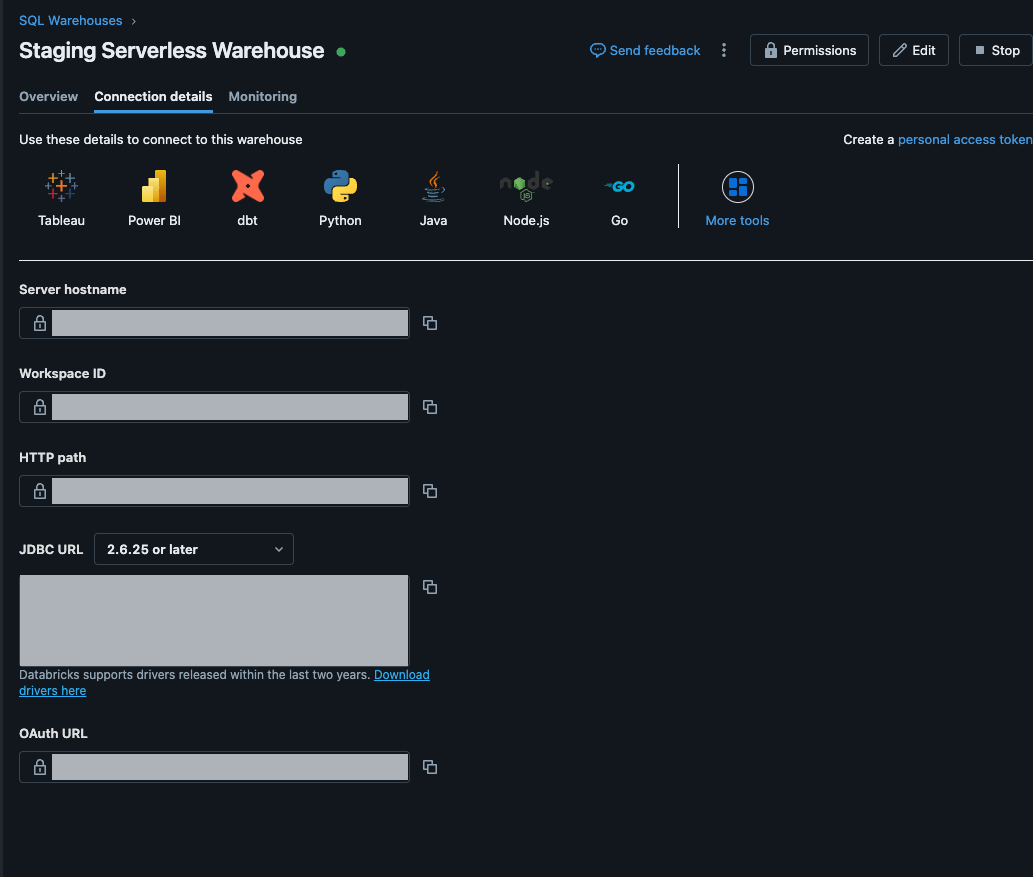
Prepare Databricks for Import
Inflection signs in to your workspace as a service principal and reads your tables through your SQL warehouse. Each sync writes its results into an Inflection-owned storage location through an external location that you create once. Inflection does not create tables or views in your catalog.Prerequisites
- A Unity Catalog-enabled Databricks workspace on AWS.
- A service principal created only for Inflection, with an OAuth client ID and secret. See Step 1: Create a Service Principal.
- A SQL warehouse for Inflection’s queries to run on. Your tables stay in your catalog. The service principal needs read access on your catalog and schemas, and Can use on the warehouse. See Step 2: Grant Read Access.
- Someone who can create a storage credential and an external location in Unity Catalog, needed once: a metastore admin, or a user with
CREATE STORAGE CREDENTIALandCREATE EXTERNAL LOCATIONon the metastore. See Set Up Databricks Storage. Inflection’s service principal never gets these privileges. - Source tables or views that meet the source table requirements in Import from Data Warehouse.
What is a metastore admin? A metastore admin is a Databricks role, not a credential, so there is nothing to generate or copy. It belongs to the person or group that manages Unity Catalog for your Databricks account. To see who has it, your Databricks account admin opens the account console, clicks Catalog, selects your metastore, and checks Metastore admin. Inflection’s service principal never needs this role.
Step 1: Create a Service Principal
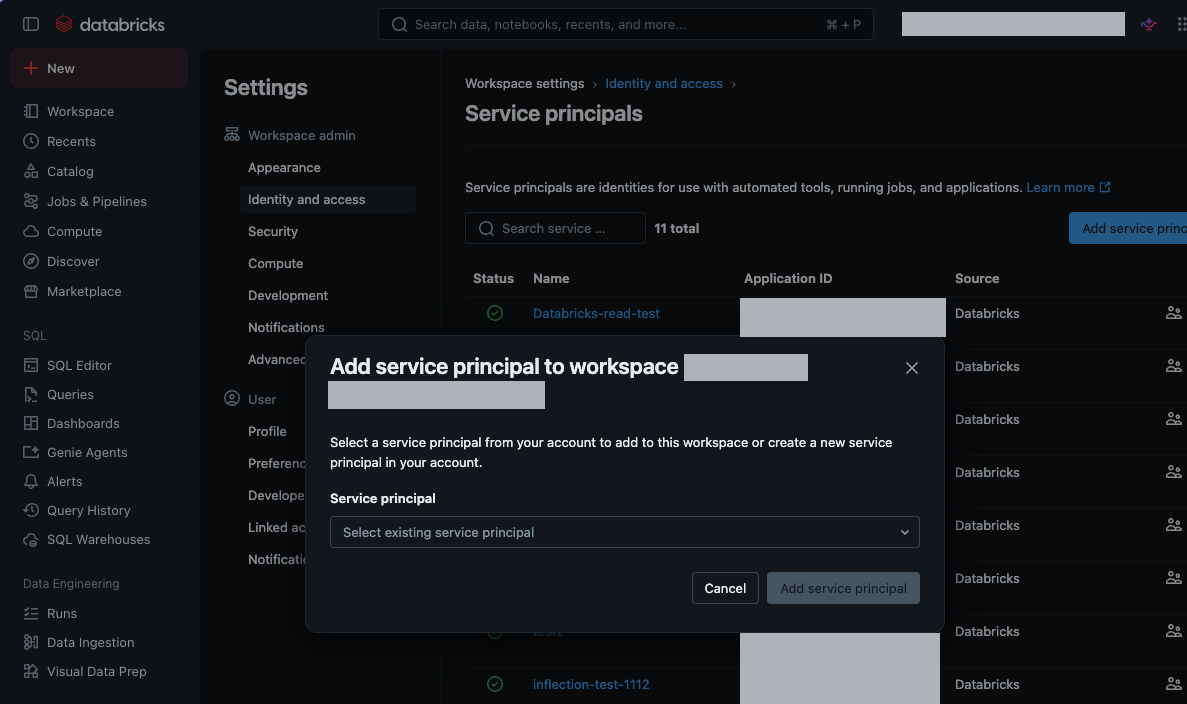
- In Databricks, open Settings, then Identity and access, then Service principals.
- Click Add service principal and give it a name, for example
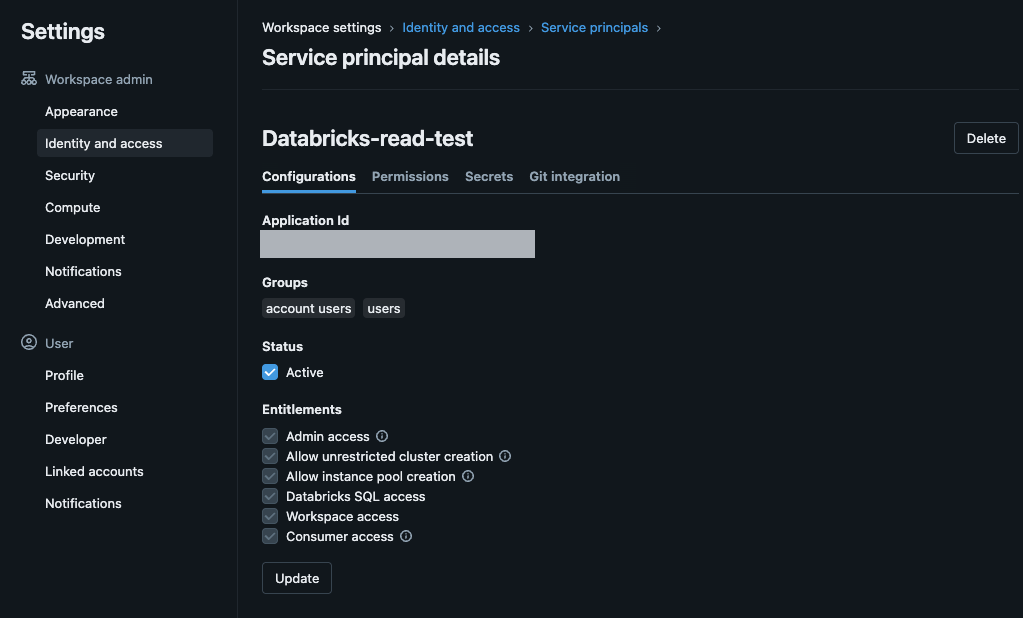
inflection-sync. - Open the service principal. Its Application ID is the client ID you enter in Inflection.
- Go to the Secrets tab and click Generate secret.
- Copy the Client ID and the Secret. The secret is shown only once.
Step 2: Grant Read Access
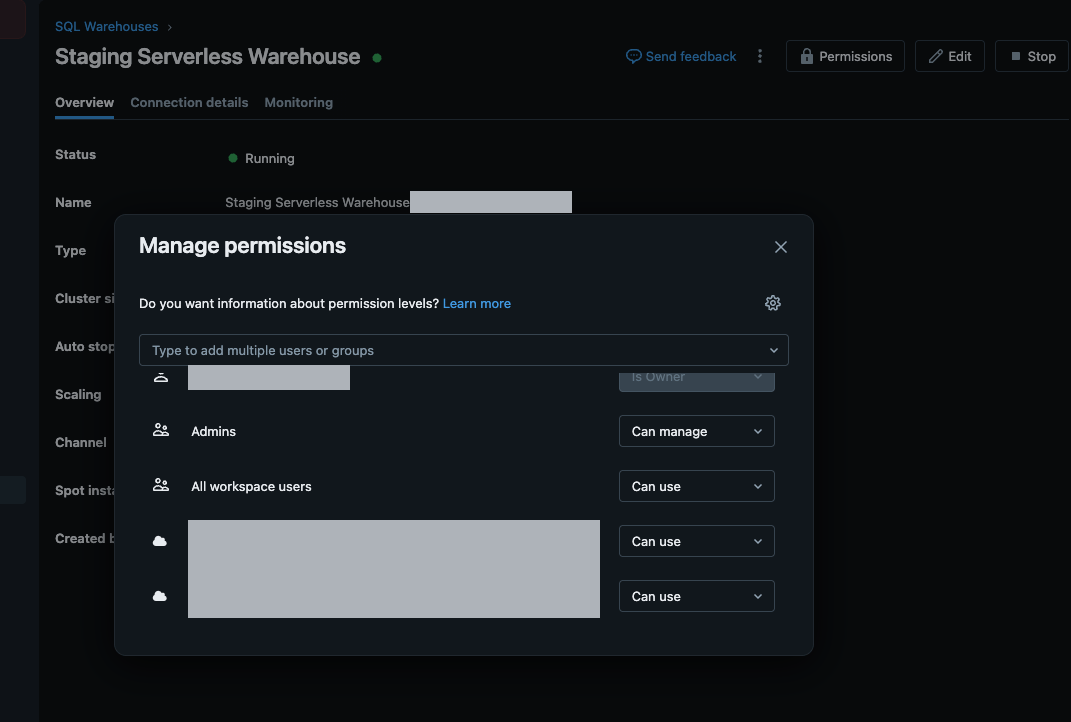
Do this as a Databricks workspace admin, or another user who can manage the SQL warehouse and grant on the catalog. Give the service principal Can use on the SQL warehouse First, give the service principal Can use permission on the SQL warehouse, so it can run queries:- In Databricks, click SQL Warehouses and select the warehouse Inflection will use.
- Click Permissions.
- Search for the service principal by name, choose Can use, and click Add to add the service principal.
catalog.schema.table, for example main.marketing.contacts. Note the catalog and every schema that holds a table Inflection should read. Enter that catalog as Catalog on the Connect step.
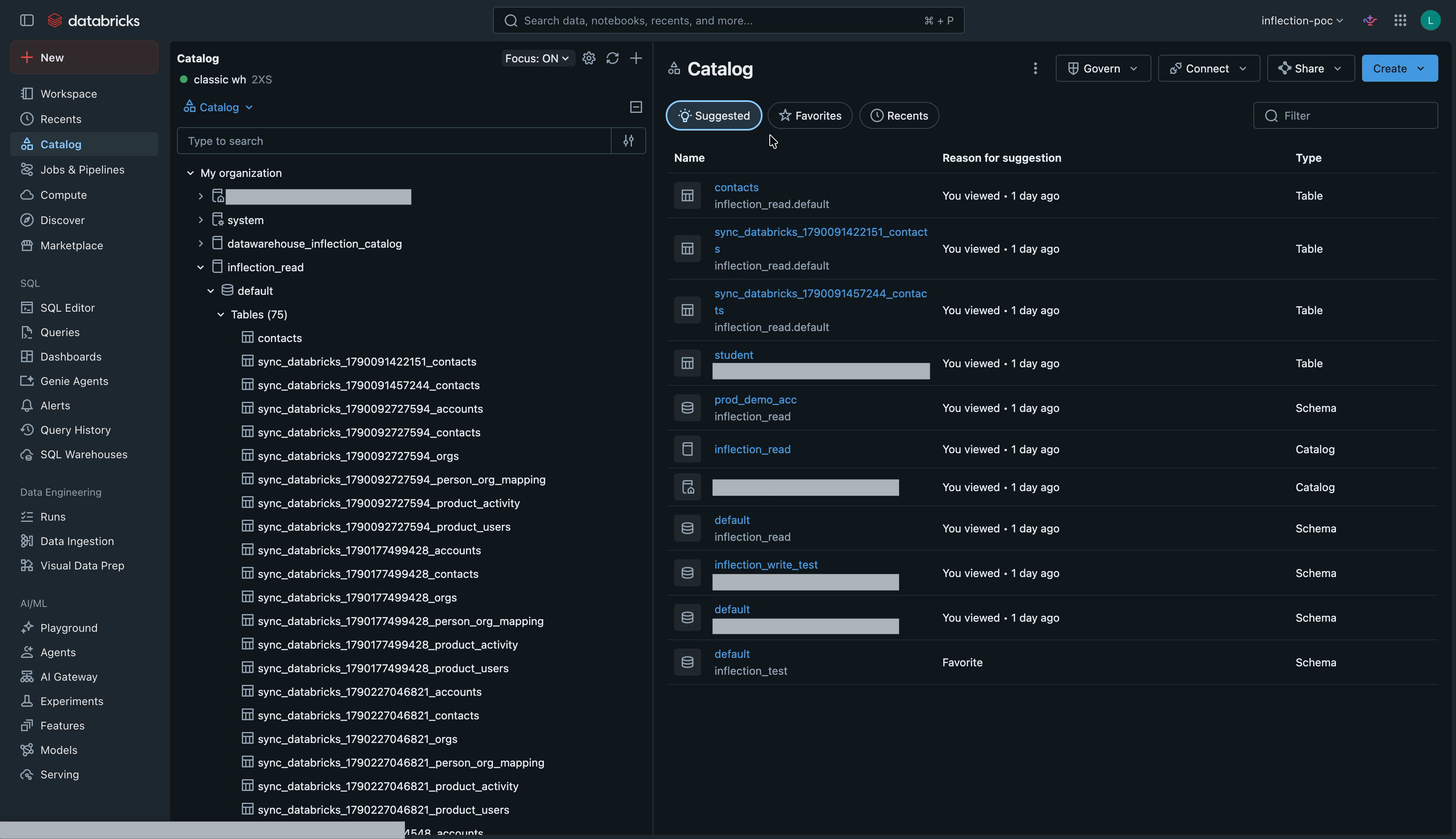
USE SCHEMA and SELECT. If a statement fails, see Troubleshooting.
Step 3: Connect in Inflection
Enter the connection fields on the Connect step. If your workspace restricts access by IP, first add the addresses listed under Network access (optional) on the Connect step to your workspace IP access list. Click Test connection. On success you see Connected to Databricks. Credentials verified. If the test fails or times out, see Troubleshooting. Then continue with Step 2: Set Up Your Data in Import from Data Warehouse, and come back to Step 4 when you reach Save & activate.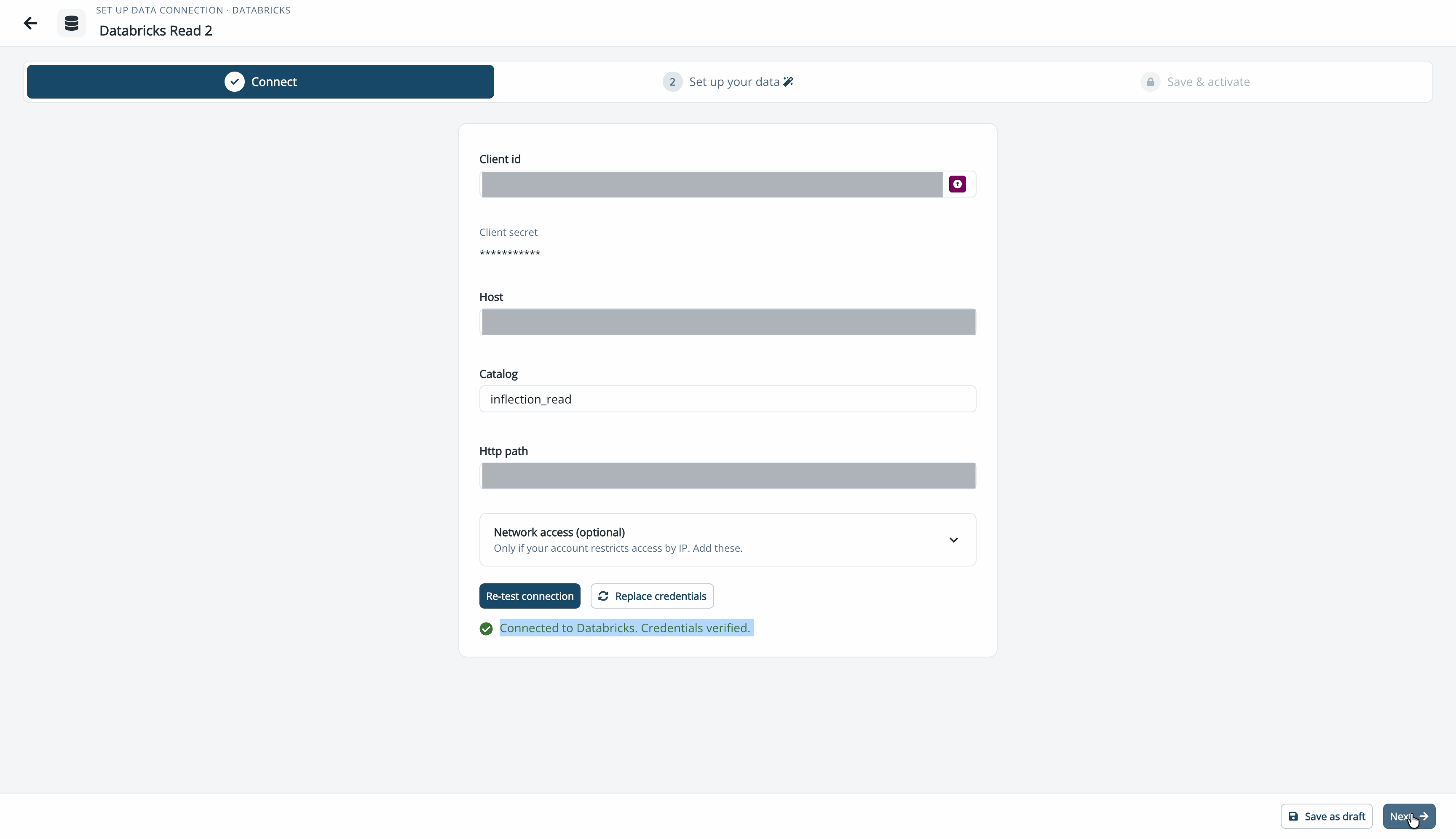
Step 4: Set Up Databricks Storage
Do this when you reach Save & activate, which is Step 3: Save and Activate in the import wizard, after you have set up your data. It is a one-time setup in the Databricks storage card. Keep Databricks and Inflection open side by side, since you copy values between them. Your SQL warehouse writes each sync’s export into Inflection’s storage through an external location in your workspace. The connection cannot be activated until the storage is verified. In Inflection, the Databricks storage card shows values generated for your workspace: an IAM role ARN, and External location SQL that already includes your storage location and service principal. Copy them from the card.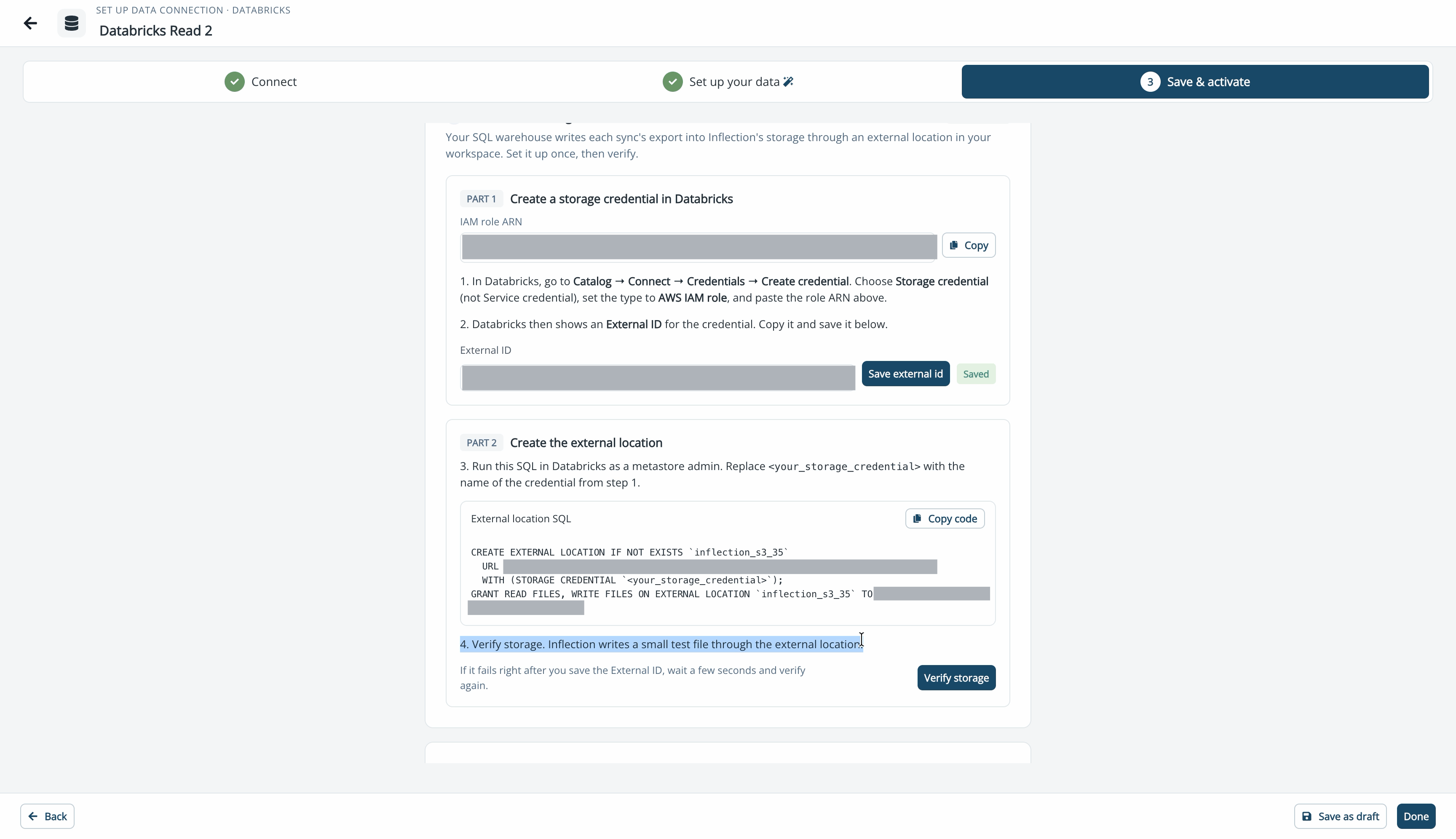
- In Inflection: in the Databricks storage card, click Copy next to IAM role ARN.
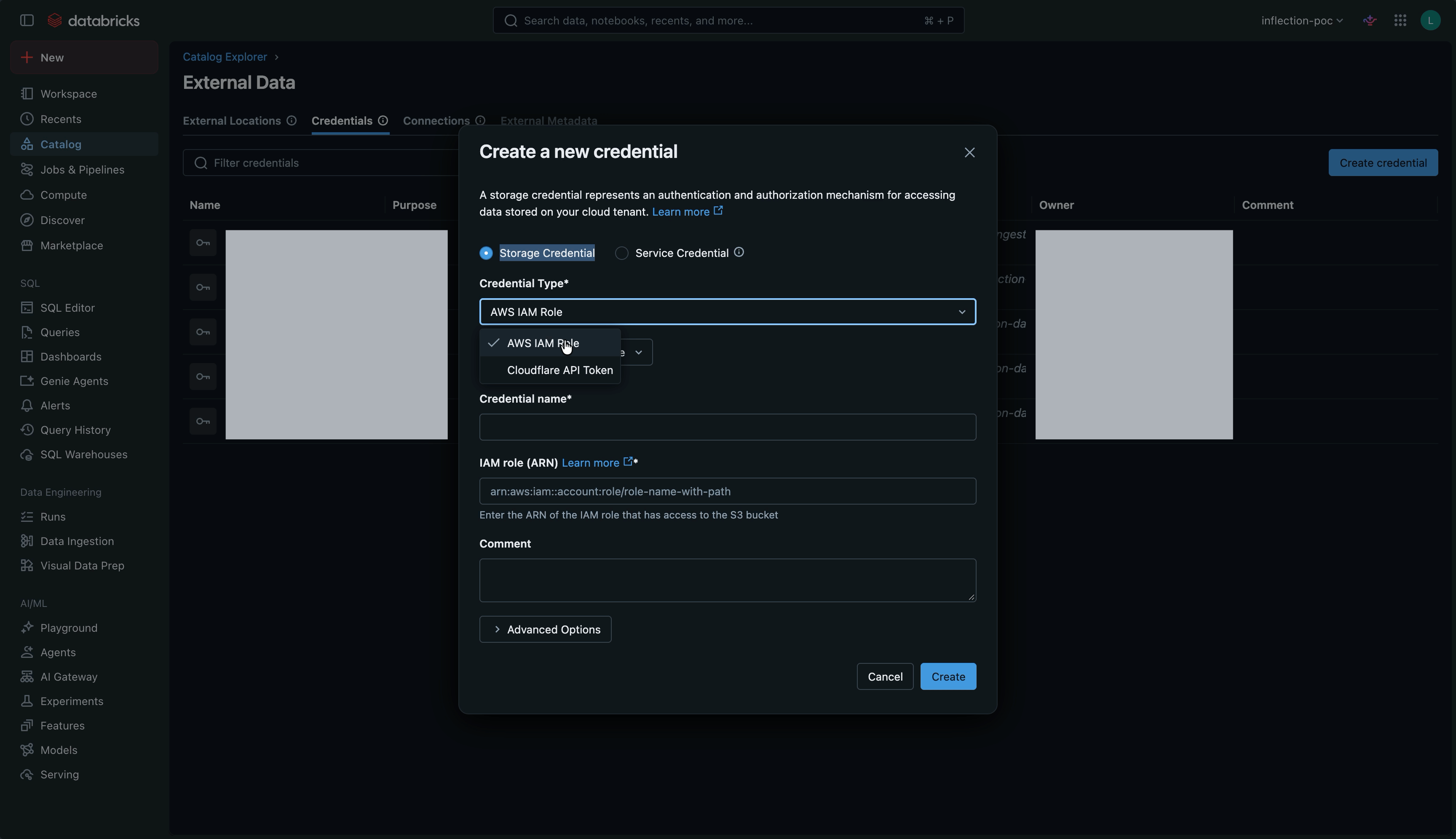
- In Databricks: go to Catalog, then External Data, then the Credentials tab, and click Create credential.
- Select Storage Credential.
- For Credential Type, select AWS IAM Role.
- Enter a Credential name, for example
inflection_storage. Remember it; you need it in Part 2. - Paste the role ARN into IAM role (ARN) and click Create. (You do not need to edit any IAM role yourself. Inflection manages the trust policy on its side.)
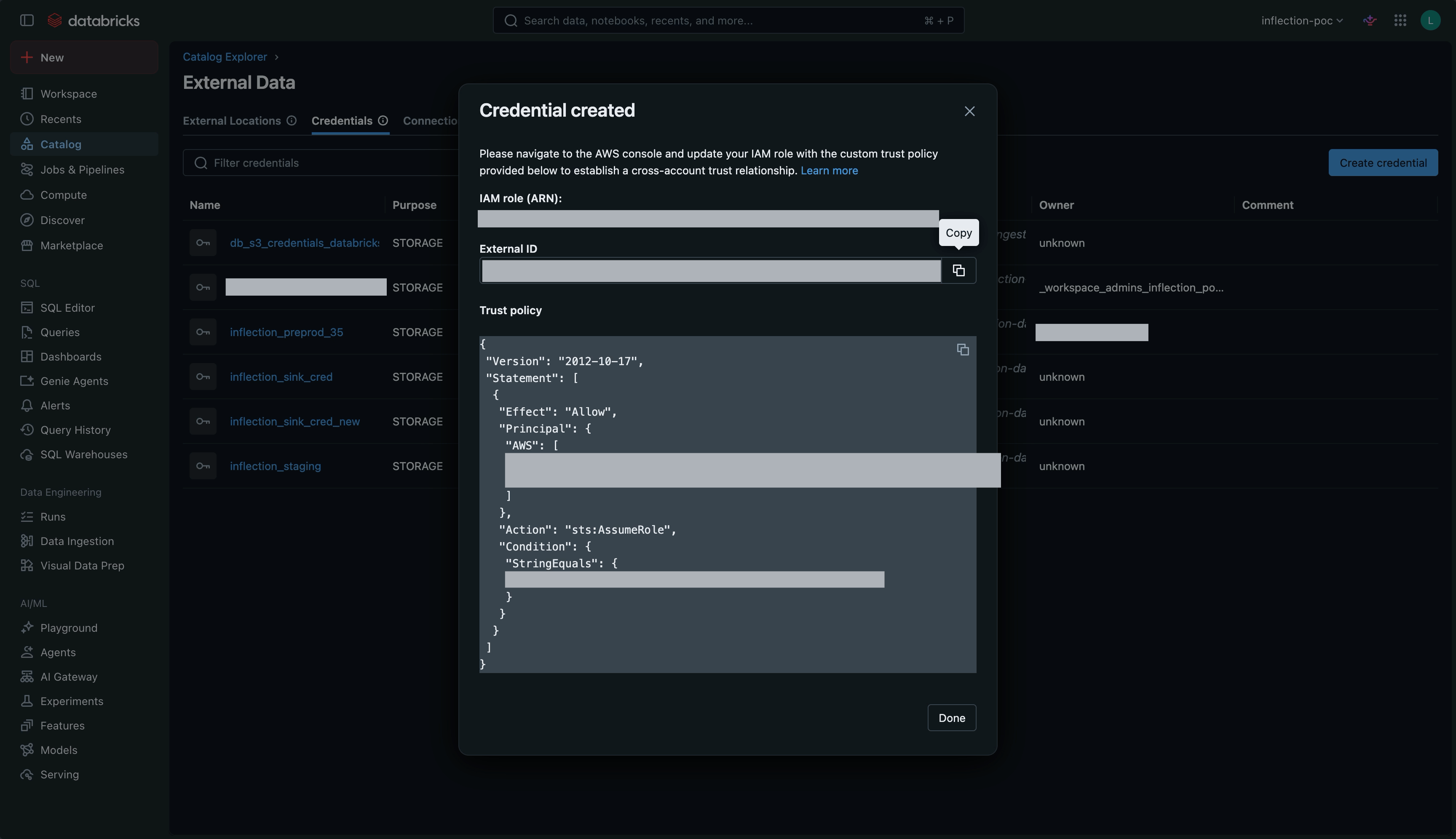
- Databricks shows Credential created with an External ID and a trust policy. Copy the External ID.
- In Inflection: paste the value into External ID and click Save external id. The field shows Saved.
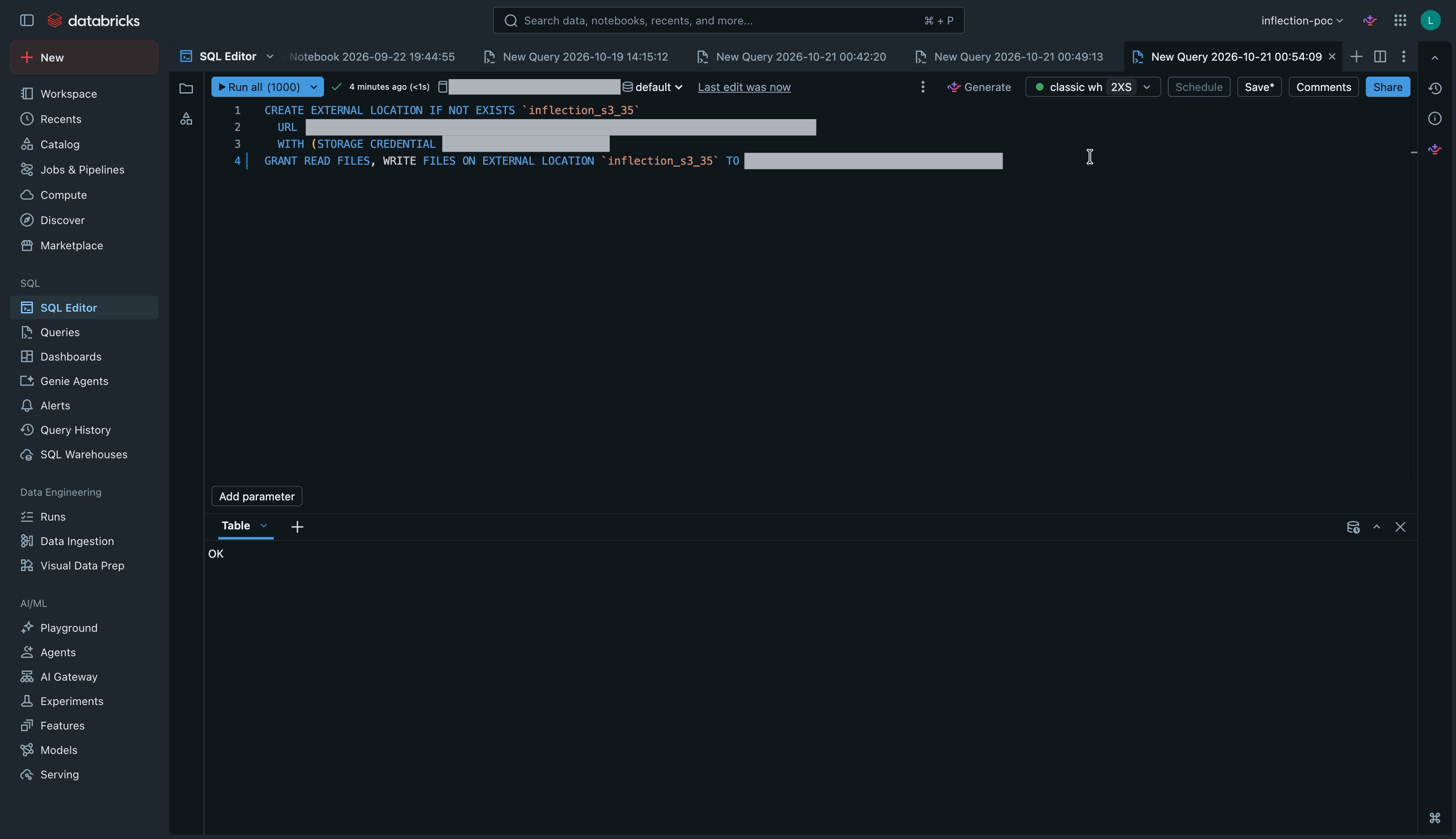
- In Inflection: in the Databricks storage card, click Copy code on External location SQL. Inflection has already filled in the location name, the storage URL, and your service principal’s client ID. Only
<your_storage_credential>is left for you to fill in. - In Databricks: open the SQL Editor, paste the SQL, and replace
<your_storage_credential>with the credential name from Part 1. - Run it as a metastore admin (see What is a metastore admin? under Prerequisites), or as a user with
CREATE EXTERNAL LOCATIONon the metastore. It creates the external location and grants the service principalREAD FILESandWRITE FILESon it. The result shows OK.
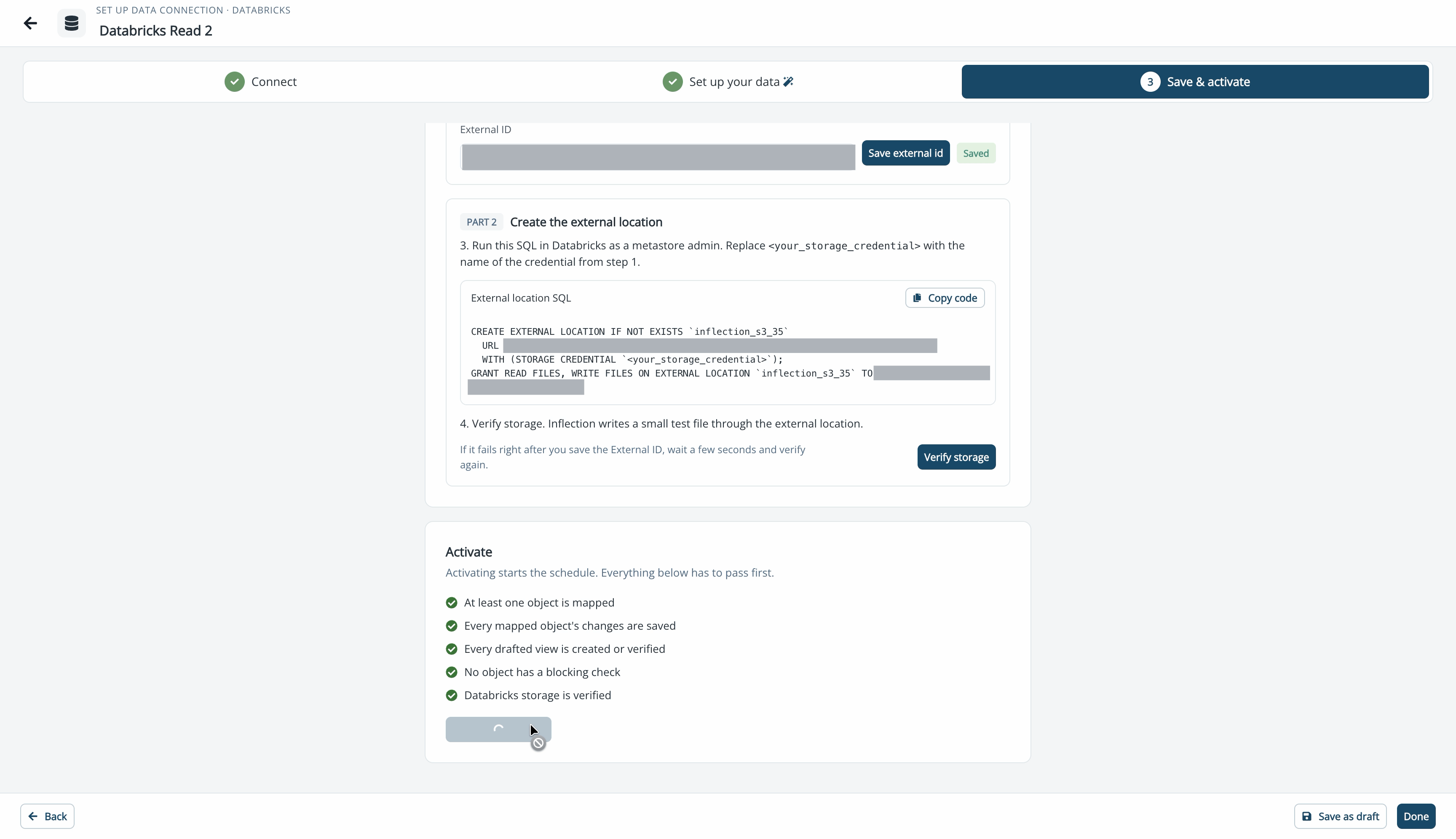
- In Inflection: click Verify storage. Inflection writes a small test file through the external location.
- On success, the activation requirement Databricks storage is verified turns green and Activate connection is enabled.
Prepare Databricks for Export
- Create a service principal for Inflection and note its client ID and client secret.
-
Grant it the minimum permissions on the target catalog and schema. Inflection needs
USE CATALOGandUSE SCHEMAto locate the destination, and table-levelINSERT,UPDATE,DELETE, andALTERon the export tables. These do not give access to your other data.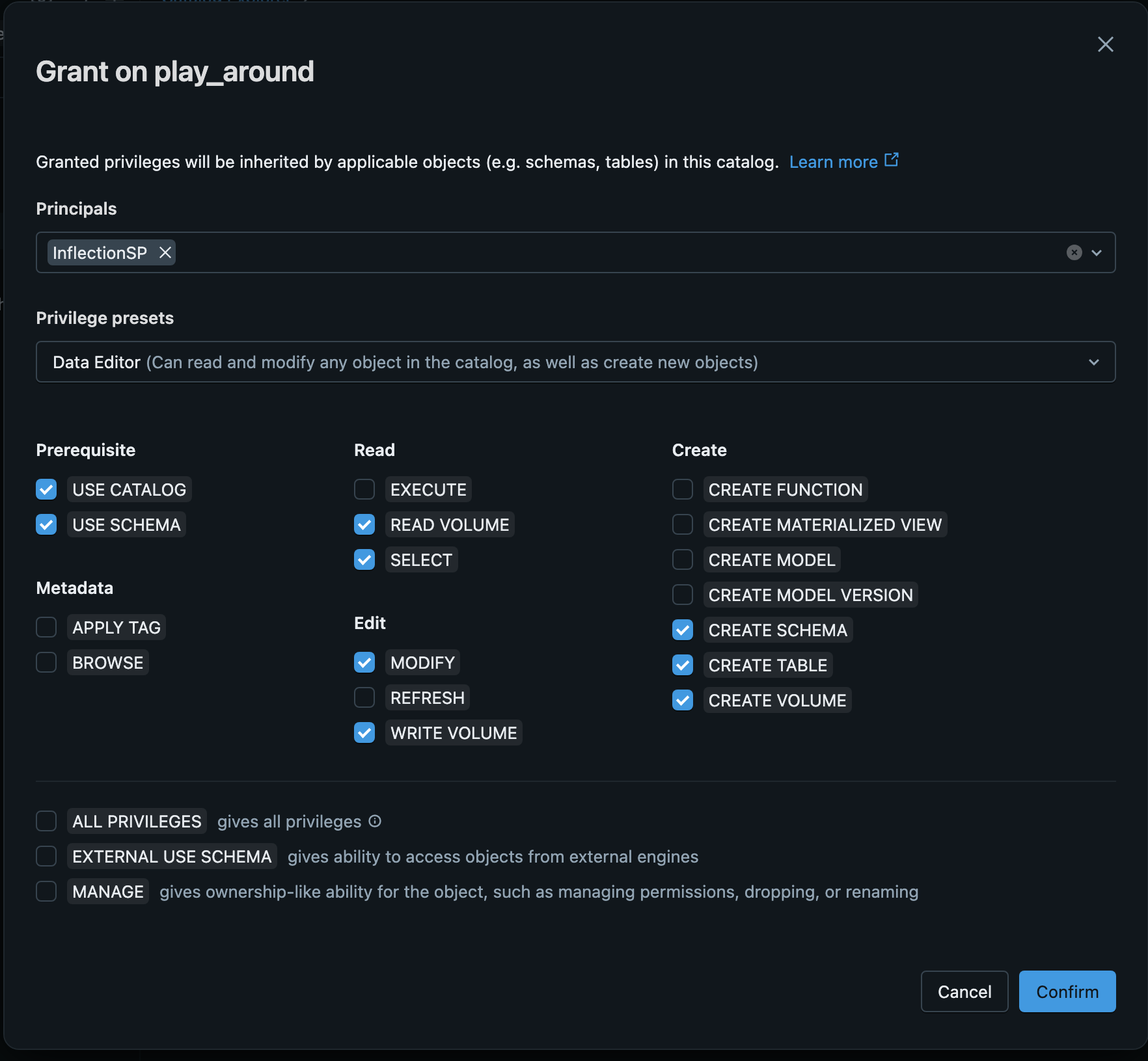
Troubleshooting
The import connection test fails or times out.
The import connection test fails or times out.
Check the Host field. Enter the bare hostname only, for example
dbc-xxxxxxxx-xxxx.cloud.databricks.com. A value that starts with https:// causes the test to time out. Also confirm the Http path belongs to a running SQL warehouse, the client secret has not expired, and, if your workspace restricts access by IP, that the addresses under Network access (optional) on the Connect step are in your workspace IP access list.The wizard says it can't list my tables yet.
The wizard says it can't list my tables yet.
Pick the schema to read from under the search box, or click + Add schema, then open Warehouse access and check access. If the tables still do not appear, run the
SHOW GRANTS check from Step 2 and confirm the service principal has USE CATALOG on the catalog and USE SCHEMA and SELECT on the schema. You can also click Add table by name.Verify storage fails.
Verify storage fails.
Confirm the storage credential type is AWS IAM Role and that you pasted the External ID from that credential into Inflection and clicked Save external id. Confirm the external location SQL ran as a metastore admin, or a user with
CREATE EXTERNAL LOCATION, with your credential name in place of <your_storage_credential>. If you just saved the External ID, wait a few seconds and try again.My new export connection does not appear in the Connections list.
My new export connection does not appear in the Connections list.
Check the Active only toggle above the list. A connection waiting for activation is inactive and is hidden while the toggle is on.
I chose We draft a view for you and cannot create the view.
I chose We draft a view for you and cannot create the view.
Inflection does not create objects in your workspace, so Create it for me is not offered on Databricks. Copy the drafted SQL, run it yourself in a schema you granted in Step 2, then click Verify it. See Choose a Sync Method in Import from Data Warehouse.
A GRANT statement fails with a permission error.
A GRANT statement fails with a permission error.
Run the statements as a user who owns the catalog or can grant on it, such as a workspace admin. Check that the catalog and schema names are exact, and that
<application_id> is the service principal’s Application ID (see Step 1), in backticks.Verify it fails for a drafted view.
Verify it fails for a drafted view.
Confirm the view was created under the exact name shown in Inflection, and in a schema the service principal can read. Run the
SHOW GRANTS check from Step 2 on that schema, and run the Step 2 grant for it if needed.I can't create the storage credential.
I can't create the storage credential.
Creating a storage credential needs a metastore admin, or a user with
CREATE STORAGE CREDENTIAL. See What is a metastore admin? under Prerequisites. Also confirm you selected Storage Credential and AWS IAM Role, and pasted the full role ARN from Inflection.The external location SQL fails.
The external location SQL fails.
Run it as a metastore admin, or a user with
CREATE EXTERNAL LOCATION on the metastore and access to the storage credential. Confirm you replaced <your_storage_credential> with the credential name from Part 1.Which import method does my workspace use?
Which import method does my workspace use?
Check the Connect step of the import wizard. If it asks for Client id, Client secret, Host, Catalog, and Http path, you use a service principal and this page applies. If it asks for a Provider name and Share name, you use Delta Sharing; see Databricks Delta Sharing. To switch methods, contact your Inflection customer success team.