

Choose A Step
Both steps are in the Journeys section at the bottom of the Add step panel.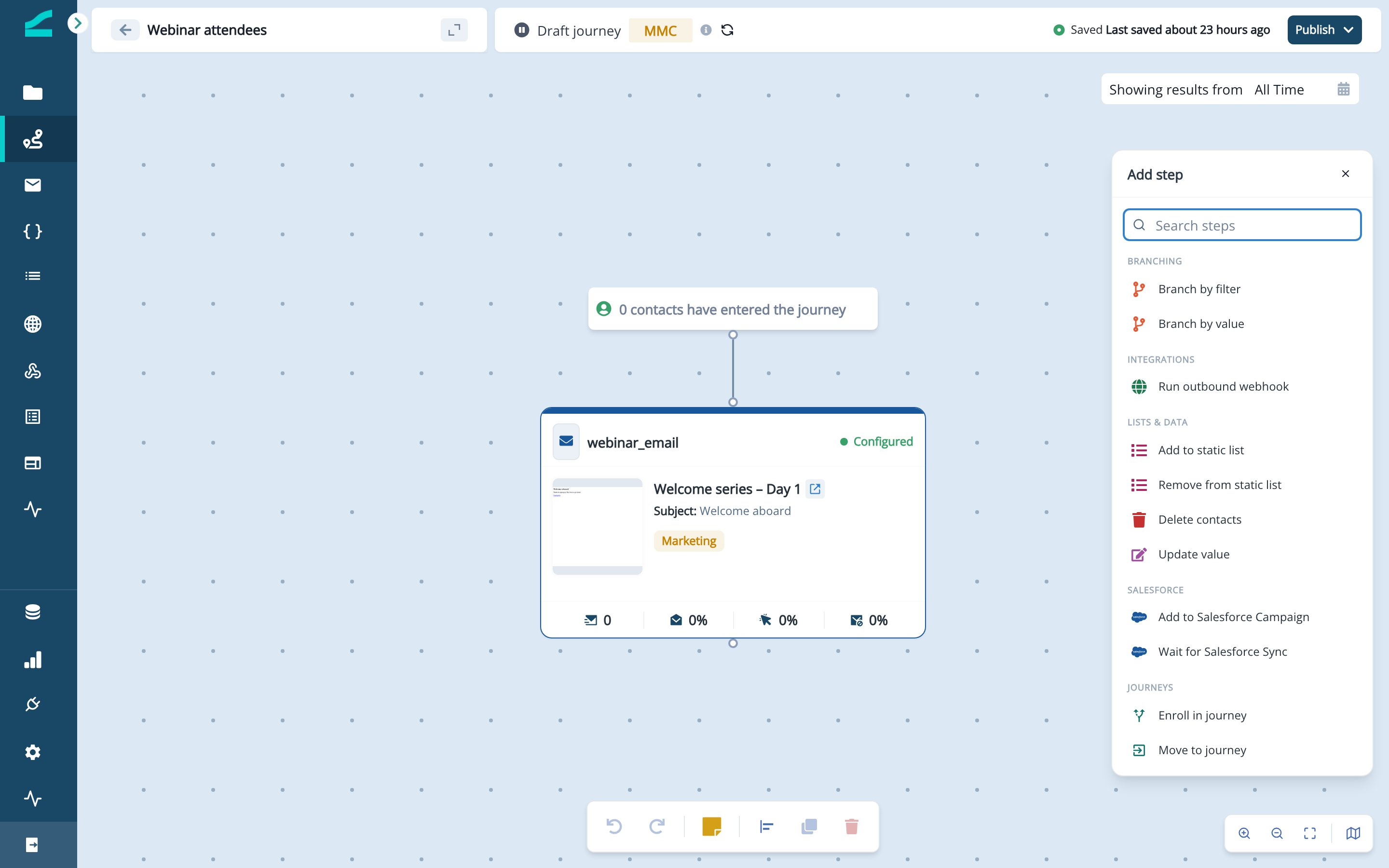
See An Example
Trial nurture sends every trial user through the shared Welcome series, sends a check-in email, then moves them to Demo follow-up. Webinar attendees also sends contacts into Demo follow-up without waiting.Set Up Journey Hand-Offs
Check The Prerequisites
The sending journey can hand contacts only to these receiving journeys:
The receiving journey must also be ready:
- A scheduled receiving journey must be published at least once, with no unpublished changes.
- A trigger receiving journey must be a contact trigger journey with the Enrolled by another journey trigger.
- The contact starts at the beginning of the receiving journey.
- The receiving journey’s qualification rule applies. A journey set to Qualify only once refuses a contact who has already been through it.
- The receiving journey’s audience is not checked.
Let A Trigger Journey Receive Contacts
Skip this section if the receiving journey is a scheduled journey.- Open the receiving trigger journey and click its entry trigger.
- Under Marketing event, select Enrolled by another journey. The trigger has no settings.
- Close the panel. The trigger saves automatically.
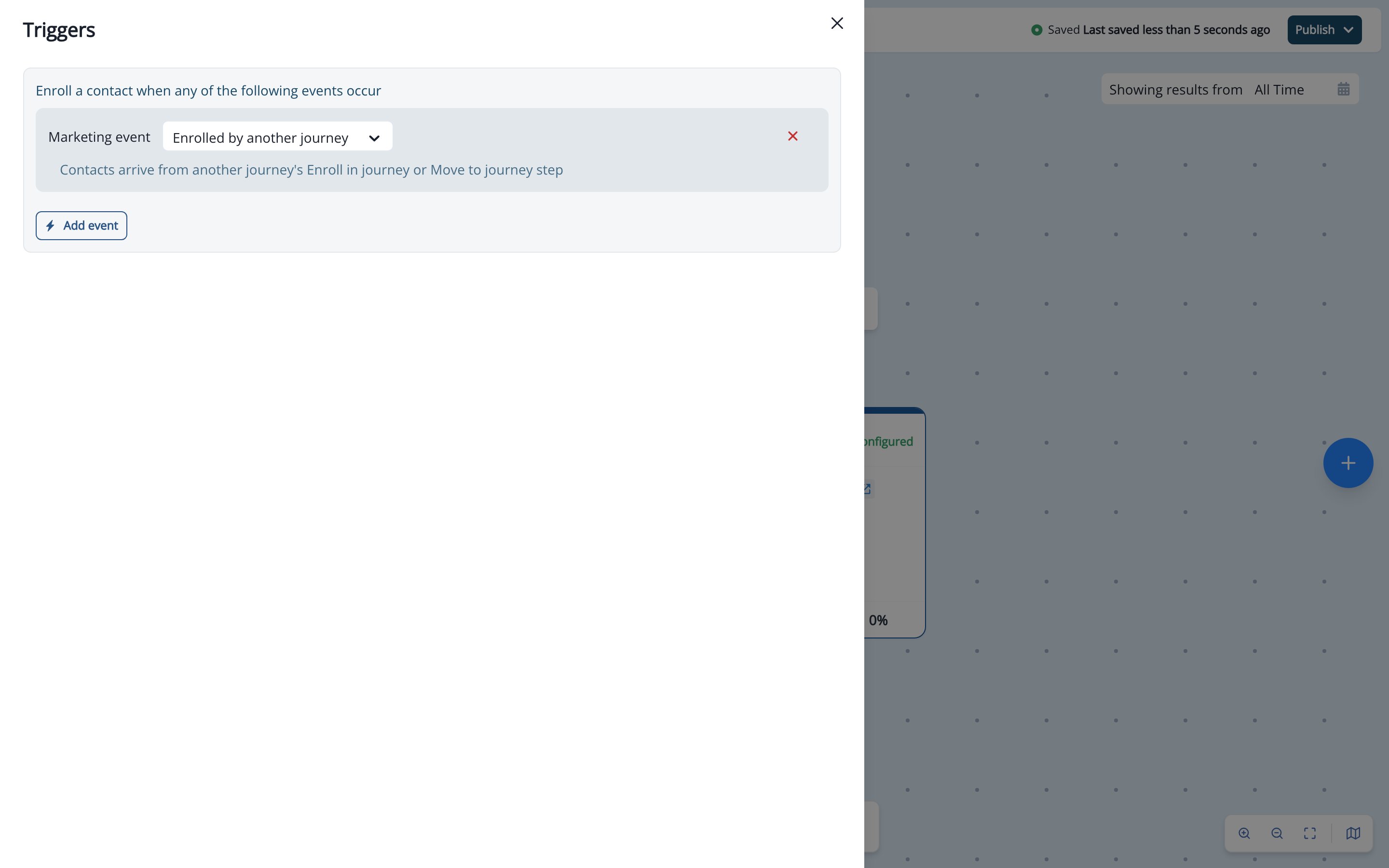
A journey can have this trigger once. Removing it asks for confirmation and lists the journeys that send contacts in.
Add An Enroll In Journey Step
- Drag Enroll in journey from the Journeys section onto the canvas.
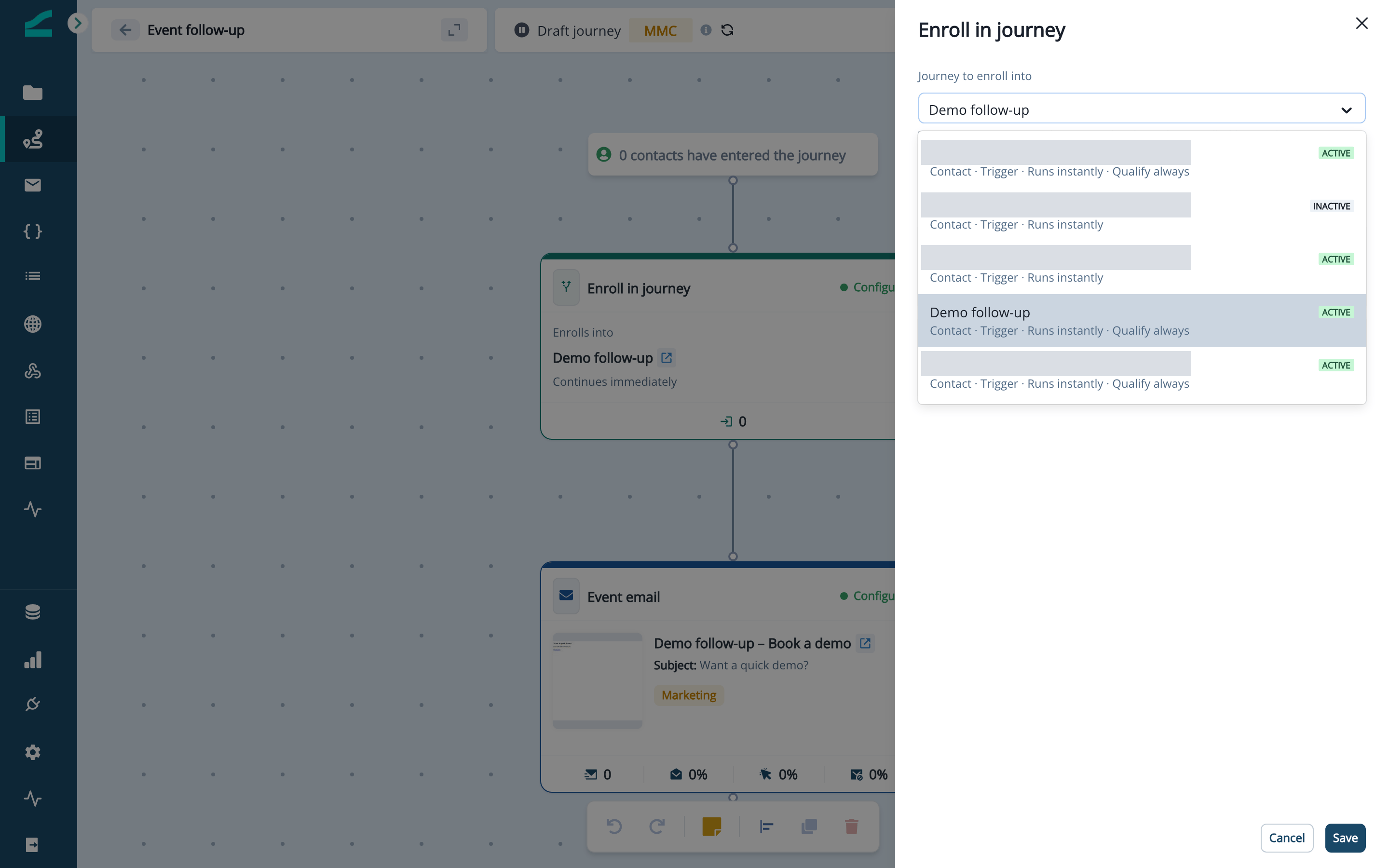
- In Journey to enroll into, select the receiving journey. The list shows only journeys this journey can send to.
- In Wait for it to finish?, select an option:
- Yes, wait for it to finish (default): the contact pauses at this step until the receiving journey ends for them.
- No, continue immediately: the contact continues through this journey while it starts the receiving journey.
- Close the drawer. The step shows Enrolls into and the journey name.
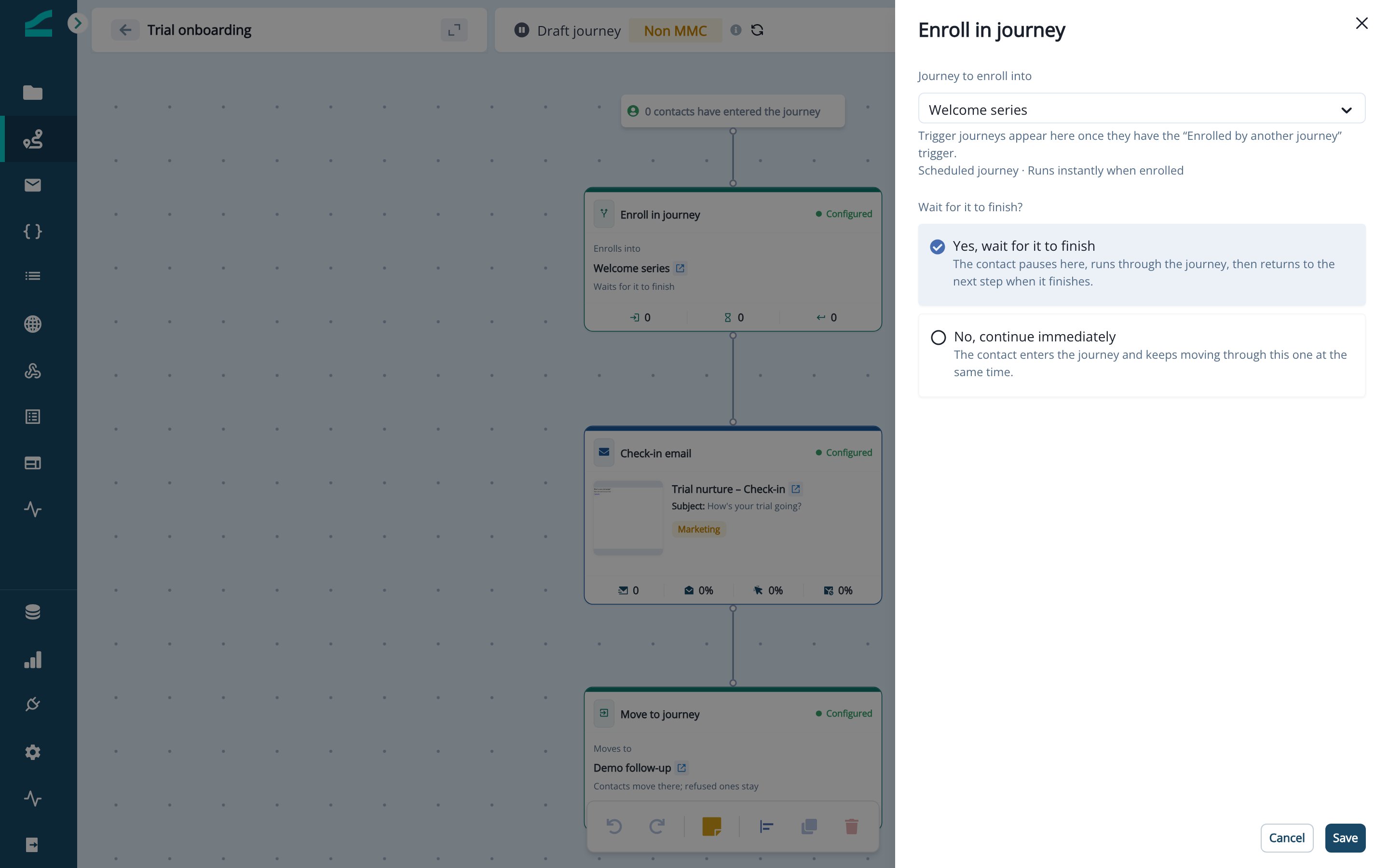
A waiting contact has no time limit. The contact stays at the step until the receiving journey finishes for them or refuses them.
Add A Move To Journey Step
- Drag Move to journey onto the canvas at the end of a path.
- In Journey to move into, select the receiving journey.
- Close the drawer. The step shows Moves to and the journey name, with no outgoing connector.
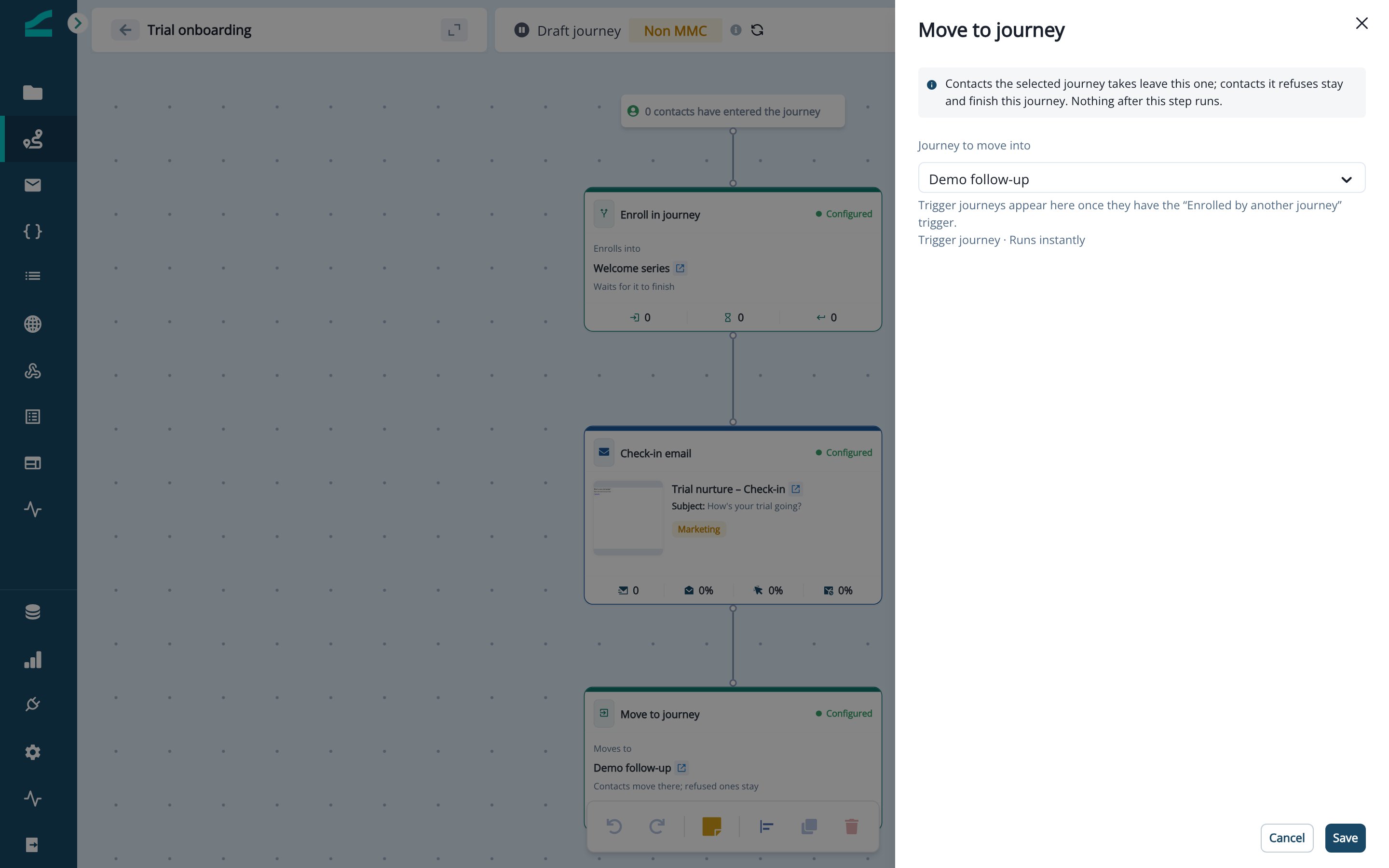
If the receiving journey refuses a moved contact, for example because of its qualification rule, the contact stays in this journey and finishes it. No steps after Move to journey run.
Publish In The Right Order
- Publish the receiving journey.
- Publish the sending journey.
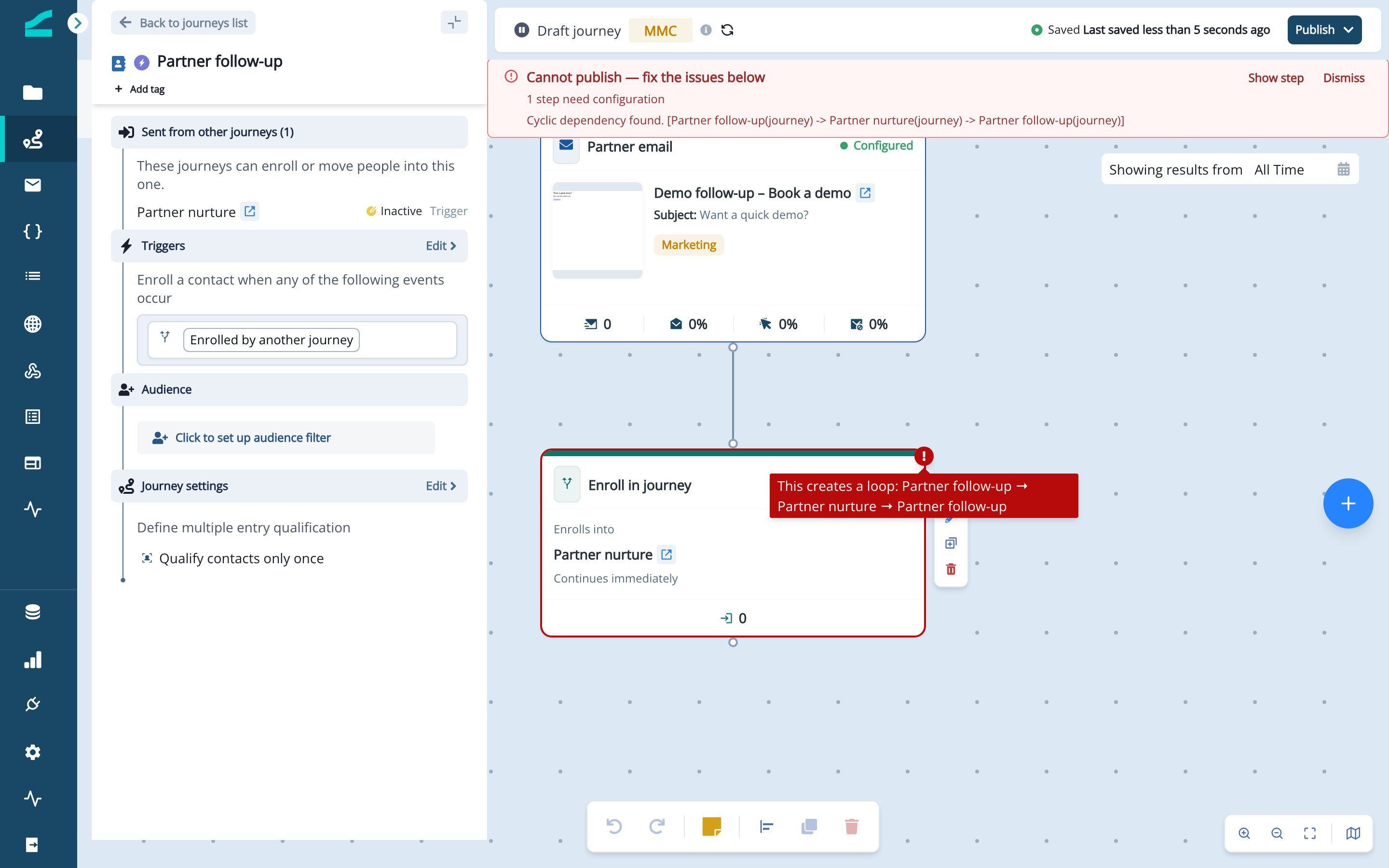
A sending journey can’t be turned on while a journey further down its chain has unpublished changes. Publish or discard those changes first.
Track Contacts Across Journeys
Read The Step Report
- Open a live sending journey.
- Click the Enroll in journey or Move to journey step.
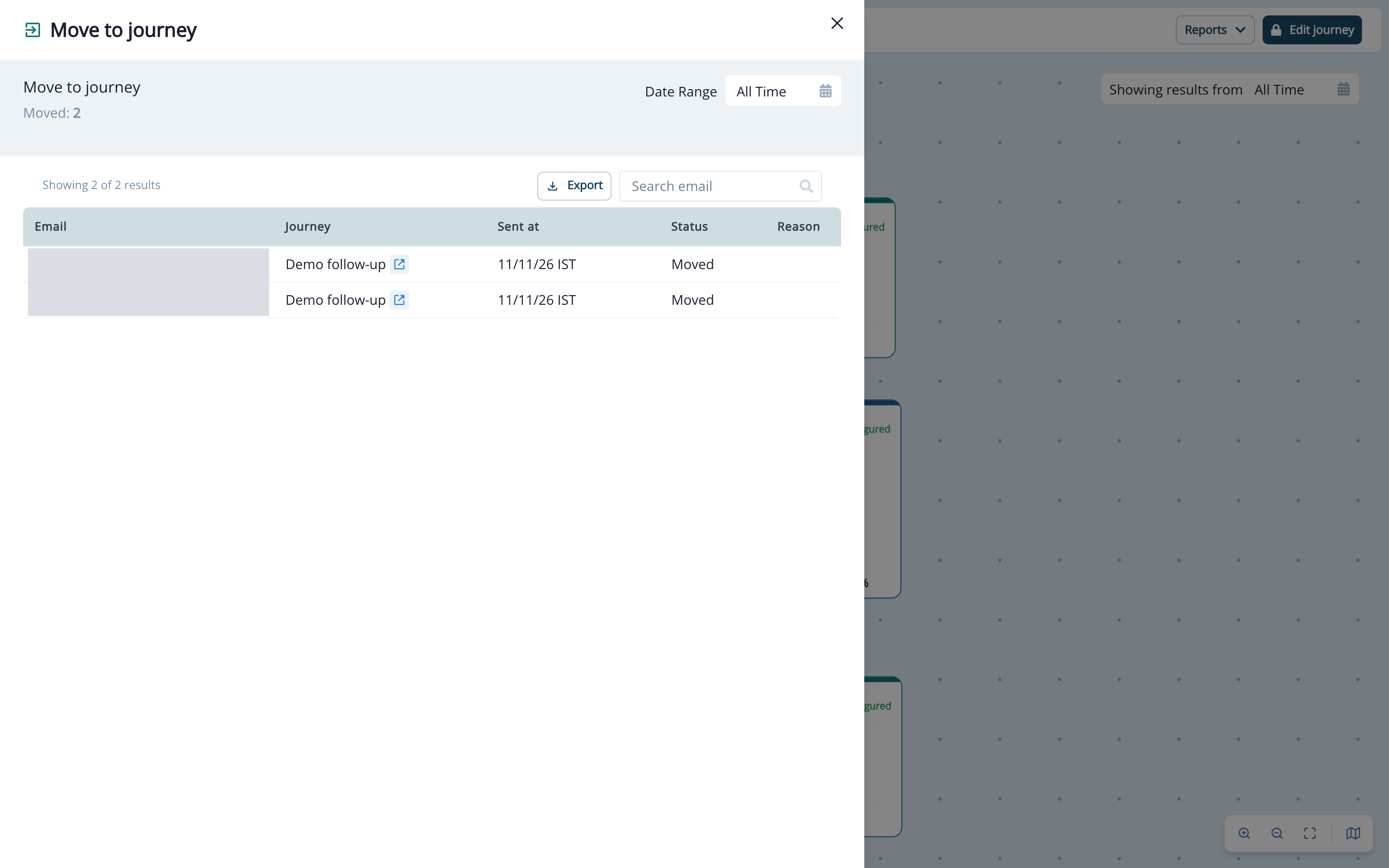
- Review the counts and the contact table, which lists email, journey, enrolled time (sent time for Move to journey), status, and reason. Search by email to find a contact.
Common reasons next to a status: Finished the journey, Didn’t meet the journey’s qualification rule, Journey inactive, No email address, Too many journeys in a chain.
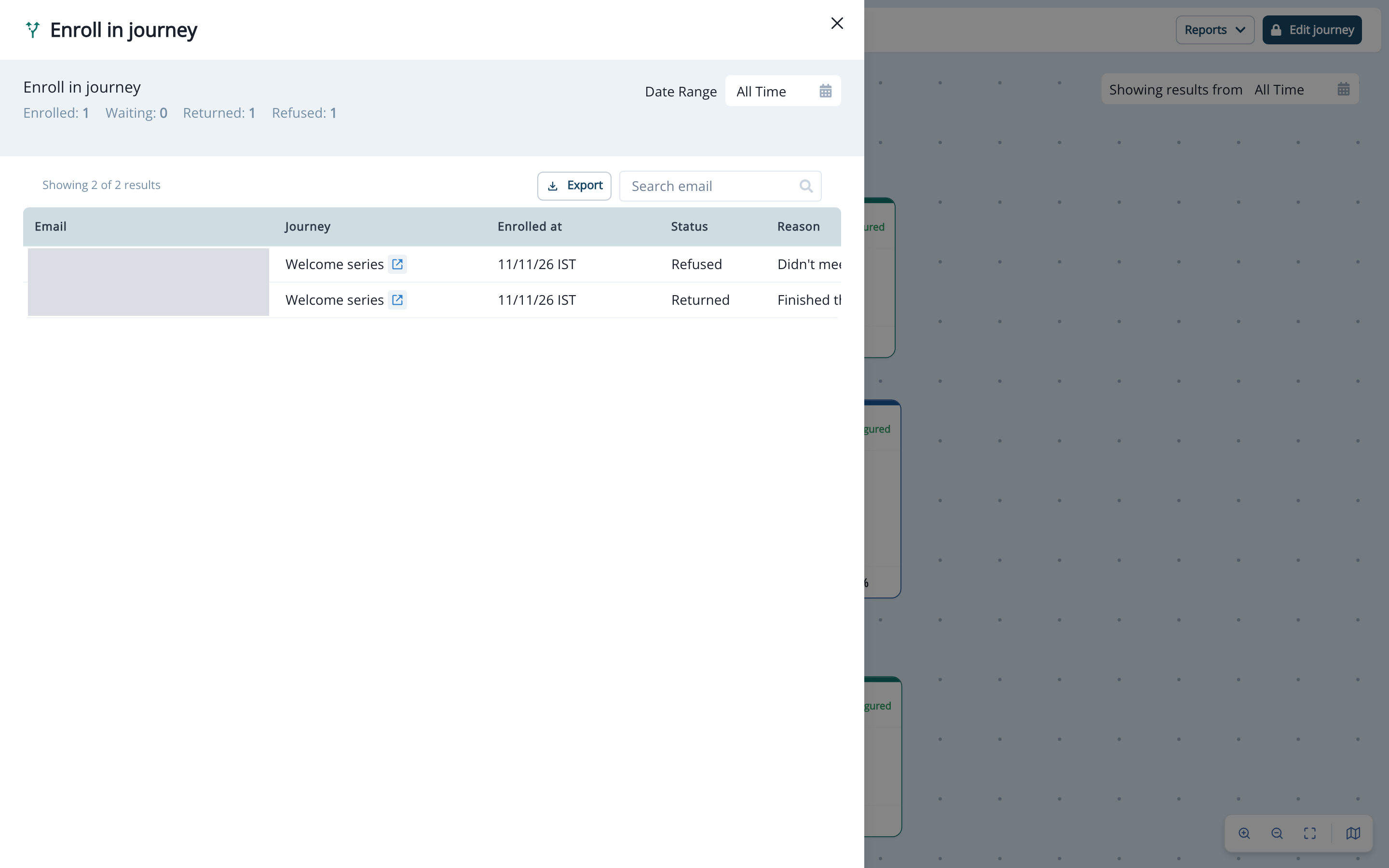
- A refused contact still continues to the next step.
- A scheduled journey moves the whole group on together, once nobody in it is still waiting.
- A trigger journey moves each contact on as soon as that contact returns.
See Where Contacts Came From
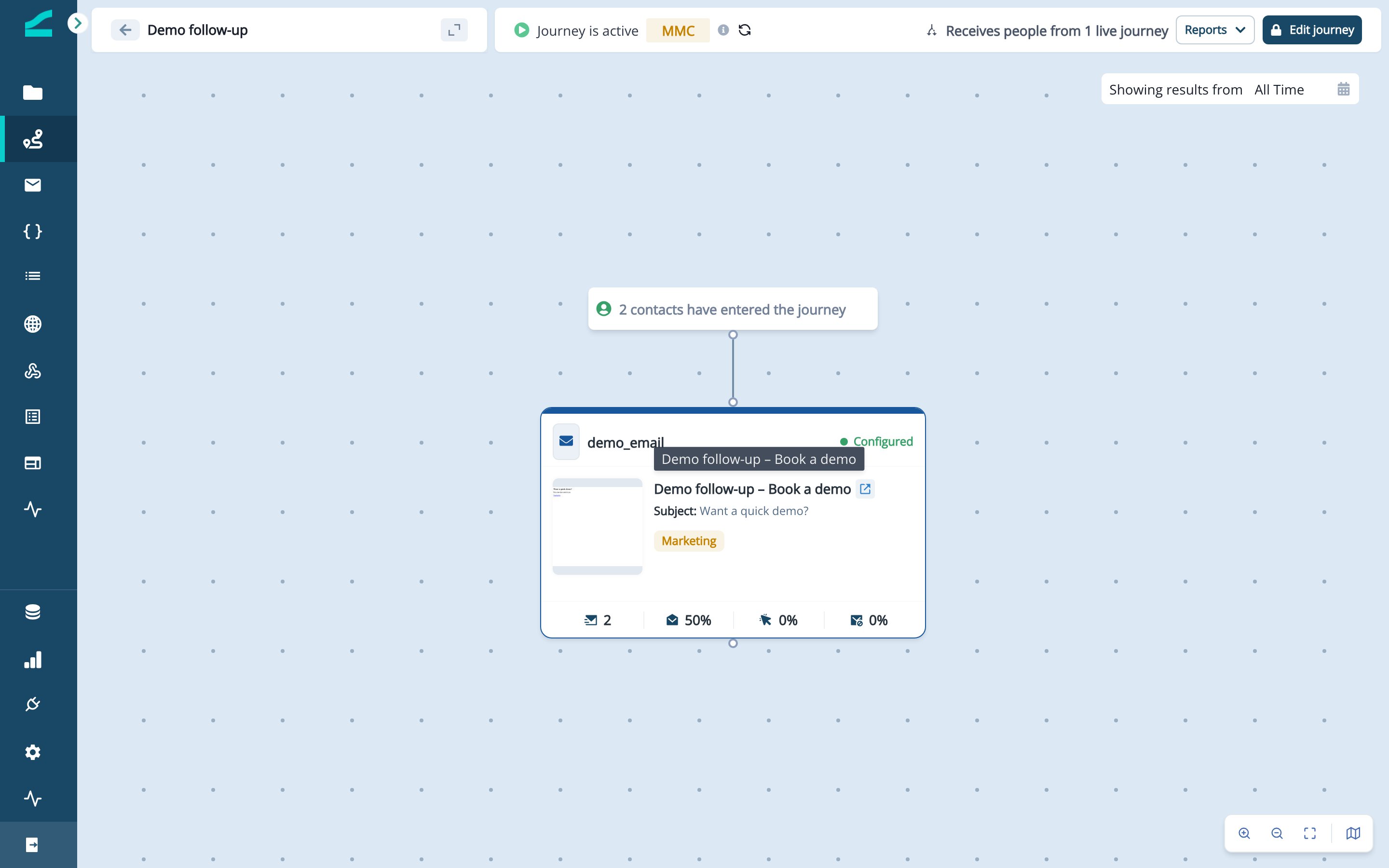
Open the receiving journey:- The top bar shows Receives people from N live journeys.
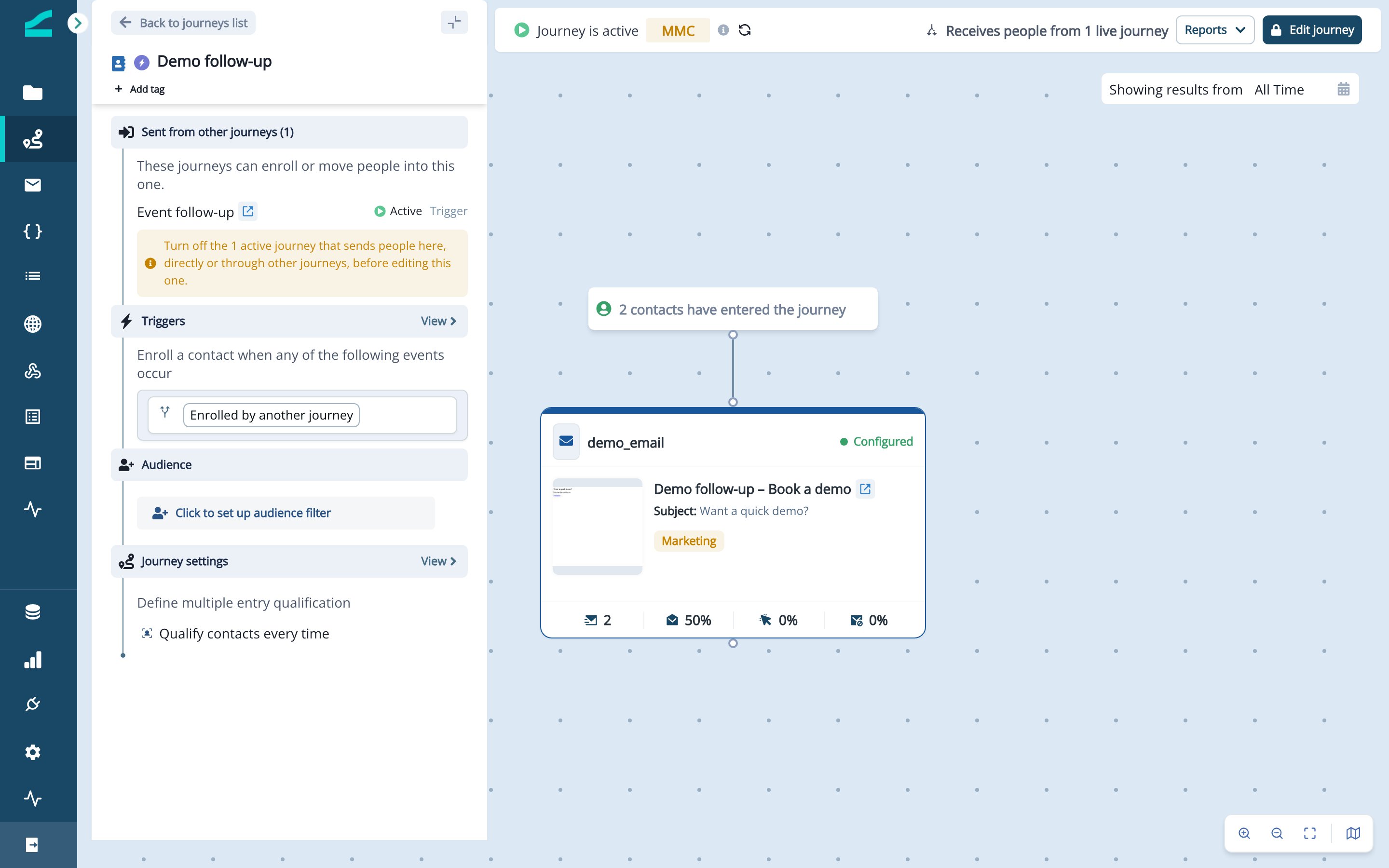
- The sidebar lists every sending journey under Sent from other journeys.
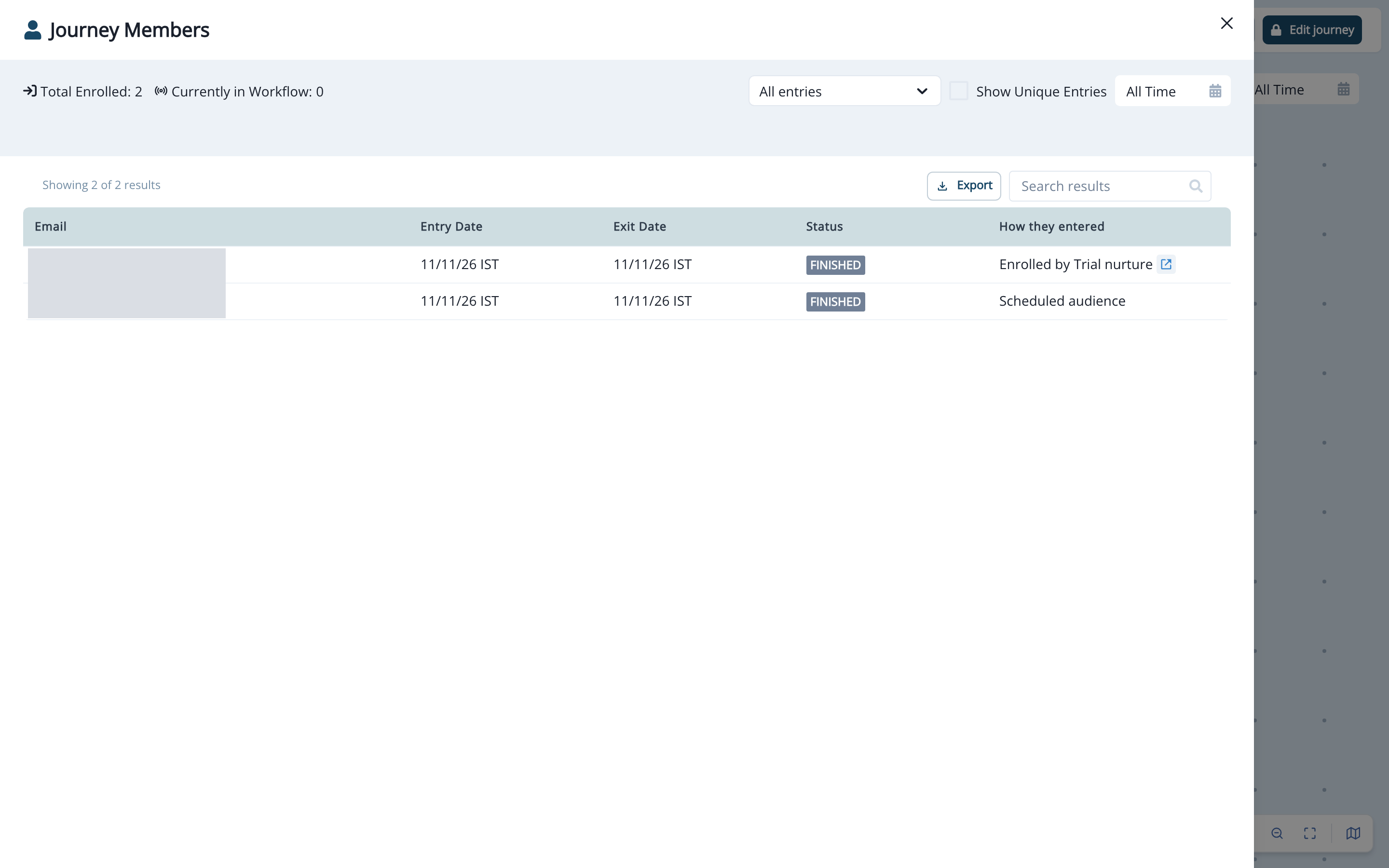
- The member report and Past journey runs show a How they entered column. Filter it by All entries, Scheduled audience (or Trigger), or Enrolled by a journey.
Edit A Receiving Journey
Active sending journeys lock their receiving journey, directly or through a chain of journeys. A locked journey can’t be turned off or edited, and clicking Edit opens Can’t edit this journey with the list of sending journeys.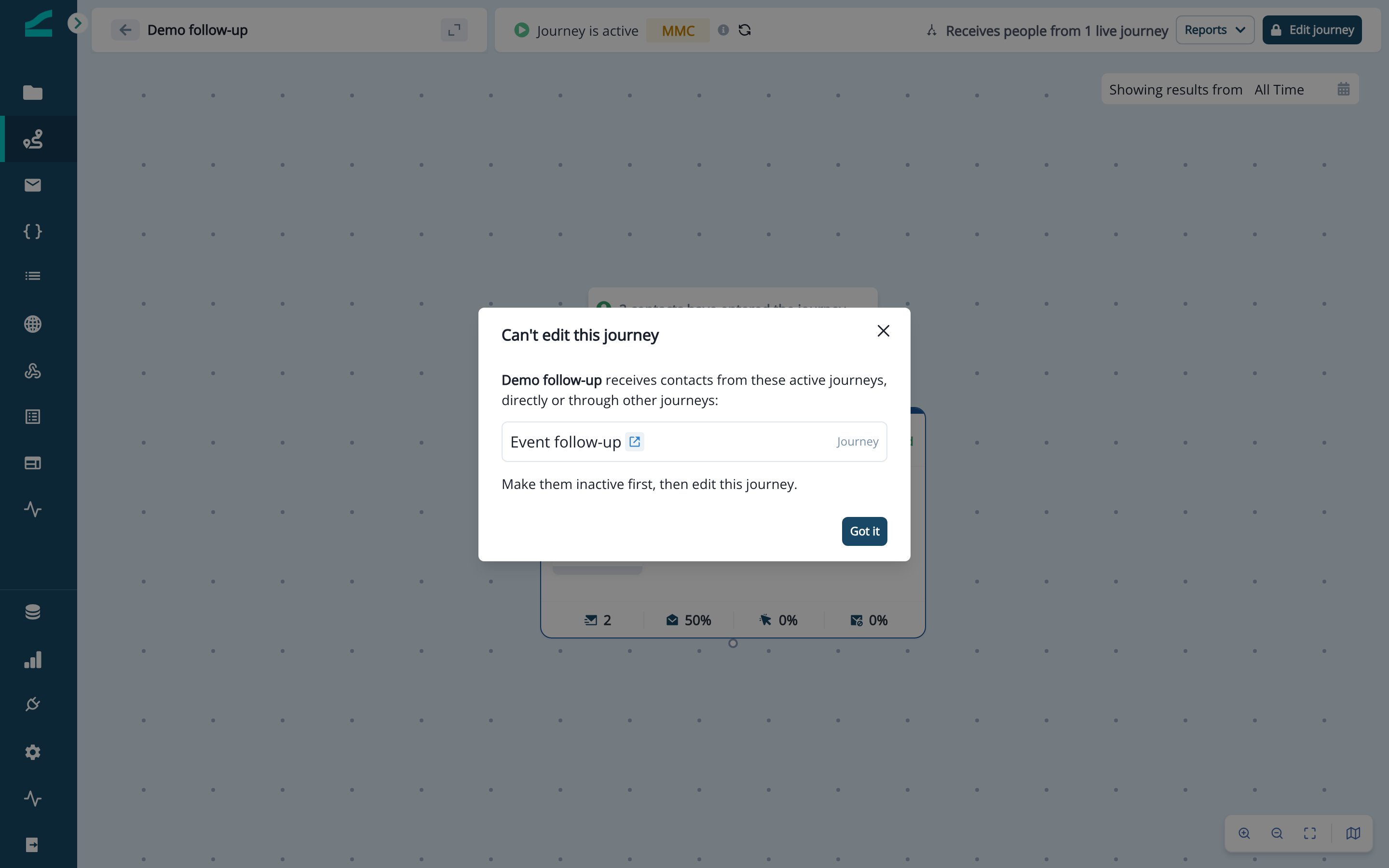
- Turn off each sending journey listed in the modal.
- Open the receiving journey and click Edit. Inactive journeys open read-only until you click Edit.
- Make your changes and publish the receiving journey.
- Turn the sending journeys back on.
Build Journey Hand-Offs With AI
Ask the Inflection agent to add these steps from In-App Chat, or from Claude or ChatGPT through the Inflection connector. Describe the hand-off in plain language. The agent:- Adds Enroll in journey or Move to journey steps to a journey draft, with the wait option you ask for
- Offers only receiving journeys the draft can send to
- Adds the Enrolled by another journey trigger to a trigger journey
Example prompts:
- In Trial nurture, enroll contacts into Welcome series and wait for it to finish, then send the check-in email.
- At the end of Trial nurture, move contacts to Demo follow-up.
- Let Demo follow-up receive contacts from other journeys.
Additional Resources
Limits
- Up to 10 hand-offs in a row
- No loops, and no journey sending to itself
- Contacts always start at the beginning of the receiving journey
Glossary
- Sending journey: the journey with the Enroll in journey or Move to journey step.
- Receiving journey: the journey the step sends contacts into.
- Hand-off: one journey sending a contact into another. A chain is several hand-offs in a row.