

- Sending data from Clay into Inflection via an HTTP API webhook
- Bringing data from Inflection into a Clay table using Outbound webhooks and Journeys
Send Data from Clay into Inflection
Send Data from Clay into Inflection
Step 1: Create an Inbound Webhook connection for Clay
- You can create a new Inbound Webhook under:
-
Assets → Inbound Webhook
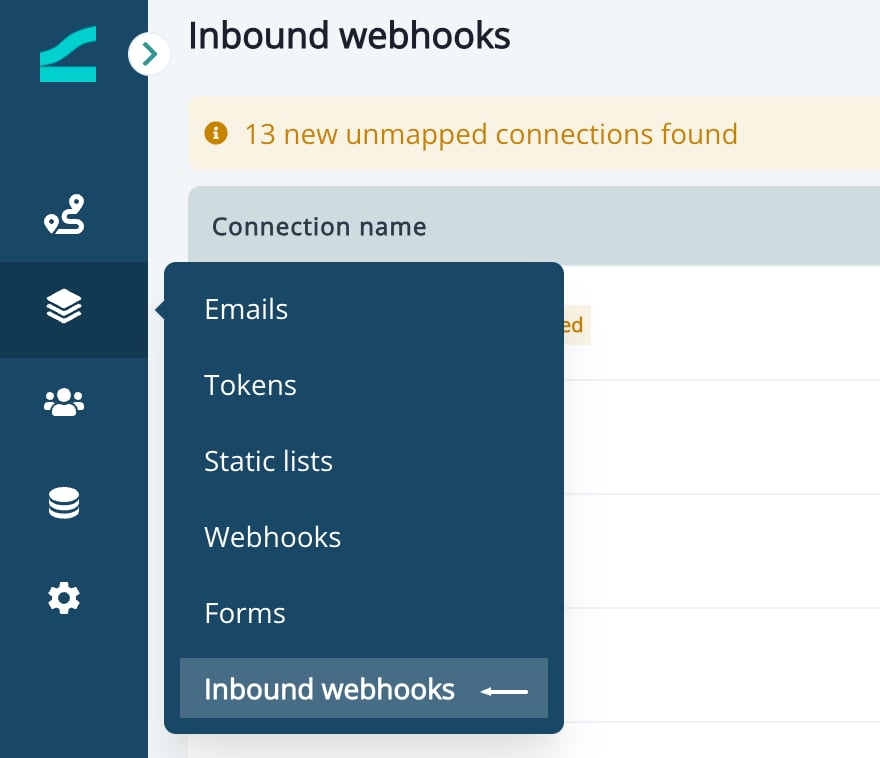
- Click “New Connection”
-
Provide a connection name and an optional description
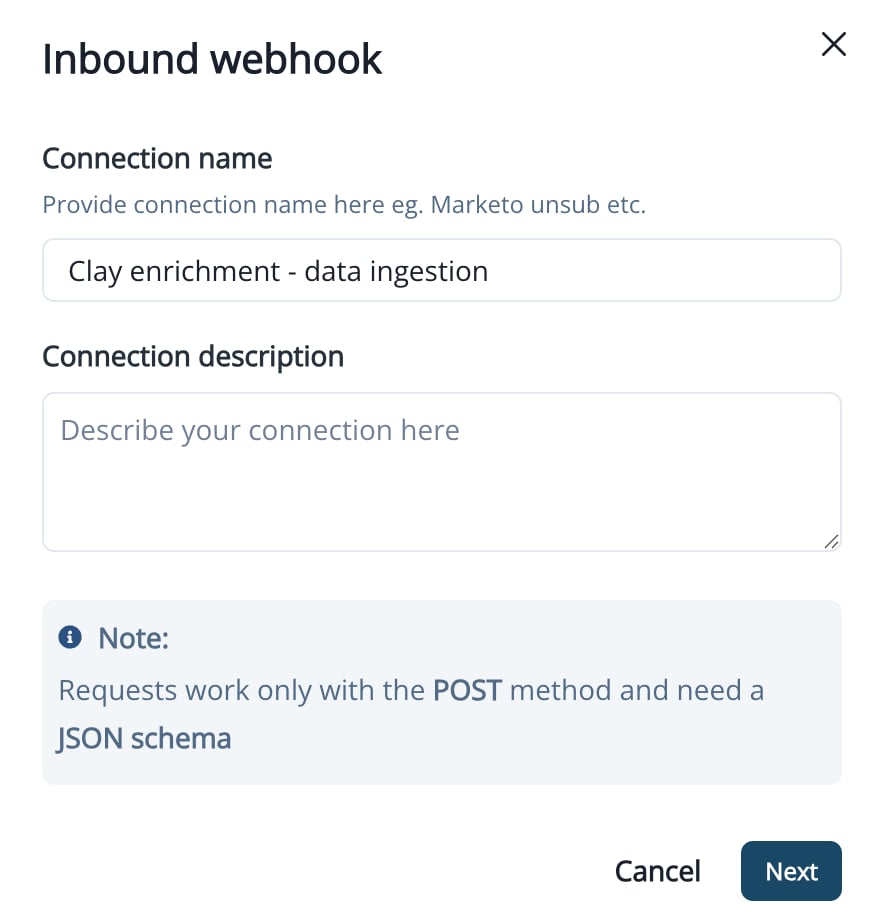
- Select an Authentication Method: No Auth / Basic Auth / API Key.
-
Enable or disable “Create New Contact”:
- ✅ If enabled, Inflection will create a new contact whenever a new email ID is received
-
❌ If disabled, no new contacts will be created
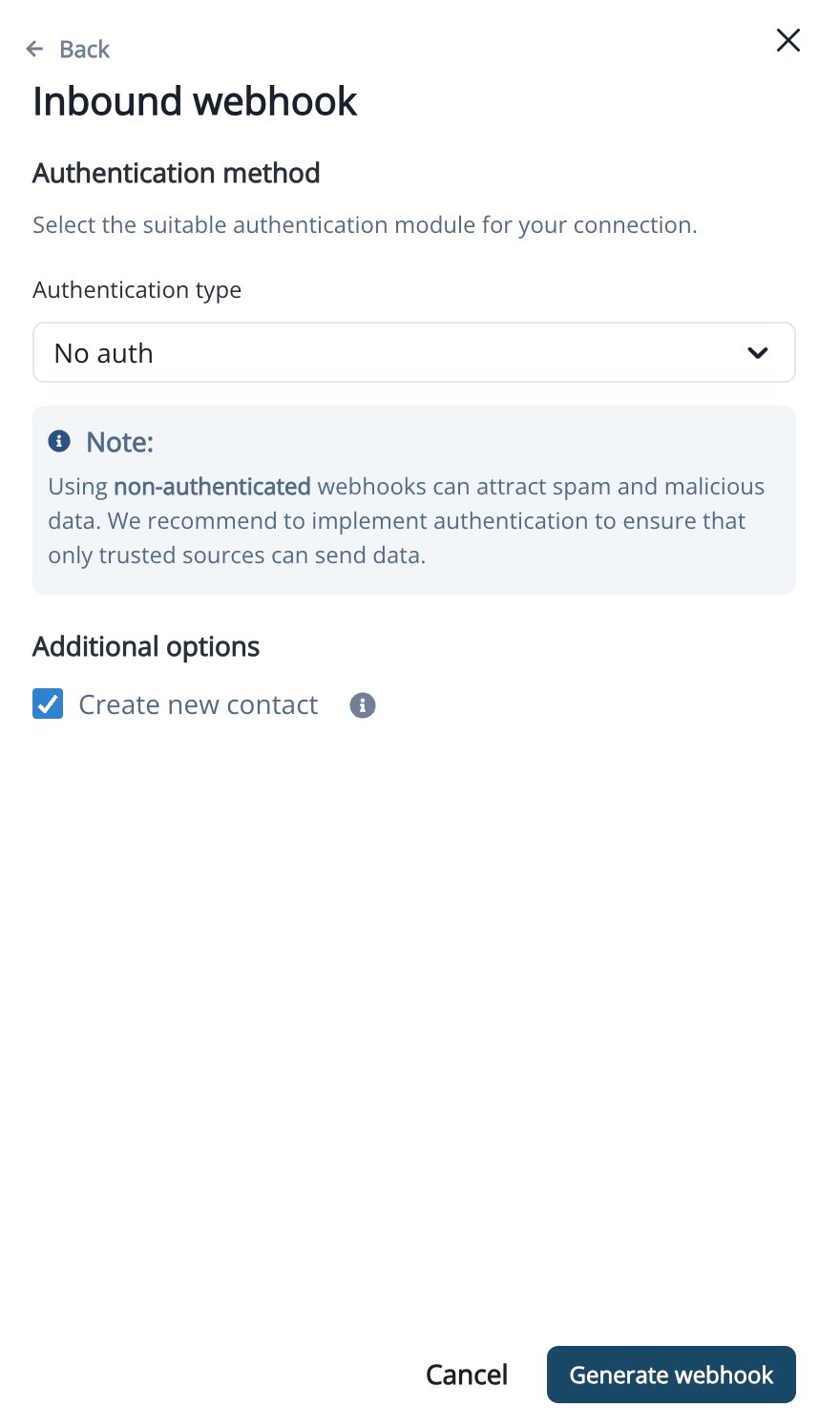
- Click “Generate webhook” to create connection
- Copy and configure the webhook URL and authentication details (if applicable) in Clay
Step 2: Add the HTTP API Integration in Clay
- Open your Clay workspace and select the table containing your records (e.g., contacts with email).
- Click Enrichment in the top toolbar, then select Integrations.
-
Choose the HTTP API integration tile.
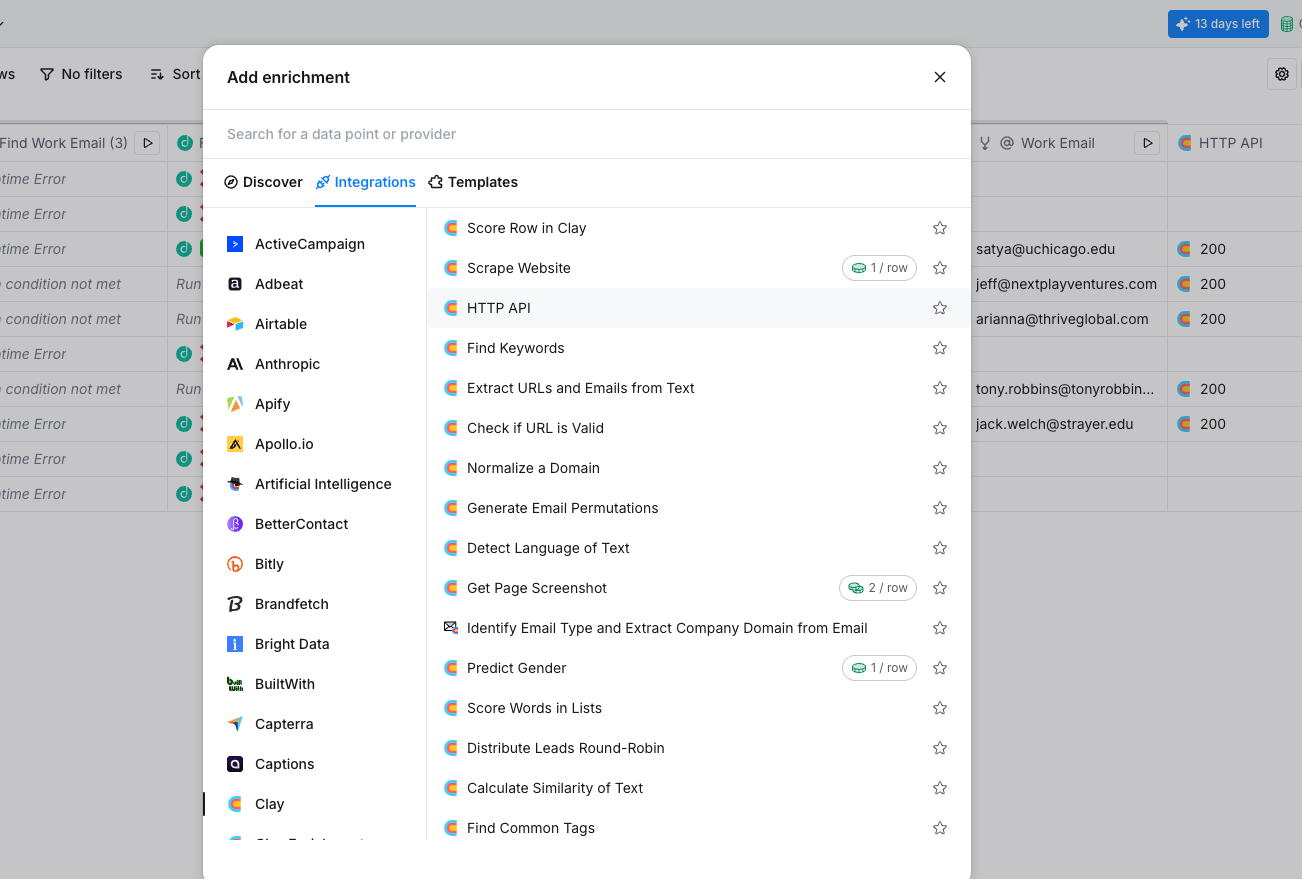
- Click Add integration to configure the POST request that will send data to Inflection.
Step 3: Configure the HTTP API Request
-
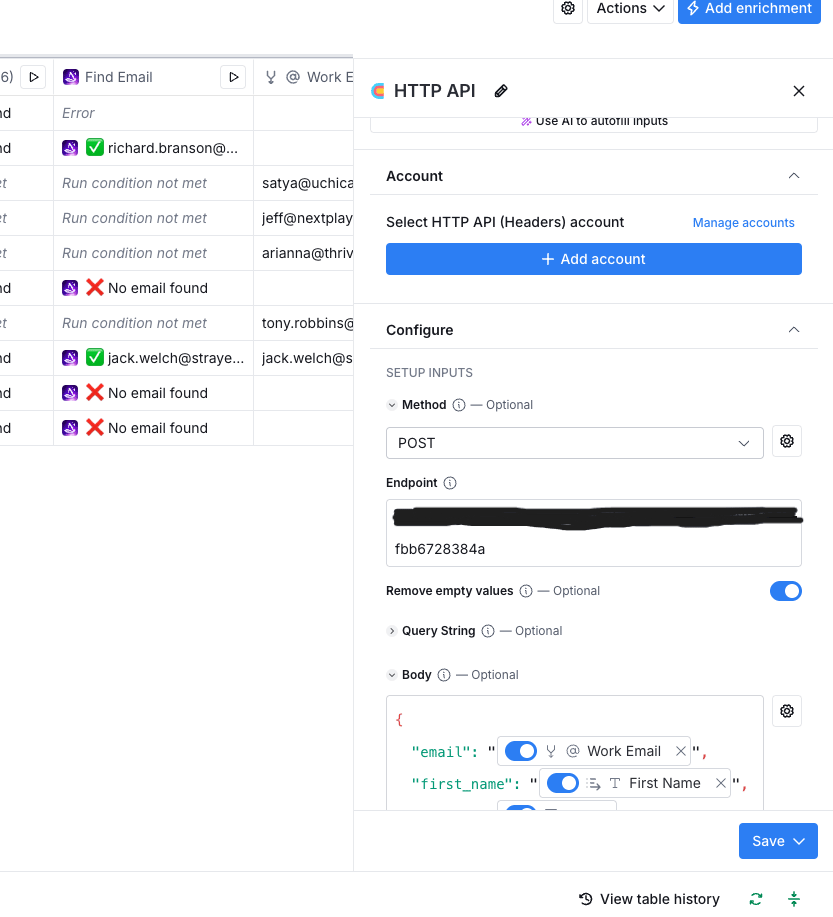
In the integration settings:
- Method:
POST - Endpoint URL:
Inbound Webhook Endpoint here
- Method:
-
Define the JSON body to include the fields you want to send. For example:
- Click Save.
- Run the integration for a sample row to verify it returns a 200 OK response.
Step 4: Verify Incoming Data in Inflection
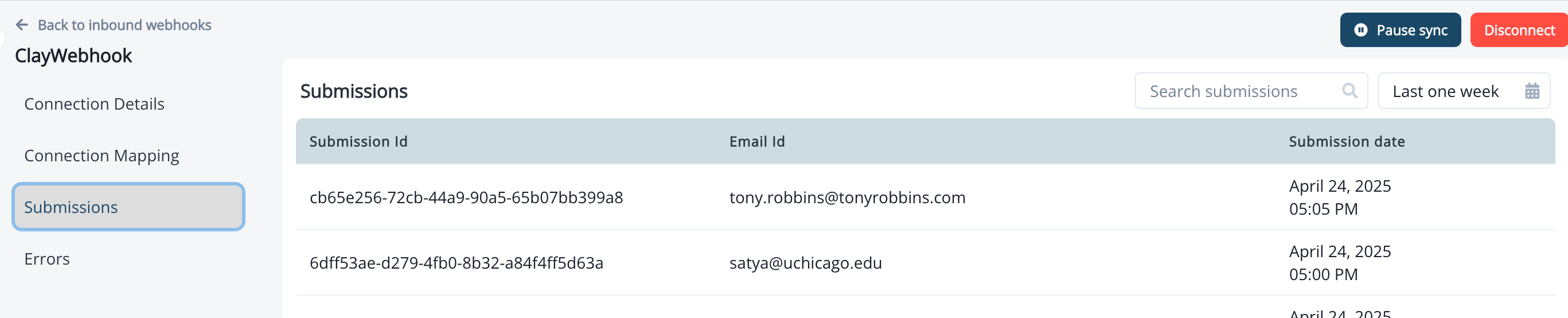
- In Inflection, navigate to Assets → Inbound Webhooks and select your webhook.
-
Go to the Submissions tab.
-
Confirm you see the new submission with
email,firstName, andlastNamerecorded.
Step 5: Extend the Payload with Additional Fields
- Return to Clay’s HTTP API integration settings.
-
Add any new field (e.g.,
company) to the JSON body: - Save and run the integration again.
-
In Inflection’s webhook Contact Mappings, map the new
companyproperty to the contact’s Company field.
Bring Data from Inflection into Clay
Bring Data from Inflection into Clay
Step 1: Generate an Outbound Webhook in Inflection for Clay
- In Inflection, open Assets → Webhooks and create a new webhook
Step 2: Configure Clay to Receive Inflection Data
-
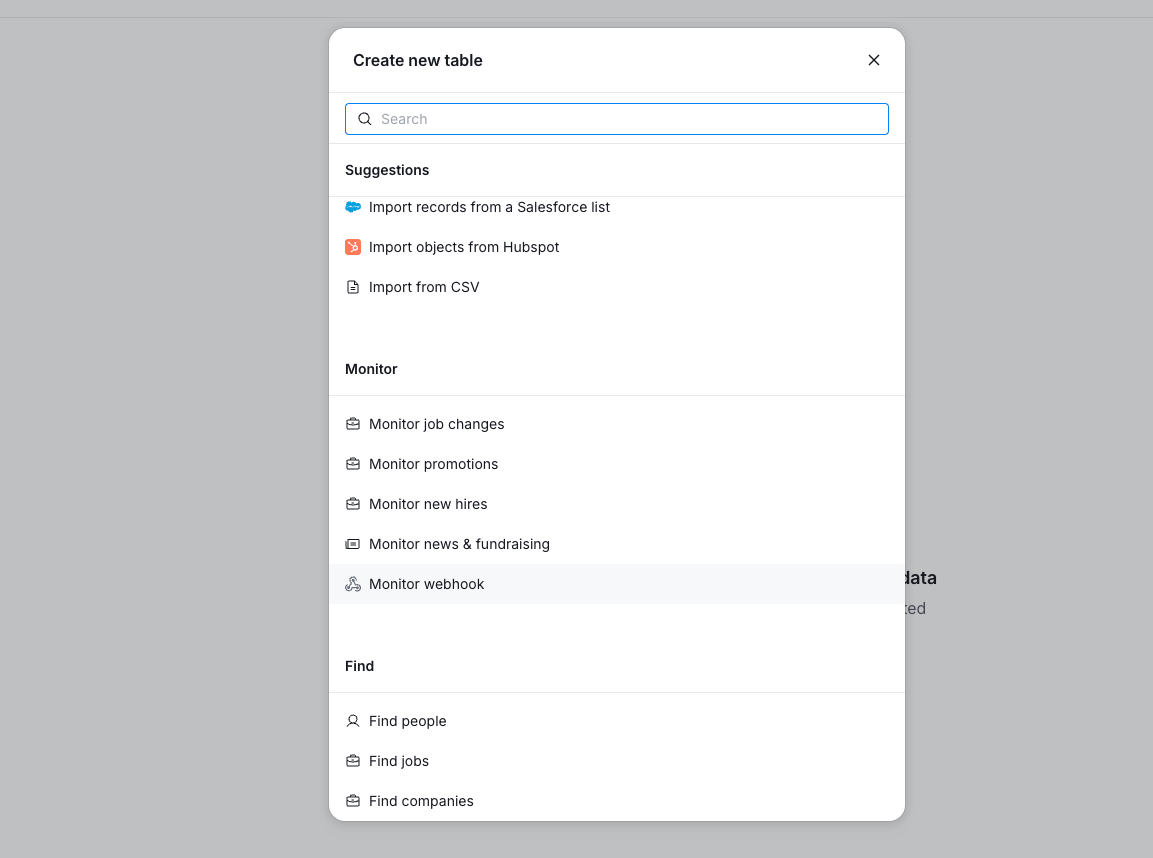
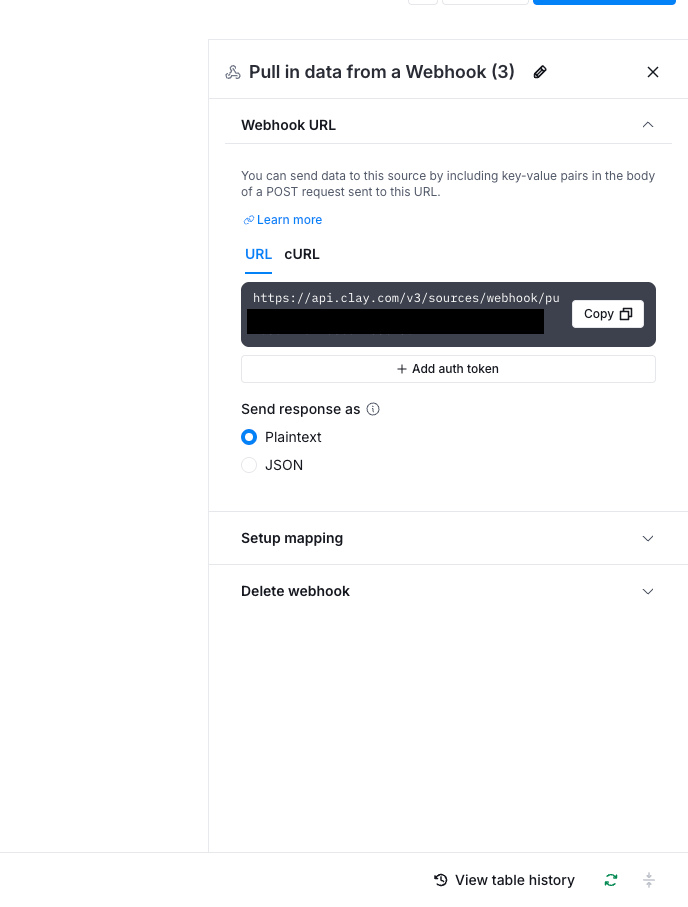
In your Clay table, go to Sources → Webhook and copy the Clay webhook endpoint
-
Paste the Clay webhook URL in the Inflection webhook and configure the webhook with the fields you want to send to Clay
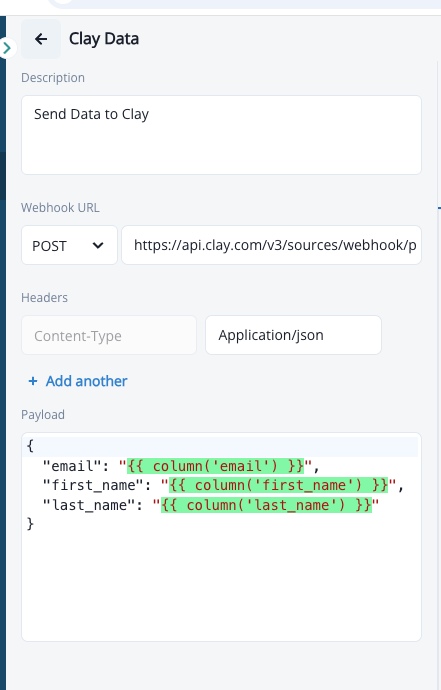
- Click Save.
Step 3: Configure the Journey to Push Data Outbound to Clay
- In Inflection, navigate to Journeys, then open (or create) the Journey you’ll use.
- Define the audience criteria for which records should flow into Clay.
- Add an Webhook step and selected the above created Webhook
- Save your Journey.
Step 4: Run and Verify the Data Sync
- In Inflection, Run the Journey.
- Wait ~1 minute for the webhook to deliver data.
-
In Clay, Refresh your table—you should see new rows for each lead that was sent.
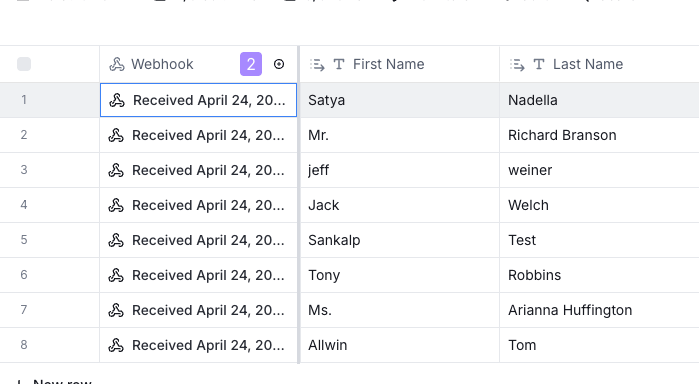
- Add columns in Clay (Email, First Name, Last Name, Company, etc.) to surface the synced data.
Demo Video
Demo Video
References
References