

Creating an Inbound Webhook Connection for Zoom
Creating an Inbound Webhook Connection for Zoom
- Navigate to: Assets → Inbound Webhook
- Click “New Connection”
-
Select Zoom from the list
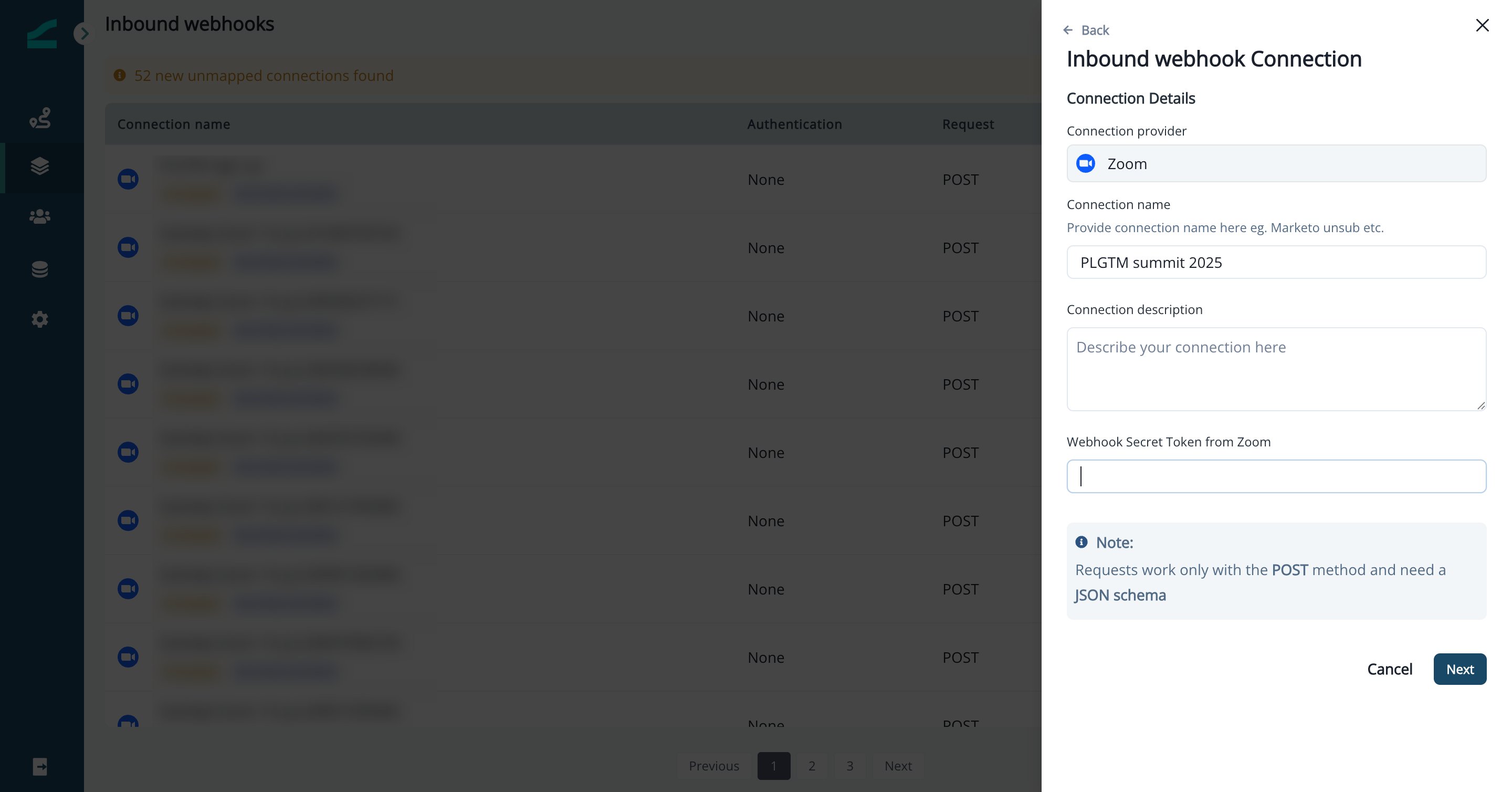
- Provide a Connection Name and optional Description
-
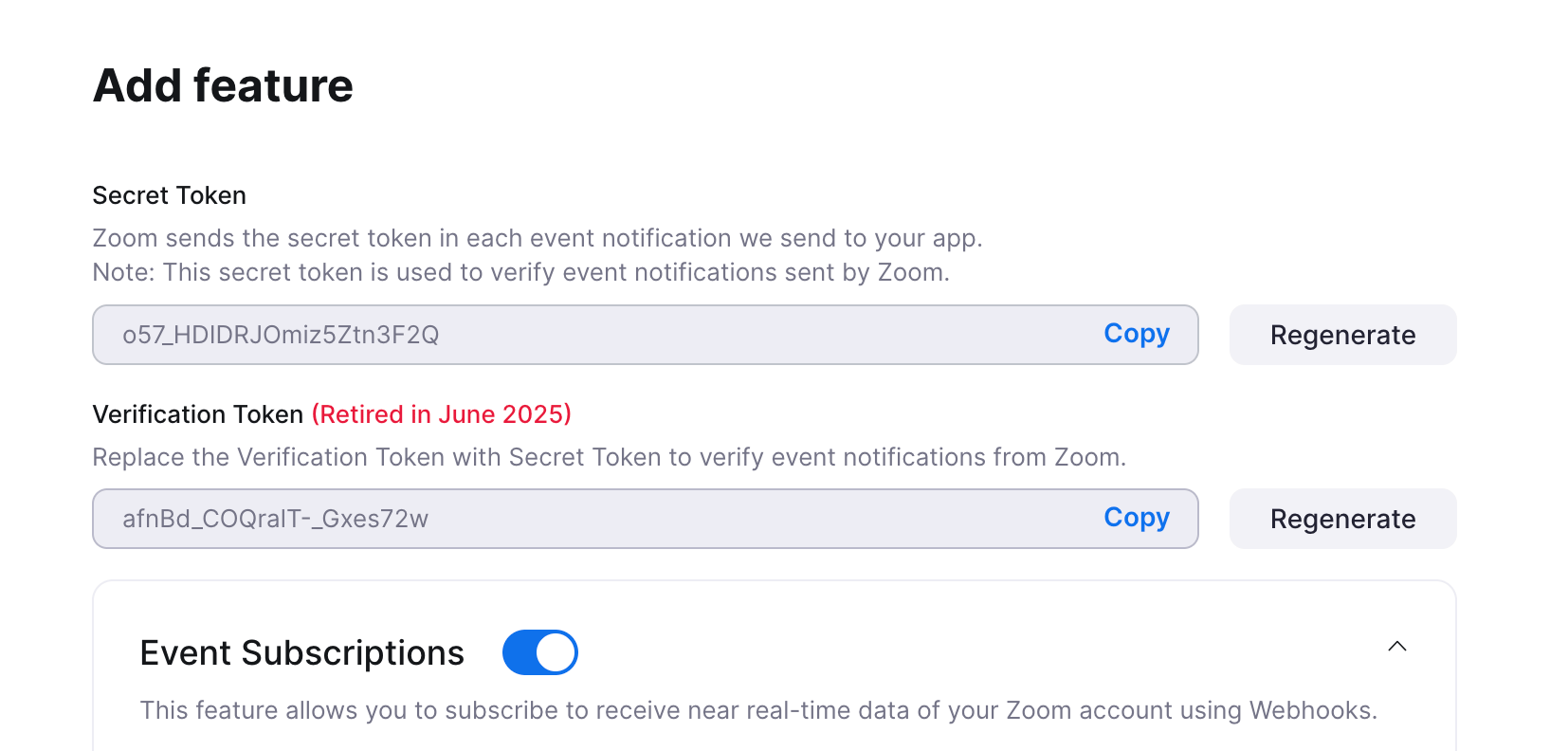
Copy and paste Webhook Secret Token from Zoom app (app creation steps are detailed below)
-
Choose an Authentication Method:
- No Auth
- Basic Auth
- API Key
-
Enable or disable “Create New Contact”:
- ✅ Enabled – A new contact will be created when a new email is received
- ❌ Disabled – Only existing contacts will be updated
- Click “Generate Webhook” to finalize setup
- Copy the Webhook URL and authentication details (if applicable) to be used in Zoom
Zoom Webhook Setup
Zoom Webhook Setup
Step 1: Create an App
- Log in to Zoom → Go to Zoom App Marketplace
- Click “Develop” → “Build App”
- Select Webhook Only as the app type
- Fill in App Name, select an Account Type, and click Create
- In the Feature tab, enable Event Subscriptions
- Click “Add Event Subscription” → Enter a Subscription Name
- Provide your Inflection.io Webhook URL
- Save and Activate the App
Step 2: Configure Event Subscriptions
- Navigate to your app’s Event Subscriptions section
- Click Add Event Subscription
- Name your subscription (e.g., “Inflection Webhook”)
- Paste the Webhook URL from Inflection
Zoom will immediately send a url_validation challenge request — this is handled automatically by Inflection.
- Choose the events to track, such as:
- Webinar Events:
webinar.registration_createdwebinar.participant_joinedwebinar.participant_left
- Meeting Events:
meeting.participant_joinedmeeting.participant_leftmeeting.registration_created
- Webinar Events:
- Save the configuration
Challenge-Response Support
When Zoom sends aurl_validation payload, Inflection will:- Automatically extract the
plainToken - Generate the required
encryptedToken - Respond with both, as required by Zoom
You don’t need to handle this manually — Inflection’s backend does it for you.
Connection Details & Field Mapping
Connection Details & Field Mapping
View Submissions
- Monitor submission counts and errors from the Connection Details page
Step 1: Enable Submission Fields
- Go to the Submission Fields tab
- Click Edit
- Enable required fields (e.g.,
email,topic,join_time, etc.)
Step 2: Map Fields to Contact Properties
- Open the Connection Mapping tab
- Click Edit
- Map fields from Zoom payloads to Inflection contact properties:
- Required: Email
- Optional: Topic, Join Time, Leave Time, Duration
- Choose mapping rules:
- Update if Empty
- Always Overwrite
Using Zoom Data in Journeys
Using Zoom Data in Journeys
Target Contacts Based on Zoom Activity
- Go to: Journeys → Create New Journey
- Add a condition:
Performed a Marketing Activity → Inbound Webhook Sync - Filter contacts based on:
- Webhook name = Zoom
- Event type = joined/left
Personalise Communication with Tokens
Use Zoom fields to personalize outreach:{{topic}}– Topic of the webinar{{joinTime}}– Timestamp{{duration}}– Time spent in the session
- Send follow-ups to attendees
- Nurture leads who registered but didn’t attend
- Trigger surveys post-meeting
Segment Using Branch by Filter
- Route users differently based on:
- Whether they joined a session
- How long they stayed
- Session type (internal onboarding vs customer webinar)
References
References